turn signal GMC CANYON 2017 User Guide
[x] Cancel search | Manufacturer: GMC, Model Year: 2017, Model line: CANYON, Model: GMC CANYON 2017Pages: 417, PDF Size: 5.36 MB
Page 109 of 417
GMC Canyon Owner Manual (GMNA-Localizing-U.S./Canada-10122677) -
2017 - crc - 1/20/17
108 Instruments and Controls
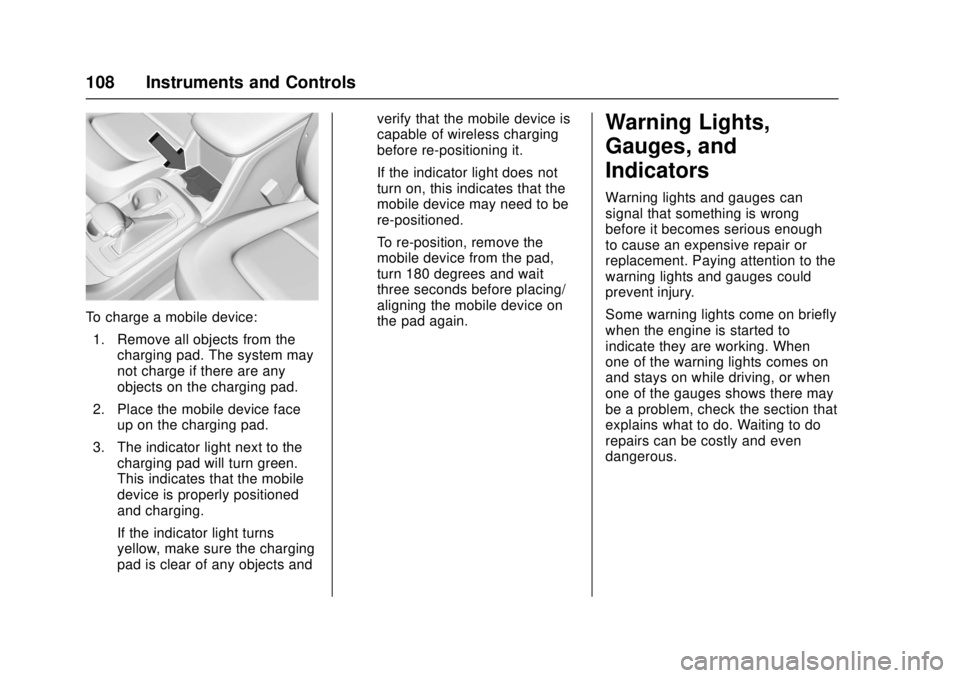
To charge a mobile device:1. Remove all objects from the charging pad. The system may
not charge if there are any
objects on the charging pad.
2. Place the mobile device face up on the charging pad.
3. The indicator light next to the charging pad will turn green.
This indicates that the mobile
device is properly positioned
and charging.
If the indicator light turns
yellow, make sure the charging
pad is clear of any objects and verify that the mobile device is
capable of wireless charging
before re-positioning it.
If the indicator light does not
turn on, this indicates that the
mobile device may need to be
re-positioned.
To re-position, remove the
mobile device from the pad,
turn 180 degrees and wait
three seconds before placing/
aligning the mobile device on
the pad again.
Warning Lights,
Gauges, and
Indicators
Warning lights and gauges can
signal that something is wrong
before it becomes serious enough
to cause an expensive repair or
replacement. Paying attention to the
warning lights and gauges could
prevent injury.
Some warning lights come on briefly
when the engine is started to
indicate they are working. When
one of the warning lights comes on
and stays on while driving, or when
one of the gauges shows there may
be a problem, check the section that
explains what to do. Waiting to do
repairs can be costly and even
dangerous.
Page 122 of 417
GMC Canyon Owner Manual (GMNA-Localizing-U.S./Canada-10122677) -
2017 - crc - 1/20/17
Instruments and Controls 121
If equipped, the Hill Descent Control
light comes on when the system is
ready for use. When the light
flashes, the system is active.
SeeHill Descent Control (HDC)
0 255.
Lane Departure Warning
(LDW) Light
If equipped, this light comes on
briefly while starting the vehicle. If it
does not come on, have the vehicle
serviced.
This light is green if LDW is on and
ready to operate.
This light changes to amber and
flashes to indicate that the lane
marking has been crossed without
using a turn signal in that direction.
See Lane Departure Warning (LDW)
0 261.
Vehicle Ahead Indicator
If equipped, this indicator will
display green when a vehicle is
detected ahead and amber when
you are following a vehicle ahead
much too closely.
See Forward Collision Alert (FCA)
System 0260.
Traction Off Light
This light comes on briefly while
starting the engine. If it does not,
have the vehicle serviced by your dealer. If the system is working
normally, the indicator light then
turns off.
The traction off light comes on when
the Traction Control System (TCS)
has been turned off by pressing and
releasing the TCS/StabiliTrak
button.
This light and the StabiliTrak OFF
light come on when StabiliTrak is
turned off.
If the TCS is off, wheel spin is not
limited. Adjust driving accordingly.
See
Traction Control/Electronic
Stability Control 0253.
StabiliTrak OFF Light
This light comes on briefly while
starting the engine. If it does not,
have the vehicle serviced by your
dealer.
Page 126 of 417
GMC Canyon Owner Manual (GMNA-Localizing-U.S./Canada-10122677) -
2017 - crc - 1/20/17
Instruments and Controls 125
Door Ajar Light (Uplevel
Cluster)
This light comes on when a door is
open or not securely latched. Before
driving, check that all doors are
properly closed.
Information Displays
Driver Information Center
(DIC) (Base Level)
The DIC displays information about
your vehicle. It also displays
warning messages if a system
problem is detected. SeeVehicle
Messages 0131. All messages
appear in the DIC display in the
center of the instrument cluster.
DIC Operation and Displays
The DIC has different displays
which can be accessed by using the
DIC buttons on the turn signal lever.
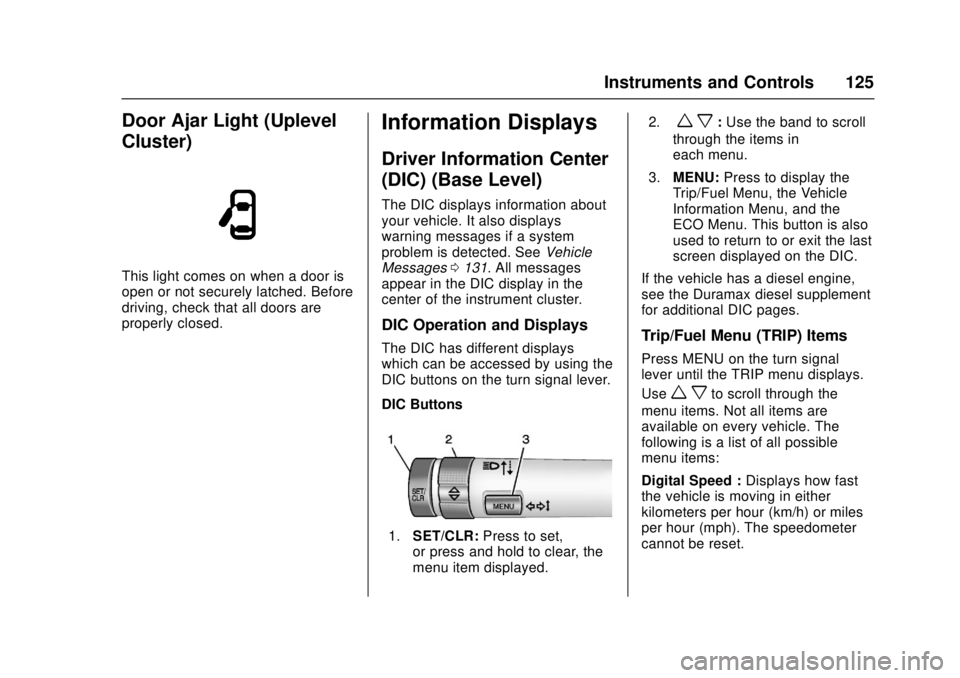
DIC Buttons
1. SET/CLR: Press to set,
or press and hold to clear, the
menu item displayed. 2.
w x:
Use the band to scroll
through the items in
each menu.
3. MENU: Press to display the
Trip/Fuel Menu, the Vehicle
Information Menu, and the
ECO Menu. This button is also
used to return to or exit the last
screen displayed on the DIC.
If the vehicle has a diesel engine,
see the Duramax diesel supplement
for additional DIC pages.
Trip/Fuel Menu (TRIP) Items
Press MENU on the turn signal
lever until the TRIP menu displays.
Use
w xto scroll through the
menu items. Not all items are
available on every vehicle. The
following is a list of all possible
menu items:
Digital Speed : Displays how fast
the vehicle is moving in either
kilometers per hour (km/h) or miles
per hour (mph). The speedometer
cannot be reset.
Page 127 of 417
GMC Canyon Owner Manual (GMNA-Localizing-U.S./Canada-10122677) -
2017 - crc - 1/20/17
126 Instruments and Controls
Trip 1 or Trip 2, Average Fuel
Economy :Displays the current
distance traveled, in either
kilometers (km) or miles (mi), from
the last reset for the trip odometer.
The trip odometer can be reset to
zero by pressing and holding the
SET/CLR button while the trip
odometer display is showing.
Also displays the approximate
average liters per 100 kilometers
(L/100 km) or miles per gallon
(mpg). This number is based on the
number of L/100 km (mpg) recorded
since the last time this menu item
was reset. This number reflects only
the approximate average fuel
economy that the vehicle has right
now, and will change as driving
conditions change. Reset the
average consumption by pressing
SET/CLR when it is displayed.
Fuel Range : Displays the
approximate distance the vehicle
can be driven without refueling. The
fuel range estimate is based on an
average of the vehicle's fuel
economy over recent driving history and the amount of fuel remaining in
the fuel tank. Fuel range cannot be
reset.
Average Vehicle Speed :
Displays
the average vehicle speed of the
vehicle in kilometers per hour (km/h)
or miles per hour (mph). This
average is based on the various
vehicle speeds recorded since the
last reset. Reset the average speed
by pressing SET/CLR when it is
displayed.
Timer : To start the timer, press
SET/CLR while Timer is displayed.
The display will show the amount of
time that has passed since the timer
was last reset, not including time the
ignition is off. Time will continue to
be counted as long as the ignition is
on, even if another display is being
shown on the DIC. The timer will
record up to 99 hours, 59 minutes,
and 59 seconds (99:59:59) after
which the display will return to zero.
To stop the timer, press SET/CLR
briefly while Timer is displayed. To
reset the timer to zero, press and
hold SET/CLR. Navigation :
Used for the OnStar
Turn-by-Turn guidance. See OnStar
Overview 0395.
Blank Display : Displays no
information.
Vehicle Information Menu
(VEHICLE) Items
Press MENU on the turn signal
lever until the VEHICLE menu is
displayed. Use
w xto scroll
through the menu items. Not all
items are available on every vehicle.
The following is a list of all possible
menu items:
Remaining Oil Life : Displays an
estimate of the oil's remaining useful
life. If REMAINING OIL LIFE 99% is
displayed, that means 99% of the
current oil life remains.
When the remaining oil life is low,
the CHANGE ENGINE OIL SOON
message will appear on the display.
See Engine Oil Messages 0133.
The oil should be changed as soon
as possible. See Engine Oil0284.
In addition to the engine oil life
system monitoring the oil life,
additional maintenance is
Page 128 of 417
GMC Canyon Owner Manual (GMNA-Localizing-U.S./Canada-10122677) -
2017 - crc - 1/20/17
Instruments and Controls 127
recommended in the Maintenance
Schedule in this manual. See
Maintenance Schedule0364.
The Oil Life display must be reset
after each oil change. Do not reset
the Oil Life display accidentally at
any time other than when the oil has
just been changed. It cannot be
reset accurately until the next oil
change. To reset the engine oil life
system, see Engine Oil Life System
0 286.
Oil Pressure : Oil pressure is
displayed in either kilopascal (kPa)
or in pounds per square inch (psi).
Tire Pressure : Displays a vehicle
with the approximate pressures of
all four tires. Tire pressure is
displayed in either kilopascal (kPa)
or in pounds per square inch (psi).
See Tire Pressure Monitor System
0 323 andTire Pressure Monitor
Operation 0324.
Battery Voltage : Displays the
current battery voltage, if equipped.
Battery voltage changes are normal
while driving. See Charging System
Light 0117. If there is a problem
with the battery charging system, the DIC will display a message. See
Battery Voltage and Charging
Messages
0131.
Engine Hours : Shows the total
number of hours the engine has run.
Transmission Fluid
Temperature : Shows the
temperature of the automatic
transmission fluid in either degrees
Celsius (°C) or degrees
Fahrenheit (°F).
Trailer Brake (If Equipped) :
TRAILER GAIN shows the trailer
gain setting. This setting can be
adjusted from 0.0 to 10.0 with either
a trailer connected or disconnected.
OUTPUT shows the power output to
the trailer anytime a trailer with
electric brakes is connected. Output
is displayed as a bar graph. Dashes
may appear in the OUTPUT display
if a trailer is not connected.
Units : Move
w xto change
between Metric or US when the Unit
display is active. Press SET/CLR to
confirm the setting. This will change
the displays on the DIC to the type
of measurements you select.
ECO Drive Assist Menu (ECO)
Items
This menu is only available on some
vehicles. Press MENU on the turn
signal lever until the ECO menu is
displayed. Use
w xto scroll
through the menu items. Not all
items are available on every vehicle.
The following is a list of all possible
menu items:
Best Average Fuel Economy : The
bottom displays the best average
fuel economy (AFE) that is achieved
for a selected distance. The top
displays a running average of fuel
economy for the most recently
traveled selected distance. The
center bar graph displays the
instantaneous fuel economy.
Quickly press the SET/CLR button
to change the settings for the
distance options.
When viewing best AFE, a several
second press and hold of SET/CLR
will reset the best value. The best
value will show “- - -“until the
selected distance has been
traveled.
Page 135 of 417
GMC Canyon Owner Manual (GMNA-Localizing-U.S./Canada-10122677) -
2017 - crc - 1/20/17
134 Instruments and Controls
accelerate. If this message is on,
but there is no reduction in
performance, proceed to your
destination. The performance may
be reduced the next time the vehicle
is driven. The vehicle may be driven
at a reduced speed while this
message is on, but acceleration and
speed may be reduced. Anytime
this message stays on, or displays
repeatedly, the vehicle should be
taken to your dealer for service as
soon as possible.
Fuel System Messages
FUEL LEVEL LOW
This message displays when the
vehicle is low on fuel. Refuel as
soon as possible.
Key and Lock Messages
REPLACE BATTERY IN
REMOTE KEY
This message displays if a Remote
Keyless Entry (RKE) transmitter
battery is low. The battery needs to
be replaced in the transmitter. See“Battery Replacement”
under
Remote Keyless Entry (RKE)
System Operation 029.
Lamp Messages
TURN SIGNAL ON
This message displays and a chime
sounds if a turn signal is left on for
1.2 km (0.75 mi). Move the turn
signal lever to the off position.
Object Detection System
Messages
FORWARD COLLISION
ALERT OFF
If your vehicle has the Forward
Collision Alert (FCA) system, this
message may display if the FCA
system cannot activate due to a
temporary condition. See Forward
Collision Alert (FCA) System 0260.
FRONT CAMERA BLOCKED,
CLEAN WINDSHIELD
This message displays when the
Lane Departure Warning (LDW) and
Forward Collision Alert (FCA) systems are disabled because the
camera view is blocked and cannot
operate properly. It may also
activate during heavy rain or due to
road spray. To clean the system,
clean the outside of the windshield
area in front of the LDW/FCA
camera sensor.
LANE DEPARTURE SYSTEM
UNAVAILABLE
If your vehicle has the Lane
Departure Warning (LDW) system,
this message may display if the
LDW system cannot activate due to
a temporary condition. See
Lane
Departure Warning (LDW) 0261 for
more information.
SERVICE FRONT CAMERA
This message displays when the
Lane Departure Warning (LDW) and
Forward Collision Alert (FCA)
systems are disabled and need
service. See your dealer.
Page 146 of 417
GMC Canyon Owner Manual (GMNA-Localizing-U.S./Canada-10122677) -
2017 - crc - 1/20/17
Lighting 145
Lighting
Exterior Lighting
Exterior Lamp Controls . . . . . . . 145
Exterior Lamps OffReminder . . . . . . . . . . . . . . . . . . . 146
Headlamp High/Low-Beam Changer . . . . . . . . . . . . . . . . . . . . 146
Flash-to-Pass . . . . . . . . . . . . . . . . 146
Daytime Running Lamps (DRL) . . . . . . . . . . . . . . . 146
Automatic Headlamp System . . . . . . . . . . . . . . . . . . . . . . 147
Hazard Warning Flashers . . . . . 148
Turn and Lane-Change Signals . . . . . . . . . . . . . . . . . . . . . . 148
Fog Lamps . . . . . . . . . . . . . . . . . . . 148
Interior Lighting
Instrument Panel Illumination Control . . . . . . . . . . . . . . . . . . . . . . 149
Cargo Lamp . . . . . . . . . . . . . . . . . . 149
Dome Lamps . . . . . . . . . . . . . . . . . 150
Reading Lamps . . . . . . . . . . . . . . 150
Lighting Features
Entry Lighting . . . . . . . . . . . . . . . . 150
Exit Lighting . . . . . . . . . . . . . . . . . . 150
Battery Load Management . . . 151
Battery Power Protection . . . . . 151
Exterior Lighting
Exterior Lamp Controls
The exterior lamp control is on the
instrument panel to the left of the
steering wheel.
O: Turns off the automatic
headlamps and Daytime Running
Lamps (DRL). Turn the headlamp
control to the off position again to
turn the automatic headlamps or
DRL back on.
For vehicles first sold in Canada, off
will only work when the vehicle is in
P (Park). AUTO :
Automatically turns on the
headlamps at normal brightness,
together with the following:
. Parking Lamps
. Instrument Panel Lights
. Taillamps
. License Plate Lamps
. Front/Rear Sidemarker Lamps
When the vehicle is turned off and
the headlamps are in AUTO, the
headlamps turn off. When the key is
removed, they automatically turn on
for a set time. The time of the delay
can be changed using the DIC.
See Driver Information Center (DIC)
(Base Level) 0125 orDriver
Information Center (DIC) (Uplevel)
0 128.
;:Turns on the parking lamps
including all lamps, except the
headlamps.
2: Turns on the headlamps
together with the parking lamps and
instrument panel lights.
When the headlamps are turned on
while the vehicle is on, the
headlamps turn off automatically
Page 147 of 417
GMC Canyon Owner Manual (GMNA-Localizing-U.S./Canada-10122677) -
2017 - crc - 1/20/17
146 Lighting
10 minutes after the ignition is
turned off. When the headlamps are
turned on while the vehicle is off,
the headlamps will stay on for
10 minutes before turning off to
prevent the battery from being
drained. Turn the headlamp control
off and then back to the headlamp
on position to make the headlamps
stay on for an additional 10 minutes.
To keep the lamps on for more than
10 minutes, the ignition must be in
the ACC/ACCESSORY or ON/RUN
position.
#:If equipped, it turns on the fog
lamps. See Fog Lamps0148.
Exterior Lamps Off
Reminder
A reminder chime sounds when the
headlamps or parking lamps are
manually turned on, the ignition is
off, and a door is open. To disable
the chime, turn the lamps off.
Headlamp High/
Low-Beam Changer
Push the turn signal lever toward
the instrument panel to change the
headlamps from low to high beam.
Pull the turn signal lever toward you
and release it to return to low-beam
headlamps.
When the high-beam headlamps are
on, this indicator light on the
instrument cluster will also be on.
Flash-to-Pass
This feature lets you use the
high-beam headlamps to signal a
driver in front of you that you want
to pass. It works even if the
headlamps are in the automatic
position.
To use it, pull the turn signal lever
toward you, then release it. If the headlamps are in the
automatic position or on low beam,
the high-beam headlamps will turn
on. They will stay on as long as you
hold the lever toward you. The
high-beam indicator on the
instrument cluster will come on.
Release the lever to return to
normal operation.
Daytime Running
Lamps (DRL)
DRL can make it easier for others to
see the front of the vehicle during
the day. Fully functional DRL are
required on all vehicles first sold in
Canada.
The DRL system comes on when
the following conditions are met:
.
The ignition is on.
. The exterior lamp control is
in AUTO.
. The transmission is not in
P (Park).
. The light sensor determines it is
daytime.
Page 149 of 417
GMC Canyon Owner Manual (GMNA-Localizing-U.S./Canada-10122677) -
2017 - crc - 1/20/17
148 Lighting
Hazard Warning Flashers
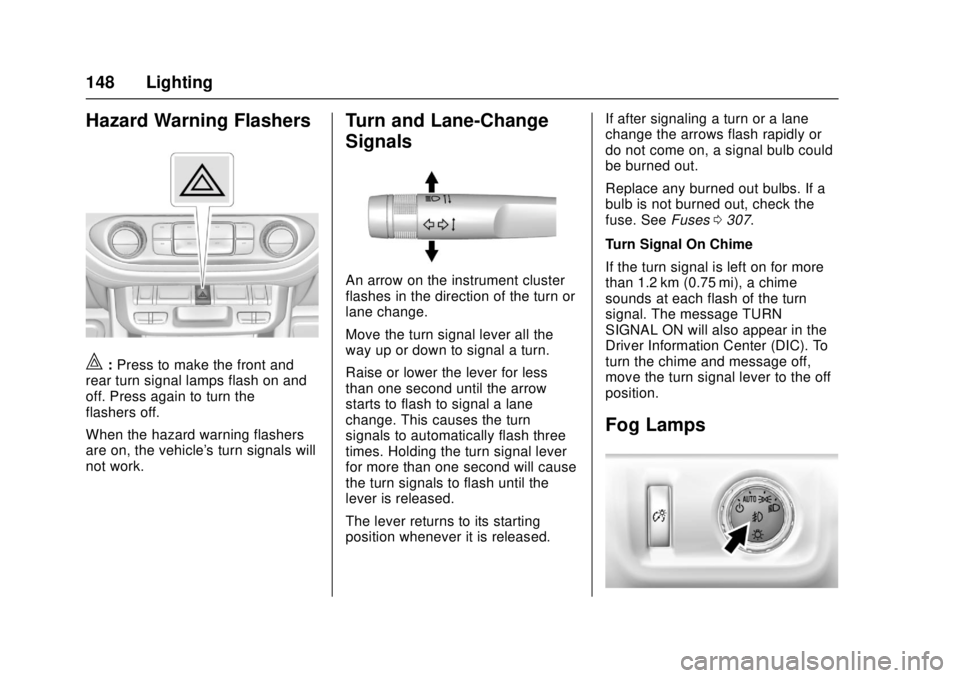
|:Press to make the front and
rear turn signal lamps flash on and
off. Press again to turn the
flashers off.
When the hazard warning flashers
are on, the vehicle's turn signals will
not work.
Turn and Lane-Change
Signals
An arrow on the instrument cluster
flashes in the direction of the turn or
lane change.
Move the turn signal lever all the
way up or down to signal a turn.
Raise or lower the lever for less
than one second until the arrow
starts to flash to signal a lane
change. This causes the turn
signals to automatically flash three
times. Holding the turn signal lever
for more than one second will cause
the turn signals to flash until the
lever is released.
The lever returns to its starting
position whenever it is released. If after signaling a turn or a lane
change the arrows flash rapidly or
do not come on, a signal bulb could
be burned out.
Replace any burned out bulbs. If a
bulb is not burned out, check the
fuse. See
Fuses0307.
Turn Signal On Chime
If the turn signal is left on for more
than 1.2 km (0.75 mi), a chime
sounds at each flash of the turn
signal. The message TURN
SIGNAL ON will also appear in the
Driver Information Center (DIC). To
turn the chime and message off,
move the turn signal lever to the off
position.
Fog Lamps
Page 166 of 417
GMC Canyon Owner Manual (GMNA-Localizing-U.S./Canada-10122677) -
2017 - crc - 1/20/17
Infotainment System 165
2. Touch the preset button tolisten to the channel saved to
that button.
Using the SiriusXM Menu
Operation
1. Touch MENU on the SXM infotainment display.
2. Touch the menu to select the desired item or to display the
detail menu item.
3. Touch
0to return to the
previous menu.
Channel List 1. Touch SXM Channel List from the SXM menu. The channel
list is displayed.
2. Touch
QorRto find the
desired channel. Tune to the
channel by selecting it.
Tone Settings
From the tone settings menu, the
sound features can be set up for
SiriusXM audio and each audio
player ’s functions. 1. Touch Tone Settings. The tone
settings screen is displayed.
See “Tone Settings” under
“Base Radio with Touchscreen”
in AM-FM Radio (Base Radio)
0 160 orAM-FM Radio (Base
Radio with Touchscreen)
0 162.
2. Touch OK.
Auto Volume 1. Touch Auto Volume. See “Auto
Volume” under“Base Radio
with Touchscreen” inAM-FM
Radio (Base Radio) 0160 or
AM-FM Radio (Base Radio with
Touchscreen) 0162.
2. Touch OK.
Categories 1. Touch Categories.
2. Touch
QorRto find the
desired category. Touch the
category to select it. Explicit Content Filter
When on, only a filtered list of
channels will be received. When off,
all regular SXM programming
subscribed to will be received.
1. Touch SXM Explicit Filter.
2. Select On or Off.
Radio Reception
Frequency interference and static
can occur during normal radio
reception if items such as cell phone
chargers, vehicle convenience
accessories, and external electronic
devices are plugged into the
accessory power outlet. If there is
interference or static, unplug the
item from the accessory power
outlet.
FM
FM signals only reach about 16 to
65 km (10 to 40 mi). Although the
radio has a built-in electronic circuit
that automatically works to reduce
interference, some static can occur,
especially around tall buildings or
hills, causing the sound to fade in
and out.