key GMC CANYON 2017 Owner's Guide
[x] Cancel search | Manufacturer: GMC, Model Year: 2017, Model line: CANYON, Model: GMC CANYON 2017Pages: 417, PDF Size: 5.36 MB
Page 142 of 417
GMC Canyon Owner Manual (GMNA-Localizing-U.S./Canada-10122677) -
2017 - crc - 1/20/17
Instruments and Controls 141
.Auto Door Unlock
. Delayed Door Lock
Unlocked Door Anti-Lockout
When on, this feature will keep the
driver door from locking when the
door is open. If Off is selected, the
Delayed Door Lock menu will be
available.
Select Off or On.
Auto Door Unlock
This allows selection of which of the
doors will automatically unlock when
the vehicle is shifted into P (Park)
for an automatic transmission or
when the key is removed from the
ignition for a manual transmission.
Select Off, All Doors, or Driver Door.
Delayed Door Lock
When on, this feature will delay the
locking of the doors. To override the
delay, press the power door lock
switch on the door.
Select Off or On.Remote Lock, Unlock, Start
Select and the following may
display:
. Remote Unlock Light Feedback
. Remote Lock Feedback
. Remote Door Unlock
. Remote Start Auto Cool Seats
. Remote Start Auto Heat Seats
Remote Unlock Light Feedback
When on, the exterior lamps will
flash when unlocking the vehicle
with the RKE transmitter.
Select Off or Flash Lights.
Remote Lock Feedback
This allows selection of what type of
feedback is given when locking the
vehicle with the RKE transmitter.
Select Off, Lights and Horn, Lights
Only, or Horn Only.
Remote Door Unlock
This allows selection of which doors
will unlock when pressing
Kon the
RKE transmitter. Select All Doors or Driver Door.
Remote Start Auto Cool Seats
If equipped and turned on, this
feature will turn the ventilated seats
on when using remote start on
warm days. See
Heated and
Ventilated Front Seats 047.
Select Off or On.
Remote Start Auto Heat Seats
If equipped and turned on, this
feature will turn the heated seats on
when using remote start on
cold days. See Heated and
Ventilated Front Seats 047.
Select Off or On.
Bluetooth
Select and the following may
display:
. Pair New Device
. Device Management
. Ringtones
. Voice Mail Numbers
. Text Message Alerts
Page 146 of 417
GMC Canyon Owner Manual (GMNA-Localizing-U.S./Canada-10122677) -
2017 - crc - 1/20/17
Lighting 145
Lighting
Exterior Lighting
Exterior Lamp Controls . . . . . . . 145
Exterior Lamps OffReminder . . . . . . . . . . . . . . . . . . . 146
Headlamp High/Low-Beam Changer . . . . . . . . . . . . . . . . . . . . 146
Flash-to-Pass . . . . . . . . . . . . . . . . 146
Daytime Running Lamps (DRL) . . . . . . . . . . . . . . . 146
Automatic Headlamp System . . . . . . . . . . . . . . . . . . . . . . 147
Hazard Warning Flashers . . . . . 148
Turn and Lane-Change Signals . . . . . . . . . . . . . . . . . . . . . . 148
Fog Lamps . . . . . . . . . . . . . . . . . . . 148
Interior Lighting
Instrument Panel Illumination Control . . . . . . . . . . . . . . . . . . . . . . 149
Cargo Lamp . . . . . . . . . . . . . . . . . . 149
Dome Lamps . . . . . . . . . . . . . . . . . 150
Reading Lamps . . . . . . . . . . . . . . 150
Lighting Features
Entry Lighting . . . . . . . . . . . . . . . . 150
Exit Lighting . . . . . . . . . . . . . . . . . . 150
Battery Load Management . . . 151
Battery Power Protection . . . . . 151
Exterior Lighting
Exterior Lamp Controls
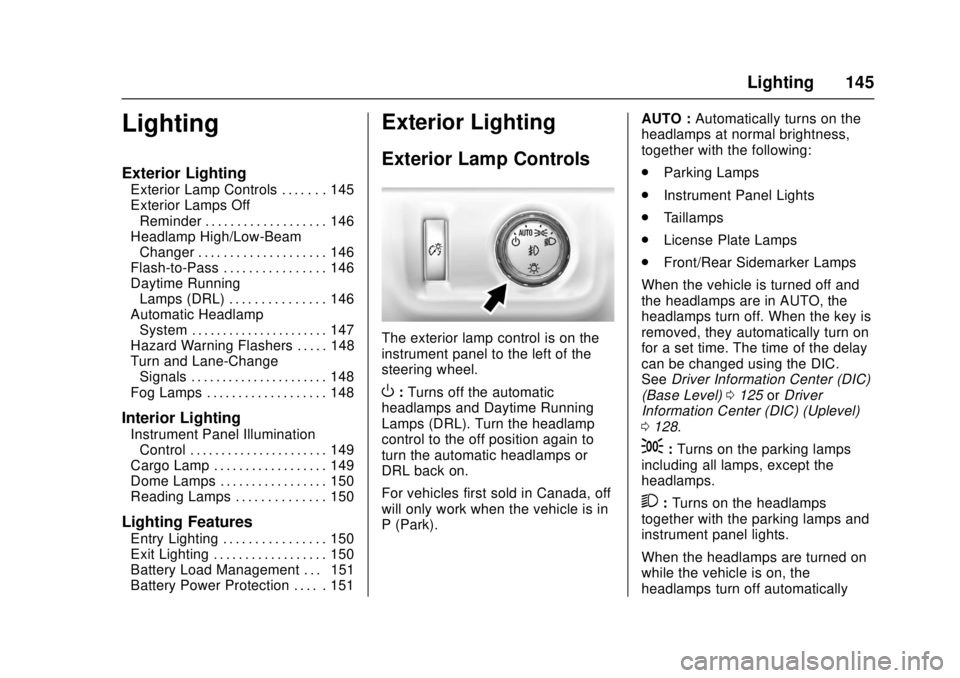
The exterior lamp control is on the
instrument panel to the left of the
steering wheel.
O: Turns off the automatic
headlamps and Daytime Running
Lamps (DRL). Turn the headlamp
control to the off position again to
turn the automatic headlamps or
DRL back on.
For vehicles first sold in Canada, off
will only work when the vehicle is in
P (Park). AUTO :
Automatically turns on the
headlamps at normal brightness,
together with the following:
. Parking Lamps
. Instrument Panel Lights
. Taillamps
. License Plate Lamps
. Front/Rear Sidemarker Lamps
When the vehicle is turned off and
the headlamps are in AUTO, the
headlamps turn off. When the key is
removed, they automatically turn on
for a set time. The time of the delay
can be changed using the DIC.
See Driver Information Center (DIC)
(Base Level) 0125 orDriver
Information Center (DIC) (Uplevel)
0 128.
;:Turns on the parking lamps
including all lamps, except the
headlamps.
2: Turns on the headlamps
together with the parking lamps and
instrument panel lights.
When the headlamps are turned on
while the vehicle is on, the
headlamps turn off automatically
Page 151 of 417
GMC Canyon Owner Manual (GMNA-Localizing-U.S./Canada-10122677) -
2017 - crc - 1/20/17
150 Lighting
Dome Lamps
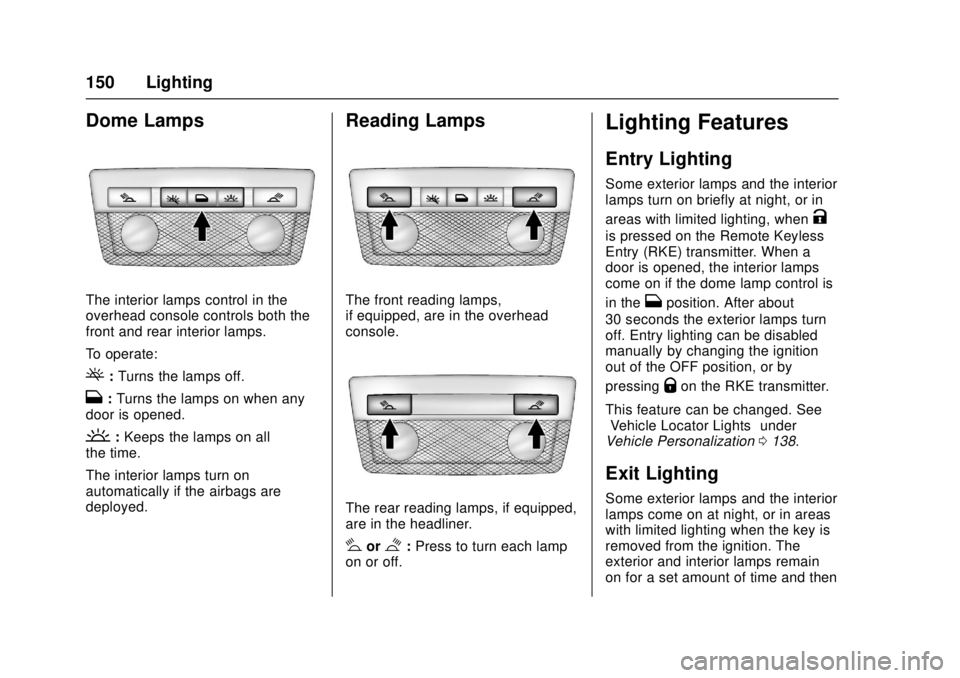
The interior lamps control in the
overhead console controls both the
front and rear interior lamps.
To operate:
(:Turns the lamps off.
H: Turns the lamps on when any
door is opened.
': Keeps the lamps on all
the time.
The interior lamps turn on
automatically if the airbags are
deployed.
Reading Lamps
The front reading lamps,
if equipped, are in the overhead
console.
The rear reading lamps, if equipped,
are in the headliner.
#or$: Press to turn each lamp
on or off.
Lighting Features
Entry Lighting
Some exterior lamps and the interior
lamps turn on briefly at night, or in
areas with limited lighting, when
K
is pressed on the Remote Keyless
Entry (RKE) transmitter. When a
door is opened, the interior lamps
come on if the dome lamp control is
in the
Hposition. After about
30 seconds the exterior lamps turn
off. Entry lighting can be disabled
manually by changing the ignition
out of the OFF position, or by
pressing
Qon the RKE transmitter.
This feature can be changed. See
“Vehicle Locator Lights” under
Vehicle Personalization 0138.
Exit Lighting
Some exterior lamps and the interior
lamps come on at night, or in areas
with limited lighting when the key is
removed from the ignition. The
exterior and interior lamps remain
on for a set amount of time and then
Page 155 of 417
GMC Canyon Owner Manual (GMNA-Localizing-U.S./Canada-10122677) -
2017 - crc - 1/20/17
154 Infotainment System
Overview (Base Radio)
Infotainment System Overview
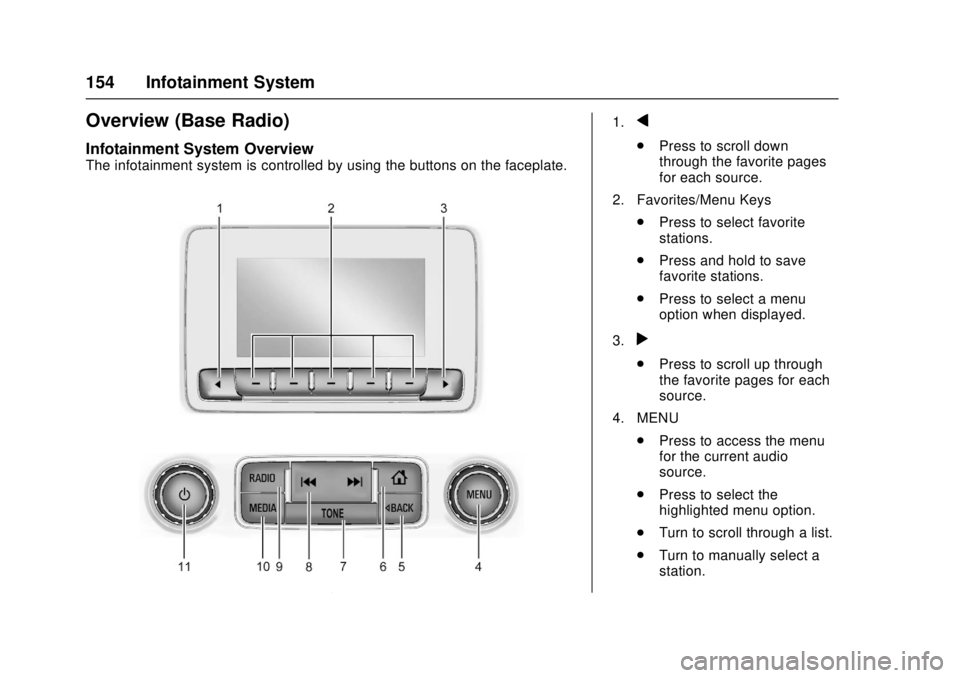
The infotainment system is controlled by using the buttons on the faceplate.
1.q
.Press to scroll down
through the favorite pages
for each source.
2. Favorites/Menu Keys .Press to select favorite
stations.
. Press and hold to save
favorite stations.
. Press to select a menu
option when displayed.
3.
r
. Press to scroll up through
the favorite pages for each
source.
4. MENU .Press to access the menu
for the current audio
source.
. Press to select the
highlighted menu option.
. Turn to scroll through a list.
. Turn to manually select a
station.
Page 159 of 417
GMC Canyon Owner Manual (GMNA-Localizing-U.S./Canada-10122677) -
2017 - crc - 1/20/17
158 Infotainment System
Valet Mode:
Using the circular numeric keypad,
enter a four-digit code:1. Turn the MENU knob to highlight a number.
2. Press the MENU knob to select it. Do this for each one of the
four digits. Select Enter to go to
the confirmation screen.
3. Re-enter the four-digit code. Select LOCK to lock the
system.
4. Enter the four-digit code to unlock the system. Select
o
BACK to go back to the
previous menu.
Radio : See“Radio Setup” later in
this section.
Vehicle : SeeVehicle
Personalization 0138.
Display : Press the MENU knob to
turn the display on or off.
Return to Factory Settings : See
“Return to Factory Settings” later in
this section. Software Information (If
Equipped) :
Press the MENU knob
to select Save Vehicle Info to USB.
Press the MENU knob again to start
downloading the vehicle information
to the USB.
Radio Setup
Press the RADIO button and the
following may display:
Manage Favorites:
. Turn the MENU knob and press
to select a favorite.
.To delete a favorite, press
the menu key just below the
DELETE menu item.
. To move a favorite, press the
menu key just below the
MOVE menu item. Turn the
MENU knob to select a new
location, then press the
menu key just below the
DROP menu item to select
the new location.
. Select
oBACK to go back to
the previous menu. Number of Favorites Shown :
Select Auto and the system will
automatically adjust the number of
favorite pages when favorites are
added and removed, or select a
number from 5–25 to manually
adjust the number of favorites
shown.
Audible Touch Feedback (If
Equipped) :
Select Audible Touch
Feedback to turn feedback off or on.
Auto Volume (If Equipped) : This
feature adjusts the volume based on
vehicle speed. The options are Off,
Low, Medium-Low, Medium,
Medium-High, or High. Select the
desired volume.
Maximum Startup Volume : This
feature sets the maximum startup
volume. If the vehicle is started and
the volume is greater than this level,
the volume is adjusted to this level.
To set the maximum startup volume,
Turn the MENU knob to increase or
decrease.
Rear Camera (If Equipped)
From the Rear Camera menu item,
the following may display:
Page 162 of 417
GMC Canyon Owner Manual (GMNA-Localizing-U.S./Canada-10122677) -
2017 - crc - 1/20/17
Infotainment System 161
.DSP: If equipped with a Bose
Surround®sound system, it will
have three DSP modes
including:
‐ Normal: Adjusts the audio to
provide the best sound for all
seating positions.
‐ Driver: Adjusts the audio to
provide the best sound for the
driver.
‐ Centerpoint: Creates a
surround sound from nearly
any audio source.
. EQ (Equalizer): If equipped with
a Bose sound system, turn the
MENU knob to highlight. Turn
the MENU knob to scroll through
the options. Press the MENU
knob to select. Press the
o
BACK button to go to the
previous menu.
Station List : Select to display a list
of AM or FM stations. Press
o
BACK to go to the previous menu.
Auto Volume : If equipped, this
feature adjusts the volume based on
the vehicle speed. Select the level between Off, Low, Medium-Low,
Medium, Medium-High, and High.
Press
oBACK to go to the
previous menu.
EQ (Equalizer) Settings : In certain
configurations, the available choices
are Manual and Talk.
Options for SXM Only
SXM View : SXM view allows the
channel list to be viewed by channel
name, artist playing on channel,
or song playing on channel. Turn
the MENU knob to highlight and
press the MENU knob to select.
Press
oBACK to go to the
previous menu.
SXM Channel List : Select to
display a list of SXM channels. Turn
the MENU knob to highlight and
press the MENU knob to select.
Press
oBACK to go to the
previous menu.
Also see the radio settings common
for all sources earlier in this section.
Finding a Station
Seeking a Station
Press
gorlto search for the
previous or next strongest station.
Tuning a Station
Turn the MENU knob to manually
find a station.
Storing Radio Station Presets
Up to 25 preset stations from all
bands can be stored in the favorite
lists in any order. Up to five stations
can be stored in each favorite page
and the number of favorites can
be set.
AM, FM, or SXM (If Equipped) :
While on the active source main
page, such as AM, FM, or SXM (if
equipped), press and hold a
favorites/soft key button on the
faceplate.
Mixed-Audio Favorites
Media (if equipped) and Broadcast
favorites can be stored.
To display the favorites page, press
qorron the radio faceplate.
Page 169 of 417
GMC Canyon Owner Manual (GMNA-Localizing-U.S./Canada-10122677) -
2017 - crc - 1/20/17
168 Infotainment System
Advertisement on Pandora
Pandora may display
advertisements. The artist name
and track title will not be displayed
and the skip track button will not be
available.
Pandora Troubleshooting
Unable to Connect Device to
Vehicle
If the device is unable to connect to
the USB or Bluetooth:1. Turn the vehicle off.
2. Take the Remote Keyless Entry (RKE) transmitter at least 6 m
(20 ft) away from the vehicle.
3. Wait about 30 seconds, and try to connect the device again.
See Bluetooth (Overview)
0 186 orBluetooth
(Infotainment Controls - Base
Radio) 0187 orBluetooth
(Voice Recognition) 0191 or
Bluetooth (Infotainment
Controls - Base Radio with
Touchscreen) 0196. Unable to Start Pandora
If the device is unable to launch
Pandora:
.
Check that the latest version of
Pandora is installed.
. Check that there is an active
account logged into Pandora.
. Have at least one station
created.
. For Android and BlackBerry
devices, check that the device is
paired with the vehicle, and
whether the device displays in
the Connected phone sources
list under the Phone icon from
the Home Page.
. For an iPhone, check that the
USB cable is connected to the
USB port and the screen is
unlocked.
. Close Pandora on the device
and launch again. Devices that
allow multitasking may require
an extra step to quit the Pandora
application. See the cell phone
manufacturer's user guide. Thumbs Up or Thumbs Down
Error
If there is an error trying to rate a
track with
,or-, the message
“Thumbs Down Error” or“Thumbs
Up Error” will display. Touch OK to
dismiss.
Loss of Audio
Loss of Pandora audio can happen
in different ways:
. Weak or lost data connection.
. Device needs to be charged.
. Application needs to be
relaunched.
. Connection between phone and
radio lost.
. An iPhone is connected to both
Bluetooth and the USB port.
Playback can be resumed from
a loss of audio by double
tapping the iPhone home button
then scrolling through the icons
to find an icon that allows a
change of flow between
Bluetooth and USB cable.
Page 181 of 417
GMC Canyon Owner Manual (GMNA-Localizing-U.S./Canada-10122677) -
2017 - crc - 1/20/17
180 Infotainment System
Voice Recognition
If equipped, voice recognition allows
for hands-free operation within the
audio and phone applications. This
feature can be started by pressing
gon the steering wheel or by
selecting
gon the infotainment
display.
However, not all features within
these areas are supported by voice
commands. Generally, only complex
tasks that require multiple manual
interactions to complete are
supported by voice commands.
For example, tasks that take more
than one or two button presses such
as selecting a song or artist to play
from a media device would be
supported by voice commands.
Other tasks, like adjusting the
volume or seeking up or down are
audio features that are easily
performed by pressing one or two
buttons, and are not supported by
voice commands.
In general there are flexible ways to
speak commands for completing the
tasks. Most of them, except destination entry and voice keypad,
can be completed in a single
command. If the task takes more
than one command to complete, the
first command would be to indicate
the kind of task that is to be
performed. The system replies with
prompts that lead through a dialog
to enter the necessary information.
Voice recognition can be used when
the ignition is on or when Retained
Accessory Power (RAP) is active.
See
Retained Accessory Power
(RAP) 0236.
Using Voice Recognition
Voice recognition becomes available
once the system has been
initialized. This begins when the
ignition is turned on. Initialization
may take a few moments.
1. Press
gon the steering wheel
to activate voice recognition,
or select
gon the infotainment
display.
. If voice recognition is
started from the steering
wheel control, the instrument cluster displays
the selections and visual
dialog content.
. If voice recognition is
started from the
infotainment display, the
selections and visual dialog
content appear on both the
infotainment display and
the instrument cluster
display.
2. The audio system mutes and the system plays a prompt
followed by a beep.
3. Wait until after the beep completes, then clearly speak
one of the commands
described in this section.
Press
gto interrupt any voice
recognition system prompt. For
example, if the prompt seems
to be taking too long to finish,
press
gagain and the beep
should happen right away.
Page 186 of 417
GMC Canyon Owner Manual (GMNA-Localizing-U.S./Canada-10122677) -
2017 - crc - 1/20/17
Infotainment System 185
The access commands for playlists,
artists, and genres are prohibited
after the number of this type of
media exceeds 4,000.
The system will provide feedback
the first time voice recognition is
initiated if it has become apparent
that any of these limits are reached
during a device initializing process.
Voice Recognition for the
Phone
“Call
call to an entered contact. The
command may include location if
the contact has location numbers
stored.
“Call
“At Work,” “On Mobile,” or“On
Other” :Initiate a call to an entered
contact and location at home, at
work, on mobile device, or on
another phone.
“Call
call to a standard phone number
seven or 10 digits in length, and
also 911, 411, or 611. “Pair Phone”
:Begins the
Bluetooth pairing process. Follow
instructions on the radio display.
“Switch Phone” :Select a different
phone for outgoing calls.
“Voice Keypad” :Begins a dialog
to enter special numbers like
international numbers. The numbers
can be entered in groups of digits
with each group of digits being
repeated back by the system. If the
group of digits is not correct, the
command “Delete”will remove the
last group of digits and allow them
to be re-entered. Once the entire
number has been entered, the
command “Call”will start dialing the
number.
“Voice Mail” :Initiate a call to voice
mail numbers.
Voice Recognition for OnStar
(If Equipped)
“OnStar” :Begin OnStar Voice
Recognition.
Bluetooth Speech Recognition
(If Equipped)
Voice Pass-Thru allows access to
the speech recognition commands
on the cell phone. See your cell
phone manufacturer ’s user guide to
see if the cell phone supports this
feature.
Activating this function will start the
Bluetooth Speech Recognition on a
connected phone.
The steering wheel controls are
used to operate this function.
Press and hold
gto activate.
A voice session begins so that voice
commands can be given to Siri
®or
many other controls provided by the
cell phone.
Press
@to exit or pressito
close and return to the previous
application prior to the start of Voice
Pass-Thru.
Page 190 of 417
GMC Canyon Owner Manual (GMNA-Localizing-U.S./Canada-10122677) -
2017 - crc - 1/20/17
Infotainment System 189
2. Turn the MENU knob andpress to select Manage
Phones.
3. Turn the MENU knob to highlight the phone to be
deleted.
4. Press the button below the DELETE screen button to
delete the highlighted device.
5. A confirmation screen is displayed. Press the button just
below the DELETE screen
button to confirm deletion.
Connecting to a Different Phone 1. From the Home Page, turn the MENU knob, then press to
select the PHONE screen
button.
2. Turn the MENU knob and press to select Manage
Phones.
3. Turn the MENU knob to highlight the phone to be
connected. 4. Press the button just below the
CONNECT screen button to
connect to the highlighted
device.
Phone Menu
Once a phone is connected and
selected, the following may display:
Recent Calls : Turn the MENU
knob to highlight Recent Calls and
press to select.
Contacts : Turn the MENU knob to
highlight Contacts and press to
select.
Keypad : Turn the MENU knob to
highlight Keypad and press to
select.
Active Call : Turn the MENU knob
to highlight Active Call and press to
select and display the active call
screen.
Manage Phones : Turn the MENU
knob to highlight Manage Phones
and press to select.
Making a Call Using Contacts
and Recent Calls
For cell phones that support the
Contacts and Recent Calls feature,
the Bluetooth system can use the
contacts stored on your cell phone
to make calls. See your cell phone
manufacturer ’s user guide or
contact your wireless provider to
find out if this feature is supported
by your phone.
If the phone prompts to allow phone
book download during the pairing
process, select Always Accept and
Allow. The phone book may not be
available if not accepted.
When a cell phone supports the
phone book feature, the Contacts
and Recent Calls menus are
automatically available.
The Contacts menu allows you to
access the phone book stored in the
cell phone to make a call.
The Recent Calls menu allows you
to access the phone numbers from
the Incoming Calls, Outgoing Calls,
and Missed Calls menus on the cell
phone to make a call.