radio GMC CANYON 2021 Owner's Guide
[x] Cancel search | Manufacturer: GMC, Model Year: 2021, Model line: CANYON, Model: GMC CANYON 2021Pages: 359, PDF Size: 7.37 MB
Page 140 of 359
GMC Canyon/Canyon Denali Owner Manual (GMNA-Localizing-U.S./Canada-
14430430) - 2021 - CRC - 9/9/20
Infotainment System 139
Help
Say“Help” on any voice recognition display
and the help prompt for the display is
played.
Voice Recognition for the Radio
If browsing the audio sources when voice is
touched, the voice recognition commands
for AM, FM, and SiriusXM (if equipped) are
available.
“Switch to AM” :Switch bands to AM and
tune to the last AM radio station.
“Switch to FM” :Switch bands to FM and
tune to the last FM radio station.
“Switch to SXM” :Switch bands to SiriusXM
and tune to the last SiriusXM channel.
“Tune to
the radio station whose frequency is
identified in the command (like “nine fifty”).
“Tune to
radio station whose frequency is identified
in the command (like “one oh one
point one”).
“Tune to
to the HD Radio station (if equipped) whose
frequency is identified in the command. “Tune to
:Tune to
the HD Radio station (if equipped) whose
frequency is identified in the command.
“Tune to
station (if equipped) whose frequency and
HD channel are identified in the command.
“Tune to SXM
Tune to the SiriusXM radio station whose
channel number is identified in the
command.
“Tune to SXM
to the SiriusXM radio station whose channel
name is identified in the command.
Voice Recognition for Audio MyMedia
The available voice recognition commands
for [browsing] MyMedia are:
“Play Artist” :Begin a dialog to enter a
specific artist name.
“Play Artist
of a specific artist.
“Play Album” :Begin a dialog to enter a
specific album name.
“Play Album
playback of a specific album. “Play Song”
:Begin a dialog to enter a
specific song name.
“Play Song
of a specific song, if available.
“Play Genre” :Begin a dialog to enter a
specific genre.
“Play Genre
playback of a specific genre.
“Play Playlist” :Begin a dialog to enter a
specific playlist name.
“Play Playlist
playback of a specific playlist.
“Play
specific device identified by name. The
device name is the name displayed on the
display when the device is first selected as
an audio source.
“Play Chapter” :Begin a dialog to enter a
specific name.
“Play Chapter
playback of a specific chapter.
“Play Audiobook” :Begin a dialog to enter
a specific audiobook.
“Play Audiobook
Begin playback of a specific audiobook.
Page 142 of 359
GMC Canyon/Canyon Denali Owner Manual (GMNA-Localizing-U.S./Canada-
14430430) - 2021 - CRC - 9/9/20
Infotainment System 141
The name must be precisely spoken.
Nicknames or short names for the
businesses will not likely be found. Lesser
known businesses might have to be located
by category, such as fast food, hotels,
or banks.
“Navigate to Contact”:Begin a dialog to
enter a specific destination contact name.
“Cancel Route” :End route guidance.
“Take Me Home” :Create a route to a
stored home location.
Voice Recognition for the Phone
“Call
stored contact. The command may include
location if the contact has location numbers
stored.
“Call
Mobile,” or“On Other” :Initiate a call to a
stored contact and location at home, at
work, on mobile device, or on another
phone.
“Call
to a cell phone number of seven digits, 10
digits, or three digit emergency numbers.
“Pair Phone” :Begin the Bluetooth pairing
process. Follow the instructions on the
infotainment display. “Redial”
:Initiate a call to the last dialed
number.
“Switch Phone” :Select a different
connected cell phone for outgoing calls.
“Voice Keypad” :Begin a dialog to enter
special numbers like international numbers.
The numbers can be entered in groups of
digits with each group of digits being
repeated back by the system. If the group
of digits is not correct, the command
“Delete” will remove the last group of digits
and allow them to be re-entered. Once the
entire number has been entered, the
command “Call”will start dialing the
number.
Phone Assistant Voice Recognition
Press and holdgon the steering wheel
controls to pass through and launch Google
phone assistant or Siri.
For the low radio, whether connected by
Bluetooth or phone projection, the only
available voice recognition is either Siri
(iPhone) or the Google Assistant (Android).
Phone
Bluetooth (Overview)
The Bluetooth-capable system can interact
with many mobile devices, allowing:
.Placement and receipt of calls in a
hands-free mode.
.Sharing of the device’s address book or
contact list with the vehicle.
To minimize driver distraction, before
driving, and with the vehicle parked:
.Become familiar with the features of the
mobile device. Organize the phone book
and contact lists clearly and delete
duplicate or rarely used entries.
If possible, program speed dial or other
shortcuts.
.Review the controls and operation of the
infotainment system.
.Pair mobile device(s) to the vehicle. The
system may not work with all mobile
devices. See “Pairing”later in this section.
Vehicles with a Bluetooth system can use a
Bluetooth-capable mobile device with a
Hands-Free Profile to make and receive
phone calls. The infotainment system and
voice recognition are used to control the
system. The system can be used while the
Page 150 of 359
GMC Canyon/Canyon Denali Owner Manual (GMNA-Localizing-U.S./Canada-
14430430) - 2021 - CRC - 9/9/20
Infotainment System 149
have requested this permission, and the
number of applications that are allowed
to use this permission.
.Used By Applications: This setting lists all
applications that are requested or are
using Android-defined as dangerous
permissions. Only requested and active
permissions are shown.
Display
Touch and the following may display:
.Mode: This adjusts the appearance of the
navigation map view and any
downloaded apps optimized for day or
night time conditions. Set to Auto for the
display to automatically adjust based on
bright/dark conditions.
Touch Auto, Day, or Night to adjust the
display.
.Calibrate Touchscreen: Touch to calibrate
the infotainment display and follow the
prompts.
.Turn Display Off: Touch to turn the
display off. Touch anywhere on the
infotainment display or press any
infotainment control on the center stack
again to turn the display on. Sounds
Touch and the following may display:
.Maximum Startup Volume: This feature
adjusts the maximum volume of the
infotainment system when you start your
vehicle. To set the maximum startup
volume, touch the controls on the
infotainment display to increase or
decrease.
.Audio Cues: This feature determines if
sounds play when the infotainment
system starts up and shuts down. This
feature can be turned off or on.
.Set Audio Cue Volume: This setting
controls the volume of Audio Cues played
on startup and shut down. Touch the
controls on the infotainment display to
increase or decrease.
.Audible Touch Feedback: This setting
determines if a sound plays when
touching the infotainment display or
radio controls. This feature can be turned
off or on.
Voice
Touch and the following may display:
.Confirm More/Less: This setting specifies
how often the voice recognition system
confirms commands. Touch Confirm More
to have the system check with you more
often before acting on your commands.
.Prompt Length: This setting specifies the
amount of detail the voice recognition
system provides when giving you
feedback. Touch Auto to have the system
automatically adjust to your speech
habits. Touch Informative, Short, or Auto.
.Audio Feedback Speed: Touch Slow,
Medium, or Fast to adjust how quickly
the voice recognition system speaks.
.Friendly Prompts: This setting adjusts the
formality of voice prompts. Touch Off for
shorter prompts. Touch On to hear
prompts with more personality. Touch
Auto to have the prompt match your
command style.
.Tutorial Mode: Touch Off or On to
provide tutorial feedback on the display.
.Allow Prompt Interruptions: This setting
controls whether voice commands can be
spoken before voice prompts finish. Turn
this on to speak commands without
hearing the full prompt. Speaking while
Page 152 of 359
GMC Canyon/Canyon Denali Owner Manual (GMNA-Localizing-U.S./Canada-
14430430) - 2021 - CRC - 9/9/20
Infotainment System 151
Running Applications
Touch to see a complete list of applications
that are currently running on the
infotainment system.
Return to Factory Settings
Touch and the following may display:
.Reset Vehicle Settings: Resets all vehicle
settings for the current user.
Touch Reset or Cancel.
.Erase Settings and Personal Data: Erases
app data settings, user profiles, and
personal data including navigation and
mobile device data.
Touch Erase or Cancel.
.Clear Default Applications: Resets
preferred applications that have been set
to open when selecting a function. No
application data will be lost.
Touch Clear or Cancel.
Apps
The menu may contain the following:
Android Auto
This feature allows you to interact directly
with your mobile device on the infotainment
display. SeeApple CarPlay and Android Auto
0 146. Touch the controls on the infotainment
display to disable or enable.
Apple CarPlay
This feature allows you to interact directly
with your mobile device on the infotainment
display. See
Apple CarPlay and Android Auto
0 146.
Touch the controls on the infotainment
display to disable or enable.
Apps
Touch and the following may display:
.Update Apps Automatically: This allows
downloaded applications to be updated
automatically.
Touch the controls on the infotainment
display to disable or enable.
.About Apps: Touch to view the versions
of the shop software.
Audio
Depending on the current audio source,
different options will be available.
Touch and the following may display:
.Tone Settings: Touch to adjust Equalizer,
Fade/Balance, or Sound Mode. See
“Infotainment System Sound Menu” in
AM-FM Radio 0116.
.Auto Volume: This feature adjusts the
volume based on the vehicle speed.
Touch Off, Low, Medium-Low, Medium,
Medium-High, or High.
.Bose AudioPilot Noise Compensation
Technology (If Equipped): This feature
adjusts the volume based on the noise in
the vehicle and the speed.
Touch Off or On.
.Manage Favorites: Touch to display a list
of Audio, Mobile Devices, and Navigation
favorites.
Favorites can be moved, renamed,
or deleted.
To move, touch and hold the favorite, and
then drag up or down to rearrange the
position.
.Set Number of Audio Favorites: Touch to
select how many favorites pages can be
viewed from the audio application. The
Auto setting will automatically adjust this
number based on the number of favorites
you have saved. Touch Auto, 5, 10, 15, 20,
25, 30, 35, or 40.
.RDS: This allows the Radio Data System
(RDS) to be turned on or off.
Touch the controls on the infotainment
display to disable or enable.
Page 153 of 359
GMC Canyon/Canyon Denali Owner Manual (GMNA-Localizing-U.S./Canada-
14430430) - 2021 - CRC - 9/9/20
152 Infotainment System
.HD Radio: This allows HD Radio reception
to be turned on or off.
Touch the controls on the infotainment
display to disable or enable.
.Explicit Content Filter: This setting allows
access to explicit content SiriusXM
channels.
Touch Off or On.
.Manage Phones: Select to connect to a
different phone source, disconnect a
phone, or delete a phone.
.Reset Music Index: This allows the music
index to be reset if you are having
difficulty accessing all of the media
content on your device.
Touch Yes or No.
Climate
Touch and the following may display:
.Auto Fan Speed: This setting specifies the
amount of airflow when the climate
control fan setting is Auto Fan.
Touch Low, Medium, or High.
.Air Quality Sensor: This setting switches
the system into Recirculation Mode based
on the quality of the outside air.
Touch Off, Low Sensitivity, or High
Sensitivity.
.Auto Cooled Seats: This setting
automatically turns on and regulates the
ventilated seats when the cabin
temperature is warm.
Touch the controls on the infotainment
display to disable or enable.
.Auto Heated Seats: This setting
automatically turns on and regulates the
heated seats when the cabin temperature
is cool. The auto heated seats can be
turned off by using the heated seat
controls on the center stack.
Touch the controls on the infotainment
display to disable or enable.
.Auto Defog: This setting automatically
turns the front defogger on when the
vehicle engine is started.
Touch the controls on the infotainment
display to disable or enable.
.Auto Rear Defog: This setting
automatically turns the rear window
defogger on when the vehicle engine is
started.
Touch the controls on the infotainment
display to disable or enable. Navigation
Touch and the following may display:
.Set Up My Places
.Map Preferences
.Route Preferences
.Navigation Voice Control
.Traffic Preferences
.Alert Preferences
.Manage History
.Predictive Navigation
.About
See Using the Navigation System 0124.
Phone
Touch and the following may display:
.My Number: Displays the cell phone
number of the Bluetooth connected
device.
.Active Call View: Shows active call display
when answering a call.
Touch the controls on the infotainment
display to disable or enable.
.Privacy: Only show call alerts in the
instrument cluster.
Touch Off or On.
Page 155 of 359
GMC Canyon/Canyon Denali Owner Manual (GMNA-Localizing-U.S./Canada-
14430430) - 2021 - CRC - 9/9/20
154 Infotainment System
In vehicles with a pushbutton start system,
if a Teen Driver and a non-Teen Driver key
are both present at start up, the vehicle will
recognize the non-Teen Driver key to start
the vehicle. The Teen Driver settings will not
be active.
For a keyed ignition system:1. Start the engine.
2. For automatic transmissions, the vehicle must be in P (Park). For manual
transmissions, the vehicle must be
stopped with the parking brake set.
3. From the Settings menu, touch Vehicle and then Teen Driver.
4. Enter the PIN.
5. Touch Setup Keys. The system displays instructions for registering or
unregistering a key. A confirmation
message displays.
Manage Settings
Audio Volume Limit : Allows the audio
volume limit to be turned on or off. Touch
Set Audio Volume Limit to choose the
maximum allowable audio volume level. Set Audio Volume Limit :
Allows a
maximum radio volume to be set. Use the
arrows to choose the maximum allowable
level for the audio volume.
Teen Driver Speed Limiter : Limits the
maximum speed of the vehicle. When the
speed limiter is turned on and the vehicle is
started with a Teen Driver key, the DIC
displays a message that the top speed is
limited.
On certain vehicles, when the Speed Limiter
is turned ON, the vehicle’s maximum
acceleration will be limited. The DIC will
display a message that the acceleration is
limited.
Teen Driver Speed Warning : Allows the
speed warning to be turned on or off. Touch
Set Teen Driver Speed Warning to set the
warning speed.
Set Teen Driver Speed Warning : Displays a
warning in the DIC when exceeding a
selectable speed. Choose the desired speed
warning level. The speed warning does not
limit the speed of the vehicle.
SiriusXM Explicit Content Filter (if
equipped) : Allows the SiriusXM Explicit
Content Filter to be turned ON or OFF.
When ON, the teen driver will not be able to listen to SiriusXM stations that contain
explicit content, and the Explicit Content
Filter selection in the Audio Settings will be
unavailable for change.
When Teen Driver is Active:
.If equipped with Buckle to Drive, shifting
out of P (Park) will be prevented if the
driver seat belt, and in some vehicles the
front passenger seat belt, is not buckled.
.The radio will mute when the driver seat
belt, and in some vehicles the front
passenger seat belt, is not buckled. The
audio from any device paired to the
vehicle will also be muted.
.An object placed on the front passenger
seat, such as a briefcase, handbag,
grocery bag, laptop, or other electronic
device, could cause the passenger sensing
system to falsely sense an unbuckled
front passenger and mute the radio.
If this happens, remove the object from
the seat. See
Passenger Sensing System
0 39.
.Some safety systems, such as Forward
Collision Alert, if equipped, cannot be
turned off.
.The gap setting for the Forward Collision
Alert and Adaptive Cruise Control,
if equipped, cannot be changed.
Page 157 of 359

GMC Canyon/Canyon Denali Owner Manual (GMNA-Localizing-U.S./Canada-
14430430) - 2021 - CRC - 9/9/20
156 Infotainment System
Trademarks and License
Agreements
FCC Information
SeeRadio Frequency Statement 0335.
"Made for iPod," and "Made for iPhone,"
mean that an electronic accessory has been
designed to connect specifically to iPod or
iPhone, respectively, and has been certified
by the developer to meet Apple
performance standards. Apple is not
responsible for the operation of this device
or its compliance with safety and regulatory
standards. Please note that the use of this
accessory with iPod or iPhone may affect
wireless performance. iPhone, iPod, iPod
classic, iPod nano, iPod shuffle, and iPod
touch are trademarks of Apple Inc.,
registered in the U.S. and other countries.
If you decide to continue service after your
trial, your selected subscription plan will
automatically renew thereafter. You will be
charged at then-current rates. Fees and taxes
apply. Please see the SiriusXM Customer
Agreement at siriusxm.com for complete
terms and how to cancel, which includes
calling SiriusXM at 1-866-635-2349. All fees
and programming are subject to change.
Fees and Taxes: Subscription fee, taxes, one
time activation fee, and other fees may
apply. Subscription fee is consumer only. All
fees and programming subject to change.
Subscriptions subject to Customer
Agreement available at www.siriusxm.com.
SiriusXM service is only available in the
48 contiguous United States and Canada.
In Canada: Some deterioration of service
may occur in extreme northern latitudes.
This is beyond the control of SiriusXM
Satellite Radio. Explicit Language Notice: Channels with
frequent explicit language are indicated with
an
“XL” preceding the channel name.
Channel blocking is available for SiriusXM
Satellite Radio receivers by notifying
SiriusXM:.USA Customers —See www.siriusxm.com
or call 1-888-601–6296.
.Canada Customers —See
www.siriusxm.ca or call 1-877-438-9677.
It is prohibited to copy, decompile,
disassemble, reverse engineer, hack,
manipulate, or otherwise make available any
technology or software incorporated in
receivers compatible with the SiriusXM
Satellite Radio System or that support the
SiriusXM website, the Online Service or any
of its content. Furthermore, the AMBER voice
compression software included in this
product is protected by intellectual property
rights including patent rights, copyrights,
and trade secrets of Digital Voice
Systems, Inc.
General Requirements: 1. A License Agreement from SiriusXM is required for any product that
incorporates SiriusXM Technology and/or
for use of any of the SiriusXM marks to
Page 158 of 359
GMC Canyon/Canyon Denali Owner Manual (GMNA-Localizing-U.S./Canada-
14430430) - 2021 - CRC - 9/9/20
Infotainment System 157
be manufactured, distributed,
or marketed in the SiriusXM
Service Area.
2. For products to be distributed, marketed, and/or sold in Canada, a separate
agreement is required with Canadian
Satellite Radio Inc. (operating as SiriusXM
Canada).
TouchSense Technology and TouchSense
System 1000 Series Licensed from
Immersion Corporation. TouchSense System
1000 protected under one or more of the
U.S. Patents at the following address
www.immersion.com/patent-marking.html
and other patents pending.
Bose
Bose AudioPilot and Bose Centerpoint
surround are registered trademarks of Bose
Corporation in the U.S. and other countries. HD Radio Technology
HD Radio Technology manufactured under
license from iBiquity Digital Corporation. U.S.
and Foreign Patents. For patents see http://
dts.com/patents. HD Radio and the HD, HD
Radio, and
“ARC”logos are registered
trademarks or trademarks of iBiquity Digital
Corporation in the United States and/or
other countries.
Bluetooth
The Bluetooth word mark and logos are
owned by the Bluetooth SIG, Inc. and any
use of such marks by General Motors is
under license. Other trademarks and trade
names are those of their respective owners.
Java
Java is a registered trademark of Oracle
and/or its affiliates.
Schedule I: Gracenote EULA
Music recognition technology and related
data are provided by Gracenote. Gracenote
is the industry standard in music recognition
technology and related content delivery. For
more information see www.gracenote.com.
Music-related data from Gracenote, Inc.,
copyright © 2000 to present Gracenote.
Gracenote Software, copyright © 2000 to
present Gracenote. One or more patents
owned by Gracenote may apply to this
product and service. See the Gracenote
website for a non-exhaustive list of
applicable Gracenote patents. Gracenote,
CDDB, MusicID, MediaVOCS, the Gracenote
logo and logotype, and the "Powered by
Gracenote" logo are either registered
trademarks or trademarks of Gracenote in
the United States and/or other countries.
Page 172 of 359
GMC Canyon/Canyon Denali Owner Manual (GMNA-Localizing-U.S./Canada-
14430430) - 2021 - CRC - 9/9/20
Driving and Operating 171
Driving Information
Driving for Better Fuel Economy
Driving habits can affect fuel mileage. Here
are some driving tips to get the best fuel
economy possible:
.Set the climate controls to the desired
temperature after the engine is started,
or turn them off when not required.
.Avoid fast starts and accelerate smoothly.
.Brake gradually and avoid abrupt stops.
.Avoid idling the engine for long periods
of time.
.When road and weather conditions are
appropriate, use cruise control.
.Always follow posted speed limits or
drive more slowly when conditions
require.
.Keep vehicle tires properly inflated.
.Combine several trips into a single trip.
.Replace the vehicle's tires with the same
TPC Spec number molded into the tire's
sidewall near the size.
.Follow recommended scheduled
maintenance.
Distracted Driving
Distraction comes in many forms and can
take your focus from the task of driving.
Exercise good judgment and do not let other
activities divert your attention away from
the road. Many local governments have
enacted laws regarding driver distraction.
Become familiar with the local laws in
your area.
To avoid distracted driving, keep your eyes
on the road, keep your hands on the
steering wheel, and focus your attention on
driving.
.Do not use a phone in demanding driving
situations. Use a hands-free method to
place or receive necessary phone calls.
.Watch the road. Do not read, take notes,
or look up information on phones or
other electronic devices.
.Designate a front seat passenger to
handle potential distractions.
.Become familiar with vehicle features
before driving, such as programming
favorite radio stations and adjusting
climate control and seat settings. Program
all trip information into any navigation
device prior to driving.
.Wait until the vehicle is parked to
retrieve items that have fallen to the
floor.
.Stop or park the vehicle to tend to
children.
.Keep pets in an appropriate carrier or
restraint.
.Avoid stressful conversations while
driving, whether with a passenger or on a
cell phone.
{Warning
Taking your eyes off the road too long or
too often could cause a crash resulting in
injury or death. Focus your attention on
driving.
Refer to the infotainment section for more
information on using that system and the
navigation system, if equipped, including
pairing and using a cell phone.
Defensive Driving
Defensive driving means “always expect the
unexpected.” The first step in driving
defensively is to wear the seat belt. See
Seat Belts 027.
Page 210 of 359
GMC Canyon/Canyon Denali Owner Manual (GMNA-Localizing-U.S./Canada-
14430430) - 2021 - CRC - 9/9/20
Driving and Operating 209
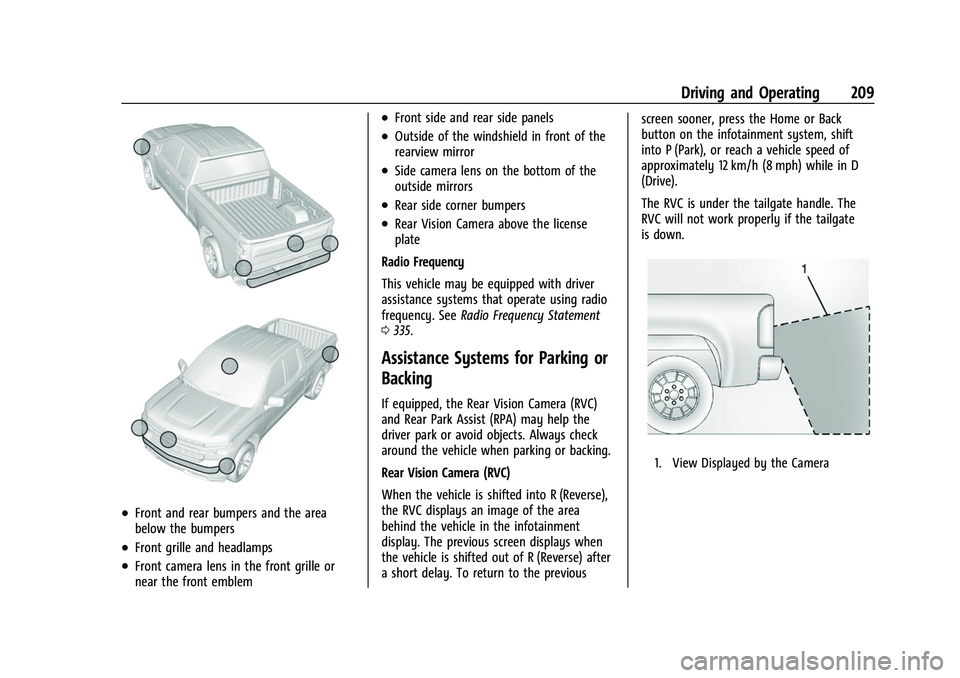
.Front and rear bumpers and the area
below the bumpers
.Front grille and headlamps
.Front camera lens in the front grille or
near the front emblem
.Front side and rear side panels
.Outside of the windshield in front of the
rearview mirror
.Side camera lens on the bottom of the
outside mirrors
.Rear side corner bumpers
.Rear Vision Camera above the license
plate
Radio Frequency
This vehicle may be equipped with driver
assistance systems that operate using radio
frequency. See Radio Frequency Statement
0 335.
Assistance Systems for Parking or
Backing
If equipped, the Rear Vision Camera (RVC)
and Rear Park Assist (RPA) may help the
driver park or avoid objects. Always check
around the vehicle when parking or backing.
Rear Vision Camera (RVC)
When the vehicle is shifted into R (Reverse),
the RVC displays an image of the area
behind the vehicle in the infotainment
display. The previous screen displays when
the vehicle is shifted out of R (Reverse) after
a short delay. To return to the previous screen sooner, press the Home or Back
button on the infotainment system, shift
into P (Park), or reach a vehicle speed of
approximately 12 km/h (8 mph) while in D
(Drive).
The RVC is under the tailgate handle. The
RVC will not work properly if the tailgate
is down.
1. View Displayed by the Camera