light GMC ENVOY 2003 Workshop Manual
[x] Cancel search | Manufacturer: GMC, Model Year: 2003, Model line: ENVOY, Model: GMC ENVOY 2003Pages: 442, PDF Size: 3.1 MB
Page 170 of 442
Here are four things that some owners ask about. None
of these show a problem with your fuel gage:
·At the gas station, the gas pump shuts off before
the gage reads full.
·It takes a little more or less fuel to ®ll up than the
gage indicated. For example, the gage may have
indicated the tank was half full, but it actually took a
little more or less than half the tank's capacity to
®ll the tank.
·The gage moves a little when you turn a corner or
speed up.
·The gage doesn't go back to empty when you turn
off the ignition.
Low Fuel Warning Light
The light next to the fuel gage will come on brie¯y when
you are starting the engine.
This light comes on when the fuel tank is low on fuel.
To turn it off, add fuel to the fuel tank. See
Fuel on
page 5-4.
Driver Information Center (DIC)
Your vehicle may have this feature. The DIC display
is located on the instrument panel cluster above
the steering wheel. The DIC can display information
such as the trip odometer, fuel economy and
personalization features. The DIC buttons are located
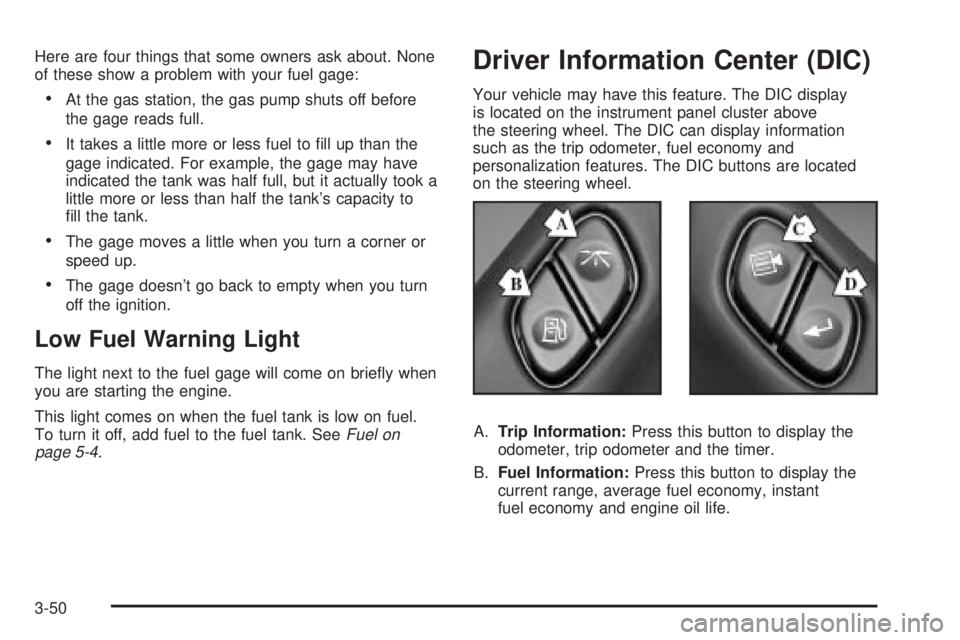
on the steering wheel.
A.Trip Information:Press this button to display the
odometer, trip odometer and the timer.
B.Fuel Information:Press this button to display the
current range, average fuel economy, instant
fuel economy and engine oil life.
3-50
Page 173 of 442

Always reset the engine oil life after an oil change. To
reset the Oil Life System press and hold the select
button while ENGINE OIL LIFE is displayed.
The oil change reminder does not measure how much
oil you have in your engine. So, be sure to check your oil
level often. For more information, see
Engine Oil on
page 5-15.
Personalization
You can program certain features to a preferred setting
for up to two people. Press the personalization button
to scroll through the following personalization features.
All of the personalization options may not be available
on your vehicle. Only the options available will be
displayed on your DIC.
·ALARM WARNING TYPE
·AUTOMATIC LOCKING
·AUTOMATIC UNLOCKING
·SEAT POSITION RECALL
·PERIMETER LIGHTING
·REMOTE LOCK FEEDBACK
·REMOTE UNLOCK FEEDBACK
·HEADLAMPS ON AT EXIT
·MIRROR CURB VIEW ASSIST
·EASY EXIT DRIVER SEAT
·DISPLAY UNITS (E/M)
·DISPLAY LANGUAGE
The driver's preferences are recalled by pressing the
unlock button on the remote keyless entry transmitter or
by pressing the appropriate memory button 1 or 2
located on the driver's door.
Alarm Warning Type
Press the personalization button until ALARM
WARNING TYPE appears in the display. To select your
personalization for alarm warning type, press the
select button while ALARM WARNING TYPE is
displayed on the DIC. Pressing the select button will
scroll through the following choices:
·ALARM WARNING: BOTH (default)
·ALARM WARNING: OFF
·ALARM WARNING: HORN
·ALARM WARNING: LAMPS
If you choose BOTH, the headlamps will ¯ash and the
horn will chirp when the alarm is active.
If you choose OFF, there will be no alarm warning on
activation.
If you choose HORN, the horn will chirp when the alarm
is active.
3-53
Page 175 of 442

If you choose for the driver's door to unlock in park, the
driver's door will be unlocked when the vehicle is
shifted into PARK (P).
Choose one of the four options and press the
personalization button while it is displayed on the DIC to
select it and move on to the next feature. For more
information on automatic door locks see
Programmable
Automatic Door Locks on page 2-10.
Seat Position Recall
Press the personalization button until SEAT POSITION
RECALL appears in the display. To select your
personalization for seat position recall, press the select
button while SEAT POSITION RECALL is displayed
on the DIC. Pressing the select button will scroll through
the following choices:
·SEAT POSITION RECALL OFF (default)
·SEAT POSITION RECALL AT KEY IN
·SEAT POSITION RECALL ON REMOTE
If you choose seat recall off, the memory seat position
you saved will only be recalled when the memory
button 1 or 2 is pressed.
If you choose seat recall at key in, the memory seat
position you saved will be recalled when you put the key
in the ignition.If you choose seat recall on remote, the memory seat
position you saved will be recalled when you unlock the
vehicle with the remote keyless entry transmitter.
Choose one of the three options and press the
personalization button while it is displayed on the DIC to
select it and move on to the next feature.
Perimeter Lighting
Press the personalization button until PERIMETER
LIGHTING appears in the display. To select your
personalization for perimeter lighting, press the select
button while PERIMETER LIGHTING is displayed on the
DIC. Pressing the select button will scroll through the
following choices:
·PERIMETER LIGHTING ON (default)
·PERIMETER LIGHTING OFF
If you choose for perimeter lighting to be on, the
headlamps and back-up lamps will come on for
40 seconds, if it is dark enough outside, when you
unlock the vehicle with the remote keyless entry
transmitter.
Choose one of the two options and press the
personalization button while it is displayed on the DIC to
select it and move on to the next feature.
3-55
Page 207 of 442
Playing a Compact Disc
The integral CD player can play the smaller 8 cm single
discs with an adapter ring. Full-size compact discs
and the smaller discs are loaded in the same manner.
If playing a CD-R the sound quality may be reduced due
to CD-R quality, the method of recording, the quality
of the music that has been recorded and the way
the CD-R has been handled. You may experience an
increase in skipping, difficulty in ®nding tracks and/or
difficulty in loading and ejecting. If these problems occur
try a known good CD.
Do not add paper labels to discs, they could get caught
in the CD player.
Do not play 3 inch discs without a standard
adapter disc.
If an error appears on the display, see ªCompact Disc
Messagesº later in this section.
LOAD CD
Z:Press the LOAD side of this button to
load CDs into the compact disc player. This compact
disc player will hold up to six discs.
To insert one disc, do the following:
1. Turn the ignition on.
2. Press and release the LOAD side of the LOAD CD
button.3. Wait for the light, located to the right of the slot, to
turn green.
4. Load a disc. Insert the disc partway into the slot,
label side up. The player will pull the disc in.
When a disc is inserted, the CD symbol will be
displayed. If you select an equalization setting for your
disc, it will be activated each time you play a disc.
If the radio is on or off, the disc will begin to play
automatically.
To insert multiple discs, do the following:
1. Turn the ignition on.
2. Press and hold the LOAD side of the LOAD CD
button for two seconds.
You will hear a beep and the light, located to the
right of the slot, will begin to ¯ash.
3. Once the light stops ¯ashing and turns green, load
a disc. Insert the disc partway into the slot, label
side up. The player will pull the disc in.
Once the disc is loaded, the light will begin ¯ashing
again. Once the light stops ¯ashing and turns
green you can load another disc. The disc player
takes up to six discs. Do not try to load more
than six.
3-87
Page 208 of 442
To load more than one disc but less than six, complete
Steps 1 through 3. When you have ®nished loading
discs, with the radio on or off, press the LOAD side of
the LOAD CD button to cancel the loading function. The
radio will begin to play the last CD loaded.
When a disc is inserted, the CD symbol will be
displayed. If more than one disc has been loaded, a
number for each disc will be displayed. If you select an
equalization setting for your disc, it will be activated
each time you play a disc.
If the radio is on or off, the last disc loaded will begin to
play automatically.
As each new track starts to play, the track number will
appear on the display.
Playing a Speci®c Loaded Compact
Disc
For every CD loaded, a number will appear on the radio
display. To play a speci®c CD, ®rst press the CD AUX
button to start playing a CD. Then press the numbered
pushbutton that corresponds to the CD you want to
play. A small bar will appear under the CD number that
is playing, and the track number will appear.
If an error appears on the radio display, see ªCompact
Disc Messagesº later in this section.LOAD CD
Z(Eject):Pressing the CD eject side of
this button will eject a single disc or multiple discs.
To eject the disc that is currently playing, press
and release this button. To eject multiple discs, press
and hold this button for two seconds. You will hear
a beep and the light will ¯ash to let you know when a
disc is being ejected.
REMOVE CD will be displayed. You can now remove
the disc. If the disc is not removed, after 25 seconds, the
disc will be automatically pulled back into the receiver.
If you try to push the disc back into the receiver,
before the 25 second time period is complete, the
receiver will sense an error and will try to eject the disc
several times before stopping.
Do not repeatedly press the CD eject side of the
LOAD CD eject button to eject a disc after you have
tried to push it in manually. The receivers 25-second
eject timer will reset at each press of eject, which
will cause the receiver to not eject the disc until the
25-second time period has elapsed.
Once the player stops and the disc is ejected, remove
the disc. After removing the disc, press the PWR
knob off and then on again. This will clear the
disc-sensing feature and enable discs to be loaded into
the player again.
3-88
Page 212 of 442
Compact Disc Messages
CHECK CD:If this message appears on the radio
display, it could be due to one of the following reasons:
·You're driving on a very rough road. When the
road becomes smoother, the disc should play.
·The disc is dirty, scratched, wet or upside down.
·The air is very humid. If so, wait about an hour and
try again.
·There may have been a problem while burning
the CD.
·The label may be caught in the CD player.
If the CD is not playing correctly, for any other reason,
try a known good CD.
If any error occurs repeatedly or if an error can't be
corrected, contact your dealer. If your radio displays an
error message, write it down and provide it to your
dealer when reporting the problem.
Rear Seat Entertainment System
Your vehicle may have the optional Digital Versatile Disc
(DVD) entertainment system. The entertainment
system includes a DVD player, a video display screen,
two sets of IR (Infrared) wireless headphones, a
remote control and an instructional video disc.
Before You Drive
The video entertainment system is for passengers in the
second and third row seats only. The driver cannot
safely view the video screen while driving and should
not try to do so.
In severe or extreme temperature conditions your
entertainment system should not be operated until the
temperature is within the operating range. This will keep
your video components from being damaged when
the temperature is below-4ÉF (-20ÉC) or above
140ÉF (60ÉC). To resume operation, shut off the
entertainment system, pull down the video screen and
then heat or cool the vehicle until the temperature
is within the operating range.
Headphones
The entertainment system includes two IR wireless
headphones.
Mini-headphone jacks are also provided for use with
customer provided headphones.
The wireless headphones have an ON/OFF switch and
a volume control. To use the headphones turn the
switch to ON. An indicator light will illuminate. If the light
does not illuminate, the batteries may need to be
replaced. See
Battery Replacementlater in this section
for more information. Switch the headphones to OFF
when not in use.
3-92
Page 213 of 442
If the system is shut off, or if the headphones are out of
range of the IR transmitters below the overhead RSE
control panel for more than three minutes, the
headphones will shut off automatically to save the
batteries. If you move too far forward or step out of the
vehicle, the headphones will cut out.
To adjust the volume on the headphones, use the
volume control.
Notice:Do not store the headphones in heat or
direct sunlight. This could damage the headphones
and repairs would not be covered by your warranty.
Keep the headphones stored in a cool, dry place.
Battery Replacement
To change the batteries, do the following:
1. Loosen the screw on the battery compartment door
located on the left side of the headphones.
2. Replace the two AAA batteries in the compartment.
Make sure that they are installed correctly.
3. Tighten the screws to close the compartment door.
If the headphones are to be stored for a long period
of time, remove the batteries and keep them in a cool,
dry place.
Stereo RCA Jacks
The RCA jacks and the mini-headphone jacks are
located behind the video screen on the overhead
console. The RCA jacks allow you to hook up an
auxiliary device such as a camcorder or a video game
unit. The yellow RCA jack is used for video and the
red and white RCA jacks are used for audio. You may
require adapter connectors or cables to connect
your auxiliary device to the RCA jacks. Refer to the
manufacturer's instructions for proper usage. The
mini-headphone jacks allow you to hook up two
customer provided wired headphones.
To use the auxiliary audio and video inputs on the RSE,
connect an external auxiliary device such as a
camcorder to the RCA jacks and turn on both the
auxiliary device power and the power on the front of the
RSE player. If a disc is not present in the player, the
auxiliary signal will immediately be displayed on
the RSE. If a disc is present when the RSE power is
turned on, the player will automatically begin playing the
disc and the user will need to press the AUX button
on the remote control to display and/or hear the auxiliary
input signals. Each press of the AUX button on the
remote control will switch the system between disc and
auxiliary input. The wired headphone volume control
will only operate when the DVD player power is turned
on and it controls both wired headphone jacks at
the same time. See
Remote Controllater in this section
for more information.
3-93
Page 217 of 442
Remote Control
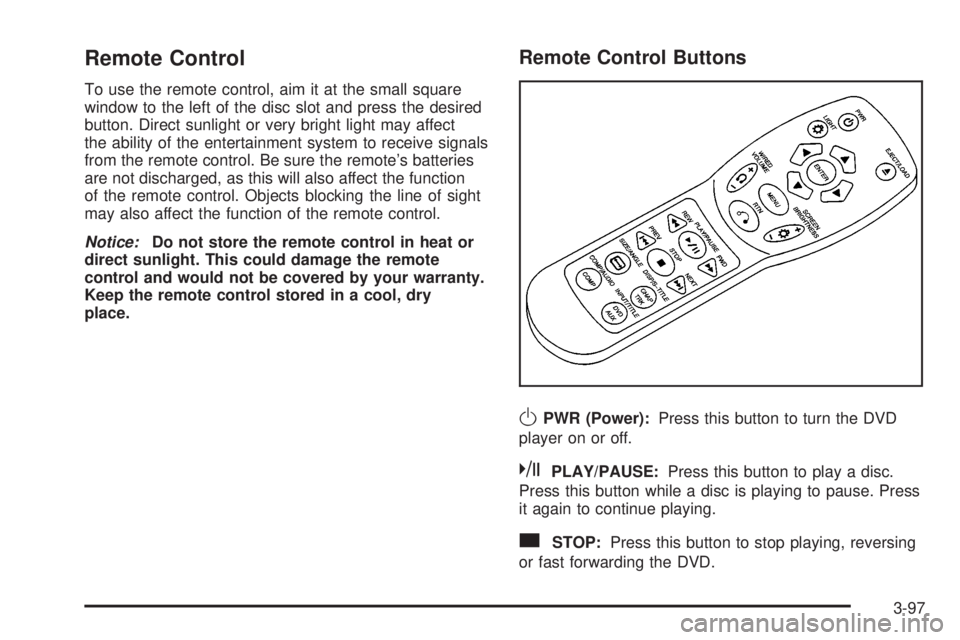
To use the remote control, aim it at the small square
window to the left of the disc slot and press the desired
button. Direct sunlight or very bright light may affect
the ability of the entertainment system to receive signals
from the remote control. Be sure the remote's batteries
are not discharged, as this will also affect the function
of the remote control. Objects blocking the line of sight
may also affect the function of the remote control.
Notice:Do not store the remote control in heat or
direct sunlight. This could damage the remote
control and would not be covered by your warranty.
Keep the remote control stored in a cool, dry
place.
Remote Control Buttons
OPWR (Power):Press this button to turn the DVD
player on or off.
kPLAY/PAUSE:Press this button to play a disc.
Press this button while a disc is playing to pause. Press
it again to continue playing.
cSTOP:Press this button to stop playing, reversing
or fast forwarding the DVD.
3-97
Page 219 of 442
Press and hold this button to see the DVDs subtitle
language. Press and release this button again to change
it. This feature is not available on all DVD discs.
COMP/AUDIO (Compression) COMP:Press and
release this button to display the current compression
displayed on the screen. Press this button again to
select the next compression state. Three compression
states are available including minimum, standard
and off. The compression feature only functions on AC3
(Dolby
žDigital Surround) encoded DVD video discs.
Press and hold this button to see if the DVD playing has
optional audio tracks, such as different languages or
commentaries. Press and release to change selections.
INPUT/TITLE DVD AUX (Auxiliary):Press and
release this button to switch between the auxiliary input
device and the DVD player.
Press and hold this button to see a display of the DVD's
titles. Press and release to change the titles available.
qRTN (Return):When a DVD menu is active
and this button is pressed, the selected option will be
disabled. This button could have different functions with
different discs.
ESCREEN BRIGHTNESS:Press the plus or the
minus symbol to increase or to decrease the brightness
of the screen. This button can also be found on the
video screen.
OLIGHT:Press this button to illuminate the keypad
for about eight seconds.
Setup Menu
To access the setup menu, ensure a DVD is in the
player and the video is in stop mode. Press the menu
key. Once the menu is activated, use the UP, DOWN,
RIGHT, LEFT, and Enter buttons to navigate the screen.
The setup menu allows the use to select default
preferences for Menu Language, Subtitle Language,
Audio Language, TV Aspect, TV Mode, and Dynamic
Range Compression.
Not all DVDs support all the feature defaults in the
setup menus. In the event a particular feature is
not supported, defaults will be provided by the DVD
media.
Exit the setup menu by pressing the RETURN button on
the remote control. If you make changes to the system
setup defaults, the disc will resume play from the
beginning and not where it previously left off.
3-99
Page 224 of 442
SEEK:Press the SEEK button to seek to the next
station and stay there. The display will show your
selection.
To scan preset stations, press and hold the SEEK
button. The radio will scan to a preset station, play for a
few seconds, then go the next preset station. The
display will show your selections. The SEEK button is
inactive if the front radio is in use.
While listening to a cassette tape, press the SEEK
button to hear the next selection on the tape. Press and
hold the SEEK button to go to the other side of the
tape. The SEEK button is inactive if the tape mode on
the front radio is in use.
While listening to a CD, press the SEEK button to hear
the next track on the CD. The SEEK button is inactive
if the CD mode on the front radio or the CD changer
is in use.
Radio Personalization
If your vehicle has this feature, it allows the driver to
return to the last used audio source (radio, cassette or
CD) using the remote keyless entry transmitter. This
feature can also store and recall AM and FM presets,
volume, tone and the last selected radio station.The number on the back of each transmitter (1 or 2)
corresponds to driver 1 or 2. If transmitter 1 is used to
enter the vehicle, the last used audio source and/or
settings set by driver 1 will be recalled. If transmitter 2 is
used to enter the vehicle, the last used audio source
and/or settings set by driver 2 will be recalled.
Theft-Deterrent Feature
(RDS Radios)
THEFTLOCKžis designed to discourage theft of your
radio. The feature works automatically by learning
a portion of the Vehicle Identi®cation Number (VIN). If
the radio is moved to a different vehicle, it will not
operate and LOCKED will be displayed.
When the radio and vehicle are turned off, the blinking
red light indicates that THEFTLOCK
žis armed.
With THEFTLOCK
žactivated, your radio will not operate
if stolen.
3-104