radio GMC ENVOY 2004 Workshop Manual
[x] Cancel search | Manufacturer: GMC, Model Year: 2004, Model line: ENVOY, Model: GMC ENVOY 2004Pages: 474, PDF Size: 4.83 MB
Page 234 of 474
Audio Output
Audio from the DVD player or auxiliary inputs may be
heard through the following possible sources:
Wireless Headphones
Vehicle Speakers
Vehicle wired headphone jacks on the Rear Seat
Audio system (if equipped)
The RSE system will always transmit the audio signal by
infrared to the wireless headphones, if there is audio
available. See “Headphones” previously for more
information.
The RSE system is capable of outputting audio to the
vehicle speakers by using the radio. The RSE system
may be selected as an audio source on the radio if the
RSE system power is on. Once the RSE system is
selected as an audio source on the radio you may adjust
the speaker volume on the radio. If the RSE system
power is not on, the RSE system will not be an available
source on the radio. Refer to the radio information for the
radio that your vehicle has for more information.
The RSE system is capable of outputting audio to the
wired headphone jacks on the rear seat audio system
(if equipped). The RSE system may be selected as
an audio source on the rear seat audio system if
the RSE system power is on. Refer toRear Seat Audio
(RSA) on page 3-114for more information.
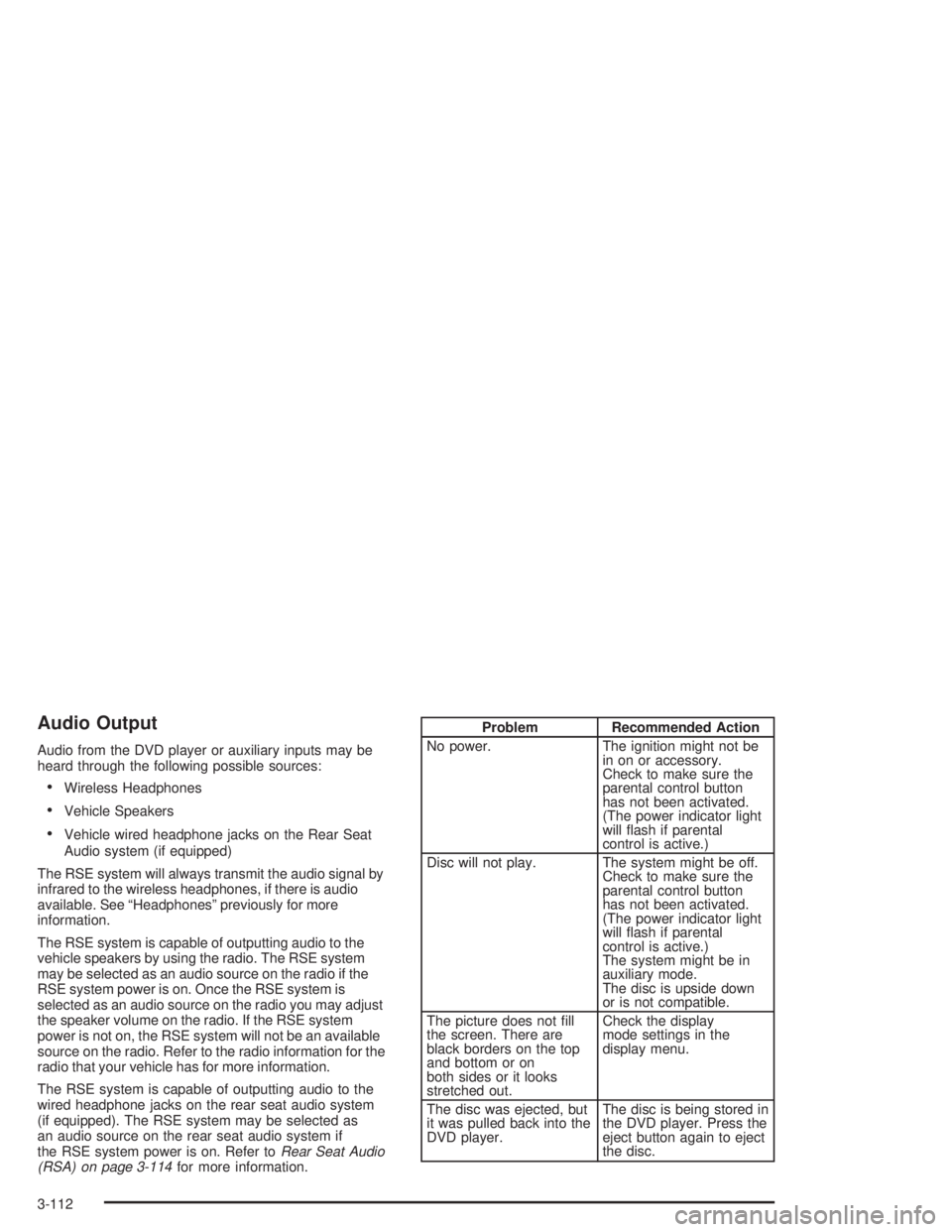
Problem Recommended Action
No power. The ignition might not be
in on or accessory.
Check to make sure the
parental control button
has not been activated.
(The power indicator light
will ash if parental
control is active.)
Disc will not play. The system might be off.
Check to make sure the
parental control button
has not been activated.
(The power indicator light
will ash if parental
control is active.)
The system might be in
auxiliary mode.
The disc is upside down
or is not compatible.
The picture does not ll
the screen. There are
black borders on the top
and bottom or on
both sides or it looks
stretched out.Check the display
mode settings in the
display menu.
The disc was ejected, but
it was pulled back into the
DVD player.The disc is being stored in
the DVD player. Press the
eject button again to eject
the disc.
3-112
Page 236 of 474
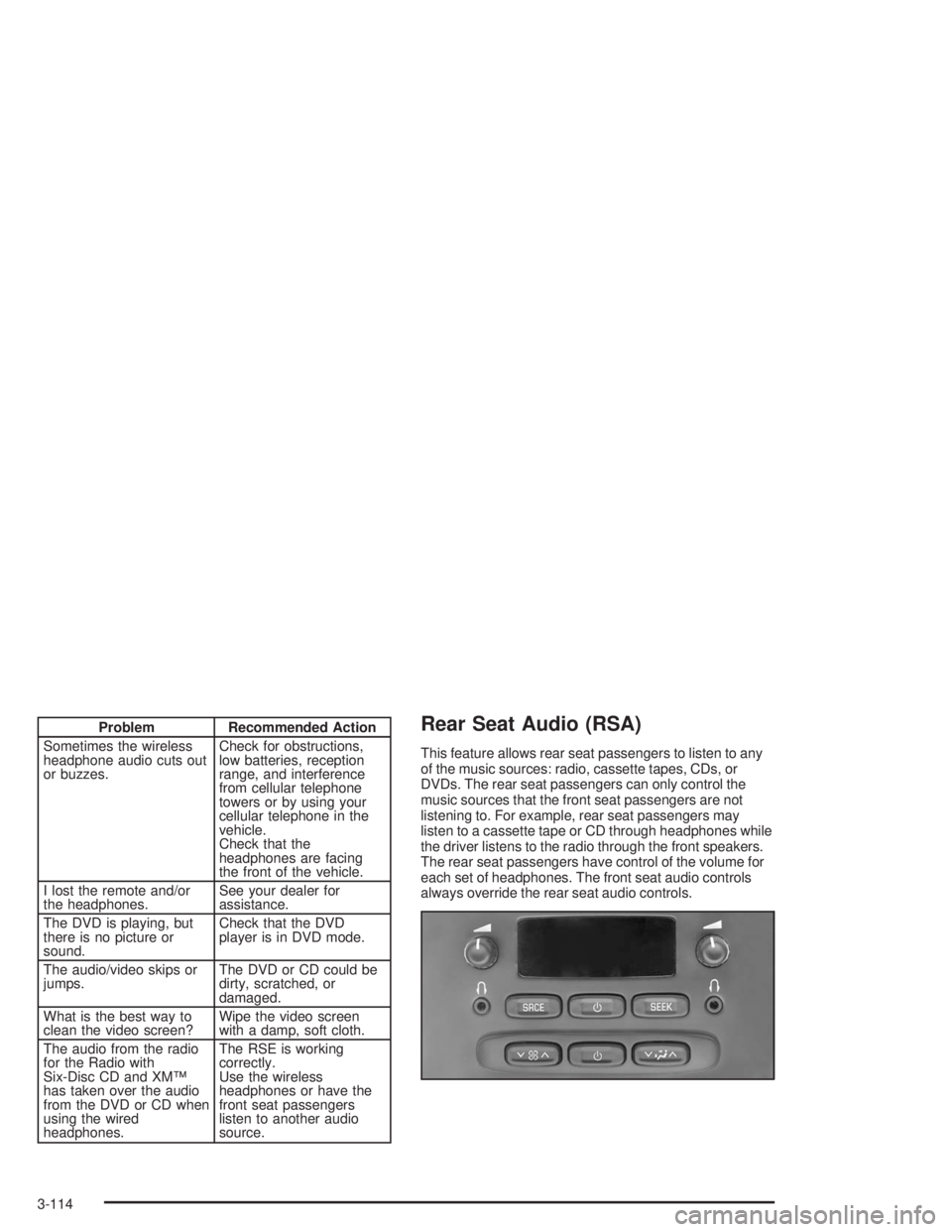
Problem Recommended Action
Sometimes the wireless
headphone audio cuts out
or buzzes.Check for obstructions,
low batteries, reception
range, and interference
from cellular telephone
towers or by using your
cellular telephone in the
vehicle.
Check that the
headphones are facing
the front of the vehicle.
I lost the remote and/or
the headphones.See your dealer for
assistance.
The DVD is playing, but
there is no picture or
sound.Check that the DVD
player is in DVD mode.
The audio/video skips or
jumps.The DVD or CD could be
dirty, scratched, or
damaged.
What is the best way to
clean the video screen?Wipe the video screen
with a damp, soft cloth.
The audio from the radio
for the Radio with
Six-Disc CD and XM™
has taken over the audio
from the DVD or CD when
using the wired
headphones.The RSE is working
correctly.
Use the wireless
headphones or have the
front seat passengers
listen to another audio
source.Rear Seat Audio (RSA)
This feature allows rear seat passengers to listen to any
of the music sources: radio, cassette tapes, CDs, or
DVDs. The rear seat passengers can only control the
music sources that the front seat passengers are not
listening to. For example, rear seat passengers may
listen to a cassette tape or CD through headphones while
the driver listens to the radio through the front speakers.
The rear seat passengers have control of the volume for
each set of headphones. The front seat audio controls
always override the rear seat audio controls.
3-114
Page 237 of 474
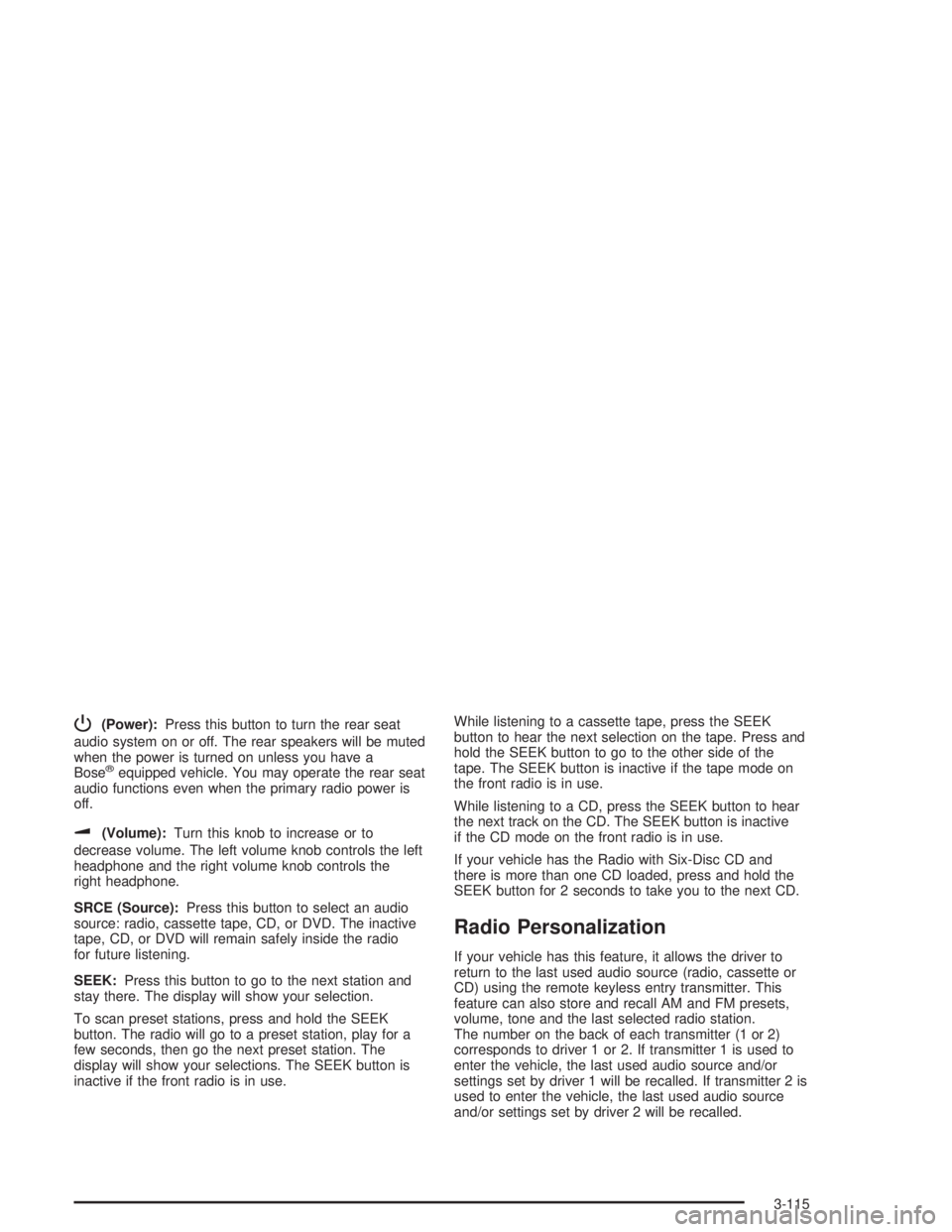
P(Power):Press this button to turn the rear seat
audio system on or off. The rear speakers will be muted
when the power is turned on unless you have a
Bose
®equipped vehicle. You may operate the rear seat
audio functions even when the primary radio power is
off.
u(Volume):Turn this knob to increase or to
decrease volume. The left volume knob controls the left
headphone and the right volume knob controls the
right headphone.
SRCE (Source):Press this button to select an audio
source: radio, cassette tape, CD, or DVD. The inactive
tape, CD, or DVD will remain safely inside the radio
for future listening.
SEEK:Press this button to go to the next station and
stay there. The display will show your selection.
To scan preset stations, press and hold the SEEK
button. The radio will go to a preset station, play for a
few seconds, then go the next preset station. The
display will show your selections. The SEEK button is
inactive if the front radio is in use.While listening to a cassette tape, press the SEEK
button to hear the next selection on the tape. Press and
hold the SEEK button to go to the other side of the
tape. The SEEK button is inactive if the tape mode on
the front radio is in use.
While listening to a CD, press the SEEK button to hear
the next track on the CD. The SEEK button is inactive
if the CD mode on the front radio is in use.
If your vehicle has the Radio with Six-Disc CD and
there is more than one CD loaded, press and hold the
SEEK button for 2 seconds to take you to the next CD.
Radio Personalization
If your vehicle has this feature, it allows the driver to
return to the last used audio source (radio, cassette or
CD) using the remote keyless entry transmitter. This
feature can also store and recall AM and FM presets,
volume, tone and the last selected radio station.
The number on the back of each transmitter (1 or 2)
corresponds to driver 1 or 2. If transmitter 1 is used to
enter the vehicle, the last used audio source and/or
settings set by driver 1 will be recalled. If transmitter 2 is
used to enter the vehicle, the last used audio source
and/or settings set by driver 2 will be recalled.
3-115
Page 238 of 474

Theft-Deterrent Feature
(RDS Radios)
THEFTLOCK®is designed to discourage theft of your
radio. The feature works automatically by learning
a portion of the Vehicle Identication Number (VIN). If
the radio is moved to a different vehicle, it will not
operate and LOCKED will appear on the display.
When the radio and vehicle are turned off, the blinking
red light indicates that THEFTLOCK
®is armed.
With THEFTLOCK
®activated, your radio will not operate
if stolen.
Audio Steering Wheel Controls
You can control certain radio functions using the buttons
on your steering wheel.
g(OnStar/Voice Recognition):You can press this
button to interact with the OnStar®system. See the
OnStar®manual provided with your vehicle for more
information.
PROG (Program):Press this button to play a station
you have stored on the radio preset pushbuttons.
If a cassette tape is playing, press this button to play
the other side of the tape.
If a CD is playing, press this button to go to the next
available CD.
3-116
Page 239 of 474

QSOURCER:Press this button to select FM1,
FM2, AM, or XM1 or XM2 (48 contiguous US states, if
equipped), or a cassette tape or CD. Available
loaded sources are shown on the display as a tape or a
CD symbol.
QSEEKR:Press the up or the down arrow to go to
the next or to the previous radio station and stay there.
If a cassette tape or CD is playing, press the up or the
down arrow to fast forward or reverse.
QVOLR(Volume):Press the up or the down arrow
to increase or to decrease volume.
DVD Distortion
You may experience audio distortion in the
IR headphones when operating cellular phones,
scanners, CB radios, Global Positioning Systems
(GPS)*, two-way radios, mobile fax, or walkie talkies.
It may be necessary to turn off the DVD player
when operating one of these devices in or near the
vehicle.
* Excludes the OnStar
®System.
Understanding Radio Reception
AM
The range for most AM stations is greater than for FM,
especially at night. The longer range, however, can
cause stations to interfere with each other. AM can pick
up noise from things like storms and power lines.
Try reducing the treble to reduce this noise.
FM Stereo
FM stereo will give you the best sound, but FM signals
will reach only about 10 to 40 miles (16 to 65 km).
Tall buildings or hills can interfere with FM signals,
causing the sound to come and go.
XM™ Satellite Radio Service
(48 Contiguous US States)
XM™ Satellite Radio gives you digital radio reception
from coast to coast. Just as with FM, tall buildings
or hills can interfere with satellite radio signals, causing
the sound to come and go. Your radio may display
NO SIGNAL to indicate interference.
3-117
Page 240 of 474

Care of Your Cassette Tape Player
A tape player that is not cleaned regularly can cause
reduced sound quality, ruined cassettes, or a damaged
mechanism. Cassette tapes should be stored in their
cases away from contaminants, direct sunlight, and
extreme heat. If they are not, they may not operate
properly or may cause failure of the tape player.
Your tape player should be cleaned regularly after every
50 hours of use. Your radio may display CLEAN to
indicate that you have used your tape player for 50 hours
without resetting the tape clean timer. If this message
appears on the display, your cassette tape player needs
to be cleaned. It will still play tapes, but you should clean
it as soon as possible to prevent damage to your tapes
and player. If you notice a reduction in sound quality, try a
known good cassette to see if the tape or the tape player
is at fault. If this other cassette has no improvement in
sound quality, clean the tape player.For best results, use a scrubbing action, non-abrasive
cleaning cassette with pads which scrub the tape
head as the hubs of the cleaner cassette turn. The
recommended cleaning cassette is available through
your dealer.
The broken tape detection feature of your cassette tape
player may identify the cleaning cassette as a
damaged tape, in error. To prevent the cleaning cassette
from being ejected, use the following steps:
1. Turn the ignition on.
2. Turn the radio off.
3. Press and hold the TAPE CD button for ve
seconds. READY will appear on the display and a
cassette symbol will ash for ve seconds.
4. Insert the scrubbing action cleaning cassette.
5. Eject the cleaning cassette after the manufacturer’s
recommended cleaning time.
After the cleaning cassette is ejected, the broken tape
detection feature will be active again.
3-118
Page 241 of 474
You may also choose a non-scrubbing action, wet-type
cleaner which uses a cassette with a fabric belt to
clean the tape head. This type of cleaning cassette will
not eject on its own. A non-scrubbing action cleaner
may not clean as thoroughly as the scrubbing type
cleaner. The use of a non-scrubbing action, dry-type
cleaning cassette is not recommended.
After you clean the player, press and hold the EJT
button for ve seconds to reset the CLEAN indicator.
The radio will display CLEANED to show the indicator
was reset.
Cassettes are subject to wear and the sound quality
may degrade over time. Always make sure the cassette
tape is in good condition before you have your tape
player serviced.
Care of Your CDs and DVDs
Handle discs carefully. Store them in their original cases
or other protective cases and away from direct sunlight
and dust. If the surface of a disc is soiled, dampen
a clean, soft cloth in a mild, neutral detergent solution
and clean it, wiping from the center to the edge.Be sure never to touch the side without writing when
handling discs. Pick up discs by grasping the outer
edges or the edge of the hole and the outer edge.
Care of Your CD and DVD Player
The use of CD lens cleaner discs is not advised, due to
the risk of contaminating the lens of the CD optics
with lubricants internal to the CD mechanism.
Cleaning the Video Screen
Pour some isopropyl or rubbing alcohol on a clean cloth
and gently wipe the video screen. Do not spray
directly onto the screen and do not press too hard or
too long on the video screen.
3-119
Page 242 of 474
Fixed Mast Antenna
The xed mast antenna can withstand most car washes
without being damaged. If the mast should ever
become slightly bent, you can straighten it out by hand.
If the mast is badly bent, you should replace it.
Check occasionally to be sure the mast is still tightened
to the fender. If tightening is required, tighten by
hand, then with a wrench one quarter turn.
XM™ Satellite Radio Antenna
System (48 Contiguous US States)
Your XM™ Satellite Radio antenna is located on the roof
of your vehicle. Keep this antenna clear of snow and
ice build up for clear radio reception.
The performance of your XM™ system may be affected
if your sunroof is open.
Loading items onto the roof of your vehicle can interfere
with the performance of your XM™ system. Make
sure that the XM™ satellite antenna is not obstructed.
Chime Level Adjustment
The volume level of the vehicle’s chimes can be
controlled by the radio. To change the volume level,
press and hold pushbutton 6 with the ignition on and the
radio power off. The chime volume level will change
from the normal level to loud, and LOUD will appear on
the display. To change back to the default or normal
setting, press and hold pushbutton 6 again. The chime
level will change from the loud level to normal, and
NORMAL will appear on the display.
3-120
Page 350 of 474
Replacing Brake System Parts
The braking system on a vehicle is complex. Its many
parts have to be of top quality and work well together if
the vehicle is to have really good braking. Your
vehicle was designed and tested with top-quality GM
brake parts. When you replace parts of your braking
system — for example, when your brake linings
wear down and you need new ones put in — be sure
you get new approved GM replacement parts. If you do
not, your brakes may no longer work properly. For
example, if someone puts in brake linings that are wrong
for your vehicle, the balance between your front and
rear brakes can change — for the worse. The braking
performance you have come to expect can change
in many other ways if someone puts in the wrong
replacement brake parts.
Battery
Your new vehicle comes with a maintenance free
ACDelco®battery. When it is time for a new battery, get
one that has the replacement number shown on the
original battery’s label. We recommend an ACDelco
®
battery. SeeEngine Compartment Overview on
page 5-12for battery location.Warning:Battery posts, terminals and related
accessories contain lead and lead compounds,
chemicals known to the State of California to cause
cancer and reproductive harm. Wash hands after
handling.
Vehicle Storage
If you are not going to drive your vehicle for 25 days or
more, remove the black, negative (−) cable from the
battery. This will help keep your battery from running
down.
{CAUTION:
Batteries have acid that can burn you and gas
that can explode. You can be badly hurt if you
are not careful. SeeJump Starting on
page 5-43for tips on working around a battery
without getting hurt.
Contact your dealer to learn how to prepare your
vehicle for longer storage periods.
Also, for your audio system, seeTheft-Deterrent
Feature (RDS Radios) on page 3-116.
5-42
Page 351 of 474
Jump Starting
If your battery has run down, you may want to use
another vehicle and some jumper cables to start your
vehicle. But please use the following steps to do it
safely.
{CAUTION:
Batteries can hurt you. They can be dangerous
because:
They contain acid that can burn you.
They contain gas that can explode or
ignite.
They contain enough electricity to
burn you.
If you do not follow these steps exactly, some
or all of these things can hurt you.
Notice:Ignoring these steps could result in costly
damage to your vehicle that would not be covered
by your warranty.
Trying to start your vehicle by pushing or pulling it
will not work, and it could damage your vehicle.1. Check the other vehicle. It must have a 12-volt
battery with a negative ground system.
Notice:If the other vehicle’s system is not a 12-volt
system with a negative ground, both vehicles can
be damaged. Only use vehicles with 12-volt systems
with negative grounds to jump start your vehicle.
2. Get the vehicles close enough so the jumper cables
can reach, but be sure the vehicles aren’t touching
each other. If they are, it could cause a ground
connection you don’t want. You wouldn’t be able to
start your vehicle, and the bad grounding could
damage the electrical systems.
To avoid the possibility of the vehicles rolling, set
the parking brake rmly on both vehicles involved in
the jump start procedure. Put an automatic
transmission in PARK (P) or a manual transmission
in NEUTRAL before setting the parking brake.
If you have a four-wheel-drive vehicle, be sure the
transfer case is not in NEUTRAL.
Notice:If you leave your radio or other accessories
on during the jump starting procedure, they could
be damaged. The repairs would not be covered
by your warranty. Always turn off your radio and
other accessories when jump starting your vehicle.
3. Turn off the ignition on both vehicles. Unplug
unnecessary accessories plugged into the cigarette
lighter or accessory power outlets (if equipped).
5-43