check GMC ENVOY DENALI 2007 Service Manual
[x] Cancel search | Manufacturer: GMC, Model Year: 2007, Model line: ENVOY DENALI, Model: GMC ENVOY DENALI 2007Pages: 562, PDF Size: 2.87 MB
Page 237 of 562
{CAUTION:
This system provides you with a far greater
access to audio stations and song listings.
Giving extended attention to entertainment
tasks while driving can cause a crash and
you or others can be injured or killed.
Always keep your eyes on the road and
your mind on the drive — avoid engaging
in extended searching while driving.
Keeping your mind on the drive is important for
safe driving. Here are some ways in which you can
help avoid distraction while driving.
While your vehicle is parked:
Familiarize yourself with all of its controls.
Familiarize yourself with its operation.
Set up your audio system by presetting your
favorite radio stations, setting the tone, and
adjusting the speakers. Then, when driving
conditions permit, you can tune to your favorite
radio stations using the presets and steering
wheel controls if the vehicle has them.Notice:Before adding any sound equipment to
your vehicle, such as an audio system, CD
player, CB radio, mobile telephone, or two-way
radio, make sure that it can be added by
checking with your dealer. Also, check federal
rules covering mobile radio and telephone
units. If sound equipment can be added, it is
very important to do it properly. Added sound
equipment may interfere with the operation of
your vehicle’s engine, radio, or other systems,
and even damage them. Your vehicle’s systems
may interfere with the operation of sound
equipment that has been added.
Notice:The chime signals related to safety
belts, parking brake, and other functions of
your vehicle operate through the radio/
entertainment system. If that equipment is
replaced or additional equipment is added to
your vehicle, the chimes may not work. Make
sure that replacement or additional equipment
is compatible with your vehicle before installing
it. SeeAccessories and Modifications on
page 380.
237
Page 245 of 562
The CD player can play the smaller 3 inch (8 cm)
single CDs with an adapter ring. Full-size CDs
and the smaller CDs are loaded in the same
manner.
If playing a CD-R, the sound quality may be
reduced due to CD-R quality, the method of
recording, the quality of the music that has been
recorded, and the way the CD-R has been
handled. There may be an increase in skipping,
difficulty in nding tracks, and/or difficulty in loading
and ejecting. If these problems occur, check the
bottom surface of the CD. If the surface of the CD
is damaged, such as cracked, broken, or
scratched, the CD will not play properly. If the
surface of the CD is soiled, seeCare of Your CDs
and DVDs on page 299for more information.
If there is no apparent damage, try a known
good CD.
Do not add any label to a CD, it could get caught
in the CD player. If a CD is recorded on a
personal computer and a description label is
needed, try labeling the top of the recorded CD
with a marking pen.Notice:If you add any label to a CD, insert
more than one CD into the slot at a time, or
attempt to play scratched or damaged CDs, you
could damage the CD player. When using the
CD player, use only CDs in good condition
without any label, load one CD at a time, and
keep the CD player and the loading slot free of
foreign materials, liquids, and debris.
If an error appears on the display, see “CD
Messages” later in this section.
1 PREV (Previous):Press this pushbutton to go
to the beginning of the current track (if more
than eight seconds have played), or to the
beginning of the previous track (if less than
eight seconds have played). TRACK and the track
number displays. If this pushbutton is held or
pressed more than once, the player continues
moving backward through the CD.
2 NEXT:Press this pushbutton to go to the next
track. TRACK and the track number displays.
If this pushbutton is held or pressed more
than once, the player continues moving forward
through the CD.
245
Page 255 of 562
If the ignition or radio is turned off with a CD in
the player it stays in the player. When the ignition
or radio is turned on, the CD starts to play
where it stopped, if it was the last selected
audio source.
When the CD is inserted, the CD symbol displays.
As each new track starts to play, the track
number also displays.
The CD player can play the smaller 3 inch (8 cm)
single CDs with an adapter ring. Full-size CDs
and the smaller CDs are loaded in the same
manner.
If playing a CD-R, the sound quality can be
reduced due to CD-R quality, the method of
recording, the quality of the music that has been
recorded, and the way the CD-R has been
handled. There can be an increase in skipping,
difficulty in nding tracks, and/or difficulty in loading
and ejecting. If these problems occur, check the
bottom surface of the CD. If the surface of the CD
is damaged, such as cracked, broken, or
scratched, the CD will not play properly. If the
surface of the CD is soiled, seeCare of Your CDs
and DVDs on page 299for more information.
If there is no apparent damage, try a known
good CD.Do not add any label to a CD, it could get caught
in the CD player. If a CD is recorded on a
personal computer and a description label is
needed, try labeling the top of the recorded CD
with a marking pen.
Notice:If you add any label to a CD, insert
more than one CD into the slot at a time, or
attempt to play scratched or damaged CDs, you
could damage the CD player. When using the
CD player, use only CDs in good condition
without any label, load one CD at a time, and
keep the CD player and the loading slot free of
foreign materials, liquids, and debris.
If an error appears on the display, see “CD
Messages” later in this section.
1 FLD
x(Previous):This pushbutton does not
work while using a non-MP3 CD.
2 FLD
w(Next):This pushbutton does not work
while using a non-MP3 CD.
3 REV (Reverse):Press and hold this pushbutton
to reverse quickly within a track. Press and hold
this pushbutton for less than two seconds to
reverse at 10 times the normal playing speed.
Press and hold it for more than two seconds
255
Page 257 of 562
Playing an MP3 CD-R Disc
Your vehicle’s radio system may have the MP3
feature. If it has this feature, it is capable of playing
an MP3 CD-R disc. For more information on
how to play an MP3 CD-R disc, seeUsing an MP3
on page 271later in this section.
CD Messages
CHECK CD:If this message appears on the
display and/or the CD ejects, it could be for one of
the following reasons:
It is very hot. When the temperature returns to
normal, the CD should play.
You are driving on a very rough road.
When the road becomes smoother, the CD
should play.
The CD is dirty, scratched, wet, or
upside down.
The air is very humid. If so, wait about an
hour and try again.
The format of the CD is not compatible. See
Using an MP3 on page 271later in this
section.
There could have been a problem while
burning the CD.
The label could be caught in the CD player.
If the CD is not playing correctly, for any
other reason, try a known good CD.
If any error occurs repeatedly or if an error cannot
be corrected, contact your dealer. If the radio
displays an error message, write it down and
provide it to your dealer when reporting the
problem.
257
Page 265 of 562
If playing a CD-R, the sound quality can be
reduced due to CD-R quality, the method of
recording, the quality of the music that has been
recorded, and the way the CD-R has been
handled. There can be an increase in skipping,
difficulty in nding tracks, and/or difficulty in loading
and ejecting. If these problems occur, check the
bottom surface of the CD. If the surface of the CD
is damaged, such as cracked, broken, or
scratched, the CD will not play properly. If the
surface of the CD is soiled, seeCare of Your CDs
and DVDs on page 299for more information.
If there is no apparent damage, try a known
good CD.
Do not add any label to a CD, it could get caught
in the CD player. If a CD is recorded on a
personal computer and a description label is
needed, try labeling the top of the recorded CD
with a marking pen.Notice:If you add any label to a CD, insert
more than one CD into the slot at a time, or
attempt to play scratched or damaged CDs, you
could damage the CD player. When using the
CD player, use only CDs in good condition
without any label, load one CD at a time, and
keep the CD player and the loading slot free of
foreign materials, liquids, and debris.
If an error appears on the display, see “CD
Messages” later in this section.
LOAD:Press this button to load CDs into the CD
player. This CD player holds up to six CDs.
To insert one CD, do the following:
1. Turn the ignition on.
2. Press and release the LOAD button.
3. Wait for the indicator light, located to the right
of the slot, to turn green.
4. Load a CD. Insert the CD part way into the slot,
label side up. The player pulls the CD in.
265
Page 268 of 562
AUTO EQ (Automatic Equalization):Press
AUTO EQ to select the equalization setting while
playing a CD. The equalization is stored
whenever a CD is played. For more information on
AUTO EQ, see “AUTO EQ” listed previously in
this section.
©SEEK¨:Press the left arrow to go to the
start of the current track, if more than ten seconds
have played. Press the right arrow to go to the
next track. If either arrow is pressed more
than once, the player continues moving backward
or forward through the CD.
©SCAN¨:To scan one CD, press and hold
either SCAN arrow for more than two seconds until
TRACK SCAN displays and a beep sounds. The
radio goes to the next track, plays for 10 seconds,
then goes to the next track. Press either SCAN
arrow again, to stop scanning.
To scan all loaded CDs, press and hold either
SCAN arrow for more than four seconds until ALL
CD SCAN displays and a beep sounds. Use
this feature to listen to 10 seconds of the rst track
of each loaded CD. Press either SCAN arrow
again, to stop scanning.INFO (Information):Press this knob to see how
long the current track has been playing. To change
the default on the display, track or elapsed time,
press the knob until you see the desired display,
then press and hold the knob until a beep sounds.
The selected display becomes the default.
BAND:Press this button to listen to the radio
when a CD is playing. The inactive CD(s) remains
inside the radio for future listening.
Using Song List Mode
The six-disc CD changer has a feature called
song list. This feature is capable of saving
20 track selections.
To save tracks into the song list feature, perform
the following steps:
1. Turn the CD player on and load it with at least
one CD. See “LOAD CD” listed previously in
this section for more information.
2. Check to see that the CD changer is not in
song list mode. S-LIST should not appear on
the display. If S-LIST is displayed, press
the SONG LIST button to turn it off.
268
Page 270 of 562
To delete the entire song list, perform the
following steps:
1. Turn the CD player on.
2. Press the SONG LIST button to turn song list
on. S-LIST displays.
3. Press and hold the SONG LIST button for
more than four seconds. One beep sounds,
followed by two beeps after two seconds, and
a nal beep sounds after four seconds.
S-LIST EMPTY displays indicating the song
list has been deleted.
If a CD is ejected, and the song list contains
saved tracks from that CD, those tracks are
automatically deleted from the song list. Any tracks
saved to the song list again are added to the
bottom of the list.
To end song list mode, press the SONG LIST
button. One beep sounds and S-LIST is removed
from the display.CD Messages
CHECK CD:If this message appears on the
display and/or the CD ejects, it could be for one of
the following reasons:
It is very hot. When the temperature returns to
normal, the CD should play.
You are driving on a very rough road.
When the road becomes smoother, the CD
should play.
The CD is dirty, scratched, wet, or
upside down.
The air is very humid. If so, wait about an
hour and try again.
There could have been a problem while
burning the CD.
The label could be caught in the CD player.
If the CD is not playing correctly, for any
other reason, try a known good CD.
If any error occurs repeatedly or if an error cannot
be corrected, contact your dealer. If the radio
displays an error message, write it down and
provide it to your dealer when reporting the
problem.
270
Page 274 of 562
If the ignition or radio is turned off with a CD in the
player it stays in the player. When the ignition or
radio is turned on, the CD starts to play where it
stopped, if it was the last selected audio source.
As each new track starts to play, the track
number displays.
The CD player can play the smaller 3 inch (8 cm)
single CDs with an adapter ring. Full-size CDs
and the smaller CDs are loaded in the same
manner.
If playing a CD-R, the sound quality can be
reduced due to CD-R quality, the method of
recording, the quality of the music that has been
recorded, and the way the CD-R has been
handled. There can be an increase in skipping,
difficulty in nding tracks, and/or difficulty in loading
and ejecting. If these problems occur, check the
bottom surface of the CD. If the surface of the CD
is damaged, such as cracked, broken, or
scratched, the CD will not play properly. If the
surface of the CD is soiled, seeCare of Your CDs
and DVDs on page 299for more information.
If there is no apparent damage, try a known
good CD.Do not add any label to a CD, it could get caught
in the CD player. If a CD is recorded on a
personal computer and a description label is
needed, try labeling the top of the recorded CD
with a marking pen.
Notice:If you add any label to a CD, insert
more than one CD into the slot at a time, or
attempt to play scratched or damaged CDs, you
could damage the CD player. When using the
CD player, use only CDs in good condition
without any label, load one CD at a time, and
keep the CD player and the loading slot free of
foreign materials, liquids, and debris.
If an error displays, see “CD Messages” later in
this section.
1 FLD
x(Previous Folder):Press this
pushbutton to go to the rst track in the previous
folder. Press this button while in folder random
to go to the rst track in the previous folder
and random the tracks in that folder.
274
Page 278 of 562
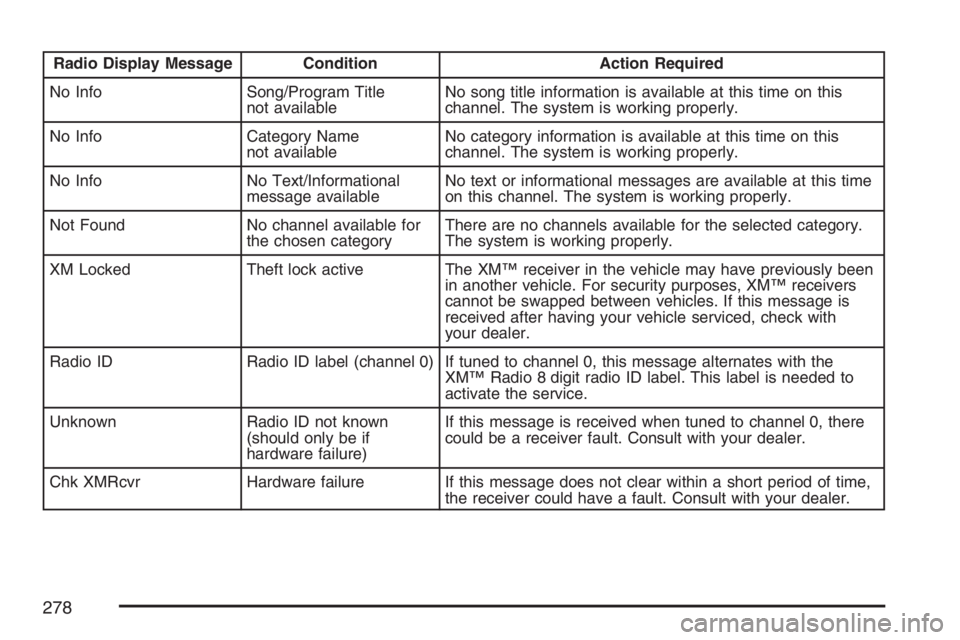
Radio Display Message Condition Action Required
No Info Song/Program Title
not availableNo song title information is available at this time on this
channel. The system is working properly.
No Info Category Name
not availableNo category information is available at this time on this
channel. The system is working properly.
No Info No Text/Informational
message availableNo text or informational messages are available at this time
on this channel. The system is working properly.
Not Found No channel available for
the chosen categoryThere are no channels available for the selected category.
The system is working properly.
XM Locked Theft lock active The XM™ receiver in the vehicle may have previously been
in another vehicle. For security purposes, XM™ receivers
cannot be swapped between vehicles. If this message is
received after having your vehicle serviced, check with
your dealer.
Radio ID Radio ID label (channel 0) If tuned to channel 0, this message alternates with the
XM™ Radio 8 digit radio ID label. This label is needed to
activate the service.
Unknown Radio ID not known
(should only be if
hardware failure)If this message is received when tuned to channel 0, there
could be a receiver fault. Consult with your dealer.
Chk XMRcvr Hardware failure If this message does not clear within a short period of time,
the receiver could have a fault. Consult with your dealer.
278
Page 280 of 562
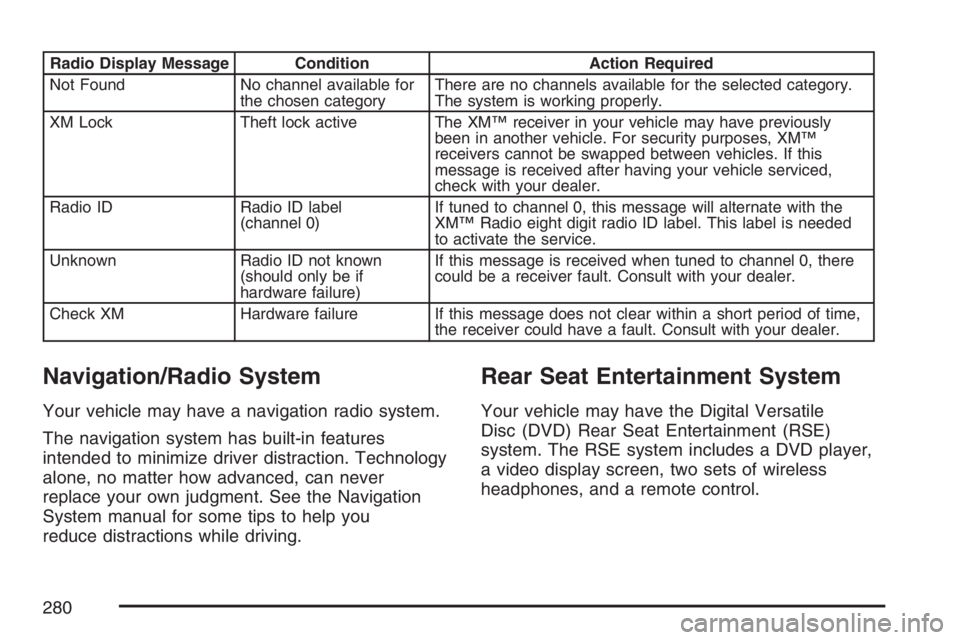
Radio Display Message Condition Action Required
Not Found No channel available for
the chosen categoryThere are no channels available for the selected category.
The system is working properly.
XM Lock Theft lock active The XM™ receiver in your vehicle may have previously
been in another vehicle. For security purposes, XM™
receivers cannot be swapped between vehicles. If this
message is received after having your vehicle serviced,
check with your dealer.
Radio ID Radio ID label
(channel 0)If tuned to channel 0, this message will alternate with the
XM™ Radio eight digit radio ID label. This label is needed
to activate the service.
Unknown Radio ID not known
(should only be if
hardware failure)If this message is received when tuned to channel 0, there
could be a receiver fault. Consult with your dealer.
Check XM Hardware failure If this message does not clear within a short period of time,
the receiver could have a fault. Consult with your dealer.
Navigation/Radio System
Your vehicle may have a navigation radio system.
The navigation system has built-in features
intended to minimize driver distraction. Technology
alone, no matter how advanced, can never
replace your own judgment. See the Navigation
System manual for some tips to help you
reduce distractions while driving.
Rear Seat Entertainment System
Your vehicle may have the Digital Versatile
Disc (DVD) Rear Seat Entertainment (RSE)
system. The RSE system includes a DVD player,
a video display screen, two sets of wireless
headphones, and a remote control.
280