fuel GMC ENVOY XL 2004 User Guide
[x] Cancel search | Manufacturer: GMC, Model Year: 2004, Model line: ENVOY XL, Model: GMC ENVOY XL 2004Pages: 466, PDF Size: 3 MB
Page 165 of 466
Have you recently changed brands of fuel?
If so, be sure to fuel your vehicle with quality fuel. See
Gasoline Octane on page 5-4. Poor fuel quality will
cause your engine not to run as efficiently as designed.
You may notice this as stalling after start-up, stalling
when you put the vehicle into gear, misring, hesitation
on acceleration, or stumbling on acceleration. (These
conditions may go away once the engine is warmed up.)
This will be detected by the system and cause the
light to turn on.
If you experience one or more of these conditions,
change the fuel brand you use. It will require at least
one full tank of the proper fuel to turn the light off.
If none of the above steps have made the light turn off,
your dealer can check the vehicle. Your dealer has
the proper test equipment and diagnostic tools to x
any mechanical or electrical problems that may
have developed.Emissions Inspection and Maintenance
Programs
Some state/provincial and local governments have or
may begin programs to inspect the emission control
equipment on your vehicle. Failure to pass this
inspection could prevent you from getting a vehicle
registration.
Here are some things you need to know to help your
vehicle pass an inspection:
Your vehicle will not pass this inspection if the SERVICE
ENGINE SOON or CHECK ENGINE light is on or not
working properly.
Your vehicle will not pass this inspection if the OBD
(on-board diagnostic) system determines that critical
emission control systems have not been completely
diagnosed by the system. The vehicle would be
considered not ready for inspection. This can happen if
you have recently replaced your battery or if your battery
has run down. The diagnostic system is designed to
evaluate critical emission control systems during normal
driving. This may take several days of routine driving.
If you have done this and your vehicle still does not pass
the inspection for lack of OBD system readiness, your
GM dealer can prepare the vehicle for inspection.
3-45
Page 170 of 466

Fuel Gage
When the ignition is on, the fuel gage tells you about
how much fuel you have remaining.Here are four things that some owners ask about. None
of these show a problem with your fuel gage:
At the gas station, the gas pump shuts off before
the gage reads full.
It takes a little more or less fuel to ll up than the
gage indicated. For example, the gage may have
indicated the tank was half full, but it actually took a
little more or less than half the tank’s capacity to
ll the tank.
The gage moves a little when you turn a corner or
speed up.
The gage doesn’t go back to empty when you turn
off the ignition.
Low Fuel Warning Light
The light next to the fuel gage will come on briey when
you are starting the engine.
This light comes on when the fuel tank is low on fuel.
To turn it off, add fuel to the fuel tank. SeeFuel on
page 5-4. United States
Canada
3-50
Page 171 of 466
Driver Information Center (DIC)
Your vehicle may have this feature. The DIC display
is located on the instrument panel cluster above
the steering wheel. The DIC can display information
such as the trip odometer, fuel economy and
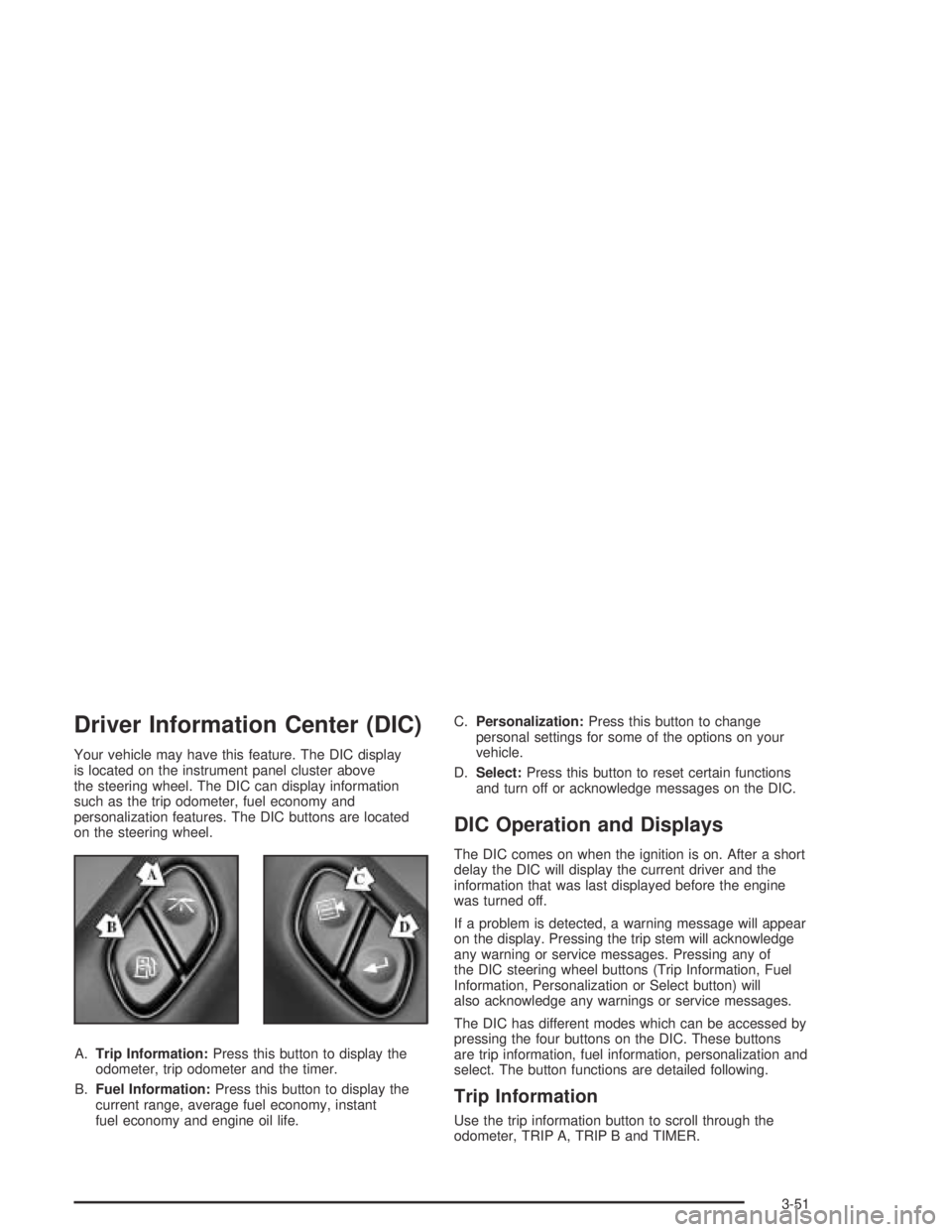
personalization features. The DIC buttons are located
on the steering wheel.
A.Trip Information:Press this button to display the
odometer, trip odometer and the timer.
B.Fuel Information:Press this button to display the
current range, average fuel economy, instant
fuel economy and engine oil life.C.Personalization:Press this button to change
personal settings for some of the options on your
vehicle.
D.Select:Press this button to reset certain functions
and turn off or acknowledge messages on the DIC.
DIC Operation and Displays
The DIC comes on when the ignition is on. After a short
delay the DIC will display the current driver and the
information that was last displayed before the engine
was turned off.
If a problem is detected, a warning message will appear
on the display. Pressing the trip stem will acknowledge
any warning or service messages. Pressing any of
the DIC steering wheel buttons (Trip Information, Fuel
Information, Personalization or Select button) will
also acknowledge any warnings or service messages.
The DIC has different modes which can be accessed by
pressing the four buttons on the DIC. These buttons
are trip information, fuel information, personalization and
select. The button functions are detailed following.
Trip Information
Use the trip information button to scroll through the
odometer, TRIP A, TRIP B and TIMER.
3-51
Page 172 of 466

Odometer
Press the trip information button until the odometer
appears on the display. This shows the total distance
the vehicle has been driven in either miles or kilometers.
Pressing the reset stem located on the instrument
cluster with the vehicle off will also display the odometer.
Trip A and Trip B
Press the trip information button until TRIP A or TRIP B
is displayed. This shows the current distance traveled
since the last reset for each trip odometer in either miles
or kilometers. Both odometers can be used at the
same time.
Each trip odometer can be reset to zero separately by
pressing select while the desired trip odometer is
displayed. You can also reset the trip odometers with
the reset stem on the cluster. If you press and hold the
reset stem for four seconds, the display will show the
distance traveled since the last ignition cycle.
Timer
The DIC can be used as a stopwatch. Press the select
button while TIMER is displayed to start the timer.
The display will show the amount of time that has
passed since the timer was last reset (not including
time the ignition is off). Time will continue to be counted
as long as the ignition is on, even if another display
is being shown on the DIC. The timer will record up to
99 hours, 59 minutes and 59 seconds (99:59:59)
after which the display will roll back to zero.
To stop the counting of time, press the select button
briey while TIMER is displayed.
To reset the timer to zero, press and hold the select
button while TIMER is displayed.
Fuel Information
Use the fuel information button to scroll through the
range, average fuel economy, instant fuel economy and
the GM Oil Life System.
3-52
Page 173 of 466
Fuel Range
Press the fuel information button until RANGE appears
to display the remaining distance you can drive
without refueling. It’s based on fuel economy and the
fuel remaining in the tank. The display will show LOW if
the fuel level is low.
The fuel economy data used to determine fuel range is
an average of recent driving conditions. As your
driving conditions change, this data is gradually updated.
Fuel range cannot be reset.
Average Fuel Economy
Pressthe fuel information button until AVG appears in the
display. Average fuel economy is how many miles per
gallon your vehicle is getting based on current and past
driving conditions.
Press and hold the select button while AVG. ECON
is displayed to reset the average fuel economy. Average
fuel economy will then be calculated starting from that
point. If the average fuel economy is not reset, it will be
continually updated each time you drive.
Instant Fuel Economy
Press the fuel information button until INST appears in
the display. Instant fuel economy is how many miles
per gallon your vehicle is at the particular moment
in time. The instant fuel economy cannot be reset.
GM Oil Life System
Press the fuel information button until ENGINE OIL LIFE
appears in the display. The GM Oil Life System shows
an estimate of the oil’s remaining useful life. It will show
100% when the system is reset after an oil change.
It will alert you to change your oil on a schedule
consistent with your driving conditions.
Always reset the engine oil life monitor after an oil
change. To reset the monitor, press and hold the
select button while ENGINE OIL LIFE is displayed.
For more information, seeEngine Oil on page 5-16.
3-53
Page 179 of 466
When the vehicle is placed in PARK (P) or in any
forward gear, the mirror(s) will return to normal driving
positions, following a short delay.
Choose one of the four settings and press the
personalization button while it is displayed on the DIC
to select it and move on to the next feature.
Easy Exit Driver Seat
Press the personalization button until EASY EXIT
DRIVER SEAT appears in the display. To select your
personalization for seat position exit, press the
select button while EASY EXIT DRIVER SEAT is
displayed on the DIC. Pressing the select button will
scroll through the following choices:
EASY EXIT SEAT: OFF (default): If you choose for
the easy exit seat feature to be on, the driver’s seat
will move to the exit position when the key is
removed from the ignition.
EASY EXIT SEAT: ON: If you choose for this
feature to be off, no seat exit recall will occur.
Choose one of the two settings and press the
personalization button while it is displayed on the DIC
to select it and move on to the next feature.
Display Units (U.S./MET)
Press the personalization button until DISPLAY
UNITS — U.S./MET appears in the display. To select
English or metric, press the select button while DISPLAY
UNITS — U.S./MET is displayed on the DIC. Pressing
the select button will scroll through the following choices:
UNITS: U.S. (ENGLISH): If you choose U.S.
(English), all information will be displayed in U.S.
units. For example, distance in miles and fuel
economy in miles per gallon (U.S. gallon) is
displayed.
UNITS: METRIC (KM/L): If you choose metric
KM/L, all information will be displayed in metric
units. For example, distance in kilometers and fuel
economy in KM/L is displayed.
UNITS: METRIC (L/100KM): If you choose metric
L/100KM, all information will be displayed in
metric units. For example, distance in kilometers
and fuel economy in L/100KM is displayed.
Choose one of the three settings and press the
personalization button while it is displayed on the DIC
to select it and end out of the personalization options.
3-59
Page 180 of 466

Display Language
To select your personalization for display language,
press the select button while DISPLAY LANGUAGE is
displayed on the DIC. Pressing the select button
will scroll through the available languages:
Choosing a language will display all of the information
on the DIC in the desired language.
If your vehicle is equipped with an Information Center,
press and hold the trip stem while the odometer is
displayed. While holding down the trip stem button, the
Information Center will begin to list the available
languages. The name of each language will be
displayed in its native language (ENGLISH for English,
FRANCAIS for French and ESPANOL for Spanish).
When you see the language that you would like, release
the trip stem. The Information Center will then display
the information in the language you chose.
If you accidentally choose a language you do not want
or understand, press and hold the trip information
button and the personalization button at the same time.
After a short time, the display will begin cycling
through the available languages. Release the buttons
when you see a language you would like. This will also
reset all of the current driver’s personalization features
to their factory default settings.
For vehicles with redundant steering wheel controls,
see “Personalization” under the DIC.
Select
The select button is used to reset certain functions and
turn off or acknowledge messages on the DIC display.
The select button also toggles through the options
available in each personalization menu. For example,
this button will reset the trip odometers, turn off the FUEL
LEVEL LOW message, and toggle through the languages
you can select the DIC to display information in.
DIC Warnings and Messages
Messages are displayed on the DIC to notify the driver
that the status of the vehicle has changed and that
some action may be needed by the driver to correct the
condition. More than one message may appear at
one time. They will appear one behind the other. Some
messages may not require immediate action but you
should press the trip stem to acknowledge that you
received the message and clear it from the display.
Pressing any of the DIC steering wheel buttons
(Trip Information, Fuel Information, Personalization or
Select button) will also acknowledge any warnings
or service messages. Some messages cannot be
cleared from the display because they are more urgent.
These messages require action before they can be
removed from the DIC display. The following are
the possible messages that can be displayed and some
information about them.
3-60
Page 182 of 466

REAR ACCESS OPEN
If the liftgate or liftglass is open while the ignition is in
RUN, this message will appear on the DIC and you will
hear a chime. Turn off the vehicle and check the
liftgate and liftglass. Restart the vehicle and check for
the message on the DIC display. Press the select button
to acknowledge this message and clear it from the
DIC display.
FUEL LEVEL LOW
If the fuel level is low in the vehicle’s gas tank this
message will appear on the DIC and you will hear a
chime. Refuel as soon as possible. Press the select
button to acknowledge this message and clear it from
the DIC display.
CHECK WASHER FLUID
If the washer uid level is low, this message will appear
on the DIC. Adding washer uid will clear the message.
Press the select button to acknowledge this message
and clear it from the DIC display.
ICE POSSIBLE
If the outside temperature reaches a level where ice
could form on the roadway, this message may appear
on the DIC. If the temperature rises to a safe level,
the message will clear. Press the select button to
acknowledge this message and clear it from the DIC
display.
DRIVER DOOR AJAR
If the driver’s door is not fully closed, this message will
appear on the display and you will hear a chime.
Stop and turn off the vehicle, check the door for
obstacles, and close the door again. Check to see if the
message still appears on the DIC. Press the select
button to acknowledge this message and clear it from
the DIC display.
PASSENGER DOOR AJAR
If the passenger’s door is not fully closed, this message
will appear on the display and you will hear a chime.
Stop and turn off the vehicle, check the door for
obstacles, and close the door again. Check to see if the
message still appears on the DIC. Press the select
button to acknowledge this message and clear it from
the DIC display.
3-62
Page 183 of 466
LEFT REAR DOOR AJAR
If the driver’s side rear door is not fully closed this
message will appear on the display and you will hear
a chime. Stop and turn off the vehicle, check the door
for obstacles, and close the door again. Check to see
if the message still appears on the DIC. Press the select
button to acknowledge this message and clear it from
the DIC display.
RIGHT REAR DOOR AJAR
If the passenger’s side rear door is not fully closed
this message will appear on the display and you
will hear a chime. Stop and turn off the vehicle, check
the door for obstacles, and close the door again.
Check to see if the message still appears on the DIC.
Press the select button to acknowledge this message
and clear it from the DIC display.
RFA # BATTERY LOW
If a remote keyless entry transmitter battery is low,
this message will appear on the DIC. The battery
needs to be replaced in the transmitter. Press the
select button to acknowledge this message and clear
it from the DIC display.
CURB VIEW ACTIVATED
The CURB VIEW ACTIVATED message is displayed
when one of the outside rear view mirrors move into the
curb view position. Refer to “Outside Curb View Assist
Mirrors” for more information.
TIGHTEN FUEL CAP
If the vehicle’s fuel cap is not tightened properly, this
message may appear on the DIC and a chime will
sound. Fully reinstall the fuel cap. The diagnostic system
can determine if the fuel cap has been left off or
improperly installed. A loose or missing fuel cap will
allow fuel to evaporate into the atmosphere. The
DIC message will remain on until the message is
cancelled with the return button on the steering wheel.
The DIC message will also be cancelled if the ignition
is turned off.
The DIC message and the Service Engine Soon light
may come on again during a second trip if the fuel cap
is still not tightened properly. SeeMalfunction Indicator
Lamp on page 3-43for more information.
3-63
Page 258 of 466

Off-Road Driving with Your
Four-Wheel-Drive Vehicle
This off-road guide is for vehicles that have four-wheel
drive. Also, seeBraking on page 4-6. If your vehicle
does not have four-wheel drive, you should not
drive off-road unless you are on a level, solid surface.
Off-road driving can be great fun. But it does have
some denite hazards. The greatest of these is
the terrain itself.
“Off-roading” means you have left the great North
American road system behind. Traffic lanes are not
marked. Curves are not banked. There are no
road signs. Surfaces can be slippery, rough, uphill or
downhill. In short, you have gone right back to nature.
Off-road driving involves some new skills. And that
is why it is very important that you read this guide.
You will nd many driving tips and suggestions.
These will help make your off-road driving safer
and more enjoyable.
Before You Go Off-Roading
There are some things to do before you go out. For
example, be sure to have all necessary maintenance and
service work done. Check to make sure all underbody
shields (if so equipped) are properly attached.
Be sure you read all the information about your
four-wheel-drive vehicle in this manual.
Is there enough fuel? Is the spare tire fully inated?
Are the uid levels up where they should be? What
are the local laws that apply to off-roading where
you will be driving? If you do not know, you should
check with law enforcement people in the area.
Will you be on someone’s private land? If so, be
sure to get the necessary permission.
4-16