ignition GMC ENVOY XUV 2004 Service Manual
[x] Cancel search | Manufacturer: GMC, Model Year: 2004, Model line: ENVOY XUV, Model: GMC ENVOY XUV 2004Pages: 460, PDF Size: 2.99 MB
Page 168 of 460
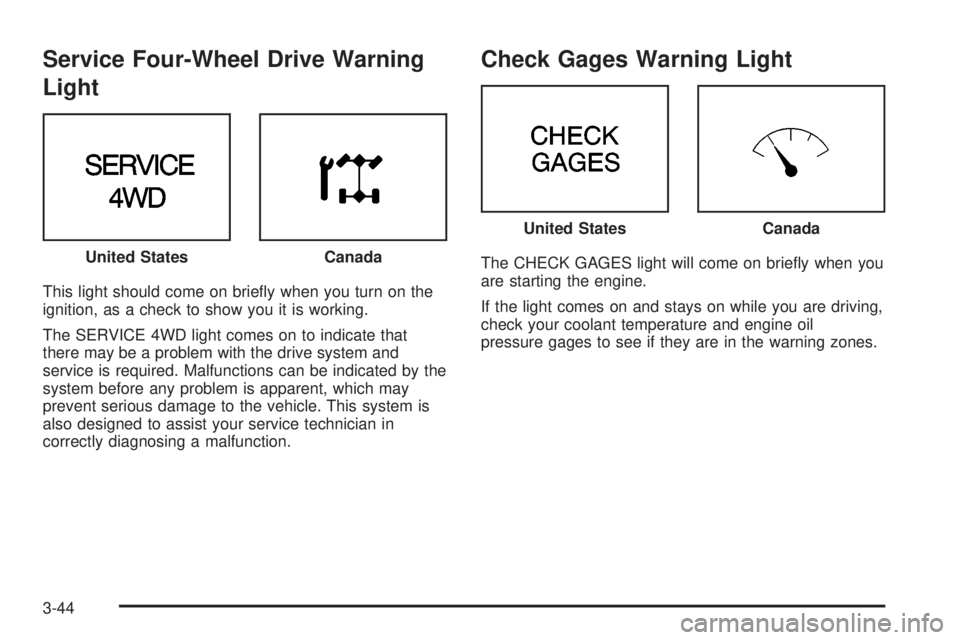
Service Four-Wheel Drive Warning
Light
This light should come on brie¯y when you turn on the
ignition, as a check to show you it is working.
The SERVICE 4WD light comes on to indicate that
there may be a problem with the drive system and
service is required. Malfunctions can be indicated by the
system before any problem is apparent, which may
prevent serious damage to the vehicle. This system is
also designed to assist your service technician in
correctly diagnosing a malfunction.
Check Gages Warning Light
The CHECK GAGES light will come on brie¯y when you
are starting the engine.
If the light comes on and stays on while you are driving,
check your coolant temperature and engine oil
pressure gages to see if they are in the warning zones. United StatesCanada
United StatesCanada
3-44
Page 169 of 460

Fuel Gage
When the ignition is on, the fuel gage tells you about
how much fuel you have remaining.Here are four things that some owners ask about. None
of these show a problem with your fuel gage:
·At the gas station, the gas pump shuts off before
the gage reads full.
·It takes a little more or less fuel to ®ll up than the
gage indicated. For example, the gage may have
indicated the tank was half full, but it actually took a
little more or less than half the tank's capacity to
®ll the tank.
·The gage moves a little when you turn a corner or
speed up.
·The gage doesn't go back to empty when you turn
off the ignition.
Low Fuel Warning Light
The light next to the fuel gage will come on brie¯y when
you are starting the engine.
This light comes on when the fuel tank is low on fuel.
To turn it off, add fuel to the fuel tank. United States
Canada
3-45
Page 170 of 460
Driver Information Center (DIC)
Your vehicle may have this feature. The DIC display
is located on the instrument panel cluster above
the steering wheel. The DIC can display information
such as the trip odometer, fuel economy and
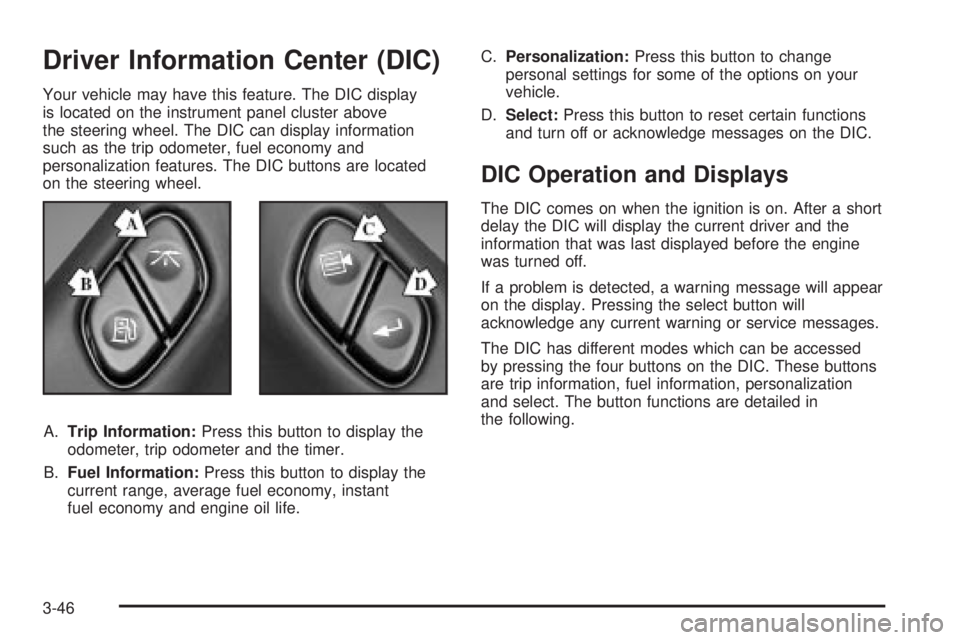
personalization features. The DIC buttons are located
on the steering wheel.
A.Trip Information:Press this button to display the
odometer, trip odometer and the timer.
B.Fuel Information:Press this button to display the
current range, average fuel economy, instant
fuel economy and engine oil life.C.Personalization:Press this button to change
personal settings for some of the options on your
vehicle.
D.Select:Press this button to reset certain functions
and turn off or acknowledge messages on the DIC.
DIC Operation and Displays
The DIC comes on when the ignition is on. After a short
delay the DIC will display the current driver and the
information that was last displayed before the engine
was turned off.
If a problem is detected, a warning message will appear
on the display. Pressing the select button will
acknowledge any current warning or service messages.
The DIC has different modes which can be accessed
by pressing the four buttons on the DIC. These buttons
are trip information, fuel information, personalization
and select. The button functions are detailed in
the following.
3-46
Page 171 of 460
Trip Information
Use the trip information button to scroll through the
odometer, TRIP A, TRIP B and TIMER.
Odometer
The trip odometer can tell you how far your vehicle has
been driven since you last set the trip odometer to
zero. Press and release the trip stem located on the
instrument panel cluster to display the trip odometer.
Press and hold the trip stem to reset the trip odometer
once it is displayed. Press and hold the trip stem for
a few seconds to reset the trip odometer to the mileage
since the vehicle was last started.
Trip A and Trip B
Press the trip information button until TRIP A or TRIP B
is displayed. This shows the current distance traveled
since the last reset for each trip odometer in either miles
or kilometers. Both odometers can be used at the
same time.
Each trip odometer can be reset to zero separately by
pressing select while the desired trip odometer is
displayed. You can also reset the trip odometers with
the reset stem on the cluster. If you press and hold the
reset stem for four seconds, the display will show the
distance traveled since the last ignition cycle.
Timer
The DIC can be used as a stopwatch. Press the select
button while TIMER is displayed to start the timer.
The display will show the amount of time that has
passed since the timer was last reset (not including time
the ignition is off). Time will continue to be counted as
long as the ignition is on, even if another display is being
shown on the DIC. The timer will record up to 99 hours,
59 minutes and 59 seconds (99:59:59) after which
the display will roll back to zero.
To stop the counting of time, press the select button
brie¯y while TIMER is displayed.
To reset the timer to zero, press and hold the select
button while TIMER is displayed.
3-47
Page 174 of 460
Automatic Locking
Press the personalization button until AUTOMATIC
LOCKING appears in the display. To select your
personalization for automatic locking, press the select
button while AUTOMATIC LOCKING is displayed on the
DIC. Pressing the select button will scroll through the
following choices:
·LOCK DOORS OUT OF PARK (default): If you
choose for the doors to lock out of park, the
doors will lock when the vehicle is shifted out of
PARK (P).
·LOCK DOORS MANUALLY: If you choose for the
doors to lock manually, the doors will not be
locked automatically.
·LOCK DOORS WITH SPEED: If you choose for the
doors to lock with speed, the doors will lock when
the vehicle speed is above 8 mph (13 km/h) for
three seconds.
Choose one of the three settings and press the
personalization button while it is displayed on the DIC to
select it and move on to the next feature. For more
information on automatic door locks see
Programmable
Automatic Door Locks on page 2-9.
Automatic Unlocking
Press the personalization button until AUTOMATIC
UNLOCKING appears in the display. To select
your personalization for automatic unlocking, press the
select button while AUTOMATIC UNLOCKING is
displayed on the DIC. Pressing the select button will
scroll through the following choices:
·UNLOCK ALL IN PARK (default): If you choose for
all the doors to unlock in PARK (P), all of the doors
will unlock when the vehicle is shifted into
PARK (P).
·UNLOCK ALL AT KEY OUT: If you choose for all
the doors to unlock at key out, all of the doors will
unlock when the key is taken out of the ignition.
·UNLOCK DOORS MANUALLY: If you choose for
the doors to unlock manually, the doors will not
be unlocked automatically.
·UNLOCK DRIVER IN PARK: If you choose for the
driver's door to unlock in park, the driver's door
will be unlocked when the vehicle is shifted
into PARK (P).
Choose one of the four settings and press the
personalization button while it is displayed on the DIC to
select it and move on to the next feature. For more
information on automatic door locks see
Programmable
Automatic Door Locks on page 2-9.
3-50
Page 175 of 460
Seat Position Recall
Press the personalization button until SEAT POSITION
RECALL appears in the display. To select your
personalization for seat position recall, press the select
button while SEAT POSITION RECALL is displayed
on the DIC. Pressing the select button will scroll through
the following choices:
·SEAT POSITION RECALL OFF (default): If you
choose seat recall off, the memory seat position
you saved will only be recalled when the memory
button1 or 2 is pressed.
·SEAT POSITION RECALL AT KEY IN: If you
choose seat recall at key in, the memory seat
position you saved will be recalled when you put
the key in the ignition.
·SEAT POSITION RECALL ON REMOTE: If you
choose seat recall on remote, the memory seat
position you saved will be recalled when you unlock
the vehicle with the remote keyless entry
transmitter.
Choose one of the three settings and press the
personalization button while it is displayed on the DIC to
select it and move on to the next feature. For more
information on seat position recall see
Memory Seat on
page 2-54.
Perimeter Lighting
Press the personalization button until PERIMETER
LIGHTING appears in the display. To select your
personalization for perimeter lighting, press the select
button while PERIMETER LIGHTING is displayed on the
DIC. Pressing the select button will scroll through the
following choices:
·PERIMETER LIGHTING ON (default)
·PERIMETER LIGHTING OFF
If you choose for perimeter lighting to be on, the
headlamps and back-up lamps will come on for
40 seconds, if it is dark enough outside, when you
unlock the vehicle with the remote keyless entry
transmitter.
Choose one of the two settings and press the
personalization button while it is displayed on the DIC to
select it and move on to the next feature.
3-51
Page 178 of 460
When the vehicle is placed in PARK (P) or in any
forward gear, the mirror(s) will return to normal driving
position, following a short delay.
Choose one of the four settings and press the
personalization button while it is displayed on the DIC to
select it and move on to the next feature.
Easy Exit Driver Seat
Press the personalization button until EASY EXIT
DRIVER SEAT appears in the display. To select your
personalization for seat position exit, press the
select button while EASY EXIT DRIVER SEAT is
displayed on the DIC. Pressing the select button will
scroll through the following choices:
·EASY EXIT SEAT: OFF (default): If you choose for
the easy exit seat feature to be on, the driver's seat
will move to the exit position when the key is
removed from the ignition.
·EASY EXIT SEAT: ON: If you choose for this
feature to be off, no seat exit recall will occur.
Choose one of the two settings and press the
personalization button while it is displayed on the DIC to
select it and move on to the next feature. For more
information on seat position exit, see
Memory Seat on
page 2-54.
Display Units -U.S./MET
Press the personalization button until DISPLAY UNITS
-U.S./METappears in the display. To select English
or metric, press the select button while DISPLAY
UNITS- U.S./MET is displayed on the DIC. Pressing the
select button will scroll through the following choices:
·UNITS: U.S. (ENGLISH): If you choose U.S.
(English), all information will be displayed in U.S.
units. For example, distance in miles and fuel
economy in miles per gallon (U.S. gallon).
·UNITS: METRIC KM/L: If you choose metric KM/L,
all information will be displayed in metric units. For
example, distance in kilometers and fuel economy
in KM/L.
·UNITS: METRIC L/100KM: If you choose metric
L/100KM, all information will be displayed in
metric units. For example, distance in kilometers
and fuel economy in L/100KM.
Choose one of the three settings and press the
personalization button while it is displayed on the DIC to
select it and end out of the personalization options.
3-54
Page 184 of 460
REAR WIPER OBSTRUCTION
Check the rear wiper. An object is preventing it from
moving to the off position. Tailgate glass operations
cannot be performed if the rear wiper is not in the off
position.
CLOSE THE TAILGATE
The tailgate must be closed to operate the
tailgate glass.
TAILGATE GLASS DOWN
The rear wiper/defog request cannot be performed
because the tailgate glass is down.
TAILGATE OPEN
The tailgate is in drop mode. Operate the vehicle with
caution.
TAILGATE AJAR
The tailgate is ajar and should be closed before moving
the vehicle.
SEE MANUAL ±TAILGATE
Window position needs to be reset. Activate the tailgate
window up switch and continue to hold it for two
seconds after the window is fully closed. Then activate
the tailgate window down switch and continue to
hold it for two seconds after the window is fully open.
If this process does not restore tailgate function,
see your dealer for service.
TIGHTEN FUEL CAP
If the vehicle's fuel cap is not tightened properly, this
message may appear on the DIC and a chime will
sound. Fully reinstall the fuel cap. The diagnostic system
can determine if the fuel cap has been left off or
improperly installed. A loose or missing fuel cap will
allow fuel to evaporate into the atmosphere. The
DIC message will remain on until the message is
cancelled with the return button on the steering wheel.
The DIC message will also be cancelled if the ignition
is turned off.
The DIC message and the Service Engine Soon light
may come on again during a second trip if the fuel cap is
still not tightened properly. See
Malfunction Indicator
Lamp on page 3-38for more information.
3-60
Page 185 of 460
Audio System(s)
Notice:Before you add any sound equipment to
your vehicle ± like a tape player, CB radio, mobile
telephone or two-way radio ± be sure you can
add what you want. If you can, it's very important to
do it properly. Added sound equipment may
interfere with the operation of your vehicle's engine,
radio or other systems, and even damage them.
Your vehicle's systems may interfere with the
operation of sound equipment that has been added
improperly.
So, before adding sound equipment, check with
your dealer and be sure to check federal rules
covering mobile radio and telephone units.
Your audio system has been designed to operate easily
and to give years of listening pleasure. You will get
the most enjoyment out of it if you acquaint yourself with
it ®rst. Figure out which radio you have in your vehicle,
®nd out what your audio system can do and how to
operate all of its controls to be sure you're getting the
most out of the advanced engineering that went into it.
Your vehicle has a feature called Retained Accessory
Power (RAP). With RAP, you can play your audio
system even after the ignition is turned off. See
ªRetained Accessory Power (RAP)º under
Ignition
Positions on page 2-24.
Setting the Time
Your radio may have a button marked with an H or HR
to represent hours and an M or MN to represent
minutes.
Press and hold the hour button until the correct hour
appears on the display. AM or PM will appear on
the display for morning or evening hours. Press and
hold the minute button until the correct minute appears
on the display. The time may be set with the ignition
on or off.
To synchronize the time with an FM station broadcasting
Radio Data System (RDS) information, press and
hold the hour and minute buttons at the same time for
two seconds until UPDATED and the clock symbol
appear on the display. If the time is not available from
the station, NO UPDAT will appear on the display.
RDS time is broadcast once a minute. Once you have
tuned to an RDS broadcast station, it may take a
few minutes for your time to update.
3-61
Page 187 of 460

XMŸ Satellite Radio Service
(48 Contiguous US States)
XMŸ is a continental U.S. based satellite radio service
that offers 100 coast to coast channels including
music, news, sports, talk, and children's programming.
XMŸ provides digital quality audio and text information,
including song title and artist name. A service fee is
required in order to receive the XMŸ service. For more
information, contact XMŸ at www.xmradio.com or
call 1-800-852-XMXM (9696).
Playing the Radio
PWR (Power):Press this knob to turn the system on
and off.
VOL (Volume):Turn this knob to increase or to
decrease volume.
AUTO VOL (Automatic Volume):With automatic
volume, your audio system will adjust automatically to
make up for road and wind noise as you drive by
increasing the volume as vehicle speed increases.
Set the volume at the desired level. Press this button to
select LOW, MEDIUM, or HIGH. AVOL will appear
on the display. Each higher setting will provide more
volume compensation as vehicle speed increases.
To turn automatic volume off, press this button until
AVOL OFF appears on the display.DISPL (Display):Press this knob to switch the display
between the radio station frequency and the time.
Time display is available with the ignition off.
For RDS, press the DISPL knob to change what
appears on the display while using RDS. The display
options are station name, RDS station frequency,
PTY and the name of the program (if available).
For XMŸ (48 contiguous US states, if equipped), press
the DISPL knob while in XM mode to retrieve four
different categories of information related to the current
song or channel: Artist, Song Title, Category or PTY,
Channel Number/Channel Name.
To change the default on the display, press the DISPL
knob until you see the display you want, then hold
the knob for two seconds. The radio will produce one
beep and the selected display will now be the default.
3-63