AUX GMC SAVANA 2012 Owner's Manual
[x] Cancel search | Manufacturer: GMC, Model Year: 2012, Model line: SAVANA, Model: GMC SAVANA 2012Pages: 424, PDF Size: 5.15 MB
Page 9 of 424
Black plate (3,1)GMC Savana Owner Manual - 2012 - 2nd - 11/11/11
In Brief 1-3
A.Air Vents on page 8‑7.
B. Driver Information Center (DIC) Buttons. See Driver Information
Center (DIC) on page 5‑28.
C. Turn and Lane‐Change Lever. See Turn and Lane-Change
Signals on page 6‑5.
Windshield Wiper/Washer on
page 5‑4.
D. Hazard Warning Flashers on
page 6‑4 (Out of View).
E. Instrument Cluster on
page 5‑11.
F. Shift Lever. See Starting the
Engine on page 9‑18.
Manual Mode on page 9‑31
(If Equipped).
G. Climate Control Systems on
page 8‑1.
H. Infotainment on page 7‑1. I.
Exterior Lamp Controls on
page 6‑1.
J. Instrument Panel Illumination
Control on page 6‑5.
Dome Lamp Override. See
Dome Lamps on page 6‑6.
K. Cruise Control on page 9‑37
(If Equipped).
Fast Idle System (If Equipped).
See the Duramax diesel
supplement for more
information.
L. Steering Wheel Adjustment on
page 5‑2 (If Equipped).
M. Data Link Connector (DLC) (Out of View). See Malfunction
Indicator Lamp on page 5‑20.
N. Horn on page 5‑3.
O. Steering Wheel Controls on
page 5‑2 (If Equipped). P. Tow/Haul Mode Button. See
“Tow/Haul Mode” underTowing
Equipment on page 9‑55.
Q. Power Outlets on page 5‑9.
R. StabiliTrak
®System on
page 9‑35 (If Equipped).
S. Passenger Airbag On‐Off Switch (If Equipped). See
Airbag On-Off Switch on
page 3‑27.
T. Front Storage on page 4‑1
(If Equipped).
U. Passenger Airbag Status
Indicator on page 5‑19
(If Equipped).
OnStar
®System Button
(If Equipped). See OnStar
Overview on page 14‑1.
V. Rear Heating System on
page 8‑4 (If Equipped).
W. USB Port (If Equipped). See Auxiliary Devices on page 7‑17.
Page 23 of 424
Black plate (17,1)GMC Savana Owner Manual - 2012 - 2nd - 11/11/11
In Brief 1-17
Satellite Radio
XM is a satellite radio service based
in the 48 contiguous United States
and 10 Canadian provinces.
XM satellite radio has a wide
variety of programming and
commercial-free music, coast to
coast, and in digital-quality sound.
A fee is required to receive the
XM service.
For more information, refer to:
.www.xmradio.com or call
1-800-929-2100 (U.S.)
.www.xmradio.ca or call
1-877-438-9677 (Canada)
See Satellite Radio on page 7‑9.
Portable Audio Devices
This vehicle may have an auxiliary
input located on the radio faceplate
and a USB port located on the
instrument panel. External devices
such as an iPod
®, laptop computer,
MP3 player, CD changer, or USB
storage device can be connected to
the auxiliary port using a 3.5 mm
(1/8 in) input cable or the USB port
depending on the audio system.
See "Using the Auxiliary Input Jack"
and "Using the USB Port" in
Auxiliary Devices on page 7‑17.
Bluetooth®
For vehicles with a Bluetooth
system, it allows users with a
Bluetooth‐enabled cell phone to
make and receive hands-free calls
using the vehicle’ s audio system
and controls.
The Bluetooth‐enabled cell phone
must be paired with the Bluetooth
system before it can be used in the
vehicle. Not all phones will support
all functions. For more information,
visit www.gm.com/bluetooth.
For more information, see Bluetooth
on page 7‑22.
Page 24 of 424

Black plate (18,1)GMC Savana Owner Manual - 2012 - 2nd - 11/11/11
1-18 In Brief
Steering Wheel Controls
For vehicles with audio steering
wheel controls, some audio controls
can be adjusted at the steering
wheel.
w:Press to go to the next favorite
radio station, track on a CD,
or folder on an iPod
®or USB
device.
c/x: Press to go to the
previous favorite radio station, track
on a CD, or folder on an iPod
®or
USB device. Also press to reject an
incoming call, or end a current call.
b/g: Press to silence the vehicle
speakers only. Press again to turn
the sound on. Press and hold longer
than two seconds to interact with
OnStar
®or Bluetooth systems,
if equipped.
+
e: Press to increase volume.
−
e: Press to decrease volume.
SRCE: Press to switch between
the radio and CD, and for equipped
vehicles, the front auxiliary.
¨: Press to seek the next radio
station, the next track while sourced
to the CD, or to select tracks and
folders on an iPod
®or USB device.
For more information, see Steering
Wheel Controls on page 5‑2.
Cruise Control
For vehicles with cruise control, the
buttons are located on the left side
of the steering wheel.
J: Turns the system on or off.
+RES: Press briefly to make the
vehicle resume to a previously set
speed, or press and hold to
accelerate.
SET−: Press to set the speed and
activate cruise control or press and
hold to decelerate.
Page 43 of 424

Black plate (15,1)GMC Savana Owner Manual - 2012 - 2nd - 11/11/11
Keys, Doors, and Windows 2-15
Manual Mirrors
Adjust the mirrors by pressing the
mirror up and down and left and
right.
The mirrors can be manually folded
in or out.
On the lower portion of each mirror
is an auxiliary convex mirror.
A convex mirror's surface is curved
so you can see more from the driver
seat. The auxiliary convex mirrors
can be adjusted manually by
pressing the mirror.
Trailer-Tow Mirrors
Vehicles with towing mirrors can be
adjusted manually for a clear view
of the objects behind you.
On the lower portion of each mirror
there is an auxiliary convex mirror
that can be adjusted manually to
provide an extended field of view.
The mirrors can be manually folded
in or out.
Power Mirrors
Vehicles with outside power mirrors
have controls located on the driver
side door.
Select each mirror by turning the
knob clockwise for the passenger
side mirror or counterclockwise for
the driver side mirror. The center
position is neutral.
Then, adjust the mirror angle by
moving the knob in the desired
direction. The auxiliary convex
mirrors can only be adjusted
manually.
Page 117 of 424
Black plate (3,1)GMC Savana Owner Manual - 2012 - 2nd - 11/11/11
Instruments and Controls 5-3
Selecting Tracks on an iPod or
USB Device
1. Press and hold
worc/x
while listening to a song until the
contents of the current folder
display on the radio display.
2. Press and release
worc/x
to scroll up or down the list, then
press and hold
w, or press¨to
play the highlighted track.
Navigating Folders on an iPod or
USB Device
1. Press and hold
worc/x
while listening to a song until the
contents of the current folder
display on the radio display.
2. Press and hold
c/xto go
back to the previous folder list. 3. Press and release
worc/x
to scroll up or down the list.
.To select a folder, press
and hold
w, or press¨
when the folder is
highlighted.
.To go back further in the
folder list, press and hold
c/x.
b/g(Push to Talk):
Press to
silence the vehicle speakers only.
Press again to turn the sound on.
For vehicles with Bluetooth or
OnStar
®systems, press and hold
for longer than two seconds to
interact with those systems. See
Bluetooth on page 7‑22 andOnStar
Overview on page 14‑1 for more
information.
SRCE (Source/Voice
Recognition): Press to switch
between the radio and CD, and for
equipped vehicles, the front
auxiliary.
¨(Seek): Press to go to the next
radio station while in AM,
FM, or XM™.
For vehicles with a CD Player or
USB port:
Press
¨to go to the next track or
chapter while sourced to the CD.
Press
¨to select a track or a folder
when navigating folders on an iPod
or USB device.
While listening to a CD, press and
hold
¨to quickly move forward
through the tracks. Release to stop
on the desired track.
+
e: Press to increase volume.
−
e: Press to decrease volume.
Horn
Press the horn symbol in the middle
of the steering wheel to sound
the horn.
Page 171 of 424
Black plate (1,1)GMC Savana Owner Manual - 2012 - 2nd - 11/15/11
Infotainment System 7-1
Infotainment
System
Introduction
Infotainment . . . . . . . . . . . . . . . . . . . 7-1
Theft-Deterrent Feature . . . . . . . 7-2
Operation . . . . . . . . . . . . . . . . . . . . . 7-3
Radio
AM-FM Radio . . . . . . . . . . . . . . . . . 7-7
Satellite Radio . . . . . . . . . . . . . . . . 7-9
Radio Reception . . . . . . . . . . . . . 7-10
Fixed Mast Antenna(Multi-Band) . . . . . . . . . . . . . . . . 7-11
Fixed Mast Antenna (Care) . . . . . . . . . . . . . 7-11
Audio Players
CD Player . . . . . . . . . . . . . . . . . . . 7-12
Auxiliary Devices . . . . . . . . . . . . 7-17
Phone
Bluetooth . . . . . . . . . . . . . . . . . . . . 7-22
Introduction
Infotainment
If the vehicle came without a radio,
the wiring provisions for a radio and
an antenna were installed at the
assembly plant, so that if you want,
a radio can be installed at the
dealer. Determine which radio the vehicle
has and read the following pages to
become familiar with its features.{WARNING
Taking your eyes off the road for
extended periods could cause a
crash resulting in injury or death
to you or others. Do not give
extended attention to infotainment
tasks while driving.
This system provides access to
many audio and non‐audio listings.
Page 183 of 424
Black plate (13,1)GMC Savana Owner Manual - 2012 - 2nd - 11/15/11
Infotainment System 7-13
Playing a CD
If the ignition or radio is turned off
with a CD in the player, it stays in
the player. When the ignition or
radio is turned on, the CD starts
playing where it stopped, if it was
the last selected audio source.
When a CD is inserted, the CD
symbol displays on the left side of
the radio display. As each new track
starts to play, the track number
displays.
The CD player can play the smaller
8 cm (3 in) single CDs with an
adapter ring. Full-size CDs and the
smaller CDs are loaded in the same
manner.
CD/AUX (CD/Auxiliary):Press to
cycle between CD or Auxiliary when
listening to the radio. The CD icon
and a message showing the disc
and/or track number will display
when a CD is in the player. Press
again and the system automatically
searches for an auxiliary input
device; see Auxiliary Devices on
page 7‑17 for more information. If a portable audio player is not
connected,
“No Input Device Found”
displays.
4(Information): Press to display
additional text information related to
the current song. If information is
available, the song title information
displays on the top line of the
display and artist information
displays on the bottom line. When
information is not available, NO
INFO displays.
f(Tune): Turn to select tracks on
the CD that is currently playing.
©SEEK: Press to go to the start
of the current track if more than
10 seconds on the CD have played.
Press to go to the previous track if
less than 10 seconds on the CD
have played.
Press and hold, or press multiple
times, to continue moving backward
through the tracks on the CD.
¨SEEK: Press to go to the next
track.
Press and hold, or press multiple
times, to continue moving forward
through the tracks on the CD.
sREV (Fast Reverse): Press
and hold to reverse playback quickly
within a track.
\FWD (Fast Forward): Press
and hold to advance playback
quickly within a track.
RDM (Random): Press to listen to
tracks in random, rather than
sequential order. To use random, do
one of the following:
For the AM-FM Radio with CD:
1. Press the RDM button until the random icon displays.
2. Press the RDM button again until the random icon disappears
from the display.
Page 187 of 424
Black plate (17,1)GMC Savana Owner Manual - 2012 - 2nd - 11/15/11
Infotainment System 7-17
The album name displays on the
second line between the arrows,
and songs from the current album
begin to play. Once all songs from
that album have played, the player
moves to the next album in
alphabetical order on the CD and
begins playing MP3s from that
album.
To exit music navigator mode, press
the softkey below the Back tab to
return to normal MP3 playback.
CD Player Messages
CHECK DISC:If this message
displays and/or the CD ejects, it
could be for one of the following
reasons:
.It is very hot. When the
temperature returns to normal,
the CD should play.
.The road is very rough. When
the road becomes smoother, the
CD should play.
.The CD is dirty, scratched, wet,
or upside down.
.The air is very humid. If so, wait
about an hour and try again.
.There was a problem while
burning the CD.
.The label is caught in the CD
player.
If the CD is not playing correctly, for
any other reason, try a known
good CD.
If any error occurs repeatedly or if
an error cannot be corrected,
contact your dealer. If the radio
displays an error message, write it
down and provide it to your dealer
when reporting the problem.
Auxiliary Devices
Using the Auxiliary Input Jack
Radios with an auxiliary input jack
located on the lower right side of the
faceplate can connect to an external
audio device such as an iPod
®,
MP3 player, or CD player, for use as
another source for audio listening. This input jack is not an audio
output; do not plug headphones into
the front auxiliary input jack.
Drivers are encouraged to set up
any auxiliary device while the
vehicle is in P (Park). See
Defensive Driving on page 9‑3
for
more information on driver
distraction.
To use a portable audio player,
connect a 3.5 mm (1/8 in) cable to
the radio's front auxiliary input jack.
When a device is connected, press
the radio CD/AUX button to begin
playing audio from the device over
the vehicle speakers.
For optimal sound quality, increase
the portable audio device's volume
to the loudest level.
It is always best to power the
portable audio device through its
own battery while playing.
Page 188 of 424
Black plate (18,1)GMC Savana Owner Manual - 2012 - 2nd - 11/15/11
7-18 Infotainment System
O(Power/Volume):Turn clockwise
or counterclockwise to increase
or decrease the volume of the
portable player. Additional volume
adjustments might have to be made
from the portable device if the
volume is not loud or soft enough.
BAND: Press to listen to the radio
when a portable audio device is
playing. The portable audio device
continues playing.
CD/AUX (CD/Auxiliary): Press to
play a CD when a portable audio
device is playing. Press again and
the system begins playing audio
from the connected portable audio
player. If a portable audio player is
not connected, “No Input Device
Found” displays.Using the USB Port
Radios with a USB port can control
a USB storage device or an iPod®
using the radio buttons and knobs.
See“Playing an MP3” inCD Player
on page 7‑12 for information about
how to connect and control a USB
storage device or an iPod.
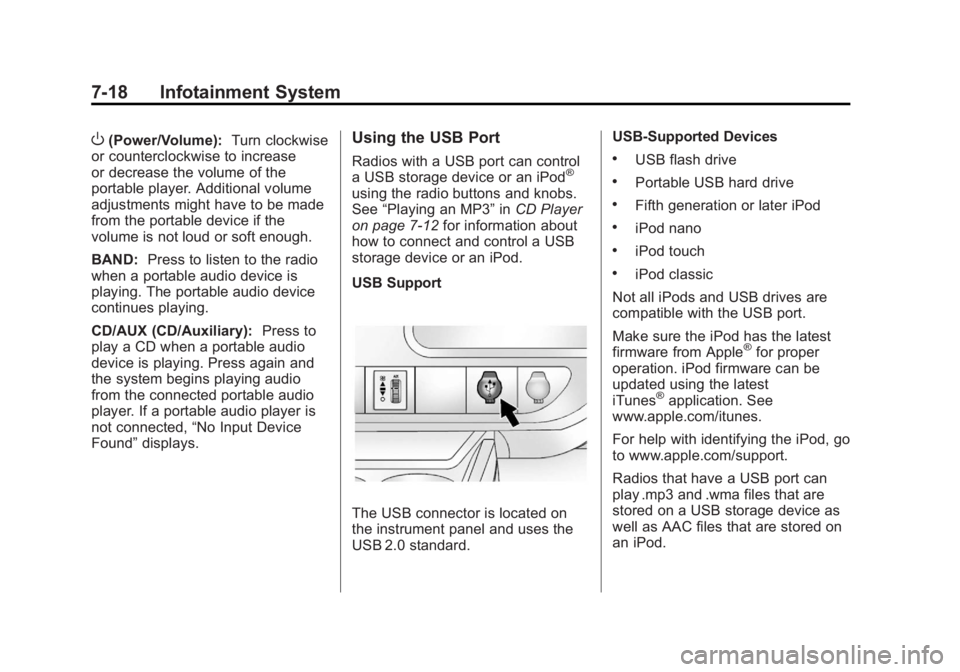
USB Support
The USB connector is located on
the instrument panel and uses the
USB 2.0 standard. USB‐Supported Devices
.USB flash drive
.Portable USB hard drive
.Fifth generation or later iPod
.iPod nano
.iPod touch
.iPod classic
Not all iPods and USB drives are
compatible with the USB port.
Make sure the iPod has the latest
firmware from Apple
®for proper
operation. iPod firmware can be
updated using the latest
iTunes
®application. See
www.apple.com/itunes.
For help with identifying the iPod, go
to www.apple.com/support.
Radios that have a USB port can
play .mp3 and .wma files that are
stored on a USB storage device as
well as AAC files that are stored on
an iPod.
Page 189 of 424
Black plate (19,1)GMC Savana Owner Manual - 2012 - 2nd - 11/15/11
Infotainment System 7-19
USB‐Supported File and Folder
Structure
The radio supports:
.Up to 700 folders.
.Up to eight folders in depth.
.Up to 65,535 files.
.Folder and file names up to
64 bytes.
.Files with an .mp3 or .wma file
extension.
.AAC files stored on an iPod.
.FAT16.
.FAT32.
Connecting a USB Storage
Device or iPod
The USB port can be used to
control an iPod or a USB storage
device.
To connect a USB storage device,
connect the device to the USB port
located on the instrument panel.To connect an iPod, connect one
end of the USB cable that came
with the iPod to the iPod’s dock
connector and connect the other
end to the USB port located on the
instrument panel. If the vehicle is on
and the USB connection works,
“OK
to disconnect” and a GM logo may
appear on the iPod, and iPod
appears on the radio display. The
iPod music appears on the radio
display and begins playing.
The iPod charges while it is
connected to the vehicle if the
vehicle is in the ACC/ACCESSORY
or ON/RUN position. When the
vehicle is turned off, the iPod
automatically powers off and will not
charge or draw power from the
vehicle's battery.
If you have an older iPod model that
is not supported, it can still be used
by connecting it to the auxiliary
input jack using a standard 3.5 mm
(1/8 in) stereo cable. See “Using the
Auxiliary Input Jack” earlier for more
information.
Using the Radio to Control a
USB Storage Device or iPod
The radio can control a USB
storage device or an iPod using the
radio buttons and knobs, and
display song information on the
radio display.
f(Tune): Turn to select files.
©SEEK:Press to go to the start of
the track, if more than 10 seconds
have played. Press and hold or
press multiple times to continue
moving backward through tracks.
¨SEEK: Press to go to the next
track. Press and hold or press
multiple times to continue moving
forward through tracks.
sREV (Reverse): Press and hold
to reverse playback quickly. Sound
is heard at a reduced volume.
Release
sREV to resume playing.
The elapsed time of the file
displays.