AUX GMC SAVANA 2013 Owner's Manual
[x] Cancel search | Manufacturer: GMC, Model Year: 2013, Model line: SAVANA, Model: GMC SAVANA 2013Pages: 398, PDF Size: 5.25 MB
Page 9 of 398
Black plate (3,1)GMC Savana Owner Manual - 2013 - 2nd Edition - 9/25/12
In Brief 1-3
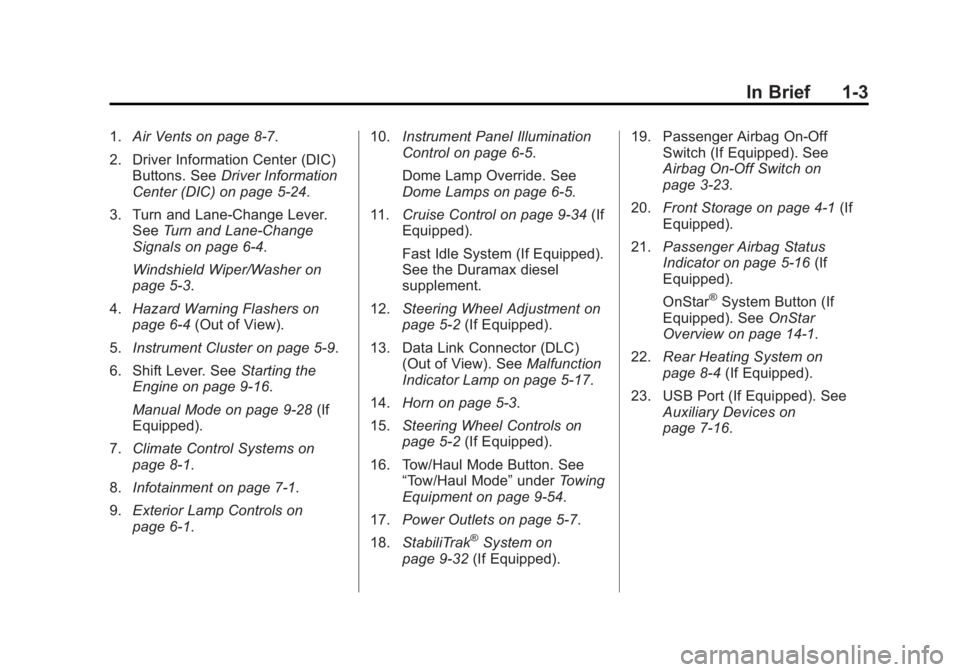
1.Air Vents on page 8‑7.
2. Driver Information Center (DIC) Buttons. See Driver Information
Center (DIC) on page 5‑24.
3. Turn and Lane-Change Lever. See Turn and Lane-Change
Signals on page 6‑4.
Windshield Wiper/Washer on
page 5‑3.
4. Hazard Warning Flashers on
page 6‑4 (Out of View).
5. Instrument Cluster on page 5‑9.
6. Shift Lever. See Starting the
Engine on page 9‑16.
Manual Mode on page 9‑28 (If
Equipped).
7. Climate Control Systems on
page 8‑1.
8. Infotainment on page 7‑1.
9. Exterior Lamp Controls on
page 6‑1. 10.
Instrument Panel Illumination
Control on page 6‑5.
Dome Lamp Override. See
Dome Lamps on page 6‑5.
11. Cruise Control on page 9‑34 (If
Equipped).
Fast Idle System (If Equipped).
See the Duramax diesel
supplement.
12. Steering Wheel Adjustment on
page 5‑2 (If Equipped).
13. Data Link Connector (DLC) (Out of View). See Malfunction
Indicator Lamp on page 5‑17.
14. Horn on page 5‑3.
15. Steering Wheel Controls on
page 5‑2 (If Equipped).
16. Tow/Haul Mode Button. See “Tow/Haul Mode” underTowing
Equipment on page 9‑54.
17. Power Outlets on page 5‑7.
18. StabiliTrak
®System on
page 9‑32 (If Equipped). 19. Passenger Airbag On-Off
Switch (If Equipped). See
Airbag On-Off Switch on
page 3‑23.
20. Front Storage on page 4‑1 (If
Equipped).
21. Passenger Airbag Status
Indicator on page 5‑16 (If
Equipped).
OnStar
®System Button (If
Equipped). See OnStar
Overview on page 14‑1.
22. Rear Heating System on
page 8‑4 (If Equipped).
23. USB Port (If Equipped). See Auxiliary Devices on
page 7‑16.
Page 21 of 398
Black plate (15,1)GMC Savana Owner Manual - 2013 - 2nd Edition - 9/25/12
In Brief 1-15
For vehicles with a FAV button, a
maximum of 36 stations can be
stored as favorites using the six
softkeys below the radio station
frequency tabs and by using the
radio FAV button. Press FAV to go
through up to six pages of favorites,
each having six favorite stations
available per page. Each page of
favorites can contain any
combination of AM and FM stations.
If the radio does not have a FAV
button, up to 18 stations (six FM1,
six FM2, and six AM), can be
programmed on the six numbered
buttons.
For more information on storing a
favorite station, seeOperation on
page 7‑5.
Setting the Clock
To set the time and date for the
Radio with CD (MP3):
1. Press
Hand the HR, MIN, MM,
DD, and YYYY (hour, minute,
month, day, and year) display. 2. Press the softkey located below
any one of the tabs that you
want to change.
3. Increase or decrease the time or date, depending on the radio, by
pressing the
©SEEK or¨SEEK
buttons,
sREV or\FWD
buttons, or by turning
f
clockwise or counterclockwise.
For detailed instructions on setting
the clock for your specific audio
system, see Clock on page 5‑6.
Satellite Radio
SiriusXM®is a satellite radio service
based in the 48 contiguous United
States and 10 Canadian provinces.
SiriusXM satellite radio has a wide
variety of programming and
commercial-free music, coast to
coast, and in digital-quality sound.
A fee is required to receive the
SiriusXM service. For more information, refer to:
.www.siriusxm.com or call
1-866-635-2349 (U.S.)
.www.xmradio.ca or call
1-877-209-0079 (Canada)
See Satellite Radio on page 7‑8.
Portable Audio Devices
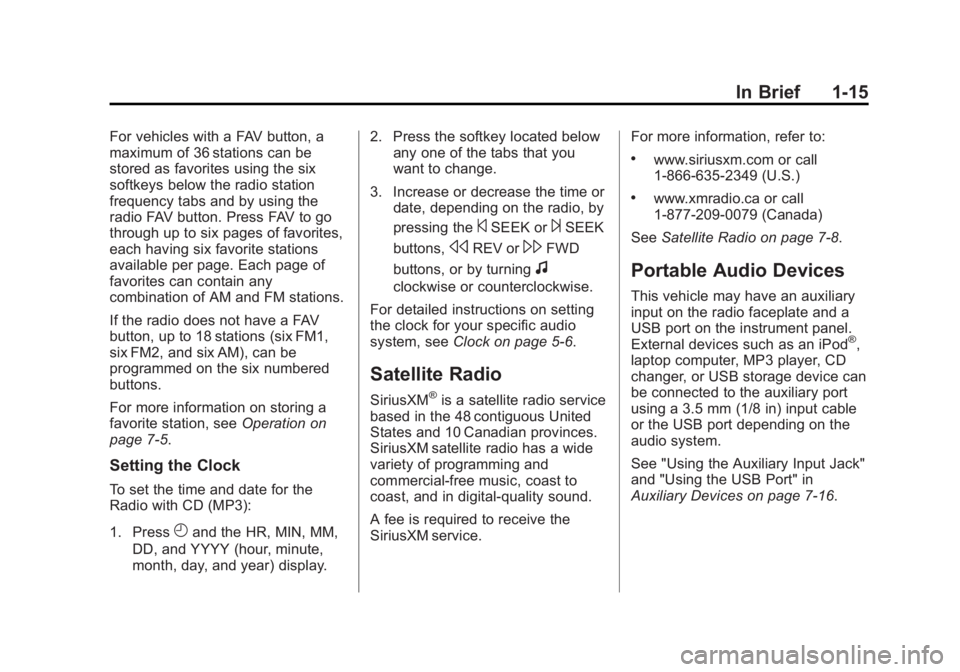
This vehicle may have an auxiliary
input on the radio faceplate and a
USB port on the instrument panel.
External devices such as an iPod
®,
laptop computer, MP3 player, CD
changer, or USB storage device can
be connected to the auxiliary port
using a 3.5 mm (1/8 in) input cable
or the USB port depending on the
audio system.
See "Using the Auxiliary Input Jack"
and "Using the USB Port" in
Auxiliary Devices on page 7‑16.
Page 22 of 398
Black plate (16,1)GMC Savana Owner Manual - 2013 - 2nd Edition - 9/25/12
1-16 In Brief
Bluetooth®
For vehicles with a Bluetooth
system, it allows users with a
Bluetooth-enabled cell phone to
make and receive hands-free calls
using the vehicle’s audio system
and controls.
The Bluetooth-enabled cell phone
must be paired with the Bluetooth
system before it can be used in the
vehicle. Not all phones will support
all functions. For more information,
see www.gm.com/bluetooth and
Bluetooth on page 7‑21.
Steering Wheel Controls
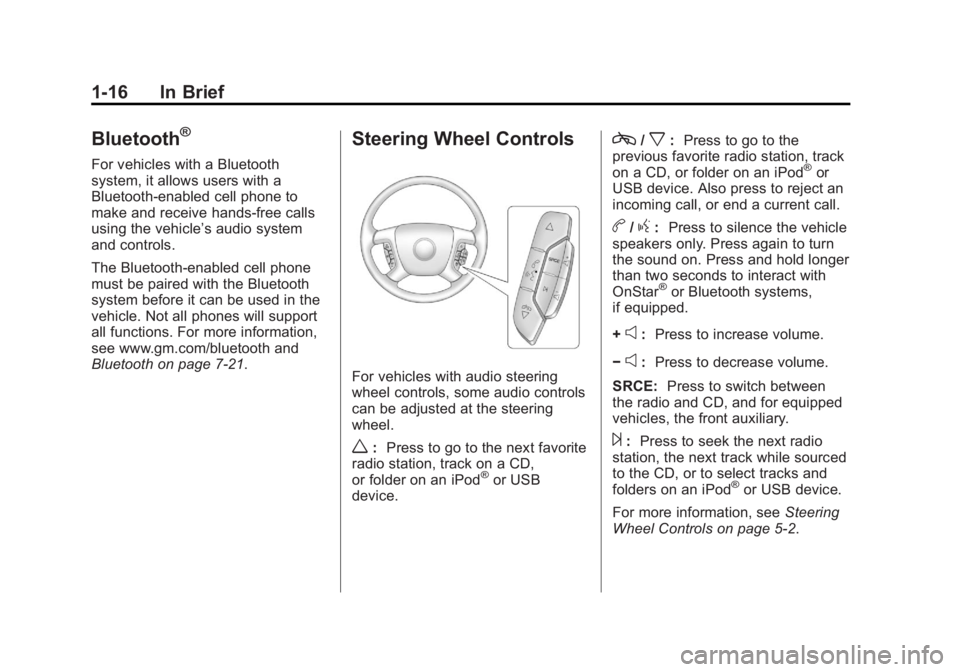
For vehicles with audio steering
wheel controls, some audio controls
can be adjusted at the steering
wheel.
w: Press to go to the next favorite
radio station, track on a CD,
or folder on an iPod
®or USB
device.
c/x: Press to go to the
previous favorite radio station, track
on a CD, or folder on an iPod
®or
USB device. Also press to reject an
incoming call, or end a current call.
b/g: Press to silence the vehicle
speakers only. Press again to turn
the sound on. Press and hold longer
than two seconds to interact with
OnStar
®or Bluetooth systems,
if equipped.
+
e: Press to increase volume.
−
e: Press to decrease volume.
SRCE: Press to switch between
the radio and CD, and for equipped
vehicles, the front auxiliary.
¨: Press to seek the next radio
station, the next track while sourced
to the CD, or to select tracks and
folders on an iPod
®or USB device.
For more information, see Steering
Wheel Controls on page 5‑2.
Page 39 of 398
Black plate (13,1)GMC Savana Owner Manual - 2013 - 2nd Edition - 9/25/12
Keys, Doors, and Windows 2-13
Exterior Mirrors
Convex Mirrors
{WARNING
A convex mirror can make things,
like other vehicles, look farther
away than they really are. If you
cut too sharply into the right lane,
you could hit a vehicle on the
right. Check the inside mirror or
glance over your shoulder before
changing lanes.
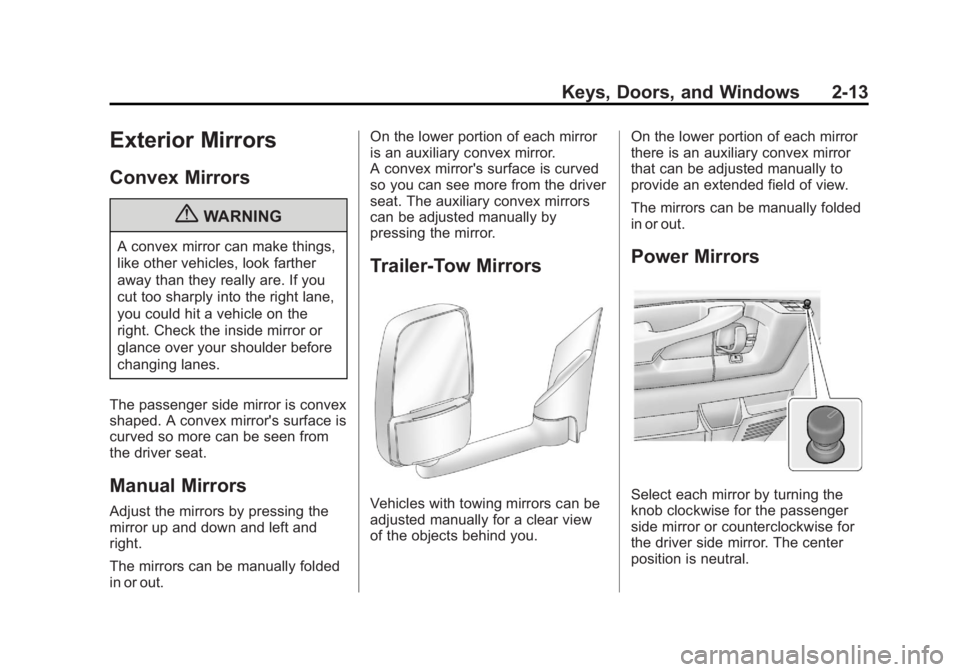
The passenger side mirror is convex
shaped. A convex mirror's surface is
curved so more can be seen from
the driver seat.
Manual Mirrors
Adjust the mirrors by pressing the
mirror up and down and left and
right.
The mirrors can be manually folded
in or out. On the lower portion of each mirror
is an auxiliary convex mirror.
A convex mirror's surface is curved
so you can see more from the driver
seat. The auxiliary convex mirrors
can be adjusted manually by
pressing the mirror.
Trailer-Tow Mirrors
Vehicles with towing mirrors can be
adjusted manually for a clear view
of the objects behind you.
On the lower portion of each mirror
there is an auxiliary convex mirror
that can be adjusted manually to
provide an extended field of view.
The mirrors can be manually folded
in or out.
Power Mirrors
Select each mirror by turning the
knob clockwise for the passenger
side mirror or counterclockwise for
the driver side mirror. The center
position is neutral.
Page 40 of 398
Black plate (14,1)GMC Savana Owner Manual - 2013 - 2nd Edition - 9/25/12
2-14 Keys, Doors, and Windows
Then, adjust the mirror angle by
moving the knob in the desired
direction. The auxiliary convex
mirrors can only be adjusted
manually.
Heated Mirrors
For vehicles with heated mirrors:
1(Rear Defogger):Press to heat
the mirrors.
An indicator light in the button lights
when the outside heated mirrors are
activated.
See “Rear Window Defogger” under
Climate Control Systems on
page 8‑1 for more information.
Interior Mirrors
Manual Rearview Mirror
To adjust the inside rearview mirror,
hold the rearview mirror in the
center and move it to view the area
behind the vehicle.
For vehicles with a manual rearview
mirror, push the tab forward for
daytime use and pull it for nighttime
use to avoid glare from the
headlamps from behind.
Cargo vans without rear door glass
may not have an inside rearview
mirror.
The vehicle may have a Rear Vision
Camera (RVC). See Rear Vision
Camera (RVC) on page 9‑38.
Windows
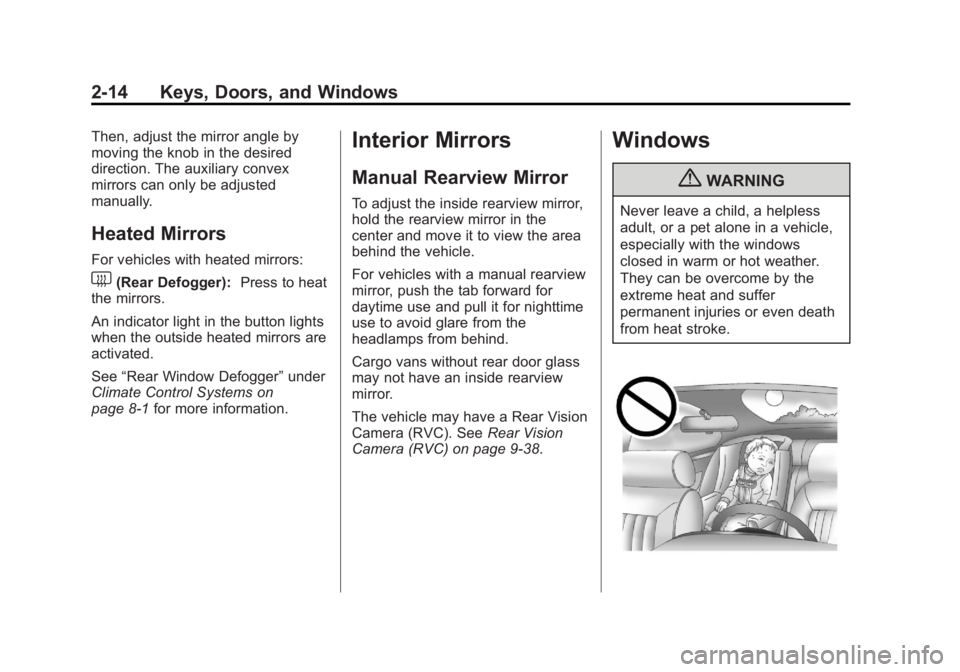
{WARNING
Never leave a child, a helpless
adult, or a pet alone in a vehicle,
especially with the windows
closed in warm or hot weather.
They can be overcome by the
extreme heat and suffer
permanent injuries or even death
from heat stroke.
Page 105 of 398
Black plate (3,1)GMC Savana Owner Manual - 2013 - 2nd Edition - 9/25/12
Instruments and Controls 5-3
2. Press and releaseworc/x
to scroll up or down the list, then
press and hold
w, or press¨to
play the highlighted track.
Navigating Folders on an iPod or
USB Device
1. Press and hold
worc/x
while listening to a song until the
contents of the current folder
display on the radio display.
2. Press and hold
c/xto go
back to the previous folder list.
3. Press and release
worc/x
to scroll up or down the list.
.To select a folder, press
and hold
w, or press¨
when the folder is
highlighted.
.To go back further in the
folder list, press and hold
c/x.
b/g(Push to Talk): Press to
silence the vehicle speakers only.
Press again to turn the sound on.
For vehicles with Bluetooth or
OnStar
®systems, press and hold
for longer than two seconds to
interact with those systems. See
Bluetooth on page 7‑21 andOnStar
Overview on page 14‑1 for more
information.
SRCE (Source/Voice
Recognition): Press to switch
between the radio and CD, and for
equipped vehicles, the front
auxiliary.
¨(Seek): Press to go to the next
radio station while in AM, FM,
or SiriusXM
®.
For vehicles with a CD Player or
USB port:
Press
¨to go to the next track or
chapter while sourced to the CD.
Press
¨to select a track or a folder
when navigating folders on an iPod
or USB device. While listening to a CD, press and
hold
¨to quickly move forward
through the tracks. Release to stop
on the desired track.
+
e: Press to increase volume.
−
e: Press to decrease volume.
Horn
Press the horn symbol in the middle
of the steering wheel to sound
the horn.
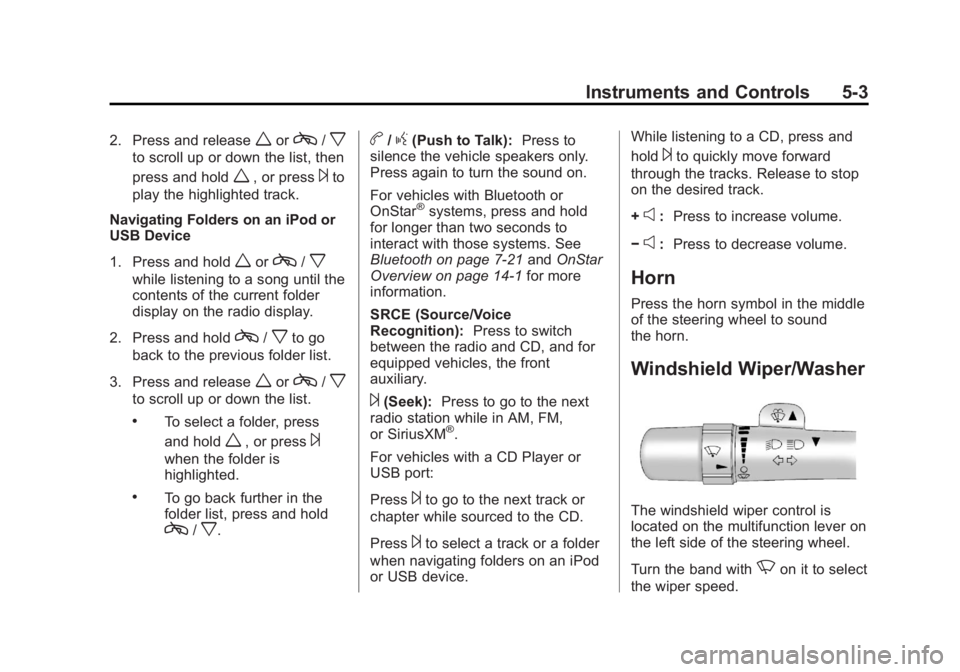
Windshield Wiper/Washer
The windshield wiper control is
located on the multifunction lever on
the left side of the steering wheel.
Turn the band with
Non it to select
the wiper speed.
Page 155 of 398
Black plate (1,1)GMC Savana Owner Manual - 2013 - 2nd Edition - 9/25/12
Infotainment System 7-1
Infotainment
System
Introduction
Infotainment . . . . . . . . . . . . . . . . . . . 7-1
Theft-Deterrent Feature . . . . . . . 7-2
Overview (AM-FM Radio) . . . . . 7-2
Overview (Radio with CD) . . . . . 7-4
Operation . . . . . . . . . . . . . . . . . . . . . 7-5
Radio
AM-FM Radio . . . . . . . . . . . . . . . . . 7-7
Satellite Radio . . . . . . . . . . . . . . . . 7-8
Radio Reception . . . . . . . . . . . . . 7-10
Fixed Mast Antenna(Multi-Band) . . . . . . . . . . . . . . . . 7-11
Fixed Mast Antenna (Care) . . . . . . . . . . . . . 7-11
Audio Players
CD Player . . . . . . . . . . . . . . . . . . . . 7-11
Auxiliary Devices . . . . . . . . . . . . 7-16
Phone
Bluetooth . . . . . . . . . . . . . . . . . . . . 7-21
Introduction
Infotainment
If the vehicle came without a radio,
the wiring provisions for a radio and
an antenna were installed at the
assembly plant, so that if you want,
a radio can be installed at the
dealer.
Determine which radio the vehicle
has and read the following pages to
become familiar with its features.
{WARNING
Taking your eyes off the road for
extended periods could cause a
crash resulting in injury or death
to you or others. Do not give
extended attention to infotainment
tasks while driving.
This system provides access to
many audio and non-audio listings. To minimize taking your eyes off the
road while driving, do the following
while the vehicle is parked:
.Become familiar with the
operation and controls of the
audio system.
.Set up the tone, speaker
adjustments, and preset radio
stations.
For more information, see Defensive
Driving on page 9‑3.
Notice: Contact your dealer
before adding any equipment.
Adding audio or communication
equipment could interfere with
the operation of the engine, radio,
or other systems, and could
damage them. Follow federal
rules covering mobile radio and
telephone equipment.
Notice: The chime signals related
to safety belts, parking brake, and
other functions of the vehicle
operate through the radio/
entertainment system. If that
equipment is replaced or
Page 159 of 398
Black plate (5,1)GMC Savana Owner Manual - 2013 - 2nd Edition - 9/25/12
Infotainment System 7-5
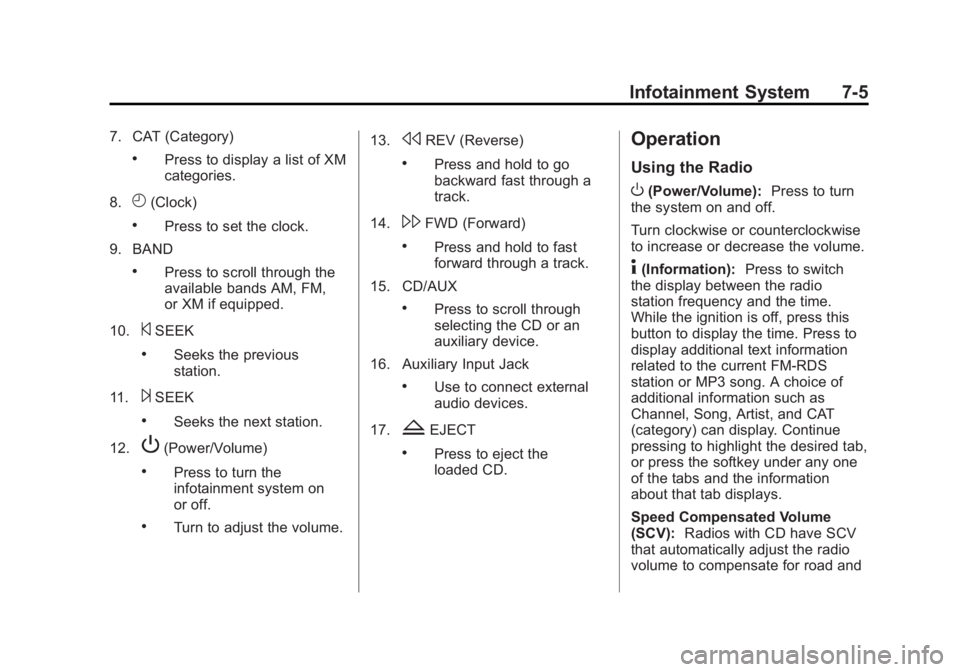
7. CAT (Category)
.Press to display a list of XM
categories.
8.
H(Clock)
.Press to set the clock.
9. BAND
.Press to scroll through the
available bands AM, FM,
or XM if equipped.
10.
©SEEK
.Seeks the previous
station.
11.
¨SEEK
.Seeks the next station.
12.
P(Power/Volume)
.Press to turn the
infotainment system on
or off.
.Turn to adjust the volume. 13.
sREV (Reverse)
.Press and hold to go
backward fast through a
track.
14.
\FWD (Forward)
.Press and hold to fast
forward through a track.
15. CD/AUX
.Press to scroll through
selecting the CD or an
auxiliary device.
16. Auxiliary Input Jack
.Use to connect external
audio devices.
17.
ZEJECT
.Press to eject the
loaded CD.
Operation
Using the Radio
O(Power/Volume): Press to turn
the system on and off.
Turn clockwise or counterclockwise
to increase or decrease the volume.
4(Information): Press to switch
the display between the radio
station frequency and the time.
While the ignition is off, press this
button to display the time. Press to
display additional text information
related to the current FM-RDS
station or MP3 song. A choice of
additional information such as
Channel, Song, Artist, and CAT
(category) can display. Continue
pressing to highlight the desired tab,
or press the softkey under any one
of the tabs and the information
about that tab displays.
Speed Compensated Volume
(SCV): Radios with CD have SCV
that automatically adjust the radio
volume to compensate for road and
Page 166 of 398
Black plate (12,1)GMC Savana Owner Manual - 2013 - 2nd Edition - 9/25/12
7-12 Infotainment System
the CD player and the loading slot
free of foreign materials, liquids,
and debris.
If an error displays, see“CD Player
Messages” later in this section.
Care of CDs
If playing a CD-R, the sound quality
can be reduced due to CD-R or
CD-RW quality, the method of
recording, the quality of the music
that has been recorded, and the
way the CD-R or CD-RW has been
handled. Handle them carefully.
Store CD-Rs or CD-RWs in their
original cases or other protective
cases and away from direct sunlight
and dust. The CD player scans the
bottom surface of the disc. If the
surface of a CD is damaged, such
as cracked, broken, or scratched,
the CD does not play properly or not
at all. Do not touch the bottom side
of a CD while handling it; this could
damage the surface. Pick up CDs
by the outer edges or the edge of
the hole and the outer edge. If the surface of a CD is soiled,
clean it with a soft, lint-free cloth or
dampen a clean, soft cloth in a mild,
neutral detergent solution mixed
with water. Make sure the wiping
process starts from the center to
the edge.Inserting a CD
Insert a CD partway into the slot,
label side up. The player pulls it in
and the CD should begin playing.
Ejecting a CD
ZEJECT:
Press and release to
eject the disc. Remove the CD
when Remove Disc displays. If the
disc is not removed, after several
seconds the disc is automatically
pulled back into the player.
Playing a CD
If the ignition or radio is turned off
with a CD in the player, it stays in
the player. When the ignition or
radio is turned on, the CD starts
playing where it stopped, if it was
the last selected audio source. When a CD is inserted, the CD
symbol displays on the left side of
the radio display. As each new track
starts to play, the track number
displays.
The CD player can play the smaller
8 cm (3 in) single CDs with an
adapter ring. Full-size CDs and the
smaller CDs are loaded in the same
manner.
CD/AUX (CD/Auxiliary):
Press to
cycle between CD or Auxiliary when
listening to the radio. The CD icon
and a message showing the disc
and/or track number will display
when a CD is in the player. Press
again and the system automatically
searches for an auxiliary input
device; see Auxiliary Devices on
page 7‑16. If a portable audio player
is not connected, “No Input Device
Found” displays.4(Information): Press to display
additional text information related to
the current song. If information is
available, the song title information
displays on the top line of the
Page 170 of 398
Black plate (16,1)GMC Savana Owner Manual - 2013 - 2nd Edition - 9/25/12
7-16 Infotainment System
To change from playback by artist to
playback by album:
1. Press the softkey below the SortBy tab.
2. Press one of the softkeys below the Album tab from the sort
screen.
3. Press the softkey below the Back tab to return to the main
music navigator screen.
The album name displays on the
second line between the arrows,
and songs from the current album
begin to play. Once all songs from
that album have played, the player
moves to the next album in
alphabetical order on the CD and
begins playing MP3s from that
album.
To exit music navigator mode, press
the softkey below the Back tab to
return to normal MP3 playback.CD Player Messages
CHECK DISC: If this message
displays and/or the CD ejects, it
could be for one of the following
reasons:
.It is very hot. When the
temperature returns to normal,
the CD should play.
.The road is very rough. When
the road becomes smoother, the
CD should play.
.The CD is dirty, scratched, wet,
or upside down.
.The air is very humid. If so, wait
about an hour and try again.
.There was a problem while
burning the CD.
.The label is caught in the CD
player.
If the CD is not playing correctly, for
any other reason, try a known
good CD.
If any error occurs repeatedly or if
an error cannot be corrected,
contact your dealer. If the radio displays an error message, write it
down and provide it to your dealer
when reporting the problem.
Auxiliary Devices
Using the Auxiliary Input Jack
Radios with an auxiliary input jack
on the lower right side of the
faceplate can connect to an external
audio device such as an iPod
®,
MP3 player, or CD player, for use as
another source for audio listening.
This input jack is not an audio
output; do not plug headphones into
the front auxiliary input jack.
Drivers are encouraged to set up
any auxiliary device while the
vehicle is in P (Park). See
Defensive Driving on page 9‑3 for
more information on driver
distraction.
To use a portable audio player,
connect a 3.5 mm (1/8 in) cable to
the radio's front auxiliary input jack.