lock GMC SAVANA PASSENGER 2008 Workshop Manual
[x] Cancel search | Manufacturer: GMC, Model Year: 2008, Model line: SAVANA PASSENGER, Model: GMC SAVANA PASSENGER 2008Pages: 402, PDF Size: 2.34 MB
Page 138 of 402
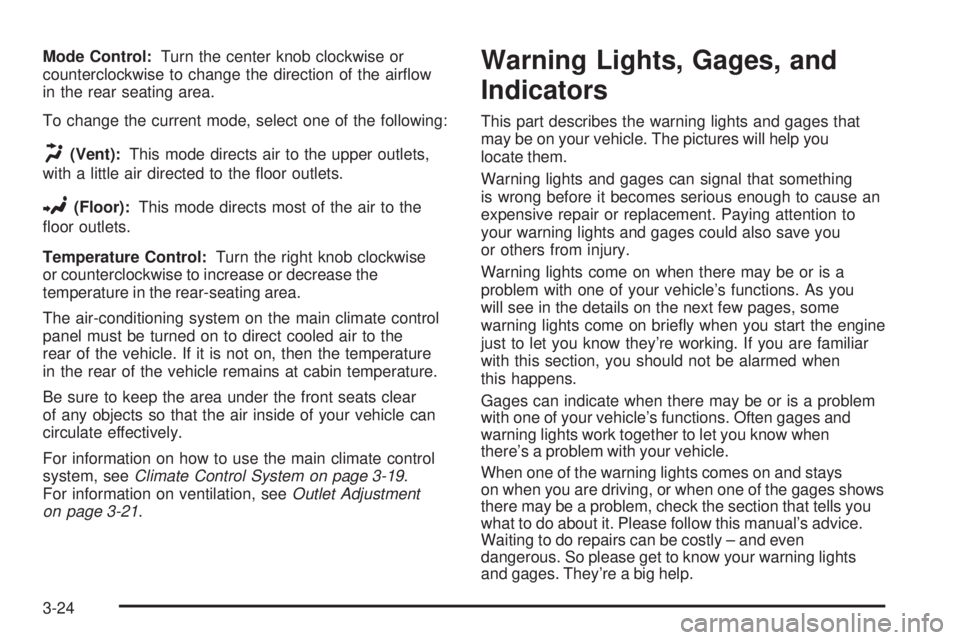
Mode Control:Turn the center knob clockwise or
counterclockwise to change the direction of the airflow
in the rear seating area.
To change the current mode, select one of the following:
H(Vent):This mode directs air to the upper outlets,
with a little air directed to the floor outlets.
2(Floor):This mode directs most of the air to the
floor outlets.
Temperature Control:Turn the right knob clockwise
or counterclockwise to increase or decrease the
temperature in the rear-seating area.
The air-conditioning system on the main climate control
panel must be turned on to direct cooled air to the
rear of the vehicle. If it is not on, then the temperature
in the rear of the vehicle remains at cabin temperature.
Be sure to keep the area under the front seats clear
of any objects so that the air inside of your vehicle can
circulate effectively.
For information on how to use the main climate control
system, seeClimate Control System on page 3-19.
For information on ventilation, seeOutlet Adjustment
on page 3-21.
Warning Lights, Gages, and
Indicators
This part describes the warning lights and gages that
may be on your vehicle. The pictures will help you
locate them.
Warning lights and gages can signal that something
is wrong before it becomes serious enough to cause an
expensive repair or replacement. Paying attention to
your warning lights and gages could also save you
or others from injury.
Warning lights come on when there may be or is a
problem with one of your vehicle’s functions. As you
will see in the details on the next few pages, some
warning lights come on briefly when you start the engine
just to let you know they’re working. If you are familiar
with this section, you should not be alarmed when
this happens.
Gages can indicate when there may be or is a problem
with one of your vehicle’s functions. Often gages and
warning lights work together to let you know when
there’s a problem with your vehicle.
When one of the warning lights comes on and stays
on when you are driving, or when one of the gages shows
there may be a problem, check the section that tells you
what to do about it. Please follow this manual’s advice.
Waiting to do repairs can be costly – and even
dangerous. So please get to know your warning lights
and gages. They’re a big help.
3-24
Page 148 of 402
Antilock Brake System Warning
Light
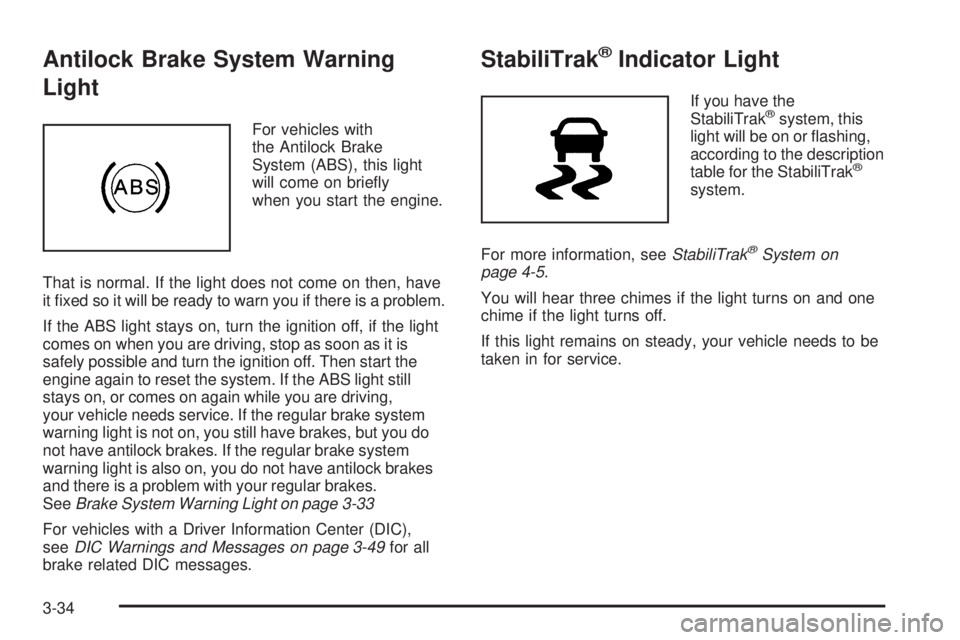
For vehicles with
the Antilock Brake
System (ABS), this light
will come on briefly
when you start the engine.
That is normal. If the light does not come on then, have
it fixed so it will be ready to warn you if there is a problem.
If the ABS light stays on, turn the ignition off, if the light
comes on when you are driving, stop as soon as it is
safely possible and turn the ignition off. Then start the
engine again to reset the system. If the ABS light still
stays on, or comes on again while you are driving,
your vehicle needs service. If the regular brake system
warning light is not on, you still have brakes, but you do
not have antilock brakes. If the regular brake system
warning light is also on, you do not have antilock brakes
and there is a problem with your regular brakes.
SeeBrake System Warning Light on page 3-33
For vehicles with a Driver Information Center (DIC),
seeDIC Warnings and Messages on page 3-49for all
brake related DIC messages.
StabiliTrak®Indicator Light
If you have the
StabiliTrak®system, this
light will be on or flashing,
according to the description
table for the StabiliTrak
®
system.
For more information, seeStabiliTrak
®System on
page 4-5.
You will hear three chimes if the light turns on and one
chime if the light turns off.
If this light remains on steady, your vehicle needs to be
taken in for service.
3-34
Page 161 of 402
Relearn Remote Key
To access this display, the vehicle must be in PARK (P).
This display allows you to match Remote Keyless
Entry (RKE) transmitters to your vehicle. To match
an RKE transmitter to your vehicle:
1. Press the vehicle information button until PRESS
V
TO RELEARN REMOTE KEY displays.
2. Press the set/reset button until REMOTE KEY
LEARNING ACTIVE is displayed.
3. Press and hold the lock and unlock buttons
on the first transmitter at the same time for about
15 seconds.
A chime will sound indicating that the transmitter is
matched.
4. To match additional transmitters at this time, repeat
Step 3.
Each vehicle can have a maximum of four
transmitters matched to it.
5. To exit the programming mode, you must cycle the
key to LOCK/OFF.
Blank Display
This display shows no information.
DIC Compass
Your vehicle may have a compass in the Driver
Information Center (DIC).
Compass Zone
Your dealer/retailer will set the correct zone for your
location.
Under certain circumstances, such as during a long
distance cross-country trip or moving to a new state
or province, it will be necessary to compensate for
compass variance by resetting the zone through the
DIC if the zone is not set correctly.
Compass variance is the difference between the earth’s
magnetic north and true geographic north. If the compass
is not set to the zone where you live, the compass may
give false readings. The compass must be set to the
variance zone in which the vehicle is traveling.
3-47
Page 173 of 402
ESPANOL:All messages will appear in Spanish.
NO CHANGE:No change will be made to this feature.
The current setting will remain.
To select a setting, press the set/reset button while the
desired setting is displayed on the DIC.
AUTO DOOR LOCK
This feature allows you to select when the vehicle’s
doors will automatically lock. SeeProgrammable
Automatic Door Locks on page 2-7for more information.
Press the customization button until AUTO DOOR
LOCK appears on the DIC display. Press the set/reset
button once to access the settings for this feature.
Then press the customization button to scroll through
the following settings:
SHIFT OUT OF PARK (default):The doors will
automatically lock when the vehicle is shifted out of
PARK (P).
AT VEHICLE SPEED:The doors will automatically lock
when the vehicle speed is above 8 mph (13 km/h) for
three seconds.
NO CHANGE:No change will be made to this feature.
The current setting will remain.
To select a setting, press the set/reset button while the
desired setting is displayed on the DIC.
AUTO DOOR UNLOCK
This feature allows you to select whether or not to
turn off the automatic door unlocking feature. It also
allows you to select which doors and when the doors
will automatically unlock. SeeProgrammable Automatic
Door Locks on page 2-7for more information.
Press the customization button until AUTO DOOR
UNLOCK appears on the DIC display. Press the set/reset
button once to access the settings for this feature. Then
press the customization button to scroll through the
following settings:
OFF:None of the doors will automatically unlock.
DRIVER AT KEY OUT:Only the driver’s door will
unlock when the key is taken out of the ignition.
DRIVER IN PARK:Only the driver’s door will unlock
when the vehicle is shifted into PARK (P).
ALL AT KEY OUT:All of the doors will unlock when
the key is taken out of the ignition.
ALL IN PARK (default):All of the doors will unlock
when the vehicle is shifted into PARK (P).
NO CHANGE:No change will be made to this feature.
The current setting will remain.
To select a setting, press the set/reset button while the
desired setting is displayed on the DIC.
3-59
Page 174 of 402
REMOTE DOOR LOCK
This feature allows you to select the type of feedback
you will receive when locking the vehicle with the
Remote Keyless Entry (RKE) transmitter. You will not
receive feedback when locking the vehicle with the RKE
transmitter if the doors are open. SeeRemote Keyless
Entry (RKE) System Operation on page 2-4for more
information.
Press the customization button until REMOTE DOOR
LOCK appears on the DIC display. Press the set/reset
button once to access the settings for this feature.
Then press the customization button to scroll through
the following settings:
OFF:There will be no feedback when you press the
lock button on the RKE transmitter.
LIGHTS ONLY:The exterior lamps will flash when you
press the lock button on the RKE transmitter.
HORN ONLY:The horn will sound on the second press
of the lock button on the RKE transmitter.
HORN & LIGHTS (default):The exterior lamps will
flash when you press the lock button on the RKE
transmitter, and the horn will sound when the lock button
is pressed again within five seconds of the previous
command.
NO CHANGE:No change will be made to this feature.
The current setting will remain.To select a setting, press the set/reset button while the
desired setting is displayed on the DIC.
REMOTE DOOR UNLOCK
This feature allows you to select the type of feedback
you will receive when unlocking the vehicle with the
Remote Keyless Entry (RKE) transmitter. You will not
receive feedback when unlocking the vehicle with the
RKE transmitter if the doors are open. SeeRemote
Keyless Entry (RKE) System Operation on page 2-4
for more information.
Press the customization button until REMOTE DOOR
UNLOCK appears on the DIC display. Press the
set/reset button once to access the settings for this
feature. Then press the customization button to scroll
through the following settings:
LIGHTS OFF:The exterior lamps will not flash when
you press the unlock button on the RKE transmitter.
LIGHTS ON (default):The exterior lamps will
flash when you press the unlock button on the RKE
transmitter.
NO CHANGE:No change will be made to this feature.
The current setting will remain.
To select a setting, press the set/reset button while the
desired setting is displayed on the DIC.
3-60
Page 175 of 402
DELAY DOOR LOCK
This feature allows you to select whether or not the
locking of the vehicle’s doors will be delayed. When
locking the doors with the power door lock switch and a
door is open, this feature will delay locking the doors
until five seconds after the last door is closed. You will
hear three chimes to signal that the delayed locking
feature is in use. The key must be out of the ignition
for this feature to work. You can temporarily override
delayed locking by pressing the power door lock switch
twice or the lock button on the RKE transmitter twice.
SeeDelayed Locking on page 2-7for more information.
Press the customization button until DELAY DOOR
LOCK appears on the DIC display. Press the set/reset
button once to access the settings for this feature.
Then press the customization button to scroll through
the following settings:
OFF:There will be no delayed locking of the vehicle’s
doors.
ON (default):The doors will not lock until five seconds
after the last door is closed.
NO CHANGE:No change will be made to this feature.
The current setting will remain.
To select a setting, press the set/reset button while the
desired setting is displayed on the DIC.
EXIT LIGHTING
This feature allows you to select the amount of time you
want the exterior lamps to remain on when it is dark
enough outside. This happens after the key is turned
from ON/RUN to LOCK/OFF.
Press the customization button until EXIT LIGHTING
appears on the DIC display. Press the set/reset button
once to access the settings for this feature. Then press
the customization button to scroll through the following
settings:
OFF:The exterior lamps will not turn on.
30 SECONDS (default):The exterior lamps will stay on
for 30 seconds.
1 MINUTE:The exterior lamps will stay on for
one minute.
2 MINUTES:The exterior lamps will stay on for
two minutes.
NO CHANGE:No change will be made to this feature.
The current setting will remain.
To select a setting, press the set/reset button while the
desired setting is displayed on the DIC.
3-61
Page 179 of 402
Setting the Clock
AM-FM Radio with Optional CD Player
If your vehicle has an AM/FM radio with an optional
CD player, it has a
H(clock) button for setting the time.
With these types of radios, the clock can be set with
either the radio turned on or off.
Set the time by following these steps:
1. Press the
Hbutton until the hour begins flashing
on the display. Press the
Hbutton a second time
and the minutes begin flashing on the display. Press
the
Hbutton a third time and the 12HR or 24HR
time format begins flashing.
2. While either the hour or the minutes are flashing,
turn the
fknob, located on the upper right side of
the radio faceplate, clockwise or counterclockwise
to increase or decrease the time. While the 12HR
or 24HR time format is flashing, turn the
fknob
clockwise or counterclockwise to select the default
time settings.
3. Press the
Hbutton again until the clock display
stops flashing to set the currently displayed time;
otherwise, the flashing stops after five seconds and
the current time displayed is automatically set.
MP3 Radio with a Single CD Player
If your vehicle has a radio with a single CD (MP3)
player, the radio has a
Hbutton for setting the time
and date.
To set the time and date, follow the instructions:
1. Press the
Hbutton and the HR, MIN, MM, DD,
YYYY (hour, minute, month, day, and year) displays.
2. Press the pushbutton located under any one of
the labels that you want to change. Every time
the pushbutton is pressed again, the time or
the date if selected, increases by one.
•Another way to increase the time or date,
is to press the right
¨SEEK arrow or
the
\FWD (forward) button.
3. To decrease, press the left
©SEEK arrow or
the
sREV (reverse) button. You can also
turn the
fknob, located on the upper right side
of the radio, to adjust the selected setting.
3-65
Page 182 of 402
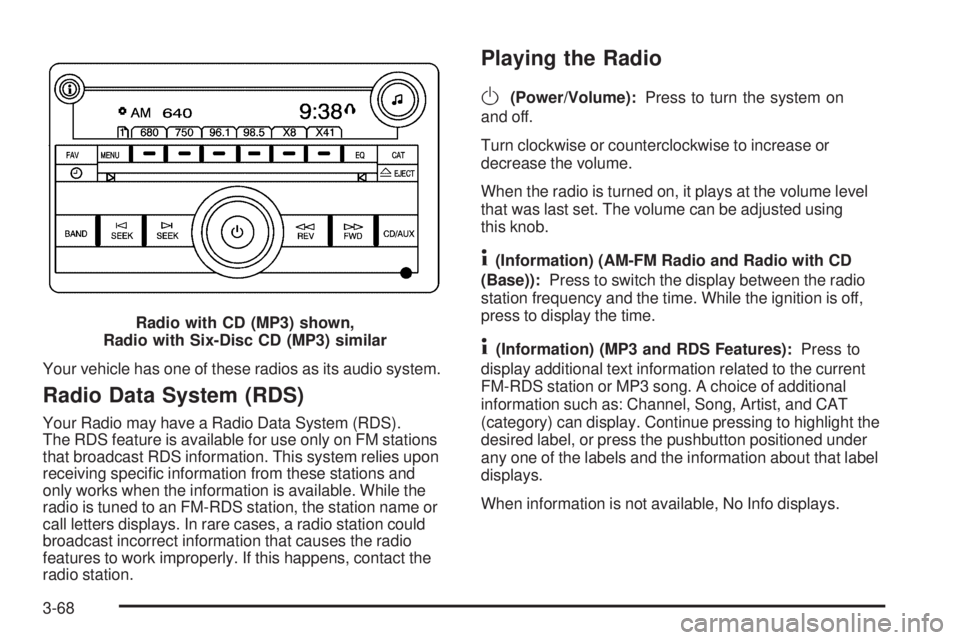
Your vehicle has one of these radios as its audio system.
Radio Data System (RDS)
Your Radio may have a Radio Data System (RDS).
The RDS feature is available for use only on FM stations
that broadcast RDS information. This system relies upon
receiving specific information from these stations and
only works when the information is available. While the
radio is tuned to an FM-RDS station, the station name or
call letters displays. In rare cases, a radio station could
broadcast incorrect information that causes the radio
features to work improperly. If this happens, contact the
radio station.
Playing the Radio
O
(Power/Volume):Press to turn the system on
and off.
Turn clockwise or counterclockwise to increase or
decrease the volume.
When the radio is turned on, it plays at the volume level
that was last set. The volume can be adjusted using
this knob.
4(Information) (AM-FM Radio and Radio with CD
(Base)):Press to switch the display between the radio
station frequency and the time. While the ignition is off,
press to display the time.
4(Information) (MP3 and RDS Features):Press to
display additional text information related to the current
FM-RDS station or MP3 song. A choice of additional
information such as: Channel, Song, Artist, and CAT
(category) can display. Continue pressing to highlight the
desired label, or press the pushbutton positioned under
any one of the labels and the information about that label
displays.
When information is not available, No Info displays. Radio with CD (MP3) shown,
Radio with Six-Disc CD (MP3) similar
3-68
Page 183 of 402
H(Clock) (AM-FM Radio and Radio with CD (Base)):
Your vehicle has a clock button for setting the time.
With this type of radio, the clock can be set with either
the radio turned on or off. SeeSetting the Clock on
page 3-65for more information.
Speed Compensated Volume (SCV):Radios with
Speed Compensated Volume (SCV) automatically
adjusts the radio volume to compensate for road and
wind noise as you speed up or slow down while driving.
That way, the volume level should sound about the
same as you drive.
To activate SCV:
1. Set the radio volume to the desired level.
2. Press the MENU button to display the radio
setup menu.
3. Press the pushbutton under the AUTO VOLUM
(automatic volume) label on the radio display.
4. Press the pushbutton under the desired Speed
Compensated Volume setting (OFF, Low, Med,
or High) to select the level of radio volume
compensation. The display times out after
approximately 10 seconds. Each higher setting
allows for more radio volume compensation at
faster vehicle speeds.Finding a Station
BAND:Press to switch between FM1 and FM2 and
AM. The selection displays.
f(Tune):Turn clockwise or counterclockwise to
increase or decrease the station frequency.
©SEEK¨:Press the arrows to go to the previous
or to the next station and stay there.
To scan stations, press and hold either arrow for
two seconds until a beep sounds. The radio goes to
a station, plays for a few seconds, then goes to the next
station. For AM-FM Radio and Radio with CD (Base),
the station frequency flashes while the radio is in
the scan mode. Press either arrow again to stop
scanning.
The radio seeks and scans stations only with a strong
signal that are in the selected band.
For AM-FM Radio and Radio with CD (Base), scan
presets within the current selected band by pressing and
holding either SEEK arrow for four seconds until a double
beep sounds. The radio goes to a stored preset, plays for
a few seconds if a strong signal is present, then goes to
the next stored preset. The station frequency flashes
while the radio is in the scan mode.
3-69
Page 185 of 402
The number of favorites pages can be setup using
the MENU button. To setup the number of favorites
pages, perform the following steps:
1. Press the MENU button to display the radio
setup menu.
2. Press the pushbutton located below the
FAV 1-6 label.
3. Select the desired number of favorites pages
by pressing the pushbutton located below the
displayed page numbers.
4. Press the FAV button, or let the menu time out,
to return to the original main radio screen showing
the radio station frequency labels and to begin
the process of programming your favorites for
the chosen amount of numbered pages.
Setting the Tone (Bass/Treble) (AM-FM
Radio and Radio with CD (Base))
BASS/TREB Bass/Treble:To adjust the bass or treble,
press the
fknob or the EQ button until the desired tone
control label displays. Turn the
fknob clockwise or
counterclockwise to increase or decrease the setting.
The display shows the current bass or treble level. If a
station’s frequency is weak, or if there is static, decrease
the treble.
Unique BASS/TREB settings can be saved for each
source.
Setting the Tone
(Bass/Midrange/Treble)
BASS/MID/TREB (Bass, Midrange, or Treble):
To adjust bass, midrange, or treble, press the
fknob
until the tone control labels display. Continue pressing
to highlight the desired label, or press the pushbutton
positioned under the desired label. Turn the
fknob
clockwise or counterclockwise to adjust the highlighted
setting. You can also adjust the highlighted setting by
pressing either SEEK arrow,
\FWD (forward),
or
sREV (reverse) button until the desired levels
are obtained. If a station’s frequency is weak or if there
is static, decrease the treble.
To quickly adjust bass, midrange, or treble to the middle
position, press the pushbutton positioned under the
BASS, MID, or TREB label for more than two seconds
and the level adjusts to the middle position.
To quickly adjust all tone and speaker controls to
the middle position, press the
fknob for more than
two seconds until a beep sounds.
3-71