AUX GMC SIERRA 1500 2009 User Guide
[x] Cancel search | Manufacturer: GMC, Model Year: 2009, Model line: SIERRA 1500, Model: GMC SIERRA 1500 2009Pages: 602, PDF Size: 3.22 MB
Page 314 of 602
Parental Control can also be turned off by inserting or
ejecting any disc, pressing the play icon on the radio DVD
display menu, or changing an ignition position.
Headphones
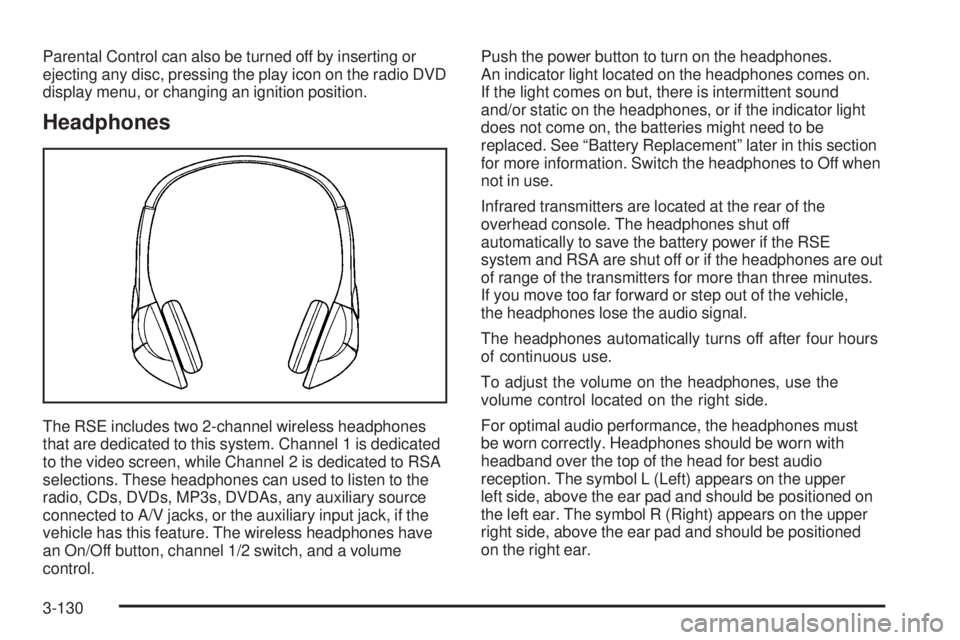
The RSE includes two 2-channel wireless headphones
that are dedicated to this system. Channel 1 is dedicated
to the video screen, while Channel 2 is dedicated to RSA
selections. These headphones can used to listen to the
radio, CDs, DVDs, MP3s, DVDAs, any auxiliary source
connected to A/V jacks, or the auxiliary input jack, if the
vehicle has this feature. The wireless headphones have
an On/Off button, channel 1/2 switch, and a volume
control.Push the power button to turn on the headphones.
An indicator light located on the headphones comes on.
If the light comes on but, there is intermittent sound
and/or static on the headphones, or if the indicator light
does not come on, the batteries might need to be
replaced. See “Battery Replacement” later in this section
for more information. Switch the headphones to Off when
not in use.
Infrared transmitters are located at the rear of the
overhead console. The headphones shut off
automatically to save the battery power if the RSE
system and RSA are shut off or if the headphones are out
of range of the transmitters for more than three minutes.
If you move too far forward or step out of the vehicle,
the headphones lose the audio signal.
The headphones automatically turns off after four hours
of continuous use.
To adjust the volume on the headphones, use the
volume control located on the right side.
For optimal audio performance, the headphones must
be worn correctly. Headphones should be worn with
headband over the top of the head for best audio
reception. The symbol L (Left) appears on the upper
left side, above the ear pad and should be positioned on
the left ear. The symbol R (Right) appears on the upper
right side, above the ear pad and should be positioned
on the right ear.
3-130
Page 315 of 602
Notice:Do not store the headphones in heat or
direct sunlight. This could damage the headphones
and repairs will not be covered by the warranty.
Storage in extreme cold can weaken the batteries.
Keep the headphones stored in a cool, dry place.
If the foam ear pads attached to the headphones
become worn or damaged, the pads can be replaced
separately from the headphone set. Refer to your
dealer/retailer for more information.
Battery Replacement
To change the batteries on the headphones, do the
following:
1. Turn the screw to loosen the battery door located on
the left side of the headphones. Slide the battery
door open.
2. Replace the two batteries in the compartment.
Make sure that they are installed correctly, using
the diagram on the inside of the battery
compartment.
3. Replace the battery door and tighten the door
screw.
If the headphones are to be stored for a long period of
time, remove the batteries and keep them in a cool,
dry place.
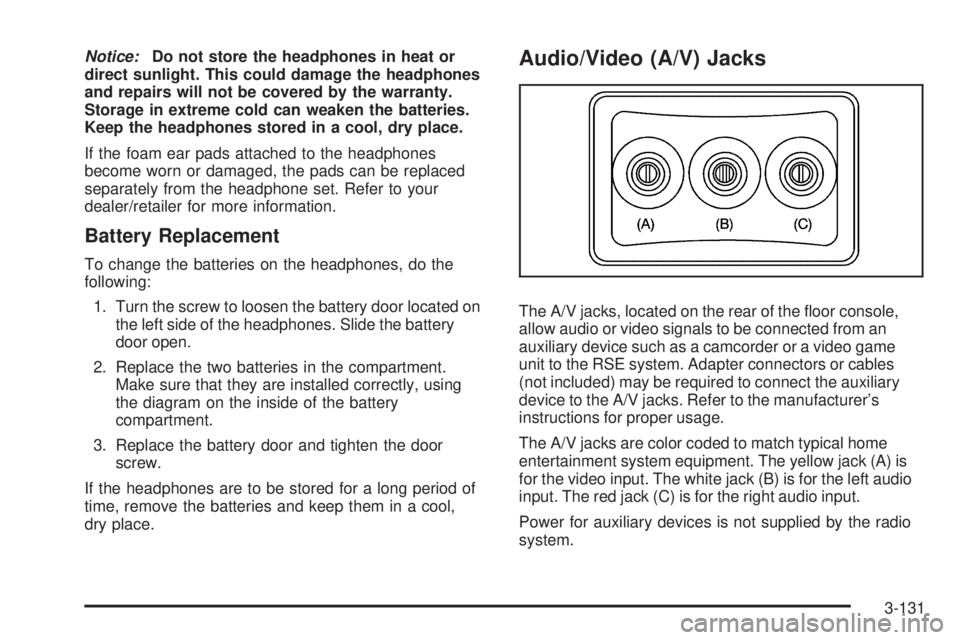
Audio/Video (A/V) Jacks
The A/V jacks, located on the rear of the oor console,
allow audio or video signals to be connected from an
auxiliary device such as a camcorder or a video game
unit to the RSE system. Adapter connectors or cables
(not included) may be required to connect the auxiliary
device to the A/V jacks. Refer to the manufacturer’s
instructions for proper usage.
The A/V jacks are color coded to match typical home
entertainment system equipment. The yellow jack (A) is
for the video input. The white jack (B) is for the left audio
input. The red jack (C) is for the right audio input.
Power for auxiliary devices is not supplied by the radio
system.
3-131
Page 316 of 602
To use the auxiliary inputs of the RSE system, connect an
external auxiliary device to the color-coded A/V jacks and
turn both the auxiliary device and the video screen power
on. If the video screen is in the DVD player mode,
pressing the AUX (auxiliary) button on the remote control
switches the video screen from the DVD player mode to
the auxiliary device. The radio can listen to the audio of
the connected auxiliary device by sourcing to auxiliary.
SeeRadio(s) on page 3-87for more information.
How to Change the RSE Video Screen
Settings
The screen display mode (normal, full, and zoom), screen
brightness, and setup menu language can be changed
from the on screen setup menu. To change any feature,
do the following:
1. Press the
z(display) menu button on the remote
control.
2. Use the remote control menu
n,q,p,o
(navigation) arrows and ther(enter) button
to use the setup menu.
3. Press the
zbutton again to remove the setup
menu from the screen.
Audio Output
Audio from the DVD player or auxiliary inputs can be
heard through the following possible sources:
Wireless Headphones
Vehicle Speakers
Vehicle wired headphone jacks on the rear seat
audio system, if the vehicle has this feature.
The RSE system always transmits the audio signal to the
wireless headphones, if there is audio available. See
“Headphones” earlier in this section for more information.
The DVD player is capable of outputting audio to the
wired headphone jacks on the RSA system, if the vehicle
has this feature. The DVD player can be selected as an
audio source on the RSA system. SeeRear Seat Audio
(RSA) on page 3-138for more information.
When a device is connected to the A/V jacks, or the
radio’s auxiliary input jack, if the vehicle has this
feature, the rear seat passengers are able to hear audio
from the auxiliary device through the wireless or wired
headphones. The front seat passengers are able to listen
to playback from this device through the vehicle speakers
by selecting AUX as the source on the radio.
3-132
Page 319 of 602
c(Stop):Press this button to stop playing, fast
reversing, or fast forwarding a DVD. Press this button
twice to return to the beginning of the DVD.
s(Play/Pause):Press this button to start playing a
DVD. Press this button while a DVD is playing to
pause it. Press it again to continue playing the DVD.
While the DVD is playing, the DVD can be played slowly
by pressing the play/pause button then pressing the fast
forward button. The DVD continues playing in a slow play
mode. Also, reverse can be played slowly by pressing the
play/pause button and then pressing the fast reverse
button. To cancel slow play mode, press the play/pause
button.
t(Previous Track/Chapter):Press this button to return
to the start of the current track or chapter. Press this
button again to go to the previous track or chapter.
This button might not work when the DVD is playing the
copyright information or the previews.
u(Next Track/Chapter):Press this button to go to
the beginning of the next chapter or track. This button
might not work while the DVD is playing the copyright
information or the previews.
r(Fast Reverse):Press this button to quickly reverse
the DVD or CD. To stop fast reversing a DVD video,
press the play/pause button. To stop fast reversing a
DVD audio or CD, release the fast reverse button. This
button might not work when the DVD is playing the
copyright information or the previews.
[(Fast Forward):Press this button to fast forward the
DVD or CD. To stop fast forwarding a DVD video, press
the play/pause button. To stop fast forwarding a DVD
audio or CD, release the fast forward button. This button
might not work while the DVD is playing the copyright
information or the previews.
e(Audio):Press this button to change audio tracks on
DVDs that have this feature when the DVD is playing.
The format and content of this function vary for each disc.
{(Subtitles):Press this button to turn ON/OFF
subtitles and to move through subtitle options when a
DVD is playing. The format and content of this function
vary for each disc.
AUX (Auxiliary):Press this button to switch the system
between the DVD player and an auxiliary source.
3-135
Page 320 of 602
d(Camera):Press this button to change camera
angles on DVDs that have this feature while a DVD is
playing. The format and content of this function vary for
each disc.
1 through 0 (Numeric Keypad):The numeric keypad
provides the capability of direct chapter or track
number selection.
\(Clear):Press this button within three seconds after
entering a numeric selection, to clear all numerical inputs.
}10 (Double Digit Entries):Press this button to
select chapter or track numbers greater than nine.
Press this button before entering the number.
Battery Replacement
To change the remote control batteries, do the following:
1. Slide the rear cover back on the remote control.
2. Replace the two batteries in the compartment. Make
sure they are installed correctly using the diagram
on the inside of the remote control.
3. Replace the battery cover.If the remote control is to be stored for a long period of
time, remove the batteries and keep them in a cool,
dry place.
Problem Recommended Action
No power. The ignition might not be
turned ON/RUN or in
ACC/ACCESSORY.
The picture does not ll the
screen. There are black
borders on the top and
bottom or on both sides or
it looks stretched out.Check the display mode
settings in the setup menu
by pressing the display
menu button on the remote
control.
In auxiliary mode, the
picture moves or scrolls.Check the auxiliary input
connections at both
devices.
The remote control does
not work.Check to make sure there
is no obstruction between
the remote control and the
transmitter window.
Check the batteries to
make sure they are not
dead or installed
incorrectly.
3-136
Page 321 of 602
Problem Recommended Action
After stopping the player,
I push Play but sometimes
the DVD starts where I left
off and sometimes at the
beginning.If the stop button was
pressed one time, the
DVD player resumes
playing where the DVD
was stopped. If the stop
button was pressed two
times the DVD player
begins to play from the
beginning of the DVD.
The auxiliary source is
running but there is no
picture or sound.Check that the RSE video
screen is in the auxiliary
source mode.
Check the auxiliary input
connections at both
devices.
Sometimes the wireless
headphone audio cuts out
or buzzes.Check for obstructions,
low batteries, reception
range, and interference
from cellular telephone
towers or by using a
cellular telephone in
the vehicle.
Check that the
headphones are on
correctly using the L (left)
and R (right) on the
headphones.Problem Recommended Action
I lost the remote and/or
the headphones.See your dealer/retailer
for assistance.
The DVD is playing, but
there is no picture or
sound.Check that the RSE video
screen is sourced to the
DVD player.
DVD Display Error Messages
The DVD display error message depends on the radio
that is in the vehicle. The video screen can display
one of the following:
Disc Load/Eject Error:This message displays when
there are disc load or eject problems.
Disc Format Error:This message displays, if the disc
is inserted with the disc label wrong side up, or if
the disc is damaged.
Disc Region Error:This message displays, if the disc
is not from a correct region.
No Disc Inserted:This message displays, if no disc is
present when EJECT or DVD AUX is pressed on the
radio.
3-137
Page 322 of 602
DVD Distortion
Video distortion can occur when operating cellular
phones, scanners, CB radios, Global Position Systems
(GPS)*, two-way radios, mobile fax, or walkie talkies.
It might be necessary to turn off the DVD player when
operating one of these devices in or near the vehicle.
*Excludes the OnStar
®System.
Cleaning the RSE Overhead Console
When cleaning the RSE overhead console surface, use
only a clean cloth dampened with clean water.
Cleaning the Video Screen
When cleaning the video screen, use only a clean cloth
dampened with clean water. Use care when directly
touching or cleaning the screen, as damage could result.
Rear Seat Audio (RSA)
Vehicles with this feature allow the rear seat passengers
to listen to and control any of the music sources: radio,
CDs, DVDs, or other auxiliary sources. However, the rear
seat passengers can only control the music sources the
front seat passengers are not listening to (except on
some radios where dual control is allowed). For example,
rear seat passengers can control and listen to a CD
through the headphones, while the driver listens to
the radio through the front speakers. The rear seat
passengers have control of the volume for each set of
headphones.
The RSA functions can be used even while the main
radio is off. The front audio system will display the
headphone icon when the RSA is on, and will disappear
from the display when it is off.
Audio can be heard through wired headphones (not
included) plugged into the jacks on the RSA. If the vehicle
has this feature, audio can also be heard on Channel 2 of
the wireless headphones.
Depending on the audio system, the rear speakers may
continue to play when the RSA audio is active through
the headphones.
3-138
Page 323 of 602
To listen to an iPod or portable audio device through
the RSA, attach the iPod or portable audio device to the
front auxiliary input (if available), located on the front
audio system. Turn the iPod on, then choose the
front auxiliary input with the RSA SRCE button.
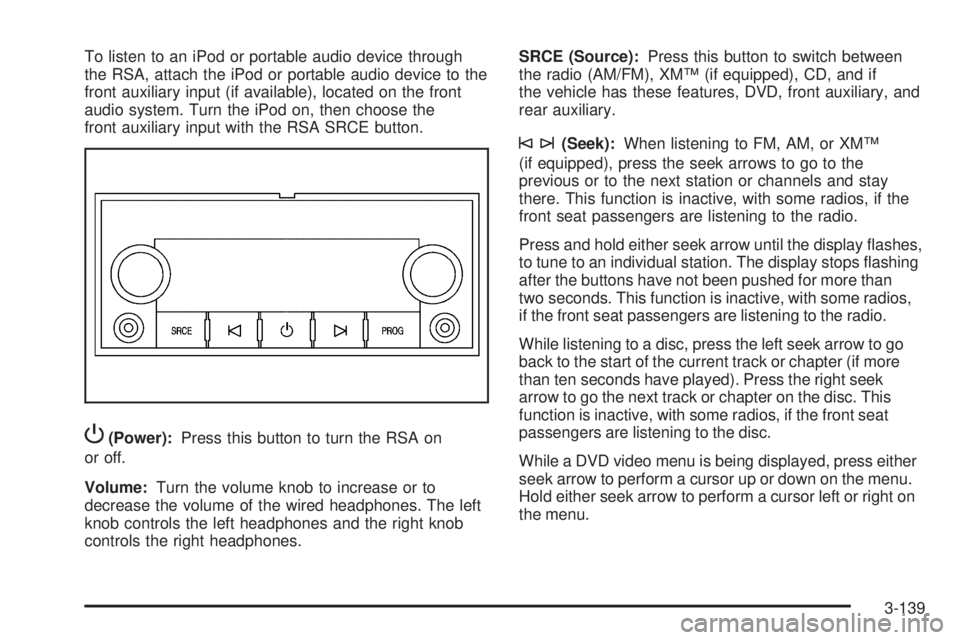
P(Power):Press this button to turn the RSA on
or off.
Volume:Turn the volume knob to increase or to
decrease the volume of the wired headphones. The left
knob controls the left headphones and the right knob
controls the right headphones.SRCE (Source):Press this button to switch between
the radio (AM/FM), XM™ (if equipped), CD, and if
the vehicle has these features, DVD, front auxiliary, and
rear auxiliary.
©¨(Seek):When listening to FM, AM, or XM™
(if equipped), press the seek arrows to go to the
previous or to the next station or channels and stay
there. This function is inactive, with some radios, if the
front seat passengers are listening to the radio.
Press and hold either seek arrow until the display ashes,
to tune to an individual station. The display stops ashing
after the buttons have not been pushed for more than
two seconds. This function is inactive, with some radios,
if the front seat passengers are listening to the radio.
While listening to a disc, press the left seek arrow to go
back to the start of the current track or chapter (if more
than ten seconds have played). Press the right seek
arrow to go the next track or chapter on the disc. This
function is inactive, with some radios, if the front seat
passengers are listening to the disc.
While a DVD video menu is being displayed, press either
seek arrow to perform a cursor up or down on the menu.
Hold either seek arrow to perform a cursor left or right on
the menu.
3-139
Page 325 of 602
bg(Mute/Push to Talk):Press to silence the vehicle
speakers only. Press again to turn the sound on.
For vehicles with OnStar
®or Bluetooth®systems press
and hold
bgfor longer than two seconds to interact
with those systems. SeeOnStar®System on page 2-70
andBluetooth®on page 3-118in this manual for
more information.
SRCE (Source/Voice Recognition):Press to
switch between the radio (AM, FM, XM), CD, DVD
(if equipped), front auxiliary (if equipped), and rear
auxiliary (if equipped).
For vehicles with the navigation system, press and hold
this button for longer than one second to initiate
voice recognition. See “Voice Recognition” in the
Navigation System manual for more information.
+
e−e(Volume):Press to increase or to decrease
the radio volume.
¨(Seek):Press to go to the next radio station while in
AM, FM, or XM™. Press
¨to go to the next track or
chapter while sourced to the CD or DVD slot. Press
the
¨if multiple discs are loaded to go to the next disc
while sourced to a CD player.
Radio Reception
Frequency interference and static can occur during
normal radio reception if items such as cell phone
chargers, vehicle convenience accessories, and external
electronic devices are plugged into the accessory power
outlet. If there is interference or static, unplug the item
from the accessory power outlet.
AM
The range for most AM stations is greater than for FM,
especially at night. The longer range can cause station
frequencies to interfere with each other. For better radio
reception, most AM radio stations boost the power levels
during the day, and then reduce these levels during the
night. Static can also occur when things like storms and
power lines interfere with radio reception. When this
happens, try reducing the treble on the radio.
FM Stereo
FM signals only reach about 10 to 40 miles (16 to 65 km).
Although the radio has a built-in electronic circuit that
automatically works to reduce interference, some static
can occur, especially around tall buildings or hills,
causing the sound to fade in and out.
3-141
Page 370 of 602
Keep in mind that reserve capacity numbers are
intended as a guide when selecting the amount of
equipment or cargo your truck can carry. If you
are unsure of your vehicle’s front, rear, or total weight,
go to a weigh station and weigh your vehicle. Your
dealer/retailer can also help you with this.
The total vehicle reserve capacity for your vehicle can
be found in the lower right corner of the Certication/Tire
label as shown previously.
See your dealer/retailer for additional advice and
information about using a snow plow on your vehicle.
Also, seeLoading the Vehicle on page 4-34.
Emergency Roof Lamp Provisions
Vehicles with the RPO VYU snow plow prep package
also have an emergency roof lamp provision package,
RPO TRW. Wiring for the emergency roof lamp is
provided above the overhead console. SeeAuxiliary
Roof-Mounted Lamp on page 3-19for switch location.
Truck-Camper Loading Information
A vehicle specic Truck-Camper Loading
information label is attached to the inside of your
vehicle’s glove box. This label will tell you if
your vehicle can carry a slide-in camper, how
much of a load your vehicle can carry, and how to
correctly spread out the load. Also, it will help
you match the right slide-in camper to your vehicle.
When you carry a slide-in camper, the total
cargo load of your vehicle is the weight of the
camper, plus the following:
Everything else added to the camper after it
left the factory
Everything in the camper
All the people inside
The Cargo Weight Rating (CWR) is the maximum
weight of the load your vehicle can carry.
It does not include the weight of the people inside.
But, you can gure about 150 lbs (68 kg) for
each seat.
4-44