radio controls GMC SIERRA 1500 2011 User Guide
[x] Cancel search | Manufacturer: GMC, Model Year: 2011, Model line: SIERRA 1500, Model: GMC SIERRA 1500 2011Pages: 594, PDF Size: 7.88 MB
Page 158 of 594
Black plate (10,1)GMC Sierra Owner Manual - 2011
5-10 Instruments and Controls
MP3 Radio with a Six-Disc CD
Player
To set the time and date:
1. Turn the ignition key toACC/ACCESSORY or ON/RUN,
then press the
Obutton to turn
the radio on.
2. Press the MENU button and then the softkey under the
Htab
to display HR, MIN, MM, DD,
YYYY (hour, minute, month, day,
and year).
3. Press the softkey located under any one of the tabs to change
that setting.
4. To increase the time or date, do one of the following:
.Press the softkey below the
selected tab.
.Press the¨SEEK button.
.Press the\FWD button.
.Turn thefknob clockwise. 5. To decrease the time or date, do
one of the following:
.Press the©SEEK button.
.Press thesREV button.
.Turn thefknob
counterclockwise.
To change the time default setting
from 12 hour to 24 hour or to change
the date default setting from month/
day to day/month:
1. Press the MENU button and then the softkey under
the
Htab.
2. Press the softkey located below the forward arrow tab. 12H, 24H,
the date MM/DD (month and
day), and DD/MM (day and
month) displays.
3. Press the softkey located below the desired option.
4. Press the MENU button again to apply the desired option, or let
the screen time out.
Power Outlets
Accessory power outlets can
be used to plug in electrical
equipment, such as a cell phone,
MP3 player, etc.
The vehicle may have two
accessory power outlets located
below the climate control system,
or may have one accessory power
outlet and one cigarette lighter.
The cigarette lighter is designed
to fit only in the receptacle closest
to the driver.
There may be another accessory
power outlet in the rear cargo area.
If the vehicle has a floor console,
there is an accessory power outlet
inside the storage bin and one on
the rear of the floor console.
Remove the cover to access and
replace when not in use.
Page 167 of 594
Black plate (19,1)GMC Sierra Owner Manual - 2011
Instruments and Controls 5-19
When the engine is running, this
gauge shows the condition of the
charging system. The gauge can
transition from a higher to lower or
a lower to higher reading. This is
normal. If the vehicle is operating
outside the normal operating range,
the charging system light comes
on. SeeCharging System Light on
page 5‑24 for more information.
The voltmeter gauge may also read
lower when in fuel economy mode.
This is normal.
Readings outside the normal
operating range can also occur
when a large number of electrical
accessories are operating in
the vehicle and the engine is
left idling for an extended period. This condition is normal since the
charging system is not able to
provide full power at engine idle.
As engine speeds are increased,
this condition should correct itself
as higher engine speeds allow the
charging system to create maximum
power.
The vehicle can only be driven for a
short time with the readings outside
the normal operating range. If the
vehicle must be driven, turn off all
accessories, such as the radio and
air conditioner.
Readings outside the normal
operating range indicate a possible
problem in the electrical system.
Have the vehicle serviced as soon
as possible.Safety Belt Reminders
Driver Safety Belt Reminder
Light
When the engine is started, a chime
sounds for several seconds to
remind a driver to fasten the safety
belt, unless the driver safety belt is
already buckled.
The safety belt light flashes for
several seconds, then comes on
solid for several more.
This chime and light sequence
are repeated if the driver remains
unbuckled and the vehicle is in
motion. If the driver safety belt is
already buckled, neither the chime
nor the light comes on.
Page 172 of 594
Black plate (24,1)GMC Sierra Owner Manual - 2011
5-24 Instruments and Controls
If the word ON or the on symbol is
lit on the passenger airbag status
indicator, it means that the right
front passenger frontal airbag is
enabled (may inflate).
If the word OFF or the off symbol is
lit on the airbag status indicator, it
means that the passenger sensing
system has turned off the right front
passenger frontal airbag.
If, after several seconds, both status
indicator lights remain on, or if there
are no lights at all, there may be
a problem with the lights or the
passenger sensing system.
See your dealer for service.{WARNING
If the airbag readiness light ever
comes on and stays on, it means
that something may be wrong
with the airbag system. To help
avoid injury to yourself or others,
have the vehicle serviced right
away. SeeAirbag Readiness
Light on page 5‑20 for more
information, including important
safety information.
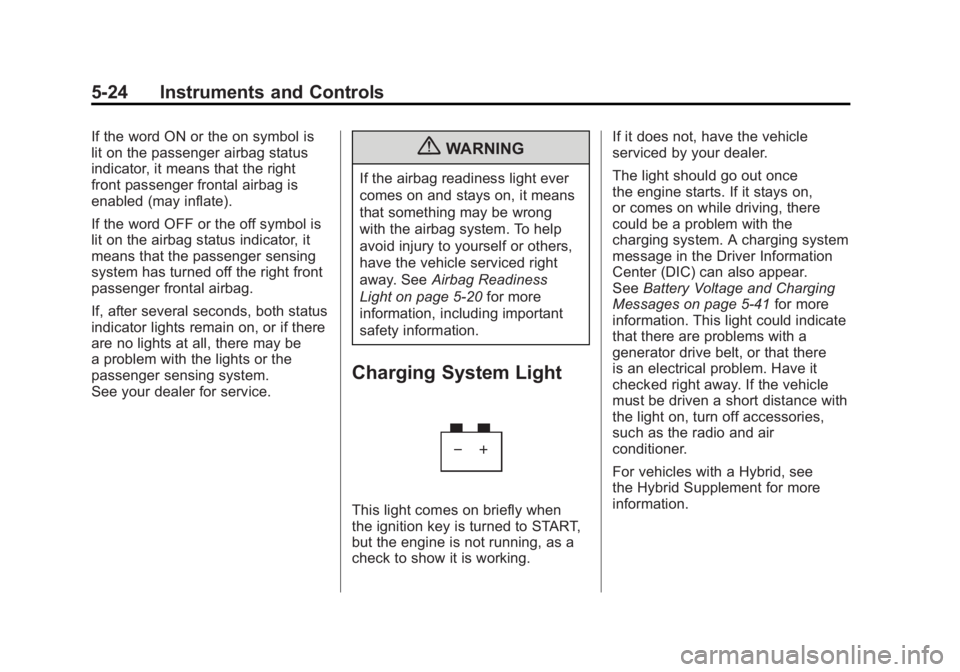
Charging System Light
This light comes on briefly when
the ignition key is turned to START,
but the engine is not running, as a
check to show it is working. If it does not, have the vehicle
serviced by your dealer.
The light should go out once
the engine starts. If it stays on,
or comes on while driving, there
could be a problem with the
charging system. A charging system
message in the Driver Information
Center (DIC) can also appear.
See
Battery Voltage and Charging
Messages on page 5‑41 for more
information. This light could indicate
that there are problems with a
generator drive belt, or that there
is an electrical problem. Have it
checked right away. If the vehicle
must be driven a short distance with
the light on, turn off accessories,
such as the radio and air
conditioner.
For vehicles with a Hybrid, see
the Hybrid Supplement for more
information.
Page 209 of 594
Black plate (61,1)GMC Sierra Owner Manual - 2011
Instruments and Controls 5-61
Exiting the Feature
Settings Menu
The feature settings menu will be
exited when any of the following
occurs:
.The vehicle is no longer in
ON/RUN.
.The trip/fuel or vehicle
information DIC buttons are
pressed.
.The end of the feature settings
menu is reached and exited.
.A 40-second time period has
elapsed with no selection made.
Universal Remote
System
SeeRadio Frequency Statement on
page 13‑19 for information
regarding Part 15 of the Federal
Communications Commission
(FCC) rules and Industry Canada
Standards RSS-210/220/310.
Universal Remote System
Programming
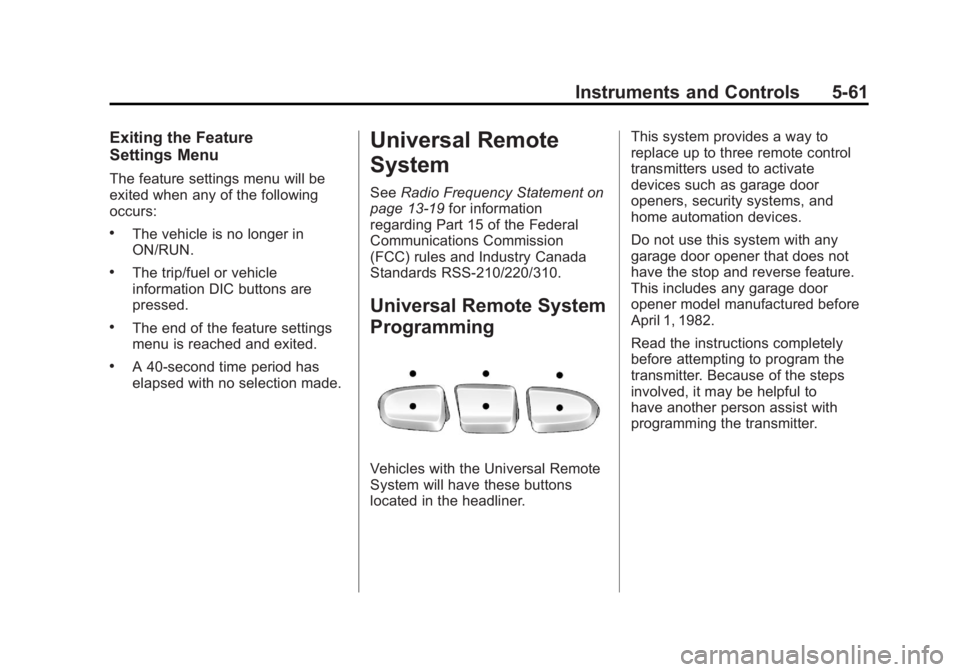
Vehicles with the Universal Remote
System will have these buttons
located in the headliner. This system provides a way to
replace up to three remote control
transmitters used to activate
devices such as garage door
openers, security systems, and
home automation devices.
Do not use this system with any
garage door opener that does not
have the stop and reverse feature.
This includes any garage door
opener model manufactured before
April 1, 1982.
Read the instructions completely
before attempting to program the
transmitter. Because of the steps
involved, it may be helpful to
have another person assist with
programming the transmitter.
Page 227 of 594
Black plate (1,1)GMC Sierra Owner Manual - 2011
Infotainment System 7-1
Infotainment
System
Introduction
Infotainment . . . . . . . . . . . . . . . . . . . 7-1
Theft-Deterrent Feature . . . . . . . 7-2
Operation . . . . . . . . . . . . . . . . . . . . . 7-2
Radio
AM-FM Radio . . . . . . . . . . . . . . . . . 7-8
Satellite Radio . . . . . . . . . . . . . . . 7-10
Radio Reception . . . . . . . . . . . . . 7-14
Fixed Mast Antenna . . . . . . . . . 7-15
Satellite Radio Antenna . . . . . . 7-15
Audio Players
CD Player . . . . . . . . . . . . . . . . . . . 7-15
CD/DVD Player . . . . . . . . . . . . . . 7-22
Auxiliary Devices . . . . . . . . . . . . 7-34
Rear Seat Infotainment
Rear Seat Entertainment(RSE) System . . . . . . . . . . . . . . 7-39
Rear Seat Audio (RSA) System . . . . . . . . . . . . . . . . . . . . . 7-48
Phone
Bluetooth . . . . . . . . . . . . . . . . . . . . 7-50
Introduction
Infotainment
Determine which radio the vehicle
has and read the following pages to
become familiar with its features.
{WARNING
Taking your eyes off the road
for extended periods could
cause a crash resulting in
injury or death to you or others.
Do not give extended attention to
entertainment tasks while driving.
This system provides access to
many audio and non‐audio listings. To minimize taking your eyes off the
road while driving, do the following
while the vehicle is parked:
.Become familiar with the
operation and controls of
the audio system.
.Set up the tone, speaker
adjustments, and preset
radio stations.
For more information, see Defensive
Driving on page 9‑2.
Notice: Contact your dealer
before adding any equipment.
Adding audio or communication
equipment could interfere with
the operation of the engine, radio,
or other systems, and could
damage them. Follow federal
rules covering mobile radio
and telephone equipment.
Page 232 of 594
Black plate (6,1)GMC Sierra Owner Manual - 2011
7-6 Infotainment System
Setting the Tone
(Bass/Midrange/Treble)
(All Except AM-FM Radio
and Radio with CD)
BASS/MID/TREB (Bass, Midrange,
or Treble):To adjust the bass,
midrange, or treble:
1. Press the
fknob until the tone
control tabs display.
2. Highlight the desired tone control tab by doing one of
the following:
.Press thefknob.
.Press the softkey under the
desired tab. 3. Adjust the setting by doing one
of the following:
.Turn thefknob clockwise
or counterclockwise.
.Press the¨SEEK,
or
©SEEK.
.Press the\FWD,
or
sREV.
If a station's frequency is weak or if
there is static, decrease the treble.
To quickly adjust bass, midrange,
or treble to the middle position,
press the softkey positioned under
the BASS, MID, or TREB tab for
more than two seconds. A beep
sounds and the level adjusts to
the middle position. To quickly adjust all tone and
speaker controls to the middle
position, press the
fknob for
more than two seconds until a
beep sounds.
EQ (Equalization): Press this
button to choose bass and treble
equalization settings designed for
different types of music. Selecting
MANUAL, or changing bass or
treble, returns the EQ to the manual
bass and treble settings.
Unique EQ settings can be saved
for each source.
If the radio has a Bose
®audio
system, the EQ settings are either
MANUAL or TALK.
Page 233 of 594
Black plate (7,1)GMC Sierra Owner Manual - 2011
Infotainment System 7-7
Adjusting the Speakers
(Balance/Fade) (AM-FM Radio
and AM-FM Radio with CD)
To adjust the balance or fade:
1. Press
`or press thefknob
until the speaker control label
displays.
2. To adjust the setting, do one of the following:
.Turn thefknob.
.Press either¨SEEK,
or
©SEEK.
.Press either\FWD,
or
sREV.
Adjusting the Speakers
(Balance/Fade) (All Except
AM-FM Radio and Radio
with CD)
BAL/FADE (Balance/Fade): To
adjust the balance or fade:
1. Press the
fknob until the
speaker control tabs display.
2. Highlight the desired speaker control tab by doing one of the
following:
.Press thefknob.
.Press the softkey under the
desired tab. 3. Adjust the setting by doing one
of the following:
.Turn thefknob clockwise
or counterclockwise.
.Press the¨SEEK,
or
©SEEK.
.Press the\FWD,
or
sREV.
To quickly adjust all speaker and
tone controls to the middle position,
press the
fknob for more than
two seconds.
If the Rear Seat Audio (RSA) is
turned on, the radio disables FADE
and mutes the rear speakers.
Page 235 of 594
Black plate (9,1)GMC Sierra Owner Manual - 2011
Infotainment System 7-9
¨SEEK:Press to seek the next
radio station. Press and hold for a
few seconds until a beep sounds to
scan for radio stations in ascending
order; press the
©SEEK button
again to stop scanning radio
stations. The radio only seeks and
scans stations with a strong signal
that are in the selected band.
For the AM-FM Radio, press and
hold the
¨SEEK for four seconds
until a double beep sounds to scan
the preset stations. The station
frequency flashes while the radio
is in the scan mode.
sREV: Press to manually tune to
a radio station in descending order.
\FWD: Press to manually tune to
a radio station in ascending order.
FAV (Favorites): Press to select
different favorites pages for stored
radio stations.
Storing Radio Stations
Drivers are encouraged to store
the radio station while the vehicle
is parked; see Defensive Driving on
page 9‑2. Tune to stored radio
stations using the presets, favorites
button, and steering wheel controls,
if the vehicle has this feature.
Radios that have a FAV button
store radio stations as favorites. Up
to 36 stations can be programmed
as favorites using the six softkeys
below the radio station frequency
tabs and by using the FAV button.
Press the FAV button to go through
up to six pages of favorites, each
having six favorite stations available
per page. Each page of favorites
can contain any combination of AM,
FM, or XM, if equipped, stations.
Radios that do not have a
FAV button store radio stations
as presets. Up to 18 stations
(6 FM1, 6 FM2, and 6 AM), can
be programmed on the six
numbered pushbuttons. Setting Preset Stations
To store presets:
1. Tune to a radio station.
2. Press and hold one of the
six numbered pushbuttons for
three seconds until a beep
sounds.
3. Repeat Steps 1 and 2 to store additional radio stations.
Storing a Radio Station as a
Favorite
To store a station as a favorite:
1. Tune to a radio station.
2. Press the FAV button to display the page where the station will
be stored.
3. Press and hold one of the six softkeys until a beep sounds.
4. Repeat Steps 1 through 3 to store additional radio stations.
Page 238 of 594
Black plate (12,1)GMC Sierra Owner Manual - 2011
7-12 Infotainment System
Storing XM Channels
Drivers are encouraged to store
XM channels while the vehicle is
parked; seeDefensive Driving on
page 9‑2. Tune to stored radio
stations using the presets, favorites
button, and steering wheel controls,
if the vehicle has this feature.
Up to 36 stations can be
programmed as favorites using
the six softkeys below the radio
station frequency tabs and by
using the FAV button. Press the
FAV button to go through up to six
pages of favorites, each having six
favorite stations available per page.
Each page of favorites can contain
any combination of AM, FM, or XM,
if equipped, stations.
Storing an XM Channel as a
Favorite
To store a station as a favorite:
1. Tune to an XM channel.
2. Press the FAV button to display the page where the station will
be stored. 3. Press and hold one of the six
softkeys until a beep sounds.
4. Repeat Steps 1 through 3 to store additional radio stations.
The number of favorites pages can
be set up using the MENU button.
To set up the number of favorites
pages:
1. Press the MENU button.
2. Press the softkey located below the FAV 1-6 tab.
3. Select the number of favorites pages by pressing the softkey
located below the displayed
page numbers.
4. Press the FAV button, or let the menu time out, to return to
the original main radio screen
showing the radio station
frequency tabs and to begin
the process of programming
favorites.
XM Radio Messages
XL (Explicit Language
Channels): These channels,
or any others, can be blocked at
a customer's request, by calling
1-800-929-2100 in the U.S. and
1-877-438-9677 in Canada.
XM Updating: The encryption
code in the receiver is being
updated, and no action is required.
This process should take no longer
than 30 seconds.
No XM Signal: The system is
functioning correctly, but the vehicle
is in a location that is blocking the
XM signal. When the vehicle is
moved into an open area, the
signal should return.
Loading XM: The audio system is
acquiring and processing audio and
text data. No action is needed. This
message should disappear shortly.
Channel Off Air: This channel is
not currently in service. Tune in to
another channel.
Page 258 of 594
Black plate (32,1)GMC Sierra Owner Manual - 2011
7-32 Infotainment System
If the DVD still does not play,
refer to the on-screen instructions,
if available.
c(Stop):Press to stop playing,
rewinding, or fast forwarding a DVD.
r(Enter): Press to select the
choices that are highlighted in
any menu.
y(Menu): Press to access
the DVD menu. The DVD menu
is different on every DVD. Use
the softkeys located under the
navigation arrows to navigate the
cursor through the DVD menu.
After making a selection press this
button. This button only operates
when using a DVD.
Nav (Navigate): Press to display
directional arrows for navigating
through the menus.
q(Return): Press to exit the
current active menu and return to
the previous menu. This button
operates only when a DVD is
playing and a menu is active.
The rear seat passenger can
navigate the DVD-V and DVD-A
menus and controls through the
remote control. See “Remote
Control” underRear Seat
Entertainment (RSE) System on
page 7‑39 for more information.
The video screen automatically
turns on when the DVD-V is
inserted into the DVD slot, and
does not automatically power on
when the DVD-A is inserted into
the DVD slot. It must be manually
turned on by the rear seat occupant
through the remote control power
button. Using Softkeys to Play a DVD-A
(Audio)
Once a DVD-A is inserted, the
radio display menu shows several
tab options for playback. Press the
softkey located under any tab option
during DVD-A playback.
r/j(Play/Pause):
Press either
the play or pause icon displayed on
the radio, to toggle between pausing
or restarting playback of a DVD.
If the forward arrow is showing on
the display, the system is in pause
mode. If the pause tab is showing
on the display, the system is in
playback mode.
qGroupr: Press to cycle
through musical groupings on
the DVD-A disc.
Nav (Navigate): Press to display
directional arrows for navigating
through the menus.