change time GMC SIERRA 1500 2012 Owner's Manual
[x] Cancel search | Manufacturer: GMC, Model Year: 2012, Model line: SIERRA 1500, Model: GMC SIERRA 1500 2012Pages: 556, PDF Size: 7.88 MB
Page 203 of 556
Black plate (3,1)GMC Sierra Owner Manual - 2012 - CRC - 11/15/11
Lighting 6-3
Headlamp High/
Low-Beam Changer
5 3
(Headlamp High/Low
Beam Changer): To change the
headlamps from low to high beam,
push the lever toward the instrument
panel. To return to low-beam
headlamps, pull the multifunction
lever toward you. Then release it.
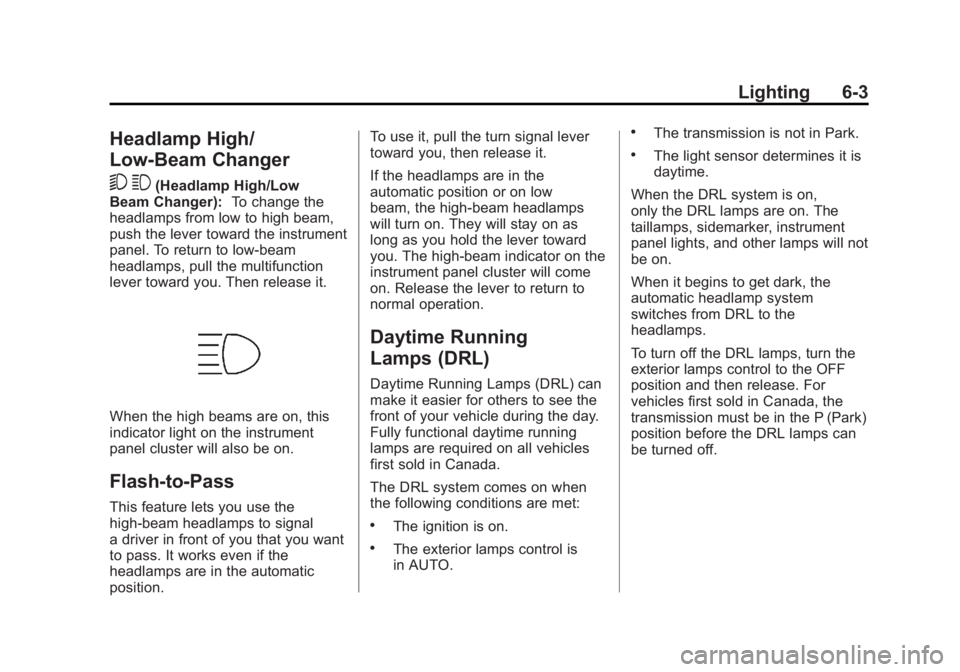
When the high beams are on, this
indicator light on the instrument
panel cluster will also be on.
Flash-to-Pass
This feature lets you use the
high-beam headlamps to signal
a driver in front of you that you want
to pass. It works even if the
headlamps are in the automatic
position. To use it, pull the turn signal lever
toward you, then release it.
If the headlamps are in the
automatic position or on low
beam, the high-beam headlamps
will turn on. They will stay on as
long as you hold the lever toward
you. The high-beam indicator on the
instrument panel cluster will come
on. Release the lever to return to
normal operation.
Daytime Running
Lamps (DRL)
Daytime Running Lamps (DRL) can
make it easier for others to see the
front of your vehicle during the day.
Fully functional daytime running
lamps are required on all vehicles
first sold in Canada.
The DRL system comes on when
the following conditions are met:
.The ignition is on.
.The exterior lamps control is
in AUTO.
.The transmission is not in Park.
.The light sensor determines it is
daytime.
When the DRL system is on,
only the DRL lamps are on. The
taillamps, sidemarker, instrument
panel lights, and other lamps will not
be on.
When it begins to get dark, the
automatic headlamp system
switches from DRL to the
headlamps.
To turn off the DRL lamps, turn the
exterior lamps control to the OFF
position and then release. For
vehicles first sold in Canada, the
transmission must be in the P (Park)
position before the DRL lamps can
be turned off.
Page 204 of 556
Black plate (4,1)GMC Sierra Owner Manual - 2012 - CRC - 11/15/11
6-4 Lighting
Automatic Headlamp
System
When it is dark enough outside, the
automatic headlamp system turns
on the headlamps at the normal
brightness, along with the taillamps,
sidemarker, parking lamps, and the
instrument panel lights. The radio
lights will also be dim.
To turn off the automatic headlamp
system, turn the exterior lamps
switch to the off position and then
release it. For vehicles first sold in
Canada, the transmission must be
in the P (Park) position before the
automatic headlamp system can be
turned off.
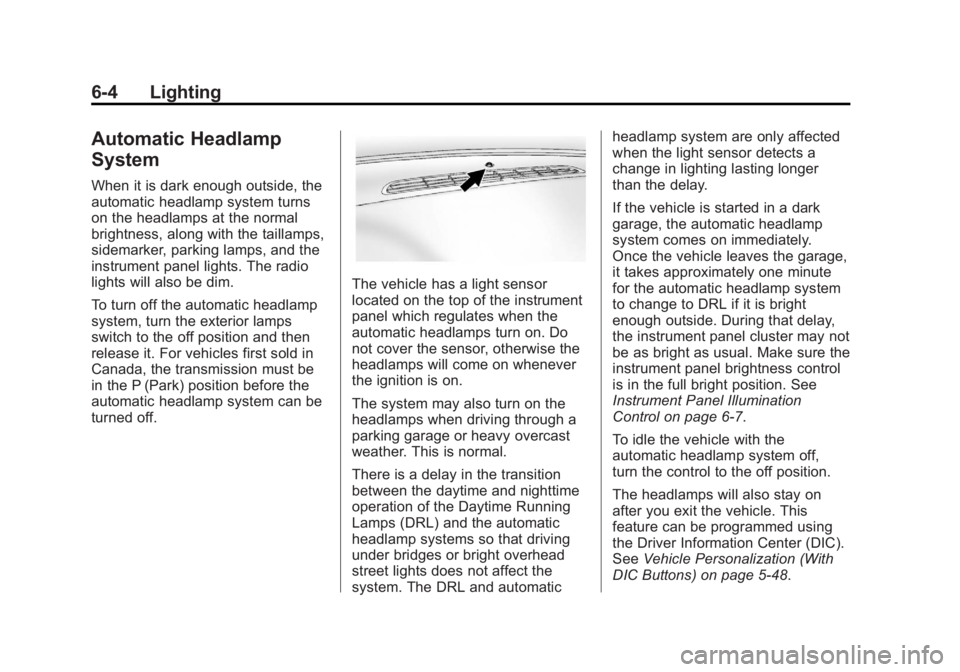
The vehicle has a light sensor
located on the top of the instrument
panel which regulates when the
automatic headlamps turn on. Do
not cover the sensor, otherwise the
headlamps will come on whenever
the ignition is on.
The system may also turn on the
headlamps when driving through a
parking garage or heavy overcast
weather. This is normal.
There is a delay in the transition
between the daytime and nighttime
operation of the Daytime Running
Lamps (DRL) and the automatic
headlamp systems so that driving
under bridges or bright overhead
street lights does not affect the
system. The DRL and automaticheadlamp system are only affected
when the light sensor detects a
change in lighting lasting longer
than the delay.
If the vehicle is started in a dark
garage, the automatic headlamp
system comes on immediately.
Once the vehicle leaves the garage,
it takes approximately one minute
for the automatic headlamp system
to change to DRL if it is bright
enough outside. During that delay,
the instrument panel cluster may not
be as bright as usual. Make sure the
instrument panel brightness control
is in the full bright position. See
Instrument Panel Illumination
Control on page 6‑7.
To idle the vehicle with the
automatic headlamp system off,
turn the control to the off position.
The headlamps will also stay on
after you exit the vehicle. This
feature can be programmed using
the Driver Information Center (DIC).
See
Vehicle Personalization (With
DIC Buttons) on page 5‑48.
Page 205 of 556
Black plate (5,1)GMC Sierra Owner Manual - 2012 - CRC - 11/15/11
Lighting 6-5
If the vehicle is not equipped
with DIC buttons, exit lighting is
automatic. When it is dark enough
outside, the exterior lamps remain
on for 30 seconds after the ignition
is moved from ON/RUN to
LOCK/OFF.
For vehicles without a radio, the
instrument panel light remains on for
30 seconds with the driver door
closed. For vehicles with a radio,
the instrument panel light remains
on for 10 minutes with the driver
door closed. SeeRetained
Accessory Power (RAP) on
page 9‑29.
The regular headlamp system can
be turned on when needed.Hazard Warning Flashers
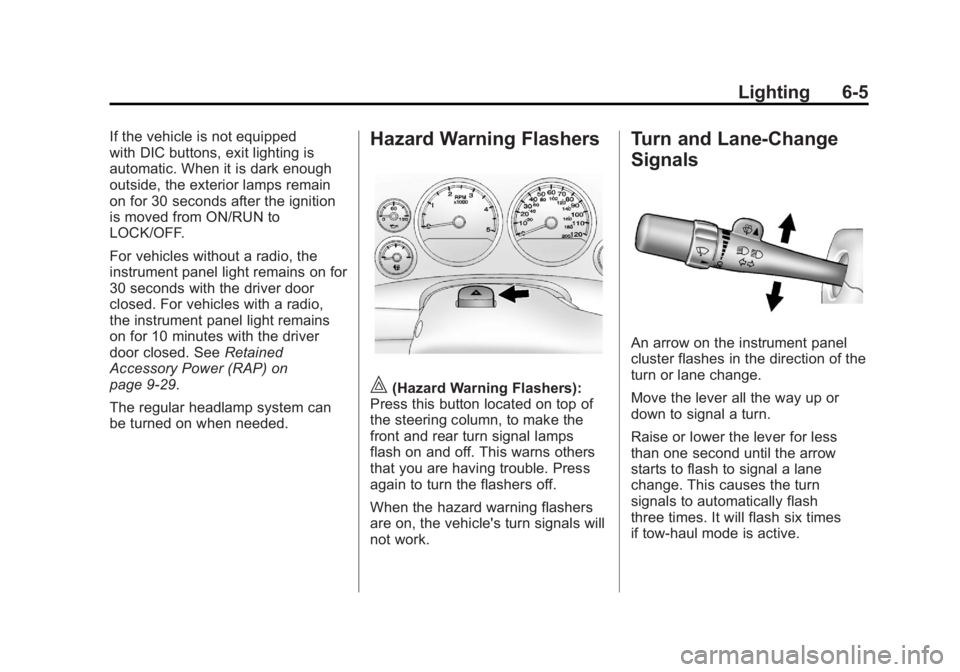
|(Hazard Warning Flashers):
Press this button located on top of
the steering column, to make the
front and rear turn signal lamps
flash on and off. This warns others
that you are having trouble. Press
again to turn the flashers off.
When the hazard warning flashers
are on, the vehicle's turn signals will
not work.
Turn and Lane-Change
Signals
An arrow on the instrument panel
cluster flashes in the direction of the
turn or lane change.
Move the lever all the way up or
down to signal a turn.
Raise or lower the lever for less
than one second until the arrow
starts to flash to signal a lane
change. This causes the turn
signals to automatically flash
three times. It will flash six times
if tow-haul mode is active.
Page 216 of 556
Black plate (6,1)GMC Sierra Owner Manual - 2012 - CRC - 11/15/11
7-6 Infotainment System
Press to display additional text
information related to the current
FM-RDS or XM station; or CD, MP3,
or WMA song. If information is
available during XM, CD, MP3,
or WMA playback, the song title
information displays on the top line
of the display and artist information
displays on the bottom line. When
information is not available,“NO
INFO” displays.
Speed Compensated Volume
(SCV): Radios with Speed
Compensated Volume (SCV)
automatically adjust the radio
volume to compensate for road and
wind noise as the vehicle's speed
changes while driving, so that the
volume level stays consistent. To activate SCV:
1. Set the radio volume to the
desired level.
2. Press the MENU button to display the radio setup menu.
3. Press the softkey under the AUTO VOLUM (automatic
volume) tab on the radio display.
4. Press the softkey under the desired Speed Compensated
Volume setting (OFF, Low, Med,
or High) to select the level of
radio volume compensation.
The display times out after
approximately 10 seconds. Each
higher setting allows for more
radio volume compensation at
faster vehicle speeds.Setting the Tone (Bass/Treble)
(AM-FM Radio and AM-FM
Radio with CD)
To adjust the bass or treble:
1. Press the
fknob until Bass or
Treble displays.
2. To adjust the setting, do one of the following:
.Turn thefknob.
.Press either¨SEEK,
or
©SEEK.
.Press either\FWD,
or
sREV.
Page 229 of 556
Black plate (19,1)GMC Sierra Owner Manual - 2012 - CRC - 11/15/11
Infotainment System 7-19
Tracks are played in the following
order:
.Play begins from the first track in
the first playlist and continues
sequentially through all tracks
in each playlist. When the last
track of the last playlist has
played, play continues from the
first track of the first playlist.
.Play begins from the first track
in the first folder and continues
sequentially through all tracks in
each folder. When the last track
of the last folder has played,
play continues from the first
track of the first folder.
File System and Naming
The song name that displays is the
song name that is contained in the
ID3 tag. If the song name is not
present in the ID3 tag, then the
radio displays the file name without
the extension (such as .mp3) as the
track name. Track names longer than
32 characters or 4 pages are
shortened. The display does not
show parts of words on the last
page of text and the extension of
the file name is not displayed.
Preprogrammed Playlists
CDs that have preprogrammed
playlists reated using WinAmp™,
MusicMatch™, or Real Jukebox™
software can be accessed; however,
there is no playlist‐editing capability
using the radio. These playlists are
treated as special folders containing
compressed audio song files.
Playlists that have an .m3u or .pls
file extension and are stored on a
USB device may be supported by
the radio with a USB port.
Playlists can be changed by
using the softkeys below
the
S
candc Ttabs,
the
fknob, the©SEEK button,
or the
¨SEEK button. An MP3
CD-R or CD-RW that has been
recorded without using file folders can be played. If a CD-R or CD-RW
contains more than the maximum
of 50 folders, 15 playlists, and
512 folders and files, the player
allows access and navigates up to
the maximum, but all items over the
maximum are not accessible.
Playing an MP3
4(Information):
Press to display
additional text information related to
the current song. If information is
available, the song title information
displays on the top line of the
display and artist information
displays on the bottom line.
When information is not available,
“NO INFO” displays.
f(Tune):Turn to select MP3s on
the CD currently playing.
©SEEK: Press to go to the start of
the track, if more than 10 seconds
have played. Press and hold or
press multiple times to continue
moving backward through tracks.
Page 237 of 556
Black plate (27,1)GMC Sierra Owner Manual - 2012 - CRC - 11/15/11
Infotainment System 7-27
five seconds have played, to
continue moving backward through
tracks.
¨SEEK:Press to go to the next
track.
Press and hold, or press multiple
times, to continue moving forward
through tracks.
sREV (Reverse): Press and hold
to reverse playback quickly.
\FWD (Fast Forward): Press
and hold to advance playback
quickly.
S c(Previous Folder): Press
the softkey below the
S ctab to
go to the first track in the previous
folder.
c T(Next Folder): Press the
softkey below the
c Ttab to go to
the first track in the next folder.
RDM (Random): Press to listen
to tracks in random, rather than
sequential order. To use random:
1. Press the softkey under the
RDM tab until Random Current
Disc displays
2. Press the same softkey again to turn off random play.
h(Music Navigator): Press the
softkey below the
htab to play
files in order by artist or album.
The player scans the disc to sort the
files by artist and album ID3 tag
information. It can take several
minutes to scan the disc depending
on the number of files on the disc.
The radio may begin playing while it
is scanning in the background.
When the scan is finished, the disc
begins playing files in order by
artist. The current artist playing is
shown on the second line of the
display. Once all songs by that artist
are played, the player moves to the
next artist in alphabetical order and
begins playing files by that artist. To listen to files by another artist,
press the softkey located below
either arrow tab. The disc goes
to the next or previous artist in
alphabetical order. Continue
pressing either softkey below the
arrow tab until the artist displays.
To change from playback by artist to
playback by album:
1. Press the softkey below the Sort
By tab.
2. Press one of the softkeys below the Album tab from the sort
screen.
3. Press the softkey below the Back tab to return to the main
music navigator screen.
The album name displays on the
second line between the arrows,
and songs from the current album
begin to play. Once all songs from
that album have played, the player
moves to the next album in
alphabetical order on the CD and
begins playing MP3 files from that
album.
Page 249 of 556
Black plate (39,1)GMC Sierra Owner Manual - 2012 - CRC - 11/15/11
Infotainment System 7-39
If the foam ear pads attached to
the headphones become worn or
damaged, the pads can be replaced
separately from the headphone set.
To purchase replacement ear pads,
call 1-888-293-3332, then prompt
zero (0), or contact your dealer.
Battery Replacement
To change the batteries on the
headphones:
1. Turn the screw to loosen thebattery door located on the left
side of the headphones. Slide
the battery door open.
2. Replace the two batteries in the compartment. Make sure that
they are installed correctly, using
the diagram on the inside of the
battery compartment.
3. Replace the battery door and tighten the door screw.
If the headphones are to be stored
for a long period of time, remove the
batteries and keep them in a cool,
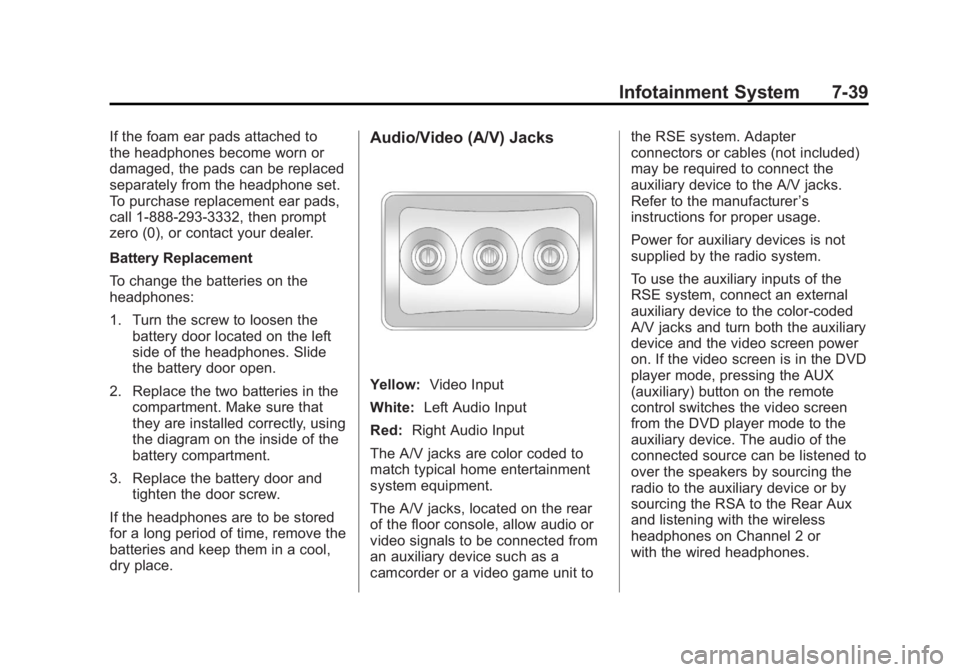
dry place.Audio/Video (A/V) Jacks
Yellow: Video Input
White: Left Audio Input
Red: Right Audio Input
The A/V jacks are color coded to
match typical home entertainment
system equipment.
The A/V jacks, located on the rear
of the floor console, allow audio or
video signals to be connected from
an auxiliary device such as a
camcorder or a video game unit to the RSE system. Adapter
connectors or cables (not included)
may be required to connect the
auxiliary device to the A/V jacks.
Refer to the manufacturer
’s
instructions for proper usage.
Power for auxiliary devices is not
supplied by the radio system.
To use the auxiliary inputs of the
RSE system, connect an external
auxiliary device to the color-coded
A/V jacks and turn both the auxiliary
device and the video screen power
on. If the video screen is in the DVD
player mode, pressing the AUX
(auxiliary) button on the remote
control switches the video screen
from the DVD player mode to the
auxiliary device. The audio of the
connected source can be listened to
over the speakers by sourcing the
radio to the auxiliary device or by
sourcing the RSA to the Rear Aux
and listening with the wireless
headphones on Channel 2 or
with the wired headphones.
Page 253 of 556
Black plate (43,1)GMC Sierra Owner Manual - 2012 - CRC - 11/15/11
Infotainment System 7-43
r(Fast Reverse):Press this
button to quickly reverse the DVD or
CD. To stop fast reversing a DVD
video, press the play/pause button.
To stop fast reversing a DVD audio
or CD, release the fast reverse
button. This button might not work
when the DVD is playing the
copyright information or the
previews.
[(Fast Forward): Press this
button to fast forward the DVD or
CD. To stop fast forwarding a DVD
video, press the play/pause button.
To stop fast forwarding a DVD audio
or CD, release the fast forward
button. This button might not work
while the DVD is playing the
copyright information or the
previews.
e(Audio): Press this button to
change audio tracks on DVDs that
have this feature when the DVD is
playing. The format and content of
this function vary for each disc.
{(Subtitles): Press this button to
turn on or off subtitles and to move
through subtitle options when a
DVD is playing. The format and
content of this function vary for
each disc.
AUX (Auxiliary): Press this button
to switch the system between the
DVD player and an auxiliary source.
2(Camera): Press this button to
change camera angles on DVDs
that have this feature while a DVD is
playing. The format and content of
this function vary for each disc.
1 through 0 (Numeric Keypad):
The numeric keypad provides the
capability of direct chapter or track
number selection.
\(Clear): Press this button within
three seconds after entering a
numeric selection, to clear all
numerical inputs.
}10 (Double Digit Entries): Press
this button to select chapter or track
numbers greater than nine. Press
this button before entering the
number.
Battery Replacement
To change the remote control
batteries, do the following:
1. Slide the rear cover back on the remote control.
2. Replace the two batteries in the compartment. Make sure they
are installed correctly using the
diagram on the inside of the
remote control.
3. Replace the battery cover.
If the remote control is to be stored
for a long period of time, remove the
batteries and keep them in a cool,
dry place.
Page 256 of 556
Black plate (46,1)GMC Sierra Owner Manual - 2012 - CRC - 11/15/11
7-46 Infotainment System
Cleaning the Video Screen
When cleaning the video screen,
use only a clean cloth dampened
with clean water. Use care when
directly touching or cleaning the
screen, as damage could result.
Rear Seat Audio (RSA)
System
Vehicles with this feature allow the
rear seat passengers to listen to
and control any of the music
sources: radio, CDs, DVDs, or other
auxiliary sources. However, the rear
seat passengers can only control
the music sources the front seat
passengers are not listening to
(except on some radios where dual
control is allowed). For example,
rear seat passengers can control
and listen to a CD through the
headphones, while the driver
listens to the radio through the front
speakers. The rear seat passengers
have control of the volume for each
set of headphones.The radio functionality is controlled
by both the RSA and the front radio.
Only one band can be tuned to at
one time. Changing the band on the
RSA or the front radio will change
the band on the other system,
if they are both sourced to the radio.
The RSA functions can be used
even while the main radio is off. The
front audio system will display the
headphone icon when the RSA is
on, and it will disappear from the
display when the RSA is off.
Audio can be heard through wired
headphones (not included) plugged
into the jacks on the RSA. If the
vehicle has this feature, audio can
also be heard on Channel 2 of the
wireless headphones.
Depending on the audio system, the
rear speakers may continue to play
when the RSA audio is active
through the headphones.
To listen to an iPod or portable
audio device through the RSA,
attach the iPod or portable audio
device to the front auxiliary input(if available), located on the front
audio system. Turn the iPod on,
then choose the front auxiliary input
with the RSA SRCE button.
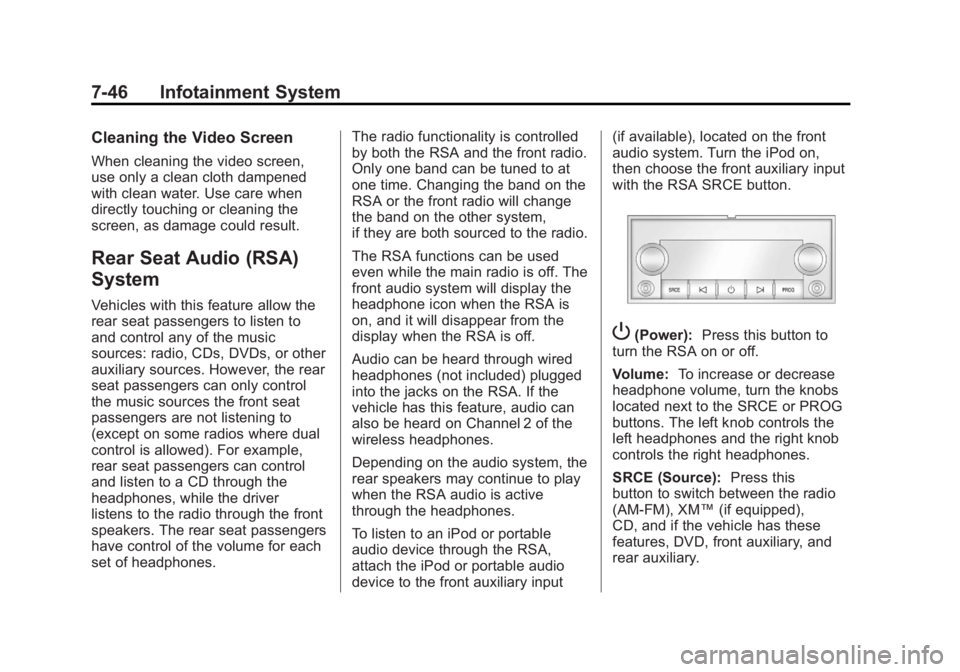
P(Power):
Press this button to
turn the RSA on or off.
Volume: To increase or decrease
headphone volume, turn the knobs
located next to the SRCE or PROG
buttons. The left knob controls the
left headphones and the right knob
controls the right headphones.
SRCE (Source): Press this
button to switch between the radio
(AM‐FM), XM™ (if equipped),
CD, and if the vehicle has these
features, DVD, front auxiliary, and
rear auxiliary.
Page 259 of 556
Black plate (49,1)GMC Sierra Owner Manual - 2012 - CRC - 11/15/11
Infotainment System 7-49
When to Speak:A short tone
sounds after the system responds
indicating when it is waiting for a
voice command. Wait until the tone
and then speak.
How to Speak: Speak clearly in a
calm and natural voice.
Audio System
When using the in‐vehicle Bluetooth
system, sound comes through the
vehicle's front audio system
speakers and overrides the audio
system. Use the audio system
volume knob, during a call, to
change the volume level. The
adjusted volume level remains in
memory for later calls. To prevent
missed calls, a minimum volume
level is used if the volume is turned
down too low.
Bluetooth Controls
Use the buttons located on the
steering wheel to operate the
in‐vehicle Bluetooth system. See
Steering Wheel Controls on
page 5‑2 for more information.
b/g(Push To Talk): Press to
answer incoming calls, confirm
system information, and start
speech recognition.
c/x(End): Press to end a call,
reject a call, or cancel an operation.
Pairing
A Bluetooth enabled cell phone
must be paired to the Bluetooth
system and then connected to the
vehicle before it can be used. See
the cell phone manufacturer's user
guide for Bluetooth functions before
pairing the cell phone. If a Bluetooth
phone is not connected, calls will be
made using OnStar Hands‐Free
Calling, if equipped. See OnStar
Overview on page 14‑1 for more
information. Pairing Information
.A Bluetooth phone with MP3
capability cannot be paired to
the vehicle as a phone and an
MP3 player at the same time.
.Up to five cell phones can be
paired to the Bluetooth system.
.The pairing process is disabled
when the vehicle is moving.
.Pairing only needs to be
completed once, unless the
pairing information on the cell
phone changes or the cell phone
is deleted from the system.
.Only one paired cell phone can
be connected to the Bluetooth
system at a time.
.If multiple paired cell phones are
within range of the system, the
system connects to the first
available paired cell phone in the
order that they were first paired
to the system. To connect to a
different paired phone, see
“Connecting to a Different
Phone”
later in this section.