AUX GMC SIERRA 1500 2013 Owners Manual
[x] Cancel search | Manufacturer: GMC, Model Year: 2013, Model line: SIERRA 1500, Model: GMC SIERRA 1500 2013Pages: 534, PDF Size: 7.85 MB
Page 31 of 534
Black plate (25,1)GMC Sierra Owner Manual - 2013 - crc - 8/14/12
In Brief 1-25
For vehicles with a Rear Seat
Entertainment System (RSE) and
Rear Seat Audio System (RSA), see
Rear Seat Entertainment (RSE)
System on page 7‑38andRear
Seat Audio (RSA) System on
page 7‑47 for more information.
Storing Radio Stations
A maximum of 36 stations can be
stored as favorites using the six
softkeys located below the radio
station frequency tabs and by using
the radio FAV button. Press FAV to
go through up to six pages of
favorites, each having six favorite
stations available per page. Each
page of favorites can contain any
combination of AM, FM, or SiriusXM
stations.
For more information, see “Storing
Radio Stations” inAM-FM Radio on
page 7‑10.
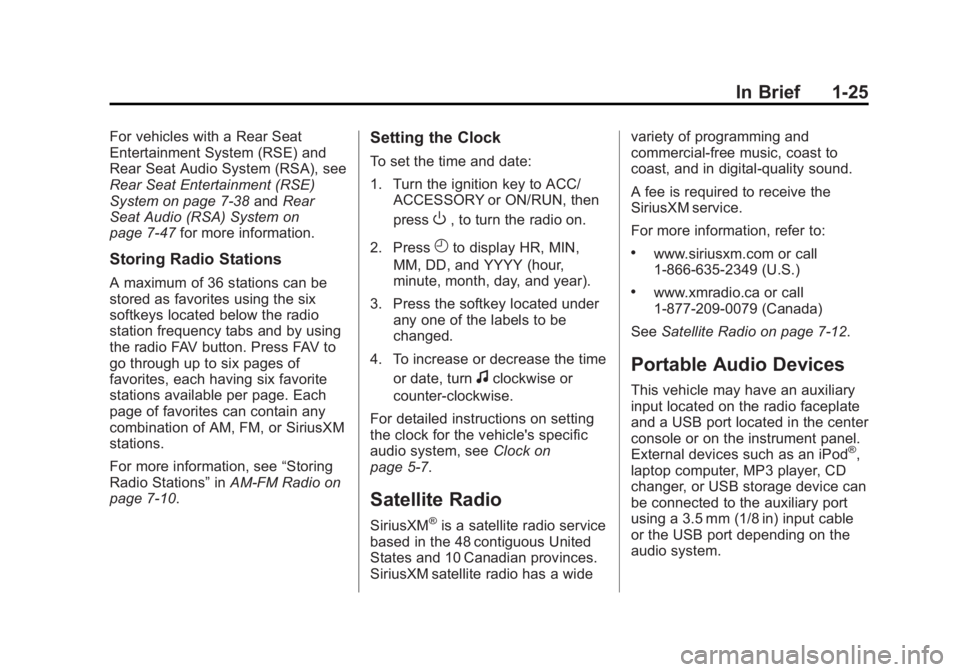
Setting the Clock
To set the time and date:
1. Turn the ignition key to ACC/ ACCESSORY or ON/RUN, then
press
O, to turn the radio on.
2. Press
Hto display HR, MIN,
MM, DD, and YYYY (hour,
minute, month, day, and year).
3. Press the softkey located under any one of the labels to be
changed.
4. To increase or decrease the time or date, turn
fclockwise or
counter-clockwise.
For detailed instructions on setting
the clock for the vehicle's specific
audio system, see Clock on
page 5‑7.
Satellite Radio
SiriusXM®is a satellite radio service
based in the 48 contiguous United
States and 10 Canadian provinces.
SiriusXM satellite radio has a wide variety of programming and
commercial-free music, coast to
coast, and in digital-quality sound.
A fee is required to receive the
SiriusXM service.
For more information, refer to:
.www.siriusxm.com or call
1-866-635-2349 (U.S.)
.www.xmradio.ca or call
1-877-209-0079 (Canada)
See Satellite Radio on page 7‑12.
Portable Audio Devices
This vehicle may have an auxiliary
input located on the radio faceplate
and a USB port located in the center
console or on the instrument panel.
External devices such as an iPod
®,
laptop computer, MP3 player, CD
changer, or USB storage device can
be connected to the auxiliary port
using a 3.5 mm (1/8 in) input cable
or the USB port depending on the
audio system.
Page 32 of 534
Black plate (26,1)GMC Sierra Owner Manual - 2013 - crc - 8/14/12
1-26 In Brief
See“Using the Auxiliary Input Jack”
and “Using the USB Port” in
Auxiliary Devices on page 7‑33.
Bluetooth®
For vehicles with a Bluetooth
system, it allows users with a
Bluetooth-enabled cell phone to
make and receive hands-free calls
using the vehicle’ s audio system
and controls.
The Bluetooth-enabled cell phone
must be paired with the Bluetooth
system before it can be used in the
vehicle. Not all phones will support
all functions. For more information,
see www.gm.com/bluetooth and
Bluetooth on page 7‑49.
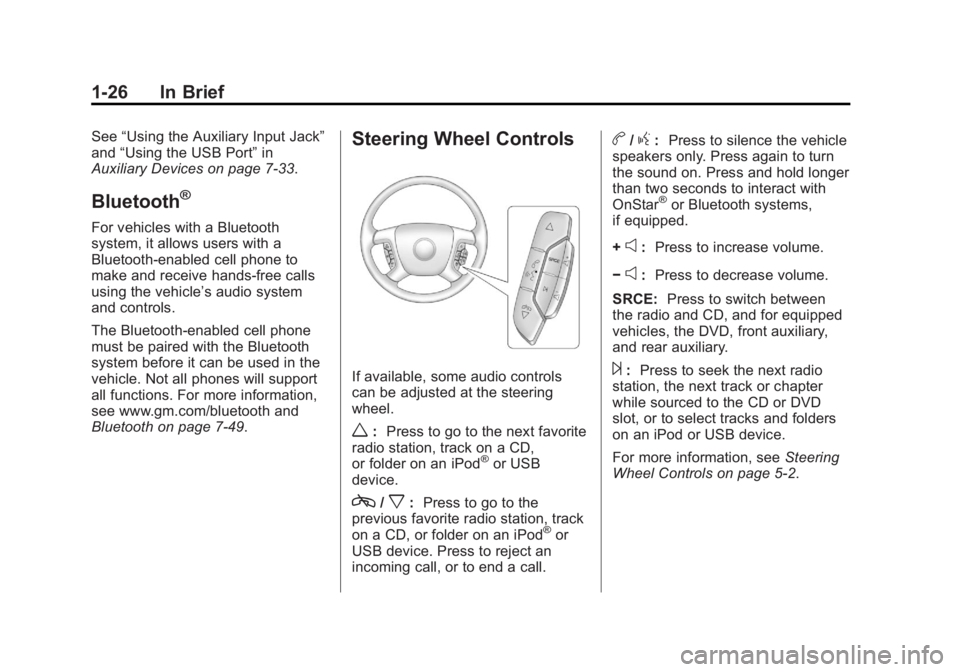
Steering Wheel Controls
If available, some audio controls
can be adjusted at the steering
wheel.
w: Press to go to the next favorite
radio station, track on a CD,
or folder on an iPod
®or USB
device.
c/x: Press to go to the
previous favorite radio station, track
on a CD, or folder on an iPod
®or
USB device. Press to reject an
incoming call, or to end a call.
b/g: Press to silence the vehicle
speakers only. Press again to turn
the sound on. Press and hold longer
than two seconds to interact with
OnStar
®or Bluetooth systems,
if equipped.
+
e: Press to increase volume.
−
e: Press to decrease volume.
SRCE: Press to switch between
the radio and CD, and for equipped
vehicles, the DVD, front auxiliary,
and rear auxiliary.
¨: Press to seek the next radio
station, the next track or chapter
while sourced to the CD or DVD
slot, or to select tracks and folders
on an iPod or USB device.
For more information, see Steering
Wheel Controls on page 5‑2.
Page 134 of 534
Black plate (4,1)GMC Sierra Owner Manual - 2013 - crc - 8/14/12
5-4 Instruments and Controls
3. Press and release¨to move up
one track within the selected
category.
b/g(Mute/Push to Talk): Press
to silence the vehicle speakers only.
Press again to turn the sound on.
For vehicles with Bluetooth or
OnStar systems, press and hold for
longer than two seconds to interact
with those systems. See Bluetooth
on page 7‑49 andOnStar Overview
on page 14‑1 for more information.
SRCE (Source/Voice
Recognition): Press to switch
between the radio and CD, and for
equipped vehicles, the DVD, front
auxiliary, and rear auxiliary.
For vehicles with the navigation
system, press and hold this button
for longer than one second to
initiate voice recognition. See “Voice
Recognition” in the Navigation
System manual for more
information.
¨(Seek): Press to go to the next
radio station while in AM, FM,
or SiriusXM
®.
For vehicles with or without a
navigation system:
Press
¨to go to the next track or
chapter while sourced to the CD or
DVD slot.
Press
¨to select a track or a folder
when navigating folders on an iPod
or USB device.
For vehicles with a navigation
system:
1. Press and hold
¨until a beep is
heard, to place the radio into
SCAN mode. A station will play
for five seconds before moving
to the next station.
2. To stop the SCAN function, press
¨again.
While listening to a CD/DVD, press
and hold
¨to quickly move forward
through the tracks. Release to stop
on the desired track. +
e:
Press to increase volume.
−
e: Press to decrease volume.
Horn
To sound the horn, press the center
pad on the steering wheel.
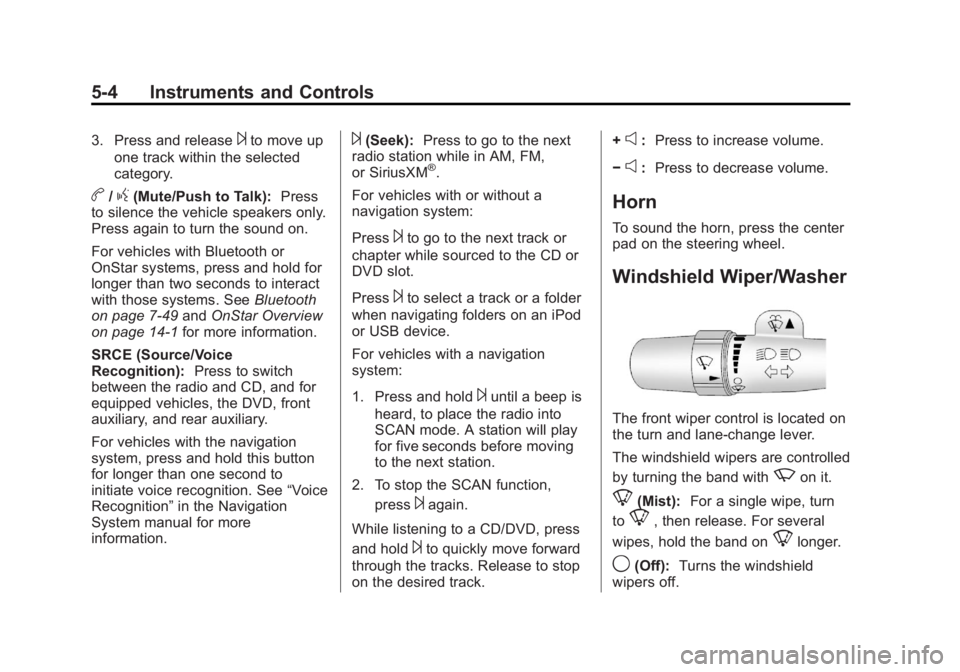
Windshield Wiper/Washer
The front wiper control is located on
the turn and lane-change lever.
The windshield wipers are controlled
by turning the band with
zon it.
8(Mist): For a single wipe, turn
to
8, then release. For several
wipes, hold the band on
8longer.
9(Off): Turns the windshield
wipers off.
Page 191 of 534
Black plate (1,1)GMC Sierra Owner Manual - 2013 - crc - 8/14/12
Lighting 6-1
Lighting
Exterior Lighting
Exterior Lamp Controls . . . . . . . . 6-1
Exterior Lamps OffReminder . . . . . . . . . . . . . . . . . . . . 6-2
Headlamp High/Low-Beam Changer . . . . . . . . . . . . . . . . . . . . . 6-2
Flash-to-Pass . . . . . . . . . . . . . . . . . 6-3
Daytime Running Lamps (DRL) . . . . . . . . . . . . . . . . 6-3
Automatic Headlamp System . . . . . . . . . . . . . . . . . . . . . . 6-3
Hazard Warning Flashers . . . . . 6-5
Turn and Lane-Change Signals . . . . . . . . . . . . . . . . . . . . . . 6-5
Fog Lamps . . . . . . . . . . . . . . . . . . . . 6-6
Auxiliary Roof-Mounted Lamp . . . . . . . . . 6-6
Interior Lighting
Instrument Panel IlluminationControl . . . . . . . . . . . . . . . . . . . . . . 6-7
Cargo Lamp . . . . . . . . . . . . . . . . . . 6-7
Dome Lamps . . . . . . . . . . . . . . . . . 6-7
Reading Lamps . . . . . . . . . . . . . . . 6-8
Lighting Features
Entry Lighting . . . . . . . . . . . . . . . . . 6-8
Exit Lighting . . . . . . . . . . . . . . . . . . . 6-8
Battery Load Management . . . . 6-9
Battery Power Protection . . . . . . 6-9
Exterior Lighting
Exterior Lamp Controls
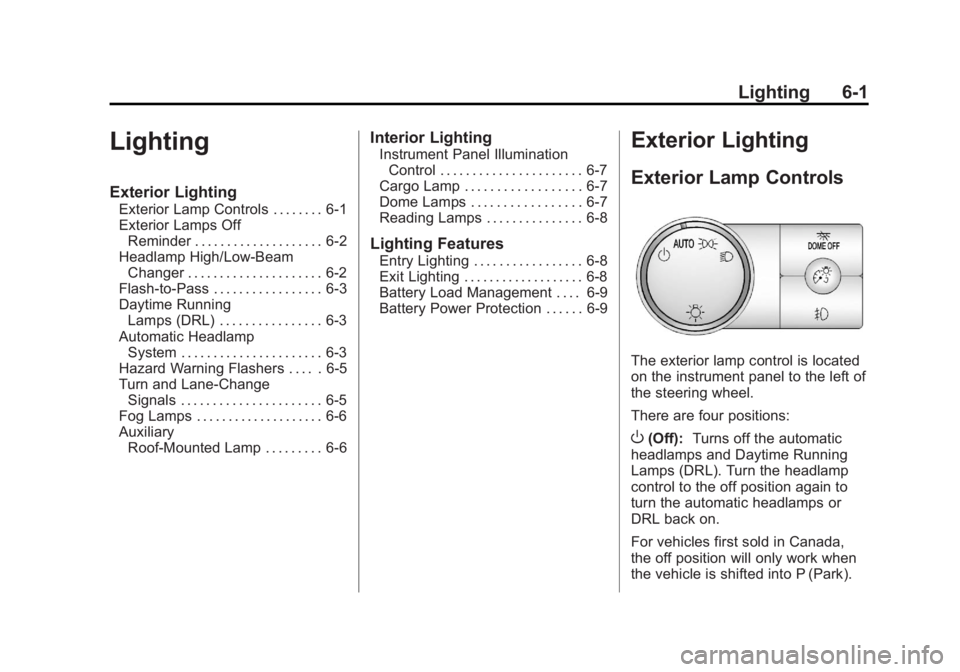
The exterior lamp control is located
on the instrument panel to the left of
the steering wheel.
There are four positions:
O(Off): Turns off the automatic
headlamps and Daytime Running
Lamps (DRL). Turn the headlamp
control to the off position again to
turn the automatic headlamps or
DRL back on.
For vehicles first sold in Canada,
the off position will only work when
the vehicle is shifted into P (Park).
Page 196 of 534
Black plate (6,1)GMC Sierra Owner Manual - 2013 - crc - 8/14/12
6-6 Lighting
SIGNAL ON will also appear in the
Driver Information Control (DIC). To
turn the chime and message off,
move the turn signal lever to the off
position.
Fog Lamps
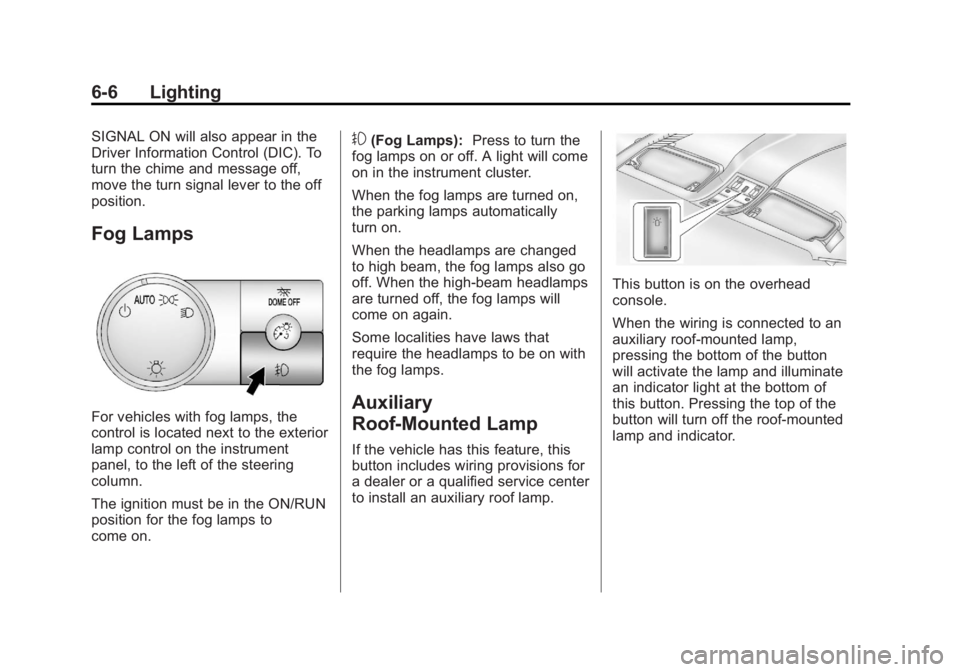
For vehicles with fog lamps, the
control is located next to the exterior
lamp control on the instrument
panel, to the left of the steering
column.
The ignition must be in the ON/RUN
position for the fog lamps to
come on.
#(Fog Lamps):Press to turn the
fog lamps on or off. A light will come
on in the instrument cluster.
When the fog lamps are turned on,
the parking lamps automatically
turn on.
When the headlamps are changed
to high beam, the fog lamps also go
off. When the high-beam headlamps
are turned off, the fog lamps will
come on again.
Some localities have laws that
require the headlamps to be on with
the fog lamps.
Auxiliary
Roof-Mounted Lamp
If the vehicle has this feature, this
button includes wiring provisions for
a dealer or a qualified service center
to install an auxiliary roof lamp.
This button is on the overhead
console.
When the wiring is connected to an
auxiliary roof-mounted lamp,
pressing the bottom of the button
will activate the lamp and illuminate
an indicator light at the bottom of
this button. Pressing the top of the
button will turn off the roof-mounted
lamp and indicator.
Page 201 of 534
Black plate (1,1)GMC Sierra Owner Manual - 2013 - crc - 8/14/12
Infotainment System 7-1
Infotainment
System
Introduction
Infotainment . . . . . . . . . . . . . . . . . . . 7-1
Theft-Deterrent Feature . . . . . . . 7-2
Overview (AM-FM Radio) . . . . . 7-3
Overview (Radio withCD (MP3)) . . . . . . . . . . . . . . . . . . . 7-4
Overview (Radio with USB, CD, and DVD (MP3)) . . . . . . . . . . . . . 7-6
Operation . . . . . . . . . . . . . . . . . . . . . 7-7
Radio
AM-FM Radio . . . . . . . . . . . . . . . . 7-10
Satellite Radio . . . . . . . . . . . . . . . 7-12
Radio Reception . . . . . . . . . . . . . 7-15
Fixed Mast Antenna . . . . . . . . . 7-16
Satellite Radio Antenna . . . . . . 7-16
Audio Players
CD Player . . . . . . . . . . . . . . . . . . . 7-17
CD/DVD Player . . . . . . . . . . . . . . 7-23
Auxiliary Devices . . . . . . . . . . . . 7-33
Rear Seat Infotainment
Rear Seat Entertainment (RSE) System . . . . . . . . . . . . . . 7-38
Rear Seat Audio (RSA) System . . . . . . . . . . . . . . . . . . . . . 7-47
Phone
Bluetooth . . . . . . . . . . . . . . . . . . . . 7-49
Trademarks and License
Agreements
Trademarks and LicenseAgreements . . . . . . . . . . . . . . . . 7-56
Introduction
Infotainment
Determine which radio the vehicle
has and read the following pages to
become familiar with its features.
{WARNING
Taking your eyes off the road for
extended periods could cause a
crash resulting in injury or death
to you or others. Do not give
extended attention to infotainment
tasks while driving.
This system provides access to
many audio and non-audio listings.
Page 205 of 534
Black plate (5,1)GMC Sierra Owner Manual - 2013 - crc - 8/14/12
Infotainment System 7-5
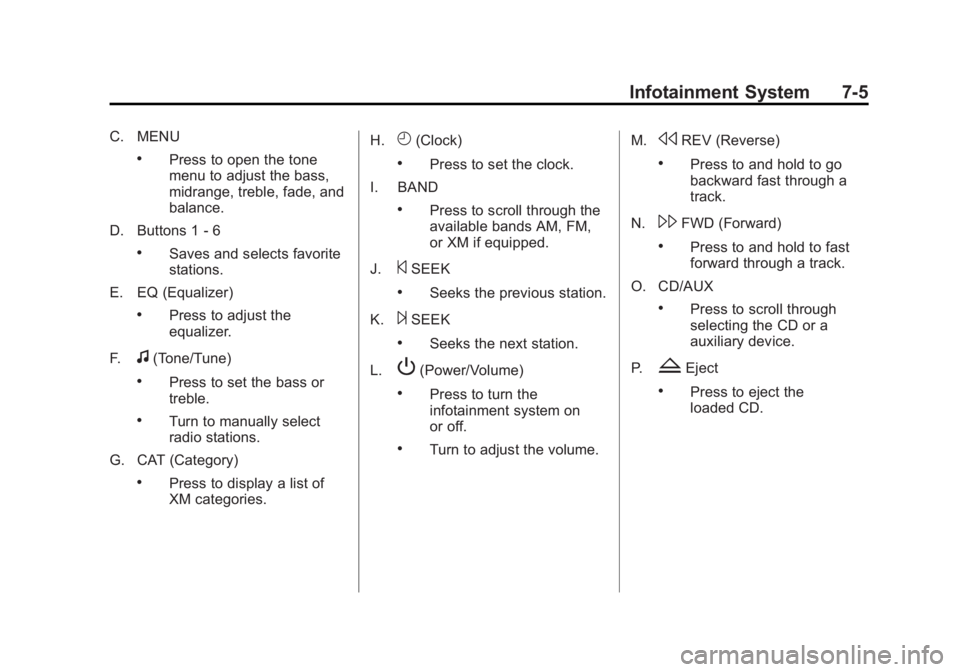
C. MENU
.Press to open the tone
menu to adjust the bass,
midrange, treble, fade, and
balance.
D. Buttons 1 - 6
.Saves and selects favorite
stations.
E. EQ (Equalizer)
.Press to adjust the
equalizer.
F.
f(Tone/Tune)
.Press to set the bass or
treble.
.Turn to manually select
radio stations.
G. CAT (Category)
.Press to display a list of
XM categories. H.
H(Clock)
.Press to set the clock.
I. BAND
.Press to scroll through the
available bands AM, FM,
or XM if equipped.
J.
©SEEK
.Seeks the previous station.
K.
¨SEEK
.Seeks the next station.
L.
P(Power/Volume)
.Press to turn the
infotainment system on
or off.
.Turn to adjust the volume. M.
sREV (Reverse)
.Press to and hold to go
backward fast through a
track.
N.
\FWD (Forward)
.Press to and hold to fast
forward through a track.
O. CD/AUX
.Press to scroll through
selecting the CD or a
auxiliary device.
P.
ZEject
.Press to eject the
loaded CD.
Page 207 of 534
Black plate (7,1)GMC Sierra Owner Manual - 2013 - crc - 8/14/12
Infotainment System 7-7
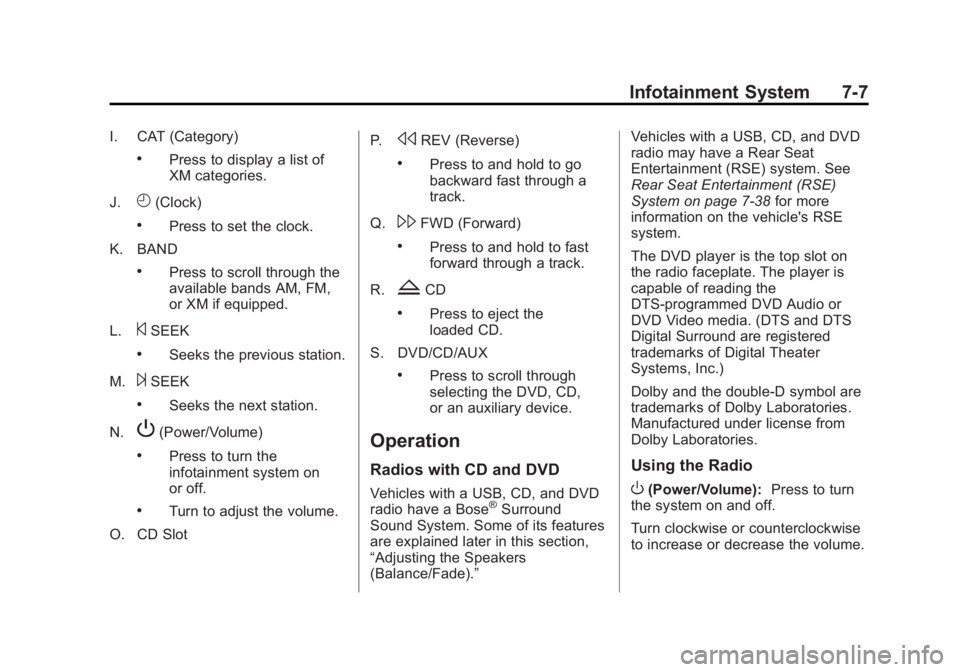
I. CAT (Category)
.Press to display a list of
XM categories.
J.
H(Clock)
.Press to set the clock.
K. BAND
.Press to scroll through the
available bands AM, FM,
or XM if equipped.
L.
©SEEK
.Seeks the previous station.
M.
¨SEEK
.Seeks the next station.
N.
P(Power/Volume)
.Press to turn the
infotainment system on
or off.
.Turn to adjust the volume.
O. CD Slot P.
sREV (Reverse)
.Press to and hold to go
backward fast through a
track.
Q.
\FWD (Forward)
.Press to and hold to fast
forward through a track.
R.
ZCD
.Press to eject the
loaded CD.
S. DVD/CD/AUX
.Press to scroll through
selecting the DVD, CD,
or an auxiliary device.
Operation
Radios with CD and DVD
Vehicles with a USB, CD, and DVD
radio have a Bose®Surround
Sound System. Some of its features
are explained later in this section,
“Adjusting the Speakers
(Balance/Fade).” Vehicles with a USB, CD, and DVD
radio may have a Rear Seat
Entertainment (RSE) system. See
Rear Seat Entertainment (RSE)
System on page 7‑38
for more
information on the vehicle's RSE
system.
The DVD player is the top slot on
the radio faceplate. The player is
capable of reading the
DTS-programmed DVD Audio or
DVD Video media. (DTS and DTS
Digital Surround are registered
trademarks of Digital Theater
Systems, Inc.)
Dolby and the double-D symbol are
trademarks of Dolby Laboratories.
Manufactured under license from
Dolby Laboratories.
Using the Radio
O(Power/Volume): Press to turn
the system on and off.
Turn clockwise or counterclockwise
to increase or decrease the volume.
Page 218 of 534
Black plate (18,1)GMC Sierra Owner Manual - 2013 - crc - 8/14/12
7-18 Infotainment System
3. Load a CD. Insert the CDpartway into the slot, label side
up. The player pulls the CD in.
To insert multiple CDs:
1. Press and hold the LOAD button for two seconds. A beep sounds
and Load All Discs displays.
2. Wait for the message on when to insert the discs. The CD player
takes up to six CDs.
3. Press the LOAD button again to cancel loading more CDs.
Ejecting a CD (Single CD
Player)
ZEJECT: Press and release to
eject the disc. Remove the CD
when Remove Disc displays. If the
disc is not removed, after several
seconds the disc is automatically
pulled back into the player.
Ejecting a CD (Six-Disc CD
Player)
ZEJECT: Press and release to
eject the disc that is currently
playing. Remove the CD when
Remove Disc displays. If the disc is
not removed, after several seconds
the disc is automatically pulled back
into the player.
To eject all CDs, press and hold the
ZEJECT button for two seconds.
Playing a CD
If the ignition or radio is turned off
with a CD in the player, it stays in
the player. When the ignition or
radio is turned on, the CD starts
playing where it stopped, if it was
the last selected audio source. The
CD is controlled by the buttons on
the radio faceplate or by the RSA
unit. See Rear Seat Audio (RSA)
System on page 7‑47 for more
information. When a CD is inserted, the CD
symbol displays on the left side of
the radio display. As each new track
starts to play, the track number
displays.
The CD player can play the smaller
8 cm (3 in) single CDs with an
adapter ring. Full-size CDs and the
smaller CDs are loaded in the same
manner.
CD/AUX (CD/Auxiliary):
Press to
cycle between CD or Auxiliary when
listening to the radio. The CD icon
and a message showing the disc
and/or track number will display
when a CD is in the player. Press
again and the system automatically
searches for an auxiliary input
device; see Auxiliary Devices on
page 7‑33 for more information. If a
portable audio player is not
connected, “No Input Device Found”
displays.
4(Information): Press to display
additional text information related to
the current song. If information is
available, the song title information
Page 224 of 534
Black plate (24,1)GMC Sierra Owner Manual - 2013 - crc - 8/14/12
7-24 Infotainment System
surface. Pick up discs by grasping
the outer edges or the edge of the
hole and the outer edge.
If the surface of a disc is soiled,
clean it with a soft, lint‐free cloth or
dampen a clean, soft cloth in a mild,
neutral detergent solution mixed
with water. Make sure the wiping
process starts from the center to
the edge.
Audio Output
Only one audio source can be heard
through the speakers at one time.
An audio source is defined as DVD
slot, CD slot, XM, FM‐AM, front
auxiliary jack, USB port, or rear
auxiliary jack.
Press the
Obutton to turn the radio
on. The radio can be heard through
all of the vehicle speakers.
Front seat passengers can listen to
the radio (AM, FM, or XM if
equipped) by pressing the BAND
button or the DVD/CD AUX button to select CD slot, DVD slot, front
auxiliary input, USB port, or rear
auxiliary input (if available).
If a playback device is plugged into
the radio’s front auxiliary input jack,
USB port, or the rear auxiliary jack,
the front seat passengers are able
to listen to playback from this
source through the vehicle
speakers. See
“Using the Auxiliary
Input Jack” inAuxiliary Devices on
page 7‑33, or “Audio/Video (A/V)
Jacks” underRear Seat
Entertainment (RSE) System on
page 7‑38 for more information.
In some vehicles, depending on
audio options, the rear speakers
can be muted when the RSA power
is turned on. See Rear Seat Audio
(RSA) System on page 7‑47 for
more information.
Inserting a Disc
Insert a disc partway into either slot,
label side up. The player pulls it in
and the disc should begin playing.
(Loading a disc into the system,
depending on media type and format, ranges from 5 to 20 seconds
for a CD, and up to 30 seconds for a
DVD to begin playing.)
Ejecting a Disc
ZCD (Eject):
Press and release
to eject the disc that is currently
playing. The CD ejects from the
bottom slot. A beep sounds and
Ejecting Disc displays. Once the
disc is ejected, Remove Disc
displays. The disc can be removed.
If the disc is not removed, after
several seconds the disc
automatically pulls back into the
player.
ZDVD (Eject): Press and
release to eject the disc that is
currently playing in the top slot.
A beep sounds and Ejecting Disc
displays.
If loading and reading of a disc
cannot be completed, due to
unknown format, etc., and the disc
fails to eject, press and hold for
more than five seconds to force the
disc to eject.