ESP GMC SIERRA 1500 2014 User Guide
[x] Cancel search | Manufacturer: GMC, Model Year: 2014, Model line: SIERRA 1500, Model: GMC SIERRA 1500 2014Pages: 542, PDF Size: 6.77 MB
Page 243 of 542
Black plate (41,1)GMC Sierra Owner Manual (GMNA-Localizing-U.S./Canada/Mexico-
5853626) - 2014 - 3rd crc - 8/15/13
Infotainment System 7-41
Using the“Delete”Command
1. Press
g. The system responds
“Ready,” followed by a tone.
2. Say “Delete.”
3. Say the name tag you want to delete.
Using the “Delete All Name Tags”
Command
This command deletes all stored
name tags in the Hands-Free
Calling Directory and the
Destinations Directory.
To delete all name tags:
1. Press
g. The system responds
“Ready,” followed by a tone.
2. Say “Delete all name tags.”
Listing Stored Numbers
The list command will list all the
stored numbers and name tags.
Using the “List”Command
1. Press
g. The system responds
“Ready,” followed by a tone. 2. Say
“Directory.”
3. Say “Hands-Free Calling.”
4. Say “List.”
Making a Call
Calls can be made using the
following commands.
Dial or Call: The dial or call
command can be used
interchangeably to dial a phone
number or a stored name tag.
Digit Dial: This command allows a
phone number to be dialed by
entering the digits one at a time.
Re-dial: This command is used to
dial the last number used on the cell
phone.
Using the “Dial”or“Call”
Command
1. Press
g. The system responds
“Say a command or say help,”
followed by a tone.
2. Say “Dial”or“Call.” 3. Say the entire number without
pausing or say the name tag.
Once connected, the person called
will be heard through the audio
speakers.
Calling 911 Emergency (U.S. and
Canada)
1. Press
g. The system responds
“Say a command or say help,”
followed by a tone.
2. Say “Dial”or“Call.”
3. Say “911.”
4. Say “Dial”or“Call.”
Calling 066 Emergency (Mexico)
1. Press
g. The system responds
“Say a command or say help,”
followed by a tone.
2. Say “Dial”or“Call.”
3. Say “066.”
4. Say “Dial”or“Call.”
Page 244 of 542
Black plate (42,1)GMC Sierra Owner Manual (GMNA-Localizing-U.S./Canada/Mexico-
5853626) - 2014 - 3rd crc - 8/15/13
7-42 Infotainment System
Using the“Digit Dial” Command
The digit dial command allows a
phone number to be dialed by
entering the digits one at a time.
After each digit is entered, the
system repeats back the digit it
heard followed by a tone.
If an unwanted number is
recognized by the system, say
“Correction” at any time to clear the
last number.
To hear all of the numbers
recognized by the system, say
“Verify” at any time.
1. Press
g. The system responds
“Say a command or say help,”
followed by a tone.
2. Say “Digit Dial.”
3. Say each digit, one at a time. After each digit is entered, the
system repeats back the digit it
heard followed by a tone. After
the last digit has been entered,
say “Dial.” Once connected, the person called
will be heard through the audio
speakers.
Using the
“Re-dial”Command
1. Press
g. The system responds
“Say a command or say help,”
followed by a tone.
2. After the tone, say “Re-dial.”The
system dials the last number
called from the connected cell
phone.
Once connected, the person called
will be heard through the audio
speakers.
Receiving a Call
When an incoming call is received,
the audio system mutes and a ring
tone is heard in the vehicle.
.Pressgto answer the call.
.Pressito ignore a call.
Call Waiting
Call waiting must be supported on
the cell phone and enabled by the
wireless service carrier.
.Pressgto answer an incoming
call when another call is active.
The original call is placed
on hold.
.Pressgagain to return to the
original call.
.To ignore the incoming call, no
action is required.
.Pressito disconnect the
current call and switch to the call
on hold.
Three-Way Calling
Three-way calling must be
supported on the cell phone and
enabled by the wireless service
carrier.
1. While on a call, press
g.
2. Say “Three-way call.”
Page 245 of 542
Black plate (43,1)GMC Sierra Owner Manual (GMNA-Localizing-U.S./Canada/Mexico-
5853626) - 2014 - 3rd crc - 8/15/13
Infotainment System 7-43
3. Use the“Dial”or“Call” command
to dial the number of the third
party to be called.
4. Once the call is connected, press
gto link all callers
together.
Ending a Call
Pressito end a call.
Transferring a Call
Audio can be transferred between
the Bluetooth system and the cell
phone.
The cell phone must be paired and
connected with the Bluetooth
system before a call can be
transferred. The connection process
can take up to two minutes after the
ignition is turned to ON/RUN.
To Transfer Audio from the
Bluetooth System to a Cell Phone
During a call with the audio in the
vehicle:
1. Press
g. 2. Say
“Transfer Call.”
To Transfer Audio to the Bluetooth
System from a Cell Phone
During a call with the audio on the
cell phone, press
g. The audio
transfers to the vehicle. If the audio
does not transfer to the vehicle, use
the audio transfer feature on the cell
phone. See your cell phone
manufacturer's user guide for more
information.
Voice Pass-Thru
Voice pass-thru allows access to the
voice recognition commands on the
cell phone. See your cell phone
manufacturer's user guide to see if
the cell phone supports this feature.
To access contacts stored in the cell
phone:
1. Press
g. The system responds
“Say a command or say help,”
followed by a tone.
2. Say “Bluetooth.” 3. Say
“Voice.” The system
responds “OK, accessing
The cell phone's normal prompt
messages will go through their cycle
according to the phone's operating
instructions.
Dual Tone Multi-Frequency
(DTMF) Tones
The Bluetooth system can send
numbers and the numbers stored as
name tags during a call. You can
use this feature when calling a
menu-driven phone system.
Account numbers can also be
stored for use.
Sending a Number or Name Tag
During a Call
1. Press
g. The system responds
“Ready,” followed by a tone.
2. Say “Dial.”
3. Say the number or name tag to send.
Page 250 of 542
Black plate (48,1)GMC Sierra Owner Manual (GMNA-Localizing-U.S./Canada/Mexico-
5853626) - 2014 - 3rd crc - 8/15/13
7-48 Infotainment System
Declining a Call Waiting Call
To decline a call waiting call, do one
of the following:
.Press the button just below the
IGNORE screen button.
.Pression the steering wheel
controls.
.Do nothing.
Ending a Call
To end a call, do one of the
following:
.Press the button just below the
END screen button.
.Pression the steering wheel
controls.
Dual Tone Multi-Frequency
(DTMF) Tones
The in-vehicle Bluetooth system can
send numbers during a call. This is
used when calling a menu-driven
phone system. 1. When a call is active, press the
button just below the KEYPAD
screen button.
2. Turn the MENU knob to highlight the first digit and press to select.
If not initially in the phone
application, from the Home Page,
turn the MENU knob, then press to
select the PHONE screen button.
From the PHONE main menu, turn
the MENU knob to highlight Active
Call and press to select.
Bluetooth (Voice
Recognition - Base
Connected Radio)
Using Bluetooth Voice
Recognition
To use voice recognition, press thegbutton on the steering wheel. Use
the commands below for the various
voice features. For additional
information, say “Help”while in a
voice recognition menu. See Voice
Recognition on page 7-26 for help
using voice recognition commands.
Making a Call
Calls can be made using the
following commands.
Using the “Dial”or“Call”
Command
To call a number:
1. Press
g. The system responds
“Command Please,” followed by
a tone.
2. Say “Dial”or“Call” followed by
the complete phone number.
Use the “Voice Keypad” command
for international numbers or special
numbers which include * or #.
Once connected, the person called
will be heard through the audio
speakers.
To call using a contact from your
phone book:
1. Press
g. The system responds
“Command Please,” followed by
a tone.
Page 251 of 542
Black plate (49,1)GMC Sierra Owner Manual (GMNA-Localizing-U.S./Canada/Mexico-
5853626) - 2014 - 3rd crc - 8/15/13
Infotainment System 7-49
2. Say“Dial”or“Call” and then say
the contact name. For example
“Call John at Work.”
Once connected, the person called
will be heard through the audio
speakers.
Calling 911 Emergency (U.S. and
Canada)
1. Press
g. The system responds
“Command Please,” followed by
a tone.
2. Say “Dial”or“Call.”
3. Say “911.”
4. Say “Dial”or“Call.”
Calling 066 Emergency (Mexico)
1. Press
g. The system responds
“Command Please,” followed by
a tone.
2. Say “Dial”or“Call.”
3. Say “066.”
4. Say “Dial”or“Call.” Once connected, the person called
will be heard through the audio
speakers.
Using the
“Switch Phone”
Command
1. Press
g. The system responds
“Command Please,” followed by
a tone.
2. After the tone, say “Switch
Phone.” The system displays a
list of phones to select.
Using the “Voice Keypad”
Command
1. Press
g. The system responds
“Command Please,” followed by
a tone.
2. After the tone, say “Voice
Keypad.” The system allows
entry of special numbers and
characters. Using the
“Voice mail” Command
1. Press
g. The system responds
“Command Please,” followed by
a tone.
2. After the tone, say “Voice mail.”
The system dials the voice mail
number of the connected phone.
Clearing the System
Unless information is deleted out of
the vehicle Bluetooth system, it will
be retained. This includes phone
pairing information. For directions
on how to delete this information,
see “Deleting a Paired Phone.”
Page 252 of 542
Black plate (50,1)GMC Sierra Owner Manual (GMNA-Localizing-U.S./Canada/Mexico-
5853626) - 2014 - 3rd crc - 8/15/13
7-50 Infotainment System
Trademarks and
License Agreements
FCC Information
SeeRadio Frequency Statement on
page 13-15.
"Made for iPod," and "Made for
iPhone," mean that an electronic
accessory has been designed to
connect specifically to iPod or
iPhone and has been certified by
the developer to meet Apple
performance standards. Apple is not
responsible for the operation of this
device or its compliance with safety
and regulatory standards. Please
note that the use of this accessory
with iPod or iPhone may affect
wireless performance. iPhone
®,
iPod®, iPod classic®, iPod nano®, iPod shuffle
®, and iPod touch®are
trademarks of Apple Inc., registered
in the U.S. and other countries.
Fees and Taxes: Subscription fee,
taxes, one time activation fee, and
other fees may apply. Subscription
fee is consumer only. All fees and
programming subject to change.
Subscriptions subject to Customer
Agreement available at
www.siriusxm.com. SiriusXM
®
service only available in the
48 contiguous United States and
Canada.
In Canada: Some deterioration of
service may occur in extreme
northern latitudes. This is beyond
the control of SiriusXM
®Satellite
Radio. Explicit Language Notice: Channels
with frequent explicit language are
indicated with an
“XL”preceding the
channel name. Channel blocking is
available for SiriusXM Satellite
Radio receivers by notifying
SiriusXM:
.USA Customers —See
www.siriusxm.com or call
1-866-635–2349.
.Canadian Customers —See
www.xmradio.ca or call
1-877-209-0079.
It is prohibited to copy, decompile,
disassemble, reverse engineer,
hack, manipulate, or otherwise
make available any technology or
software incorporated in receivers
compatible with the SiriusXM
®
Satellite Radio System or that
support the SiriusXM website, the
Online Service or any of its content.
Furthermore, the AMBER voice
compression software included in
this product is protected by
intellectual property rights including
Page 253 of 542
Black plate (51,1)GMC Sierra Owner Manual (GMNA-Localizing-U.S./Canada/Mexico-
5853626) - 2014 - 3rd crc - 8/15/13
Infotainment System 7-51
patent rights, copyrights, and trade
secrets of Digital Voice
Systems, Inc.
General Requirements:
1. A License Agreement fromSiriusXM
®is required for any
product that incorporates
SiriusXM Technology and/or for
use of any of the SiriusXM
marks to be manufactured,
distributed, or marketed in the
SiriusXM Service Area.
2. For products to be distributed, marketed, and/or sold in
Canada, a separate agreement
is required with Canadian
Satellite Radio Inc. (operating as
SiriusXM Canada). HD Radio Technology
HD Radio Technology manufactured
under license from iBiquity Digital
Corporation. U.S. and Foreign
patents. HD Radio™
and the HD,
HD Radio, and “Arc”logos are
proprietary trademarks of iBiquity
Digital Corp.
Other Information
The Bluetooth®word mark and
logos are owned by the Bluetooth®
SIG, Inc. and any use of such marks
by General Motors is under license.
Other trademarks and trade names
are those of their respective owners.
Schedule I: Gracenote EULA
Music recognition technology and
related data are provided by
Gracenote
®. Gracenote is the
industry standard in music
recognition technology and related
content delivery. For more
information visit
www.gracenote.com.
Music-related data from Gracenote,
Inc., copyright © 2000 to present
Gracenote. Gracenote Software,
copyright © 2000 to present
Gracenote. One or more patents
owned by Gracenote may apply to
this product and service. See the
Gracenote website for a
non-exhaustive list of applicable
Gracenote patents. Gracenote,
CDDB, MusicID, MediaVOCS, the
Page 254 of 542
Black plate (52,1)GMC Sierra Owner Manual (GMNA-Localizing-U.S./Canada/Mexico-
5853626) - 2014 - 3rd crc - 8/15/13
7-52 Infotainment System
Gracenote logo and logotype, and
the "Powered by Gracenote" logo
are either registered trademarks or
trademarks of Gracenote in the
United States and/or other
countries.
Gracenote Terms of Use
This application or device contains
software from Gracenote, Inc. of
Emeryville, California ("Gracenote").
The software from Gracenote (the
"Gracenote Software") enables this
application to do disc or file
identification and obtain
music-related information, including
name, artist, track, and title
information ("Gracenote Data") from
online servers or embedded
databases (collectively, "Gracenote
Servers") and to perform other
functions. You may use Gracenote
Data only by means of the intended
End-User functions of this
application or device.
This application or device may
contain content belonging to
Gracenote’s providers. If so, all ofthe restrictions set forth herein with
respect to Gracenote Data shall
also apply to such content and such
content providers shall be entitled to
all of the benefits and protections
set forth herein that are available to
Gracenote.
You agree that you will use
Gracenote Data, the Gracenote
Software, and Gracenote Servers
for your own personal
non-commercial use only. You agree
not to assign, copy, transfer or
transmit the Gracenote Software or
any Gracenote Data to any third
party. YOU AGREE NOT TO USE
OR EXPLOIT GRACENOTE DATA,
THE GRACENOTE SOFTWARE,
OR GRACENOTE SERVERS,
EXCEPT AS EXPRESSLY
PERMITTED HEREIN.
You agree that your non-exclusive
license to use the Gracenote Data,
the Gracenote Software, and
Gracenote Servers will terminate if
you violate these restrictions. If your
license terminates, you agree to
cease any and all use of theGracenote Data, the Gracenote
Software, and Gracenote Servers.
Gracenote reserves all rights in
Gracenote Data, the Gracenote
Software, and the Gracenote
Servers, including all ownership
rights. Under no circumstances will
Gracenote become liable for any
payment to you for any information
that you provide. You agree that
Gracenote may enforce its rights
under this Agreement against you
directly in its own name.
The Gracenote service uses a
unique identifier to track queries for
statistical purposes. The purpose of
a randomly assigned numeric
identifier is to allow the Gracenote
service to count queries without
knowing anything about who you
are. For more information, see the
web page for the Gracenote Privacy
Policy for the Gracenote service.
The Gracenote Software and each
item of Gracenote Data are licensed
to you "AS IS." Gracenote makes no
representations or warranties,
express or implied, regarding the
Page 257 of 542
Black plate (55,1)GMC Sierra Owner Manual (GMNA-Localizing-U.S./Canada/Mexico-
5853626) - 2014 - 3rd crc - 8/15/13
Infotainment System 7-55
UNDER ANY LEGAL THEORY,
WHETHER IN TORT (INCLUDING
NEGLIGENCE), CONTRACT OR
OTHERWISE, FOR DAMAGES,
INCLUDING ANY DIRECT,
INDIRECT, SPECIAL, INCIDENTAL,
OR CONSEQUENTIAL DAMAGES
OF ANY CHARACTER ARISING AS
A RESULT OF THIS LICENSE OR
OUT OF THE USE OR INABILITY
TO USE THE PRODUCT
(INCLUDING BUT NOT LIMITED
TO DAMAGES FOR LOSS OF
GOODWILL, WORK STOPPAGE,
PRODUCT FAILURE OR
MALFUNCTION, OR ANY AND ALL
OTHER COMMERCIAL DAMAGES
OR LOSSES), EVEN IF QSSC, ITS
AFFILIATES OR THEIR
LICENSORS HAVE BEEN
ADVISED OF THE POSSIBILITY
OF SUCH DAMAGES.
WMA
This product is protected by certain
intellectual property rights of
Microsoft. Use or distribution ofsuch technology outside of this
product is prohibited without a
license from Microsoft.
For more information on the
Software, including any open source
software license terms (and
available source code) as well as
copyright attributions applicable to
the Runtime Configuration indicated
above, please contact the
Manufacturer or contact QSSC at
175 Terence Matthews Crescent,
Kanata, Ontario, Canada K2M 1W8
([email protected]).
END USER NOTICE
The marks of companies displayed
by this product to indicate business
locations are the marks of their
respective owners. The use of such
marks in this product does not imply
any sponsorship, approval,
or endorsement by such companies
of this product.
Page 273 of 542
Black plate (5,1)GMC Sierra Owner Manual (GMNA-Localizing-U.S./Canada/Mexico-
5853626) - 2014 - 3rd crc - 8/15/13
Driving and Operating 9-5
.Wait until the vehicle is out of
the curve before accelerating
gently into the straightaway.
Steering in Emergencies
.There are some situations when
steering around a problem may
be more effective than braking.
.Holding both sides of the
steering wheel allows you to turn
180 degrees without removing
a hand.
.Antilock Brake System (ABS)
allows steering while braking.
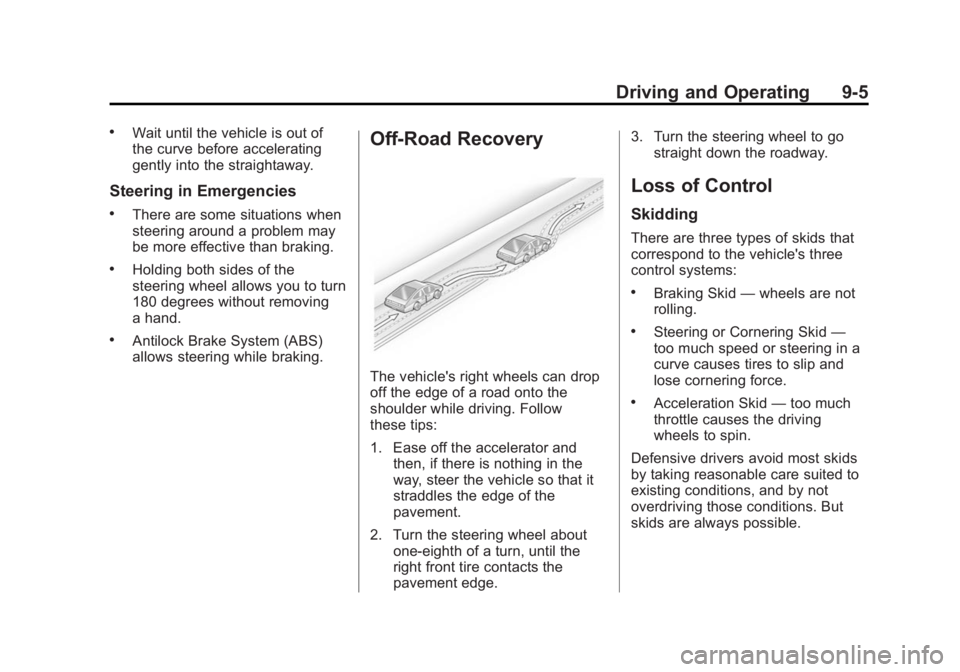
Off-Road Recovery
The vehicle's right wheels can drop
off the edge of a road onto the
shoulder while driving. Follow
these tips:
1. Ease off the accelerator andthen, if there is nothing in the
way, steer the vehicle so that it
straddles the edge of the
pavement.
2. Turn the steering wheel about one-eighth of a turn, until the
right front tire contacts the
pavement edge. 3. Turn the steering wheel to go
straight down the roadway.
Loss of Control
Skidding
There are three types of skids that
correspond to the vehicle's three
control systems:
.Braking Skid —wheels are not
rolling.
.Steering or Cornering Skid —
too much speed or steering in a
curve causes tires to slip and
lose cornering force.
.Acceleration Skid —too much
throttle causes the driving
wheels to spin.
Defensive drivers avoid most skids
by taking reasonable care suited to
existing conditions, and by not
overdriving those conditions. But
skids are always possible.