phone GMC SIERRA 2006 User Guide
[x] Cancel search | Manufacturer: GMC, Model Year: 2006, Model line: SIERRA, Model: GMC SIERRA 2006Pages: 600, PDF Size: 3.49 MB
Page 296 of 600
Audio Output
Audio from the DVD player or auxiliary inputs may be
heard through the following possible sources:
Wireless Headphones
Vehicle Speakers
Vehicle wired headphone jacks on the Rear Seat
Audio system (if equipped)
The RSE system will always transmit the audio signal
by infrared to the wireless headphones, if there is audio
available. See “Headphones” previously for more
information.
The RSE system is capable of outputting audio to the
vehicle speakers by using the radio. The RSE system
may be selected as an audio source on the radio if the
RSE system power is on. Once the RSE system is
selected as an audio source on the radio, adjust the
speaker volume on the radio, if necessary. If the RSE
system power is not on, the RSE system will not be
an available source on the radio. Refer to the radio
information for the radio that your vehicle has for more
information.
The RSE system is capable of outputting audio to the
wired headphone jacks on the rear seat audio system
(if equipped). The RSE system may be selected as an
audio source on the rear seat audio system if the RSE
system power is on. Refer toRear Seat Audio (RSA)
on page 3-127for more information.
Video Screen
The video screen is located in the overhead console. To
use the video screen, push forward on the release latch
and the screen will fold down. Adjust the screen’s position
as desired. When the video screen is not in use, push it
up into its latched position.
The DVD player and display will continue to operate
when the screen is in the up or the down position. The
video screen contains the transmitters for the wireless
headphones and the remote control. If the screen is in
the closed position, the signals will not be available for
the operation of the headphones or the remote control.
Notice:Avoid directly touching the video screen,
as damage may occur. See “Cleaning the Video
Screen” later in this section for more information.
DVD Player
The DVD player is located in the overhead console. The
DVD player can be controlled by the buttons on the DVD
player and/or by the buttons on the remote control.
See “Remote Control” later in this section for more
information.
The DVD player power may be turned on when the
ignition is in RUN, ACCESSORY, or when Retained
Accessory Power (RAP) is active.
3-118
Page 297 of 600
The RSE system DVD player is only compatible with
DVDs of the appropriate region code for the country that
the vehicle was sold in. The DVD region code is printed
on the jacket of most DVDs.
Standard audio CDs, CD-R, CD-RW, Video CD and
Photo CD/CD-R media are fully supported by this DVD
player. DVD-R and DVD-RW media is supported if
formatted as DVD-Video. DVD+R and DVD+RW media
may or may not be supported by the DVD player. The
DVD player does not support DVD-RAM, DVD-ROM, and
DVD Audio media. An error message will appear on the
display if this type of media is inserted into the DVD
player.
When using the wired headphones, not included, if
the front seat passengers play a CD in the Radio with
Six-Disc CD (if equipped) or use XM™ Satellite Radio
Service (if equipped), you will hear the audio for these
sources, instead of the DVD or CD that is currently
playing through the RSE.
If an error message appears on the video screen,
see “DVD Messages” later in this section.
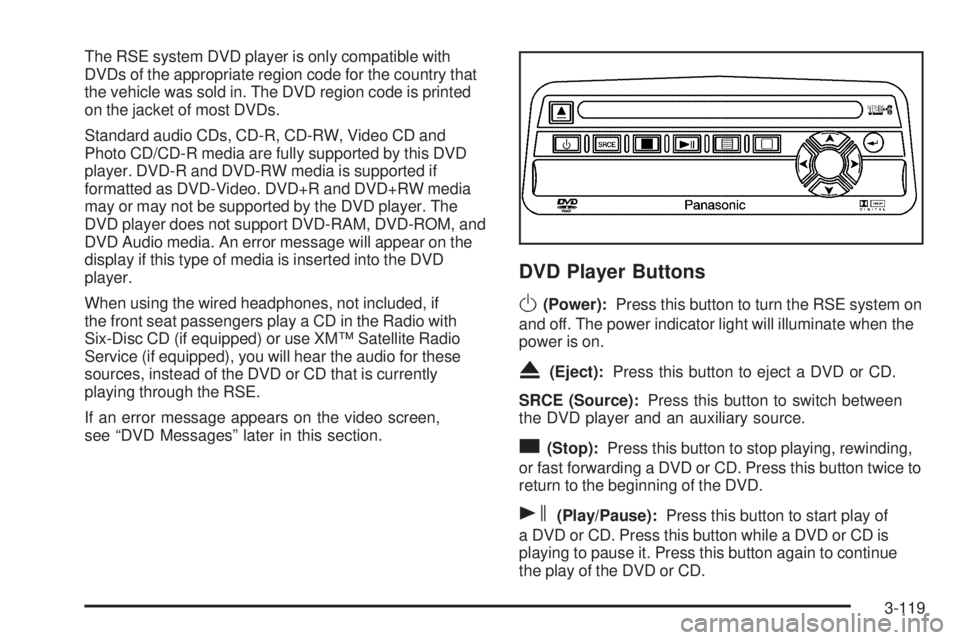
DVD Player Buttons
O(Power):Press this button to turn the RSE system on
and off. The power indicator light will illuminate when the
power is on.
X(Eject):Press this button to eject a DVD or CD.
SRCE (Source):Press this button to switch between
the DVD player and an auxiliary source.
c(Stop):Press this button to stop playing, rewinding,
or fast forwarding a DVD or CD. Press this button twice to
return to the beginning of the DVD.
s(Play/Pause):Press this button to start play of
a DVD or CD. Press this button while a DVD or CD is
playing to pause it. Press this button again to continue
the play of the DVD or CD.
3-119
Page 304 of 600
Problem Recommended Action
Sometimes the wireless
headphone audio cuts out
or buzzes.Check for obstructions,
low batteries, reception
range, and interference
from cellular telephone
towers or by using your
cellular telephone in the
vehicle.
Check that the
headphones are facing
the front of the vehicle.
I lost the remote and/or
the headphones.See your dealer for
assistance.
The DVD is playing,
but there is no picture
or sound.Check that the DVD player
is in DVD mode.
The audio/video skips or
jumps.The DVD or CD could
be dirty, scratched, or
damaged.
The audio from the radio
for the Radio with Six-Disc
CD and XM™ has taken
over the audio from the
DVD or CD when using
the wired headphones.The RSE is working
correctly.
Use the wireless
headphones or have the
front seat passengers
listen to another audio
source.DVD Messages
The following errors may be displayed on the video
screen:
Disc Format Error:This message will be displayed if a
disc is inserted upside down, if the disc is not readable,
or if the format is not compatible with the DVD player.
Load/Eject Error:This message will be displayed if the
disc is not properly loaded or ejected.
Disc Play Error:This message will be displayed if the
DVD player cannot play the disc. Scratched or damaged
discs will cause this error.
Region Code Error:This message will be displayed if
the region code of the DVD is not compatible with the
region code of the DVD player.
No Disc:This message will be displayed if any of the
buttons on the DVD faceplate or remote control are
pressed and no disc is present in the DVD player.
3-126
Page 305 of 600
DVD Distortion
There may be an experience with audio distortion in
the wireless headphones when operating cellular
phones, scanners, CB radios, Global Positioning
Systems (GPS)*, two-way radios, mobile fax, or
walkie talkies.
It may be necessary to turn off the DVD player when
operating one of these devices in or near the vehicle.
* Excludes the OnStar
®System.
Cleaning the Video Screen
Pour some isopropyl or rubbing alcohol on a clean cloth
and gently wipe the video screen. Do not spray directly
onto the screen and do not press too hard or too long on
the video screen.
Rear Seat Audio (RSA)
This feature allows rear seat passengers to listen to any
of the sources: radio, cassette tapes, CDs, or DVDs.
However, the rear seat passengers can only control the
sources that the front seat passengers are not listening
to. For example, rear seat passengers may listen to
and control cassette tapes, CDs, or DVDs through the
headphones while the driver listens to the radio through
the front speakers. The rear seat passengers have
control of the volume for each set of headphones.
The front seat audio controls always have priority over
the RSA controls. If the front seat passengers switch the
source for the main radio to a remote source, the RSA will
not be able to control the source. You can operate the
rear seat audio when the main radio is off.
3-127
Page 306 of 600
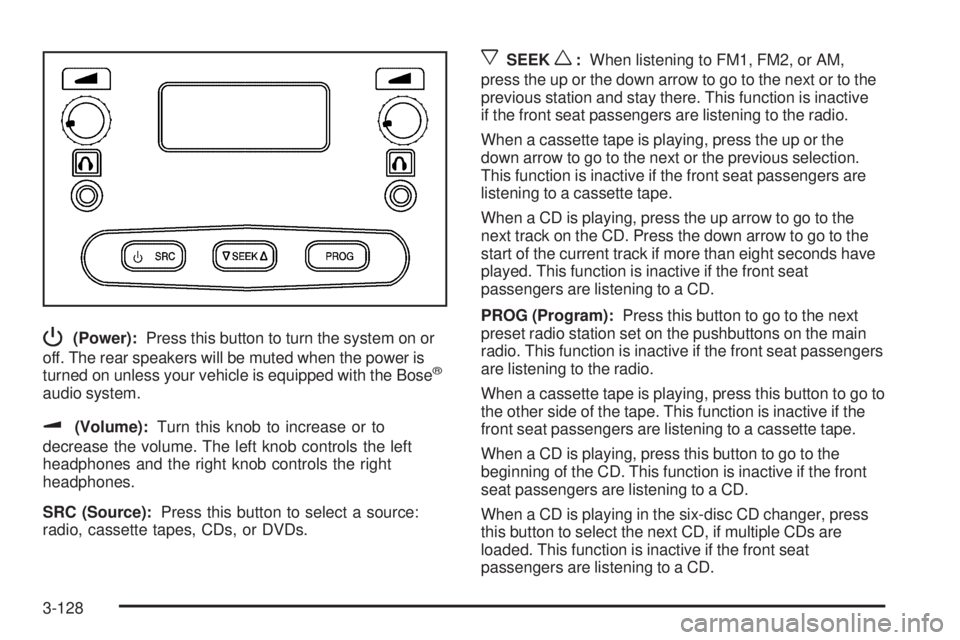
P(Power):Press this button to turn the system on or
off. The rear speakers will be muted when the power is
turned on unless your vehicle is equipped with the Bose
®
audio system.
u(Volume):Turn this knob to increase or to
decrease the volume. The left knob controls the left
headphones and the right knob controls the right
headphones.
SRC (Source):Press this button to select a source:
radio, cassette tapes, CDs, or DVDs.
xSEEKw:When listening to FM1, FM2, or AM,
press the up or the down arrow to go to the next or to the
previous station and stay there. This function is inactive
if the front seat passengers are listening to the radio.
When a cassette tape is playing, press the up or the
down arrow to go to the next or the previous selection.
This function is inactive if the front seat passengers are
listening to a cassette tape.
When a CD is playing, press the up arrow to go to the
next track on the CD. Press the down arrow to go to the
start of the current track if more than eight seconds have
played. This function is inactive if the front seat
passengers are listening to a CD.
PROG (Program):Press this button to go to the next
preset radio station set on the pushbuttons on the main
radio. This function is inactive if the front seat passengers
are listening to the radio.
When a cassette tape is playing, press this button to go to
the other side of the tape. This function is inactive if the
front seat passengers are listening to a cassette tape.
When a CD is playing, press this button to go to the
beginning of the CD. This function is inactive if the front
seat passengers are listening to a CD.
When a CD is playing in the six-disc CD changer, press
this button to select the next CD, if multiple CDs are
loaded. This function is inactive if the front seat
passengers are listening to a CD.
3-128
Page 308 of 600
PROG (Program):Press this button to play a station
you have programmed on the radio preset pushbuttons.
The radio will only seek preset stations with a strong
signal that are in the selected band.
When a cassette tape is playing, press this button to
play the other side of the tape.
When a CD is playing in the CD changer, press this
button to go to the next available CD, if multiple CDs
are loaded.
QSOURCER:Press this button to switch between
FM1, FM2, AM, or XM1 or XM2 (if equipped), or a
cassette tape or CD. The cassette or CD must be
loaded to play. Available loaded sources are shown
on the display as a tape or a CD symbol.
QSEEKR:Press the up or the down arrow to go to
the next or to the previous radio station and stay there.
The radio will only seek stations with a strong signal that
are in the selected band.
When a cassette tape or CD is playing, press the up or
the down arrow to fast forward or reverse.
QVOLR(Volume):Press the up or the down arrow
to increase or to decrease the volume.
Radio Reception
You may experience frequency interference and static
during normal radio reception if items such as cellphone
chargers, vehicle convenience accessories, and external
electronic devices are plugged into the accessory power
outlet. If there is interference or static, unplug the item
from the accessory power outlet.
AM
The range for most AM stations is greater than for FM,
especially at night. The longer range can cause station
frequencies to interfere with each other. For better radio
reception, most AM radio stations will boost the power
levels during the day, and then reduce these levels during
the night. Static can also occur when things like storms
and power lines interfere with radio reception. When this
happens, try reducing the treble on your radio.
FM Stereo
FM stereo will give the best sound, but FM signals will
reach only about 10 to 40 miles (16 to 65 km). Tall
buildings or hills can interfere with FM signals, causing
the sound to fade in and out.
3-130
Page 346 of 600
The heavier the rain, the harder it is to see. Even if your
windshield wiper blades are in good shape, a heavy rain
can make it harder to see road signs and traffic signals,
pavement markings, the edge of the road, and even
people walking.
It is wise to keep your wiping equipment in good shape
and keep your windshield washer uid reservoir lled with
washer uid. Replace your windshield wiper inserts when
they show signs of streaking or missing areas on the
windshield, or when strips of rubber start to separate
from the inserts.
{CAUTION:
Wet brakes can cause accidents. They will not
work as well in a quick stop and may cause
pulling to one side. You could lose control of
the vehicle.
After driving through a large puddle of water
or a car wash, apply your brake pedal lightly
until your brakes work normally.
Driving too fast through large water puddles or even
going through some car washes can cause problems,
too. The water may affect your brakes. Try to avoid
puddles. But if you cannot, try to slow down before
you hit them.
Hydroplaning
Hydroplaning is dangerous. So much water can build up
under your tires that they can actually ride on the water.
This can happen if the road is wet enough and you are
going fast enough. When your vehicle is hydroplaning,
it has little or no contact with the road.
Hydroplaning does not happen often. But it can if your
tires do not have much tread or if the pressure in one or
more is low. It can happen if a lot of water is standing on
the road. If you can see reections from trees, telephone
poles, or other vehicles, and raindrops dimple the water’s
surface, there could be hydroplaning.
Hydroplaning usually happens at higher speeds. There
just is not a hard and fast rule about hydroplaning.
The best advice is to slow down when it is raining.
Driving Through Deep Standing Water
Notice:If you drive too quickly through deep
puddles or standing water, water can come in
through your engine’s air intake and badly damage
your engine. Never drive through water that is
slightly lower than the underbody of your vehicle.
If you cannot avoid deep puddles or standing water,
drive through them very slowly.
4-34
Page 571 of 600
Customer Assistance and Information...............7-2
Customer Satisfaction Procedure......................7-2
Online Owner Center......................................7-3
Customer Assistance for Text Telephone
(TTY) Users...............................................7-4
Customer Assistance Offices............................7-4
GM Mobility Reimbursement Program................7-5
Roadside Assistance Program..........................7-6
Courtesy Transportation...................................7-7
Vehicle Data Collection and Event
Data Recorders..........................................7-9
Collision Damage Repair................................7-10Reporting Safety Defects................................7-13
Reporting Safety Defects to the
United States Government..........................7-13
Reporting Safety Defects to the
Canadian Government................................7-14
Reporting Safety Defects to
General Motors.........................................7-14
Service Publications Ordering Information.........7-15
Section 7 Customer Assistance and Information
7-1
Page 573 of 600
Although you may be required to resort to this informal
dispute resolution program prior to lling out a court
action, use of the program is free of charge and your case
will generally be heard within 40 days. If you do not agree
with the decision given in your case, you may reject it and
proceed with any other venue for relief available to you.
You may contact the BBB Auto Line Program using the
toll-free telephone number or write them at the following
address:
BBB Auto Line Program
Council of Better Business Bureaus, Inc.
4200 Wilson Boulevard
Suite 800
Arlington, VA 22203-1838
Telephone: 1-800-955-5100
This program is available in all 50 states and the District
of Columbia. Eligibility is limited by vehicle age, mileage,
and other factors. General Motors reserves the right to
change eligibility limitations and/or discontinue its
participation in this program.Online Owner Center
The Owner Center is a resource for your GM ownership
needs. Specic vehicle information can be found in
one place.
The Online Owner Center allows you to:
Get e-mail service reminders.
Access information about your specic vehicle,
including tips and videos and an electronic version
of this owner’s manual (United States only).
Keep track of your vehicle’s service history and
maintenance schedule.
Find GM dealers for service nationwide.
Receive special promotions and privileges only
available to members (United States only).
Refer to the web for updated information.
To register your vehicle, visit www.MyGMLink.com
(United States) or My GM Canada within
www.gmcanada.com (Canada).
7-3
Page 574 of 600
Customer Assistance for Text
Telephone (TTY) Users
To assist customers who are deaf, hard of hearing,
or speech-impaired and who use the Text
Telephones (TTYs), GMC has TTY equipment
available at its Customer Assistance Center.
Any TTY user can communicate with GMC by dialing:
1-800-GMC-8583 (462-8583). (TTY users in Canada
can dial 1-800-263-3830.)
Customer Assistance Offices
GMC encourages customers to call the toll-free number
for assistance. However, if a customer wishes to write or
e-mail GMC, refer to the addresses below.
United States
GMC Customer Assistance Center
P.O. Box 33172
Detroit, MI 48232-5172
www.GMC.com
1-800-GMC-8782 (462-8782)
1-800-GMC-8583 (462-8583) (For Text Telephone
devices (TTYs))
Roadside Assistance: 1-800-GMC-8782 (462-8782)
Fax Number: 313-381-0022From Puerto Rico
1-800-496-9992 (English)
1-800-496-9993 (Spanish)
Fax Number: 313-381-0022
U.S. Virgin Islands:
1-800-496-9994
Fax Number: 313-381-0022
Canada
General Motors of Canada Limited
Customer Communication Centre, 163-005
1908 Colonel Sam Drive
Oshawa, Ontario L1H 8P7
1-800-263-3777 (English)
1-800-263-7854 (French)
1-800-263-3830 (For Text Telephone devices (TTYs))
Roadside Assistance: 1-800-268-6800
All Overseas Locations
Please contact the local General Motors Business Unit.
7-4