change time GMC SIERRA 2009 Owner's Guide
[x] Cancel search | Manufacturer: GMC, Model Year: 2009, Model line: SIERRA, Model: GMC SIERRA 2009Pages: 596, PDF Size: 3.25 MB
Page 275 of 596
H(Clock) (AM-FM Radio):The radio may have a
clock button for setting the time. With this type of radio,
the clock can be set with either the radio turned on
or off. SeeSetting the Clock on page 3-86for more
information.
Speed Compensated Volume (SCV):Radios with
Speed Compensated Volume (SCV) automatically
adjusts the radio volume to compensate for road and
wind noise as the vehicle’s speed changes while driving,
so that the volume level stays consistent.
To activate SCV:
1. Set the radio volume to the desired level.
2. Press the MENU button to display the radio
setup menu.
3. Press the pushbutton under the AUTO VOLUM
(automatic volume) label on the radio display.
4. Press the pushbutton under the desired Speed
Compensated Volume setting (OFF, Low, Med,
or High) to select the level of radio volume
compensation. The display times out after
approximately 10 seconds. Each higher setting
allows for more radio volume compensation at
faster vehicle speeds.Finding a Station
BAND:Press to switch between AM, FM, or XM™
(if equipped). The selection displays.
f(Tune):Turn to select radio stations.
©SEEK¨:Press either arrow to go to the previous
or to the next station and stay there.
To scan stations, press and hold either arrow for a
few seconds until a beep sounds. The radio goes to a
station, plays for a few seconds, then goes to the
next station.
For AM-FM Radio, the station frequency ashes while
the radio is in the scan mode.
Press either arrow again to stop scanning.
The radio only seeks and scans stations with a strong
signal that are in the selected band.
For the AM-FM Radio, scan presets within the current
selected band by pressing and holding either seek arrow
for four seconds until a double beep sounds. The radio
goes to a stored preset, plays for a few seconds if
a strong signal is present, then goes to the next stored
preset. The station frequency ashes while the radio
is in the scan mode.
3-91
Page 287 of 596
A lock symbol displays next to the clock display.
The parental control feature remains on until the knob
is pressed and held for more than two seconds again, or
until the driver turns the ignition off and exits the
vehicle.
f(Tune):Turn to change tracks on a CD or DVD, to
manually tune a radio station, or to change clock or date
settings, while in the clock or date setting mode. See
the information given earlier in this section specic to the
radio, CD, and the DVD. Also, see “Setting the Time”
in the index, for setting the clock and date.
©SEEK (Previous Track/Chapter):Press the left
arrow to return to the start of the current track or
chapter. Press the left arrow again to go to the previous
track or chapter. This button might not work when the
DVD is playing the copyright information or the previews.
SEEK
¨(Next Track/Chapter):Press the right
arrow to go to the next track or chapter. This button
might not work when the DVD is playing the copyright
information or the previews.
sREV (Fast Reverse):Press to quickly reverse the
CD or DVD at ve times the normal speed. The radio
displays the elapsed time while in fast reverse. To stop
fast reversing, press again. This button might not work
when the DVD is playing the copyright information or
the previews.
\FWD (Fast Forward):Press to fast forward the CD
or DVD. The radio displays the elapsed time and fast
forwards ve times the normal speed. To stop fast
forwarding, press again. This button might not work
when the DVD is playing the copyright information or
the previews.
Z(Eject):Press to eject a CD or DVD. If a CD or
DVD is ejected, but not removed, the player
automatically pulls it back in after 15 seconds.
If loading and reading of a CD cannot be completed,
because of an unknown format, etc., and the disc fails
to eject, press and hold for more than ve seconds
to force the disc to eject.
3-103
Page 303 of 596
Unknown:If this message is received when tuned to
channel 0, there could be a receiver fault. Consult with
your dealer/retailer.
Check XM Receivr:If this message does not clear
within a short period of time, the receiver could have a
fault. Consult with your dealer/retailer.
XM Not Available:If this message does not clear
within a short period of time, the receiver could have a
fault. Consult with your dealer/retailer.
Navigation/Radio System
For vehicles with a navigation radio system, see the
separate Navigation System manual.
Bluetooth®
Vehicles with a Bluetooth system can use a Bluetooth
capable cell phone with a Hands Free Prole to make
and receive phone calls. The system can be used while
the key is in ON/RUN or ACC/ACCESSORY position.
The range of the Bluetooth system can be up to
30 ft. (9.1 m). Not all phones support all functions,
and not all phones are guaranteed to work with
the in-vehicle Bluetooth system. See gm.com/bluetooth
for more information on compatible phones.
Voice Recognition
The Bluetooth system uses voice recognition to interpret
voice commands to dial phone numbers and name tags.
Noise:Keep interior noise levels to a minimum. The
system may not recognize voice commands if there
is too much background noise.
When to Speak:A short tone sounds after the system
responds indicating when it is waiting for a voice
command. Wait until the tone and then speak.
How to Speak:Speak clearly in a calm and natural
voice.
Audio System
When using the in-vehicle Bluetooth system, sound
comes through the vehicle’s front audio system speakers
and overrides the audio system. Use the audio system
volume knob, during a call, to change the volume level.
The adjusted volume level remains in memory for
later calls. To prevent missed calls, a minimum volume
level is used if the volume is turned down too low.
3-119
Page 304 of 596
Bluetooth Controls
Use the buttons located on the steering wheel to
operate the in-vehicle Bluetooth system. SeeAudio
Steering Wheel Controls on page 3-141for more
information.
bg(Push To Talk):Press to answer incoming calls,
to conrm system information, and to start speech
recognition.
cx(Phone On Hook):Press to end a call, reject
a call, or to cancel an operation.
Pairing
A Bluetooth enabled cell phone must be paired to the
in-vehicle Bluetooth system rst and then connected to
the vehicle before it can be used. See the cell phone
manufacturers user guide for Bluetooth functions before
pairing the cell phone. If a Bluetooth phone is not
connected, calls will be made using OnStar
®
Hands-Free Calling, if available. Refer to the OnStar
owner’s guide for more information.Pairing Information:
Up to ve cell phones can be paired to the in-vehicle
Bluetooth system.
The pairing process is disabled when the vehicle
is moving.
The in-vehicle Bluetooth system automatically links
with the rst available paired cell phone in the
order the phone was paired.
Only one paired cell phone can be connected to
the in-vehicle Bluetooth system at a time.
Pairing should only need to be completed once,
unless changes to the pairing information have
been made or the phone is deleted.
To link to a different paired phone, see Linking to a
Different Phone later in this section.
Pairing a Phone
1. Press and holdbgfor two seconds. The system
responds with “Ready” followed by a tone.
2. Say “Bluetooth”. The system responds with
“Bluetooth ready” followed by a tone.
3. Say “Pair”. The system responds with instructions
and a four digit PIN number. The PIN number will
be used in Step 4.
3-120
Page 315 of 596
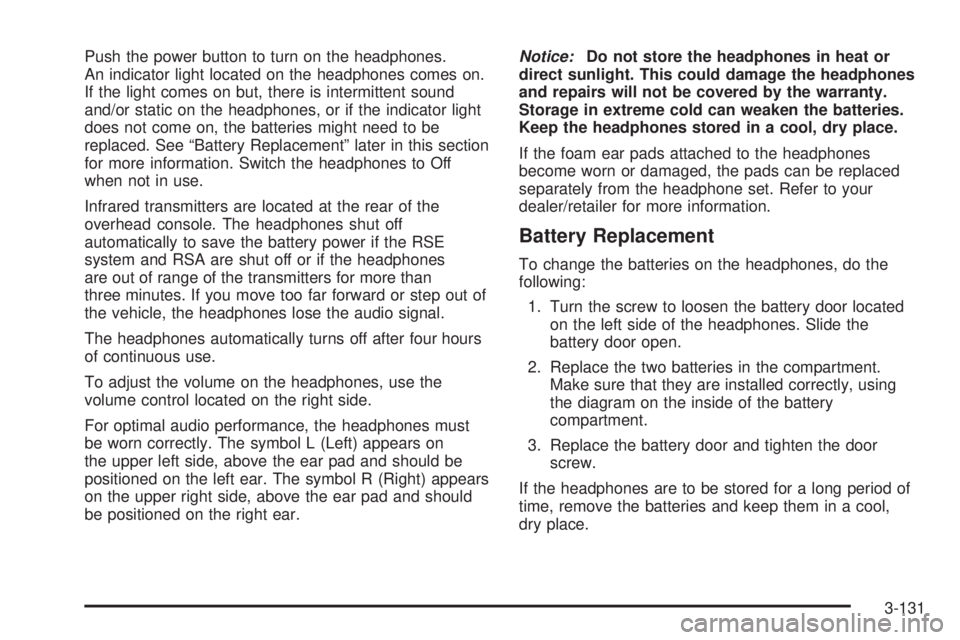
Push the power button to turn on the headphones.
An indicator light located on the headphones comes on.
If the light comes on but, there is intermittent sound
and/or static on the headphones, or if the indicator light
does not come on, the batteries might need to be
replaced. See “Battery Replacement” later in this section
for more information. Switch the headphones to Off
when not in use.
Infrared transmitters are located at the rear of the
overhead console. The headphones shut off
automatically to save the battery power if the RSE
system and RSA are shut off or if the headphones
are out of range of the transmitters for more than
three minutes. If you move too far forward or step out of
the vehicle, the headphones lose the audio signal.
The headphones automatically turns off after four hours
of continuous use.
To adjust the volume on the headphones, use the
volume control located on the right side.
For optimal audio performance, the headphones must
be worn correctly. The symbol L (Left) appears on
the upper left side, above the ear pad and should be
positioned on the left ear. The symbol R (Right) appears
on the upper right side, above the ear pad and should
be positioned on the right ear.Notice:Do not store the headphones in heat or
direct sunlight. This could damage the headphones
and repairs will not be covered by the warranty.
Storage in extreme cold can weaken the batteries.
Keep the headphones stored in a cool, dry place.
If the foam ear pads attached to the headphones
become worn or damaged, the pads can be replaced
separately from the headphone set. Refer to your
dealer/retailer for more information.
Battery Replacement
To change the batteries on the headphones, do the
following:
1. Turn the screw to loosen the battery door located
on the left side of the headphones. Slide the
battery door open.
2. Replace the two batteries in the compartment.
Make sure that they are installed correctly, using
the diagram on the inside of the battery
compartment.
3. Replace the battery door and tighten the door
screw.
If the headphones are to be stored for a long period of
time, remove the batteries and keep them in a cool,
dry place.
3-131
Page 320 of 596
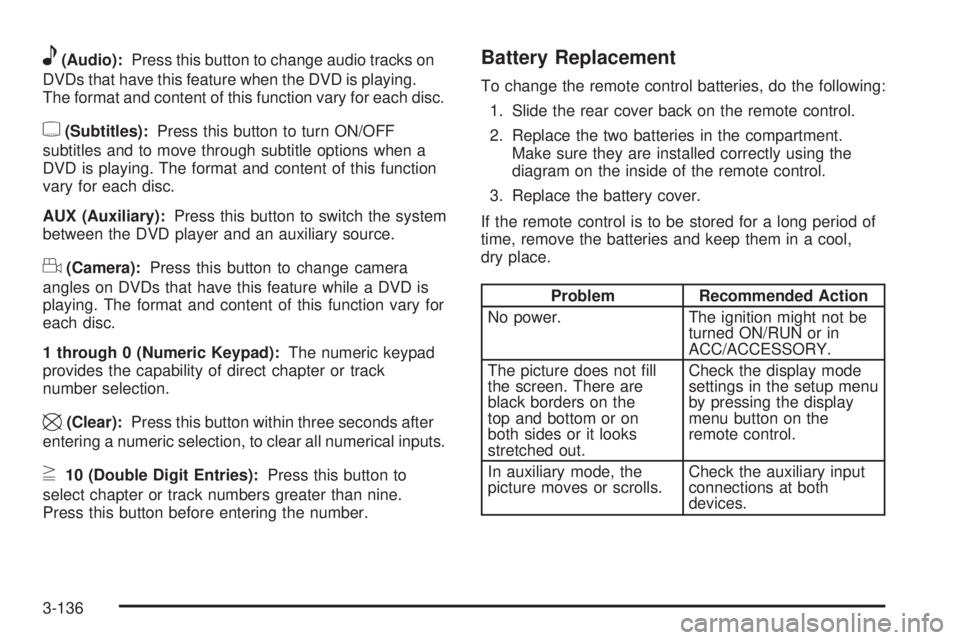
e(Audio):Press this button to change audio tracks on
DVDs that have this feature when the DVD is playing.
The format and content of this function vary for each disc.
{(Subtitles):Press this button to turn ON/OFF
subtitles and to move through subtitle options when a
DVD is playing. The format and content of this function
vary for each disc.
AUX (Auxiliary):Press this button to switch the system
between the DVD player and an auxiliary source.
d(Camera):Press this button to change camera
angles on DVDs that have this feature while a DVD is
playing. The format and content of this function vary for
each disc.
1 through 0 (Numeric Keypad):The numeric keypad
provides the capability of direct chapter or track
number selection.
\(Clear):Press this button within three seconds after
entering a numeric selection, to clear all numerical inputs.
}10 (Double Digit Entries):Press this button to
select chapter or track numbers greater than nine.
Press this button before entering the number.
Battery Replacement
To change the remote control batteries, do the following:
1. Slide the rear cover back on the remote control.
2. Replace the two batteries in the compartment.
Make sure they are installed correctly using the
diagram on the inside of the remote control.
3. Replace the battery cover.
If the remote control is to be stored for a long period of
time, remove the batteries and keep them in a cool,
dry place.
Problem Recommended Action
No power. The ignition might not be
turned ON/RUN or in
ACC/ACCESSORY.
The picture does not ll
the screen. There are
black borders on the
top and bottom or on
both sides or it looks
stretched out.Check the display mode
settings in the setup menu
by pressing the display
menu button on the
remote control.
In auxiliary mode, the
picture moves or scrolls.Check the auxiliary input
connections at both
devices.
3-136
Page 331 of 596
Antilock Brake System (ABS)
This vehicle has the Antilock Brake System (ABS),
an advanced electronic braking system that will
help prevent a braking skid.
When the engine is started and the vehicle begins to
drive away, ABS checks itself. A momentary motor or
clicking noise might be heard while this test is going on.
This is normal.
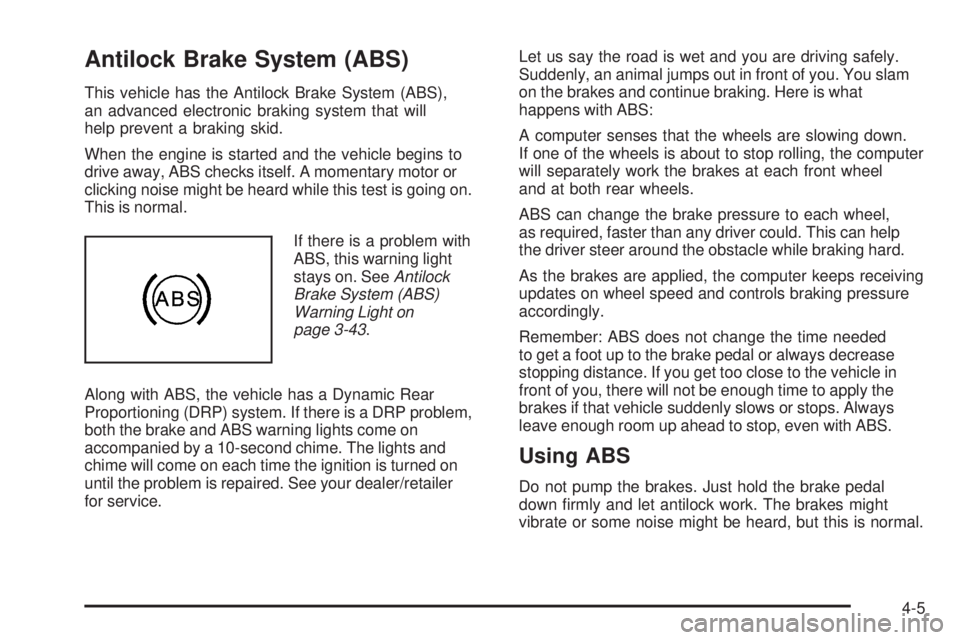
If there is a problem with
ABS, this warning light
stays on. SeeAntilock
Brake System (ABS)
Warning Light on
page 3-43.
Along with ABS, the vehicle has a Dynamic Rear
Proportioning (DRP) system. If there is a DRP problem,
both the brake and ABS warning lights come on
accompanied by a 10-second chime. The lights and
chime will come on each time the ignition is turned on
until the problem is repaired. See your dealer/retailer
for service.Let us say the road is wet and you are driving safely.
Suddenly, an animal jumps out in front of you. You slam
on the brakes and continue braking. Here is what
happens with ABS:
A computer senses that the wheels are slowing down.
If one of the wheels is about to stop rolling, the computer
will separately work the brakes at each front wheel
and at both rear wheels.
ABS can change the brake pressure to each wheel,
as required, faster than any driver could. This can help
the driver steer around the obstacle while braking hard.
As the brakes are applied, the computer keeps receiving
updates on wheel speed and controls braking pressure
accordingly.
Remember: ABS does not change the time needed
to get a foot up to the brake pedal or always decrease
stopping distance. If you get too close to the vehicle in
front of you, there will not be enough time to apply the
brakes if that vehicle suddenly slows or stops. Always
leave enough room up ahead to stop, even with ABS.
Using ABS
Do not pump the brakes. Just hold the brake pedal
down rmly and let antilock work. The brakes might
vibrate or some noise might be heard, but this is normal.
4-5
Page 338 of 596
Of course, traction is reduced when water, snow, ice,
gravel, or other material is on the road. For safety, slow
down and adjust your driving to these conditions. It is
important to slow down on slippery surfaces because
stopping distance will be longer and vehicle control
more limited.
While driving on a surface with reduced traction, try your
best to avoid sudden steering, acceleration, or braking,
including reducing vehicle speed by shifting to a lower
gear. Any sudden changes could cause the tires to
slide. You may not realize the surface is slippery until
the vehicle is skidding. Learn to recognize warning
clues — such as enough water, ice, or packed snow
on the road to make a mirrored surface — and slow
down when you have any doubt.
Remember: Any Antilock Brake System (ABS) helps
avoid only the braking skid.
Off-Road Driving
Vehicles with four-wheel drive can be used for off-road
driving. Vehicles without four-wheel drive and vehicles
with 20-inch tire/wheel assemblies should not be driven
off-road except on a level, solid surface.The airbag system is designed to work properly under
a wide range of conditions, including off-road usage.
Always wear your safety belt and observe safe driving
speeds, especially on rough terrain.
Drinking and driving can be very dangerous on any road
and this is certainly true for off-road driving. At the very
time you need special alertness and driving skills, your
reexes, perceptions, and judgment can be affected
by even a small amount of alcohol. You could have a
serious — or even fatal — accident if you drink and
drive or ride with a driver who has been drinking.
Off-roading can be great fun but has some denite
hazards. The greatest of these is the terrain itself. When
off-road driving, traffic lanes are not marked, curves are
not banked, and there are no road signs. Surfaces can
be slippery, rough, uphill, or downhill.
Avoid sharp turns and abrupt maneuvers. Failure to
operate the vehicle correctly off-road could result in
loss of vehicle control or vehicle rollover.
Off-roading involves some new skills. That is why it is
very important that you read these driving tips and
suggestions to help make off-road driving safer
and more enjoyable.
4-12
Page 342 of 596
Getting Familiar with Off-Road Driving
It is a good idea to practice in an area that is safe
and close to home before you go into the wilderness.
Off-roading requires some new and different skills.
Tune your senses to different kinds of signals. Your
eyes need to constantly sweep the terrain for unexpected
obstacles. Your ears need to listen for unusual tire or
engine sounds. Use your arms, hands, feet, and body
to respond to vibrations and vehicle bounce.
Controlling the vehicle is the key to successful off-road
driving. One of the best ways to control the vehicle
is to control the speed. At higher speeds:
You approach things faster and have less time
to react.
There is less time to scan the terrain for obstacles.
The vehicle has more bounce when driving over
obstacles.
More braking distance is needed, especially on an
unpaved surface.
{CAUTION:
When you are driving off-road, bouncing and quick
changes in direction can easily throw you out of
position. This could cause you to lose control and
crash. So, whether you are driving on or off the
road, you and your passengers should wear
safety belts.
Scanning the Terrain
Off-road driving can take you over many different kinds
of terrain. Be familiar with the terrain and its many
different features.
Surface Conditions:Off-roading surfaces can be
hard-packed dirt, gravel, rocks, grass, sand, mud, snow,
or ice. Each of these surfaces affects the vehicle’s
steering, acceleration, and braking in different ways.
Depending on the surface, slipping, sliding, wheel
spinning, delayed acceleration, poor traction, and
longer braking distances can occur.
Surface Obstacles:Unseen or hidden obstacles
can be hazardous. A rock, log, hole, rut, or bump can
startle you if you are not prepared for them. Often these
obstacles are hidden by grass, bushes, snow, or even
the rise and fall of the terrain itself.
4-16
Page 377 of 596
Towing a Trailer
If the vehicle has a diesel engine, see the DURAMAX®
Diesel manual for more information.
Do not tow a trailer during break-in. SeeNew Vehicle
Break-In on page 2-22for more information.
{CAUTION:
The driver can lose control when pulling a trailer if
the correct equipment is not used or the vehicle is
not driven properly. For example, if the trailer is too
heavy, the brakes may not work well or even at all.
The driver and passengers could be seriously
injured. The vehicle may also be damaged; the
resulting repairs would not be covered by the
vehicle warranty. Pull a trailer only if all the steps in
this section have been followed. Ask your dealer/
retailer for advice and information about towing a
trailer with the vehicle.Notice:Pulling a trailer improperly can damage
the vehicle and result in costly repairs not covered
by the vehicle warranty. To pull a trailer correctly,
follow the advice in this section and see your
dealer/retailer for important information about
towing a trailer with the vehicle.
To identify the trailering capacity of the vehicle, read
the information in “Weight of the Trailer” that appears
later in this section.
Trailering is different than just driving the vehicle by
itself. Trailering means changes in handling, acceleration,
braking, durability and fuel economy. Successful, safe
trailering takes correct equipment, and it has to be used
properly.
The following information has many time-tested,
important trailering tips and safety rules. Many of
these are important for your safety and that of your
passengers. So please read this section carefully
before pulling a trailer.
4-51