change time GMC SIERRA 2010 Owner's Guide
[x] Cancel search | Manufacturer: GMC, Model Year: 2010, Model line: SIERRA, Model: GMC SIERRA 2010Pages: 630, PDF Size: 4.65 MB
Page 307 of 630
Radio Data System (RDS)
For radios with the Radio Data System (RDS) feature,
it only works with FM stations that broadcast RDS
information. This system relies upon receiving specific
information from these stations and only works when
the information is available. While the radio is tuned to
an FM-RDS station, the station name or call letters
displays. In rare cases, a radio station could broadcast
incorrect information that causes the radio features
to work improperly. If this happens, contact the
radio station.
Playing the Radio
O
(Power/Volume):Press to turn the system on
and off.
Turn clockwise or counterclockwise to increase or
decrease the volume.
(Information) (AM-FM Radio) : Press to switch the
display between the radio station frequency and the
time. While the ignition is off, press this button to
display the time. Speed Compensated Volume (SCV) :
Radios with
Speed Compensated Volume (SCV) automatically
adjusts the radio volume to compensate for road and
wind noise as the vehicle's speed changes while
driving, so that the volume level stays consistent.
To activate SCV:
1. Set the radio volume to the desired level.
2. Press the MENU button to display the radio setup menu.
3. Press the softkey under the AUTO VOLUM (automatic volume) tab on the radio display.
4. Press the softkey under the desired Speed Compensated Volume setting (OFF, Low, Med,
or High) to select the level of radio volume
compensation. The display times out after
approximately 10 seconds. Each higher setting
allows for more radio volume compensation at
faster vehicle speeds.
4-89
Page 320 of 630

Playing a DVD
DVD/CD AUX (Auxiliary) :Press this button to cycle
through DVD, CD, or Auxiliary when listening to the
radio. The DVD/CD text tab and a message showing
track or chapter number displays when a disc is in
either slot. Press this button again and the system
automatically searches for an auxiliary input device,
such as a portable audio player. If a portable audio
player is not connected, “No Aux Input Device”displays.
If a disc is in both the DVD slot and the CD slot the
DVD/CD AUX button cycles between the two sources
and not indicate “No Aux Input Device”. If a front
auxiliary device is connected, the DVD/CD AUX button
cycles through all available options, such as: DVD slot,
CD slot, Front Auxiliary, and Rear Auxiliary (if available).
See “Using the Auxiliary Input Jack(s)” later in this
section, or “Audio/Video (A/V) Jacks” under,Rear Seat
Entertainment (RSE) System
on page 4‑134for more
information.
O(Power): Press to turn the radio on or off. Turn this
knob clockwise or counterclockwise to increase or
decrease the volume. Press and hold for more than
two seconds to turn off the entire radio and Rear Seat
Entertainment (RSE) system and to start the parental
control feature. Parental control prevents the rear seat
occupant from operating the Rear Seat Audio (RSA)
system or remote control. A lock symbol displays next to the clock display.
The parental control feature remains on until the knob
is pressed and held for more than two seconds again,
or until the driver turns the ignition off and exits the
vehicle.
f(Tune):
Turn to change tracks on a CD or DVD, to
manually tune a radio station, or to change clock or
date settings, while in the clock or date setting mode.
See the information given earlier in this section specific
to the radio, CD, and the DVD. Also, see “Setting the
Time” in the index, for setting the clock and date.
©SEEK (Previous Track/Chapter): Press the left
arrow to return to the start of the current track or
chapter. Press the left arrow again to go to the previous
track or chapter. This button might not work when the
DVD is playing the copyright information or the
previews.
SEEK
¨(Next Track/Chapter): Press the right arrow
to go to the next track or chapter. This button might not
work when the DVD is playing the copyright information
or the previews.
sREV (Fast Reverse): Press to quickly reverse the
CD or DVD at five times the normal speed. The radio
displays the elapsed time while in fast reverse. To stop
fast reversing, press again. This button might not work
when the DVD is playing the copyright information or
the previews.
4-102
Page 327 of 630
File System and Naming
The song name that displays is the song name that
is contained in the ID3 tag. If the song name is not
present in the ID3 tag, then the radio displays the file
name without the extension (such as .mp3) as the
track name.
Track names longer than 32 characters or four pages
are shortened. The display does not show parts of
words on the last page of text and the extension of the
filename is not displayed.
Preprogrammed Playlists
CDs that have preprogrammed playlists that were
created using WinAmp™, MusicMatch™, or Real
Jukebox™software can be accessed, however, there
is no playlist editing capability using the radio. These
playlists are treated as special folders containing
compressed audio song files.
Playlists that have an .m3u or .pls file extension and
are stored on a USB device may be supported by the
radio with a USB port.
Playlists can be changed by using the
S c(previous)
and
c T(next) folder buttons, thefknob, or the
©SEEK¨arrows. MP3 CD-R or CD-RW that have
been recorded without using file folders can be played. If a CD-R or CD-RW contains more than the maximum
of 50 folders, 15 playlists, and 512 folders and files, the
player allows access and navigates up to the maximum,
but all items over the maximum are not accessible.
Playing a CD-R or CD-RW MP3
f
(Tune):
Turn to select MP3 files on the CD currently
playing.
©SEEK: Press to go to the start of the track, if more
than ten seconds have played. Press and hold or press
multiple times to continue moving backward through
tracks.
¨SEEK: Press to go to the next track. Press and
hold or press multiple times to continue moving forward
through tracks.
sREV (Reverse): Press and hold to reverse
playback quickly. Sound is heard at a reduced
volume and the elapsed time of the file displays.
Release
sREV to resume playing.
\FWD (Fast Forward): Press and hold to advance
playback quickly. Sound is heard at a reduced
volume and the elapsed time of the file displays.
Release
\FWD to resume playing. The elapsed
time of the file displays.
S c(Previous Folder): Press the softkey belowScto go to the first track in the previous folder.
4-109
Page 341 of 630
Unknown :If this message is received when tuned to
channel 0, there could be a receiver fault. Consult with
your dealer/retailer.
Check XM Receivr : If this message does not clear
within a short period of time, the receiver could have a
fault. Consult with your dealer/retailer.
XM Not Available : If this message does not clear
within a short period of time, the receiver could have a
fault. Consult with your dealer/retailer.
Navigation/Radio System
For vehicles with a navigation radio system, see the
separate Navigation System manual.
Bluetooth®
Vehicles with a Bluetooth system can use a Bluetooth
capable cell phone with a Hands Free Profile to make
and receive phone calls. The system can be used while
the key is in ON/RUN or ACC/ACCESSORY position.
The range of the Bluetooth system can be up to 9.1 m
(30 ft). Not all phones support all functions, and not all
phones are guaranteed to work with the in-vehicle
Bluetooth system. See www.gm.com/bluetooth for more
information on compatible phones.
Voice Recognition
The Bluetooth system uses voice recognition to
interpret voice commands to dial phone numbers
and name tags.
Noise : Keep interior noise levels to a minimum.
The system may not recognize voice commands if
there is too much background noise.
When to Speak : A short tone sounds after the system
responds indicating when it is waiting for a voice
command. Wait until the tone and then speak.
How to Speak : Speak clearly in a calm and natural
voice.
Audio System
When using the in‐vehicle Bluetooth system, sound
comes through the vehicle's front audio system
speakers and overrides the audio system. Use the
audio system volume knob, during a call, to change the
volume level. The adjusted volume level remains in
memory for later calls. To prevent missed calls, a
minimum volume level is used if the volume is turned
down too low.
4-123
Page 342 of 630
Bluetooth Controls
Use the buttons located on the steering wheel to
operate the in‐vehicle Bluetooth system. SeeAudio
Steering Wheel Controls
on page 4‑145for more
information.
b g(Push To Talk) : Press to answer incoming calls,
to confirm system information, and to start speech
recognition.
c x(Phone On Hook): Press to end a call, reject a
call, or to cancel an operation.
Pairing
A Bluetooth enabled cell phone must be paired to the
in‐vehicle Bluetooth system first and then connected to
the vehicle before it can be used. See the cell phone
manufacturers user guide for Bluetooth functions before
pairing the cell phone. If a Bluetooth phone is not
connected, calls will be made using OnStar
®
Hands‐Free Calling, if available. Refer to the
OnStar owner's guide for more information. Pairing Information:
.Up to five cell phones can be paired to the
in‐vehicle Bluetooth system.
.The pairing process is disabled when the vehicle
is moving.
.The in‐vehicle Bluetooth system automatically links
with the first available paired cell phone in the
order the phone was paired.
.Only one paired cell phone can be connected to
the in‐vehicle Bluetooth system at a time.
.Pairing should only need to be completed once,
unless changes to the pairing information have
been made or the phone is deleted.
To link to a different paired phone, see Linking to a
Different Phone later in this section.
4-124
Page 354 of 630
Battery Replacement
To change the batteries on the headphones, do the
following:1. Turn the screw to loosen the battery door located on the left side of the headphones. Slide the
battery door open.
2. Replace the two batteries in the compartment. Make sure that they are installed correctly, using
the diagram on the inside of the battery
compartment.
3. Replace the battery door and tighten the door screw.
If the headphones are to be stored for a long period
of time, remove the batteries and keep them in a cool,
dry place.
Audio/Video (A/V) Jacks
The A/V jacks, located on the rear of the floor console,
allow audio or video signals to be connected from an
auxiliary device such as a camcorder or a video game
unit to the RSE system. Adapter connectors or cables
(not included) may be required to connect the auxiliary
device to the A/V jacks. Refer to the manufacturer ’s
instructions for proper usage.
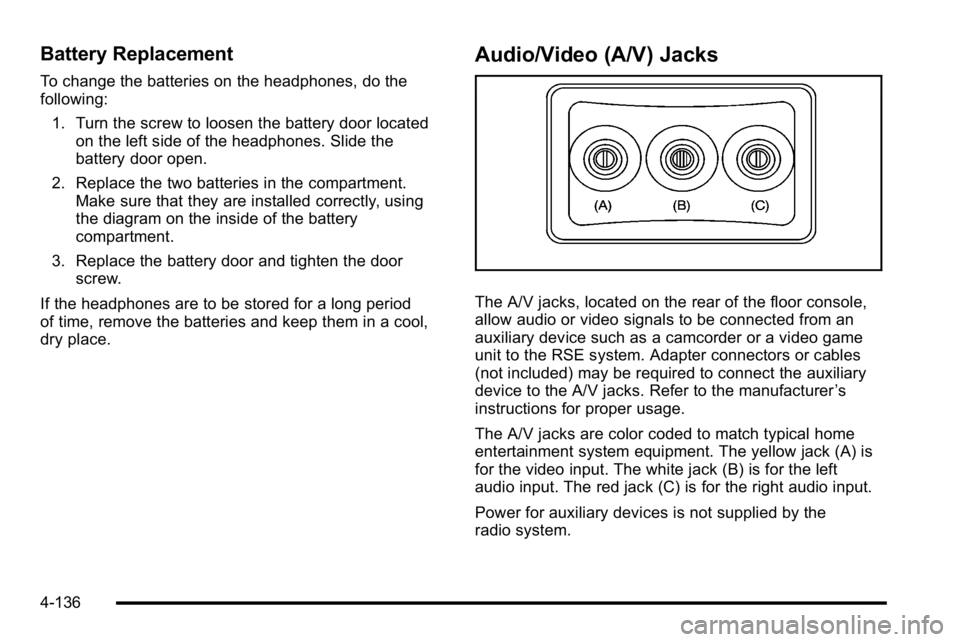
The A/V jacks are color coded to match typical home
entertainment system equipment. The yellow jack (A) is
for the video input. The white jack (B) is for the left
audio input. The red jack (C) is for the right audio input.
Power for auxiliary devices is not supplied by the
radio system.
4-136
Page 359 of 630
Battery Replacement
To change the remote control batteries, do the following:1. Slide the rear cover back on the remote control.
2. Replace the two batteries in the compartment. Make sure they are installed correctly using the
diagram on the inside of the remote control.
3. Replace the battery cover.
If the remote control is to be stored for a long period of
time, remove the batteries and keep them in a cool,
dry place.
Tips and Troubleshooting Chart
Problem Recommended Action
No power. The ignition might not be
turned ON/RUN or in
ACC/ACCESSORY.
The picture does not fill the
screen. There are black
borders on the top and
bottom or on both sides or
it looks stretched out. Check the display mode
settings in the setup menu
by pressing the display
menu button on the
remote control.
Tips and Troubleshooting Chart (cont'd)
Problem
Recommended Action
In auxiliary mode, the
picture moves or scrolls. Check the auxiliary input
connections at both
devices.
The remote control does
not work. Check to make sure there
is no obstruction between
the remote control and the
transmitter window.
Check the batteries to
make sure they are not
dead or installed
incorrectly.
After stopping the player,
I push Play but sometimes
the DVD starts where I left
off and sometimes at the
beginning. If the stop button was
pressed one time, the
DVD player resumes
playing where the DVD
was stopped. If the stop
button was pressed two
times the DVD player
begins to play from the
beginning of the DVD.
4-141
Page 361 of 630
Cleaning the RSE Overhead Console
When cleaning the RSE overhead console surface, use
only a clean cloth dampened with clean water.
Cleaning the Video Screen
When cleaning the video screen, use only a clean cloth
dampened with clean water. Use care when directly
touching or cleaning the screen, as damage could
result.
Rear Seat Audio (RSA)
Vehicles with this feature allow the rear seat
passengers to listen to and control any of the music
sources: radio, CDs, DVDs, or other auxiliary sources.
However, the rear seat passengers can only control the
music sources the front seat passengers are not
listening to (except on some radios where dual control
is allowed). For example, rear seat passengers can
control and listen to a CD through the headphones,
while the driver listens to the radio through the front
speakers. The rear seat passengers have control of the
volume for each set of headphones.The radio functionality is controlled by both the RSA
and the front radio. Only one band can be tuned to at
one time. Changing the band on the RSA or the front
radio will change the band on the other system, if they
are both sourced to the radio.
The RSA functions can be used even while the main
radio is off. The front audio system will display the
headphone icon when the RSA is on, and will disappear
from the display when it is off.
Audio can be heard through wired headphones
(not included) plugged into the jacks on the RSA.
If the vehicle has this feature, audio can also be heard
on Channel 2 of the wireless headphones.
Depending on the audio system, the rear speakers may
continue to play when the RSA audio is active through
the headphones.
To listen to an iPod or portable audio device through the
RSA, attach the iPod or portable audio device to the
front auxiliary input (if available), located on the front
audio system. Turn the iPod on, then choose the front
auxiliary input with the RSA SRCE button.
4-143
Page 373 of 630
Let us say the road is wet and you are driving safely.
Suddenly, an animal jumps out in front of you. You slam
on the brakes and continue braking. Here is what
happens with ABS:
A computer senses that the wheels are slowing
down. If one of the wheels is about to stop rolling, the
computer will separately work the brakes at each front
wheel and at both rear wheels.
ABS can change the brake pressure to each wheel, as
required, faster than any driver could. This can help the
driver steer around the obstacle while braking hard.
As the brakes are applied, the computer keeps
receiving updates on wheel speed and controls braking
pressure accordingly.
Remember: ABS does not change the time needed to
get a foot up to the brake pedal or always decrease
stopping distance. If you get too close to the vehicle in
front of you, there will not be enough time to apply the
brakes if that vehicle suddenly slows or stops. Always
leave enough room up ahead to stop, even with ABS.
Using ABS
Do not pump the brakes. Just hold the brake pedal
down firmly and let antilock work. The brakes might
vibrate or some noise might be heard, but this is
normal.
Braking in Emergencies
ABS allows the driver to steer and brake at the same
time. In many emergencies, steering can help more
than even the very best braking.
Brake Assist (Except With 4.3L V6 Engine)
If this vehicle has StabiliTrak®, it also has a Brake
Assist feature designed to assist the driver in stopping
or decreasing vehicle speed in emergency driving
conditions. This feature uses the stability system
hydraulic brake control module to supplement the
power brake system under conditions where the driver
has quickly and forcefully applied the brake pedal in
an attempt to quickly stop or slow down the vehicle.
The stability system hydraulic brake control module
increases brake pressure at each corner of the vehicle
until the ABS activates. Minor brake pedal pulsations or
pedal movement during this time is normal and the
driver should continue to apply the brake pedal as the
driving situation dictates The Brake Assist feature
will automatically disengage when the brake pedal is
released or brake pedal pressure is quickly decreased.
5-5
Page 379 of 630
Skidding
In a skid, a driver can lose control of the vehicle.
Defensive drivers avoid most skids by taking
reasonable care suited to existing conditions, and
by not overdriving those conditions. But skids are
always possible.
The three types of skids correspond to the vehicle's
three control systems. In the braking skid, the wheels
are not rolling. In the steering or cornering skid, too
much speed or steering in a curve causes tires to slip
and lose cornering force. And in the acceleration skid,
too much throttle causes the driving wheels to spin.
Remember: StabiliTrak
®helps avoid only the
acceleration skid. See StabiliTrak®Systemon
page 5‑6. If the StabiliTrak®System is off, then an
acceleration skid is best handled by easing your foot off
the accelerator pedal.
If the vehicle starts to slide, ease your foot off the
accelerator pedal and quickly steer the way you want
the vehicle to go. If you start steering quickly enough,
the vehicle may straighten out. Always be ready for a
second skid if it occurs.
Of course, traction is reduced when water, snow, ice,
gravel, or other material is on the road. For safety, slow
down and adjust your driving to these conditions. It is
important to slow down on slippery surfaces because
stopping distance will be longer and vehicle control
more limited. While driving on a surface with reduced traction, try
your best to avoid sudden steering, acceleration,
or braking, including reducing vehicle speed by shifting
to a lower gear. Any sudden changes could cause the
tires to slide. You may not realize the surface is slippery
until the vehicle is skidding. Learn to recognize warning
clues
—such as enough water, ice, or packed snow on
the road to make a mirrored surface —and slow down
when you have any doubt.
Remember: Antilock brakes help avoid only the
braking skid.
Off-Road Driving
Vehicles with four-wheel drive can be used for off-road
driving. Vehicles without four-wheel drive and vehicles
with 20‐inch tire/wheel assemblies should not be driven
off-road except on a level, solid surface.
The airbag system is designed to work properly under
a wide range of conditions, including off‐road usage.
Always wear your safety belt and observe safe driving
speeds, especially on rough terrain.
Drinking and driving can be very dangerous on any
road and this is certainly true for off-road driving. At the
very time you need special alertness and driving skills,
your reflexes, perceptions, and judgment can be
affected by even a small amount of alcohol. You could
have a serious —or even fatal —accident if you drink
and drive or ride with a driver who has been drinking.
5-11