buttons GMC SIERRA 2010 Repair Manual
[x] Cancel search | Manufacturer: GMC, Model Year: 2010, Model line: SIERRA, Model: GMC SIERRA 2010Pages: 630, PDF Size: 4.65 MB
Page 334 of 630
Empty Folder
Folders that do not contain files are skipped, and the
player advances to the next folder that contains files.
No Folder
When the disc contains only compressed files, the files
are located under the root folder. The next and previous
folder function does not function on a disc that was
recorded without folders or playlists. When displaying
the name of the folder the radio displays ROOT.
When the disc contains only playlists and compressed
audio files, but no folders, all files are located under the
root folder. The folder down and the folder up buttons
search playlists first and then goes to the root folder.
When the radio displays the name of the folder the
radio displays ROOT.
Order of Play
Compressed audio files are accessed in the following
order:
.Playlists.
.Files stored in the root directory.
.Files stored in folders in the root directory.Tracks are played in the following order:
.Play begins from the first track in the first playlist
and continues sequentially through all tracks in
each playlist. When the last track of the last playlist
has played, play continues from the first track of
the first playlist.
.Play begins from the first track in the first folder
and continues sequentially through all tracks in
each folder. When the last track of the last folder
has played, play continues from the first track of
the first folder.
When play enters a new folder, the display does not
automatically show the new folder name unless the
folder mode has been chosen as the default display.
The new track name displays.
File System and Naming
The song name that displays is the song name that is
contained in the ID3 tag. If the song name is not
present in the ID3 tag, then the radio displays the file
name without the extension (such as .mp3) as the
track name.
Track names longer than 32 characters or four pages
are shortened. Parts of words on the last page of text
and the extension of the filename does not display.
4-116
Page 337 of 630
Using the Radio to Control a USB
Storage Device or iPod
The radio can control a USB storage device or an iPod
using the radio buttons and knobs and display song
information on the radio’s display.
f(Tune):Turn to select files.
©SEEK:Press to go to the start of the track, if more
than ten seconds have played. Press and hold or press
multiple times to continue moving backward through
tracks.
¨SEEK: Press to go to the next track. Press and hold
or press multiple times to continue moving forward
through tracks.
sREV (Reverse): Press and hold to reverse
playback quickly. Sound is heard at a reduced volume.
Release
sREV to resume playing. The elapsed time
of the file displays.
\FWD (Fast Forward): Press and hold to advance
playback quickly. Sound is heard at a reduced volume.
Release
\FWD to resume playing. The elapsed time
of the file displays.
4(Information): Press to display additional information
about the selected track.
Using Softkeys to Control a USB
Storage Device or iPod
The five softkeys below the radio display are used to
control the functions listed below.
To use the softkeys:
1. Press the first or fifth softkey below the radio display to display the functions listed below,
or press the softkey below the function if it is
currently displayed.
2. Press the softkey below the tab with the function on it to use that function.
j(Pause): Press the softkey belowjto pause the
track. The tab appears raised when pause is being
used. Press the softkey below
jagain to resume
playback.
Back : Press the softkey below the back tab to go back
to the main display screen on an iPod, or the root
directory on a USB storage device.
4-119
Page 342 of 630
Bluetooth Controls
Use the buttons located on the steering wheel to
operate the in‐vehicle Bluetooth system. SeeAudio
Steering Wheel Controls
on page 4‑145for more
information.
b g(Push To Talk) : Press to answer incoming calls,
to confirm system information, and to start speech
recognition.
c x(Phone On Hook): Press to end a call, reject a
call, or to cancel an operation.
Pairing
A Bluetooth enabled cell phone must be paired to the
in‐vehicle Bluetooth system first and then connected to
the vehicle before it can be used. See the cell phone
manufacturers user guide for Bluetooth functions before
pairing the cell phone. If a Bluetooth phone is not
connected, calls will be made using OnStar
®
Hands‐Free Calling, if available. Refer to the
OnStar owner's guide for more information. Pairing Information:
.Up to five cell phones can be paired to the
in‐vehicle Bluetooth system.
.The pairing process is disabled when the vehicle
is moving.
.The in‐vehicle Bluetooth system automatically links
with the first available paired cell phone in the
order the phone was paired.
.Only one paired cell phone can be connected to
the in‐vehicle Bluetooth system at a time.
.Pairing should only need to be completed once,
unless changes to the pairing information have
been made or the phone is deleted.
To link to a different paired phone, see Linking to a
Different Phone later in this section.
4-124
Page 357 of 630
Remote Control Buttons
O(Power):Press this button to turn the video screen
on and off.
P(Illumination): Press this button to turn the remote
control backlight on. The backlight automatically times
out after seven to ten seconds if no other button is
pressed while the backlight is on.
v(Title): Press this button to return the DVD to the
main menu of the DVD. This function could vary for
each disc.
y(Main Menu): Press this button to access the DVD
menu. The DVD menu is different on every DVD. Use
the navigation arrows to move the cursor around the
DVD menu. After making a selection press the enter
button. This button only operates when using a DVD.
n,q,p,o(Menu Navigation Arrows): Use the
arrow buttons to navigate through a menu.
r(Enter): Press this button to select the choice that
is highlighted in any menu.
z(Display Menu): Press this button to adjust the
brightness, screen display mode (normal, full, or zoom),
and display the language menu.
q(Return): Press this button to exit the current
active menu and return to the previous menu.
This button operates only when the display menu
or a DVD menu is active.
c(Stop): Press this button to stop playing, fast
reversing, or fast forwarding a DVD. Press this button
twice to return to the beginning of the DVD.
s(Play/Pause): Press this button to start playing a
DVD. Press this button while a DVD is playing to pause
it. Press it again to continue playing the DVD.
While the DVD is playing, the DVD can be played
slowly by pressing the play/pause button then pressing
the fast forward button. The DVD continues playing in a
slow play mode. Also, reverse can be played slowly by
pressing the play/pause button and then pressing the
fast reverse button. To cancel slow play mode, press
the play/pause button.
t(Previous Track/Chapter): Press this button to
return to the start of the current track or chapter. Press
this button again to go to the previous track or chapter.
This button might not work when the DVD is playing the
copyright information or the previews.
u(Next Track/Chapter): Press this button to go to the
beginning of the next chapter or track. This button might
not work while the DVD is playing the copyright
information or the previews.
4-139
Page 362 of 630

P(Power):Press this button to turn the RSA on or off.
Volume : Turn the volume knob to increase or to
decrease the volume of the wired headphones. The left
knob controls the left headphones and the right knob
controls the right headphones.
SRCE (Source) : Press this button to switch between
the radio (AM/FM), XM™ (if equipped), CD, and if the
vehicle has these features, DVD, front auxiliary, and
rear auxiliary.
© ¨(Seek): When listening to FM, AM, or XM™
(if equipped), press the seek arrows to go to the
previous or to the next station or channels and stay
there. This function is inactive, with some radios, if the
front seat passengers are listening to the radio.
Press and hold either seek arrow until the display
flashes, to tune to an individual station. The display
stops flashing after the buttons have not been pushed
for more than two seconds. This function is inactive,
with some radios, if the front seat passengers are
listening to the radio.
While listening to a disc, press the left seek arrow to go
back to the start of the current track or chapter (if more
than ten seconds have played). Press the right seek
arrow to go the next track or chapter on the disc. This
function is inactive, with some radios, if the front seat
passengers are listening to the disc.
While a DVD video menu is being displayed, press
either seek arrow to perform a cursor up or down on the
menu. Hold either seek arrow to perform a cursor left or
right on the menu.
PROG (Program) : Press this button to go to the next
preset radio station or channel set on the main radio.
This function is inactive, with some radios, if the front
seat passengers are listening to the radio.
4-144
Page 434 of 630
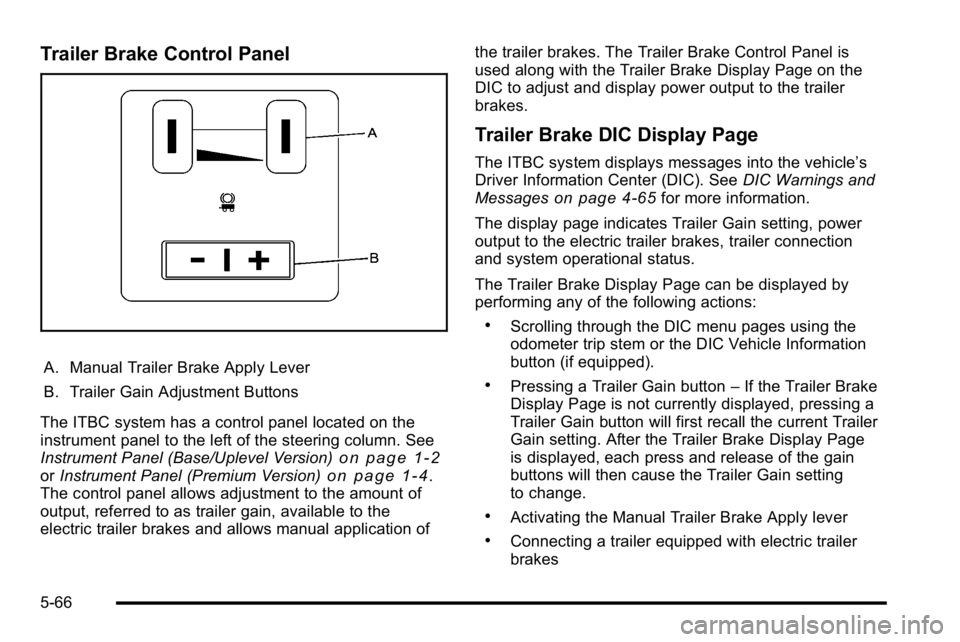
Trailer Brake Control Panel
A. Manual Trailer Brake Apply Lever
B. Trailer Gain Adjustment Buttons
The ITBC system has a control panel located on the
instrument panel to the left of the steering column. See
Instrument Panel (Base/Uplevel Version)
on page 1‑2or Instrument Panel (Premium Version)on page 1‑4.
The control panel allows adjustment to the amount of
output, referred to as trailer gain, available to the
electric trailer brakes and allows manual application of the trailer brakes. The Trailer Brake Control Panel is
used along with the Trailer Brake Display Page on the
DIC to adjust and display power output to the trailer
brakes.
Trailer Brake DIC Display Page
The ITBC system displays messages into the vehicle’s
Driver Information Center (DIC). See
DIC Warnings and
Messages
on page 4‑65for more information.
The display page indicates Trailer Gain setting, power
output to the electric trailer brakes, trailer connection
and system operational status.
The Trailer Brake Display Page can be displayed by
performing any of the following actions:
.Scrolling through the DIC menu pages using the
odometer trip stem or the DIC Vehicle Information
button (if equipped).
.Pressing a Trailer Gain button –If the Trailer Brake
Display Page is not currently displayed, pressing a
Trailer Gain button will first recall the current Trailer
Gain setting. After the Trailer Brake Display Page
is displayed, each press and release of the gain
buttons will then cause the Trailer Gain setting
to change.
.Activating the Manual Trailer Brake Apply lever
.Connecting a trailer equipped with electric trailer
brakes
5-66
Page 435 of 630
All DIC warning and service messages must first
be acknowledged by the driver by pressing the
odometer trip stem or the DIC Vehicle Information
button (if equipped) before the Trailer Brake Display
Page can be displayed and Trailer Gain can be
adjusted.
TRAILER GAIN–This setting is displayed anytime the
Trailer Brake Display Page is active. This setting can be
adjusted from 0.0 to 10.0 with either a trailer connected
or disconnected. To adjust the Trailer Gain, press one of
the Trailer Gain adjustment buttons located on the
Trailer Brake Control Panel. Press and hold a gain
button to cause the Trailer Gain to continuously adjust.
To turn the output to the trailer off, adjust the Trailer
Gain setting to 0.0 (zero).
0.0 (zero) gain is the factory default setting. To properly
adjust trailer gain, see the Trailer Gain Adjustment
Procedure later in this section. TRAILER OUTPUT
–This is displayed any time a trailer
with electric brakes is connected. Output to the electric
brakes is based on the amount of vehicle braking
present and relative to the Trailer Gain setting. Output is
displayed from 0 to 10 bars for each gain setting.
The Trailer Output will indicate “- - - - - -“on the Trailer
Brake Display Page whenever the following occur:
.No trailer is connected.
.A trailer without electric brakes is connected
(no DIC message is displayed).
.A trailer with electric brakes has become
disconnected (a CHECK TRAILER WIRING
message will also be displayed on the DIC).
.There is a fault present in the wiring to the electric
trailer brakes (a CHECK TRAILER WIRING
message will also be displayed on the DIC).
.There is a fault in the ITBC system (a SERVICE
TRAILER BRAKE SYSTEM message will also be
displayed in the DIC).
5-67
Page 437 of 630
4. Adjust the Trailer Gain by using the gainadjustment (+ / -) buttons on the Trailer Brake
Control Panel.
5. Drive the vehicle with the trailer attached on a level road surface representative of the towing condition
and free of traffic at about 20 to 25 mph (32 to
40 km/h) and fully apply the Manual Trailer Brake
Apply lever.
Adjusting trailer gain at speeds lower than
20 to 25 mph (32 to 40 km/h) may result in an
incorrect gain setting.
6. Adjust the Trailer Gain to just below the point of trailer wheel lock-up, indicated by trailer wheel
squeal or tire smoke when a trailer wheel locks.
Trailer wheel lock-up may not occur if towing a
heavily loaded trailer. In this case, adjust the
Trailer Gain to the highest allowable setting for the
towing condition.
7. Re-adjust Trailer Gain any time vehicle loading, trailer loading or road surface conditions change
or if trailer wheel lock-up is noticed at any time
while towing.
Other ITBC Related DIC Messages
In addition to displaying TRAILER GAIN and
TRAILER OUTPUT through the DIC, trailer connection
and ITBC system status is displayed in the DIC. TRAILER CONNECTED
–This message will be briefly
displayed when a trailer with electric brakes is first
connected to the vehicle. This message will
automatically turn off in about ten seconds. The driver
can also acknowledge this message before it
automatically turns off.
CHECK TRAILER WIRING –This message will be
displayed if:
1. The ITBC system first determines connection to a trailer with electric brakes and then the trailer
harness becomes disconnected from the vehicle.
If the disconnect occurs while the vehicle is
stationary, this message will automatically turn off
in about thirty seconds. This message will also turn
off if the driver acknowledges this message off or if
the trailer harness is re-connected.
If the disconnect occurs while the vehicle is
moving, this message will continue until the ignition
is turned off. This message will also turn off if the
driver acknowledges this message off or if the
trailer harness is re-connected.
2. There is an electrical fault in the wiring to the electric trailer brakes. This message will continue
as long as there is an electrical fault in the trailer
wiring. This message will also turn off if the driver
acknowledges this message off.
5-69
Page 467 of 630
Always reset the engine oil life to 100% after every oil
change. It will not reset itself. To reset the Engine Oil
Life System on most vehicles:1. Display the OIL LIFE REMAINING on the DIC. If the vehicle does not have DIC buttons, the
vehicle must be in P (Park) to access this display.
See DIC Operation and Displays (With DIC
Buttons)
on page 4‑51or DIC Operation and
Displays (Without DIC Buttons) on page 4‑58.
2. Press and hold the SET/RESET button on the DIC, or the trip odometer reset stem if the vehicle does
not have DIC buttons, for more than five seconds.
The oil life will change to 100%.
On all vehicles, the Engine Oil Life System can be reset
as follows: 1. Turn the ignition to ON/RUN with the engine off
2. Fully press the accelerator pedal slowly three times within five seconds.
3. Display the OIL LIFE REMAINING on the DIC. If the display shows 100%, the system is reset.
See DIC Operation and Displays (With DIC
Buttons)
on page 4‑51or DIC Operation and
Displays (Without DIC Buttons) on page 4‑58. If the vehicle has a CHANGE ENGINE OIL SOON
message and it comes back on when the vehicle is
started and/or the OIL LIFE REMAINING is near 0%,
the Engine Oil Life System has not reset. Repeat the
procedure.
What to Do with Used Oil
Used engine oil contains certain elements that can be
unhealthy for your skin and could even cause cancer.
Do not let used oil stay on your skin for very long. Clean
your skin and nails with soap and water, or a good hand
cleaner. Wash or properly dispose of clothing or rags
containing used engine oil. See the manufacturer's
warnings about the use and disposal of oil products.
Used oil can be a threat to the environment. If you
change your own oil, be sure to drain all the oil from the
filter before disposal. Never dispose of oil by putting it in
the trash, pouring it on the ground, into sewers, or into
streams or bodies of water. Recycle it by taking it to a
place that collects used oil.
Engine Air Cleaner/Filter
If the vehicle has a diesel engine, see
“Pickup Models”
under “Engine Air Cleaner/Filter” in the DURAMAX®
Diesel Supplement for the correct inspection and
replacement procedures.
SeeEngine Compartment Overview
on page 6‑16for
the location of the engine air cleaner/filter.
6-21
Page 522 of 630
When the malfunction indicator is illuminated, the
system may not be able to detect or signal low tire
pressure as intended. TPMS malfunctions may occur
for a variety of reasons, including the installation of
replacement or alternate tires or wheels on the vehicle
that prevent the TPMS from functioning properly.
Always check the TPMS malfunction telltale after
replacing one or more tires or wheels on your vehicle to
ensure that the replacement or alternate tires and
wheels allow the TPMS to continue to function properly.
SeeTire Pressure Monitor Operation
on page 6‑76for
additional information.
Federal Communications Commission
(FCC) and Industry and Science Canada
See Radio Frequency Statementon page 8‑19for
information regarding Part 15 of the Federal
Communications Commission (FCC) Rules and
RSS-210/211 of Industry and Science Canada.
Tire Pressure Monitor Operation
This vehicle may have a Tire Pressure Monitor System
(TPMS). The TPMS is designed to warn the driver when
a low tire pressure condition exists. TPMS sensors are
mounted onto each tire and wheel assembly, excluding
the spare tire and wheel assembly. The TPMS sensors monitor the air pressure in the vehicle's tires and
transmits the tire pressure readings to a receiver
located in the vehicle.
When a low tire pressure
condition is detected, the
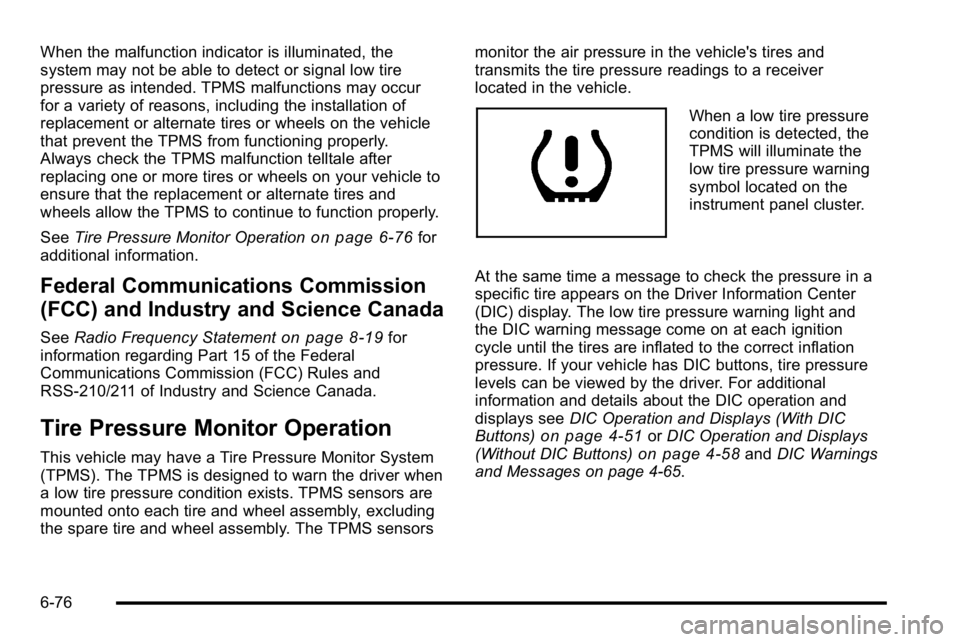
TPMS will illuminate the
low tire pressure warning
symbol located on the
instrument panel cluster.
At the same time a message to check the pressure in a
specific tire appears on the Driver Information Center
(DIC) display. The low tire pressure warning light and
the DIC warning message come on at each ignition
cycle until the tires are inflated to the correct inflation
pressure. If your vehicle has DIC buttons, tire pressure
levels can be viewed by the driver. For additional
information and details about the DIC operation and
displays see DIC Operation and Displays (With DIC
Buttons)
on page 4‑51or DIC Operation and Displays
(Without DIC Buttons)on page 4‑58and DIC Warnings
and Messages on page 4‑65.
6-76