buttons GMC SIERRA 2010 Service Manual
[x] Cancel search | Manufacturer: GMC, Model Year: 2010, Model line: SIERRA, Model: GMC SIERRA 2010Pages: 630, PDF Size: 4.65 MB
Page 281 of 630

2. Find the vehicle's current location and variancezone number on the map.
Zones 1 through 15 are available.
3. Press the set/reset button to scroll through and select the appropriate variance zone. 4. Press the trip/fuel button until the vehicle heading,
for example, N for North, is displayed in the DIC.
Or, if the vehicle does not have DIC buttons,
press and hold the trip odometer reset stem for
two seconds to select the next available variance
zone. Repeat this step until the appropriate
variance zone is displayed.
5. If calibration is necessary, calibrate the compass. See “Compass Calibration Procedure” following.
4-63
Page 282 of 630
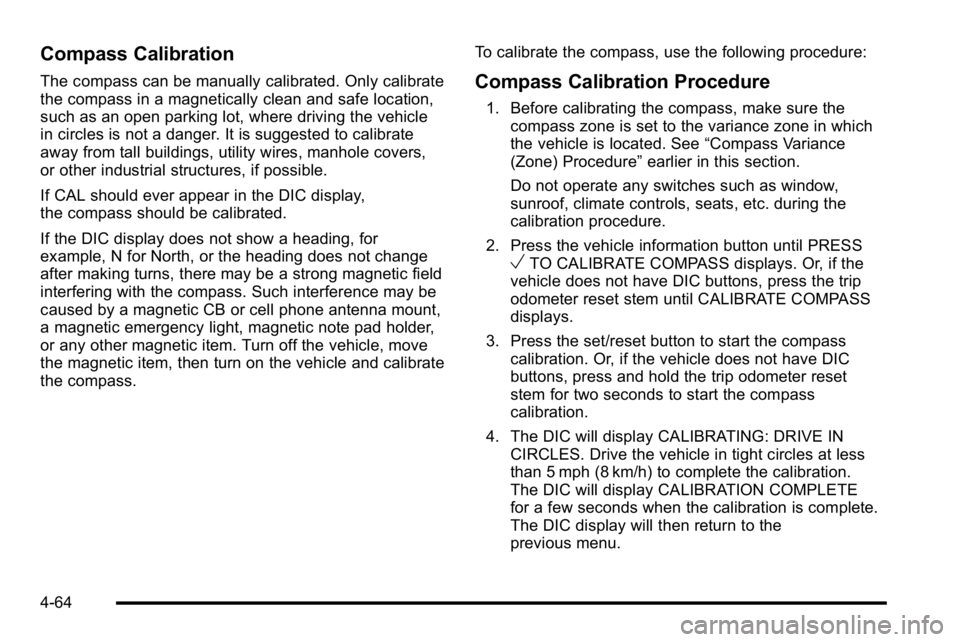
Compass Calibration
The compass can be manually calibrated. Only calibrate
the compass in a magnetically clean and safe location,
such as an open parking lot, where driving the vehicle
in circles is not a danger. It is suggested to calibrate
away from tall buildings, utility wires, manhole covers,
or other industrial structures, if possible.
If CAL should ever appear in the DIC display,
the compass should be calibrated.
If the DIC display does not show a heading, for
example, N for North, or the heading does not change
after making turns, there may be a strong magnetic field
interfering with the compass. Such interference may be
caused by a magnetic CB or cell phone antenna mount,
a magnetic emergency light, magnetic note pad holder,
or any other magnetic item. Turn off the vehicle, move
the magnetic item, then turn on the vehicle and calibrate
the compass.To calibrate the compass, use the following procedure:Compass Calibration Procedure
1. Before calibrating the compass, make sure the
compass zone is set to the variance zone in which
the vehicle is located. See “Compass Variance
(Zone) Procedure” earlier in this section.
Do not operate any switches such as window,
sunroof, climate controls, seats, etc. during the
calibration procedure.
2. Press the vehicle information button until PRESS
VTO CALIBRATE COMPASS displays. Or, if the
vehicle does not have DIC buttons, press the trip
odometer reset stem until CALIBRATE COMPASS
displays.
3. Press the set/reset button to start the compass calibration. Or, if the vehicle does not have DIC
buttons, press and hold the trip odometer reset
stem for two seconds to start the compass
calibration.
4. The DIC will display CALIBRATING: DRIVE IN CIRCLES. Drive the vehicle in tight circles at less
than 5 mph (8 km/h) to complete the calibration.
The DIC will display CALIBRATION COMPLETE
for a few seconds when the calibration is complete.
The DIC display will then return to the
previous menu.
4-64
Page 283 of 630
DIC Warnings and Messages
Messages are displayed on the DIC to notify the
driver that the status of the vehicle has changed and
that some action may be needed by the driver to
correct the condition. Multiple messages may appear
one after another.
Some messages may not require immediate action, but
you can press any of the DIC buttons on the instrument
panel or the trip odometer reset stem on the instrument
panel cluster to acknowledge that you received the
messages and to clear them from the display.
Some messages cannot be cleared from the DIC
display because they are more urgent. These
messages require action before they can be cleared.
You should take any messages that appear on the
display seriously and remember that clearing the
messages will only make the messages disappear,
not correct the problem.
The following are the possible messages that can be
displayed and some information about them.
If your vehicle has the DURAMAX
®Diesel engine, see
the DURAMAX Diesel manual for more information.
BATTERY LOW START VEHICLE
When the vehicle’ s battery is severely discharged,
this message will display and four chimes may sound.
Start the vehicle immediately. If the vehicle is not
started and the battery continues to discharge, the
climate controls, heated seats, and audio systems will
shut off and the vehicle may require a jump start.
These systems will function again after the vehicle
is started.
CHANGE ENGINE OIL SOON
This message displays when the engine oil needs to be
changed. When you change the engine oil, be sure to
reset the CHANGE ENGINE OIL SOON message.
See Engine Oil Life System
on page 6‑20for
information on how to reset the message. See Engine
Oil
on page 6‑18and Scheduled Maintenanceon
page 7‑3for more information.
4-65
Page 287 of 630
PASSENGER DOOR OPEN
This message displays and a chime may sound if the
front passenger door is not fully closed and the vehicle
is shifted out of P (Park). Stop and turn off the vehicle,
check the door for obstructions, and close the door
again. Check to see if the message still appears on
the DIC.
REMOTE KEY LEARNING ACTIVE
This message may display while you are matching a
Remote Keyless Entry (RKE) transmitter to your
vehicle. See“Matching Transmitter(s) to Your Vehicle”
under Remote Keyless Entry (RKE) System Operation
on page 3‑4andDIC Operation and Displays (With
DIC Buttons)on page 4‑51or DIC Operation and
Displays (Without DIC Buttons)on page 4‑58for more
information.
REPLACE BATTERY IN REMOTE KEY
This message displays if a Remote Keyless Entry
(RKE) transmitter battery is low. The battery needs to
be replaced in the transmitter. See “Battery
Replacement” underRemote Keyless Entry (RKE)
System Operation on page 3‑4.
RIGHT REAR DOOR OPEN (Crew Cab)
This message displays and a chime may sound if the
passenger side rear door is not fully closed and the
vehicle is shifted out of P (Park). Stop and turn off the
vehicle, check the door for obstructions, and close the
door again. Check to see if the message still appears
on the DIC.
SERVICE 4 WHEEL DRIVE
If the vehicle has four-wheel drive, this message may
display if a problem occurs with the four-wheel-drive
system. If this message appears, stop as soon as
possible and turn off the vehicle. Make sure the key is
in the LOCK/OFF position for at least one minute and
then restart the vehicle and check for the message on
the DIC display. If the message is still displayed or
appears again when you begin driving, the
four-wheel-drive system needs service. See your
dealer/retailer.
SERVICE AIR BAG
This message displays if there is a problem with the
airbag system. Have your dealer/retailer inspect the
system for problems. See Airbag Readiness Light
on
page 4‑33and Airbag Systemon page 2‑73for more
information.
4-69
Page 291 of 630

TIRE LEARNING ACTIVE
If your vehicle has the Tire Pressure Monitor
System (TPMS), this message displays when the
system is re-learning the tire positions on your vehicle.
See“DIC Operation and Displays (Without DIC
Buttons)” earlier in this section for more information.
The tire positions must be re-learned after rotating the
tires or after replacing a tire or sensor. See Tire
Inspection and Rotation
on page 6‑80, Tire Pressure
Monitor Systemon page 6‑75, and Inflation - Tire
Pressureon page 6‑72for more information.
TIRE LOW ADD AIR TO TIRE
If your vehicle has the Tire Pressure Monitor System
(TPMS), this message displays when the pressure in
one or more of the vehicle's tires is low. This message
also displays LEFT FRT (left front), RIGHT FRT (right
front), LEFT RR (left rear), or RIGHT RR (right rear) to
indicate the location of the low tire. The low tire
pressure warning light will also come on. See Tire
Pressure Light
on page 4‑42. You can receive more
than one tire pressure message at a time. To read the other messages that may have been sent at the same
time, press the set/reset button or the trip odometer
reset stem. If a tire pressure message appears on the
DIC, stop as soon as you can. Have the tire pressures
checked and set to those shown on the Tire Loading
Information label. See
Tires
on page 6‑64,Loading the
Vehicleon page 5‑30, and Inflation - Tire Pressureon
page 6‑72. The DIC also shows the tire pressure
values. See “DIC Operation and Displays (With DIC
Buttons)” earlier in this section.
TRACTION CONTROL OFF
If your vehicle has StabiliTrak, this message displays
when the Traction Control System (TCS) is turned off.
Adjust your driving accordingly. See StabiliTrak
®
Systemon page 5‑6for more information.
4-73
Page 292 of 630
TRAILER CONNECTED
On vehicles with the Integrated Trailer Brake
Control (ITBC) system, this message displays
briefly when a trailer with electric brakes is
first connected to the vehicle.
This message clears itself after several seconds. This
message also clears if you acknowledge it. After this
message clears, the TRAILER GAIN/OUTPUT display
appears in the DIC.
See“TRAILER GAIN/OUTPUT” underDIC Operation
and Displays (With DIC Buttons)
on page 4‑51or DIC
Operation and Displays (Without DIC Buttons)on
page 4‑58and “Integrated Trailer Brake Control
System” underTowing a Traileron page 5‑50for
more information.
TRANSMISSION HOT IDLE ENGINE
Notice: If you drive your vehicle while the
transmission fluid is overheating and the
transmission temperature warning is displayed on
the instrument panel cluster and/or DIC, you can
damage the transmission. This could lead to costly
repairs that would not be covered by your warranty.
Do not drive your vehicle with overheated
transmission fluid or while the transmission
temperature warning is displayed. This message displays and a chime may sound if the
transmission fluid in the vehicle gets hot. Driving with
the transmission fluid temperature high can cause
damage to the vehicle. Stop the vehicle and let it idle to
allow the transmission to cool. This message clears and
the chime stops when the fluid temperature reaches a
safe level.
TURN SIGNAL ON
This message displays and a chime may sound if a turn
signal is left on for 3/4 of a mile (1.2 km). Move the turn
signal/multifunction lever to the off position.
WASHER FLUID LOW ADD FLUID
This message displays when the windshield washer
fluid is low. Fill the windshield washer fluid reservoir as
soon as possible. See
Engine Compartment Overview
on page 6‑16for the location of the windshield washer
fluid reservoir. Also, see Windshield Washer Fluidon
page 6‑38for more information.
4-74
Page 293 of 630

DIC Vehicle Customization
(With DIC Buttons)
Your vehicle may have customization capabilities
that allow you to program certain features to one
preferred setting. Customization features can only
be programmed to one setting on the vehicle and
cannot be programmed to a preferred setting for
two different drivers.
All of the customization options may not be available
on your vehicle. Only the options available will be
displayed on the DIC.
The default settings for the customization features were
set when your vehicle left the factory, but may have
been changed from their default state since then.
The customization preferences are automatically
recalled.
To change customization preferences, use the
following procedure.
Entering the Feature Settings Menu
1. Turn the ignition on and place the vehiclein P (Park).
To avoid excessive drain on the battery, it is
recommended that the headlamps are turned off.
2. Press the customization button to scroll through the available customizable options.
Feature Settings Menu Items
The following are customization features that allow
you to program settings to the vehicle:
DISPLAY IN ENGLISH
This feature will only display if a language other
than English has been set. This feature allows you to
change the language in which the DIC messages
appear to English.
Press the customization button until the PRESS
VTO
DISPLAY IN ENGLISH screen appears on the DIC
display. Press the set/reset button once to display all
DIC messages in English.
4-75
Page 294 of 630

DISPLAY LANGUAGE
This feature allows you to select the language in which
the DIC messages will appear.
Press the customization button until the DISPLAY
LANGUAGE screen appears on the DIC display.
Press the set/reset button once to access the settings
for this feature. Then press the customization button
to scroll through the following settings:
ENGLISH (default) :All messages will appear
in English.
FRANCAIS : All messages will appear in French.
ESPANOL : All messages will appear in Spanish.
NO CHANGE : No change will be made to this feature.
The current setting will remain.
To select a setting, press the set/reset button while the
desired setting is displayed on the DIC.
You can also change the language by pressing the trip
odometer reset stem. See “Language”under DIC
Operation and Displays (Without DIC Buttons) earlier in
this section for more information.
AUTO DOOR LOCK
This feature allows you to select when the vehicle's
doors will automatically lock. See Programmable
Automatic Door Locks
on page 3‑10for more
information.
Press the customization button until AUTO DOOR
LOCK appears on the DIC display. Press the set/reset
button once to access the settings for this feature.
Then press the customization button to scroll through
the following settings:
SHIFT OUT OF PARK (default) : The doors will
automatically lock when the vehicle is shifted out of
P (Park).
AT VEHICLE SPEED : The doors will automatically lock
when the vehicle speed is above 8 mph (13 km/h) for
three seconds.
NO CHANGE : No change will be made to this feature.
The current setting will remain.
To select a setting, press the set/reset button while the
desired setting is displayed on the DIC.
4-76
Page 300 of 630
MEMORY SEAT RECALL
If your vehicle has this feature, it allows you to select
your preference for the remote memory seat recall
feature. SeeMemory Seat, Mirrors, and Pedals
on
page 2‑8for more information.
Press the customization button until MEMORY SEAT
RECALL appears on the DIC display. Press the set/
reset button once to access the settings for this feature.
Then press the customization button to scroll through
the following settings:
OFF (default) : No remote memory seat recall
will occur.
ON : The driver's seat and, on some vehicles, the
outside mirrors will automatically move to the stored
driving position when the unlock button on the Remote
Keyless Entry (RKE) transmitter is pressed. On some
vehicles with the adjustable throttle and brake pedal
feature, the pedals will also automatically move.
See “Relearn Remote Key” underDIC Operation and
Displays (With DIC Buttons)
on page 4‑51or DIC
Operation and Displays (Without DIC Buttons)on
page 4‑58for more information on matching
transmitters to driver ID numbers. NO CHANGE :
No change will be made to this feature.
The current setting will remain.
To select a setting, press the set/reset button while the
desired setting is displayed on the DIC.
REMOTE START
If your vehicle has this feature, it allows you to turn the
remote start off or on. The remote start feature allows
you to start the engine from outside of the vehicle
using the Remote Keyless Entry (RKE) transmitter.
See Remote Vehicle Start
on page 3‑7for more
information.
Press the customization button until REMOTE START
appears on the DIC display. Press the set/reset button
once to access the settings for this feature. Then press
the customization button to scroll through the following
settings:
OFF : The remote start feature will be disabled.
ON (default) : The remote start feature will be enabled.
NO CHANGE : No change will be made to this feature.
The current setting will remain.
To select a setting, press the set/reset button while the
desired setting is displayed on the DIC.
4-82
Page 301 of 630
FACTORY SETTINGS
This feature allows you to set all of the customization
features back to their factory default settings.
Press the customization button until FACTORY
SETTINGS appears on the DIC display. Press the
set/reset button once to access the settings for this
feature. Then press the customization button to scroll
through the following settings:
RESTORE ALL (default) :The customization features
will be set to their factory default settings.
DO NOT RESTORE : The customization features will
not be set to their factory default settings.
To select a setting, press the set/reset button while the
desired setting is displayed on the DIC.
EXIT FEATURE SETTINGS
This feature allows you to exit the feature
settings menu.
Press the customization button until PRESS
VTO EXIT
FEATURE SETTINGS appears in the DIC display.
Press the set/reset button once to exit the menu.
If you do not exit, pressing the customization button
again will return you to the beginning of the feature
settings menu.
Exiting the Feature Settings Menu
The feature settings menu will be exited when any of
the following occurs:
.The vehicle is no longer in ON/RUN.
.The trip/fuel or vehicle information DIC buttons
are pressed.
.The end of the feature settings menu is reached
and exited.
.A 40 second time period has elapsed with no
selection made.
4-83