radio GMC SIERRA 2010 Repair Manual
[x] Cancel search | Manufacturer: GMC, Model Year: 2010, Model line: SIERRA, Model: GMC SIERRA 2010Pages: 630, PDF Size: 4.65 MB
Page 360 of 630
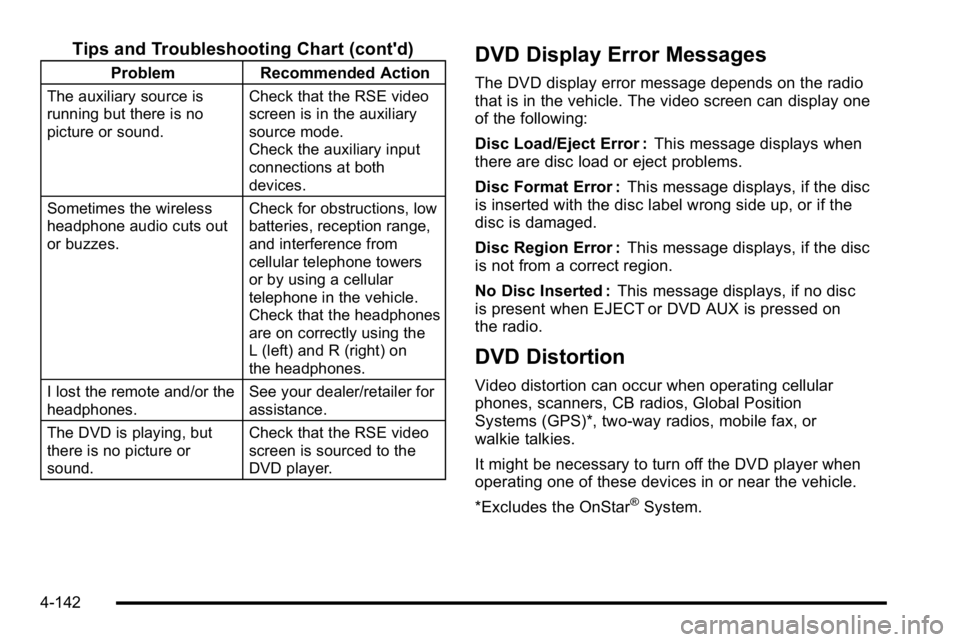
Tips and Troubleshooting Chart (cont'd)
ProblemRecommended Action
The auxiliary source is
running but there is no
picture or sound. Check that the RSE video
screen is in the auxiliary
source mode.
Check the auxiliary input
connections at both
devices.
Sometimes the wireless
headphone audio cuts out
or buzzes. Check for obstructions, low
batteries, reception range,
and interference from
cellular telephone towers
or by using a cellular
telephone in the vehicle.
Check that the headphones
are on correctly using the
L (left) and R (right) on
the headphones.
I lost the remote and/or the
headphones. See your dealer/retailer for
assistance.
The DVD is playing, but
there is no picture or
sound. Check that the RSE video
screen is sourced to the
DVD player.
DVD Display Error Messages
The DVD display error message depends on the radio
that is in the vehicle. The video screen can display one
of the following:
Disc Load/Eject Error :
This message displays when
there are disc load or eject problems.
Disc Format Error : This message displays, if the disc
is inserted with the disc label wrong side up, or if the
disc is damaged.
Disc Region Error : This message displays, if the disc
is not from a correct region.
No Disc Inserted : This message displays, if no disc
is present when EJECT or DVD AUX is pressed on
the radio.
DVD Distortion
Video distortion can occur when operating cellular
phones, scanners, CB radios, Global Position
Systems (GPS)*, two-way radios, mobile fax, or
walkie talkies.
It might be necessary to turn off the DVD player when
operating one of these devices in or near the vehicle.
*Excludes the OnStar
®System.
4-142
Page 361 of 630
Cleaning the RSE Overhead Console
When cleaning the RSE overhead console surface, use
only a clean cloth dampened with clean water.
Cleaning the Video Screen
When cleaning the video screen, use only a clean cloth
dampened with clean water. Use care when directly
touching or cleaning the screen, as damage could
result.
Rear Seat Audio (RSA)
Vehicles with this feature allow the rear seat
passengers to listen to and control any of the music
sources: radio, CDs, DVDs, or other auxiliary sources.
However, the rear seat passengers can only control the
music sources the front seat passengers are not
listening to (except on some radios where dual control
is allowed). For example, rear seat passengers can
control and listen to a CD through the headphones,
while the driver listens to the radio through the front
speakers. The rear seat passengers have control of the
volume for each set of headphones.The radio functionality is controlled by both the RSA
and the front radio. Only one band can be tuned to at
one time. Changing the band on the RSA or the front
radio will change the band on the other system, if they
are both sourced to the radio.
The RSA functions can be used even while the main
radio is off. The front audio system will display the
headphone icon when the RSA is on, and will disappear
from the display when it is off.
Audio can be heard through wired headphones
(not included) plugged into the jacks on the RSA.
If the vehicle has this feature, audio can also be heard
on Channel 2 of the wireless headphones.
Depending on the audio system, the rear speakers may
continue to play when the RSA audio is active through
the headphones.
To listen to an iPod or portable audio device through the
RSA, attach the iPod or portable audio device to the
front auxiliary input (if available), located on the front
audio system. Turn the iPod on, then choose the front
auxiliary input with the RSA SRCE button.
4-143
Page 362 of 630

P(Power):Press this button to turn the RSA on or off.
Volume : Turn the volume knob to increase or to
decrease the volume of the wired headphones. The left
knob controls the left headphones and the right knob
controls the right headphones.
SRCE (Source) : Press this button to switch between
the radio (AM/FM), XM™ (if equipped), CD, and if the
vehicle has these features, DVD, front auxiliary, and
rear auxiliary.
© ¨(Seek): When listening to FM, AM, or XM™
(if equipped), press the seek arrows to go to the
previous or to the next station or channels and stay
there. This function is inactive, with some radios, if the
front seat passengers are listening to the radio.
Press and hold either seek arrow until the display
flashes, to tune to an individual station. The display
stops flashing after the buttons have not been pushed
for more than two seconds. This function is inactive,
with some radios, if the front seat passengers are
listening to the radio.
While listening to a disc, press the left seek arrow to go
back to the start of the current track or chapter (if more
than ten seconds have played). Press the right seek
arrow to go the next track or chapter on the disc. This
function is inactive, with some radios, if the front seat
passengers are listening to the disc.
While a DVD video menu is being displayed, press
either seek arrow to perform a cursor up or down on the
menu. Hold either seek arrow to perform a cursor left or
right on the menu.
PROG (Program) : Press this button to go to the next
preset radio station or channel set on the main radio.
This function is inactive, with some radios, if the front
seat passengers are listening to the radio.
4-144
Page 363 of 630
While a CD or DVD audio disc is playing, press this
button to go to the beginning of the CD or DVD audio.
This function is inactive, with some radios, if the front
seat passengers are listening to the CD or DVD audio.
While a disc is playing in the CD or DVD changer, press
this button to select the next disc, if multiple discs are
loaded. This function is inactive, with some radios, if the
front seat passengers are listening to the disc.
While a DVD video menu is being displayed, press the
PROG button to perform the menu function, Enter.
Theft-Deterrent Feature
THEFTLOCK®is designed to discourage theft of the
vehicle's radio by learning a portion of the Vehicle
Identification Number (VIN). The radio does not operate
if it is stolen or moved to a different vehicle.
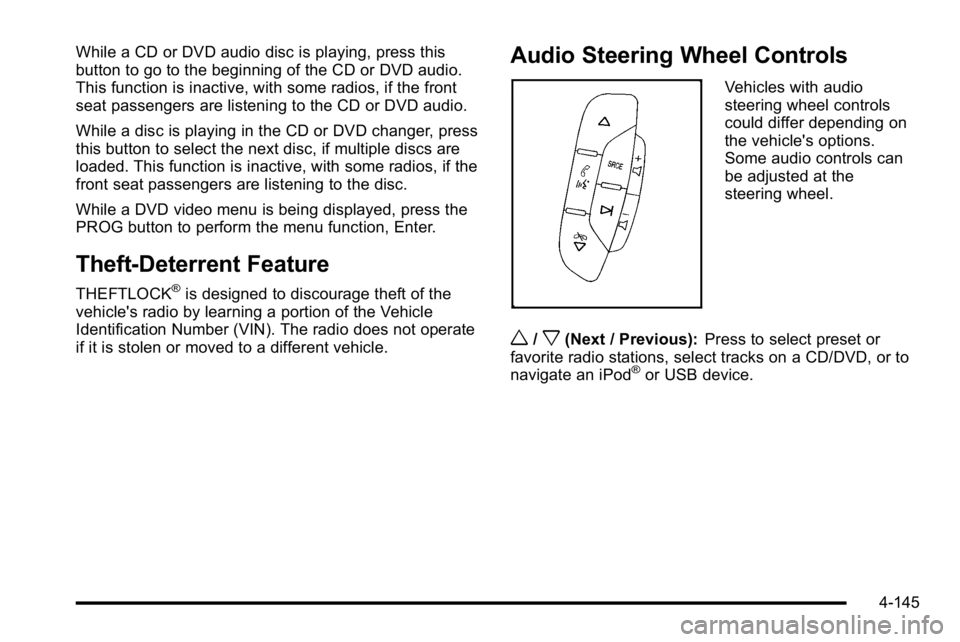
Audio Steering Wheel Controls
Vehicles with audio
steering wheel controls
could differ depending on
the vehicle's options.
Some audio controls can
be adjusted at the
steering wheel.
w/x(Next / Previous): Press to select preset or
favorite radio stations, select tracks on a CD/DVD, or to
navigate an iPod
®or USB device.
4-145
Page 364 of 630
Radio
To select preset or favorite radio stations:
Press and release
worxto go to the next or
previous radio station stored as a preset or favorite.
CD/DVD
To select tracks on a CD/DVD:
Press and release
worxto go to the next or
previous track.
Select tracks on an iPod or USB Device
(Vehicles without a Navigation System)
1. Press and holdworxwhile listening to a song
until the contents of the current folder display on
the radio display.
2. Press and release
worxto scroll up or down the
list, then press and hold
w, or press¨to play
the highlighted track.
Navigating folders on an iPod or
USB Device (Vehicles without a
Navigation System):
1. Press and holdworxwhile listening to a song
until the contents of the current folder display on
the radio display.
2. Press and hold
xto go back to the previous
folder list.
3. Press and release
worxto scroll up or down
the list.
.To select a folder, press and holdw, or
press
¨when the folder is highlighted.
.To go back further in the folder list, press and
hold
x.
4-146
Page 365 of 630
Navigating an iPod or USB Device on the
Main Audio Screen (Vehicles with a
Navigation System)
Press and releaseworxto select the next or
previous track within the selected category.
Press and hold
worxto move quickly through the
tracks.
Press and release
¨to move up one track within the
selected category.
Navigating an iPod or USB Device on the
Music Navigator Screen (Vehicles with a
Navigation System)
Press and releaseworxto select the next or
previous track within the selected category.
Press and hold
worxto move quickly through the
tracks within the selected category.
Press and release
¨to move up one track within the
selected category.
b g(Mute/Push to Talk): Press to silence the vehicle
speakers only. Press again to turn the sound on.
For vehicles with Bluetooth or OnStar
®systems, press
and hold for longer than two seconds to interact with
those systems. See Bluetooth
®on page 4‑123and the
OnStar Owner's Guide for more information.
c(End): Press to reject an incoming call, or end a
current call.
SRCE (Source/Voice Recognition) : Press to switch
between the radio, CD, and for vehicles with, DVD, front
auxiliary, and rear auxiliary.
For vehicles with the navigation system, press and hold
this button for longer than one second to initiate voice
recognition. See “Voice Recognition” in the Navigation
System manual for more information.
4-147
Page 366 of 630
¨(Seek):Press to go to the next radio station while
in AM, FM, or XM™.
For vehicles with or without a navigation system:
Press
¨to go to the next track or chapter while
sourced to the CD or DVD slot.
Press
¨to select a track or a folder when navigating
folders on an iPod or USB device.
For vehicles with a navigation system:
1. Press and hold
¨until a beep is heard, to place
the radio into SCAN mode, a station will play for
five seconds before moving to the next station.
2. To stop the SCAN function, press
¨again.
While listening to a CD/DVD, press and hold
¨to
quickly move forward through the tracks. Release to
stop on the desired track.
+
e−e(Volume): Press to increase or to decrease
the volume.
Radio Reception
Frequency interference and static can occur during
normal radio reception if items such as cell phone
chargers, vehicle convenience accessories, and
external electronic devices are plugged into the
accessory power outlet. If there is interference or static,
unplug the item from the accessory power outlet.
AM
The range for most AM stations is greater than for FM,
especially at night. The longer range can cause station
frequencies to interfere with each other. For better radio
reception, most AM radio stations boost the power
levels during the day, and then reduce these levels
during the night. Static can also occur when things like
storms and power lines interfere with radio reception.
When this happens, try reducing the treble on the radio.
FM Stereo
FM signals only reach about 10 to 40 miles
(16 to 65 km). Although the radio has a built-in electronic
circuit that automatically works to reduce interference,
some static can occur, especially around tall buildings
or hills, causing the sound to fade in and out.
4-148
Page 367 of 630
XM™Satellite Radio Service
XM Satellite Radio Service gives digital radio reception
from coast-to-coast in the 48 contiguous United States,
and in Canada. Just as with FM, tall buildings or hills
can interfere with satellite radio signals, causing the
sound to fade in and out. In addition, traveling or
standing under heavy foliage, bridges, garages,
or tunnels may cause loss of the XM signal for a
period of time.
Cellular Phone Usage
Cellular phone usage may cause interference
with the vehicle's radio. This interference may occur
when making or receiving phone calls, charging
the phone's battery, or simply having the phone on.
This interference causes an increased level of static
while listening to the radio. If static is received while
listening to the radio, unplug the cellular phone
and turn it off.
Fixed Mast Antenna
The fixed mast antenna can withstand most car washes
without being damaged as long as it is securely
attached to the base. If the mast becomes slightly bent,
straighten it out by hand. If the mast is badly bent,
replace it.
Occasionally check to make sure the antenna is
tightened to its base. If tightening is required, tighten
by hand until fully seated plus one quarter turn.
XM™Satellite Radio Antenna
System
The XM Satellite Radio antenna is located on the roof of
the vehicle. Keep the antenna clear of obstructions for
clear radio reception.
If the vehicle has a sunroof, the performance of the
XM system may be affected if the sunroof is open.
4-149
Page 491 of 630
To avoid the possibility of the vehicles rolling, set
the parking brake firmly on both vehicles involved
in the jump start procedure. Put the automatic
transmission in P (Park) or a manual transmission
in Neutral before setting the parking brake. If you
have a four-wheel-drive vehicle, be sure the
transfer case is in a drive gear, not in Neutral.
Notice: If you leave the radio or other accessories
on during the jump starting procedure, they could
be damaged. The repairs would not be covered by
the warranty. Always turn off the radio and other
accessories when jump starting the vehicle.
4. Turn off the ignition on both vehicles. Unplug unnecessary accessories plugged into the
cigarette lighter or the accessory power outlets.
Turn off the radio and all the lamps that are not
needed. This will avoid sparks and help save
both batteries. And it could save the radio!
5. Open the hood on the other vehicle and locate the positive (+) and negative (−) terminal locations on
that vehicle.
The positive (+) terminal, is located under a
red plastic cover at the positive battery post.
To uncover the positive (+) terminal, open the
red plastic cover.
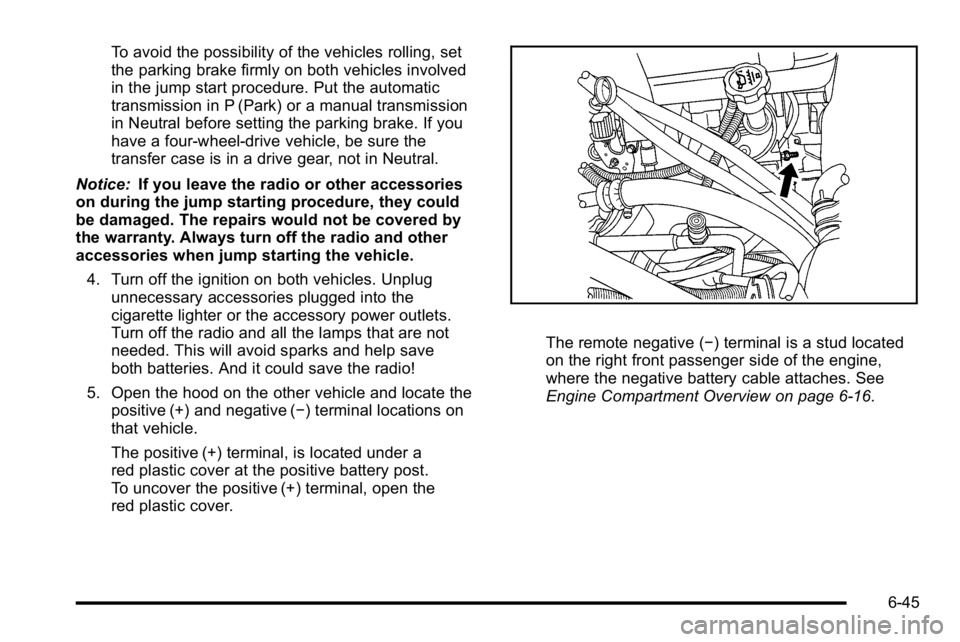
The remote negative (−) terminal is a stud located
on the right front passenger side of the engine,
where the negative battery cable attaches. See
Engine Compartment Overview on page 6‑16.
6-45
Page 521 of 630
{WARNING:
If you operate your vehicle with a tire that is badly
underinflated, the tire can overheat. An
overheated tire can lose air suddenly or catch fire.
You or others could be injured. Be sure all tires
(including the spare) are properly inflated.
See Inflation - Tire Pressure
on page 6‑72, for
information on proper tire inflation.
Tire Pressure Monitor System
The Tire Pressure Monitor System (TPMS) uses radio
and sensor technology to check tire pressure levels.
The TPMS sensors monitor the air pressure in your
vehicle's tires and transmit tire pressure readings to a
receiver located in the vehicle.
Each tire, including the spare (if provided), should be
checked monthly when cold and inflated to the inflation
pressure recommended by the vehicle manufacturer
on the vehicle placard or tire inflation pressure label.
(If your vehicle has tires of a different size than the size
indicated on the vehicle placard or tire inflation pressure
label, you should determine the proper tire inflation
pressure for those tires.) As an added safety feature, your vehicle has been
equipped with a tire pressure monitoring system
(TPMS) that illuminates a low tire pressure telltale when
one or more of your tires is significantly under‐inflated.
Accordingly, when the low tire pressure telltale
illuminates, you should stop and check your tires as
soon as possible, and inflate them to the proper
pressure. Driving on a significantly under‐inflated tire
causes the tire to overheat and can lead to tire failure.
Under‐inflation also reduces fuel efficiency and tire
tread life, and may affect the vehicle's handling and
stopping ability.
Please note that the TPMS is not a substitute for proper
tire maintenance, and it is the driver's responsibility to
maintain correct tire pressure, even if under‐inflation
has not reached the level to trigger illumination of the
TPMS low tire pressure telltale.
Your vehicle has also been equipped with a TPMS
malfunction indicator to indicate when the system is
not operating properly. The TPMS malfunction indicator
is combined with the low tire pressure telltale. When
the system detects a malfunction, the telltale will
flash for approximately one minute and then remain
continuously illuminated. This sequence will continue
upon subsequent vehicle start‐ups as long as the
malfunction exists.
6-75