display GMC SIERRA 2011 Owner's Manual
[x] Cancel search | Manufacturer: GMC, Model Year: 2011, Model line: SIERRA, Model: GMC SIERRA 2011Pages: 594, PDF Size: 6.55 MB
Page 344 of 594
Black plate (50,1)GMC Sierra Owner Manual - 2011
9-50 Driving and Operating
Manual Mode
Range Selection Mode
(Allison®Transmission or
Hydra-Matic®6-Speed
Transmission)
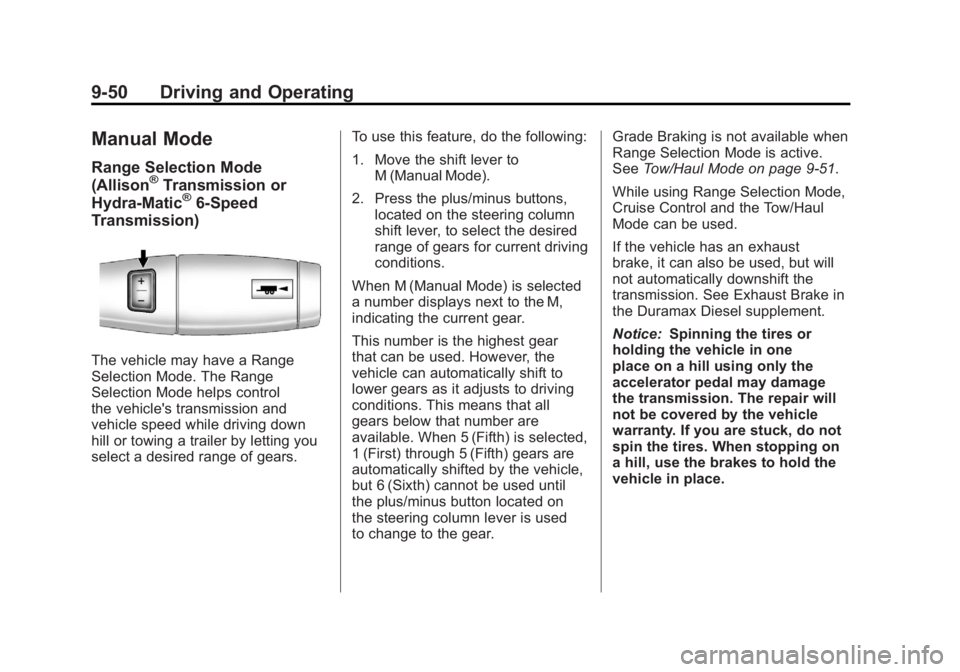
The vehicle may have a Range
Selection Mode. The Range
Selection Mode helps control
the vehicle's transmission and
vehicle speed while driving down
hill or towing a trailer by letting you
select a desired range of gears. To use this feature, do the following:
1. Move the shift lever to
M (Manual Mode).
2. Press the plus/minus buttons, located on the steering column
shift lever, to select the desired
range of gears for current driving
conditions.
When M (Manual Mode) is selected
a number displays next to the M,
indicating the current gear.
This number is the highest gear
that can be used. However, the
vehicle can automatically shift to
lower gears as it adjusts to driving
conditions. This means that all
gears below that number are
available. When 5 (Fifth) is selected,
1 (First) through 5 (Fifth) gears are
automatically shifted by the vehicle,
but 6 (Sixth) cannot be used until
the plus/minus button located on
the steering column lever is used
to change to the gear. Grade Braking is not available when
Range Selection Mode is active.
See
Tow/Haul Mode on page 9‑51.
While using Range Selection Mode,
Cruise Control and the Tow/Haul
Mode can be used.
If the vehicle has an exhaust
brake, it can also be used, but will
not automatically downshift the
transmission. See Exhaust Brake in
the Duramax Diesel supplement.
Notice: Spinning the tires or
holding the vehicle in one
place on a hill using only the
accelerator pedal may damage
the transmission. The repair will
not be covered by the vehicle
warranty. If you are stuck, do not
spin the tires. When stopping on
a hill, use the brakes to hold the
vehicle in place.
Page 365 of 594
Black plate (71,1)GMC Sierra Owner Manual - 2011
Driving and Operating 9-71
When the vehicle is started
and begins to move, the system
performs several diagnostic checks
to insure there are no problems.
The system may be heard or
felt while it is working. This is
normal and does not mean there
is a problem with the vehicle.
The system should initialize
before the vehicle reaches 32 km/h
(20 mph). In some cases, it may
take approximately 3.2 km (2 mi) of
driving before the system initializes.
If cruise control is being used when
StabiliTrak activates, the cruise
control automatically disengages.
The cruise control can be
re-engaged when road conditions
allow. SeeCruise Control on
page 9‑73 for more information.
If the system fails to turn on or
activate, the StabiliTrak light
along with one of the following
messages will be displayed
on the Driver Information
Center (DIC): TRACTION CONTROL OFF, SERVICE
TRACTION CONTROL,
STABILITRAK OFF, SERVICE
STABILITRAK. If these DIC
messages appear, make sure the
StabiliTrak system has not been
turned off using the StabiliTrak
on/off button. Then turn the vehicle
off, wait 15 seconds, and turn it
back on again to reset the system.
If any of these messages still
appear on the DIC, the vehicle
should be taken in for service.
For more information on the DIC
messages, see
Ride Control
System Messages on page 5‑47.
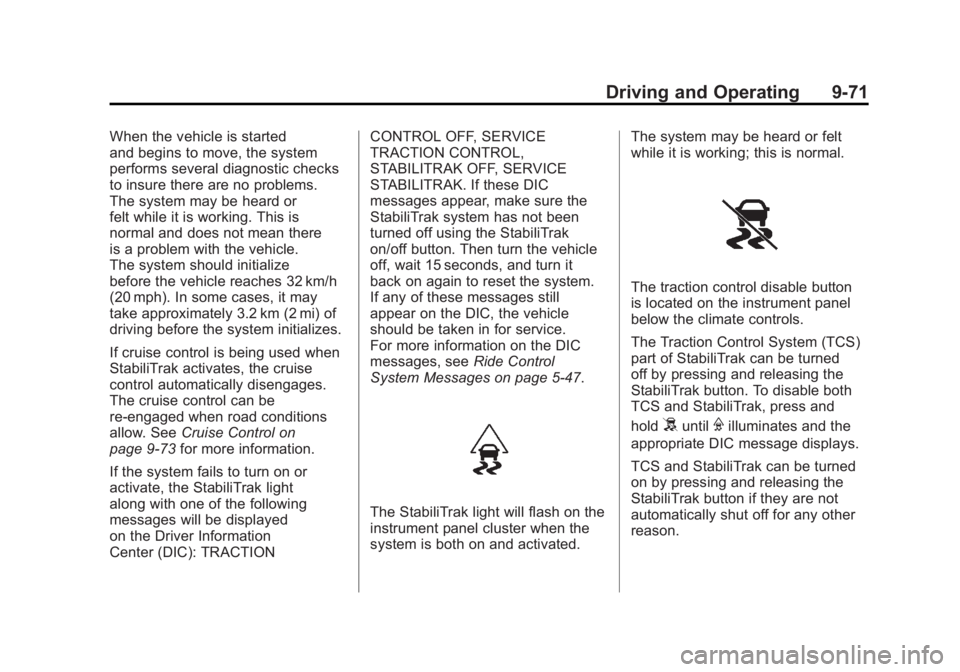
The StabiliTrak light will flash on the
instrument panel cluster when the
system is both on and activated. The system may be heard or felt
while it is working; this is normal.
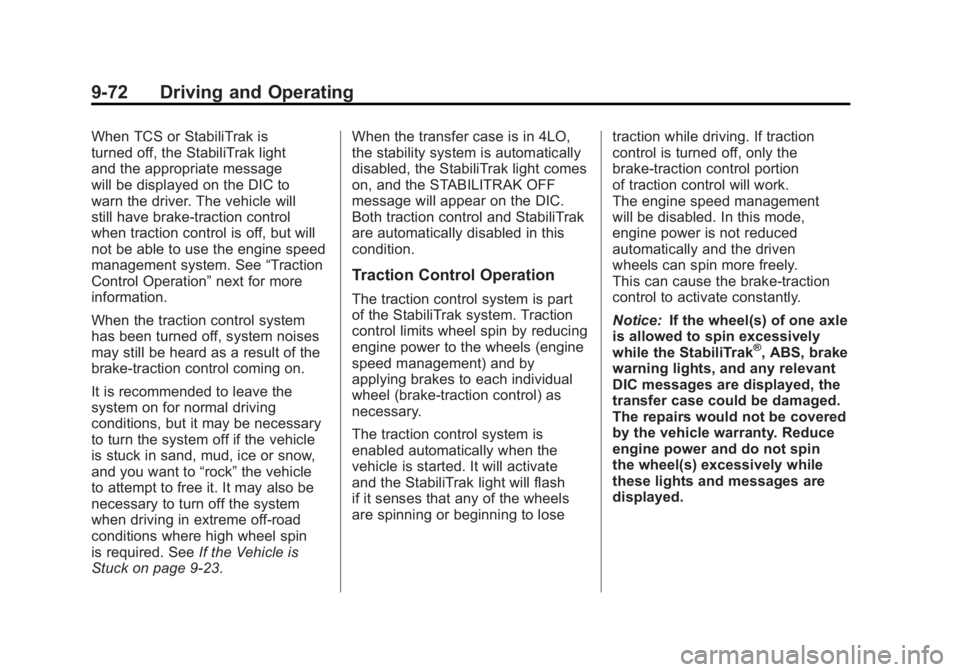
The traction control disable button
is located on the instrument panel
below the climate controls.
The Traction Control System (TCS)
part of StabiliTrak can be turned
off by pressing and releasing the
StabiliTrak button. To disable both
TCS and StabiliTrak, press and
hold
5untilFilluminates and the
appropriate DIC message displays.
TCS and StabiliTrak can be turned
on by pressing and releasing the
StabiliTrak button if they are not
automatically shut off for any other
reason.
Page 366 of 594
Black plate (72,1)GMC Sierra Owner Manual - 2011
9-72 Driving and Operating
When TCS or StabiliTrak is
turned off, the StabiliTrak light
and the appropriate message
will be displayed on the DIC to
warn the driver. The vehicle will
still have brake-traction control
when traction control is off, but will
not be able to use the engine speed
management system. See“Traction
Control Operation” next for more
information.
When the traction control system
has been turned off, system noises
may still be heard as a result of the
brake-traction control coming on.
It is recommended to leave the
system on for normal driving
conditions, but it may be necessary
to turn the system off if the vehicle
is stuck in sand, mud, ice or snow,
and you want to “rock”the vehicle
to attempt to free it. It may also be
necessary to turn off the system
when driving in extreme off-road
conditions where high wheel spin
is required. See If the Vehicle is
Stuck on page 9‑23. When the transfer case is in 4LO,
the stability system is automatically
disabled, the StabiliTrak light comes
on, and the STABILITRAK OFF
message will appear on the DIC.
Both traction control and StabiliTrak
are automatically disabled in this
condition.
Traction Control Operation
The traction control system is part
of the StabiliTrak system. Traction
control limits wheel spin by reducing
engine power to the wheels (engine
speed management) and by
applying brakes to each individual
wheel (brake-traction control) as
necessary.
The traction control system is
enabled automatically when the
vehicle is started. It will activate
and the StabiliTrak light will flash
if it senses that any of the wheels
are spinning or beginning to lose
traction while driving. If traction
control is turned off, only the
brake-traction control portion
of traction control will work.
The engine speed management
will be disabled. In this mode,
engine power is not reduced
automatically and the driven
wheels can spin more freely.
This can cause the brake-traction
control to activate constantly.
Notice:
If the wheel(s) of one axle
is allowed to spin excessively
while the StabiliTrak
®, ABS, brake
warning lights, and any relevant
DIC messages are displayed, the
transfer case could be damaged.
The repairs would not be covered
by the vehicle warranty. Reduce
engine power and do not spin
the wheel(s) excessively while
these lights and messages are
displayed.
Page 371 of 594
Black plate (77,1)GMC Sierra Owner Manual - 2011
Driving and Operating 9-77
How the System Works
URPA comes on automatically
when the shift lever is moved into
R (Reverse). A single tone sounds
to indicate the system is working.
URPA operates only at speeds less
than 8 km/h (5 mph).
An obstacle is indicated by audible
beeps. The interval between the
beeps becomes shorter as the
vehicle gets closer to the obstacle.
When the distance is less than
30 cm (12 in) the beeps are
continuous.
To be detected, objects must be at
least 25.4 cm (10 in) off the ground
and below tailgate level. Objects
must also be within 2.5 m (8 ft) from
the rear bumper. This distance may
be less during warmer or humid
weather.
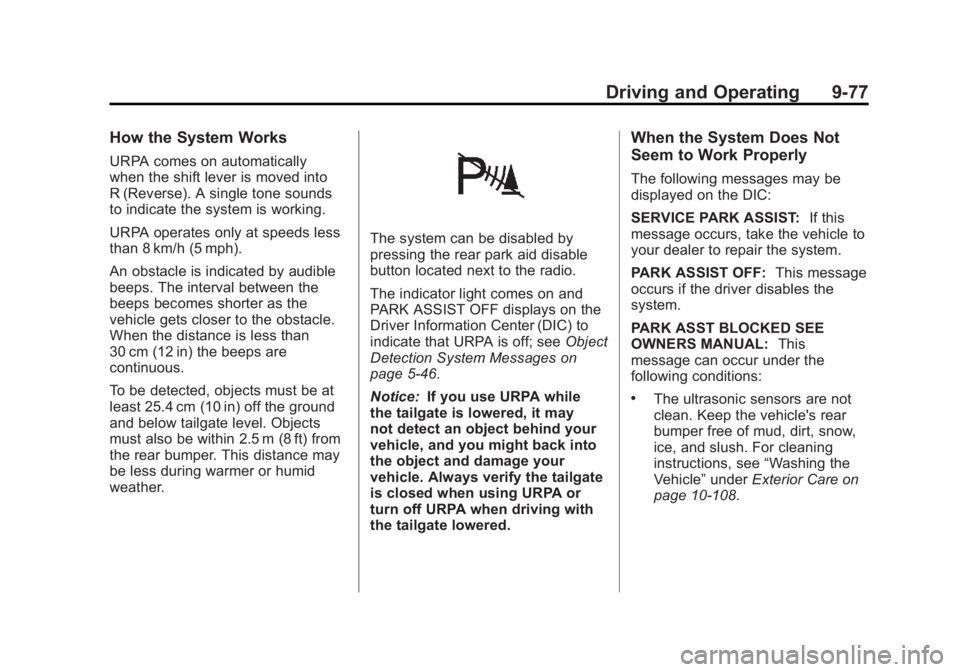
The system can be disabled by
pressing the rear park aid disable
button located next to the radio.
The indicator light comes on and
PARK ASSIST OFF displays on the
Driver Information Center (DIC) to
indicate that URPA is off; seeObject
Detection System Messages on
page 5‑46.
Notice: If you use URPA while
the tailgate is lowered, it may
not detect an object behind your
vehicle, and you might back into
the object and damage your
vehicle. Always verify the tailgate
is closed when using URPA or
turn off URPA when driving with
the tailgate lowered.
When the System Does Not
Seem to Work Properly
The following messages may be
displayed on the DIC:
SERVICE PARK ASSIST: If this
message occurs, take the vehicle to
your dealer to repair the system.
PARK ASSIST OFF: This message
occurs if the driver disables the
system.
PARK ASST BLOCKED SEE
OWNERS MANUAL: This
message can occur under the
following conditions:
.The ultrasonic sensors are not
clean. Keep the vehicle's rear
bumper free of mud, dirt, snow,
ice, and slush. For cleaning
instructions, see “Washing the
Vehicle” underExterior Care on
page 10‑108.
Page 373 of 594
Black plate (79,1)GMC Sierra Owner Manual - 2011
Driving and Operating 9-79
Vehicles without Navigation
System
The Rear Vision Camera system is
designed to help the driver when
backing up by displaying a view of
the area behind the vehicle. When
the key is in the ON/RUN position
and the driver shifts the vehicle
into R (Reverse), the video image
automatically appears on the inside
rearview mirror. Once the driver
shifts out of R (Reverse), the video
image automatically disappears
from the inside rearview mirror.
Turning the Rear Vision Camera
System Off or On
To turn off the RVC system, press
and hold
z, located on the inside
rearview mirror, until the left
indicator light turns off. The RVC
display is now disabled. To turn the RVC system on again,
press and hold
zuntil the left
indicator light illuminates. The RVC
system display is now enabled and
the display will appear in the mirror
normally.
Vehicles with Navigation
System
The RVC system is designed to
help the driver when backing up by
displaying a view of the area behind
the vehicle. When the driver shifts
the vehicle into R (Reverse), the
video image automatically appears
on the navigation screen. Once the
driver shifts out of R (Reverse), the
navigation screen will go back to the
last screen that had been displayed,
after a delay. Turning the Rear Vision Camera
System On or Off
To turn the RVC system on or off:
1. Shift into P (Park).
2. Press the MENU button to enter
the configure menu options,
then press the MENU hard key
to select Display or touch the
Display screen button.
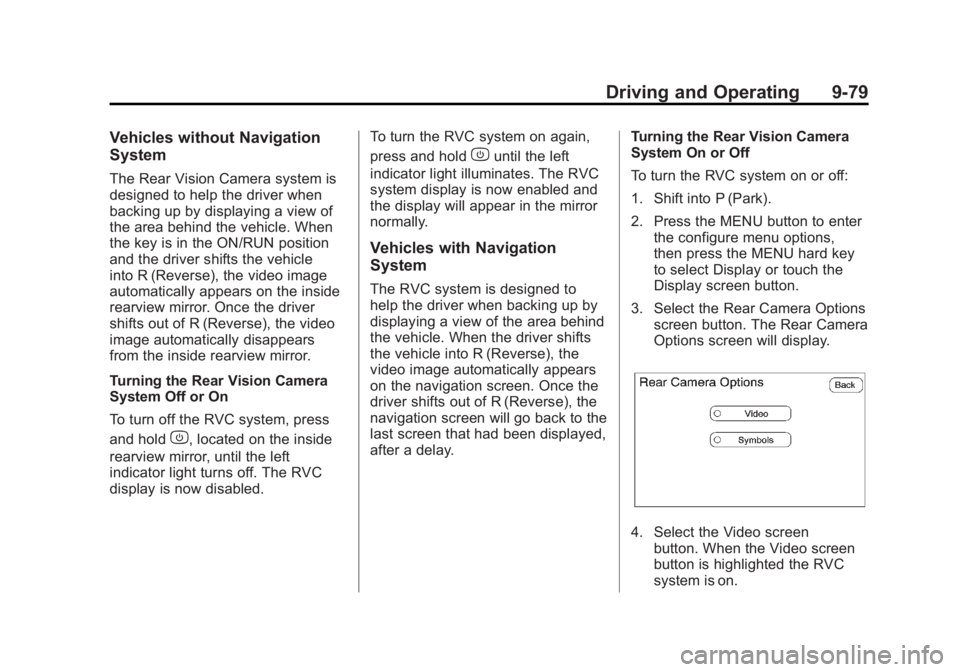
3. Select the Rear Camera Options screen button. The Rear Camera
Options screen will display.
4. Select the Video screenbutton. When the Video screen
button is highlighted the RVC
system is on.
Page 374 of 594
Black plate (80,1)GMC Sierra Owner Manual - 2011
9-80 Driving and Operating
The delay after shifting out of
R (Reverse) is approximately
10 seconds. The delay can be
cancelled by performing one of
the following:
.Pressing a hard key on the
navigation system.
.Shifting into P (Park).
.Reaching a vehicle speed of
8 km/h (5 mph).
There is a message on the rear
vision camera screen that states
“Check Surroundings for Safety.”
Adjusting the Brightness and
Contrast of the Screen
To adjust the brightness and
contrast of the screen, press the
MENU button while the rear vision
camera image is on the display.
Any adjustments made will only
affect the rear vision camera screen.
](Brightness): Touch the + (plus)
or –(minus) screen buttons to
increase or decrease the brightness
of the screen.
_(Contrast): Touch the + (plus) or
– (minus) screen buttons to increase
or decrease the contrast of the
screen.
Symbols
The navigation system may have
a feature that lets the driver view
symbols on the navigation screen
while using the RVC. The Ultrasonic
Rear Park Assist (URPA) system
must not be disabled to use the
caution symbols. If URPA has
been disabled and the symbols
have been turned on, the Rear
Parking Assist Symbols Unavailable
error message may display.
See Ultrasonic Parking Assist on
page 9‑76. The symbols appear when an object
has been detected by the URPA
system. The symbol may cover the
object when viewing the navigation
screen.
To turn the symbols on or off:
1. Make sure that URPA has not
been disabled.
2. Shift into P (Park).
3. Press the MENU hard key to enter the configure menu
options, then press the MENU
hard key repeatedly until Display
is selected or touch the Display
screen button.
4. Select the Rear Camera Options screen button. The Rear Camera
Options screen will display.
5. Touch the Symbols screen button. The screen button will
be highlighted when on.
Page 375 of 594
Black plate (81,1)GMC Sierra Owner Manual - 2011
Driving and Operating 9-81
Rear Vision Camera Error
Messages
Service Rear Vision Camera
System:This message can display
when the system is not receiving
information it requires from other
vehicle systems.
If any other problem occurs or if a
problem persists, see your dealer.
Rear Vision Camera Location
The rear vision camera is located in
the bezel for the tailgate handle. The camera uses a special lens.
The distance of the image that
appears on the screen differs from
the actual distance. The area
displayed by the camera is limited.
The camera does not display
objects which are close to either
corner of the bumper or under the
bumper. The area displayed on
the screen can vary according
to vehicle orientation or road
conditions.
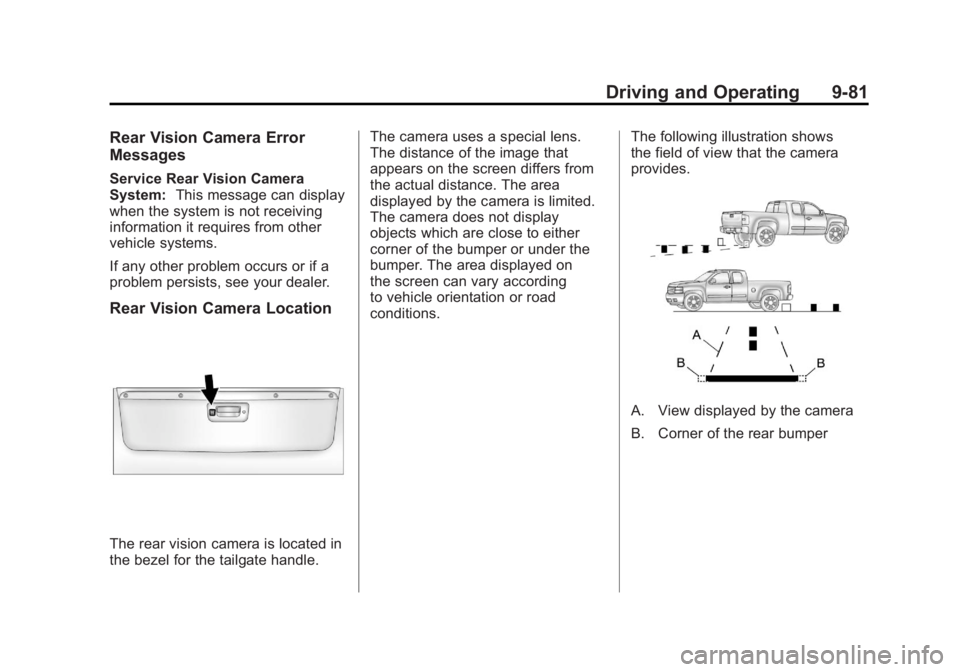
The following illustration shows
the field of view that the camera
provides.
A. View displayed by the camera
B. Corner of the rear bumper
Page 377 of 594
Black plate (83,1)GMC Sierra Owner Manual - 2011
Driving and Operating 9-83
When the System Does Not
Seem to Work Properly
The RVC system might not work
properly or display a clear image if:
.The RVC is turned off.
See“Turning the Rear Camera
System On or Off” earlier in this
section.
.It is dark.
.The sun or the beam of
headlights is shining directly
into the camera lens.
.Ice, snow, mud, or anything else
builds up on the camera lens.
Clean the lens, rinse it with
water, and wipe it with a soft
cloth.
.The back of the vehicle is in an
accident. If this happens, the
position and mounting angle
of the camera can change or
the camera can be affected.
Be sure to have the camera
and its position and mounting
angle checked at your dealer.
The RVC system display in the
rearview mirror may turn off or not
appear as expected due to one
of the following conditions. If this
occurs the left indicator light on
the mirror will flash.
.A slow flash may indicate a
loss of video signal, or no video
signal present during the reverse
cycle.
.A fast flash may indicate that
the display has been on for the
maximum allowable time during
a reverse cycle, or the display
has reached an Over
Temperature limit.
The fast flash conditions are
used to protect the video
device from high temperature
conditions. Once conditions
return to normal the device will
reset and the green indicator
will stop flashing.
During any of these fault conditions,
the display will be blank and the
indicator will continue to flash as
long as the vehicle is in R (Reverse)
or until the conditions return to
normal.
Pressing and holding
zwhen the
left indicator light is flashing will turn
off the video display along with the
left indicator light.
Page 383 of 594
Black plate (89,1)GMC Sierra Owner Manual - 2011
Driving and Operating 9-89
{WARNING
Fuel can spray out on you if you
open the fuel cap too quickly.
If you spill fuel and then
something ignites it, you could be
badly burned. This spray can
happen if the tank is nearly full,
and is more likely in hot weather.
Open the fuel cap slowly and wait
for any hiss noise to stop. Then
unscrew the cap all the way.
If the vehicle is a dual fuel tank
chassis cab model, and it runs out
of fuel, refuel the front fuel tank first
to ensure a quick restart.
Be careful not to spill fuel. Do not
top off or overfill the tank and wait a
few seconds after you have finished pumping before removing the
nozzle. Clean fuel from painted
surfaces as soon as possible.
See
Exterior Care on page 10‑108.
When replacing the fuel cap, turn it
clockwise until it clicks. It will require
more effort to turn the fuel cap on
the last turn as you tighten it. Make
sure the cap is fully installed. The
diagnostic system can determine if
the fuel cap has been left off or
improperly installed. This would
allow fuel to evaporate into the
atmosphere. See Malfunction
Indicator Lamp on page 5‑25.
The TIGHTEN GAS CAP message
displays on the Driver Information
Center (DIC) if the fuel cap is not
properly installed. See Fuel System
Messages on page 5‑46 for more
information.
{WARNING
If a fire starts while you are
refueling, do not remove the
nozzle. Shut off the flow of fuel
by shutting off the pump or by
notifying the station attendant.
Leave the area immediately.
Notice: If a new fuel cap is
needed, be sure to get the right
type of cap from your dealer.
The wrong type of fuel cap might
not fit properly, might cause the
malfunction indicator lamp to
light, and could damage the
fuel tank and emissions system.
See Malfunction Indicator Lamp
on page 5‑25.
Page 413 of 594
Black plate (119,1)GMC Sierra Owner Manual - 2011
Driving and Operating 9-119
When trailering, make sure of the
following:
.The ITBC system is used only
with trailers that are equipped
with electric brakes.
.All applicable local and federal
laws and regulations are
followed.
.All electrical and mechanical
connections to the trailer are
made correctly.
.The trailer’s brakes are in proper
working condition.
.The trailer and vehicle are
properly loaded for the towing
condition.
The ITBC system is a
factory-installed item. Out‐of‐factory
installation of this system should not
be attempted. GM is not responsible
for warranty or performance of the
system resulting from out‐of‐factory
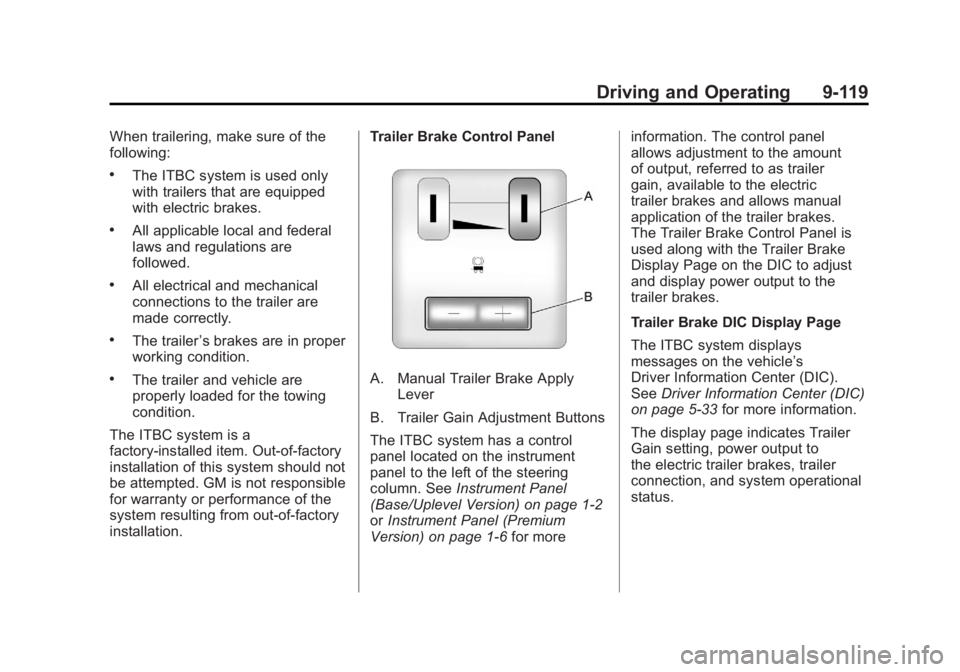
installation. Trailer Brake Control PanelA. Manual Trailer Brake Apply
Lever
B. Trailer Gain Adjustment Buttons
The ITBC system has a control
panel located on the instrument
panel to the left of the steering
column. See Instrument Panel
(Base/Uplevel Version) on page 1‑2
or Instrument Panel (Premium
Version) on page 1‑6 for moreinformation. The control panel
allows adjustment to the amount
of output, referred to as trailer
gain, available to the electric
trailer brakes and allows manual
application of the trailer brakes.
The Trailer Brake Control Panel is
used along with the Trailer Brake
Display Page on the DIC to adjust
and display power output to the
trailer brakes.
Trailer Brake DIC Display Page
The ITBC system displays
messages on the vehicle’s
Driver Information Center (DIC).
See
Driver Information Center (DIC)
on page 5‑33 for more information.
The display page indicates Trailer
Gain setting, power output to
the electric trailer brakes, trailer
connection, and system operational
status.