steering wheel GMC SIERRA 2011 Owner's Guide
[x] Cancel search | Manufacturer: GMC, Model Year: 2011, Model line: SIERRA, Model: GMC SIERRA 2011Pages: 594, PDF Size: 6.55 MB
Page 150 of 594
Black plate (2,1)GMC Sierra Owner Manual - 2011
5-2 Instruments and Controls
Tire Messages . . . . . . . . . . . . . . . 5-49
Transmission Messages . . . . . 5-50
Vehicle ReminderMessages . . . . . . . . . . . . . . . . . . 5-50
Washer Fluid Messages . . . . . 5-51
Vehicle Personalization
Vehicle Personalization
(with DIC Buttons) . . . . . . . . . . 5-52
Universal Remote System
Universal Remote System . . . 5-61
Universal Remote SystemProgramming . . . . . . . . . . . . . . . 5-61
Universal Remote System Operation . . . . . . . . . . . . . . . . . . 5-67
Controls
Steering Wheel
Adjustment
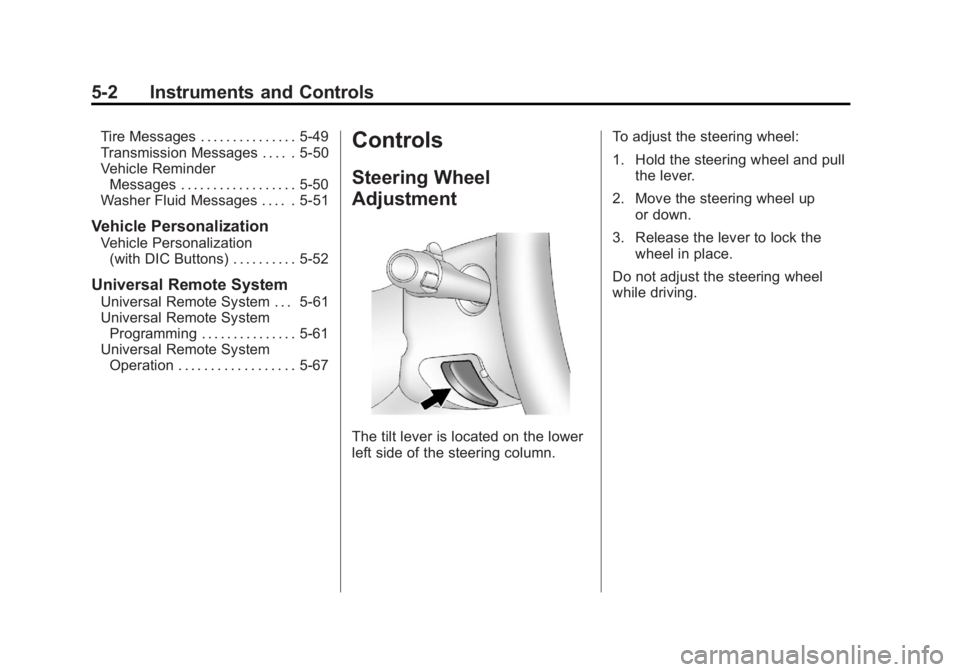
The tilt lever is located on the lower
left side of the steering column. To adjust the steering wheel:
1. Hold the steering wheel and pull
the lever.
2. Move the steering wheel up or down.
3. Release the lever to lock the wheel in place.
Do not adjust the steering wheel
while driving.
Page 151 of 594
Black plate (3,1)GMC Sierra Owner Manual - 2011
Instruments and Controls 5-3
Steering Wheel Controls
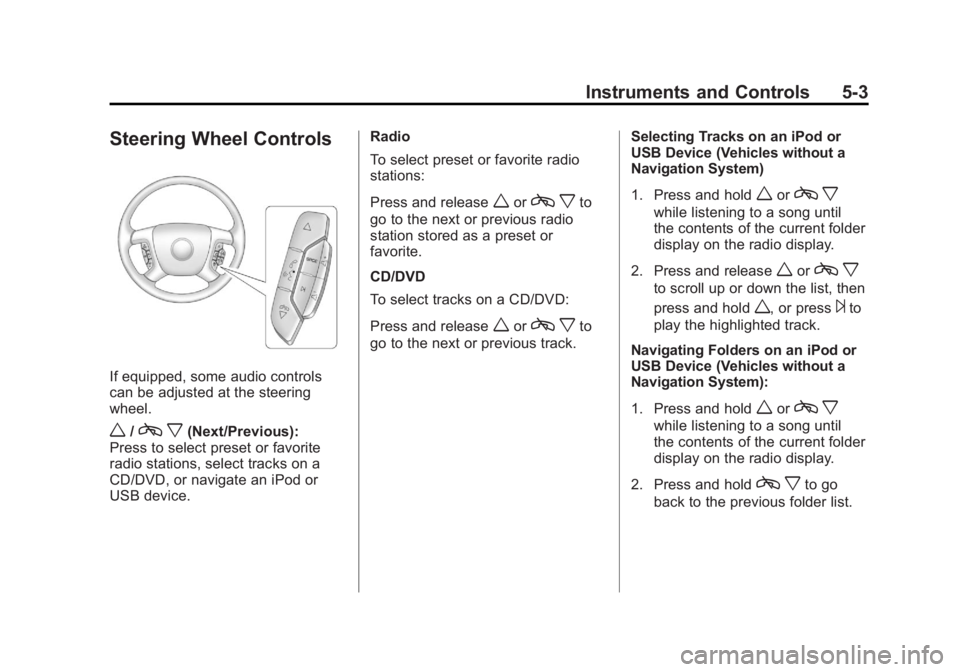
If equipped, some audio controls
can be adjusted at the steering
wheel.
w/cx(Next/Previous):
Press to select preset or favorite
radio stations, select tracks on a
CD/DVD, or navigate an iPod or
USB device. Radio
To select preset or favorite radio
stations:
Press and release
worc
xto
go to the next or previous radio
station stored as a preset or
favorite.
CD/DVD
To select tracks on a CD/DVD:
Press and release
worc xto
go to the next or previous track. Selecting Tracks on an iPod or
USB Device (Vehicles without a
Navigation System)
1. Press and hold
worc
x
while listening to a song until
the contents of the current folder
display on the radio display.
2. Press and release
worc x
to scroll up or down the list, then
press and hold
w, or press¨to
play the highlighted track.
Navigating Folders on an iPod or
USB Device (Vehicles without a
Navigation System):
1. Press and hold
worc x
while listening to a song until
the contents of the current folder
display on the radio display.
2. Press and hold
c xto go
back to the previous folder list.
Page 153 of 594
Black plate (5,1)GMC Sierra Owner Manual - 2011
Instruments and Controls 5-5
Press¨to select a track or a folder
when navigating folders on an iPod
or USB device.
For vehicles with a navigation
system:
1. Press and hold
¨until a beep
is heard, to place the radio into
SCAN mode. A station will play
for five seconds before moving
to the next station.
2. To stop the SCAN function, press
¨again.
While listening to a CD/DVD, press
and hold
¨to quickly move forward
through the tracks. Release to stop
on the desired track.
+
e−e(Volume): Press to
increase or to decrease the volume.
Horn
To sound the horn, press the center
pad on the steering wheel.
Windshield Wiper/Washer
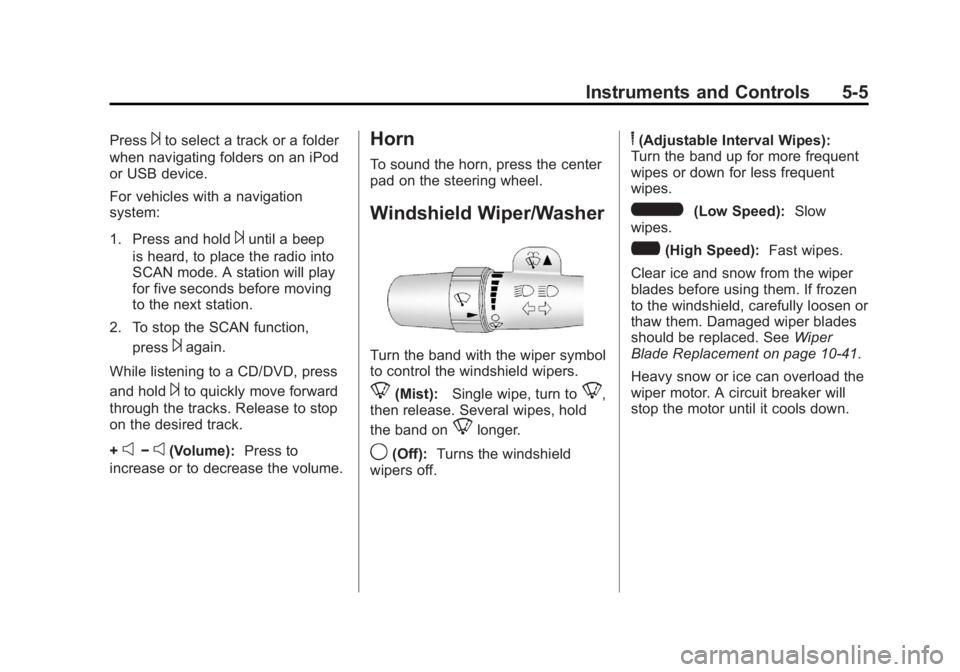
Turn the band with the wiper symbol
to control the windshield wipers.
8(Mist): Single wipe, turn to8,
then release. Several wipes, hold
the band on
8longer.
9(Off): Turns the windshield
wipers off.
6(Adjustable Interval Wipes):
Turn the band up for more frequent
wipes or down for less frequent
wipes.
6(Low Speed): Slow
wipes.
?(High Speed): Fast wipes.
Clear ice and snow from the wiper
blades before using them. If frozen
to the windshield, carefully loosen or
thaw them. Damaged wiper blades
should be replaced. See Wiper
Blade Replacement on page 10‑41.
Heavy snow or ice can overload the
wiper motor. A circuit breaker will
stop the motor until it cools down.
Page 175 of 594
Black plate (27,1)GMC Sierra Owner Manual - 2011
Instruments and Controls 5-27
Emissions Inspection and
Maintenance Programs
Some state/provincial and
local governments may have
programs to inspect the on-vehicle
emission control equipment.
For the inspection, the emission
system test equipment is connected
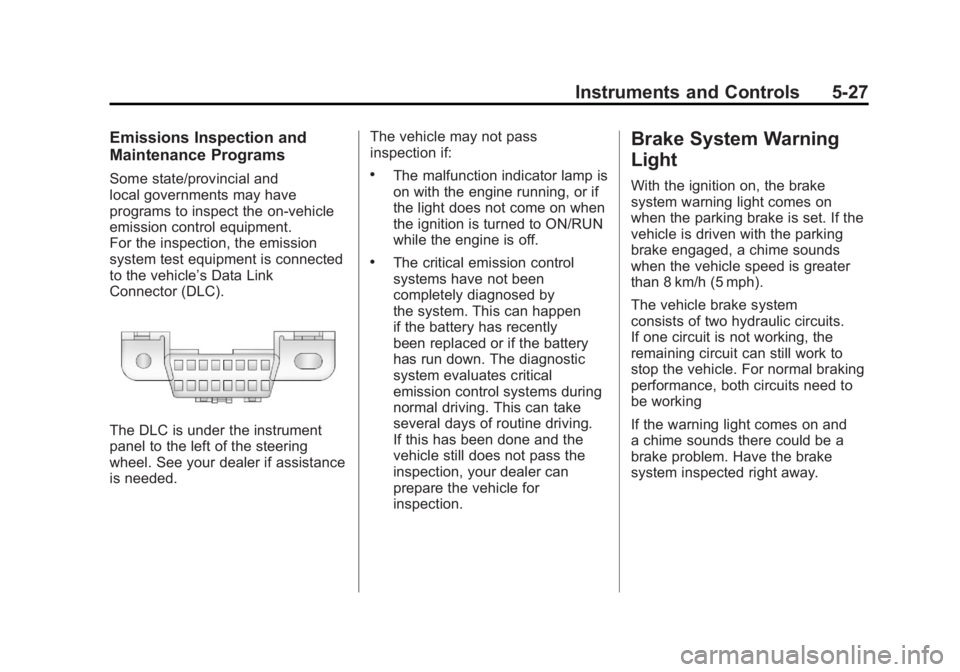
to the vehicle’s Data Link
Connector (DLC).
The DLC is under the instrument
panel to the left of the steering
wheel. See your dealer if assistance
is needed.The vehicle may not pass
inspection if:
.The malfunction indicator lamp is
on with the engine running, or if
the light does not come on when
the ignition is turned to ON/RUN
while the engine is off.
.The critical emission control
systems have not been
completely diagnosed by
the system. This can happen
if the battery has recently
been replaced or if the battery
has run down. The diagnostic
system evaluates critical
emission control systems during
normal driving. This can take
several days of routine driving.
If this has been done and the
vehicle still does not pass the
inspection, your dealer can
prepare the vehicle for
inspection.
Brake System Warning
Light
With the ignition on, the brake
system warning light comes on
when the parking brake is set. If the
vehicle is driven with the parking
brake engaged, a chime sounds
when the vehicle speed is greater
than 8 km/h (5 mph).
The vehicle brake system
consists of two hydraulic circuits.
If one circuit is not working, the
remaining circuit can still work to
stop the vehicle. For normal braking
performance, both circuits need to
be working
If the warning light comes on and
a chime sounds there could be a
brake problem. Have the brake
system inspected right away.
Page 181 of 594
Black plate (33,1)GMC Sierra Owner Manual - 2011
Instruments and Controls 5-33
Information Displays
Driver Information
Center (DIC)
The vehicle has a Driver Information
Center (DIC).
The DIC displays information about
this vehicle. It also displays warning
messages if a system problem is
detected.
All messages will appear in the
DIC display located below the
tachometer in the instrument panel
cluster.
The DIC comes on when the ignition
is on. After a short delay, the DIC
will display the information that was
last displayed before the engine
was turned off.The DIC has different displays
which can be accessed by
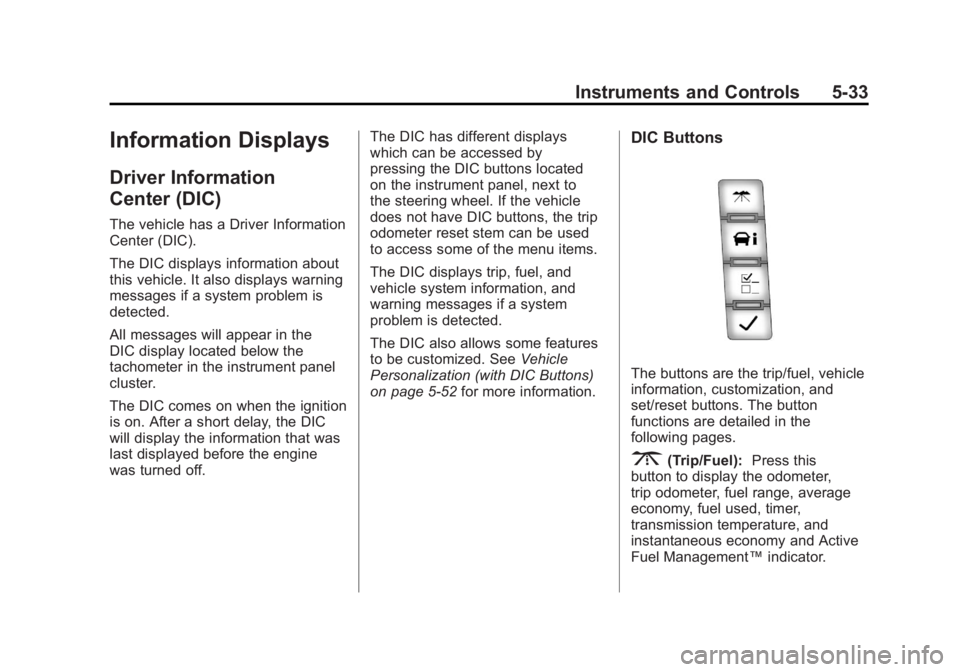
pressing the DIC buttons located
on the instrument panel, next to
the steering wheel. If the vehicle
does not have DIC buttons, the trip
odometer reset stem can be used
to access some of the menu items.
The DIC displays trip, fuel, and
vehicle system information, and
warning messages if a system
problem is detected.
The DIC also allows some features
to be customized. See
Vehicle
Personalization (with DIC Buttons)
on page 5‑52 for more information.
DIC Buttons
The buttons are the trip/fuel, vehicle
information, customization, and
set/reset buttons. The button
functions are detailed in the
following pages.
3(Trip/Fuel):Press this
button to display the odometer,
trip odometer, fuel range, average
economy, fuel used, timer,
transmission temperature, and
instantaneous economy and Active
Fuel Management™ indicator.
Page 217 of 594
Black plate (1,1)GMC Sierra Owner Manual - 2011
Lighting 6-1
Lighting
Exterior Lighting
Exterior Lamp Controls . . . . . . . . 6-1
Exterior Lamps OffReminder . . . . . . . . . . . . . . . . . . . . 6-3
Headlamp High/Low-Beam Changer . . . . . . . . . . . . . . . . . . . . . 6-3
Flash-to-Pass . . . . . . . . . . . . . . . . . 6-3
Daytime Running Lamps (DRL) . . . . . . . . . . . . . . . . 6-4
Automatic Headlamp System . . . . . . . . . . . . . . . . . . . . . . 6-4
Hazard Warning Flashers . . . . . 6-5
Turn and Lane-Change Signals . . . . . . . . . . . . . . . . . . . . . . 6-6
Fog Lamps . . . . . . . . . . . . . . . . . . . . 6-6
Auxiliary Roof-Mounted Lamp . . . . . . . . . 6-7
Interior Lighting
Instrument Panel IlluminationControl . . . . . . . . . . . . . . . . . . . . . . 6-7
Cargo Lamp . . . . . . . . . . . . . . . . . . 6-8
Dome Lamps . . . . . . . . . . . . . . . . . 6-8
Reading Lamps . . . . . . . . . . . . . . . 6-9
Lighting Features
Entry Lighting . . . . . . . . . . . . . . . . . 6-9
Exit Lighting . . . . . . . . . . . . . . . . . . . 6-9
Battery Load Management . . . . 6-9
Battery Power Protection . . . . 6-10
Exterior Lighting
Exterior Lamp Controls
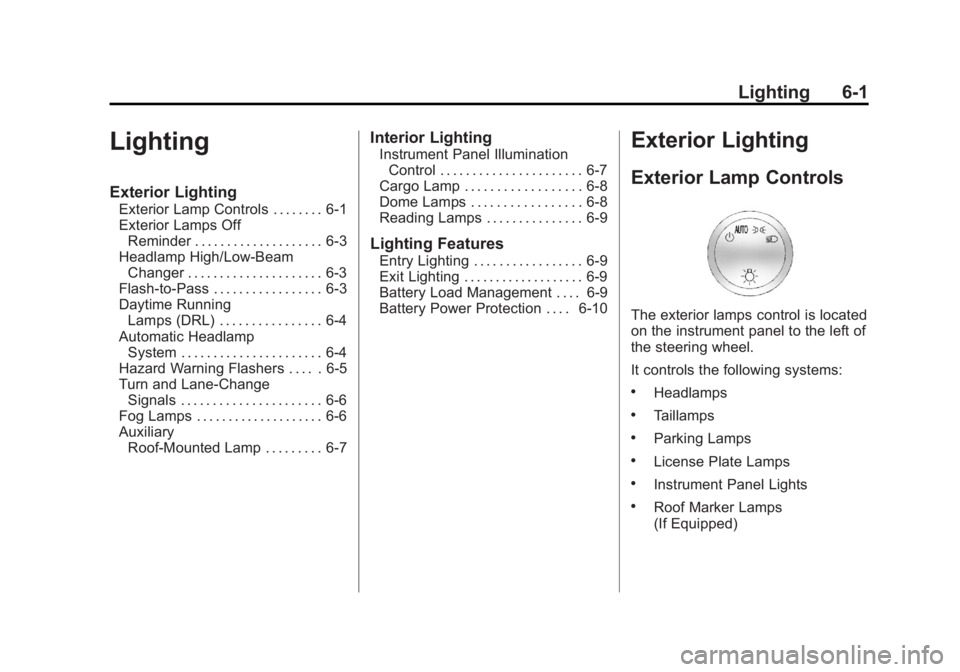
The exterior lamps control is located
on the instrument panel to the left of
the steering wheel.
It controls the following systems:
.Headlamps
.Taillamps
.Parking Lamps
.License Plate Lamps
.Instrument Panel Lights
.Roof Marker Lamps
(If Equipped)
Page 235 of 594
Black plate (9,1)GMC Sierra Owner Manual - 2011
Infotainment System 7-9
¨SEEK:Press to seek the next
radio station. Press and hold for a
few seconds until a beep sounds to
scan for radio stations in ascending
order; press the
©SEEK button
again to stop scanning radio
stations. The radio only seeks and
scans stations with a strong signal
that are in the selected band.
For the AM-FM Radio, press and
hold the
¨SEEK for four seconds
until a double beep sounds to scan
the preset stations. The station
frequency flashes while the radio
is in the scan mode.
sREV: Press to manually tune to
a radio station in descending order.
\FWD: Press to manually tune to
a radio station in ascending order.
FAV (Favorites): Press to select
different favorites pages for stored
radio stations.
Storing Radio Stations
Drivers are encouraged to store
the radio station while the vehicle
is parked; see Defensive Driving on
page 9‑2. Tune to stored radio
stations using the presets, favorites
button, and steering wheel controls,
if the vehicle has this feature.
Radios that have a FAV button
store radio stations as favorites. Up
to 36 stations can be programmed
as favorites using the six softkeys
below the radio station frequency
tabs and by using the FAV button.
Press the FAV button to go through
up to six pages of favorites, each
having six favorite stations available
per page. Each page of favorites
can contain any combination of AM,
FM, or XM, if equipped, stations.
Radios that do not have a
FAV button store radio stations
as presets. Up to 18 stations
(6 FM1, 6 FM2, and 6 AM), can
be programmed on the six
numbered pushbuttons. Setting Preset Stations
To store presets:
1. Tune to a radio station.
2. Press and hold one of the
six numbered pushbuttons for
three seconds until a beep
sounds.
3. Repeat Steps 1 and 2 to store additional radio stations.
Storing a Radio Station as a
Favorite
To store a station as a favorite:
1. Tune to a radio station.
2. Press the FAV button to display the page where the station will
be stored.
3. Press and hold one of the six softkeys until a beep sounds.
4. Repeat Steps 1 through 3 to store additional radio stations.
Page 238 of 594
Black plate (12,1)GMC Sierra Owner Manual - 2011
7-12 Infotainment System
Storing XM Channels
Drivers are encouraged to store
XM channels while the vehicle is
parked; seeDefensive Driving on
page 9‑2. Tune to stored radio
stations using the presets, favorites
button, and steering wheel controls,
if the vehicle has this feature.
Up to 36 stations can be
programmed as favorites using
the six softkeys below the radio
station frequency tabs and by
using the FAV button. Press the
FAV button to go through up to six
pages of favorites, each having six
favorite stations available per page.
Each page of favorites can contain
any combination of AM, FM, or XM,
if equipped, stations.
Storing an XM Channel as a
Favorite
To store a station as a favorite:
1. Tune to an XM channel.
2. Press the FAV button to display the page where the station will
be stored. 3. Press and hold one of the six
softkeys until a beep sounds.
4. Repeat Steps 1 through 3 to store additional radio stations.
The number of favorites pages can
be set up using the MENU button.
To set up the number of favorites
pages:
1. Press the MENU button.
2. Press the softkey located below the FAV 1-6 tab.
3. Select the number of favorites pages by pressing the softkey
located below the displayed
page numbers.
4. Press the FAV button, or let the menu time out, to return to
the original main radio screen
showing the radio station
frequency tabs and to begin
the process of programming
favorites.
XM Radio Messages
XL (Explicit Language
Channels): These channels,
or any others, can be blocked at
a customer's request, by calling
1-800-929-2100 in the U.S. and
1-877-438-9677 in Canada.
XM Updating: The encryption
code in the receiver is being
updated, and no action is required.
This process should take no longer
than 30 seconds.
No XM Signal: The system is
functioning correctly, but the vehicle
is in a location that is blocking the
XM signal. When the vehicle is
moved into an open area, the
signal should return.
Loading XM: The audio system is
acquiring and processing audio and
text data. No action is needed. This
message should disappear shortly.
Channel Off Air: This channel is
not currently in service. Tune in to
another channel.
Page 276 of 594
Black plate (50,1)GMC Sierra Owner Manual - 2011
7-50 Infotainment System
Phone
Bluetooth
If equipped, a Bluetooth system
can use a Bluetooth‐capable cell
phone with a Hands‐Free Profile
to make and receive phone calls.
The system can be used while
the key is in the ON/RUN or
ACC/ACCESSORY position.
The range of the Bluetooth system
can be up to 9.1 m (30 ft). Not all
phones support all functions, and
not all phones are guaranteed to
work with the in-vehicle Bluetooth
system. See www.gm.com/bluetooth
for more information on compatible
phones.
Voice Recognition
The Bluetooth system uses voice
recognition to interpret voice
commands to dial phone numbers
and name tags.
For additional information, say
“Help”while you are in a voice
recognition menu. Noise:
Keep interior noise levels
to a minimum. The system may not
recognize voice commands if there
is too much background noise.
When to Speak: A short tone
sounds after the system responds
indicating when it is waiting for a
voice command. Wait until the tone
and then speak.
How to Speak: Speak clearly in a
calm and natural voice.
Audio System
When using the in‐vehicle Bluetooth
system, sound comes through
the vehicle's front audio system
speakers and overrides the
audio system. Use the audio
system volume knob, during a
call, to change the volume level.
The adjusted volume level remains
in memory for later calls. To prevent
missed calls, a minimum volume
level is used if the volume is turned
down too low.
Bluetooth Controls
Use the buttons located on the
steering wheel to operate the
in‐vehicle Bluetooth system.
See Steering Wheel Controls on
page 5‑3 for more information.
bg(Push To Talk): Press to
answer incoming calls, confirm
system information, and start
speech recognition.
c x(Phone On Hook): Press to
end a call, reject a call, or cancel an
operation.
Pairing
A Bluetooth cell phone must be
paired to the Bluetooth system and
then connected to the vehicle before
it can be used. See the cell phone
manufacturer's user guide for
Bluetooth functions before pairing
the cell phone. If a Bluetooth phone
is not connected, calls will be made
using OnStar Hands‐Free Calling,
if equipped. Refer to the OnStar
Owner's Guide for more information.
Page 295 of 594
Black plate (1,1)GMC Sierra Owner Manual - 2011
Driving and Operating 9-1
Driving and
Operating
Driving Information
Defensive Driving . . . . . . . . . . . . . 9-2
Drunk Driving . . . . . . . . . . . . . . . . . 9-2
Control of a Vehicle . . . . . . . . . . . 9-3
Braking . . . . . . . . . . . . . . . . . . . . . . . 9-3
Steering . . . . . . . . . . . . . . . . . . . . . . . 9-4
Off-Road Recovery . . . . . . . . . . . . 9-5
Loss of Control . . . . . . . . . . . . . . . . 9-6
Off-Road Driving . . . . . . . . . . . . . . 9-7
Driving on Wet Roads . . . . . . . 9-19
Highway Hypnosis . . . . . . . . . . . 9-20
Hill and Mountain Roads . . . . . 9-20
Winter Driving . . . . . . . . . . . . . . . 9-21
If the Vehicle is Stuck . . . . . . . . 9-23
Vehicle Load Limits . . . . . . . . . . 9-25
Truck-Camper LoadingInformation . . . . . . . . . . . . . . . . . 9-32
Starting and Operating
New Vehicle Break-In . . . . . . . . 9-34
Adjustable Throttle and BrakePedal . . . . . . . . . . . . . . . . . . . . . . . 9-35
Ignition Positions . . . . . . . . . . . . 9-35
Starting the Engine . . . . . . . . . . 9-37 Fast Idle System . . . . . . . . . . . . . 9-39
Retained Accessory
Power (RAP) . . . . . . . . . . . . . . . 9-40
Engine Coolant Heater . . . . . . . 9-40
Shifting Into Park . . . . . . . . . . . . 9-41
Shifting Out of Park . . . . . . . . . . 9-43
Parking Over Things That Burn . . . . . . . . . . . . . . . . . . 9-43
Active Fuel Management
®. . . 9-44
Engine Exhaust
Engine Exhaust . . . . . . . . . . . . . . 9-44
Running the Vehicle While Parked . . . . . . . . . . . . . . . . . . . . . 9-45
Automatic Transmission
Automatic Transmission . . . . . 9-46
Manual Mode . . . . . . . . . . . . . . . . 9-50
Tow/Haul Mode . . . . . . . . . . . . . . 9-51
Drive Systems
Four-Wheel Drive . . . . . . . . . . . . 9-54
Brakes
Antilock BrakeSystem (ABS) . . . . . . . . . . . . . . 9-68
Parking Brake . . . . . . . . . . . . . . . 9-69
Brake Assist (Except With 4.3L V6 Engine) . . . . . . . . . . . . 9-69
Hill Start Assist (HSA) . . . . . . . 9-70
Ride Control Systems
StabiliTrak®System . . . . . . . . . 9-70
Locking Rear Axle . . . . . . . . . . . 9-73
Cruise Control
Cruise Control . . . . . . . . . . . . . . . 9-73
Object Detection Systems
Ultrasonic Parking Assist . . . . 9-76
Rear Vision Camera (RVC) . . . . . . . . . . . . . 9-78
Fuel
Fuel . . . . . . . . . . . . . . . . . . . . . . . . . 9-84
Recommended Fuel . . . . . . . . . 9-84
Gasoline Specifications(U.S. and Canada Only) . . . . 9-85
California Fuel Requirements . . . . . . . . . . . . . . 9-85
Fuels in Foreign Countries . . . 9-86
Fuel Additives . . . . . . . . . . . . . . . 9-86
Fuel E85 (85% Ethanol) . . . . . 9-87
Filling the Tank . . . . . . . . . . . . . . 9-88
Filling a Portable Fuel Container . . . . . . . . . . . . . . . . . . . 9-90