light GMC SIERRA 2014 Owners Manual
[x] Cancel search | Manufacturer: GMC, Model Year: 2014, Model line: SIERRA, Model: GMC SIERRA 2014Pages: 544, PDF Size: 13.79 MB
Page 237 of 544
Black plate (33,1)GMC Sierra Owner Manual (GMNA-Localizing-U.S./Canada/Mexico-
5853626) - 2014 - 3rd crc - 6/6/14
Infotainment System 7-33
To minimize driver distraction,
before driving, and with the vehicle
parked:
.Become familiar with the
features of the cell phone.
Organize the phone book and
contact lists clearly and delete
duplicate or rarely used entries.
If possible, program speed dial
or other shortcuts.
.Review the controls and
operation of the infotainment
system.
.Pair cell phone(s) to the vehicle.
The system may not work with
all cell phones. See“Pairing”in
this section.
.If the cell phone has voice
dialing capability, learn to use
that feature to access the
address book or contact list. See
“Voice Pass-Thru” in this
section.
.See “Storing and Deleting Phone
Numbers” in this section.
{Warning
When using a cell phone, it can
be distracting to look too long or
too often at the screen of the
phone or the infotainment system.
Taking your eyes off the road too
long or too often could cause a
crash resulting in injury or death.
Focus your attention on driving.
Vehicles with a Bluetooth system
can use a Bluetooth-capable cell
phone with a Hands-Free Profile to
make and receive phone calls. The
infotainment system and voice
recognition are used to control the
system. The system can be used
while in ON/RUN or ACC/
ACCESSORY. The range of the
Bluetooth system can be up to 9.1 m
(30 ft). Not all phones support all
functions and not all phones work
with the Bluetooth system. See
www.gm.com/bluetooth for more
information about compatible
phones.
Bluetooth Controls
Use the buttons on the instrument
panel, faceplate, and the steering
wheel to operate the Bluetooth
system.
Steering Wheel Controls
g(Push to Talk): Press to answer
incoming calls, confirm system
information, and start voice
recognition.
i(End Call): Press to end a call,
reject a call, or cancel an operation.
Press to mute or unmute the
infotainment system.
Infotainment System Controls
For information about how to
navigate the menu system using the
infotainment controls, see Overview
on page 7-2.
MENU: Turn to scroll through a list.
Press to select the highlighted list
option.
{(Home Page): Press to go to the
Home Page. See Home Page on
page 7-6.
Page 240 of 544
Black plate (36,1)GMC Sierra Owner Manual (GMNA-Localizing-U.S./Canada/Mexico-
5853626) - 2014 - 3rd crc - 6/6/14
7-36 Infotainment System
Deleting a Paired Phone
1. From the Home Page, turn theMENU knob, then press to
select the PHONE screen
button.
2. Turn the MENU knob and press to select Manage Phones.
3. Turn the MENU knob to highlight the phone to be deleted.
4. Press the button below the DELETE screen button to delete
the highlighted device.
5. A confirmation screen is displayed. Press the button just
below the DELETE screen
button to confirm deletion.
Connecting to a Different Phone
1. From the Home Page, turn the MENU knob, then press to
select the PHONE screen button
or press the PHONE button on
the faceplate.
2. Turn the MENU knob and press to select Manage Phones. 3. Turn the MENU knob to highlight
the phone to be connected.
4. Press the button just below the CONNECT screen button to
connect to the highlighted
device.
Phone Menu
Once a phone is connected and
selected, the following may display:
Recent Calls: Turn the MENU
knob to highlight Recent Calls and
press to select.
Contacts: Turn the MENU knob to
highlight Contacts and press to
select.
Keypad: Turn the MENU knob to
highlight Keypad and press to
select.
Active Call: Turn the MENU knob
to highlight Active Call and press to
select and display the active call
screen.
Manage Phones: Turn the MENU
knob to highlight Manage Phones
and press to select.
Making a Call Using Contacts
and Recent Calls
For cell phones that support the
Contacts and Recent Calls feature,
the Bluetooth system can use the
contacts stored on your cell phone
to make calls. See your cell phone
manufacturer ’s user guide or
contact your wireless provider to
find out if this feature is supported
by your phone.
If the phone prompts to allow phone
book download during the pairing
process, select Always Accept and
Allow. The phone book may not be
available if not accepted.
When a cell phone supports the
phone book feature, the Contacts
and Recent Calls menus are
automatically available.
The Contacts menu allows you to
access the phone book stored in the
cell phone to make a call.
Page 241 of 544
Black plate (37,1)GMC Sierra Owner Manual (GMNA-Localizing-U.S./Canada/Mexico-
5853626) - 2014 - 3rd crc - 6/6/14
Infotainment System 7-37
The Recent Calls menu allows you
to access the phone numbers from
the Incoming Calls, Outgoing Calls,
and Missed Calls menus on the cell
phone to make a call.
To make a call using the
Contacts menu:
1. From the Home Page, turn theMENU knob, then press to
select the PHONE screen
button.
2. Turn the MENU knob to highlight Contacts and press to select.
3. Turn the MENU knob to highlight the letter group and press to
select.
4. Turn the MENU knob to highlight the contact and press to select.
5. Turn the MENU knob to highlight the desired number, then press
the MENU knob to call the
contact. To make a call using the Recent
Calls menu:
1. From the Home Page, turn the
MENU knob, then press to
select the PHONE screen
button.
2. Turn the MENU knob to highlight Recent Calls and press to
select.
If necessary, select between
Missed, Recent, and Sent calls
by pressing the button below the
appropriate screen button.
3. Turn the MENU knob to highlight the contact or the phone
number.
4. Press the MENU knob to call the contact.
Making a Call Using the
Keypad
To make a call:
1. From the Home Page, turn theMENU knob, then press to
select the PHONE screen
button. 2. Turn the MENU knob and press
to select Keypad.
3. Turn the MENU knob to highlight the first digit and press to select.
Continue this process through
the number. To call, press the
button just below the CALL
screen button.
Accepting or Declining a Call
When an incoming call is received,
the infotainment system mutes and
a ring tone is heard in the vehicle.
Accepting a Call
To accept a call, do one of the
following:
.Press the button just below the
ANSWER screen button.
.Pressgon the steering wheel
controls.
Page 242 of 544
Black plate (38,1)GMC Sierra Owner Manual (GMNA-Localizing-U.S./Canada/Mexico-
5853626) - 2014 - 3rd crc - 6/6/14
7-38 Infotainment System
Declining a Call
To decline a call, do one of the
following:
.Press the button just below the
IGNORE screen button.
.Pression the steering wheel
controls.
.Do nothing.
Call Waiting
Call waiting must be supported on
the Bluetooth phone and enabled by
the wireless service carrier to work.
Accepting a Call Waiting Call
To accept a call waiting call, do one
of the following:
.Press the button just below the
SWITCH screen button.
.Pressgon the steering wheel
controls. Declining a Call Waiting Call
To decline a call waiting call, do one
of the following:
.Press the button just below the
IGNORE screen button.
.Pression the steering wheel
controls.
.Do nothing.
Ending a Call
To end a call, do one of the
following:
.Press the button just below the
END screen button.
.Pression the steering wheel
controls.
Dual Tone Multi-Frequency
(DTMF) Tones
The in-vehicle Bluetooth system can
send numbers during a call. This is
used when calling a menu-driven
phone system.
1. When a call is active, press the button just below the KEYPAD
screen button.
2. Turn the MENU knob to highlight the first digit and press to select.
If not initially in the phone
application, from the Home Page,
turn the MENU knob, then press to
select the PHONE screen button.
From the PHONE main menu, turn
the MENU knob to highlight Active
Call and press to select.
Page 249 of 544
Black plate (45,1)GMC Sierra Owner Manual (GMNA-Localizing-U.S./Canada/Mexico-
5853626) - 2014 - 3rd crc - 6/6/14
Infotainment System 7-45
Pairing a Phone or Device
1. From the Home Page, turn theMENU knob to access the
PHONE screen button, then
press the MENU knob to select
the PHONE screen button. If a
device has been previously
paired, the main Phone menu
will be shown. If no devices
have been paired, Step 2 can be
skipped.
2. Turn the MENU knob and press to select Manage Phones.
3. Press the button just below the PAIR/screen button. A four-digit
Personal Identification Number
(PIN) appears on the display.
The PIN may be used in Step 5.
4. Start the pairing process on the cell phone to be paired to the
vehicle. See the cell phone
manufacturer's user guide for
information on this process. 5. Locate the device named
“GMC
IntelliLink” in the list on the cell
phone. Follow the instructions
on the cell phone to confirm the
four-digit code.
After the PIN is successfully
entered or the code is
confirmed, the system confirms
the pairing process is complete.
6. If the phone prompts to accept connection or allow phone book
download, select always accept
and allow. The phone book may
not be available if not accepted.
7. Repeat Steps 1–6 to pair additional phones or devices.
Listing All Paired and Connected
Phones
1. To list all paired devices, from the Home Page turn the MENU
knob, then press to select the
PHONE screen button.
2. Turn the MENU knob and press to select Manage Phones. Deleting a Paired Phone
1. From the Home Page, turn the
MENU knob, then press to
select the PHONE screen
button.
2. Turn the MENU knob and press to select Manage Phones.
3. Turn the MENU knob to highlight the phone to be deleted.
4. Press the button below the DROP screen button to
disconnect the highlighted
device.
5. Press the button below the DELETE screen button to delete
the highlighted device.
6. A confirmation screen is displayed. Press the button just
below the DELETE screen
button to confirm deletion.
Page 250 of 544
Black plate (46,1)GMC Sierra Owner Manual (GMNA-Localizing-U.S./Canada/Mexico-
5853626) - 2014 - 3rd crc - 6/6/14
7-46 Infotainment System
Connecting to a Different Phone
1. From the Home Page, turn theMENU knob, then press to
select the PHONE screen button
or press the PHONE button on
the faceplate.
2. Turn the MENU knob and press to select Manage Phones.
3. Turn the MENU knob to highlight the phone to be connected.
4. Press the button just below the CONNECT screen button to
connect to the highlighted
device.
Phone Menu
Once a phone is connected and
selected, the following may display:
Recent Calls: Turn the MENU
knob to highlight Recent Calls and
press to select.
Contacts: Turn the MENU knob to
highlight Contacts and press to
select. Keypad:
Turn the MENU knob to
highlight Keypad and press to
select.
Active Call: Turn the MENU knob
to highlight Active Call and press to
select and display the active call
screen.
Manage Phones: Turn the MENU
knob to highlight Manage Phones
and press to select.
Making a Call Using Contacts
and Recent Calls
For cell phones that support the
Contacts and Recent Calls feature,
the Bluetooth system can use the
contacts stored on your cell phone
to make calls. See your cell phone
manufacturer ’s user guide or
contact your wireless provider to
find out if this feature is supported
by your phone.
If the phone prompts to allow phone
book download during the pairing
process, select Always Accept and
Allow. The phone book may not be
available if not accepted. When a cell phone supports the
phone book feature, the Contacts
and Recent Calls menus are
automatically available.
The Contacts menu allows you to
access the phone book stored in the
cell phone to make a call.
The Recent Calls menu allows you
to access the phone numbers from
the Incoming Calls, Outgoing Calls,
and Missed Calls menus on the cell
phone to make a call.
To make a call using the
Contacts menu:
1. From the Home Page, turn the
MENU knob, then press to
select the PHONE screen
button.
2. Turn the MENU knob to highlight Contacts and press to select.
3. Turn the MENU knob to highlight the contact and press to select.
4. Turn the MENU knob to highlight the desired number, then press
the MENU knob to call the
contact.
Page 251 of 544
Black plate (47,1)GMC Sierra Owner Manual (GMNA-Localizing-U.S./Canada/Mexico-
5853626) - 2014 - 3rd crc - 6/6/14
Infotainment System 7-47
To make a call using the Recent
Calls menu:
1. From the Home Page, turn theMENU knob, then press to
select the PHONE screen
button.
2. Turn the MENU knob to highlight Recent Calls and press to
select.
If necessary, select between
Missed, Recent, and Sent calls
by pressing the button below the
appropriate screen button.
3. Turn the MENU knob to highlight the contact or the phone
number.
4. Press the MENU knob to call the contact.
Making a Call Using the
Keypad
To make a call:
1. From the Home Page, turn theMENU knob, then press to
select the PHONE screen
button. 2. Turn the MENU knob and press
to select Keypad.
3. Turn the MENU knob to highlight the first digit and press to select.
Continue this process through
the number. To call, press the
button just below the CALL
screen button.
Accepting or Declining a Call
When an incoming call is received,
the infotainment system mutes and
a ring tone is heard in the vehicle.
Accepting a Call
To accept a call, do one of the
following:
.Press the button just below the
ANSWER screen button.
.Pressgon the steering wheel
controls. Declining a Call
To decline a call, do one of the
following:
.Press the button just below the
IGNORE screen button.
.Pression the steering wheel
controls.
.Do nothing.
Call Waiting
Call waiting must be supported on
the Bluetooth phone and enabled by
the wireless service carrier to work.
Accepting a Call Waiting Call
To accept a call waiting call, do one
of the following:
.Press the button just below the
SWITCH screen button.
.Pressgon the steering wheel
controls.
Page 252 of 544
Black plate (48,1)GMC Sierra Owner Manual (GMNA-Localizing-U.S./Canada/Mexico-
5853626) - 2014 - 3rd crc - 6/6/14
7-48 Infotainment System
Declining a Call Waiting Call
To decline a call waiting call, do one
of the following:
.Press the button just below the
IGNORE screen button.
.Pression the steering wheel
controls.
.Do nothing.
Ending a Call
To end a call, do one of the
following:
.Press the button just below the
END screen button.
.Pression the steering wheel
controls.
Dual Tone Multi-Frequency
(DTMF) Tones
The in-vehicle Bluetooth system can
send numbers during a call. This is
used when calling a menu-driven
phone system. 1. When a call is active, press the
button just below the KEYPAD
screen button.
2. Turn the MENU knob to highlight the first digit and press to select.
If not initially in the phone
application, from the Home Page,
turn the MENU knob, then press to
select the PHONE screen button.
From the PHONE main menu, turn
the MENU knob to highlight Active
Call and press to select.
Bluetooth (Voice
Recognition - Base
Connected Radio)
Using Bluetooth Voice
Recognition
To use voice recognition, press thegbutton on the steering wheel. Use
the commands below for the various
voice features. For additional
information, say “Help”while in a
voice recognition menu. See Voice
Recognition on page 7-26 for help
using voice recognition commands.
Making a Call
Calls can be made using the
following commands.
Using the “Dial”or“Call”
Command
To call a number:
1. Press
g. The system responds
“Command Please,” followed by
a tone.
2. Say “Dial”or“Call” followed by
the complete phone number.
Use the “Voice Keypad” command
for international numbers or special
numbers which include * or #.
Once connected, the person called
will be heard through the audio
speakers.
To call using a contact from your
phone book:
1. Press
g. The system responds
“Command Please,” followed by
a tone.
Page 262 of 544

Black plate (2,1)GMC Sierra Owner Manual (GMNA-Localizing-U.S./Canada/Mexico-
5853626) - 2014 - 3rd crc - 6/6/14
8-2 Climate Controls
TEMP (Temperature Control):
Turn clockwise or counterclockwise
to increase or decrease the
temperature inside the vehicle.
9(Fan Control):Turn clockwise
or counterclockwise to increase or
decrease the fan speed. Turn the
knob all the way counterclockwise
to turn the fan off.
Air Delivery Mode Control: Press
Y,\,[, or-to change the
direction of the airflow. An indicator
light comes on in the selected mode
button.
Y(Vent): Air is directed to the
instrument panel outlets.
\(Bi-Level): Air is divided
between the instrument panel and
floor outlets.
[(Floor): Air is directed to the
floor outlets, with some air directed
to the windshield, side window, and
second row floor outlets.
-(Defog): This mode clears the
windows of fog or moisture. Air is
directed to the windshield, floor
outlets, and side window vents.
0(Defrost): Press to clear the
windshield of fog or frost more
quickly. Air is directed to the
windshield and the side window
vents. The system automatically
forces outside air into the vehicle.
Do not drive the vehicle until all the
windows are clear.
See Air Vents on page 8-8.
@(Recirculation): Press to turn
on recirculation. An indicator light
comes on. Air is recirculated to
quickly cool the inside of the
vehicle. It can also be used to help
reduce outside air and odors that
enter the vehicle.
Page 263 of 544
Black plate (3,1)GMC Sierra Owner Manual (GMNA-Localizing-U.S./Canada/Mexico-
5853626) - 2014 - 3rd crc - 6/6/14
Climate Controls 8-3
Climate Control Systems (with Air Conditioning)
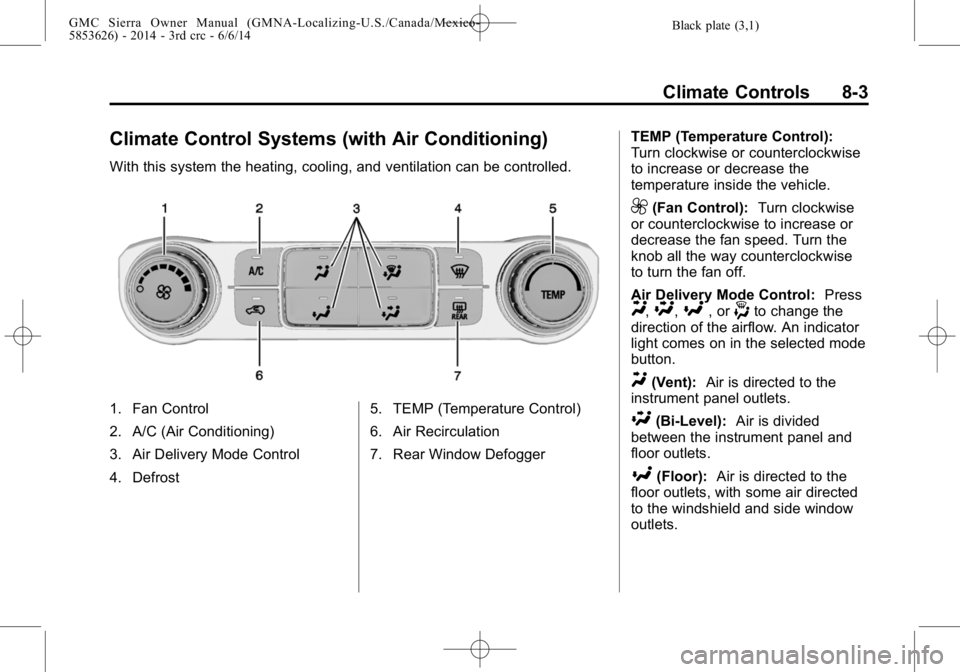
With this system the heating, cooling, and ventilation can be controlled.
1. Fan Control
2. A/C (Air Conditioning)
3. Air Delivery Mode Control
4. Defrost5. TEMP (Temperature Control)
6. Air Recirculation
7. Rear Window DefoggerTEMP (Temperature Control):
Turn clockwise or counterclockwise
to increase or decrease the
temperature inside the vehicle.
9(Fan Control):
Turn clockwise
or counterclockwise to increase or
decrease the fan speed. Turn the
knob all the way counterclockwise
to turn the fan off.
Air Delivery Mode Control: Press
Y,\,[, or-to change the
direction of the airflow. An indicator
light comes on in the selected mode
button.
Y(Vent): Air is directed to the
instrument panel outlets.
\(Bi-Level): Air is divided
between the instrument panel and
floor outlets.
[(Floor): Air is directed to the
floor outlets, with some air directed
to the windshield and side window
outlets.