CD player GMC SIERRA 2014 User Guide
[x] Cancel search | Manufacturer: GMC, Model Year: 2014, Model line: SIERRA, Model: GMC SIERRA 2014Pages: 544, PDF Size: 13.79 MB
Page 221 of 544
Black plate (17,1)GMC Sierra Owner Manual (GMNA-Localizing-U.S./Canada/Mexico-
5853626) - 2014 - 3rd crc - 6/6/14
Infotainment System 7-17
Loading and Ejecting Discs
To load a disc:
1. Turn the vehicle on.
2. Insert a disc into the slot, labelside up. The player pulls it in the
rest of the way. If the disc is
damaged or improperly loaded,
there is an error and the disc
ejects.
Playing an Audio CD
Press the MEDIA button on the
faceplate until CD is selected.
On the CD main page, either a track
number displays at the beginning of
each track, or Song, Artist, and
Album information displays when
available.
Use the following screen controls to
play the disc:
t(Seek Previous/Fast Reverse):
While on the CD main page:
.Press to seek to the beginning of
the current or previous track.
If the track has been playing for less than five seconds, it seeks
to the previous track. If longer
than five seconds, the current
track starts from the beginning.
.Press and hold to fast reverse
through a track. Release the
button to return to playing
speed. Elapsed time displays.
u(Seek Next/Fast Forward):
While on the CD main page:
.Press to seek to the next track.
.Press and hold to fast forward
through a track. Release the
button to return to playing
speed. Elapsed time displays.
j/r(Pause/Play): While on the CD
main page, press to pause. Press
again to resume.
Z(Shuffle): PressZto play the
songs in random order. Press again
to turn off.
If a Blu-ray Disc
®or DVD disc is
loaded into the disc player and the
CD screen button is selected, a
message comes on the screen to
use the Video application. The Video application is only available
on vehicles with Rear Seat
Entertainment (RSE).
CD Menu
While on the CD main page, press
the MENU knob to display the CD
menu and the following may display:
Browse :
Select to display the files
or songs on the CD.
Tone Settings : Select to adjust
Bass, Midrange, Treble, Balance,
Fade, and EQ (Equalizer). See
“Tone Settings” underAM-FM Radio
on page 7-9.
Auto Volume : If equipped, this
feature adjusts the volume based on
the vehicle speed. Select the level
between Off, Low, Medium-Low,
Medium, Medium-High, and High.
Press BACK to go to the
previous menu.
DSP : If equipped, this feature
adjusts the pre-defined settings.
See “DSP Settings” inAM-FM Radio
on page 7-9.
Page 222 of 544
Black plate (18,1)GMC Sierra Owner Manual (GMNA-Localizing-U.S./Canada/Mexico-
5853626) - 2014 - 3rd crc - 6/6/14
7-18 Infotainment System
EQ (Equalizer) :If equipped, this
feature adjusts the equalizer
settings. See “EQ (Equalizer)
Settings” inAM-FM Radio on
page 7-9.
Error Messages
If Disc Error displays and/or the disc
comes out, it could be for one of the
following reasons:
.The disc has an invalid or
unknown format.
.The disc is very hot. Try the disc
again when the temperature
returns to normal.
.The road is very rough. Try the
disc again when the road is
smoother.
.The disc is dirty, scratched, wet,
or upside down.
.The air is very humid. Try the
disc again later.
.There was a problem while
burning the disc.
.The label is caught in the CD
player.
If Disc Player Error displays, it could
be for one of the following reasons:
.The player temperature is
too high.
.There are load or eject errors.
If the CD is not playing correctly for
any other reason, try a known
good CD.
If any error continues, contact your
dealer.
Playing an MP3 CD
To play an MP3 CD, follow the same
instructions as “Playing an
Audio CD.”
The following guidelines must be
met when creating an MP3 disc,
otherwise the CD might not play:
.Sampling rate: 16 kHz,
22.05 kHz, 24 kHz, 32 kHz,
44.1 kHz, and 48 kHz.
.Bit rates supported: 8, 16, 24,
32, 40, 48, 56, 64, 80, 96, 112,
128, 144, 160, 192, 224, 256,
and 320 kbps.
.Maximum number of folders:
eight folders with 255 files per
folder.
.Maximum of 1,000 files on
a disc.
.Recorded on a CD-R or CD-RW.
Root Directory
The root directory is treated as a
folder. All files contained directly
under the root directory are
accessed prior to any root directory
folders.
Empty Folders
If a root directory or folder is empty
or contains only folders, the player
advances to the next folder in the
file structure that contains a
compressed audio file. The empty
folder(s) are not displayed or
numbered.
Page 223 of 544
Black plate (19,1)GMC Sierra Owner Manual (GMNA-Localizing-U.S./Canada/Mexico-
5853626) - 2014 - 3rd crc - 6/6/14
Infotainment System 7-19
No Folder
When the CD only contains
compressed audio files without any
folders, all files are under the root
folder.
USB Port
Playing from a USB
A USB mass storage device or
Media Transfer Protocol (MTP)
device can be connected to the
USB port.
The USB ports are in the center
console.
USB MP3 Player and USB Drives
.The USB MP3 players and USB
drives connected must comply
with the USB Mass Storage
Class specification (USB MSC).
.Hard disk drives are not
supported.
To play a USB device:
.Connect the USB.
.Press the MEDIA button on the
faceplate until the connected
device is shown.
While the USB source is active,
press the corresponding faceplate
button for the icons on the screen to
operate USB function:
.t(Seek Previous/Fast
Reverse)
.u(Seek Next/Fast Forward)
.j/r(Play/Pause)
.Z(Shuffle)
For information on how to use the
screen icons, see “Playing an
Audio CD.”
USB Menu
Press the MENU knob to display the
USB menu and the following may
display:
Browse : Select to display the files
and folders on the USB device. Tone Settings :
Select to adjust
Bass, Midrange, Treble, Balance,
Fade, and EQ (Equalizer). See
“Tone Settings” under“Playing an
Audio CD.”
Auto Volume : If equipped, see
“Playing an Audio CD.”
EQ (Equalizer): If equipped, this
feature adjusts the equalizer
settings. See “EQ (Equalizer)
Settings” inAM-FM Radio on
page 7-9.Playing from an iPod®
This feature supports the following
iPod models:
.iPod nano®(1st, 2nd, 3rd, and
4th generation)
.iPod with video (5.0 and 5.5
generation).
.iPod classic®(6th generation)
.iPod touch®(1st and 2nd
generation)
Page 226 of 544
Black plate (22,1)GMC Sierra Owner Manual (GMNA-Localizing-U.S./Canada/Mexico-
5853626) - 2014 - 3rd crc - 6/6/14
7-22 Infotainment System
Playing Music from the SD Card
An SD Card is played the same way
a USB device is played. SeeUSB
Port on page 7-19.
Auxiliary Jack
The AUX jack is in the center
console. See Center Console
Storage on page 4-3.
Possible auxiliary audio sources
include:
.Laptop computer
.Audio music player
This jack is not an audio output. Do
not plug headphones into the
auxiliary input jack. Auxiliary
devices should be set up while the
vehicle is in P (Park).
Connect a 3.5 mm (1/8 in) cable
from the auxiliary device to the
auxiliary input jack.
If an auxiliary device has already
been connected, but a different
source is currently active, press the
MEDIA faceplate button repeatedly to scroll through all of the available
audio source screens, until the AUX
source screen is shown.
Playing from the AUX Jack
An auxiliary device is played
through the audio system and
controlled through the device itself.
AUX Menu
Press the MENU knob to display the
AUX menu and the following may
display:
Tone Settings :
Select to adjust
Bass, Midrange, Treble, Balance,
Fade, and EQ (Equalizer). See
“Tone Settings” underAM-FM Radio
on page 7-9.
Auto Volume : If equipped, see
“Playing an Audio CD.”
DSP: If equipped, this feature
adjusts the pre-defined settings.
See “DSP Settings” inAM-FM Radio
on page 7-9. EQ (Equalizer) Settings:
If equipped, this feature adjusts the
pre-defined equalizer settings. See
“EQ (Equalizer) Settings”
inAM-FM
Radio on page 7-9.
Bluetooth Audio
If equipped, music may be played
from a paired Bluetooth device. See
“Pairing” in“Information Controls”
under “Bluetooth” for help pairing a
device.
Volume and song selection may be
controlled using the Infotainment
controls or on the phone/device.
If Bluetooth Audio is selected and
nothing is heard, check the volume
setting on both phone/device and
the Infotainment system.
Page 227 of 544
Black plate (23,1)GMC Sierra Owner Manual (GMNA-Localizing-U.S./Canada/Mexico-
5853626) - 2014 - 3rd crc - 6/6/14
Infotainment System 7-23
Music can be launched by pressing
the MEDIA screen button on the
Home Page.
To play music via Bluetooth:
1. Power on the device, and pair toconnect the device.
2. Once paired, go into the audio application from the Home Page
or via the application tray. Select
MEDIA until Bluetooth displays.
Bluetooth Audio Menu
Press the MENU screen button to
display the Bluetooth Audio menu.
The following may be available:
Tone: Select + or −to adjust the
tone settings. See AM-FM Radio on
page 7-9.
Press
oBACK to go back to the
previous menu.
Manage Bluetooth Devices: Select
to go to the Bluetooth page to add
or delete devices. When selecting Bluetooth Audio, the
radio may not be able to launch the
audio player on the connected
device to start playing. When the
vehicle is not moving, use the
phone to begin playback.
All devices launch audio differently.
When selecting Bluetooth Audio as
a source, the radio may show as
paused on the screen. Press play
on the device or press
rto begin
playback.
Some phones support sending
Bluetooth music information to
display on the radio. When the radio
receives this information, it will
check to see if any is available and
display it. For more information
about supported Bluetooth features,
see www.gm.com/bluetooth.
Navigation
OnStar®System
An OnStar®subscriber has the
ability to connect to the OnStar
system (if equipped) and ask an
OnStar Advisor to download a
destination into the embedded
navigation system. OnStar will send
address information and location
coordinates of the destination into
the navigation system.
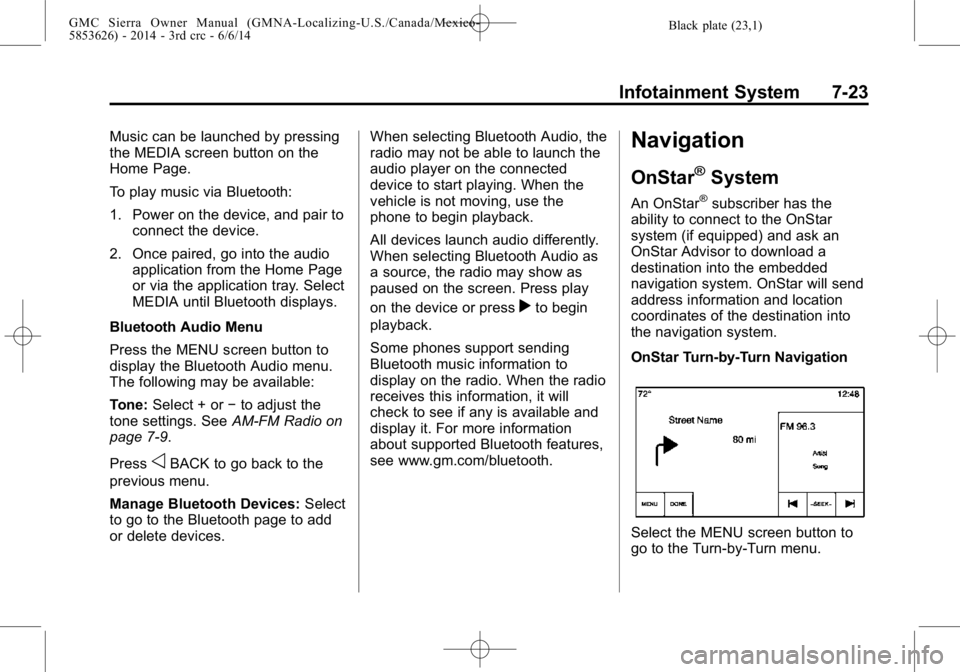
OnStar Turn-by-Turn Navigation
Select the MENU screen button to
go to the Turn-by-Turn menu.
Page 531 of 544

Black plate (1,1)GMC Sierra Owner Manual (GMNA-Localizing-U.S./Canada/Mexico-
5853626) - 2014 - 3rd crc - 6/6/14
INDEX i-1
A
Accessories andModifications . . . . . . . . . . . . . . . . . 10-3
Accessory Power . . . . . . . . 9-28, 9-29
Active Fuel Management
®. . . . . 9-32
Add-On Electrical Equipment . . . . . . . . . . . . . . . . . . . 9-99
Adding a Snow Plow or Similar Equipment . . . . . . . . . . . . 9-99
Additional Information OnStar
®. . . . . . . . . . . . . . . . . . . . . . 14-5
Adjustable Throttle and Brake Pedal . . . . . . . . . . . . . . . . . . 9-24
Adjustments Lumbar, Front Seats . . . . . . . . . . . 3-4
Air Cleaner/Filter, Engine . . . . . 10-17
Air Filter, Passenger
Compartment . . . . . . . . . . . . . . . . . 8-9
Air Vents . . . . . . . . . . . . . . . . . . . . . . . 8-8
Airbag System Check . . . . . . . . . . . . . . . . . . . . . . . . 3-37
How Does an AirbagRestrain? . . . . . . . . . . . . . . . . . . . 3-27
Passenger Sensing System . . . . . . . . . . . . . . . . . . . . . . 3-31 Airbag System (cont'd)
What Makes an Airbag
Inflate? . . . . . . . . . . . . . . . . . . . . . . 3-26
What Will You See after an
Airbag Inflates? . . . . . . . . . . . . . 3-27
When Should an Airbag Inflate? . . . . . . . . . . . . . . . . . . . . . . 3-25
Where Are the Airbags? . . . . . . 3-23
Airbags
Adding Equipment to theVehicle . . . . . . . . . . . . . . . . . . . . . . 3-36
Light On-Off . . . . . . . . . . . . . . . . . . 5-18
On-Off Light . . . . . . . . . . . . . . . . . . 5-18
On-Off Switch . . . . . . . . . . . . . . . . 3-28
Passenger Status Indicator . . . 5-20
Readiness Light . . . . . . . . . . . . . . 5-18
Servicing Airbag-Equipped Vehicles . . . . . . . . . . . . . . . . . . . . . 3-35
System Check . . . . . . . . . . . . . . . . 3-21
Alarm Vehicle Security . . . . . . . . . . . . . . 2-11
All-Terrain Tires . . . . . . . . . . . . . . . 10-53
AM-FM Radio . . . . . . . . . . . . . . . . . . . 7-9
Antenna Multi-band . . . . . . . . . . . . . . . . . . . . 7-12 Antilock Brake
System (ABS) . . . . . . . . . . . . . . . . 9-52
Warning Light . . . . . . . . . . . . . . . . . 5-25
Appearance Care Exterior . . . . . . . . . . . . . . . . . . . . . 10-96
Interior . . . . . . . . . . . . . . . . . . . . . 10-101
Assistance Program,
Roadside . . . . . . . . . . . . . . . . . . . . . 13-5
Assistance Systems for Driving . . . . . . . . . . . . . . . . . . . . . . . 9-64
Assistance Systems for
Parking and Backing . . . . . . . . . 9-61
Audio Bluetooth . . . . . . . . . . . . . . . . . . . . . 7-22
Audio Players . . . . . . . . . . . . . . . . . 7-16 CD . . . . . . . . . . . . . . . . . . . . . . . . . . . 7-16
Audio System Fixed Mast Antenna . . . . . . . . . . 7-12
Radio Reception . . . . . . . . . . . . . . 7-11
Theft-Deterrent Feature . . . . . . . . 7-2
Automatic
Dimming Mirrors . . . . . . . . . . . . . . 2-17
Door Locks . . . . . . . . . . . . . . . . . . . . 2-9
Headlamp System . . . . . . . . . . . . . 6-3
Transmission . . . . . . . . . . . 9-33, 9-34
Transmission Fluid . . . . . . . . . 10-14
Page 533 of 544

Black plate (3,1)GMC Sierra Owner Manual (GMNA-Localizing-U.S./Canada/Mexico-
5853626) - 2014 - 3rd crc - 6/6/14
INDEX i-3
Cargo Lamp . . . . . . . . . . . . . . . . . . . . 6-7
Cautions, Danger, andWarnings . . . . . . . . . . . . . . . . . . . . . . . . iv
CD Player . . . . . . . . . . . . . . . . . . . . . 7-16
Center Console Storage . . . . . . . . 4-3
Center High-Mounted Stoplamp (CHMSL) and
Cargo Lamp . . . . . . . . . . . . . . . . . 10-41
Center Seat . . . . . . . . . . . . . . . . . . . . 3-3
Chains, Tire . . . . . . . . . . . . . . . . . . 10-75
Charging System Light . . . . . . . . 5-21
Check Engine Light . . . . . . . . . . . . . . . . . . 5-22
IgnitionTransmission Lock . . . . . . . . 10-37
Child Restraints
Infants and YoungChildren . . . . . . . . . . . . . . . . . . . . . 3-40
Lower Anchors and Tethers for Children . . . . . . . . . 3-46
Older Children . . . . . . . . . . . . . . . . 3-38
Securing . . . . . . . . . . . . . . . . 3-58, 3-68
Systems . . . . . . . . . . . . . . . . . . . . . . 3-42
Cleaning Exterior Care . . . . . . . . . . . . . . . 10-96
Interior Care . . . . . . . . . . . . . . . 10-101 Climate Control
Systems . . . . . . . . 8-1, 8-3, 8-1, 8-3
Air
Conditioning . . . . 8-1, 8-3, 8-1, 8-3
Dual Automatic . . . . . . . . . . . . . . . . 8-5
Heating . . . . . . . . . . 8-1, 8-3, 8-1, 8-3
Clock . . . . . . . . . . . . . . . . . . . . . . . . . . . 5-5
Cluster, Instrument . . . . . . . . . . . . 5-10
Collision Damage Repair . . . . . . 13-9
Compartments Storage . . . . . . . . . . . . . . . . . . . . . . . . 4-1
Compass . . . . . . . . . . . . . . . . . . . . . . . 5-5 Messages . . . . . . . . . . . . . . . . . . . . 5-36
Connections OnStar
®. . . . . . . . . . . . . . . . . . . . . . 14-3
Control
Traction and ElectronicStability . . . . . . . . . . . . . . . . . . . . . 9-54
Control of a Vehicle . . . . . . . . . . . . . 9-3
Convex Mirrors . . . . . . . . . . . . . . . . 2-14
Coolant Engine . . . . . . . . . . . . . . . . . . . . . . 10-20
Engine TemperatureGauge . . . . . . . . . . . . . . . . . . . . . . 5-16
Cooling System . . . . . . . . . . . . . . . 10-19
Engine Messages . . . . . . . . . . . . 5-37 Courtesy Transportation
Program . . . . . . . . . . . . . . . . . . . . . . 13-8
Cruise Control . . . . . . . . . . . . . . . . . 9-57 Light . . . . . . . . . . . . . . . . . . . . . . . . . . 5-30
Cupholders . . . . . . . . . . . . . . . . . . . . . 4-2
Customer Assistance . . . . . . . . . . 13-4 Offices . . . . . . . . . . . . . . . . . . . . . . . . 13-3
Text Telephone (TTY)
Users . . . . . . . . . . . . . . . . . . . . . . . 13-4
Customer Information Service Publications
Ordering Information . . . . . . .13-11
Customer Satisfaction Procedure . . . . . . . . . . . . . . . . . . . . 13-1
D
Damage Repair, Collision . . . . . . 13-9
Danger, Warnings, andCautions . . . . . . . . . . . . . . . . . . . . . . . . iv
Data Recorders, Event . . . . . . . 13-14
Daytime Running Lamps (DRL) . . . . . . . . . . . . . . . . . . 6-3
Defensive Driving . . . . . . . . . . . . . . . 9-3
Delayed Locking . . . . . . . . . . . . . . . . 2-9
Diagnostics
OnStar
®. . . . . . . . . . . . . . . . . . . . . . 14-5