Set time GMC SIERRA 2014 User Guide
[x] Cancel search | Manufacturer: GMC, Model Year: 2014, Model line: SIERRA, Model: GMC SIERRA 2014Pages: 544, PDF Size: 13.79 MB
Page 172 of 544

Black plate (34,1)GMC Sierra Owner Manual (GMNA-Localizing-U.S./Canada/Mexico-
5853626) - 2014 - 3rd crc - 6/6/14
5-34 Instruments and Controls
is low, the value for that tire is
shown in amber. SeeTire Pressure
Monitor System on page 10-62 and
Tire Pressure Monitor Operation on
page 10-63.
Fuel Economy: The center
displays the instantaneous fuel
economy as a number and bar
graph. Displayed above the bar
graph is a running average of fuel
economy for the most recently
traveled selected distance.
Displayed below the bar graph is
the best average fuel economy that
has been achieved for the selected
distance. The selected distance is
displayed at the top of the page as
“last xxx mi/km.” Next to the
odometer, the Active Fuel
Management displays the number of
cylinders the vehicle is running on.
See Active Fuel Management
®on
page 9-32.
Press
pto select the distance or
reset best value. Use
wandxto
choose the distance and press
V.
Press
wandxto select “Reset Best Score.”
Press
Vto reset the
best average fuel economy. After
reset, the best value displays “-,-”
until the selected distance has been
traveled.
The display provides information on
how current driving behavior affects
the running average and how well
recent driving compares to the best
that has been achieved for the
selected distance.
Timer: This display can be used as
a timer. To start the timer, press
V
while this display is active. The
display will show the amount of time
that has passed since the timer was
last reset. To stop the timer, press
V
briefly while this display is active
and the timer is running. To reset
the timer to zero, press and hold
V
while this display is active, or presspand select reset.
Speed Limit (If Equipped): Shows
sign information, which comes from
a roadway database in the onboard
navigation. Engine Hours:
Shows the total
number of hours the engine has run.
Transmission Fluid
Temperature: Shows the
temperature of the automatic
transmission fluid in either degrees
Celsius (°C) or degrees
Fahrenheit (°F).
Trailer Brake (If Equipped): On
vehicles with the Integrated Trailer
Brake Control (ITBC) system, the
trailer brake display appears in
the DIC.
TRAILER GAIN shows the trailer
gain setting. This setting can be
adjusted from 0.0 to 10.0 with either
a trailer connected or disconnected.
OUTPUT shows the power output to
the trailer any time a trailer with
electric brakes is connected. Output
is displayed as a bar graph. Dashes
may appear in the OUTPUT display
if a trailer is not connected.
Blank Page: Shows no
information.
Page 180 of 544
Black plate (42,1)GMC Sierra Owner Manual (GMNA-Localizing-U.S./Canada/Mexico-
5853626) - 2014 - 3rd crc - 6/6/14
5-42 Instruments and Controls
Tire Messages
SERVICE TIRE MONITOR
SYSTEM
If equipped with the Tire Pressure
Monitor System (TPMS), this
message displays if a part on the
system is not working properly. The
tire pressure light also flashes and
then remains on during the same
ignition cycle. SeeTire Pressure
Light on page 5-28. Several
conditions may cause this message
to appear. See Tire Pressure
Monitor Operation on page 10-63.
If the warning comes on and stays
on, there may be a problem with the
TPMS. See your dealer.
TIRE LEARNING ACTIVE
If equipped with the Tire Pressure
Monitor System (TPMS), this
message displays when the system
is relearning the tire positions on
your vehicle. The tire positions must
be relearned after rotating the tires
or after replacing a tire or sensor. See
Tire Inspection on page 10-66,
Tire Rotation on page 10-67, Tire
Pressure Monitor System on
page 10-62, and Tire Pressure on
page 10-61.
TIRE PRESSURE LOW ADD
AIR TO TIRE
If equipped with the Tire Pressure
Monitor System (TPMS), this
message displays when the
pressure in one or more of the
vehicle's tires is low. This message
also displays with a vehicle picture
to indicate the location of the low
tire. The low tire pressure warning
light will also come on. See Tire
Pressure Light on page 5-28. You
can receive more than one tire
pressure message at a time. If a tire
pressure message appears on the
DIC, stop as soon as you can. Have
the tire pressures checked and set
to those shown on the Tire and
Loading Information label. See Tires
on page 10-51, Vehicle Load Limits
on page 9-15, and Tire Pressure on
page 10-61. The DIC also shows the tire pressure values. See
Driver
Information Center (DIC) (Base
Level) on page 5-30 orDriver
Information Center (DIC) (Uplevel)
on page 5-32.
Transmission Messages
4WD OFF
If equipped with four-wheel drive,
this message displays when the
four-wheel-drive system is
temporarily disabled due to an
overheated condition. The vehicle
will run in two-wheel drive when this
message is present. Once the
four-wheel-drive system cools down,
the message turns off and the
four-wheel-drive system returns to
normal operation.
4WD SHIFT IN PROGRESS
This message will display while the
four-wheel-drive system is shifting.
Page 184 of 544
Black plate (46,1)GMC Sierra Owner Manual (GMNA-Localizing-U.S./Canada/Mexico-
5853626) - 2014 - 3rd crc - 6/6/14
5-46 Instruments and Controls
3. PressoBACK on the faceplate
or the
0screen button to return
to the previous menu or exit.
Turn the vehicle to ON/RUN to
access the Settings menu, then
select SETTINGS from the Home
page on the infotainment system
display.
Personalization Menus
The following list of menu items may
be available:
.Time and Date
.Language [Language]
.Valet Mode
.Radio
.Vehicle
.Bluetooth
.Voice
.Display
.Rear Camera
.Return to Factory Settings
.Software Information Detailed information for each menu
follows.
Time and Date
Manually set the time and date. See
Clock on page 5-5.
Language [Language]
Select Language, then select from
the available language(s).
The selected language will display
on the system, and voice
recognition will reflect the selected
language.
Valet Mode
This will lock the infotainment
system, the infotainment controls,
and screen storage location.
To turn Valet Mode on and off, enter
a four-digit code on the keypad.
Press Enter to go to the
confirmation screen. Re-enter the
four-digit code. Press LOCK to lock
the system. Enter the four-digit code
to unlock the system. Press the
Back screen button to go back to
the previous menu.
Radio
Press to display the Radio menu
and the following may display:
.Manage Favorites
.Number of Favorites Pages
.Audible Touch Feedback
.Auto Volume
.Maximum Startup Volume
.Audio Cue Volume
Manage Favorites
This allows favorites to be edited.
See “Manage Favorites” in“Radio
Setup” underHome Page on
page 7-6 or“Manage Favorites” in
“Settings” under“Radio” in the
infotainment manual.
Number of Favorites Pages
Press to set the number of favorites
to display.
Page 196 of 544
Black plate (2,1)GMC Sierra Owner Manual (GMNA-Localizing-U.S./Canada/Mexico-
5853626) - 2014 - 3rd crc - 6/6/14
6-2 Lighting
AUTO (Automatic):Automatically
turns on the headlamps at normal
brightness, together with the
following:
.Parking Lamps
.Instrument Panel Lights
.Taillamps
.License Plate Lamps
.Roof Marker Lamps (If
Equipped)
.Front/Rear Sidemarker Lamps
When the vehicle is turned off and
the headlamps are in AUTO, the
headlamps turn off. When the key is
removed, they automatically turn on
for a set time. The time of the delay
can be changed using the DIC. See
Driver Information Center (DIC)
(Base Level) on page 5-30 orDriver
Information Center (DIC) (Uplevel)
on page 5-32.
;(Parking Lamps): Turns on the
parking lamps including all lamps,
except the headlamps.
2(Headlamps): Turns on the
headlamps together with the parking
lamps and instrument panel lights.
When the headlamps are turned on
while the vehicle is on, the
headlamps turn off automatically
10 minutes after the ignition is
turned off. When the headlamps are
turned on while the vehicle is off,
the headlamps will stay on for
10 minutes before turning off to
prevent the battery from being
drained. Turn the headlamp control
off and then back to the headlamp
on position to make the headlamps
stay on for an additional 10 minutes.
To keep the lamps on for more than
10 minutes, the ignition must be in
the ACC/ACCESSORY or ON/RUN
position.
#(Fog Lamps) (If Equipped):
Turns on the fog lamps. See Fog
Lamps on page 6-5.
Exterior Lamps Off
Reminder
A reminder chime sounds when the
headlamps or parking lamps are
manually turned on, the ignition is
off, and a door is open. To disable
the chime, turn the lamps off.
Headlamp High/
Low-Beam Changer
$
(Headlamp High/Low-Beam
Changer): Push the turn signal
lever toward the instrument panel to
change the headlamps from low to
high beam.
Pull the turn signal lever toward you
and release it to return to low-beam
headlamps.
Page 197 of 544
Black plate (3,1)GMC Sierra Owner Manual (GMNA-Localizing-U.S./Canada/Mexico-
5853626) - 2014 - 3rd crc - 6/6/14
Lighting 6-3
When the high beams are on, this
indicator light on the instrument
cluster will also be on.
Flash-to-Pass
This feature lets you use the
high-beam headlamps to signal a
driver in front of you that you want
to pass. It works even if the
headlamps are in the automatic
position.
To use it, pull the turn signal lever
toward you, then release it.
If the headlamps are in the
automatic position or on low beam,
the high-beam headlamps will turn
on. They will stay on as long as you
hold the lever toward you. The
high-beam indicator on theinstrument cluster will come on.
Release the lever to return to
normal operation.
Daytime Running
Lamps (DRL)
DRL can make it easier for others to
see the front of the vehicle during
the day. Fully functional DRL are
required on all vehicles first sold in
Canada.
The DRL system comes on when
the following conditions are met:
.The ignition is on.
.The exterior lamp control is
in AUTO.
.The transmission is not in
P (Park).
.The light sensor determines it is
daytime.
When the DRL system is on, only
the DRL are on. The taillamps,
sidemarker lamps, instrument panel
lights, and other lamps will not
be on.
When it begins to get dark, the
automatic headlamp system
switches from DRL to the
headlamps.
To turn off the DRL, turn the exterior
lamp control to the off position and
then release. For vehicles first sold
in Canada, off will only work when
the vehicle is in P (Park).
Automatic Headlamp
System
When the exterior lamp control is
set to AUTO and it is dark enough
outside, the headlamps come on
automatically.
Page 210 of 544
Black plate (6,1)GMC Sierra Owner Manual (GMNA-Localizing-U.S./Canada/Mexico-
5853626) - 2014 - 3rd crc - 6/6/14
7-6 Infotainment System
Home Page
Home Page Features
The infotainment system displays a
Home Page that makes it easy to
access all of the applications. Turn
the MENU knob to highlight feature
icons. Press the MENU knob to
access the feature’s options.
Various functions are disabled when
the vehicle is moving.
AUDIO:Select the AUDIO screen
icon to display the active source
page. The sources available are
AM, FM, SiriusXM
®(if equipped),
CD (if equipped), USB/iPod, AUX
Input, SD card reader (if equipped),
and Bluetooth Audio (if equipped).
See AM-FM Radio on page 7-9,
Satellite Radio on page 7-10, CD
Player on page 7-16, Auxiliary Jack
on page 7-22, and Bluetooth Audio
on page 7-22. PHONE:
Select the PHONE screen
icon to display the Phone main
page. See Bluetooth (Infotainment
Controls - Base Radio) on
page 7-34 orBluetooth (Voice
Recognition - Base Radio) on
page 7-39 orBluetooth (Voice
Recognition - Base Connected
Radio) on page 7-48 orBluetooth
(Overview) on page 7-32 or
Bluetooth (Infotainment Controls -
Base Connected Radio) on
page 7-44.
NAV (Navigation, If Equipped):
Select the NAV screen icon to
display the OnStar Turn-by-Turn
Navigation. See “OnStar Overview”
in OnStar, if equipped.
SETTINGS: Select the SETTINGS
screen icon to display the Settings
main page. See “Setting Radio
Preferences” following.
Pandora (If Equipped)
Select the PANDORA icon to begin
Pandora. See Pandora Internet
Radio on page 7-12.
Setting Radio Preferences
Select the SETTINGS screen icon
to display the Settings menu and
the following may display:
Time and Date: SeeClock on
page 5-5.
Language (Current Language):
This will set the display language in
the radio and instrument cluster.
Select to display a list of languages.
Select
oBACK to go back to the
previous menu.
Valet Mode:
Using the circular numeric keypad,
enter a four-digit code:
1. Turn the MENU knob to highlight a number.
2. Press the MENU knob to select it. Do this for each one of the
four digits. Select Enter to go to
the confirmation screen.
3. Re-enter the four-digit code. Select LOCK to lock the system.
Page 216 of 544
Black plate (12,1)GMC Sierra Owner Manual (GMNA-Localizing-U.S./Canada/Mexico-
5853626) - 2014 - 3rd crc - 6/6/14
7-12 Infotainment System
FM
FM signals only reach about 16 to
65 km (10 to 40 mi). Although the
radio has a built-in electronic circuit
that automatically works to reduce
interference, some static can occur,
especially around tall buildings or
hills, causing the sound to fade in
and out.
AM
The range for most AM stations is
greater than for FM, especially at
night. The longer range can cause
station frequencies to interfere with
each other. Static can occur when
things like storms and power lines
interfere with radio reception. When
this happens, try reducing the treble
on the radio.
SiriusXM Satellite Radio
Service
If equipped, SiriusXM Satellite
Radio Service provides digital radio
reception. Tall buildings or hills can
interfere with satellite radio signals,
causing the sound to fade in andout. In addition, traveling or standing
under heavy foliage, bridges,
garages, or tunnels may cause loss
of the SiriusXM signal for a period
of time.
Cell Phone Usage
Cell phone usage, such as making
or receiving phone calls, charging,
or just having the phone on may
cause static interference with the
radio. Unplug the phone or turn it off
if this happens.
Fixed Mast Antenna
The fixed mast antenna will go
through most car washes as long as
it is securely attached. If the
antenna becomes slightly bent,
straighten it out by hand. If it is
badly bent, replace it.
Occasionally check that the antenna
is tight at the base. If tightening is
required, protect the paint from
damage.
Multi-Band Antenna
The roof antenna is for OnStar®,
SiriusXM®Satellite Radio, and GPS
(Global Positioning System), if the
vehicle has these features. Keep
clear of obstructions for clear
reception. If the vehicle has a
sunroof, and it is open, reception
can also be affected.
Pandora Internet Radio
If equipped, Pandora®is a free
Internet radio service that streams
personalized radio stations based
on artists, tracks, genres, and
comedians. Create stations using
the Pandora website or Smartphone
application, then use
-(thumbs up)
or
,(thumbs down) to personalize
stations. To set up an account, or for
more information, go to
www.pandora.com. Pandora may
not be available in Canada or
Mexico.
Page 217 of 544
Black plate (13,1)GMC Sierra Owner Manual (GMNA-Localizing-U.S./Canada/Mexico-
5853626) - 2014 - 3rd crc - 6/6/14
Infotainment System 7-13
A phone or tablet with Internet
connection and the Pandora
application installed is required.
Personal cell phone data plans are
used. Make sure the latest version
is installed on the device.
Launching Pandora
Connect the iPhone to the USB
port, or connect Android®or
BlackBerry®through Bluetooth. See
Auxiliary Jack on page 7-22 or
Bluetooth (Infotainment Controls -
Base Radio) on page 7-34 or
Bluetooth (Voice Recognition - Base
Radio) on page 7-39 orBluetooth
(Voice Recognition - Base
Connected Radio) on page 7-48 or
Bluetooth (Overview) on page 7-32
or Bluetooth (Infotainment Controls -
Base Connected Radio) on
page 7-44. For first time use, set up
the stations before connecting to the
vehicle. The Pandora icon will be
available on the Home Page. When Pandora is chosen, the
Pandora logo will populate on the
screen and the system will display
“Acquiring Pandora Radio Station.”
Launch times can be significant.
Using the iPhone
1. Plug the device into the USB
port. The phone screen must be
unlocked.
2. Launch Pandora from the Home Page by selecting the
Pandora icon.
If nothing happens when the
available Pandora screen button is
pressed, download the latest
Pandora application and retry.
The login screen may display on the
device.
Using an Android or BlackBerry
Phone
The BlackBerry phone must be
unlocked to launch Pandora service.
1. Pair the phone using Bluetooth. 2. Launch Pandora by selecting
Pandora on the Home Page.
If nothing happens when the
available Pandora screen button is
selected, download the latest
Pandora application and retry.
The login screen may display on the
device.
Pandora Menus
Select Menu on the Pandora
main page.
Pandora has a menu with the
following:
Tone Settings: Select to adjust the
tone settings. See AM-FM Radio on
page 7-9.
Bookmark Artist: Select to
bookmark the artist.
Bookmark Song: Select to
bookmark the song.
Auto Volume: This feature sets the
auto volume based on the speed of
the vehicle and noise in the vehicle.
See AM-FM Radio on page 7-9.
Page 221 of 544
Black plate (17,1)GMC Sierra Owner Manual (GMNA-Localizing-U.S./Canada/Mexico-
5853626) - 2014 - 3rd crc - 6/6/14
Infotainment System 7-17
Loading and Ejecting Discs
To load a disc:
1. Turn the vehicle on.
2. Insert a disc into the slot, labelside up. The player pulls it in the
rest of the way. If the disc is
damaged or improperly loaded,
there is an error and the disc
ejects.
Playing an Audio CD
Press the MEDIA button on the
faceplate until CD is selected.
On the CD main page, either a track
number displays at the beginning of
each track, or Song, Artist, and
Album information displays when
available.
Use the following screen controls to
play the disc:
t(Seek Previous/Fast Reverse):
While on the CD main page:
.Press to seek to the beginning of
the current or previous track.
If the track has been playing for less than five seconds, it seeks
to the previous track. If longer
than five seconds, the current
track starts from the beginning.
.Press and hold to fast reverse
through a track. Release the
button to return to playing
speed. Elapsed time displays.
u(Seek Next/Fast Forward):
While on the CD main page:
.Press to seek to the next track.
.Press and hold to fast forward
through a track. Release the
button to return to playing
speed. Elapsed time displays.
j/r(Pause/Play): While on the CD
main page, press to pause. Press
again to resume.
Z(Shuffle): PressZto play the
songs in random order. Press again
to turn off.
If a Blu-ray Disc
®or DVD disc is
loaded into the disc player and the
CD screen button is selected, a
message comes on the screen to
use the Video application. The Video application is only available
on vehicles with Rear Seat
Entertainment (RSE).
CD Menu
While on the CD main page, press
the MENU knob to display the CD
menu and the following may display:
Browse :
Select to display the files
or songs on the CD.
Tone Settings : Select to adjust
Bass, Midrange, Treble, Balance,
Fade, and EQ (Equalizer). See
“Tone Settings” underAM-FM Radio
on page 7-9.
Auto Volume : If equipped, this
feature adjusts the volume based on
the vehicle speed. Select the level
between Off, Low, Medium-Low,
Medium, Medium-High, and High.
Press BACK to go to the
previous menu.
DSP : If equipped, this feature
adjusts the pre-defined settings.
See “DSP Settings” inAM-FM Radio
on page 7-9.
Page 229 of 544
Black plate (25,1)GMC Sierra Owner Manual (GMNA-Localizing-U.S./Canada/Mexico-
5853626) - 2014 - 3rd crc - 6/6/14
Infotainment System 7-25
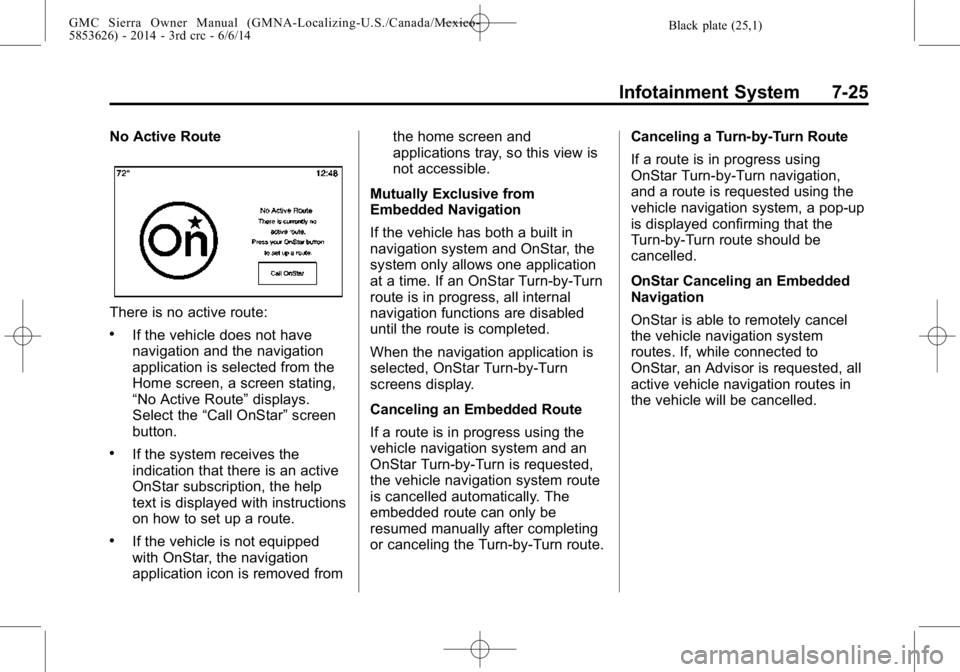
No Active Route
There is no active route:
.If the vehicle does not have
navigation and the navigation
application is selected from the
Home screen, a screen stating,
“No Active Route”displays.
Select the “Call OnStar” screen
button.
.If the system receives the
indication that there is an active
OnStar subscription, the help
text is displayed with instructions
on how to set up a route.
.If the vehicle is not equipped
with OnStar, the navigation
application icon is removed from the home screen and
applications tray, so this view is
not accessible.
Mutually Exclusive from
Embedded Navigation
If the vehicle has both a built in
navigation system and OnStar, the
system only allows one application
at a time. If an OnStar Turn-by-Turn
route is in progress, all internal
navigation functions are disabled
until the route is completed.
When the navigation application is
selected, OnStar Turn-by-Turn
screens display.
Canceling an Embedded Route
If a route is in progress using the
vehicle navigation system and an
OnStar Turn-by-Turn is requested,
the vehicle navigation system route
is cancelled automatically. The
embedded route can only be
resumed manually after completing
or canceling the Turn-by-Turn route. Canceling a Turn-by-Turn Route
If a route is in progress using
OnStar Turn-by-Turn navigation,
and a route is requested using the
vehicle navigation system, a pop-up
is displayed confirming that the
Turn-by-Turn route should be
cancelled.
OnStar Canceling an Embedded
Navigation
OnStar is able to remotely cancel
the vehicle navigation system
routes. If, while connected to
OnStar, an Advisor is requested, all
active vehicle navigation routes in
the vehicle will be cancelled.