audio GMC SIERRA 2014 User Guide
[x] Cancel search | Manufacturer: GMC, Model Year: 2014, Model line: SIERRA, Model: GMC SIERRA 2014Pages: 544, PDF Size: 13.79 MB
Page 173 of 544
Black plate (35,1)GMC Sierra Owner Manual (GMNA-Localizing-U.S./Canada/Mexico-
5853626) - 2014 - 3rd crc - 6/6/14
Instruments and Controls 5-35
Vehicle Messages
Messages displayed on the DIC
indicate the status of the vehicle or
some action may be needed to
correct a condition. Multiple
messages may appear one after
another.
The messages that do not require
immediate action can be
acknowledged and cleared by
pressing
Vor the trip odometer
reset stem on the base cluster.
The messages that require
immediate action cannot be cleared
until that action is performed.
All messages should be taken
seriously and clearing the message
does not correct the problem.
The following are the possible
messages and some information
about them.
If the vehicle has a diesel engine,
see the Duramax diesel
supplement.
Battery Voltage and
Charging Messages
BATTERY LOW START
VEHICLE
When the vehicle’ s battery is
severely discharged, this message
will display and four chimes will
sound. Start the vehicle
immediately. If the vehicle is not
started and the battery continues to
discharge, the climate controls,
heated seats, and audio systems
will shut off and the vehicle may
require a jump start. These systems
will function again after the vehicle
is started.
BATTERY SAVER ACTIVE
This message displays when the
battery voltage drops below
expected levels and features are
disabled. Turn off all unnecessary
accessory features.
SERVICE BATTERY
CHARGING SYSTEM
On some vehicles, this message
displays if there is a problem with
the battery charging system. Under
certain conditions, the charging
system light may also turn on in the
instrument cluster. See Charging
System Light on page 5-21. Driving
with this problem could drain the
battery. Turn off all unnecessary
accessories. Have the electrical
system checked as soon as
possible. See your dealer.
TRANSPORT MODE ON
This message is displayed when the
vehicle is in transport mode. Some
features can be disabled while in
this mode, including Remote
Keyless Entry (RKE), remote start,
and the vehicle alarm system. Take
the vehicle to your dealer for service
to turn transport mode off.
Page 183 of 544
Black plate (45,1)GMC Sierra Owner Manual (GMNA-Localizing-U.S./Canada/Mexico-
5853626) - 2014 - 3rd crc - 6/6/14
Instruments and Controls 5-45
This message clears itself after
several seconds. This message also
clears if you acknowledge it. After
this message clears, the TRAILER
GAIN and OUTPUT displays appear
in the DIC.
SeeDriver Information Center (DIC)
(Base Level) on page 5-30 orDriver
Information Center (DIC) (Uplevel)
on page 5-32 and“Integrated Trailer
Brake Control System” under
Towing Equipment on page 9-89.
Vehicle Speed Messages
REDUCE SPEED FOR HILL
DESCENT CONTROL
This message displays when
attempting to enable Hill Descent
Control (HDC) when the vehicle
speed is too high. See Hill Descent
Control (HDC) on page 9-56.
Washer Fluid Messages
WASHER FLUID LOW ADD
FLUID
This message displays when the
windshield washer fluid is low. Fill
the windshield washer fluid reservoir
as soon as possible. See Engine
Compartment Overview on
page 10-5 for the location of the
windshield washer fluid reservoir.
Also, see Washer Fluid on
page 10-27 for more information.
Vehicle
Personalization
Use the audio system controls to
access the personalization menus
for customizing vehicle features.
The following are all possible
personalization features. Depending
on the vehicle, some may not be
available.
Base Radio Audio System
Controls
MENU:Press the center of the
knob to enter menus and select
menu items. Turn the knob to scroll
through the menus.
oBACK: Press to return to the
previous menu or exit.
Uplevel Radio Audio System
Controls
1. Press the desired feature to
display a list of available
options.
2. Press to select the desired feature setting.
Page 184 of 544
Black plate (46,1)GMC Sierra Owner Manual (GMNA-Localizing-U.S./Canada/Mexico-
5853626) - 2014 - 3rd crc - 6/6/14
5-46 Instruments and Controls
3. PressoBACK on the faceplate
or the
0screen button to return
to the previous menu or exit.
Turn the vehicle to ON/RUN to
access the Settings menu, then
select SETTINGS from the Home
page on the infotainment system
display.
Personalization Menus
The following list of menu items may
be available:
.Time and Date
.Language [Language]
.Valet Mode
.Radio
.Vehicle
.Bluetooth
.Voice
.Display
.Rear Camera
.Return to Factory Settings
.Software Information Detailed information for each menu
follows.
Time and Date
Manually set the time and date. See
Clock on page 5-5.
Language [Language]
Select Language, then select from
the available language(s).
The selected language will display
on the system, and voice
recognition will reflect the selected
language.
Valet Mode
This will lock the infotainment
system, the infotainment controls,
and screen storage location.
To turn Valet Mode on and off, enter
a four-digit code on the keypad.
Press Enter to go to the
confirmation screen. Re-enter the
four-digit code. Press LOCK to lock
the system. Enter the four-digit code
to unlock the system. Press the
Back screen button to go back to
the previous menu.
Radio
Press to display the Radio menu
and the following may display:
.Manage Favorites
.Number of Favorites Pages
.Audible Touch Feedback
.Auto Volume
.Maximum Startup Volume
.Audio Cue Volume
Manage Favorites
This allows favorites to be edited.
See “Manage Favorites” in“Radio
Setup” underHome Page on
page 7-6 or“Manage Favorites” in
“Settings” under“Radio” in the
infotainment manual.
Number of Favorites Pages
Press to set the number of favorites
to display.
Page 185 of 544
Black plate (47,1)GMC Sierra Owner Manual (GMNA-Localizing-U.S./Canada/Mexico-
5853626) - 2014 - 3rd crc - 6/6/14
Instruments and Controls 5-47
Select the desired number or select
Auto and the infotainment system
will automatically adjust the number
of favorites shown.
Audible Touch Feedback
This allows Audible Touch
Feedback to be turned on or off.
Select Off or On.
Auto Volume
This feature adjusts the volume
based on vehicle speed and
ambient noise.
Select Off, Low, Medium-Low,
Medium, Medium-High, or High.
Maximum Startup Volume
This feature sets the maximum
startup volume. If the vehicle is
started and the volume is greater
than this level, the volume is
adjusted to this level. To set the
maximum startup volume, press +
or−to increase or decrease. Audio Cue Volume
This feature sets the volume of
audio files played at system startup
and shutdown.
Select On, then press + or
−to
increase or decrease the volume.
Vehicle
Select and the following may
display:
.Climate and Air Quality
.Collision/Detection Systems
.Comfort and Convenience
.Lighting
.Power Door Locks
.Remote Lock, Unlock, Start
Climate and Air Quality
Select and the following may
display:
.Auto Fan Max Speed
Auto Fan Max Speed
This feature will set the maximum
auto fan speed. Select Low, Medium, or High.
Collision/Detection Systems
Select the Collision/Detection
Systems menu and the following
may be displayed:
.Alert Type
.Parking Assist
Alert Type
This feature will set crash alerts to
beeps or seat vibrations. This
setting affects all crash alerts
including Forward Collision, Lane
Departure Warning, and Parking
Assist alerts.
Select Beeps or Safety Alert Seat.
Parking Assist
If equipped, this feature can assist
in backing up and parking the
vehicle. See Assistance Systems for
Parking or Backing on page 9-61.
Select Off, On, or On with Towbar.
Page 188 of 544
Black plate (50,1)GMC Sierra Owner Manual (GMNA-Localizing-U.S./Canada/Mexico-
5853626) - 2014 - 3rd crc - 6/6/14
5-50 Instruments and Controls
Select All Doors or Driver
Door Only.
Passive Door Lock
This feature can be turned on or off,
or can be used to select feedback
when using the button on the driver
door to lock the vehicle. See
Remote Keyless Entry (RKE)
System Operation on page 2-3.
Select Off, On with Horn
Chirp, or On.
Remote Left in Vehicle Alert
This feature sounds an alert when
the RKE transmitter is left in the
vehicle.
Select Off or On.
Bluetooth
Select and the following may
display:
.Pair New Device
.Device Management
.Ringtones
.Voice Mail NumbersPair New Device
Select to pair a new device. See
“Pairing”
in“Infotainment Controls”
under Bluetooth (Infotainment
Controls - Base Radio) on
page 7-34 orBluetooth (Voice
Recognition - Base Radio) on
page 7-39 orBluetooth (Voice
Recognition - Base Connected
Radio) on page 7-48 orBluetooth
(Overview) on page 7-32 or
Bluetooth (Infotainment Controls -
Base Connected Radio) on
page 7-44 or“Pairing” in
“Infotainment Controls” under
Bluetooth in the infotainment
manual.
Device Management
Select to connect to a different
phone source, disconnect a phone,
or delete a phone.
Ringtones
Press to change the ring tone for
the specific phone. The phone does
not need to be connected to change
the ring tones. Voice Mail Numbers
This feature displays the voice mail
number for all connected phones.
To change the voice mail number,
select EDIT or press the EDIT
button. Type a new number, then
select SAVE or press the SAVE
button.
Voice
Select and the following may
display:
.Prompt Length
.Audio Feedback Speed
Prompt Length
This feature adjusts the voice
prompt length.
Select Short or Long.
Page 189 of 544
Black plate (51,1)GMC Sierra Owner Manual (GMNA-Localizing-U.S./Canada/Mexico-
5853626) - 2014 - 3rd crc - 6/6/14
Instruments and Controls 5-51
Audio Feedback Speed
This feature adjusts the audio
feedback speed.
Select Slow, Medium, or Fast.
Display
Select and the following may
display:
.Calibrate Touchscreen
.Turn Display Off
Calibrate Touchscreen
Select to calibrate the touchscreen,
then follow the prompts.
Turn Display Off
Select to turn the display off. Press
anywhere on the display area or any
faceplate button to turn the
display on.
Rear Camera
Select and the following may
display:
.Guidance Lines
.Rear Park Assist Symbols
Guidance Lines
Select to turn Off or On. See
Assistance Systems for Parking or
Backing on page 9-61.
Rear Park Assist Symbols
Select to turn Off or On. See
Assistance Systems for Parking or
Backing on page 9-61.
Return to Factory Settings
Select and the following may
display:
.Restore Vehicle Settings
.Clear All Private Data
.Restore Radio Settings Restore Vehicle Settings
This allows selection of restoring
vehicle settings.
Select Restore or Cancel.
Clear All Private Data
This allows selection to clear all
private information from the vehicle.
Select Delete or Cancel.
Restore Radio Settings
This allows selection to restore
radio settings.
Select Restore or Cancel.
Software Information
Select to view the infotainment
system current software information.
Page 205 of 544
Black plate (1,1)GMC Sierra Owner Manual (GMNA-Localizing-U.S./Canada/Mexico-
5853626) - 2014 - 3rd crc - 6/6/14
Infotainment System 7-1
Infotainment
System
Introduction
Infotainment . . . . . . . . . . . . . . . . . . . 7-1
Theft-Deterrent Feature . . . . . . . 7-2
Overview . . . . . . . . . . . . . . . . . . . . . . 7-2
Home Page . . . . . . . . . . . . . . . . . . . 7-6
Software Updates . . . . . . . . . . . . . 7-8
Radio
AM-FM Radio . . . . . . . . . . . . . . . . . 7-9
Satellite Radio . . . . . . . . . . . . . . . 7-10
Radio Reception . . . . . . . . . . . . . 7-11
Fixed Mast Antenna . . . . . . . . . 7-12
Multi-Band Antenna . . . . . . . . . . 7-12
Pandora Internet Radio . . . . . . 7-12
Audio Players
CD Player . . . . . . . . . . . . . . . . . . . 7-16
USB Port . . . . . . . . . . . . . . . . . . . . 7-19
SD Card Reader . . . . . . . . . . . . . 7-21
Auxiliary Jack . . . . . . . . . . . . . . . . 7-22
Bluetooth Audio . . . . . . . . . . . . . . 7-22
Navigation
OnStar®System . . . . . . . . . . . . . 7-23
Voice Recognition
Voice Recognition . . . . . . . . . . . 7-26
Phone
Bluetooth (Overview) . . . . . . . . 7-32
Bluetooth (InfotainmentControls - Base Radio) . . . . . 7-34
Bluetooth (Voice Recognition - Base Radio) . . . . . . . . . . . . . . . . 7-39
Bluetooth (Infotainment Controls - Base Connected
Radio) . . . . . . . . . . . . . . . . . . . . . . 7-44
Bluetooth (Voice Recognition - Base Connected Radio) . . . . 7-48
Trademarks and License
Agreements
Trademarks and LicenseAgreements . . . . . . . . . . . . . . . . 7-50
Introduction
Infotainment
Read the following pages to
become familiar with the
infotainment system featured in this
owner manual.
{Warning
Taking your eyes off the road for
too long or too often while using
any infotainment features can
cause a crash resulting in injury
or death. Do not give extended
attention to infotainment tasks
while driving. Focus your attention
on driving and limit glances to the
instrument cluster or center stack
screens. Use voice guidance
whenever possible.
The infotainment system has built-in
features intended to help with this
by disabling some functions when
Page 206 of 544
Black plate (2,1)GMC Sierra Owner Manual (GMNA-Localizing-U.S./Canada/Mexico-
5853626) - 2014 - 3rd crc - 6/6/14
7-2 Infotainment System
driving. Some functions may gray
out when the vehicle is moving,
indicating they are unavailable.
All functions are available when the
vehicle is parked. Before driving:
.Become familiar with the
infotainment system operation
and buttons on the faceplate.
.Set up the audio by presetting
favorite stations, setting the
tone, and adjusting the
speakers.
.Set up phone numbers in
advance so they can be called
easily by pressing a single
button or by using a single voice
command for vehicles equipped
with phone capability.See
Defensive Driving on page 9-3.
The vehicle has Retained
Accessory Power (RAP). With RAP,
the audio system can be played
even after the ignition is turned off.
See Retained Accessory Power
(RAP) on page 9-28.
The base radio and base radio with
connectivity information is included
in this manual. See the infotainment
manual for information on the
uplevel radios, audio players,
phone, navigation system, Rear
Seat Entertainment (RSE), and
voice or speech recognition,
if equipped.
Theft-Deterrent Feature
TheftLock®is designed to
discourage theft of the vehicle's
radio by learning a portion of the
Vehicle Identification Number (VIN).
The radio does not operate if it is
stolen or moved to a different
vehicle.
Overview
Infotainment System Overview
The infotainment system is
controlled by using the buttons on
the faceplate and steering wheel
controls, if equipped. See Steering
Wheel Controls on page 5-3.
Page 208 of 544
Black plate (4,1)GMC Sierra Owner Manual (GMNA-Localizing-U.S./Canada/Mexico-
5853626) - 2014 - 3rd crc - 6/6/14
7-4 Infotainment System
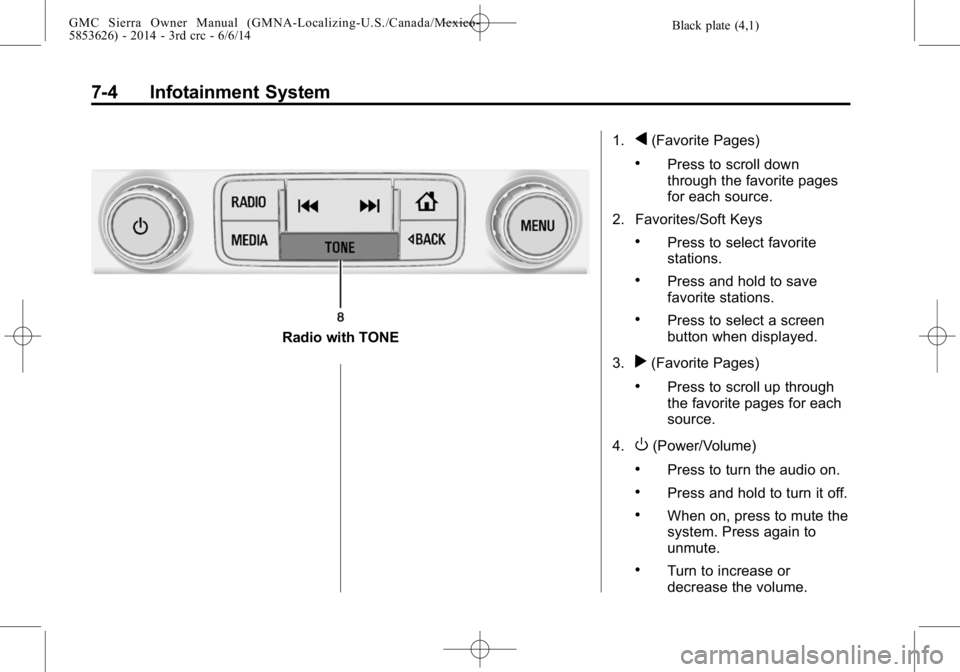
Radio with TONE1.
q(Favorite Pages)
.Press to scroll down
through the favorite pages
for each source.
2. Favorites/Soft Keys
.Press to select favorite
stations.
.Press and hold to save
favorite stations.
.Press to select a screen
button when displayed.
3.
r(Favorite Pages)
.Press to scroll up through
the favorite pages for each
source.
4.
O(Power/Volume)
.Press to turn the audio on.
.Press and hold to turn it off.
.When on, press to mute the
system. Press again to
unmute.
.Turn to increase or
decrease the volume.
Page 209 of 544

Black plate (5,1)GMC Sierra Owner Manual (GMNA-Localizing-U.S./Canada/Mexico-
5853626) - 2014 - 3rd crc - 6/6/14
Infotainment System 7-5
5. MEDIA
.Press to change the audio
source between CD, USB,
SD card, AUX, and
Bluetooth Audio,
if equipped.
6. RADIO
.Press to change the audio
source between AM, FM,
or SiriusXM, if equipped.
7.
gorl(Seek)
.CD (if equipped): Pressg
to seek the beginning of the
current or previous track.
If the track has played for
less than five seconds, it
seeks the previous track.
If longer than five seconds,
the current track will start
from the beginning. Press
lto seek the next track.
AM, FM, or SiriusXM (if
equipped): Press
gorl
to seek to the previous or
next strong station.
.CD (if equipped): Press
and hold
gto quickly
reverse through a track.
Release the button to return
to playing speed. Press and
hold
lto fast forward
through a track. Release
the button to return to
playing speed.
8.
X(Eject) (If Equipped) or
TONE (If Equipped)
.PressXto eject the CD
(if equipped).
.Press TONE to open the
Tone Settings menu
(if equipped).
9.
{(Home Page)
.Press to go to the Home
Page from any point in the
system. See “Home Page”
following. 10.
oBACK
.Press to return to the
previous screen in
a menu.
11. CD Slot (if equipped)
12. MENU
.Press to access the menu
for the current audio
source.
.Press to select the
highlighted menu option.
.Turn to scroll through
a list.
.Turn to manually select a
station.