change time GMC SIERRA 2014 User Guide
[x] Cancel search | Manufacturer: GMC, Model Year: 2014, Model line: SIERRA, Model: GMC SIERRA 2014Pages: 544, PDF Size: 13.79 MB
Page 191 of 544
Black plate (53,1)GMC Sierra Owner Manual (GMNA-Localizing-U.S./Canada/Mexico-
5853626) - 2014 - 3rd crc - 6/6/14
Instruments and Controls 5-53
2. At the same time, press andhold both the hand-held
transmitter button and one of the
three Universal Remote system
buttons to be used to operate
the garage door. Do not release
either button until the indicator
light goes from a slow to a rapid
flashing light. Then release both
buttons.
Some garage door openers may
require substitution of Step 2
with the procedure under “Radio
Signals for Canada and Some
Gate Operators” later in this
section.
3. Press and hold the newly programmed Universal Remote
system button for five seconds
while watching the indicator light
and garage door activation.
.If the indicator light stays on
continuously or the garage
door moves when the
button is pressed, then programming is complete.
There is no need to
complete Steps 4–6.
.If the indicator light does
not come on or the garage
door does not move, a
second button press may
be required. For a second
time, press and hold the
newly programmed button
for five seconds. If the light
stays on or the garage door
moves, programming is
complete.
.If the indicator light blinks
rapidly for two seconds,
then changes to a solid light
and the garage door does
not move, continue with
programming Steps 4–6.
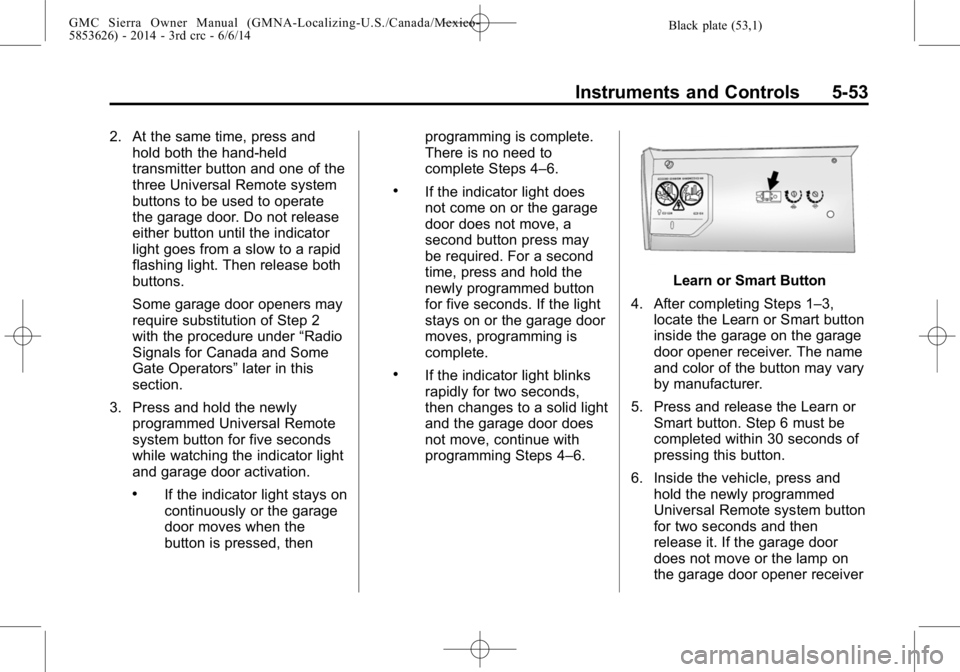
Learn or Smart Button
4. After completing Steps 1–3, locate the Learn or Smart button
inside the garage on the garage
door opener receiver. The name
and color of the button may vary
by manufacturer.
5. Press and release the Learn or Smart button. Step 6 must be
completed within 30 seconds of
pressing this button.
6. Inside the vehicle, press and hold the newly programmed
Universal Remote system button
for two seconds and then
release it. If the garage door
does not move or the lamp on
the garage door opener receiver
Page 195 of 544
Black plate (1,1)GMC Sierra Owner Manual (GMNA-Localizing-U.S./Canada/Mexico-
5853626) - 2014 - 3rd crc - 6/6/14
Lighting 6-1
Lighting
Exterior Lighting
Exterior Lamp Controls . . . . . . . . 6-1
Exterior Lamps OffReminder . . . . . . . . . . . . . . . . . . . . 6-2
Headlamp High/Low-Beam Changer . . . . . . . . . . . . . . . . . . . . . 6-2
Flash-to-Pass . . . . . . . . . . . . . . . . . 6-3
Daytime Running Lamps (DRL) . . . . . . . . . . . . . . . . 6-3
Automatic Headlamp System . . . . . . . . . . . . . . . . . . . . . . 6-3
Hazard Warning Flashers . . . . . 6-4
Turn and Lane-Change Signals . . . . . . . . . . . . . . . . . . . . . . 6-5
Fog Lamps . . . . . . . . . . . . . . . . . . . . 6-5
Auxiliary Roof-Mounted Lamp . . . . . . . . . 6-6
Interior Lighting
Instrument Panel IlluminationControl . . . . . . . . . . . . . . . . . . . . . . 6-6
Cargo Lamp . . . . . . . . . . . . . . . . . . 6-7
Dome Lamps . . . . . . . . . . . . . . . . . 6-7
Reading Lamps . . . . . . . . . . . . . . . 6-7
Lighting Features
Entry Lighting . . . . . . . . . . . . . . . . . 6-8
Exit Lighting . . . . . . . . . . . . . . . . . . . 6-8
Battery Load Management . . . . 6-8
Battery Power Protection . . . . . . 6-9
Exterior Lighting
Exterior Lamp Controls
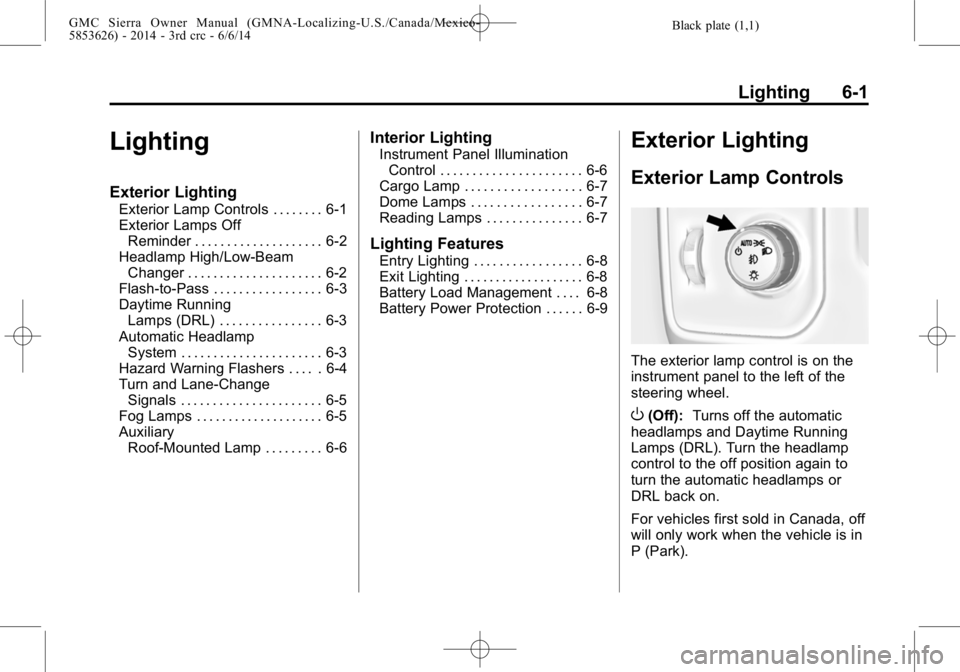
The exterior lamp control is on the
instrument panel to the left of the
steering wheel.
O(Off): Turns off the automatic
headlamps and Daytime Running
Lamps (DRL). Turn the headlamp
control to the off position again to
turn the automatic headlamps or
DRL back on.
For vehicles first sold in Canada, off
will only work when the vehicle is in
P (Park).
Page 196 of 544
Black plate (2,1)GMC Sierra Owner Manual (GMNA-Localizing-U.S./Canada/Mexico-
5853626) - 2014 - 3rd crc - 6/6/14
6-2 Lighting
AUTO (Automatic):Automatically
turns on the headlamps at normal
brightness, together with the
following:
.Parking Lamps
.Instrument Panel Lights
.Taillamps
.License Plate Lamps
.Roof Marker Lamps (If
Equipped)
.Front/Rear Sidemarker Lamps
When the vehicle is turned off and
the headlamps are in AUTO, the
headlamps turn off. When the key is
removed, they automatically turn on
for a set time. The time of the delay
can be changed using the DIC. See
Driver Information Center (DIC)
(Base Level) on page 5-30 orDriver
Information Center (DIC) (Uplevel)
on page 5-32.
;(Parking Lamps): Turns on the
parking lamps including all lamps,
except the headlamps.
2(Headlamps): Turns on the
headlamps together with the parking
lamps and instrument panel lights.
When the headlamps are turned on
while the vehicle is on, the
headlamps turn off automatically
10 minutes after the ignition is
turned off. When the headlamps are
turned on while the vehicle is off,
the headlamps will stay on for
10 minutes before turning off to
prevent the battery from being
drained. Turn the headlamp control
off and then back to the headlamp
on position to make the headlamps
stay on for an additional 10 minutes.
To keep the lamps on for more than
10 minutes, the ignition must be in
the ACC/ACCESSORY or ON/RUN
position.
#(Fog Lamps) (If Equipped):
Turns on the fog lamps. See Fog
Lamps on page 6-5.
Exterior Lamps Off
Reminder
A reminder chime sounds when the
headlamps or parking lamps are
manually turned on, the ignition is
off, and a door is open. To disable
the chime, turn the lamps off.
Headlamp High/
Low-Beam Changer
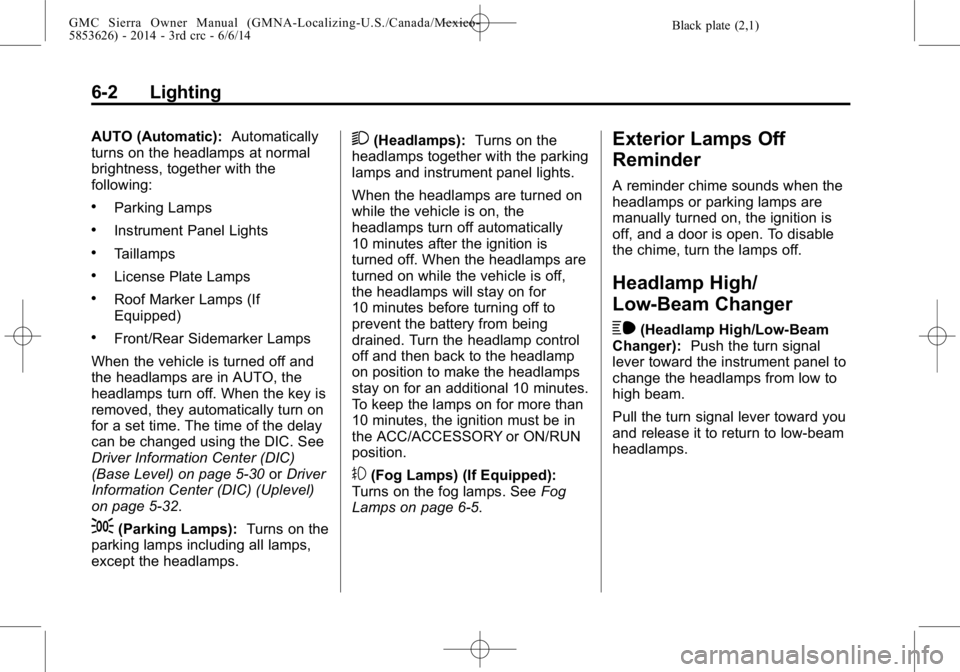
$
(Headlamp High/Low-Beam
Changer): Push the turn signal
lever toward the instrument panel to
change the headlamps from low to
high beam.
Pull the turn signal lever toward you
and release it to return to low-beam
headlamps.
Page 198 of 544
Black plate (4,1)GMC Sierra Owner Manual (GMNA-Localizing-U.S./Canada/Mexico-
5853626) - 2014 - 3rd crc - 6/6/14
6-4 Lighting
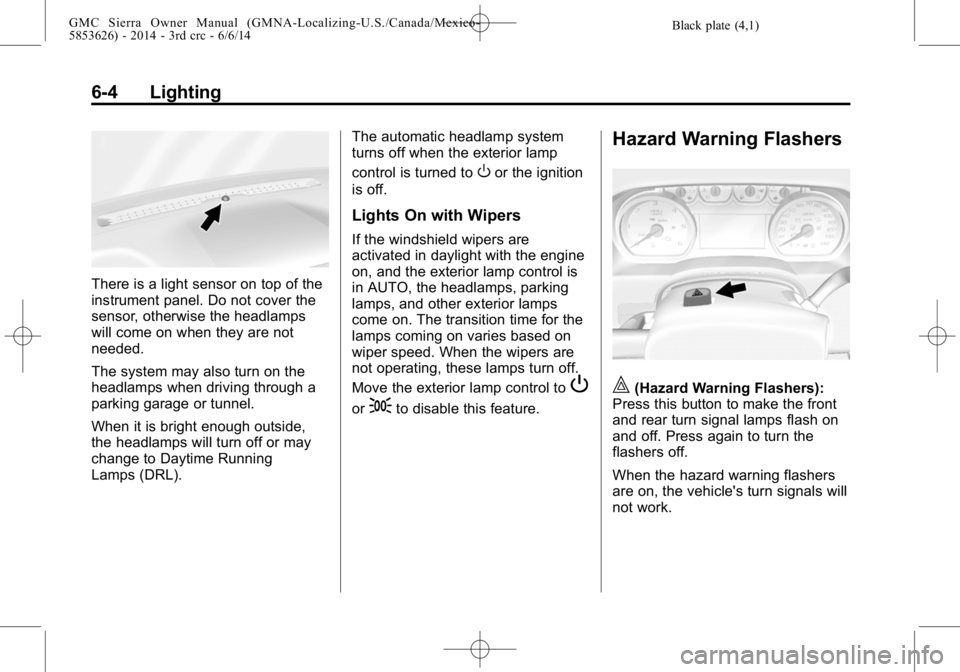
There is a light sensor on top of the
instrument panel. Do not cover the
sensor, otherwise the headlamps
will come on when they are not
needed.
The system may also turn on the
headlamps when driving through a
parking garage or tunnel.
When it is bright enough outside,
the headlamps will turn off or may
change to Daytime Running
Lamps (DRL).The automatic headlamp system
turns off when the exterior lamp
control is turned to
Oor the ignition
is off.
Lights On with Wipers
If the windshield wipers are
activated in daylight with the engine
on, and the exterior lamp control is
in AUTO, the headlamps, parking
lamps, and other exterior lamps
come on. The transition time for the
lamps coming on varies based on
wiper speed. When the wipers are
not operating, these lamps turn off.
Move the exterior lamp control to
P
or;to disable this feature.
Hazard Warning Flashers
|(Hazard Warning Flashers):
Press this button to make the front
and rear turn signal lamps flash on
and off. Press again to turn the
flashers off.
When the hazard warning flashers
are on, the vehicle's turn signals will
not work.
Page 199 of 544
Black plate (5,1)GMC Sierra Owner Manual (GMNA-Localizing-U.S./Canada/Mexico-
5853626) - 2014 - 3rd crc - 6/6/14
Lighting 6-5
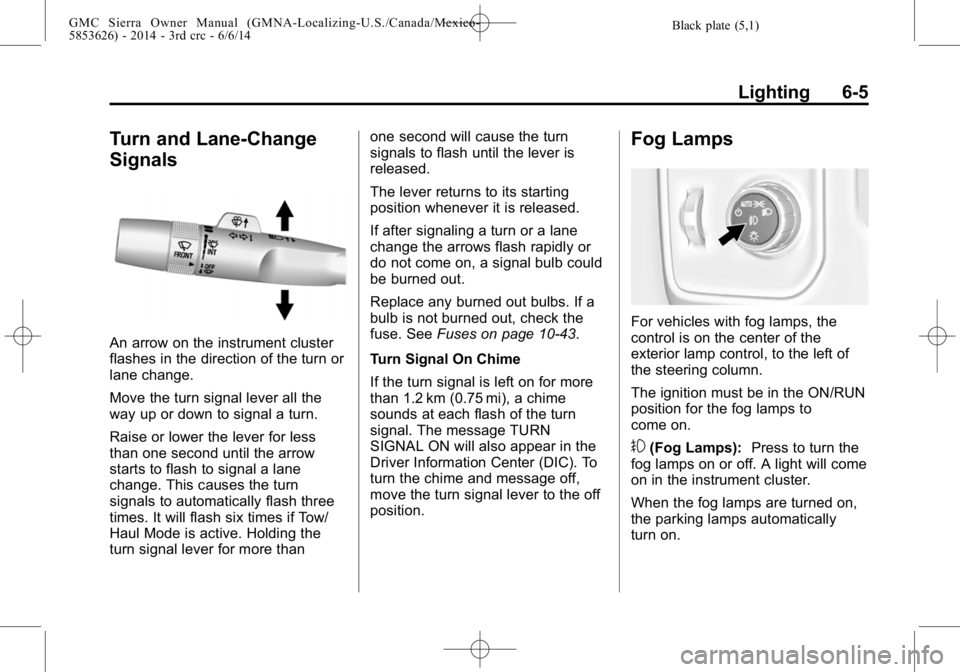
Turn and Lane-Change
Signals
An arrow on the instrument cluster
flashes in the direction of the turn or
lane change.
Move the turn signal lever all the
way up or down to signal a turn.
Raise or lower the lever for less
than one second until the arrow
starts to flash to signal a lane
change. This causes the turn
signals to automatically flash three
times. It will flash six times if Tow/
Haul Mode is active. Holding the
turn signal lever for more thanone second will cause the turn
signals to flash until the lever is
released.
The lever returns to its starting
position whenever it is released.
If after signaling a turn or a lane
change the arrows flash rapidly or
do not come on, a signal bulb could
be burned out.
Replace any burned out bulbs. If a
bulb is not burned out, check the
fuse. See
Fuses on page 10-43.
Turn Signal On Chime
If the turn signal is left on for more
than 1.2 km (0.75 mi), a chime
sounds at each flash of the turn
signal. The message TURN
SIGNAL ON will also appear in the
Driver Information Center (DIC). To
turn the chime and message off,
move the turn signal lever to the off
position.
Fog Lamps
For vehicles with fog lamps, the
control is on the center of the
exterior lamp control, to the left of
the steering column.
The ignition must be in the ON/RUN
position for the fog lamps to
come on.
#(Fog Lamps): Press to turn the
fog lamps on or off. A light will come
on in the instrument cluster.
When the fog lamps are turned on,
the parking lamps automatically
turn on.
Page 235 of 544
Black plate (31,1)GMC Sierra Owner Manual (GMNA-Localizing-U.S./Canada/Mexico-
5853626) - 2014 - 3rd crc - 6/6/14
Infotainment System 7-31
Handling Large Amounts of Media
Content
It is expected that large amounts of
media content will be brought into
the vehicle. It may be necessary to
handle large amounts of media
content in a different way than
smaller amounts of media. The
system may limit the options of
voice recognition by not allowing
selection of song titles by voice at
the highest level if the number of
songs exceeds the maximum limit.
Voice command option changes
through media content limits are:
.Song files including other
individual files of all media types
such as audiobook chapters,
podcast episodes, and videos.
.Album type folders including
types such as albums and
audiobooks.There are no restrictions if the
number of song files and albums is
less than 4,000. When the number
of song files connected to the
system is between 4,000 and 8,000,
the content cannot be accessed
directly with one command like
“Play
The restriction is that the command
“Play Song”
must be spoken first;
the system will then ask for the song
name. The reply command would be
to say the name of the song to play.
Similar limits exist for album
content. If there are more than
4,000 albums, but less than 8,000,
the content cannot be accessed
directly with one command like,
“Play
command “Play Album” must first be
spoken; the system will then ask for
the album name. The reply would
be to say the name of the album
to play. Once the number of songs has
exceeded approximately 8,000,
there is no support for accessing the
songs directly through voice
commands. There will still be
access to the media content by
using commands for playlists,
artists, and genres.
The access commands for playlists,
artists, and genres are prohibited
after the number of this type of
media exceeds 4,000.
The system will provide feedback
the first time voice recognition is
initiated if it has become apparent
that any of these limits are reached
during a device initializing process.
Voice Recognition for the
Phone
“Call
Initiate a
call to an entered contact. The
command may include location if
the contact has location numbers
stored.
Page 239 of 544
Black plate (35,1)GMC Sierra Owner Manual (GMNA-Localizing-U.S./Canada/Mexico-
5853626) - 2014 - 3rd crc - 6/6/14
Infotainment System 7-35
Pairing Information
.Up to five cell phones can be
paired to the Bluetooth system.
.The pairing process is disabled
when the vehicle is moving.
.Pairing only needs to be
completed once per phone,
unless the pairing information on
the cell phone changes or the
cell phone is deleted from the
system.
.Only one paired cell phone can
be connected to the Bluetooth
system at a time.
.If multiple paired cell phones are
within range of the system, the
system connects to the first
available paired cell phone in the
order that they were newly
paired to the system. To connect
to a different paired phone, see
“Connecting to a Different
Phone”later in this section. Pairing a Phone or Device
1. From the Home Page, turn the
MENU knob to access the
PHONE screen button, then
press the MENU knob to select
the PHONE screen button. If a
device has been previously
paired, the main Phone menu
will be shown. If no devices
have been paired, Step 2 can be
skipped.
2. Turn the MENU knob and press to select Manage Phones.
3. Press the button just below the PAIR/screen button. A four-digit
Personal Identification Number
(PIN) appears on the display.
The PIN is used in Step 5.
4. Start the pairing process on the cell phone to be paired to the
vehicle. See the cell phone
manufacturer's user guide for
information on this process. 5. Locate the device named
“Your
Vehicle” in the list on the cell
phone. Follow the instructions
on the cell phone to enter the
PIN provided in Step 3.
After the PIN is successfully
entered, the system confirms the
pairing process is complete.
6. If the phone prompts to accept connection or allow phone book
download, select always accept
and allow. The phone book may
not be available if not accepted.
7. Repeat steps 1–6 to pair additional phones or devices.
Listing All Paired and Connected
Phones
1. To list all paired devices, from the Home Page turn the MENU
knob, then press to select the
PHONE screen button.
2. Turn the MENU knob and press to select Manage Phones.
Page 244 of 544
Black plate (40,1)GMC Sierra Owner Manual (GMNA-Localizing-U.S./Canada/Mexico-
5853626) - 2014 - 3rd crc - 6/6/14
7-40 Infotainment System
Connecting to a Different Phone
To connect to a different cell phone,
the Bluetooth system looks for the
next available cell phone in the
order in which all available cell
phones were paired. This may need
to be repeated depending on how
many cell phones have been
connected.
1. Press
g. The system responds
“Ready,” followed by a tone.
2. Say “Bluetooth.”
3. Say “Change phone.”
.If another cell phone is
found, the response will be
“
connected.”
This can be repeated to
connect any of the up to
five paired phones.
.If another cell phone is not
found, the original phone
remains connected.
Storing and Deleting Phone
Numbers
The following commands are used
to delete and store phone numbers.
Store:This command will store a
phone number, or a group of
numbers as a name tag.
Digit Store: This command allows
a phone number to be stored as a
name tag by entering the digits one
at a time.
Delete: This command is used to
delete individual name tags.
Delete All Name Tags: This
command deletes all stored name
tags in the Hands-Free Calling
Directory and the Destinations
Directory.
Using the “Store”Command
1. Press
g. The system responds
“Ready,” followed by a tone.
2. Say “Store.” 3. Say the entire phone number or
a group of digits all at once with
no pauses, then follow the
directions given by the system to
save a name tag for this number.
Using the “Digit Store” Command
If an unwanted number is
recognized by the system, say
“Correction” at any time to clear the
last number.
To hear all of the digits recognized
by the system, say “Verify”at
any time.
1. Press
g. The system responds
“Ready,” followed by a tone.
2. Say “Digit Store.”
3. Say each digit, one at a time. After each digit is entered, the
system repeats back the digit it
heard followed by a tone. After
the last digit has been entered,
say “Store,” and then follow the
directions given by the system to
save a name tag for this number.
Page 245 of 544
Black plate (41,1)GMC Sierra Owner Manual (GMNA-Localizing-U.S./Canada/Mexico-
5853626) - 2014 - 3rd crc - 6/6/14
Infotainment System 7-41
Using the“Delete”Command
1. Press
g. The system responds
“Ready,” followed by a tone.
2. Say “Delete.”
3. Say the name tag you want to delete.
Using the “Delete All Name Tags”
Command
This command deletes all stored
name tags in the Hands-Free
Calling Directory and the
Destinations Directory.
To delete all name tags:
1. Press
g. The system responds
“Ready,” followed by a tone.
2. Say “Delete all name tags.”
Listing Stored Numbers
The list command will list all the
stored numbers and name tags.
Using the “List”Command
1. Press
g. The system responds
“Ready,” followed by a tone. 2. Say
“Directory.”
3. Say “Hands-Free Calling.”
4. Say “List.”
Making a Call
Calls can be made using the
following commands.
Dial or Call: The dial or call
command can be used
interchangeably to dial a phone
number or a stored name tag.
Digit Dial: This command allows a
phone number to be dialed by
entering the digits one at a time.
Re-dial: This command is used to
dial the last number used on the cell
phone.
Using the “Dial”or“Call”
Command
1. Press
g. The system responds
“Say a command or say help,”
followed by a tone.
2. Say “Dial”or“Call.” 3. Say the entire number without
pausing or say the name tag.
Once connected, the person called
will be heard through the audio
speakers.
Calling 911 Emergency (U.S. and
Canada)
1. Press
g. The system responds
“Say a command or say help,”
followed by a tone.
2. Say “Dial”or“Call.”
3. Say “911.”
4. Say “Dial”or“Call.”
Calling 066 Emergency (Mexico)
1. Press
g. The system responds
“Say a command or say help,”
followed by a tone.
2. Say “Dial”or“Call.”
3. Say “066.”
4. Say “Dial”or“Call.”
Page 248 of 544
Black plate (44,1)GMC Sierra Owner Manual (GMNA-Localizing-U.S./Canada/Mexico-
5853626) - 2014 - 3rd crc - 6/6/14
7-44 Infotainment System
Clearing the System
Unless information is deleted out of
the in-vehicle Bluetooth system, it
will be retained indefinitely. This
includes all phone pairing
information. For information on how
to delete this information, see
“Deleting a Paired Phone.”
Bluetooth (Infotainment
Controls - Base
Connected Radio)
For information about how to
navigate the menu system using the
infotainment controls, seeOverview
on page 7-2.
Switching to Handset or
Hands-Free Mode
To switch between handset or
hands-free mode, from the Home
Page select the PHONE to display
Call View.
.While the active call is
hands-free, press the Handset
screen button to switch to the handset mode. The screen
button changes to Hands-Free
once the Bluetooth device
confirms it is operating as
handset.
.While the active call is handset,
select the Hands-Free screen
button to switch to the
hands-free mode. The screen
button changes to Handset once
the Bluetooth device confirms it
is operating as hands-free.
Pairing
A Bluetooth-enabled cell phone
must be paired to the Bluetooth
system and then connected to the
vehicle before it can be used. See
your cell phone manufacturer's user
guide for Bluetooth functions before
pairing the cell phone. If a Bluetooth
phone is not connected, calls can
be made using OnStar Hands-Free
Calling, if available. See
OnStar
Overview on page 14-1. Pairing Information
.Up to 10 cell phones can be
paired to the Bluetooth system.
.The pairing process is disabled
when the vehicle is moving.
.Pairing only needs to be
completed once per phone,
unless the pairing information on
the cell phone changes or the
cell phone is deleted from the
system.
.Only one paired cell phone can
be connected to the Bluetooth
system at a time.
.If multiple paired cell phones are
within range of the system, the
system connects to the most
recently connected device. To
connect to a different paired
phone, see
“Connecting to a
Different Phone” after in this
section.