CD player GMC SIERRA 2016 User Guide
[x] Cancel search | Manufacturer: GMC, Model Year: 2016, Model line: SIERRA, Model: GMC SIERRA 2016Pages: 509, PDF Size: 6.51 MB
Page 206 of 509
GMC Sierra Owner Manual (GMNA-Localizing-U.S./Canada/Mexico-
9234758) - 2016 - crc - 11/9/15
Infotainment System 205
If the CD is not playing correctly for
any other reason, try a known
good CD.
If any error continues, contact your
dealer.
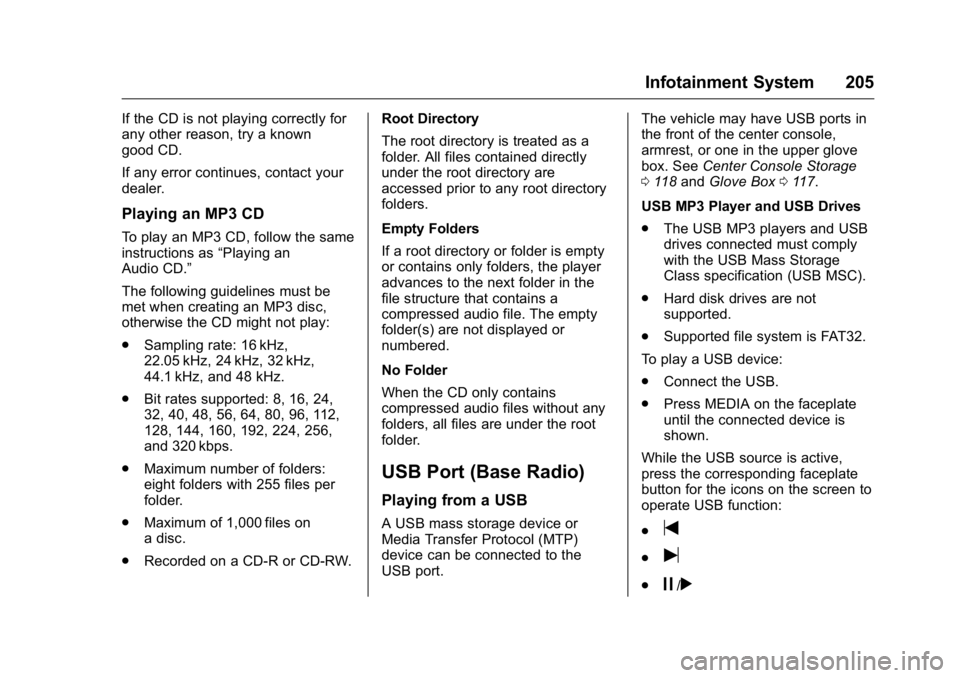
Playing an MP3 CD
To play an MP3 CD, follow the same
instructions as“Playing an
Audio CD.”
The following guidelines must be
met when creating an MP3 disc,
otherwise the CD might not play:
. Sampling rate: 16 kHz,
22.05 kHz, 24 kHz, 32 kHz,
44.1 kHz, and 48 kHz.
. Bit rates supported: 8, 16, 24,
32, 40, 48, 56, 64, 80, 96, 112,
128, 144, 160, 192, 224, 256,
and 320 kbps.
. Maximum number of folders:
eight folders with 255 files per
folder.
. Maximum of 1,000 files on
a disc.
. Recorded on a CD-R or CD-RW. Root Directory
The root directory is treated as a
folder. All files contained directly
under the root directory are
accessed prior to any root directory
folders.
Empty Folders
If a root directory or folder is empty
or contains only folders, the player
advances to the next folder in the
file structure that contains a
compressed audio file. The empty
folder(s) are not displayed or
numbered.
No Folder
When the CD only contains
compressed audio files without any
folders, all files are under the root
folder.
USB Port (Base Radio)
Playing from a USB
A USB mass storage device or
Media Transfer Protocol (MTP)
device can be connected to the
USB port. The vehicle may have USB ports in
the front of the center console,
armrest, or one in the upper glove
box. See
Center Console Storage
0 118 and Glove Box 0117.
USB MP3 Player and USB Drives
. The USB MP3 players and USB
drives connected must comply
with the USB Mass Storage
Class specification (USB MSC).
. Hard disk drives are not
supported.
. Supported file system is FAT32.
To play a USB device:
. Connect the USB.
. Press MEDIA on the faceplate
until the connected device is
shown.
While the USB source is active,
press the corresponding faceplate
button for the icons on the screen to
operate USB function:
.t
.u
.j/r
Page 207 of 509
GMC Sierra Owner Manual (GMNA-Localizing-U.S./Canada/Mexico-
9234758) - 2016 - crc - 11/9/15
206 Infotainment System
.Z
For information on how to use the
screen icons, see“Playing an
Audio CD.”
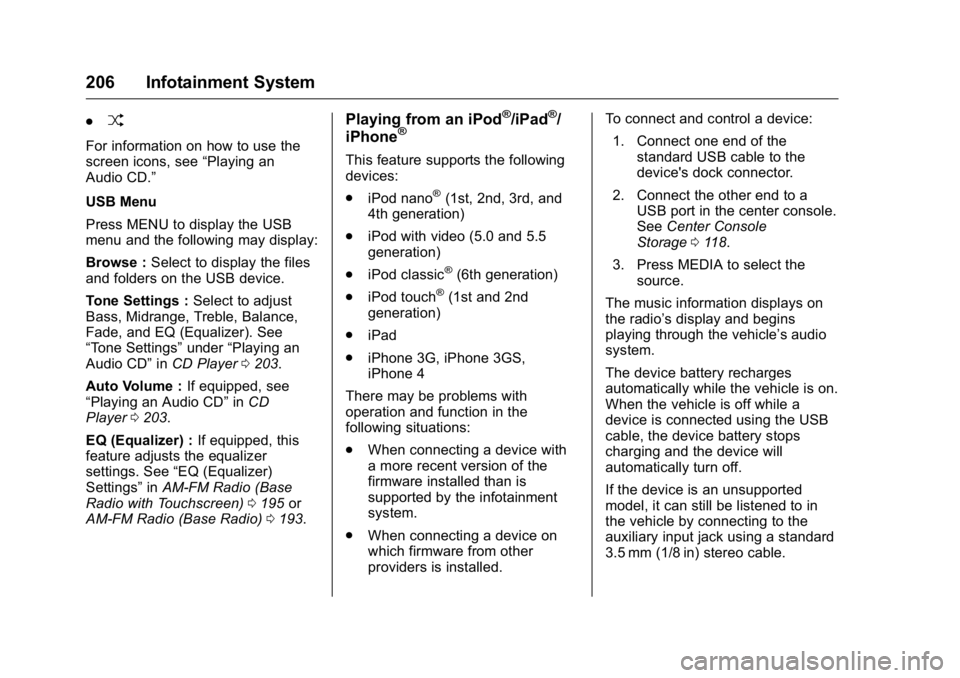
USB Menu
Press MENU to display the USB
menu and the following may display:
Browse : Select to display the files
and folders on the USB device.
Tone Settings : Select to adjust
Bass, Midrange, Treble, Balance,
Fade, and EQ (Equalizer). See
“Tone Settings” under“Playing an
Audio CD” inCD Player 0203.
Auto Volume : If equipped, see
“Playing an Audio CD” inCD
Player 0203.
EQ (Equalizer) : If equipped, this
feature adjusts the equalizer
settings. See “EQ (Equalizer)
Settings” inAM-FM Radio (Base
Radio with Touchscreen) 0195 or
AM-FM Radio (Base Radio) 0193.
Playing from an iPod®/iPad®/
iPhone®
This feature supports the following
devices:
. iPod nano
®(1st, 2nd, 3rd, and
4th generation)
. iPod with video (5.0 and 5.5
generation)
. iPod classic
®(6th generation)
. iPod touch
®(1st and 2nd
generation)
. iPad
. iPhone 3G, iPhone 3GS,
iPhone 4
There may be problems with
operation and function in the
following situations:
. When connecting a device with
a more recent version of the
firmware installed than is
supported by the infotainment
system.
. When connecting a device on
which firmware from other
providers is installed. To connect and control a device:
1. Connect one end of the standard USB cable to the
device's dock connector.
2. Connect the other end to a USB port in the center console.
See Center Console
Storage 0118.
3. Press MEDIA to select the source.
The music information displays on
the radio’s display and begins
playing through the vehicle’s audio
system.
The device battery recharges
automatically while the vehicle is on.
When the vehicle is off while a
device is connected using the USB
cable, the device battery stops
charging and the device will
automatically turn off.
If the device is an unsupported
model, it can still be listened to in
the vehicle by connecting to the
auxiliary input jack using a standard
3.5 mm (1/8 in) stereo cable.
Page 208 of 509
GMC Sierra Owner Manual (GMNA-Localizing-U.S./Canada/Mexico-
9234758) - 2016 - crc - 11/9/15
Infotainment System 207
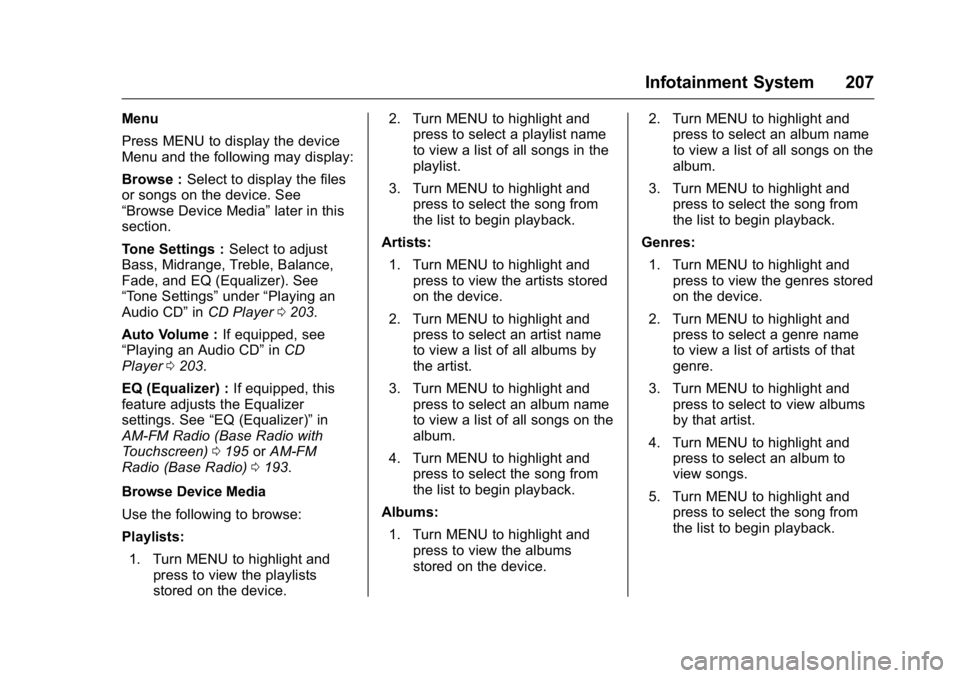
Menu
Press MENU to display the device
Menu and the following may display:
Browse :Select to display the files
or songs on the device. See
“Browse Device Media” later in this
section.
Tone Settings : Select to adjust
Bass, Midrange, Treble, Balance,
Fade, and EQ (Equalizer). See
“Tone Settings” under“Playing an
Audio CD” inCD Player 0203.
Auto Volume : If equipped, see
“Playing an Audio CD” inCD
Player 0203.
EQ (Equalizer) : If equipped, this
feature adjusts the Equalizer
settings. See “EQ (Equalizer)” in
AM-FM Radio (Base Radio with
Touchscreen) 0195 orAM-FM
Radio (Base Radio) 0193.
Browse Device Media
Use the following to browse:
Playlists: 1. Turn MENU to highlight and press to view the playlists
stored on the device. 2. Turn MENU to highlight and
press to select a playlist name
to view a list of all songs in the
playlist.
3. Turn MENU to highlight and press to select the song from
the list to begin playback.
Artists: 1. Turn MENU to highlight and press to view the artists stored
on the device.
2. Turn MENU to highlight and press to select an artist name
to view a list of all albums by
the artist.
3. Turn MENU to highlight and press to select an album name
to view a list of all songs on the
album.
4. Turn MENU to highlight and press to select the song from
the list to begin playback.
Albums: 1. Turn MENU to highlight and press to view the albums
stored on the device. 2. Turn MENU to highlight and
press to select an album name
to view a list of all songs on the
album.
3. Turn MENU to highlight and press to select the song from
the list to begin playback.
Genres: 1. Turn MENU to highlight and press to view the genres stored
on the device.
2. Turn MENU to highlight and press to select a genre name
to view a list of artists of that
genre.
3. Turn MENU to highlight and press to select to view albums
by that artist.
4. Turn MENU to highlight and press to select an album to
view songs.
5. Turn MENU to highlight and press to select the song from
the list to begin playback.
Page 210 of 509
GMC Sierra Owner Manual (GMNA-Localizing-U.S./Canada/Mexico-
9234758) - 2016 - crc - 11/9/15
Infotainment System 209
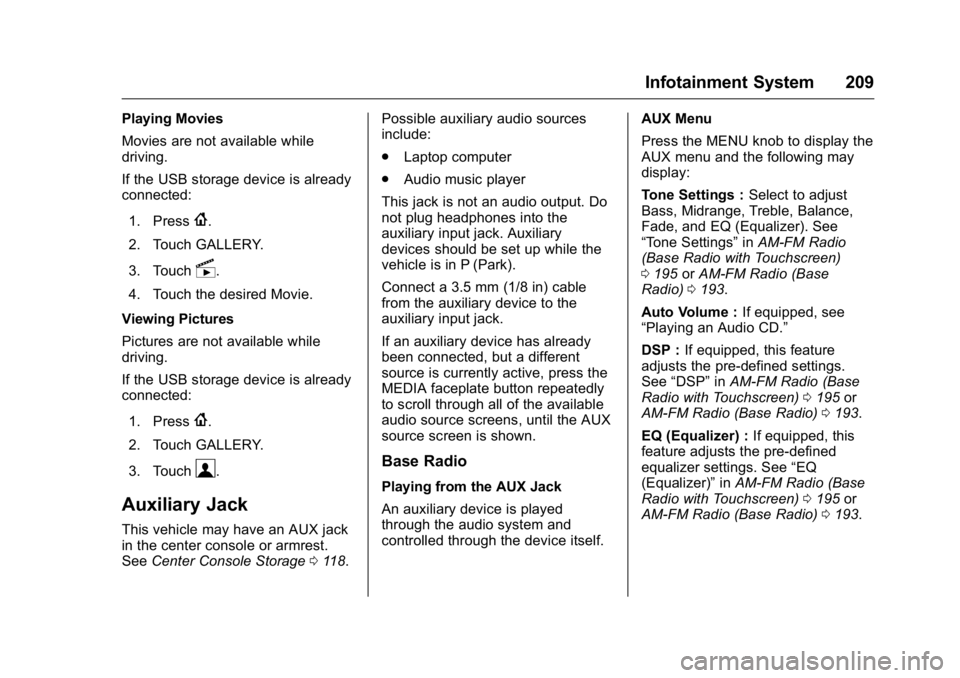
Playing Movies
Movies are not available while
driving.
If the USB storage device is already
connected:1. Press
{.
2. Touch GALLERY.
3. Touch
s.
4. Touch the desired Movie.
Viewing Pictures
Pictures are not available while
driving.
If the USB storage device is already
connected:
1. Press
{.
2. Touch GALLERY.
3. Touch
\.
Auxiliary Jack
This vehicle may have an AUX jack
in the center console or armrest.
See Center Console Storage 0118. Possible auxiliary audio sources
include:
.
Laptop computer
. Audio music player
This jack is not an audio output. Do
not plug headphones into the
auxiliary input jack. Auxiliary
devices should be set up while the
vehicle is in P (Park).
Connect a 3.5 mm (1/8 in) cable
from the auxiliary device to the
auxiliary input jack.
If an auxiliary device has already
been connected, but a different
source is currently active, press the
MEDIA faceplate button repeatedly
to scroll through all of the available
audio source screens, until the AUX
source screen is shown.
Base Radio
Playing from the AUX Jack
An auxiliary device is played
through the audio system and
controlled through the device itself. AUX Menu
Press the MENU knob to display the
AUX menu and the following may
display:
Tone Settings :
Select to adjust
Bass, Midrange, Treble, Balance,
Fade, and EQ (Equalizer). See
“Tone Settings” inAM-FM Radio
(Base Radio with Touchscreen)
0 195 orAM-FM Radio (Base
Radio) 0193.
Auto Volume : If equipped, see
“Playing an Audio CD.”
DSP : If equipped, this feature
adjusts the pre-defined settings.
See “DSP” inAM-FM Radio (Base
Radio with Touchscreen) 0195 or
AM-FM Radio (Base Radio) 0193.
EQ (Equalizer) : If equipped, this
feature adjusts the pre-defined
equalizer settings. See “EQ
(Equalizer)” inAM-FM Radio (Base
Radio with Touchscreen) 0195 or
AM-FM Radio (Base Radio) 0193.
Page 212 of 509
GMC Sierra Owner Manual (GMNA-Localizing-U.S./Canada/Mexico-
9234758) - 2016 - crc - 11/9/15
Infotainment System 211
2. Once paired, go into the audioapplication from the Home
Page or via the application tray.
Select MEDIA until Bluetooth
displays.
Bluetooth Audio Menu
Press the MENU screen button to
display the Bluetooth Audio menu.
The following may be available:
Tone: Turn the MENU knob to
adjust the tone settings.
Press
oBACK to go back to the
previous menu.
Manage Bluetooth Devices: Select
to go to the Bluetooth page to add
or delete devices.
When selecting Bluetooth Audio, the
radio may not be able to launch the
audio player on the connected
device to start playing. When the
vehicle is not moving, use the
phone to begin playback. All devices launch audio differently.
When selecting Bluetooth Audio as
a source, the radio may show as
paused on the screen. Press play
on the device or press
rto begin
playback.
Some phones support sending
Bluetooth music information to
display on the radio. When the radio
receives this information, it will
check to see if any is available and
display it. For more information
about supported Bluetooth features,
see www.gm.com/bluetooth.
Voice Recognition
If equipped, voice recognition allows
for hands-free operation within the
audio and phone applications. This
feature can be started by pressing
either the
gbutton on the steering
wheel or by selecting the
gon the
screen display.
However, not all features within
these areas are supported by voice
commands. Generally, only complex
tasks that require multiple manual
interactions to complete are
supported by voice commands.
For example, tasks that take more
than one or two button presses such
as selecting a song or artist to play
from a media device would be
supported by voice commands.
Other tasks, like adjusting the
volume or seeking up or down are
audio features that are easily
performed by pressing one or two
buttons, and are not supported by
voice commands.
In general there are flexible ways to
speak commands for completing the
tasks. Most of them, except
Page 229 of 509
GMC Sierra Owner Manual (GMNA-Localizing-U.S./Canada/Mexico-
9234758) - 2016 - crc - 11/9/15
228 Infotainment System
To access contacts stored in the cell
phone:1. Press
g. The system responds
“Ready,” followed by a tone.
2. Say “Bluetooth.”
3. Say “Voice.”The system
responds “OK, accessing
The cell phone's normal prompt
messages will go through their cycle
according to the phone's operating
instructions.
Dual Tone Multi-Frequency
(DTMF) Tones
The Bluetooth system can send
numbers and the numbers stored as
name tags during a call. You can
use this feature when calling a
menu-driven phone system.
Account numbers can also be
stored for use.
Sending a Number or Name Tag
During a Call
1. Press
g. The system responds
“Ready,” followed by a tone.
2. Say “Dial.” 3. Say the number or name tag
to send.
Clearing the System
Unless information is deleted out of
the in-vehicle Bluetooth system, it
will be retained indefinitely. This
includes all phone pairing
information. For information on how
to delete this information, see
“Deleting a Paired Phone.”
Bluetooth (Infotainment
Controls - Base Radio
with Touchscreen)
To use infotainment controls to
access the menu system, see
Overview (Base Radio) 0186 or
Overview (Base Radio with
Touchscreen) 0189.
Pairing
A Bluetooth-enabled cell phone
must be paired to the Bluetooth
system and then connected to the
vehicle before it can be used. See
your cell phone manufacturer's user
guide for Bluetooth functions before
pairing the cell phone. If a Bluetooth phone is not connected, calls will be
made using OnStar Hands-Free
Calling, if available. See
OnStar
Overview 0486.
Pairing Information
. A Bluetooth phone with MP3
capability cannot be paired to
the vehicle as a phone and an
MP3 player at the same time.
. Up to 10 cell phones can be
paired to the Bluetooth system.
. The pairing process is disabled
when the vehicle is moving.
. Pairing only needs to be
completed once, unless the
pairing information on the cell
phone changes or the cell phone
is deleted from the system.
. Only one paired cell phone can
be connected to the Bluetooth
system at a time.
. If multiple paired cell phones are
within range of the system, the
system connects to the first
available paired cell phone in the
order that they were first paired
to the system.
Page 236 of 509
GMC Sierra Owner Manual (GMNA-Localizing-U.S./Canada/Mexico-
9234758) - 2016 - crc - 11/9/15
Infotainment System 235
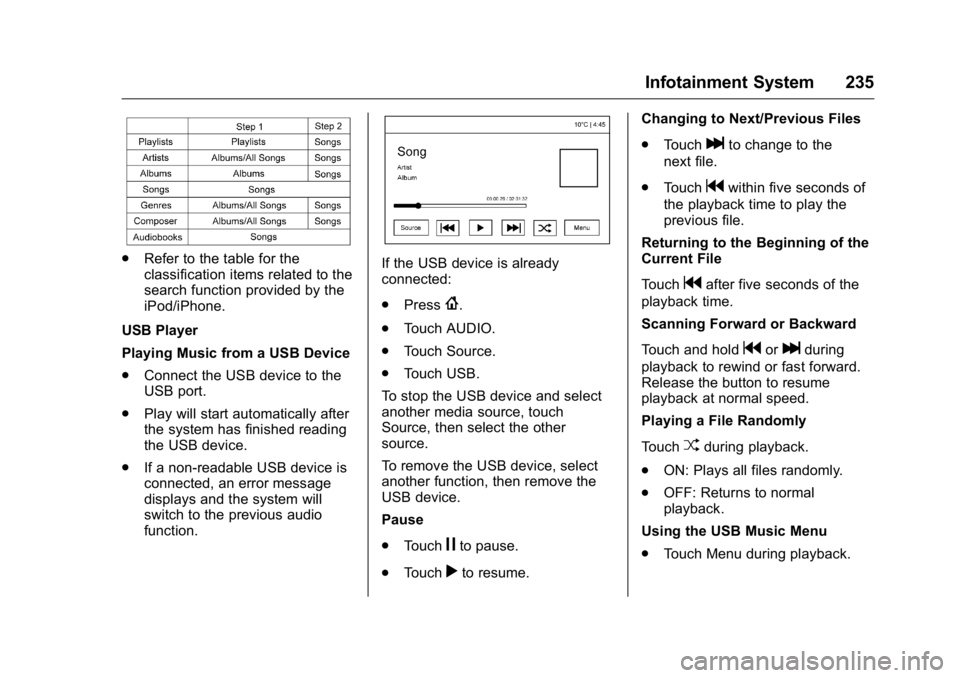
.Refer to the table for the
classification items related to the
search function provided by the
iPod/iPhone.
USB Player
Playing Music from a USB Device
. Connect the USB device to the
USB port.
. Play will start automatically after
the system has finished reading
the USB device.
. If a non-readable USB device is
connected, an error message
displays and the system will
switch to the previous audio
function.If the USB device is already
connected:
.Press
{.
. Touch AUDIO.
. Touch Source.
. Touch USB.
To stop the USB device and select
another media source, touch
Source, then select the other
source.
To remove the USB device, select
another function, then remove the
USB device.
Pause
. Touch
jto pause.
. Touch
rto resume. Changing to Next/Previous Files
.
Touch
lto change to the
next file.
. Touch
gwithin five seconds of
the playback time to play the
previous file.
Returning to the Beginning of the
Current File
Touch
gafter five seconds of the
playback time.
Scanning Forward or Backward
Touch and hold
gorlduring
playback to rewind or fast forward.
Release the button to resume
playback at normal speed.
Playing a File Randomly
Touch
Zduring playback.
. ON: Plays all files randomly.
. OFF: Returns to normal
playback.
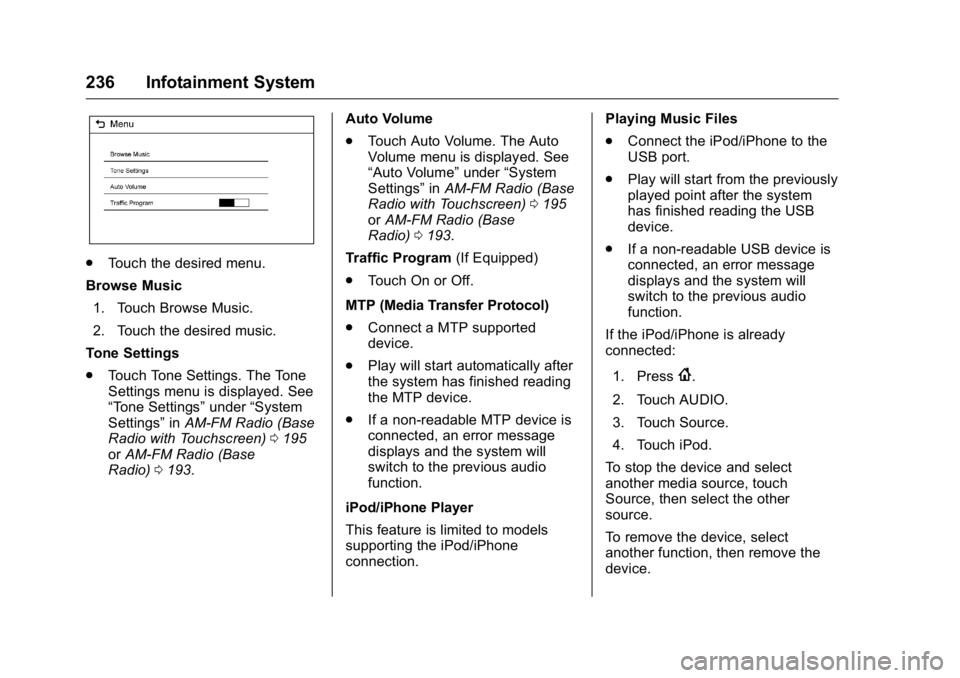
Using the USB Music Menu
. Touch Menu during playback.
Page 237 of 509
GMC Sierra Owner Manual (GMNA-Localizing-U.S./Canada/Mexico-
9234758) - 2016 - crc - 11/9/15
236 Infotainment System
.Touch the desired menu.
Browse Music 1. Touch Browse Music.
2. Touch the desired music.
Tone Settings
. Touch Tone Settings. The Tone
Settings menu is displayed. See
“Tone Settings” under“System
Settings” inAM-FM Radio (Base
Radio with Touchscreen) 0195
or AM-FM Radio (Base
Radio) 0193. Auto Volume
.
Touch Auto Volume. The Auto
Volume menu is displayed. See
“Auto Volume” under“System
Settings” inAM-FM Radio (Base
Radio with Touchscreen) 0195
or AM-FM Radio (Base
Radio) 0193.
Traffic Program (If Equipped)
. Touch On or Off.
MTP (Media Transfer Protocol)
. Connect a MTP supported
device.
. Play will start automatically after
the system has finished reading
the MTP device.
. If a non-readable MTP device is
connected, an error message
displays and the system will
switch to the previous audio
function.
iPod/iPhone Player
This feature is limited to models
supporting the iPod/iPhone
connection. Playing Music Files
.
Connect the iPod/iPhone to the
USB port.
. Play will start from the previously
played point after the system
has finished reading the USB
device.
. If a non-readable USB device is
connected, an error message
displays and the system will
switch to the previous audio
function.
If the iPod/iPhone is already
connected:
1. Press
{.
2. Touch AUDIO.
3. Touch Source.
4. Touch iPod.
To stop the device and select
another media source, touch
Source, then select the other
source.
To remove the device, select
another function, then remove the
device.
Page 498 of 509

GMC Sierra Owner Manual (GMNA-Localizing-U.S./Canada/Mexico-
9234758) - 2016 - crc - 11/9/15
Index 497
Antilock Brake System(ABS) (cont'd)
Warning Light . . . . . . . . . . . . . . . . . 143
Appearance Care
Exterior . . . . . . . . . . . . . . . . . . . . . . . 444
Interior . . . . . . . . . . . . . . . . . . . . . . . . 449
Apple CarPlay and Android Auto . . . . . . . . . . . . . . . . . . 232
Assistance Program,
Roadside . . . . . . . . . . . . . . . . . . . . . . 476
Assistance Systems for Driving . . . . . . . . . . . . . . . . . . . . . . . . 312
Assistance Systems for
Parking and Backing . . . . . . . . . . 309
Audio Bluetooth . . . . . . . . . . . . . . . . . . . . . 210
Theft-Deterrent Feature . . . . . . . 185
Audio Players
CD . . . . . . . . . . . . . . . . . . . . . . . . . . . 203
Automatic Dimming Mirrors . . . . . . . . . . . . . . . . 48
Door Locks . . . . . . . . . . . . . . . . . . . . . 39
Headlamp System . . . . . . . . . . . . 177
Transmission . . . . . . . . . . . . . . . . . 286
Transmission Fluid . . . . . . 367, 370
Automatic Transmission Manual Mode . . . . . . . . . . . . . . . . . 289 Automatic Transmission (cont'd)
Shift Lock Control Function
Check . . . . . . . . . . . . . . . . . . . . . . . 386
Auxiliary
Roof Mounted Lamp . . . . . . . . . . 180
Auxiliary Jack . . . . . . . . . . . . . . . . . . . 209
Axle, Front . . . . . . . . . . . . . . . . . . . . . . 383
Axle, Rear . . . . . . . . . . . . . . . . . . . . . . 384
B
Battery Load Management . . . . . . . . . . . . 182
Power Protection . . . . . . . . . . . . . 183
Voltage and ChargingMessages . . . . . . . . . . . . . . . . . . . 153
Battery - North America . . . . 382, 434
Blade Replacement, Wiper . . . . . 387
Blind Spot Mirrors . . . . . . . . . . . . . . . 48
Bluetooth Overview . . . . . . . . 218, 219, 223, 228
Bluetooth Audio . . . . . . . . . . . . . . . . 210
Brake
Pedal and AdjustableThrottle . . . . . . . . . . . . . . . . . . . . . . 277
System Warning Light . . . . . . . . 142
Brakes . . . . . . . . . . . . . . . . . . . . . . . . . . 380 Antilock . . . . . . . . . . . . . . . . . . . . . . . 300
Assist . . . . . . . . . . . . . . . . . . . . . . . . . 302 Brakes (cont'd)
Fluid . . . . . . . . . . . . . . . . . . . . . . . . . . 380
Parking . . . . . . . . . . . . . . . . . . . . . . . 301
System Messages . . . . . . . . . . . . 154
Braking . . . . . . . . . . . . . . . . . . . . . . . . . 258
Break-In, New Vehicle . . . . . . . . . . 277
Bulb Replacement . . . . . . . . . . . . . . 391 Center High-MountedStoplamp (CHMSL) and
Cargo Lamp . . . . . . . . . . . . . . . . . 390
Halogen Bulbs . . . . . . . . . . . . . . . . 388
Headlamp Aiming . . . . . . . . . . . . . 388
Headlamps . . . . . . . . . . . . . . . . . . . 388
High Intensity Discharge (HID) Lighting . . . . . . . . . . . . . . . 388
Taillamps, Turn Signal, Stoplamps, and Back-up
Lamps . . . . . . . . . . . . . . . . . . . . . . 389
Buying New Tires . . . . . . . . . . . . . . . 417
C
Calibration . . . . . . . . . . . . . . . . . . . . . . 125
California Fuel Requirements . . . . . . . . . . . 318
Page 499 of 509

GMC Sierra Owner Manual (GMNA-Localizing-U.S./Canada/Mexico-
9234758) - 2016 - crc - 11/9/15
498 Index
California (cont'd)Perchlorate Materials
Requirements . . . . . . . . . . . . . . . 356
California
Proposition
65 Warning . . . . . . . . . .355, 382, 434
Canadian Vehicle Owners . . . . . . . . 2
Capacities and Specifications . . . . . . . . . . . . . . . . . 468
Carbon Monoxide Engine Exhaust . . . . . . . . . . . . . . . 285
Tailgate . . . . . . . . . . . . . . . . . . . . . . . . . 40
Winter Driving . . . . . . . . . . . . . . . . 267
Cargo
Tie-Downs . . . . . . . . . . . . . . . . . . . . .119
Cargo Lamp . . . . . . . . . . . . . . . . . . . . 181
Caution, Danger, and Warning . . . . 3
CD Player . . . . . . . . . . . . . . . . . . . . . . 203
Center Console Storage . . . . . . . . 118
Center High-Mounted Stoplamp (CHMSL) and
Cargo Lamp . . . . . . . . . . . . . . . . . . . 390
Center Seat . . . . . . . . . . . . . . . . . . . . . 57
Chains, Tire . . . . . . . . . . . . . . . . . . . . 422
Charging
Wireless . . . . . . . . . . . . . . . . . . . . . . 128
Charging System Light . . . . . . . . . 140 Check
Ignition Transmission Lock . . . 387
Malfunction Indicator
Engine Light . . . . . . . . . . . . . . . . 141
Child Restraints Infants and Young Children . . . . . 88
Lower Anchors and Tethersfor Children . . . . . . . . . . . . . . . . . . . 94
Older Children . . . . . . . . . . . . . . . . . . 87
Securing . . . . . . . . . . . . . . . . . 105, 108
Systems . . . . . . . . . . . . . . . . . . . . . . . . 91
Cleaning Exterior Care . . . . . . . . . . . . . . . . . 444
Interior Care . . . . . . . . . . . . . . . . . . 449
Climate Control Systems . . . . . . . . . . . . . . . . . 246, 248
Air Conditioning . . . . . . . . . 246, 248
Dual Automatic . . . . . . . . . . . . . . . 250
Heating . . . . . . . . . . . . . . . . . . 246, 248
Clock . . . . . . . . . . . . . . . . . . . . . . . . . . . 125
Cluster, Instrument . . . . . . . . . . . . . 130
Collision Damage Repair . . . . . . . 479
Compartments Storage . . . . . . . . . . . . . . . . . . . . . . . .117
Compass . . . . . . . . . . . . . . . . . . . . . . . 125
Messages . . . . . . . . . . . . . . . . . . . . 154
Connections OnStar
®. . . . . . . . . . . . . . . . . . . . . . 488 Control . . . . . . . . . . . . . . . . . . . . . . . . . 305
Traction and Electronic
Stability . . . . . . . . . . . . . . . . . . . . . 303
Control Light Hill Descent . . . . . . . . . . . . . . . . . . 144
Control of a Vehicle . . . . . . . . . . . . . 258
Convex Mirrors . . . . . . . . . . . . . . . . . . 45
Coolant Engine . . . . . . . . . . . . . . . . . . . . . . . . 373
Engine Temperature Gauge . . 135
Cooling System . . . . . . . . . . . . . . . . . 371
Engine Messages . . . . . . . . . . . . 154
Courtesy Transportation Program . . . . . . . . . . . . . . . . . . . . . . . 478
Cruise Control . . . . . . . . . . . . . . . . . . 306 Light . . . . . . . . . . . . . . . . . . . . . . . . . . 148
Cupholders . . . . . . . . . . . . . . . . . . . . . 117
Customer Assistance . . . . . . . . . . . 475 Offices . . . . . . . . . . . . . . . . . . . . . . . . 474
Text Telephone (TTY)Users . . . . . . . . . . . . . . . . . . . . . . . 475
Customer Information Service PublicationsOrdering Information . . . . . . . . 481
Customer Satisfaction
Procedure . . . . . . . . . . . . . . . . . . . . . 472