ESP GMC SIERRA 2016 Owner's Manual
[x] Cancel search | Manufacturer: GMC, Model Year: 2016, Model line: SIERRA, Model: GMC SIERRA 2016Pages: 509, PDF Size: 6.51 MB
Page 39 of 509
GMC Sierra Owner Manual (GMNA-Localizing-U.S./Canada/Mexico-
9234758) - 2016 - crc - 11/9/15
38 Keys, Doors, and Windows
The engine will turn off during a
remote vehicle start if:
.The coolant temperature gets
too high.
. The oil pressure gets low.
The RKE transmitter range may be
reduced while the vehicle is running.
Other conditions can affect the
performance of the transmitter. See
Remote Keyless Entry (RKE)
System 035 orVehicle
Personalization 0163.
Starting the Engine Using Remote
Start
1. Press and release
Q.
2. Immediately press and hold
/
until the turn signal lamps flash
or for at least four seconds.
When the vehicle starts, the
parking lamps will turn on. The
doors will be locked and the
climate control system may
come on. The engine will continue to run
for 10 minutes. After
30 seconds, repeat
Steps 1 and 2 for a 10-minute
time extension.
Place the ignition in ON/RUN to
operate the vehicle.
Extending Engine Run Time
The engine run time can be
extended by 10 minutes, for a total
of 20 minutes, if during the first
10 minutes Steps 1 and 2 are
repeated while the engine is still
running. An extension can be
requested 30 seconds after starting.
A maximum of two remote starts,
or a single start with an extension,
is allowed between ignition cycles.
The vehicle's ignition must be
turned on and then back off to use
remote start again.
Canceling a Remote Start
To cancel a remote start, do one of
the following:
. Press and hold
/until the
parking lamps turn off. .
Turn on the hazard warning
flashers.
. Turn the ignition on and then off.
Door Locks
{Warning
Unlocked doors can be
dangerous.
. Passengers, especially
children, can easily open
the doors and fall out of a
moving vehicle. When a
door is locked, the handle
will not open it. The chance
of being thrown out of the
vehicle in a crash is
increased if the doors are
not locked. So, all
passengers should wear
safety belts properly and the
doors should be locked
whenever the vehicle is
driven.
(Continued)
Page 41 of 509
GMC Sierra Owner Manual (GMNA-Localizing-U.S./Canada/Mexico-
9234758) - 2016 - crc - 11/9/15
40 Keys, Doors, and Windows
Lockout Protection
When locking is requested with the
driver door open and the key in the
ignition, all the doors will lock and
then the driver door will unlock.
This can be manually overridden by
pressing and holding
Qon the
power door lock switch.
Safety Locks
The rear door safety locks prevent
passengers from opening the rear
doors from inside the vehicle.Crew/Double Cab Premium Trim
Shown, Others Similar
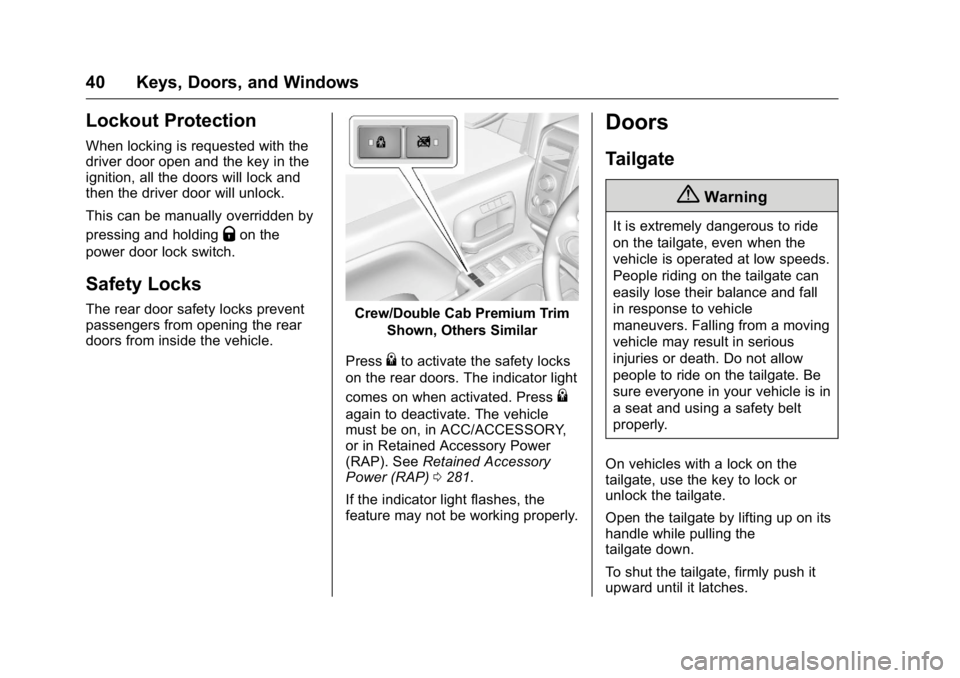
Press
{to activate the safety locks
on the rear doors. The indicator light
comes on when activated. Press
{
again to deactivate. The vehicle
must be on, in ACC/ACCESSORY,
or in Retained Accessory Power
(RAP). See Retained Accessory
Power (RAP) 0281.
If the indicator light flashes, the
feature may not be working properly.
Doors
Tailgate
{Warning
It is extremely dangerous to ride
on the tailgate, even when the
vehicle is operated at low speeds.
People riding on the tailgate can
easily lose their balance and fall
in response to vehicle
maneuvers. Falling from a moving
vehicle may result in serious
injuries or death. Do not allow
people to ride on the tailgate. Be
sure everyone in your vehicle is in
a seat and using a safety belt
properly.
On vehicles with a lock on the
tailgate, use the key to lock or
unlock the tailgate.
Open the tailgate by lifting up on its
handle while pulling the
tailgate down.
To shut the tailgate, firmly push it
upward until it latches.
Page 51 of 509
GMC Sierra Owner Manual (GMNA-Localizing-U.S./Canada/Mexico-
9234758) - 2016 - crc - 11/9/15
50 Keys, Doors, and Windows
Automatic Dimming
Rearview Mirror
If equipped, automatic dimming
reduces the glare of headlamps
from behind. The dimming feature
comes on when the vehicle is
started.
Windows
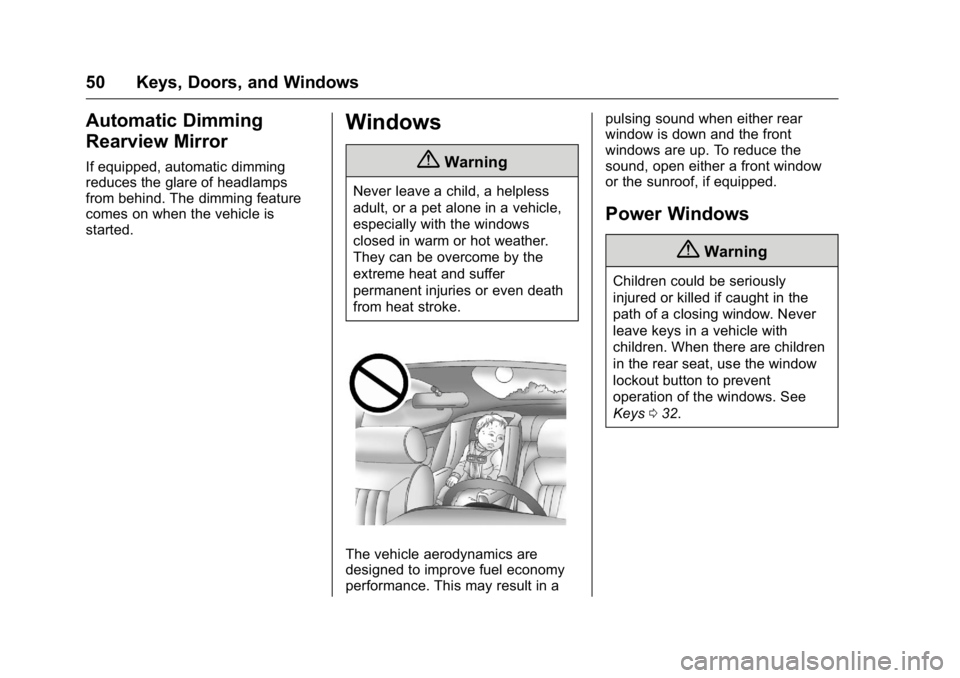
{Warning
Never leave a child, a helpless
adult, or a pet alone in a vehicle,
especially with the windows
closed in warm or hot weather.
They can be overcome by the
extreme heat and suffer
permanent injuries or even death
from heat stroke.
The vehicle aerodynamics are
designed to improve fuel economy
performance. This may result in apulsing sound when either rear
window is down and the front
windows are up. To reduce the
sound, open either a front window
or the sunroof, if equipped.
Power Windows
{Warning
Children could be seriously
injured or killed if caught in the
path of a closing window. Never
leave keys in a vehicle with
children. When there are children
in the rear seat, use the window
lockout button to prevent
operation of the windows. See
Keys
032.
Page 62 of 509
GMC Sierra Owner Manual (GMNA-Localizing-U.S./Canada/Mexico-
9234758) - 2016 - crc - 11/9/15
Seats and Restraints 61
Automatically Recalling Memory
Positions (Auto Recall)
If programmed on in the vehicle
personalization menu, the Auto
(Automatic) Memory Recall feature
automatically recalls the current
driver’s previously stored 1 or 2
position when the ignition is
changed from OFF to ON/RUN or
ACC/ACCESSORY.
See “Auto Memory Recall” under
“Comfort and Convenience” in
Vehicle Personalization 0163.
To stop recall movement, press one
of the memory, power mirror or
power seat controls; or press the
adjustable pedal control (if
equipped).
RKE Transmitters are not labeled
with a number. If your memory seat
position is stored to 1 or 2 but this
position is not automatically
recalling, then store your positions
to the other button or switch RKE
transmitters with the other driver. Easy Exit Recall
If programmed on in the vehicle
personalization menu, the easy exit
feature automatically recalls the
previously stored
B(Exit) position.
See “Storing Memory Positions”
listed previously. See also Vehicle
Personalization 0163.
Easy exit recall automatically
activates when one of the following
occurs:
. The vehicle is turned off and the
driver door is opened within a
short time.
. The vehicle is turned off with the
driver door open.
Obstructions
If something has blocked the driver
seat and/or adjustable pedals while
recalling a memory position, the
recall may stop. Remove the
obstruction. Then do one of the
following:
. For manual or automatic recall
positions, press and hold the
appropriate manual control for two seconds. Try recalling again
by pressing the appropriate
memory button.
. For exit recall position, press
and hold the appropriate manual
control for the exit feature not
recalling for two seconds. Then
try recalling the exit position
again.
If the memory position is still not
recalling, see your dealer for
service.
Heated and Ventilated
Front Seats
{Warning
If you cannot feel temperature
change or pain to the skin, the
seat heater may cause burns. To
reduce the risk of burns, people
with such a condition should use
care when using the seat heater,
especially for long periods of
time. Do not place anything on
the seat that insulates against (Continued)
Page 197 of 509
GMC Sierra Owner Manual (GMNA-Localizing-U.S./Canada/Mexico-
9234758) - 2016 - crc - 11/9/15
196 Infotainment System
Selecting a Station
Seek Tuning
If the radio station is not known:
Press
7or6to automatically
search for available radio stations.
Manual Tuning
Continue touching
toruto
manually change the radio station.
Direct Tune
From the AM or FM menu:
. Touch Tune.
. Enter the station number.
. Touch Go or
toruto go to
the pervious or next station.
Favorite
. Touch
SorTto scroll through
the favorites.
. Touch on the station to select it.
Station List
. From the AM or FM menu,
touch MENU.
. Select Station List. .
Touch
QorRto scroll through
the list. Touch the station to
select it.
Update Station List
. From the AM or FM menu, touch
MENU, then touch Update
Station List. The broadcasting
list updating will begin.
. During the AM or FM
broadcasting list update, touch
Cancel to stop the updates.
Storing a Station as a Favorite
Stations from all bands can be
stored in any order in the favorite
pages.
Up to 25 stations can be stored.
Storing Stations
To store the station to a position in
the list, touch the corresponding
button 1−5 until a beep is heard.
1. Select the desired station.
2. Touch
SorTto select the
desired page of saved
favorites. 3. Touch and hold down any of
the preset buttons to save the
current radio station to that
button of the selected
favorites page.
To change a preset button, tune to
the new desired radio station and
touch and hold the preset button.
Satellite Radio (Base
Radio)
SiriusXM®Satellite Radio
Service
Vehicles with a SiriusXM satellite
radio tuner and a valid SiriusXM
satellite radio subscription can
receive SiriusXM programming.
SiriusXM is a satellite radio service
based in the 48 contiguous United
States and 10 Canadian provinces.
SiriusXM satellite radio has a wide
variety of programming and
commercial-free music, coast to
coast, and in digital-quality sound.
A service fee is required to receive
the SiriusXM service. See
www.siriusxmradio.com or call
Page 199 of 509
GMC Sierra Owner Manual (GMNA-Localizing-U.S./Canada/Mexico-
9234758) - 2016 - crc - 11/9/15
198 Infotainment System
2. Touch the preset button tolisten to the channel saved to
that button.
Using the SiriusXM Menu
Operation
1. Touch MENU on the SXM radio screen.
2. Touch the menu to select the desired item or to display the
detail menu item.
3. Touch
0to return to the
previous menu.
Channel List 1. Touch Channel List from the SXM menu. The channel list is
displayed.
2. Touch
QorRto find the
desired channel. Tune to the
channel by selecting it.
Tone Settings
From the tone settings menu, the
sound features can be set up for
SiriusXM audio and each audio
player ’s functions. 1. Touch Tone Settings. The tone
settings screen is displayed.
See “Tone Settings” under
“Base Radio with Touchscreen”
in AM-FM Radio (Base Radio
with Touchscreen) 0195 or
AM-FM Radio (Base
Radio) 0193.
2. Touch OK.
Auto Volume 1. Touch Auto Volume. See “Auto
Volume” under“Base Radio
with Touchscreen” inAM-FM
Radio (Base Radio with
Touchscreen) 0195 orAM-FM
Radio (Base Radio) 0193.
2. Touch OK.
Categories 1. Touch Categories.
2. Touch
QorRto find the
desired category. Touch the
category to select it. Explicit Content Filter
When on, only a filtered list of
channels will be received. When off,
all regular SXM programming
subscribed to will be received.
1. Touch SMX Explicit Filter.
2. Select On or Off.
Radio Reception
Frequency interference and static
can occur during normal radio
reception if items such as phone
chargers, vehicle convenience
accessories, and external electronic
devices are plugged into the
accessory power outlet. If there is
interference or static, unplug the
item from the accessory power
outlet.
FM
FM signals only reach about 16 to
65 km (10 to 40 mi). Although the
radio has a built-in electronic circuit
that automatically works to reduce
interference, some static can occur,
especially around tall buildings or
hills, causing the sound to fade in
and out.
Page 200 of 509
GMC Sierra Owner Manual (GMNA-Localizing-U.S./Canada/Mexico-
9234758) - 2016 - crc - 11/9/15
Infotainment System 199
AM
The range for most AM stations is
greater than for FM, especially at
night. The longer range can cause
station frequencies to interfere with
each other. Static can also occur
when things like storms and power
lines interfere with radio reception.
When this happens, try reducing the
treble on the radio.
SiriusXM Satellite Radio
Service
If equipped, SiriusXM Satellite
Radio Service provides digital radio
reception. Tall buildings or hills can
interfere with satellite radio signals,
causing the sound to fade in and
out. In addition, traveling or standing
under heavy foliage, bridges,
garages, or tunnels may cause loss
of the SiriusXM signal for a period
of time.
Cell Phone Usage
Cell phone usage, such as making
or receiving phone calls, charging,
or just having the phone on maycause static interference in the
radio. Unplug the phone or turn it off
if this happens.
Fixed Mast Antenna
The fixed mast antenna will go
through most car washes as long as
it is securely attached. If the
antenna becomes slightly bent,
straighten it out by hand. If it is
badly bent, replace it.
Occasionally check that the antenna
is tight at the base. If tightening is
required, protect the paint from
damage.
Multi-Band Antenna
The multi-band antenna is on the
roof of the vehicle. The antenna is
used for OnStar, the SiriusXM
Satellite Radio Service System, and
GPS (Global Positioning System),
if the vehicle has these features.
Keep the antenna clear of
obstructions for clear reception.
If the vehicle has a sunroof, and it is
open, reception can also be
affected.Items on the roof of the vehicle can
interfere with the performance of the
radio system and OnStar (if
equipped). Make sure the
multi-band antenna is not
obstructed.
Pandora Internet Radio
If equipped, Pandora®is a free
Internet radio service that streams
personalized radio stations based
on artists, tracks, genres, and
comedians. Create stations using
the Pandora website or Smartphone
application, then use
-or,to
personalize stations. To set up an
account, or for more information, go
to www.pandora.com. Pandora may
not be available in Canada or
Mexico.
A phone or tablet with Internet
connection and the Pandora
application installed is required.
Personal cell phone data plans are
used. Make sure the latest version
is installed on the device.
Page 206 of 509
GMC Sierra Owner Manual (GMNA-Localizing-U.S./Canada/Mexico-
9234758) - 2016 - crc - 11/9/15
Infotainment System 205
If the CD is not playing correctly for
any other reason, try a known
good CD.
If any error continues, contact your
dealer.
Playing an MP3 CD
To play an MP3 CD, follow the same
instructions as“Playing an
Audio CD.”
The following guidelines must be
met when creating an MP3 disc,
otherwise the CD might not play:
. Sampling rate: 16 kHz,
22.05 kHz, 24 kHz, 32 kHz,
44.1 kHz, and 48 kHz.
. Bit rates supported: 8, 16, 24,
32, 40, 48, 56, 64, 80, 96, 112,
128, 144, 160, 192, 224, 256,
and 320 kbps.
. Maximum number of folders:
eight folders with 255 files per
folder.
. Maximum of 1,000 files on
a disc.
. Recorded on a CD-R or CD-RW. Root Directory
The root directory is treated as a
folder. All files contained directly
under the root directory are
accessed prior to any root directory
folders.
Empty Folders
If a root directory or folder is empty
or contains only folders, the player
advances to the next folder in the
file structure that contains a
compressed audio file. The empty
folder(s) are not displayed or
numbered.
No Folder
When the CD only contains
compressed audio files without any
folders, all files are under the root
folder.
USB Port (Base Radio)
Playing from a USB
A USB mass storage device or
Media Transfer Protocol (MTP)
device can be connected to the
USB port. The vehicle may have USB ports in
the front of the center console,
armrest, or one in the upper glove
box. See
Center Console Storage
0 118 and Glove Box 0117.
USB MP3 Player and USB Drives
. The USB MP3 players and USB
drives connected must comply
with the USB Mass Storage
Class specification (USB MSC).
. Hard disk drives are not
supported.
. Supported file system is FAT32.
To play a USB device:
. Connect the USB.
. Press MEDIA on the faceplate
until the connected device is
shown.
While the USB source is active,
press the corresponding faceplate
button for the icons on the screen to
operate USB function:
.t
.u
.j/r
Page 213 of 509
GMC Sierra Owner Manual (GMNA-Localizing-U.S./Canada/Mexico-
9234758) - 2016 - crc - 11/9/15
212 Infotainment System
destination entry and voice keypad,
can be completed in a single
command. If the task takes more
than one command to complete, the
first command would be to indicate
the kind of task that is to be
performed. The system replies with
prompts that lead through a dialog
to enter the necessary information.
Voice recognition can be used when
the ignition is on or when Retained
Accessory Power (RAP) is active.
SeeRetained Accessory Power
(RAP) 0281.
Using Voice Recognition
Voice recognition becomes available
once the system has been
initialized. This begins when the
ignition is turned on. Initialization
may take a few moments.
1. Press
gon the steering wheel
control to activate voice
recognition, or select
gon the
infotainment screen on the
center stack.
. If voice recognition is
started from the steering
wheel control, the instrument cluster displays
the selections and visual
dialog content.
. If voice recognition is
started from the
infotainment screen, the
selections and visual dialog
content are displayed on
both the center stack
display and the instrument
cluster display.
2. The audio system mutes and the system plays a prompt
followed by a beep.
3. Wait until after the beep completes, then clearly speak
one of the commands
described in this section.
Press
gto interrupt any voice
recognition system prompt. For
example, if the prompt seems
to be taking too long to finish,
press
gagain and the beep
should happen right away. There are two voice prompt modes
supported:
.
Long verbal prompts: The longer
prompts provide more
information regarding the
supported actions.
. Short prompts: The short
prompts provide simple
instructions about what can be
stated.
If a command is not spoken, the
voice recognition system says a
help prompt.
Prompts and Screen Displays
While a voice recognition session is
active, there will be corresponding
buttons on screens displayed.
Manual interaction in the voice
recognition session is permitted.
Interaction during a voice session
may be completed entirely using
voice commands, or some
selections may expedite a session.
If a selection is made using a
manual control, the dialog will
progress in the same way as if the
selection was made through a voice
command. Once the system is able
Page 214 of 509
GMC Sierra Owner Manual (GMNA-Localizing-U.S./Canada/Mexico-
9234758) - 2016 - crc - 11/9/15
Infotainment System 213
to complete the task, or the session
is terminated, the voice recognition
dialog stops.
An example of this type of manual
intervention is pressing on an entry
of a displayed number list instead of
speaking the number associated
with the entry desired.
Canceling Voice Recognition
.Press the Home screen button
to terminate the voice
recognition session which was
initiated by pressing
gon the
infotainment screen on the
center stack.
. Press or say “Cancel”or“Exit” to
terminate the voice recognition
session and display the screen
from which voice recognition
was initiated.
. Press
ion the steering wheel
controls to terminate the voice
session and display the screen
from which voice recognition
was initiated.
Helpful Hints for Speaking
Commands
Voice recognition can understand
commands that are either naturally
stated in sentence form (English
only), or direct commands that state
the application and the task.
For languages that do not support
natural language commands in
sentence form, use the direct
commands shown as examples on
the display screen.
For best results:
. Listen for the prompt and wait
for the beep before saying a
command or reply.
. Say “Help” or look at the screen
display for commands.
. Voice recognition system prompt
can be interrupted during a
prompt by pressing
gagain.
For example, if the prompt
seems to be taking too long to
finish, or if what is being
prompted causes a need for an
immediate reply, press
gagain
and wait for the beep. .
Speak the command naturally,
not too fast, not too slow. Use
direct commands without a lot of
extra words.
. Usually Phone and Audio
commands can be spoken in a
single command.
For example, “Call Dave Smith
at work,” “Play” followed by the
artist or song name, or “Tune”
followed by the radio station
number.
There is no need to memorize
specific command words. Direct
commands might be more clearly
understood by the system. An
example of a direct command would
be “Call 555-1212.” Examples of
these direct commands are
displayed on most of the screens
while a voice session is active.
If “Phone” or“Phone Commands,” is
stated, the system understands that
a phone call is requested and will
respond with questions until enough
details are gathered.