key GMC SIERRA 2017 Service Manual
[x] Cancel search | Manufacturer: GMC, Model Year: 2017, Model line: SIERRA, Model: GMC SIERRA 2017Pages: 511, PDF Size: 5.21 MB
Page 192 of 511
GMC Sierra/Sierra Denali Owner Manual (GMNA-Localizing-U.S./Canada/
Mexico-9955992) - 2017 - crc - 4/18/17
Infotainment System 191
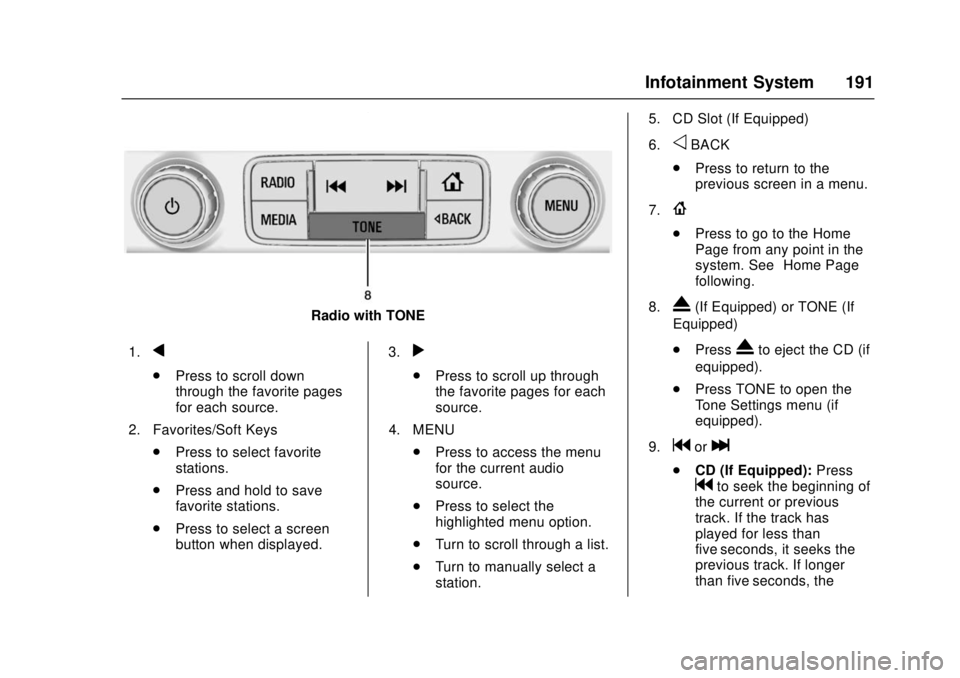
Radio with TONE
1.
q
. Press to scroll down
through the favorite pages
for each source.
2. Favorites/Soft Keys .Press to select favorite
stations.
. Press and hold to save
favorite stations.
. Press to select a screen
button when displayed. 3.
r
.
Press to scroll up through
the favorite pages for each
source.
4. MENU .Press to access the menu
for the current audio
source.
. Press to select the
highlighted menu option.
. Turn to scroll through a list.
. Turn to manually select a
station. 5. CD Slot (If Equipped)
6.
oBACK
. Press to return to the
previous screen in a menu.
7.
{
. Press to go to the Home
Page from any point in the
system. See “Home Page”
following.
8.
X(If Equipped) or TONE (If
Equipped)
. Press
Xto eject the CD (if
equipped).
. Press TONE to open the
Tone Settings menu (if
equipped).
9.
gorl
. CD (If Equipped): Press
gto seek the beginning of
the current or previous
track. If the track has
played for less than
five seconds, it seeks the
previous track. If longer
than five seconds, the
Page 195 of 511
GMC Sierra/Sierra Denali Owner Manual (GMNA-Localizing-U.S./Canada/
Mexico-9955992) - 2017 - crc - 4/18/17
194 Infotainment System
4.6
.Radio: Press and release to
go to the next station or
channel. Press and hold to
fast seek the next strongest
station or channel.
. USB/Bluetooth Music/
Pictures: Press and hold to
go to the next content.
Press and hold to fast
forward.
5.
#
. Press and release to
access the phone screen,
answer an incoming call,
or access the device home
screen. Press and hold to
access Press to Talk.
Home Page (Base Radio)
Home Page Features
The infotainment system displays a
Home Page that makes it easy to
access all of the applications. Turn
the MENU knob to highlight feature
icons. Press the MENU knob to
access the feature’s options. Various functions are disabled when
the vehicle is moving.
AUDIO :
Select the AUDIO screen
icon to display the active source
page. The sources available are
AM, FM, SiriusXM
®(if equipped),
USB/iPod, AUX Input, and Bluetooth
Audio (if equipped).
See AM-FM Radio (Base Radio with
Touchscreen) 0199 orAM-FM
Radio (Base Radio) 0197, Satellite
Radio (Base Radio) 0200 or
Satellite Radio (Base Radio with
Touchscreen) 0201, , Auxiliary Jack
0 214, and Bluetooth Audio 0215.
PHONE : Select the PHONE screen
icon to display the Phone main
page.
See Bluetooth (Voice Recognition -
Base Radio) 0228 orBluetooth
(Infotainment Controls - Base
Radio) 0224 orBluetooth
(Overview) 0222 orBluetooth
(Infotainment Controls - Base Radio
with Touchscreen) 0233. NAV (Navigation, If Equipped) :
Select the NAV screen icon to
display the OnStar Turn-by-Turn
Navigation. See
OnStar Overview
0 488, if equipped.
SETTINGS : Select the SETTINGS
screen icon to display the Settings
main page. See “Setting Radio
Preferences” following.
Setting Radio Preferences
Select the SETTINGS screen icon
to display the Settings menu and
the following may display:
Time and Date : SeeClock 0127.
Language (Current Language) :
This will set the display language in
the radio and instrument cluster.
Select to display a list of languages.
Select
oBACK to go back to the
previous menu.
Valet Mode:
Using the circular numeric keypad,
enter a four-digit code:
1. Turn the MENU knob to highlight a number.
Page 199 of 511
GMC Sierra/Sierra Denali Owner Manual (GMNA-Localizing-U.S./Canada/
Mexico-9955992) - 2017 - crc - 4/18/17
198 Infotainment System
.DSP: If equipped with a Bose
Surround®sound system, it will
have three DSP modes
including:
‐ Normal: Adjusts the audio to
provide the best sound for all
seating positions.
‐ Driver: Adjusts the audio to
provide the best sound for the
driver.
‐ Centerpoint: Creates a
surround sound from nearly
any audio source.
. EQ (Equalizer): If equipped with
a Bose sound system, turn the
MENU knob to highlight. Turn
the MENU knob to scroll through
the options. Press the MENU
knob to select. Press the
o
BACK button to go to the
previous menu.
Station List : Select to display a list
of AM or FM stations. Press
o
BACK to go to the previous menu.
Auto Volume : If equipped, this
feature adjusts the volume based on
the vehicle speed. Select the level between Off, Low, Medium-Low,
Medium, Medium-High, and High.
Press
oBACK to go to the
previous menu.
EQ (Equalizer) Settings : In certain
configurations, the available choices
are Manual and Talk.
Options for SiriusXM Only (If
Equipped)
SXM View : SXM view allows the
channel list to be viewed by channel
name, artist playing on channel,
or song playing on channel. Turn
the MENU knob to highlight and
press the MENU knob to select.
Press
oBACK to go to the
previous menu.
Channel List : Select to display a
list of SiriusXM channels. Turn the
MENU knob to highlight and press
the MENU knob to select. Press
o
BACK to go to the previous menu.
Also see the radio settings common
for all sources earlier in this section.
Finding a Station
Seeking a Station
Press
gorlto search for the
previous or next strongest station.
Tuning a Station
Turn the MENU knob to manually
find a station.
Storing Radio Station Presets
Up to 25 preset stations from all
bands can be stored in the favorite
lists in any order. Up to five stations
can be stored in each favorite page
and the number of favorites can
be set.
AM, FM, or SiriusXM (If
Equipped) : While on the active
source main page, such as AM, FM,
or SiriusXM (if equipped), press and
hold a favorites/soft key button on
the faceplate.
Mixed-Audio Favorites
Media (if equipped) and Broadcast
favorites can be stored.
To display the favorites page, press
qorron the radio faceplate.
Page 218 of 511
GMC Sierra/Sierra Denali Owner Manual (GMNA-Localizing-U.S./Canada/
Mexico-9955992) - 2017 - crc - 4/18/17
Infotainment System 217
destination entry and voice keypad,
can be completed in a single
command. If the task takes more
than one command to complete, the
first command would be to indicate
the kind of task that is to be
performed. The system replies with
prompts that lead through a dialog
to enter the necessary information.
Voice recognition can be used when
the ignition is on or when Retained
Accessory Power (RAP) is active.
SeeRetained Accessory Power
(RAP) 0277.
Using Voice Recognition
Voice recognition becomes available
once the system has been
initialized. This begins when the
ignition is turned on. Initialization
may take a few moments.
1. Press
gon the steering wheel
control to activate voice
recognition, or select
gon the
infotainment screen on the
center stack.
. If voice recognition is
started from the steering
wheel control, the instrument cluster displays
the selections and visual
dialog content.
. If voice recognition is
started from the
infotainment screen, the
selections and visual dialog
content are displayed on
both the center stack
display and the instrument
cluster display.
2. The audio system mutes and the system plays a prompt
followed by a beep.
3. Wait until after the beep completes, then clearly speak
one of the commands
described in this section.
Press
gto interrupt any voice
recognition system prompt. For
example, if the prompt seems
to be taking too long to finish,
press
gagain and the beep
should happen right away.
There are two voice prompt modes
supported: .
Long verbal prompts: The longer
prompts provide more
information regarding the
supported actions.
. Short prompts: The short
prompts provide simple
instructions about what can be
stated.
If a command is not spoken, the
voice recognition system says a
help prompt.
Prompts and Screen Displays
While a voice recognition session is
active, there will be corresponding
buttons on screens displayed.
Manual interaction in the voice
recognition session is permitted.
Interaction during a voice session
may be completed entirely using
voice commands, or some
selections may expedite a session.
If a selection is made using a
manual control, the dialog will
progress in the same way as if the
selection was made through a voice
command. Once the system is able
to complete the task, or the session
is terminated, the voice recognition
dialog stops.
Page 223 of 511
GMC Sierra/Sierra Denali Owner Manual (GMNA-Localizing-U.S./Canada/
Mexico-9955992) - 2017 - crc - 4/18/17
222 Infotainment System
contact and location at home, at
work, on mobile device, or on
another phone.
“Call
call to a standard phone number
seven or 10 digits in length, and
also 911, 411, or 611.
“Pair Phone” :Begins the
Bluetooth pairing process. Follow
instructions on the radio display.
“Switch Phone” :Select a different
phone for outgoing calls.
“Voice Keypad” :Begins a dialog
to enter special numbers like
international numbers. The numbers
can be entered in groups of digits
with each group of digits being
repeated back by the system. If the
group of digits is not correct, the
command “Delete”will remove the
last group of digits and allow them
to be re-entered. Once the entire
number has been entered, the
command “Call”will start dialing the
number.
“Voice Mail” :Initiate a call to voice
mail numbers.Voice Recognition for OnStar
(If Equipped)
“OnStar” :Begin OnStar Voice
Recognition.
Bluetooth Speech Recognition
(If Equipped)
Voice Pass-Thru allows access to
the speech recognition commands
on the cell phone. See your cell
phone manufacturer ’s user guide to
see if the cell phone supports this
feature.
Activating this function will start the
Bluetooth Speech Recognition on a
connected phone.
The steering wheel controls are
used to operate this function.
Press and hold
gto activate.
A voice session begins so that voice
commands can be given to Siri
®or
many other controls provided by the
cell phone.
Press
@to exit or pressito
close and return to the previous
application prior to the start of Voice
Pass-Thru.
Phone
Bluetooth (Overview)
Instructions for using the cell phone
may differ between infotainment
systems. The base radio and base
radio with touchscreen instructions
are included in this manual. See the
infotainment manual for instructions
on the uplevel radios.
Bluetooth-capable systems can
interact with many cell phones,
allowing:
. Placement and receipt of calls in
a hands-free mode.
. Sharing of the cell phone’s
address book or contact list with
the vehicle.
To minimize driver distraction,
before driving, and with the vehicle
parked:
. Become familiar with the
features of the cell phone.
Organize the phone book and
contact lists clearly and delete
Page 227 of 511
GMC Sierra/Sierra Denali Owner Manual (GMNA-Localizing-U.S./Canada/
Mexico-9955992) - 2017 - crc - 4/18/17
226 Infotainment System
2. Turn the MENU knob andpress to select Manage
Phones.
3. Turn the MENU knob to highlight the phone to be
connected.
4. Press the control just below CONNECT to connect to the
highlighted device.
Phone Menu
Once a phone is connected and
selected, the following may display:
Recent Calls : Turn the MENU
knob to highlight Recent Calls and
press to select.
Contacts : Turn the MENU knob to
highlight Contacts and press to
select.
Keypad : Turn the MENU knob to
highlight Keypad and press to
select.
Active Call : Turn the MENU knob
to highlight Active Call and press to
select and display the active call
screen. Manage Phones :
Turn the MENU
knob to highlight Manage Phones
and press to select.
Making a Call Using Contacts
and Recent Calls
For cell phones that support the
Contacts and Recent Calls feature,
the Bluetooth system can use the
contacts stored on your cell phone
to make calls. See your cell phone
manufacturer ’s user guide or
contact your wireless provider to
find out if this feature is supported
by your phone.
If the phone prompts to allow phone
book download during the pairing
process, select Always Accept and
Allow. The phone book may not be
available if not accepted.
When a cell phone supports the
phone book feature, the Contacts
and Recent Calls menus are
automatically available.
The Contacts menu allows you to
access the phone book stored in the
cell phone to make a call. The Recent Calls menu allows you
to access the phone numbers from
the Incoming Calls, Outgoing Calls,
and Missed Calls menus on the cell
phone to make a call.
To make a call using the
Contacts menu:
1. From the Home Page, turn the MENU knob, then press to
select the PHONE.
2. Turn the MENU knob to highlight Contacts and press to
select.
3. Turn the MENU knob to highlight the letter group and
press to select.
4. Turn the MENU knob to highlight the contact and press
to select.
5. Turn the MENU knob to highlight the desired number,
then press the MENU knob to
call the contact.
Page 228 of 511
GMC Sierra/Sierra Denali Owner Manual (GMNA-Localizing-U.S./Canada/
Mexico-9955992) - 2017 - crc - 4/18/17
Infotainment System 227
To make a call using the Recent
Calls menu:1. From the Home Page, turn the MENU knob, then press to
select the PHONE.
2. Turn the MENU knob to highlight Recent Calls and
press to select.
If necessary, select between
Missed, Recent, and Sent calls
by pressing the control below
the appropriate selection.
3. Turn the MENU knob to highlight the contact or the
phone number.
4. Press the MENU knob to call the contact.
Making a Call Using the
Keypad
To make a call:
1. From the Home Page, turn the MENU knob, then press to
select the PHONE.
2. Turn the MENU knob and press to select Keypad. 3. Turn the MENU knob to
highlight the first digit and
press to select. Continue this
process through the number.
To call, press the control just
below CALL.
Accepting or Declining a Call
When an incoming call is received,
the infotainment system mutes and
a ring tone is heard in the vehicle.
Accepting a Call
To accept a call, do one of the
following:
.Press the control just below
ANSWER.
. Press
gon the steering wheel
controls.
Declining a Call
To decline a call, do one of the
following:
. Press the control just below
IGNORE.
. Press
ion the steering wheel
controls.
. Do nothing.
Call Waiting
Call waiting must be supported on
the Bluetooth phone and enabled by
the wireless service carrier to work.
Accepting a Call Waiting Call
To accept a call waiting call, do one
of the following:
.Press the control just below
SWITCH.
. Press
gon the steering wheel
controls.
Declining a Call Waiting Call
To decline a call waiting call, do one
of the following:
. Press the control just below
IGNORE.
. Press
ion the steering wheel
controls.
. Do nothing.
Ending a Call
To end a call, do one of the
following:
.Press the control just
below END.
Page 229 of 511
GMC Sierra/Sierra Denali Owner Manual (GMNA-Localizing-U.S./Canada/
Mexico-9955992) - 2017 - crc - 4/18/17
228 Infotainment System
.Pression the steering wheel
controls.
Dual Tone Multi-Frequency
(DTMF) Tones
The in-vehicle Bluetooth system can
send numbers during a call. This is
used when calling a menu-driven
phone system.
1. When a call is active, press the control just below KEYPAD.
2. Turn the MENU knob to highlight the first digit and
press to select.
If not initially in the phone
application, from the Home Page,
turn the MENU knob, then press to
select the PHONE. From the
PHONE main menu, turn the MENU
knob to highlight Active Call and
press to select.
Bluetooth (Voice
Recognition - Base
Radio)
Using Voice Recognition
To use voice recognition, pressg
on the steering wheel. Use the
commands below for the various
voice features. For additional
information, say “Help”while you
are in a voice recognition menu.
Pairing
Pairing a Phone
1. Press
g. The system responds
“Ready,” followed by a tone.
2. Say “Bluetooth.”
3. Say “Pair.”The system
responds with instructions and
a four-digit Personal
Identification Number (PIN).
The PIN is used in Step 5.
4. Start the pairing process on the cell phone that you want to
pair. For help with this process,
see your cell phone
manufacturer's user guide. 5. Locate the device named
“Your
Vehicle” in the list on the cell
phone. Follow the instructions
on the cell phone to enter the
PIN provided in Step 3. The
system may respond with a six
digit code to be confirmed on
the cell phone (instead of
entering a four digit code),
check that the same digits are
shown on the cell phone and
say "Yes" to confirm. Select
Confirm on the cell phone as
well. After the PIN is
successfully entered, the
system prompts you to provide
a name for the paired cell
phone. This name will be used
to indicate which phones are
paired and connected to the
vehicle. The system responds
with “
successfully paired” after the
pairing process is complete.
6. Repeat Steps 1−5 to pair additional phones.
Page 275 of 511
GMC Sierra/Sierra Denali Owner Manual (GMNA-Localizing-U.S./Canada/
Mexico-9955992) - 2017 - crc - 4/18/17
274 Driving and Operating
Ignition Positions
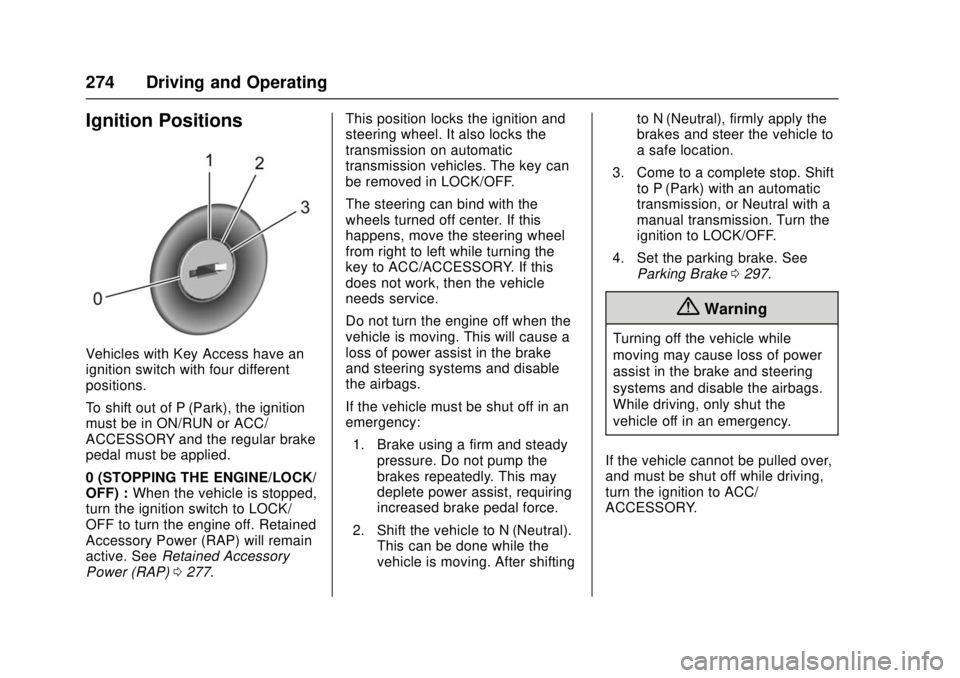
Vehicles with Key Access have an
ignition switch with four different
positions.
To shift out of P (Park), the ignition
must be in ON/RUN or ACC/
ACCESSORY and the regular brake
pedal must be applied.
0 (STOPPING THE ENGINE/LOCK/
OFF) :When the vehicle is stopped,
turn the ignition switch to LOCK/
OFF to turn the engine off. Retained
Accessory Power (RAP) will remain
active. See Retained Accessory
Power (RAP) 0277. This position locks the ignition and
steering wheel. It also locks the
transmission on automatic
transmission vehicles. The key can
be removed in LOCK/OFF.
The steering can bind with the
wheels turned off center. If this
happens, move the steering wheel
from right to left while turning the
key to ACC/ACCESSORY. If this
does not work, then the vehicle
needs service.
Do not turn the engine off when the
vehicle is moving. This will cause a
loss of power assist in the brake
and steering systems and disable
the airbags.
If the vehicle must be shut off in an
emergency:
1. Brake using a firm and steady pressure. Do not pump the
brakes repeatedly. This may
deplete power assist, requiring
increased brake pedal force.
2. Shift the vehicle to N (Neutral). This can be done while the
vehicle is moving. After shifting to N (Neutral), firmly apply the
brakes and steer the vehicle to
a safe location.
3. Come to a complete stop. Shift to P (Park) with an automatic
transmission, or Neutral with a
manual transmission. Turn the
ignition to LOCK/OFF.
4. Set the parking brake. See Parking Brake 0297.
{Warning
Turning off the vehicle while
moving may cause loss of power
assist in the brake and steering
systems and disable the airbags.
While driving, only shut the
vehicle off in an emergency.
If the vehicle cannot be pulled over,
and must be shut off while driving,
turn the ignition to ACC/
ACCESSORY.
Page 276 of 511
GMC Sierra/Sierra Denali Owner Manual (GMNA-Localizing-U.S./Canada/
Mexico-9955992) - 2017 - crc - 4/18/17
Driving and Operating 275
Caution
Using a tool to force the key to
turn in the ignition could cause
damage to the switch or break the
key. Use the correct key, make
sure it is all the way in, and turn it
only with your hand. If the key
cannot be turned by hand, see
your dealer.
1 (ACC/ACCESSORY) : This
position lets things like the radio
and the windshield wipers operate
while the engine is off. It also
unlocks the steering wheel. Use this
position if the vehicle must be
pushed or towed.
2 (ON/RUN) : This position can be
used to operate the electrical
accessories and to display some
instrument cluster warning and
indicator lights. This position can
also be used for service and
diagnostics, and to verify the proper
operation of the malfunction
indicator lamp as may be required
for emission inspection purposes.
The switch stays in this position when the engine is running. The
transmission is also unlocked in this
position on automatic transmission
vehicles.
If the key is left in the ACC/
ACCESSORY or ON/RUN position
with the engine off, the battery could
be drained. The vehicle may not
start if the battery is allowed to drain
for an extended period of time.
3 (START) :
This is the position that
starts the engine. When the engine
starts, release the key. The ignition
switch returns to ON/RUN for
driving.
A warning tone will sound when the
driver door is opened and the
ignition is in ACC/ACCESSORY or
LOCK/OFF, and the key is in the
ignition.
Starting the Engine
If the vehicle has a diesel engine,
see the Duramax diesel
supplement.
For an eAssist vehicle, see the
Silverado/Sierra eAssist
supplement.
Caution
If you add electrical parts or
accessories, you could change
the way the engine operates. Any
resulting damage would not be
covered by the vehicle warranty.
See Add-On Electrical Equipment
0 350.
Caution
If the steering wheel is turned
until it reaches the end of its
travel, and is held in that position
while starting the vehicle, damage
may occur to the power steering
system and there may be loss of
power steering assist.
Move the shift lever to P (Park) or
N (Neutral). To restart the engine
when the vehicle is already moving,
use N (Neutral) only.