phone GMC SIERRA 2017 Owner's Manual
[x] Cancel search | Manufacturer: GMC, Model Year: 2017, Model line: SIERRA, Model: GMC SIERRA 2017Pages: 511, PDF Size: 5.21 MB
Page 24 of 511
GMC Sierra/Sierra Denali Owner Manual (GMNA-Localizing-U.S./Canada/
Mexico-9955992) - 2017 - crc - 4/18/17
In Brief 23
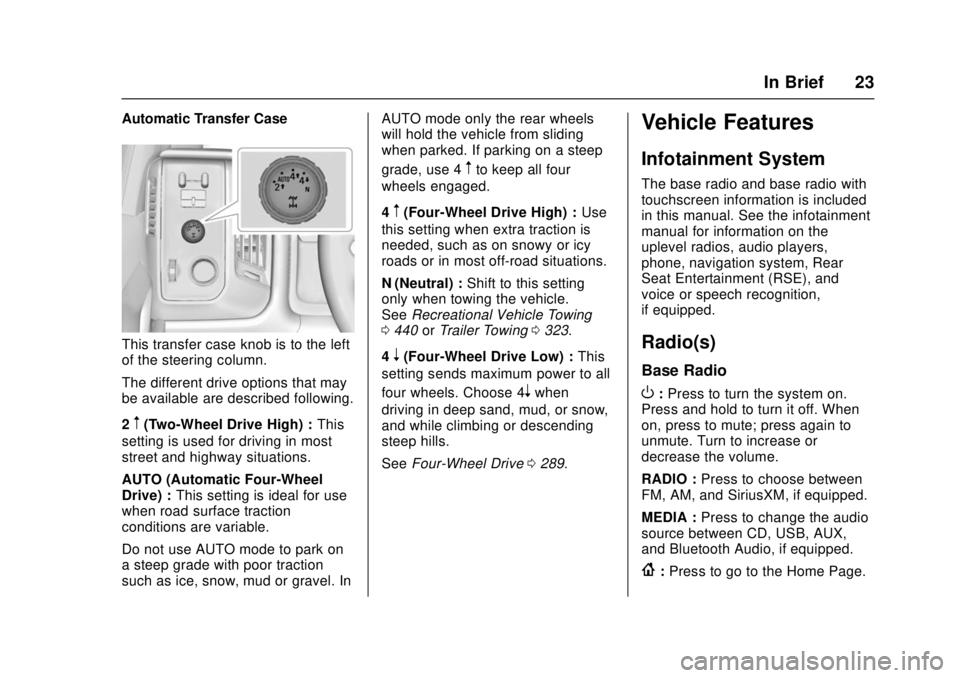
Automatic Transfer Case
This transfer case knob is to the left
of the steering column.
The different drive options that may
be available are described following.
2
m(Two-Wheel Drive High) :This
setting is used for driving in most
street and highway situations.
AUTO (Automatic Four-Wheel
Drive) : This setting is ideal for use
when road surface traction
conditions are variable.
Do not use AUTO mode to park on
a steep grade with poor traction
such as ice, snow, mud or gravel. In AUTO mode only the rear wheels
will hold the vehicle from sliding
when parked. If parking on a steep
grade, use 4
mto keep all four
wheels engaged.
4
m(Four-Wheel Drive High) : Use
this setting when extra traction is
needed, such as on snowy or icy
roads or in most off-road situations.
N (Neutral) : Shift to this setting
only when towing the vehicle.
See Recreational Vehicle Towing
0 440 orTrailer Towing 0323.
4
n(Four-Wheel Drive Low) : This
setting sends maximum power to all
four wheels. Choose 4
nwhen
driving in deep sand, mud, or snow,
and while climbing or descending
steep hills.
See Four-Wheel Drive 0289.
Vehicle Features
Infotainment System
The base radio and base radio with
touchscreen information is included
in this manual. See the infotainment
manual for information on the
uplevel radios, audio players,
phone, navigation system, Rear
Seat Entertainment (RSE), and
voice or speech recognition,
if equipped.
Radio(s)
Base Radio
O:Press to turn the system on.
Press and hold to turn it off. When
on, press to mute; press again to
unmute. Turn to increase or
decrease the volume.
RADIO : Press to choose between
FM, AM, and SiriusXM, if equipped.
MEDIA : Press to change the audio
source between CD, USB, AUX,
and Bluetooth Audio, if equipped.
{: Press to go to the Home Page.
Page 25 of 511
GMC Sierra/Sierra Denali Owner Manual (GMNA-Localizing-U.S./Canada/
Mexico-9955992) - 2017 - crc - 4/18/17
24 In Brief
MENU :Press to select a menu.
g:Press to seek the previous
station or track.
l: Press to seek the next station
or track.
See “Base Radio” inOverview
(Base Radio with Touchscreen)
0 193 orOverview (Base Radio)
0 189.
Base Radio with Touchscreen
O:Press to turn the system on.
Press and hold to turn it off. When
on, press to mute; press again to
unmute. Turn to increase or
decrease the volume.
{: Press to go to the Home Page.
7:Press to seek the previous
station or track.
6: Press to seek the next station
or track.
See “Base Radio with Touchscreen”
in Overview (Base Radio with
Touchscreen) 0193 orOverview
(Base Radio) 0189.
Setting the Clock
See Clock 0127.
Satellite Radio
Vehicles with a SiriusXM satellite
radio tuner and a valid SiriusXM
satellite radio subscription can
receive SiriusXM programming.
SiriusXM Satellite Radio
Service
SiriusXM is a satellite radio service
based in the 48 contiguous United
States and 10 Canadian provinces.
SiriusXM satellite radio has a wide
variety of programming and
commercial-free music, coast to
coast, and in digital-quality sound.
A fee is required to receive the
SiriusXM service.
For more information refer to:
.
www.siriusxm.com or call
1-888-601-6296 (U.S.).
. www.siriusxm.ca or call
1-877-438-9677 (Canada). See
Satellite Radio (Base Radio)
0 200 orSatellite Radio (Base
Radio with Touchscreen) 0201.
Portable Audio Devices
This vehicle may have a 3.5 mm
(1/8 in) auxiliary input jack and USB
ports in the center console or
armrest. There may be a USB port
in the upper glove box. External
devices such as iPods, laptop
computers, MP3 players, and USB
storage devices may be connected,
depending on the audio system.
See USB Port (Base Radio) 0206
or USB Port (Base Radio with
Touchscreen) 0208 andAuxiliary
Jack 0214.
Bluetooth®
The Bluetooth system allows users
with a Bluetooth-enabled cell phone
to make and receive hands-free
calls using the vehicle audio system
and controls.
Page 26 of 511
GMC Sierra/Sierra Denali Owner Manual (GMNA-Localizing-U.S./Canada/
Mexico-9955992) - 2017 - crc - 4/18/17
In Brief 25
The Bluetooth-enabled cell phone
must be paired with the in-vehicle
Bluetooth system before it can be
used in the vehicle. Not all phones
will support all functions.
SeeBluetooth (Voice Recognition -
Base Radio) 0228 orBluetooth
(Infotainment Controls - Base
Radio) 0224 orBluetooth
(Overview) 0222 orBluetooth
(Infotainment Controls - Base Radio
with Touchscreen) 0233.
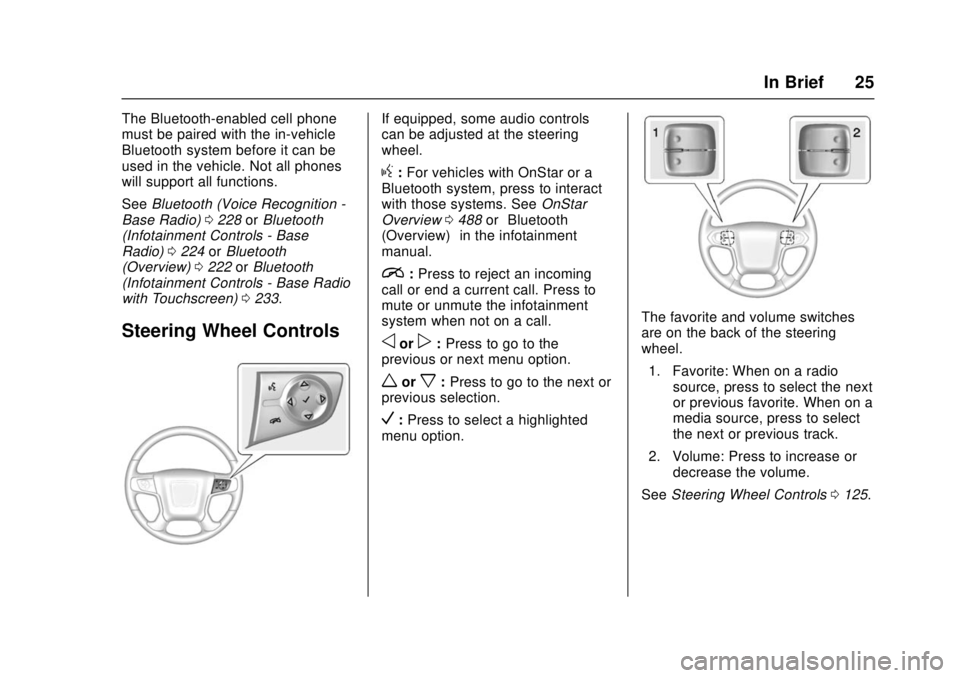
Steering Wheel Controls
If equipped, some audio controls
can be adjusted at the steering
wheel.
g:For vehicles with OnStar or a
Bluetooth system, press to interact
with those systems. See OnStar
Overview 0488 or“Bluetooth
(Overview)” in the infotainment
manual.
i: Press to reject an incoming
call or end a current call. Press to
mute or unmute the infotainment
system when not on a call.
oorp: Press to go to the
previous or next menu option.
worx: Press to go to the next or
previous selection.
V: Press to select a highlighted
menu option.
The favorite and volume switches
are on the back of the steering
wheel.
1. Favorite: When on a radio source, press to select the next
or previous favorite. When on a
media source, press to select
the next or previous track.
2. Volume: Press to increase or decrease the volume.
See Steering Wheel Controls 0125.
Page 29 of 511
GMC Sierra/Sierra Denali Owner Manual (GMNA-Localizing-U.S./Canada/
Mexico-9955992) - 2017 - crc - 4/18/17
28 In Brief
Power Outlets
Accessory power outlets can be
used to plug in electrical equipment,
such as a cell phone, MP3
player, etc.
The vehicle may have up to four
accessory power outlets.
Vehicles with a Center Console
.One or two in front of the
cupholders on the center
console
. One inside the center console
. One on the rear of the center
console
Vehicles with Bench Seats
. One on the center stack below
the climate control system
. One or two in the storage area
on the bench seat
Lift the cover to access and replace
when not in use.
See Power Outlets 0128.
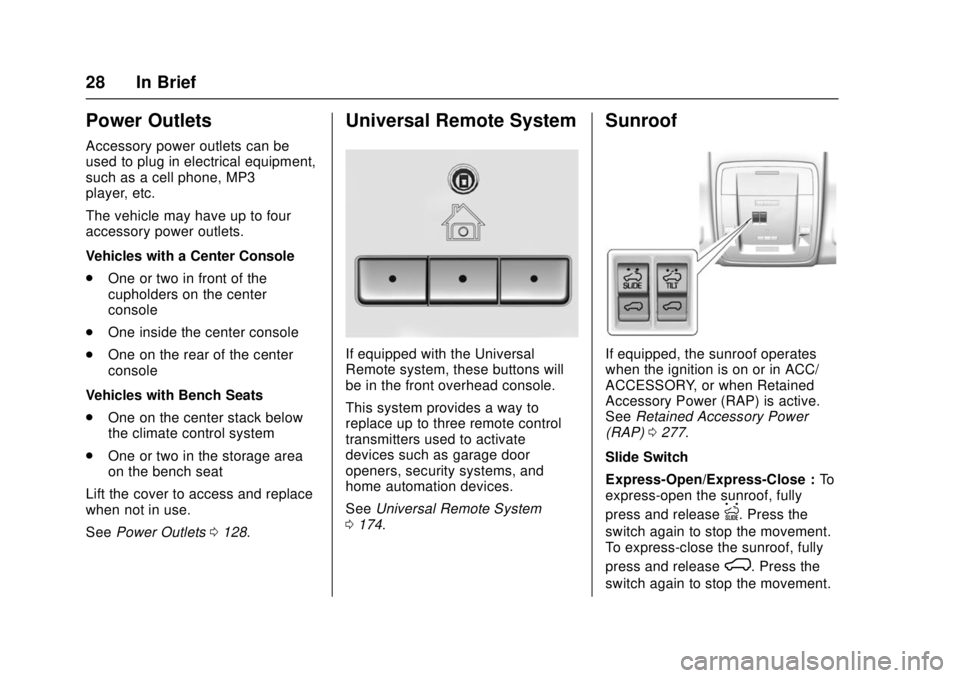
Universal Remote System
If equipped with the Universal
Remote system, these buttons will
be in the front overhead console.
This system provides a way to
replace up to three remote control
transmitters used to activate
devices such as garage door
openers, security systems, and
home automation devices.
See Universal Remote System
0 174.
Sunroof
If equipped, the sunroof operates
when the ignition is on or in ACC/
ACCESSORY, or when Retained
Accessory Power (RAP) is active.
See Retained Accessory Power
(RAP) 0277.
Slide Switch
Express-Open/Express-Close : To
express-open the sunroof, fully
press and release
I. Press the
switch again to stop the movement.
To express-close the sunroof, fully
press and release
K. Press the
switch again to stop the movement.
Page 129 of 511
GMC Sierra/Sierra Denali Owner Manual (GMNA-Localizing-U.S./Canada/
Mexico-9955992) - 2017 - crc - 4/18/17
128 Instruments and Controls
To set the date:1. Touch SETTINGS from the Home Page, then touch Time
and Date.
2. Touch Set Date and touch
«
orªto increase or decrease
month, day, or year.
3. Touch the
}or0screen
button to go back to the
previous menu.
To set the clock display: 1. Touch SETTINGS and touch Time and Date.
2. Touch Clock Display and touch OFF or ON to turn the clock
display off or on.
3. Touch the
}or0screen
button to go back to the
previous menu.
Power Outlets
Power Outlets 12 Volt Direct
Current
Accessory power outlets can be
used to plug in electrical equipment,
such as a cell phone, MP3
player, etc.
The vehicle may have up to four
accessory power outlets.
Vehicles with a Center Console
. One or two in front of the
cupholders on the center
console.
. One inside the center console.
. One on the rear of the center
console.
Vehicles with Bench Seats
. One on the center stack below
the climate control system.
. One or two in the storage area
on the bench seat.
Lift the cover to access and replace
when not in use. The power outlets on the center
stack and in front of the cupholders
are powered at all times. The power
outlets inside the storage area and
on the rear of the console are
powered when the ignition is in ON/
RUN or ACC/ACCESSORY,
or when RAP is active.
{Warning
Power is always supplied to the
outlets. Do not leave electrical
equipment plugged in when the
vehicle is not in use because the
vehicle could catch fire and cause
injury or death.
Caution
Leaving electrical equipment
plugged in for an extended period
of time while the vehicle is off will
drain the battery. Always unplug
electrical equipment when not in
use and do not plug in equipment
that exceeds the maximum
15 amp rating.
Page 130 of 511
GMC Sierra/Sierra Denali Owner Manual (GMNA-Localizing-U.S./Canada/
Mexico-9955992) - 2017 - crc - 4/18/17
Instruments and Controls 129
Certain power accessory plugs may
not be compatible with the
accessory power outlet and could
overload vehicle or adapter fuses.
If a problem is experienced, see
your dealer.
When adding electrical equipment,
be sure to follow the proper
installation instructions included with
the equipment. SeeAdd-On
Electrical Equipment 0350.
Caution
Hanging heavy equipment from
the power outlet can cause
damage not covered by the
vehicle warranty. The power
outlets are designed for
accessory power plugs only, such
as cell phone charge cords.
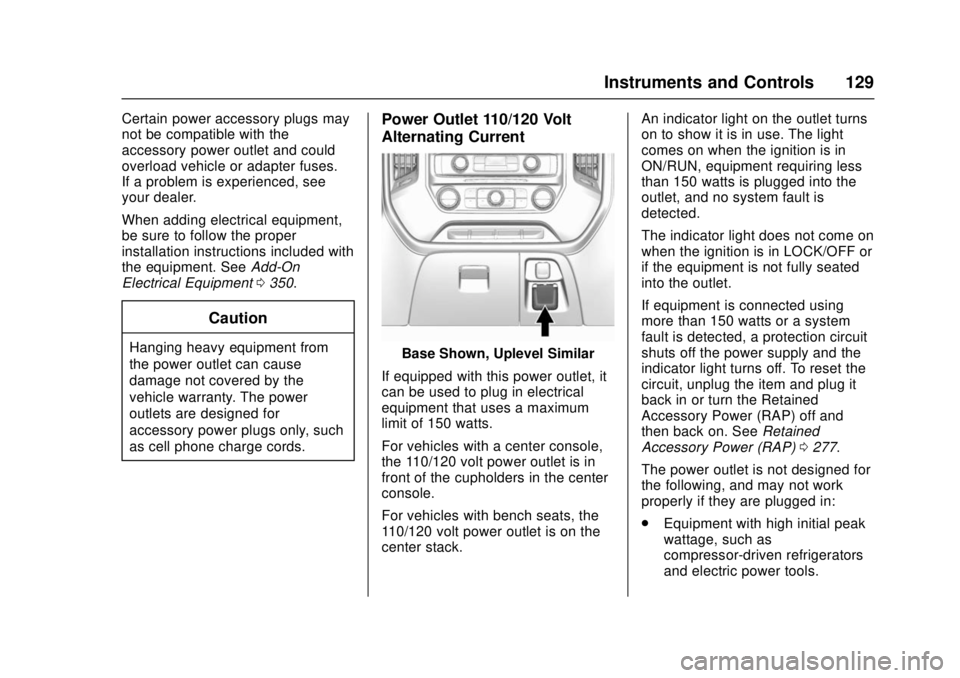
Power Outlet 110/120 Volt
Alternating Current
Base Shown, Uplevel Similar
If equipped with this power outlet, it
can be used to plug in electrical
equipment that uses a maximum
limit of 150 watts.
For vehicles with a center console,
the 110/120 volt power outlet is in
front of the cupholders in the center
console.
For vehicles with bench seats, the
110/120 volt power outlet is on the
center stack. An indicator light on the outlet turns
on to show it is in use. The light
comes on when the ignition is in
ON/RUN, equipment requiring less
than 150 watts is plugged into the
outlet, and no system fault is
detected.
The indicator light does not come on
when the ignition is in LOCK/OFF or
if the equipment is not fully seated
into the outlet.
If equipment is connected using
more than 150 watts or a system
fault is detected, a protection circuit
shuts off the power supply and the
indicator light turns off. To reset the
circuit, unplug the item and plug it
back in or turn the Retained
Accessory Power (RAP) off and
then back on. See
Retained
Accessory Power (RAP) 0277.
The power outlet is not designed for
the following, and may not work
properly if they are plugged in:
. Equipment with high initial peak
wattage, such as
compressor-driven refrigerators
and electric power tools.
Page 131 of 511
GMC Sierra/Sierra Denali Owner Manual (GMNA-Localizing-U.S./Canada/
Mexico-9955992) - 2017 - crc - 4/18/17
130 Instruments and Controls
.Other equipment requiring an
extremely stable power supply,
such as
microcomputer-controlled
electric blankets and touch
sensor lamps.
. Medical equipment.
Wireless Charging
The vehicle may have wireless
charging on top of the center
console. See Center Console
Storage 0120. The system
wirelessly charges one PMA or Qi
compatible mobile device.
To check for phone or other device
compatibility:
. In the U.S., see my.gmc.com/
learn.
. In Canada, see
gmtotalconnect.ca.
. Or, see your dealer for details.
{Warning
Wireless charging can affect the
operation of an implanted
pacemaker or other medical
devices. If you have one, it is
recommended to consult with
your doctor before using the
wireless charging system.
The vehicle must be on, in ACC/
ACCESSORY, or Retained
Accessory Power (RAP) must be
active. The wireless charging
feature may not correctly indicate
charging when the vehicle is in RAP.
See Retained Accessory Power
(RAP) 0277.
The operating temperature is −20 °C
(−4 °F) to 60 °C (140 °F) for the
charging system and 0 °C (32 °F) to
35 °C (95 °F) for the phone.
{Warning
Remove all objects from the
charging pad before charging
your mobile device. Objects, such
as coins, keys, rings, paper clips,
or cards, between the phone and
charging pad will become very
hot. On the rare occasion that the
charging system does not detect
an object, and the object gets
wedged between the phone and
charger, remove the phone and
allow the object to cool before
removing it from the charging
pad, to prevent burns.
Page 136 of 511
GMC Sierra/Sierra Denali Owner Manual (GMNA-Localizing-U.S./Canada/
Mexico-9955992) - 2017 - crc - 4/18/17
Instruments and Controls 135
Cluster Menu (Uplevel and
Denali Cluster)
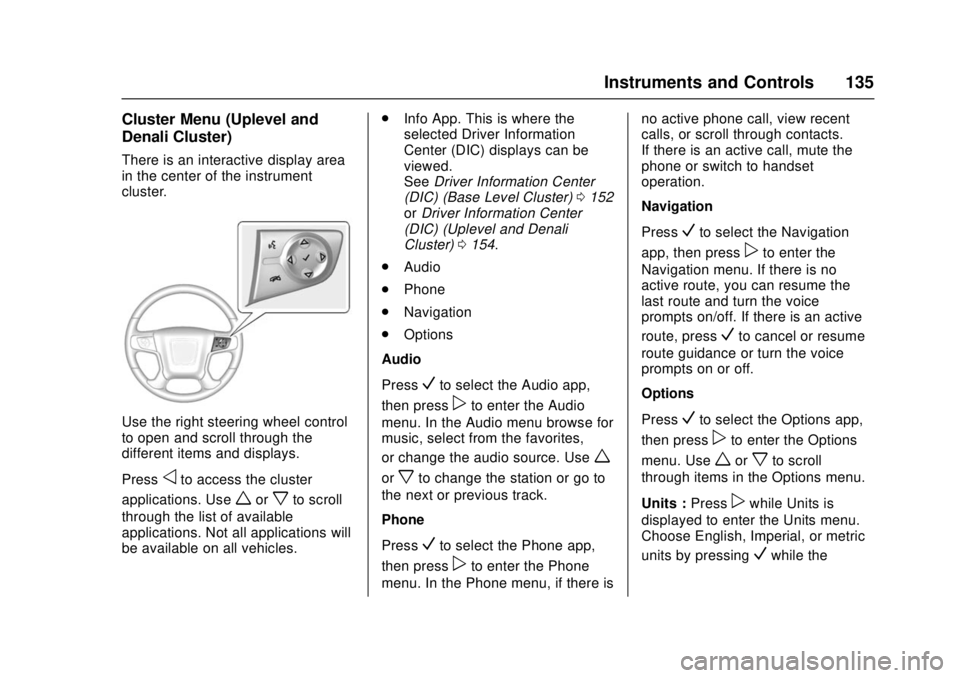
There is an interactive display area
in the center of the instrument
cluster.
Use the right steering wheel control
to open and scroll through the
different items and displays.
Press
oto access the cluster
applications. Use
worxto scroll
through the list of available
applications. Not all applications will
be available on all vehicles. .
Info App. This is where the
selected Driver Information
Center (DIC) displays can be
viewed.
See Driver Information Center
(DIC) (Base Level Cluster) 0152
or Driver Information Center
(DIC) (Uplevel and Denali
Cluster) 0154.
. Audio
. Phone
. Navigation
. Options
Audio
Press
Vto select the Audio app,
then press
pto enter the Audio
menu. In the Audio menu browse for
music, select from the favorites,
or change the audio source. Use
w
orxto change the station or go to
the next or previous track.
Phone
Press
Vto select the Phone app,
then press
pto enter the Phone
menu. In the Phone menu, if there is no active phone call, view recent
calls, or scroll through contacts.
If there is an active call, mute the
phone or switch to handset
operation.
Navigation
Press
Vto select the Navigation
app, then press
pto enter the
Navigation menu. If there is no
active route, you can resume the
last route and turn the voice
prompts on/off. If there is an active
route, press
Vto cancel or resume
route guidance or turn the voice
prompts on or off.
Options
Press
Vto select the Options app,
then press
pto enter the Options
menu. Use
worxto scroll
through items in the Options menu.
Units : Press
pwhile Units is
displayed to enter the Units menu.
Choose English, Imperial, or metric
units by pressing
Vwhile the
Page 173 of 511
GMC Sierra/Sierra Denali Owner Manual (GMNA-Localizing-U.S./Canada/
Mexico-9955992) - 2017 - crc - 4/18/17
172 Instruments and Controls
Select Off, Lights and Horn, Lights
Only, or Horn Only.
Remote Door Unlock
This allows selection of which doors
will unlock when pressing
Kon the
RKE transmitter.
Select All Doors or Driver Door.
Remote Start Auto Cool Seats
If equipped and turned on, this
feature will turn the ventilated seats
on when using remote start on
warm days.
Select Off or On.
Remote Start Auto Heat Seats
If equipped and turned on, this
feature will turn the heated seats on
when using remote start on
cold days.
Select Off or On.
Bluetooth
Select and the following may
display:
. Pair New Device
. Discoverable .
Device Management
. Ringtones
. Voice Mail Numbers
. Text Message Alerts
Pair New Device
Select to pair a new device. See
“Pairing” underBluetooth (Voice
Recognition - Base Radio) 0228 or
Bluetooth (Infotainment Controls -
Base Radio) 0224 orBluetooth
(Overview) 0222 orBluetooth
(Infotainment Controls - Base Radio
with Touchscreen) 0233 or“Pairing”
in “Infotainment Controls” under
Bluetooth in the infotainment
manual.
Discoverable
This allows the system to find a
device.
Select Off or On.
Device Management
Select to connect to a different
phone source, disconnect a phone,
or delete a phone. Ringtones
Press to change the ring tone for
the specific phone. The phone does
not need to be connected to change
the ring tones.
Voice Mail Numbers
This feature displays the voice mail
number for all connected phones.
To change the voice mail number,
select EDIT or press the EDIT
button. Type a new number, then
select SAVE or press the SAVE
button.
Text Message Alerts
This allows the feature to be turned
on or off.
Select Off or On.
Apple CarPlay™
Select and the following may
display:
.
Apple CarPlay
. Manage Apple CarPlay Devices
Page 189 of 511
GMC Sierra/Sierra Denali Owner Manual (GMNA-Localizing-U.S./Canada/
Mexico-9955992) - 2017 - crc - 4/18/17
188 Infotainment System
Infotainment
System
Introduction
Infotainment . . . . . . . . . . . . . . . . . . 188
Theft-Deterrent Feature . . . . . . 189
Overview (Base Radio) . . . . . . . 189
Overview (Base Radio withTouchscreen) . . . . . . . . . . . . . . . 193
Home Page (Base Radio) . . . . 194
Home Page (Base Radio with Touchscreen) . . . . . . . . . . . . . . . 196
Software Updates . . . . . . . . . . . . 197
Radio
AM-FM Radio (Base Radio) . . . . . . . . . . . . . . . . . . . . . . 197
AM-FM Radio (Base Radio with Touchscreen) . . . . . . . . . . . 199
Satellite Radio (Base Radio) . . . . . . . . . . . . . . . . . . . . . . 200
Satellite Radio (Base Radio with Touchscreen) . . . . . . . . . . . 201
Radio Reception . . . . . . . . . . . . . . 202
Fixed Mast Antenna . . . . . . . . . . 203
Multi-Band Antenna . . . . . . . . . . 203
Audio Players
CD Player . . . . . . . . . . . . . . . . . . . . 203
USB Port (Base Radio) . . . . . . . 206
USB Port (Base Radio with Touchscreen) . . . . . . . . . . . . . . . 208
Auxiliary Jack . . . . . . . . . . . . . . . . 214
Bluetooth Audio . . . . . . . . . . . . . . 215
Voice Recognition
Voice Recognition . . . . . . . . . . . . 216
Phone
Bluetooth (Overview) . . . . . . . . . 222
Bluetooth (Infotainment
Controls - Base Radio) . . . . . . 224
Bluetooth (Voice Recognition - Base Radio) . . . . . . . . . . . . . . . . 228
Bluetooth (Infotainment Controls - Base Radio with
Touchscreen) . . . . . . . . . . . . . . . 233
Apple CarPlay and Android Auto . . . . . . . . . . . . . . . . 237
Trademarks and License
Agreements
Trademarks and LicenseAgreements . . . . . . . . . . . . . . . . . 238
Introduction
Infotainment
The base radio and base radio with
touchscreen information is included
in this manual. See the infotainment
manual for information on other
available infotainment systems.
Read the following pages to
become familiar with the features.
{Warning
Taking your eyes off the road for
too long or too often while using
any infotainment feature can
cause a crash. You or others
could be injured or killed. Do not
give extended attention to
infotainment tasks while driving.
Limit your glances at the vehicle
displays and focus your attention
on driving. Use voice commands
whenever possible.