ECO mode GMC SIERRA 2018 User Guide
[x] Cancel search | Manufacturer: GMC, Model Year: 2018, Model line: SIERRA, Model: GMC SIERRA 2018Pages: 505, PDF Size: 6.59 MB
Page 147 of 505
GMC Sierra/Sierra Denali Owner Manual (GMNA-Localizing-U.S./Canada/
Mexico-11349177) - 2018 - CRC - 10/17/17
146 Instruments and Controls
When the engine is running, this
gauge shows the condition of the
charging system. The gauge can
transition from a higher to lower or a
lower to higher reading. This is
normal. If the vehicle is operating
outside the normal operating range,
the charging system light comes on.
SeeCharging System Light 0149
for more information. The voltmeter
gauge may also read lower when in
fuel economy mode. This is normal.
Readings outside the normal
operating range can also occur
when a large number of electrical
accessories are operating in the
vehicle and the engine is left idling
for an extended period. This
condition is normal since the
charging system is not able to
provide full power at engine idle. As
engine speeds are increased, this
condition should correct itself as
higher engine speeds allow the
charging system to create maximum
power.
The vehicle can only be driven for a
short time with the readings outside
the normal operating range. If the vehicle must be driven, turn off all
accessories, such as the radio and
air conditioner and unplug all
chargers and accessories.
Readings outside the normal
operating range indicate a possible
problem in the electrical system.
Have the vehicle serviced as soon
as possible.
Seat Belt Reminders
Driver Seat Belt Reminder
Light
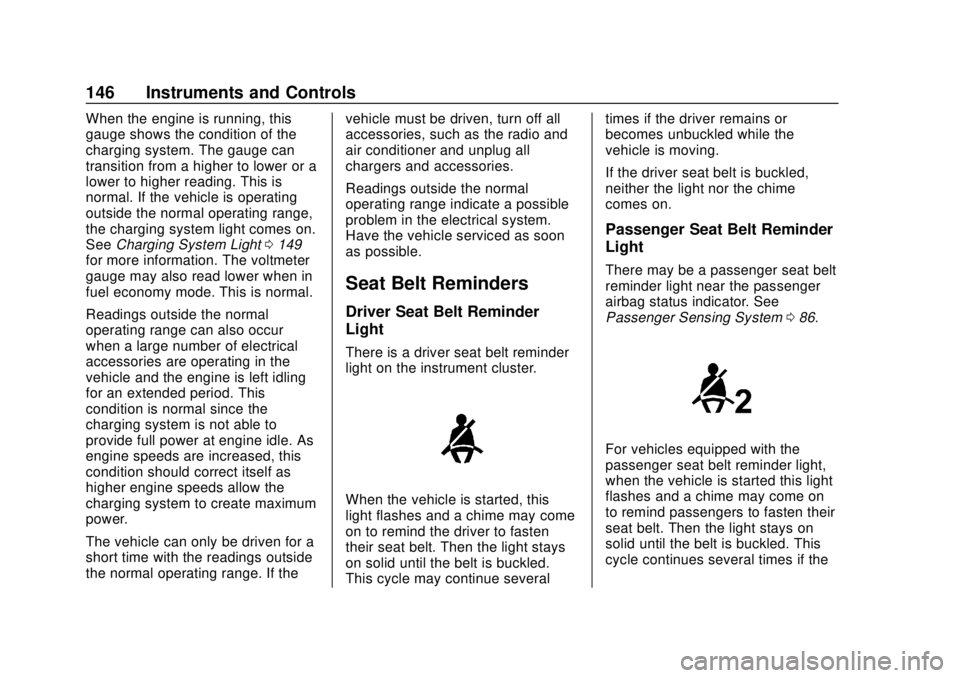
There is a driver seat belt reminder
light on the instrument cluster.
When the vehicle is started, this
light flashes and a chime may come
on to remind the driver to fasten
their seat belt. Then the light stays
on solid until the belt is buckled.
This cycle may continue severaltimes if the driver remains or
becomes unbuckled while the
vehicle is moving.
If the driver seat belt is buckled,
neither the light nor the chime
comes on.
Passenger Seat Belt Reminder
Light
There may be a passenger seat belt
reminder light near the passenger
airbag status indicator. See
Passenger Sensing System
086.
For vehicles equipped with the
passenger seat belt reminder light,
when the vehicle is started this light
flashes and a chime may come on
to remind passengers to fasten their
seat belt. Then the light stays on
solid until the belt is buckled. This
cycle continues several times if the
Page 162 of 505
GMC Sierra/Sierra Denali Owner Manual (GMNA-Localizing-U.S./Canada/
Mexico-11349177) - 2018 - CRC - 10/17/17
Instruments and Controls 161
2. Pressworxto scroll to the
Options application.
3. Press
Vto enter the
Options menu.
4. Scroll to Info Pages and press
p.
5. Press
worxto move
through the list of possible
information displays.
6. Press
Vwhile an item is
highlighted to select or
deselect that item. When an
item is selected, a checkmark
will appear next to it.
DIC Info Pages
The following is the list of all
possible DIC info page displays.
Some may not be available for your
particular vehicle. Some items may
not be turned on by default but can
be turned on through the Options
app. See “DIC Info Page Options”
earlier in this section. Speed :
Shows the vehicle speed in
either kilometers per hour (km/h) or
miles per hour (mph). The vehicle
odometer is also shown on this
page. If equipped, press
pto open
the menu and select to display
speed limit signs.
Trip A or Trip B, Average Fuel
Economy, and Average Speed :
Shows the current distance traveled,
in either kilometers (km) or
miles (mi), since the trip odometer
was last reset.
The Average Fuel Economy display
shows the approximate average
liters per 100 kilometers (L/100 km)
or miles per gallon (mpg). This
number is calculated based on the
number of L/100 km (mpg) recorded
since the last time this menu item
was reset. This number reflects only
the approximate average fuel
economy that the vehicle has right
now, and will change as driving
conditions change.
The Average Speed display shows
the average speed of the vehicle in
kilometers per hour (km/h) or miles per hour (mph). This average is
calculated based on the various
vehicle speeds recorded since the
last reset of this value.
Press and holdVwhile this display
is active to reset the trip odometer,
the average fuel economy, and the
average speed. Or press
pand
select reset in the menu.
Fuel Range and Instantaneous
Fuel Economy : Shows the
approximate distance the vehicle
can be driven without refueling.
LOW will be displayed when the
vehicle is low on fuel. The fuel
range estimate is based on an
average of the vehicle's fuel
economy over recent driving history
and the amount of fuel remaining in
the fuel tank. It also shows if the
Active Fuel Management is active
and in V4 mode, or inactive and in
V8 mode. See Active Fuel
Management 0264.
The Instantaneous Fuel Economy
display shows the approximate
current fuel economy in either liters
per 100 kilometers (L/100 km) or
Page 164 of 505
GMC Sierra/Sierra Denali Owner Manual (GMNA-Localizing-U.S./Canada/
Mexico-11349177) - 2018 - CRC - 10/17/17
Instruments and Controls 163
Economy Trend :Shows history of
the Average Fuel Economy from the
last 50 km (30 mi). Each bar
represents about 5 km (3 mi) of
driving. During driving the bars will
shift to always reflect the most
recent distance on the right side.
Press and hold
Vto clear the graph
or press
pto reset through
the menu.
ECO Index : The bar graph
provides feedback on the efficiency
of current driving behavior. The
graph shows a value that is based
on current fuel consumption
compared to what is expected from
the vehicle with good and bad
driving habits. It also shows if the
Active Fuel Management is active
and in V4 mode, or inactive and in
V8 mode. See Active Fuel
Management 0264. Engine Hours :
Shows the total
number of hours the engine has run.
This display also shows the engine
idle hours.
Trailer Brake : On vehicles with the
Integrated Trailer Brake Control
(ITBC) system, the trailer brake
display appears in the DIC.
TRAILER GAIN shows the trailer
gain setting. This setting can be
adjusted from 0.0 to 10.0 with either
a trailer connected or disconnected.
OUTPUT shows the power output to
the trailer any time a trailer with
electric brakes is connected. Output
is displayed as a bar graph. Dashes
may appear in the OUTPUT display.
Speed Signs : Shows sign
information, which comes from a
roadway database in the onboard
navigation. Following Distance :
Used to
select the alert timing for the
Forward Collision Alert (FCA). See
Forward Collision Alert (FCA)
System 0292.
Blank Page : Shows no
information.
Transmission Fluid Temperature
Gauge : Shows the temperature of
the automatic transmission fluid in
either degrees Celsius (°C) or
degrees Fahrenheit (°F).
Off Road : Displays vehicle pitch
and roll information, road wheel
angle, and four-wheel drive (4WD)
status.
Page 167 of 505
GMC Sierra/Sierra Denali Owner Manual (GMNA-Localizing-U.S./Canada/
Mexico-11349177) - 2018 - CRC - 10/17/17
166 Instruments and Controls
The selected language will display
on the system, and voice
recognition will reflect the selected
language.
Video Voice-Over
Select Off or On.
Valet Mode
This will lock the infotainment
system and steering wheel controls.
It may also limit access to vehicle
storage locations, if equipped.
To enable valet mode:1. Enter a four-digit code on the keypad.
2. Select Enter to go to the confirmation screen.
3. Re-enter the four-digit code.
Touch Lock or Unlock to lock or
unlock the system. Touch Back to
go back to the previous menu.
Teen Driver
See “Teen Driver” under“Settings”
in the infotainment manual.
Radio
Select and the following may
display:
. Manage Favorites
. Number of Favorites Shown
. Audible Touch Feedback
. Text Scroll
. Tone Settings
. Auto Volume
. Maximum Startup Volume
. Audio Cue Volume
Manage Favorites
This allows favorites to be edited.
See “Manage Favorites” in“Radio
Setup” underHome Page 0189 or
“Manage Favorites” in“Settings”
under “Radio” in the infotainment
manual.
Number of Favorites Shown
Select to set the number of favorites
to display. Select the desired number or select
Auto and the infotainment system
will automatically adjust the number
of favorites shown.
Audible Touch Feedback
This allows Audible Touch
Feedback to be turned on or off.
Select Off or On.
Text Scroll
Select to see text scroll on the
screen.
Select Off or On.
Tone Settings
Select to adjust the radio tone. See
“Tone Settings”
inAM-FM Radio
0 190.
Auto Volume
This feature adjusts the volume
based on vehicle speed and
ambient noise.
Select Off, Low, Medium-Low,
Medium, Medium-High, or High.
Page 182 of 505
GMC Sierra/Sierra Denali Owner Manual (GMNA-Localizing-U.S./Canada/
Mexico-11349177) - 2018 - CRC - 10/17/17
Lighting 181
Turn and Lane-Change
Signals
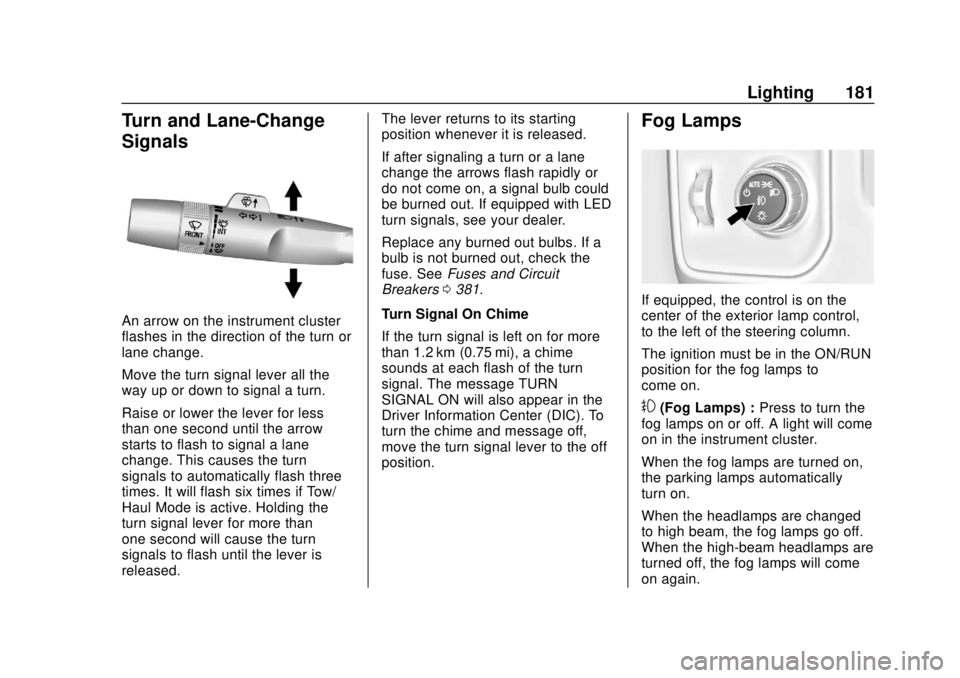
An arrow on the instrument cluster
flashes in the direction of the turn or
lane change.
Move the turn signal lever all the
way up or down to signal a turn.
Raise or lower the lever for less
than one second until the arrow
starts to flash to signal a lane
change. This causes the turn
signals to automatically flash three
times. It will flash six times if Tow/
Haul Mode is active. Holding the
turn signal lever for more than
one second will cause the turn
signals to flash until the lever is
released.The lever returns to its starting
position whenever it is released.
If after signaling a turn or a lane
change the arrows flash rapidly or
do not come on, a signal bulb could
be burned out. If equipped with LED
turn signals, see your dealer.
Replace any burned out bulbs. If a
bulb is not burned out, check the
fuse. See
Fuses and Circuit
Breakers 0381.
Turn Signal On Chime
If the turn signal is left on for more
than 1.2 km (0.75 mi), a chime
sounds at each flash of the turn
signal. The message TURN
SIGNAL ON will also appear in the
Driver Information Center (DIC). To
turn the chime and message off,
move the turn signal lever to the off
position.
Fog Lamps
If equipped, the control is on the
center of the exterior lamp control,
to the left of the steering column.
The ignition must be in the ON/RUN
position for the fog lamps to
come on.
#(Fog Lamps) : Press to turn the
fog lamps on or off. A light will come
on in the instrument cluster.
When the fog lamps are turned on,
the parking lamps automatically
turn on.
When the headlamps are changed
to high beam, the fog lamps go off.
When the high-beam headlamps are
turned off, the fog lamps will come
on again.
Page 200 of 505

GMC Sierra/Sierra Denali Owner Manual (GMNA-Localizing-U.S./Canada/
Mexico-11349177) - 2018 - CRC - 10/17/17
Infotainment System 199
.Only USB storage devices
formatted in FAT16/32 or exFAT
file systems are recognized.
NTFS and other file systems are
not recognized.
. The time it takes to process files
will depend on the USB storage
device type and capacity, and
the type of files stored.
. Some USB storage device files
may not be compatible.
. Up to two USB devices and one
iPod can be played through a
USB hub. All devices may not be
supported, depending on the
performance of the USB hub.
If there is not enough power
supply, it may not operate
normally.
. Do not disconnect the USB
storage device while it is playing.
This may cause damage to the
product or affect the
performance of the USB device.
. Disconnect the USB storage
device when the ignition is
turned off. If the ignition is turned
on while the USB device is connected, the USB device may
be damaged or may not operate
normally.
. USB storage devices can only
be connected for playing music,
viewing photo files,
or upgrading.
. Do not use the USB terminal to
charge USB accessory
equipment. The heat generated
may cause performance issues
or damage.
. Music files to which Digital Right
Management (DRM) is applied
cannot be played.
. USB storage device that are in
capacity with a limit of 5,000
files, such as music, photo,
video, 15 stages of folder
structure. Normal usage cannot
be guaranteed for a storage
device that exceeds this limit.
The iPod/iPhone can play all
music files that are supported.
The music file lists will only
display up to 5,000 files on the
screen. These files are sorted in
alphabetical order. .
Some iPod/iPhone product
models may not support the
connectivity or functionality of
this product.
. Only connect the iPod/iPhone
with connection cables
supported by iPod/iPhone
products. Other connection
cables cannot be used.
. The iPod/iPhone may be
damaged if it is connected to the
vehicle with the ignition on.
When not in use, disconnect the
iPod/iPhone.
. When the iPod/iPhone is
connected to the USB port by
using the iPod/iPhone cable, the
Bluetooth music is not
supported.
. The iPod/iPhone playback
functions and the information
displayed may be different when
played on the infotainment
system.
Page 203 of 505
GMC Sierra/Sierra Denali Owner Manual (GMNA-Localizing-U.S./Canada/
Mexico-11349177) - 2018 - CRC - 10/17/17
202 Infotainment System
.Touchgwithin two seconds of
the playback time to play the
previous file.
Returning to the Beginning of the
Current File
Touch
gafter two seconds of the
playback time.
Scanning Forward or Backward
Touch and hold
gorlduring
playback to rewind or fast forward.
Release the button to resume
playback at normal speed.
Playing a File Randomly
Touch
Zduring playback.
. ON: Plays all files randomly.
. OFF: Returns to normal
playback.
Using the iPod Menu
. Touch Menu during playback.
. Touch the appropriate
play mode.
Browse Music 1. Touch Browse Music. 2. Touch the desired music.
Tone Settings
. Touch Tone Settings. The Tone
Settings menu is displayed. See
“Tone Settings” inAM-FM Radio
0 190.
Auto Volume
. Touch Auto Volume. The Auto
Volume menu is displayed. See
“Auto Volume” inAM-FM Radio
0 190.
Picture System Information
The infotainment system can view
picture files stored on a USB
storage device and devices that
support Media Transfer
Protocol (MTP).
.
Supported file extensions: .jpg,
.bmp, .png, .gif.
. Animated GIF files are not
supported.
. Some files may not operate due
to a different recording format or
the condition of the file. Viewing Pictures
1. Connect the USB device to the USB port.
2. Touch the screen to open to full screen. Touch the screen again
to return to the previous
screen.
If the USB device is already
connected:
1. Press
{.
2. Touch GALLERY.
Some features are disabled while
the vehicle is in motion.
Viewing a Slide Show
1. Touch
zfrom the picture
screen.
2. Touch the screen to cancel the slide show during the slide
show playback.
Viewing a Previous or Next
Picture
Touch
SorTfrom the picture
screen.
Page 207 of 505
GMC Sierra/Sierra Denali Owner Manual (GMNA-Localizing-U.S./Canada/
Mexico-11349177) - 2018 - CRC - 10/17/17
206 Infotainment System
Pressgto interrupt any voice
recognition system prompt. For
example, if the prompt seems
to be taking too long to finish,
press
gagain and the beep
should happen right away.
There are two voice prompt modes
supported:
. Long verbal prompts: The longer
prompts provide more
information regarding the
supported actions.
. Short prompts: The short
prompts provide simple
instructions about what can be
stated.
If a command is not spoken, the
voice recognition system says a
help prompt.
Prompts and Screen Displays
While a voice recognition session is
active, there will be corresponding
buttons on screens displayed.
Manual interaction in the voice
recognition session is permitted.
Interaction during a voice session
may be completed entirely using voice commands, or some
selections may expedite a session.
If a selection is made using a
manual control, the dialog will
progress in the same way as if the
selection was made through a voice
command. Once the system is able
to complete the task, or the session
is terminated, the voice recognition
dialog stops.
An example of this type of manual
intervention is pressing on an entry
of a displayed number list instead of
speaking the number associated
with the entry desired.
Canceling Voice Recognition
.
Press the Home screen button
to terminate the voice
recognition session which was
initiated by pressing
gon the
infotainment screen on the
center stack.
. Press or say “Cancel”or“Exit” to
terminate the voice recognition
session and display the screen
from which voice recognition
was initiated. .
Press
ion the steering wheel
controls to terminate the voice
session and display the screen
from which voice recognition
was initiated.
Helpful Hints for Speaking
Commands
Voice recognition can understand
commands that are either naturally
stated in sentence form (English
only), or direct commands that state
the application and the task.
For languages that do not support
natural language commands in
sentence form, use the direct
commands shown as examples on
the display screen.
For best results:
. Listen for the prompt and wait
for the beep before saying a
command or reply.
. Say “Help” or look at the screen
display for commands.
. Voice recognition system prompt
can be interrupted during a
prompt by pressing
gagain.
Page 212 of 505
GMC Sierra/Sierra Denali Owner Manual (GMNA-Localizing-U.S./Canada/
Mexico-11349177) - 2018 - CRC - 10/17/17
Infotainment System 211
Bluetooth Speech Recognition
(If Equipped)
Voice Pass-Thru allows access to
the speech recognition commands
on the cell phone. See your cell
phone manufacturer’s user guide to
see if the cell phone supports this
feature.
Activating this function will start the
Bluetooth Speech Recognition on a
connected phone.
The steering wheel controls are
used to operate this function.
Press and hold
gto activate.
A voice session begins so that voice
commands can be given to Siri
®or
many other controls provided by the
cell phone.
Press
@to exit or pressito
close and return to the previous
application prior to the start of Voice
Pass-Thru.
Phone
Bluetooth (Overview)
Instructions for using the cell phone
may differ between infotainment
systems. The base radio and base
radio with touchscreen instructions
are included in this manual. See the
infotainment manual for instructions
on the uplevel radios.
Bluetooth-capable systems can
interact with many cell phones,
allowing:
. Placement and receipt of calls in
a hands-free mode.
. Sharing of the cell phone’s
address book or contact list with
the vehicle.
To minimize driver distraction,
before driving, and with the vehicle
parked:
. Become familiar with the
features of the cell phone.
Organize the phone book and
contact lists clearly and delete duplicate or rarely used entries.
If possible, program speed dial
or other shortcuts.
. Review the controls and
operation of the infotainment
system.
. Pair cell phone(s) to the vehicle.
The system may not work with
all cell phones. See “Pairing”in
this section.
. If the cell phone has voice
dialing capability, learn to use
that feature to access the
address book or contact list.
. See “Deleting a Bluetooth
Device” in this section.
{Warning
When using a cell phone, it can
be distracting to look too long or
too often at the screen of the
phone or the infotainment system.
Taking your eyes off the road too
long or too often could cause a
crash resulting in injury or death.
Focus your attention on driving.
Page 217 of 505
GMC Sierra/Sierra Denali Owner Manual (GMNA-Localizing-U.S./Canada/
Mexico-11349177) - 2018 - CRC - 10/17/17
216 Infotainment System
versions over 1.2 must be
registered and connected to the
product.
. From the cell phone or Bluetooth
device, find the Bluetooth device
type to set/connect the item as a
stereo headset.
.
ewill appear on the screen if
the stereo headset is
successfully connected.
. The sound played by the
Bluetooth device is delivered
through the infotainment system.
. Bluetooth music can be played
only when a Bluetooth device
has been connected. To play
Bluetooth music, connect the
Bluetooth phone to the
infotainment system.
. If the Bluetooth device is
disconnected while playing
phone music, the music is
discontinued. The audio
streaming function may not be
supported in some Bluetooth
phones. Only one function can
be used at a time between the
Bluetooth hands-free or Phone music function. For example,
if you convert to Bluetooth
hands-free while playing Phone
music, the music is
discontinued. Playing music from
the vehicle is not possible when
there are no music files stored in
the cell phone.
Playing Bluetooth Music
1. Press
{.
2. Touch AUDIO.
3. Touch Source.
4. Touch Bluetooth.
Pause
Touch
jto pause.
Touch
rto resume.
Playing the Next Song
Touch
l.
Playing the Previous Song
Touch
gwithin two seconds of
playback time to play the
previous song. Returning to the Beginning of the
Current Song
Touch
gafter two seconds of
playback time.
Search
Touch and hold
gorlto rewind
or fast forward.
Playing Music Randomly
Touch
Zduring playback. Touch
again to return to normal play.
This function may not be supported
depending on the Bluetooth device.
Do not change the track too quickly
when playing Bluetooth music.
Conditions that may occur when
playing Bluetooth music:
. It takes time to transmit data
from the Bluetooth device to the
infotainment system.
. If the cell phone or Bluetooth
device is not in the waiting
screen mode, it may not
automatically play.