buttons GMC SIERRA 2018 User Guide
[x] Cancel search | Manufacturer: GMC, Model Year: 2018, Model line: SIERRA, Model: GMC SIERRA 2018Pages: 505, PDF Size: 6.59 MB
Page 175 of 505
GMC Sierra/Sierra Denali Owner Manual (GMNA-Localizing-U.S./Canada/
Mexico-11349177) - 2018 - CRC - 10/17/17
174 Instruments and Controls
The name and color of the
button may vary by
manufacturer.
5. Press and release the Learn or Smart button. Step 6 must be
completed within 30 seconds of
pressing this button.
6. Inside the vehicle, press and hold the newly programmed
Universal Remote system
button for two seconds and
then release it. If the garage
door does not move or the
lamp on the garage door
opener receiver does not flash,
press and hold the same
button a second time for
two seconds, then release it.
Again, if the door does not
move or the garage door lamp
does not flash, press and hold
the same button a third time for
two seconds, then release it.
The Universal Remote system
should now activate the
garage door. Repeat the process for
programming the two remaining
buttons.
Radio Signals for Canada and
Some Gate Operators
For questions or programming help,
see www.homelink.com/gm or call
1-800-355-3515.
Canadian radio-frequency laws and
some U.S. gate operators require
transmitter signals to time out or quit
after several seconds of
transmission. This may not be long
enough for the Universal Remote
system to pick up the signal during
programming.
If the programming did not work,
replace Step 2 under
“Programming
the Universal Remote System” with
the following:
Press and hold the Universal
Remote system button while
pressing and releasing the
hand-held transmitter button every
two seconds until the signal has
been successfully accepted by the
Universal Remote system. The
Universal Remote system indicator light will flash slowly at first and then
rapidly. Proceed with Step 3 under
“Programming the Universal Remote
System”
to complete.
Universal Remote System
Operation
Using the Universal Remote
System
Press and hold the appropriate
Universal Remote system button for
at least one-half second. The
indicator light will come on while the
signal is being transmitted.
Erasing Universal Remote
System Buttons
Erase all programmed buttons when
vehicle ownership is terminated.
To erase:
1. Press and hold the two outside buttons until the indicator light
begins to flash. This should
take about 10 seconds.
2. Release both buttons.
Page 176 of 505
GMC Sierra/Sierra Denali Owner Manual (GMNA-Localizing-U.S./Canada/
Mexico-11349177) - 2018 - CRC - 10/17/17
Instruments and Controls 175
Reprogramming a Single
Universal Remote System
Button
To reprogram any of the system
buttons:1. Press and hold any one of the buttons. Do not release the
button.
2. The indicator light will begin to flash after 20 seconds. Without
releasing the button, proceed
with Step 1 under
“Programming the Universal
Remote System.”
Page 190 of 505
GMC Sierra/Sierra Denali Owner Manual (GMNA-Localizing-U.S./Canada/
Mexico-11349177) - 2018 - CRC - 10/17/17
Infotainment System 189
4.6
.Radio: Press and release to
go to the next station or
channel. Press and hold to
fast seek the next strongest
station or channel.
. USB/Bluetooth Music/
Pictures: Press and hold to
go to the next content.
Press and hold to fast
forward.
5.
#
. Press and release to
access the phone screen,
answer an incoming call,
or access the device home
screen. Press and hold to
access Press to Talk.
Home Page
Touchscreen Buttons
Touchscreen buttons show on the
screen when available. When a
function is unavailable, the button
may gray out. When a function is
selected, the button may highlight.
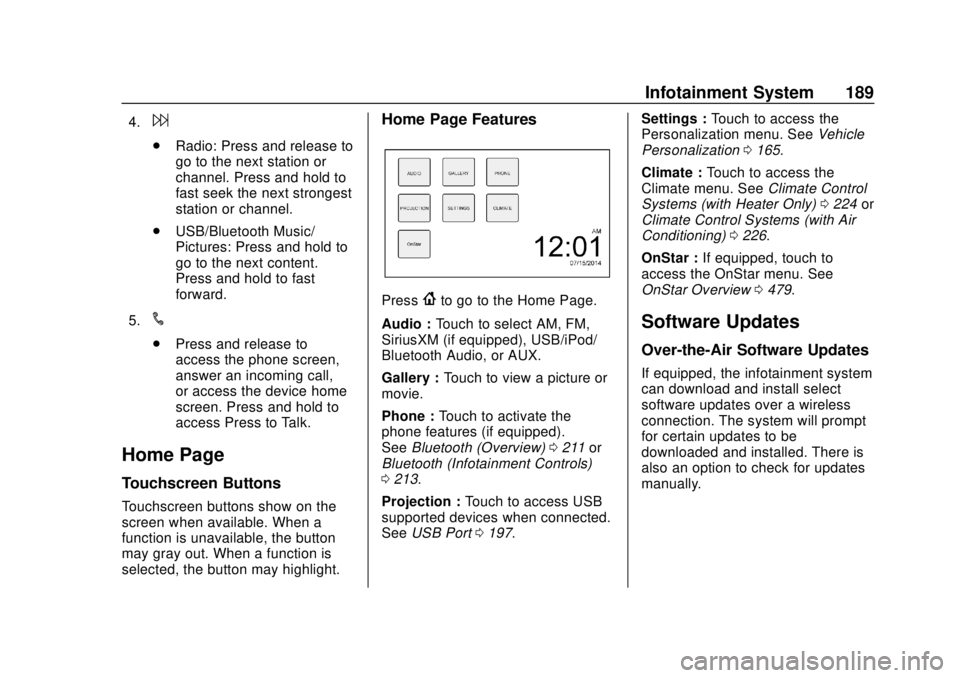
Home Page Features
Press{to go to the Home Page.
Audio : Touch to select AM, FM,
SiriusXM (if equipped), USB/iPod/
Bluetooth Audio, or AUX.
Gallery : Touch to view a picture or
movie.
Phone : Touch to activate the
phone features (if equipped).
See Bluetooth (Overview) 0211 or
Bluetooth (Infotainment Controls)
0 213.
Projection : Touch to access USB
supported devices when connected.
See USB Port 0197. Settings :
Touch to access the
Personalization menu. See Vehicle
Personalization 0165.
Climate : Touch to access the
Climate menu. See Climate Control
Systems (with Heater Only) 0224 or
Climate Control Systems (with Air
Conditioning) 0226.
OnStar : If equipped, touch to
access the OnStar menu. See
OnStar Overview 0479.
Software Updates
Over-the-Air Software Updates
If equipped, the infotainment system
can download and install select
software updates over a wireless
connection. The system will prompt
for certain updates to be
downloaded and installed. There is
also an option to check for updates
manually.
Page 193 of 505
GMC Sierra/Sierra Denali Owner Manual (GMNA-Localizing-U.S./Canada/
Mexico-11349177) - 2018 - CRC - 10/17/17
192 Infotainment System
Update Station List
.From the AM or FM menu, touch
MENU, then touch Update
Station List. The broadcasting
list updating will begin.
. During the AM or FM
broadcasting list update, touch
Cancel to stop the updates.
Storing a Station as a Favorite
Stations from all bands can be
stored in any order in the favorite
pages.
Up to 25 stations can be stored.
Storing Stations
To store the station to a position in
the list, touch the corresponding
button 1−5 until a beep is heard.
1. Select the desired station.
2. Touch
SorTto select the
desired page of saved
favorites. 3. Touch and hold down any of
the preset buttons to save the
current radio station to that
button of the selected
favorites page.
To change a preset button, tune to
the new desired radio station and
touch and hold the preset button.
Satellite Radio
Vehicles with an SXM Satellite
Radio tuner and a valid SiriusXM
Satellite Radio subscription can
receive SiriusXM programming.
SiriusXM Satellite Radio
Service (If Equipped)
SiriusXM is a satellite radio service
based in the 48 contiguous United
States and 10 Canadian provinces.
SiriusXM Satellite Radio has a wide
variety of programming and
commercial-free music, coast to
coast, and in digital-quality sound.
A service fee is required to receive
the SiriusXM service. For more
information, contact SiriusXM at
www.siriusxm.com or 1-888-601-6296(U.S.), and
www.siriusxm.ca or
1-877-438-9677(Canada).
Listening to SiriusXM Radio (If
Equipped)
1. Press{.
2. Touch AUDIO.
3. Touch Source.
4. Touch SXM and the most recent listened to SiriusXM
channel will display.
Selecting a Category
From Menu, touch Categories, then
touch the desired category or from
Categories, touch
QorRto find the
desired channel. Touch the channel
to select it.
Selecting a Channel
Touchuortand the previous or
next channel will be selected.
Touch and hold
uortto jump
four channels backward or forward,
then release the button at the
desired channel.
Page 194 of 505
GMC Sierra/Sierra Denali Owner Manual (GMNA-Localizing-U.S./Canada/
Mexico-11349177) - 2018 - CRC - 10/17/17
Infotainment System 193
Using the Preset Buttons
Up to seven favorites pages can be
saved, and each page can store up
to five channels.
To change a preset button, tune to
the new desired channel and hold
the button.
Listening to Preset Channels1. Continue touching
SorTto
select the desired
favorites page.
2. Touch the preset button to listen to the channel saved to
that button.
Using the SiriusXM Menu
Operation
1. Touch MENU on the SXM radio screen.
2. Touch the menu to select the desired item or to display the
detail menu item.
3. Touch
0to return to the
previous menu. Channel List
1. Touch Channel List from the SXM menu. The channel list is
displayed.
2. Touch
QorRto find the
desired channel. Tune to the
channel by selecting it.
Tone Settings
From the tone settings menu, the
sound features can be set up for
SiriusXM audio and each audio
player ’s functions.
1. Touch Tone Settings. The tone settings screen is displayed.
See “Tone Settings” inAM-FM
Radio 0190.
2. Touch OK.
Auto Volume 1. Touch Auto Volume. See “Auto
Volume” inAM-FM Radio
0 190.
2. Touch OK.
Categories 1. Touch Categories. 2. Touch
QorRto find the
desired category. Touch the
category to select it.
Explicit Content Filter
When on, only a filtered list of
channels will be received. When off,
all regular SXM programming
subscribed to will be received. 1. Touch SXM Explicit Filter.
2. Select On or Off.
Radio Reception
Frequency interference and static
can occur during normal radio
reception if items such as phone
chargers, vehicle convenience
accessories, and external electronic
devices are plugged into the
accessory power outlet. If there is
interference or static, unplug the
item from the accessory power
outlet.
FM
FM signals only reach about 16 to
65 km (10 to 40 mi). Although the
radio has a built-in electronic circuit
Page 206 of 505
GMC Sierra/Sierra Denali Owner Manual (GMNA-Localizing-U.S./Canada/
Mexico-11349177) - 2018 - CRC - 10/17/17
Infotainment System 205
Voice Recognition
If equipped, voice recognition allows
for hands-free operation within the
audio and phone applications. This
feature can be started by pressing
either the
gbutton on the steering
wheel or by selecting the
gon the
screen display.
However, not all features within
these areas are supported by voice
commands. Generally, only complex
tasks that require multiple manual
interactions to complete are
supported by voice commands.
For example, tasks that take more
than one or two button presses such
as selecting a song or artist to play
from a media device would be
supported by voice commands.
Other tasks, like adjusting the
volume or seeking up or down are
audio features that are easily
performed by pressing one or two
buttons, and are not supported by
voice commands. In general there are flexible ways to
speak commands for completing the
tasks. Most of them, except
destination entry and voice keypad,
can be completed in a single
command. If the task takes more
than one command to complete, the
first command would be to indicate
the kind of task that is to be
performed. The system replies with
prompts that lead through a dialog
to enter the necessary information.
Voice recognition can be used when
the ignition is on or when Retained
Accessory Power (RAP) is active.
See
Retained Accessory Power
(RAP) 0260.
Using Voice Recognition
Voice recognition becomes available
once the system has been
initialized. This begins when the
ignition is turned on. Initialization
may take a few moments. 1. Press
gon the steering wheel
control to activate voice
recognition, or select
gon the
infotainment screen on the
center stack.
. If voice recognition is
started from the steering
wheel control, the
instrument cluster displays
the selections and visual
dialog content.
. If voice recognition is
started from the
infotainment screen, the
selections and visual dialog
content are displayed on
both the center stack
display and the instrument
cluster display.
2. The audio system mutes and the system plays a prompt
followed by a beep.
3. Wait until after the beep completes, then clearly speak
one of the commands
described in this section.
Page 207 of 505
GMC Sierra/Sierra Denali Owner Manual (GMNA-Localizing-U.S./Canada/
Mexico-11349177) - 2018 - CRC - 10/17/17
206 Infotainment System
Pressgto interrupt any voice
recognition system prompt. For
example, if the prompt seems
to be taking too long to finish,
press
gagain and the beep
should happen right away.
There are two voice prompt modes
supported:
. Long verbal prompts: The longer
prompts provide more
information regarding the
supported actions.
. Short prompts: The short
prompts provide simple
instructions about what can be
stated.
If a command is not spoken, the
voice recognition system says a
help prompt.
Prompts and Screen Displays
While a voice recognition session is
active, there will be corresponding
buttons on screens displayed.
Manual interaction in the voice
recognition session is permitted.
Interaction during a voice session
may be completed entirely using voice commands, or some
selections may expedite a session.
If a selection is made using a
manual control, the dialog will
progress in the same way as if the
selection was made through a voice
command. Once the system is able
to complete the task, or the session
is terminated, the voice recognition
dialog stops.
An example of this type of manual
intervention is pressing on an entry
of a displayed number list instead of
speaking the number associated
with the entry desired.
Canceling Voice Recognition
.
Press the Home screen button
to terminate the voice
recognition session which was
initiated by pressing
gon the
infotainment screen on the
center stack.
. Press or say “Cancel”or“Exit” to
terminate the voice recognition
session and display the screen
from which voice recognition
was initiated. .
Press
ion the steering wheel
controls to terminate the voice
session and display the screen
from which voice recognition
was initiated.
Helpful Hints for Speaking
Commands
Voice recognition can understand
commands that are either naturally
stated in sentence form (English
only), or direct commands that state
the application and the task.
For languages that do not support
natural language commands in
sentence form, use the direct
commands shown as examples on
the display screen.
For best results:
. Listen for the prompt and wait
for the beep before saying a
command or reply.
. Say “Help” or look at the screen
display for commands.
. Voice recognition system prompt
can be interrupted during a
prompt by pressing
gagain.
Page 213 of 505
GMC Sierra/Sierra Denali Owner Manual (GMNA-Localizing-U.S./Canada/
Mexico-11349177) - 2018 - CRC - 10/17/17
212 Infotainment System
Vehicles with a Bluetooth system
can use a Bluetooth-capable cell
phone with a Hands-Free Profile to
make and receive phone calls. The
infotainment system and voice
recognition are used to control the
system. The system can be used
with the ignition on or in ACC/
ACCESSORY. The range of the
Bluetooth system can be up to 9.1 m
(30 ft). Not all phones support all
functions and not all phones work
with the Bluetooth system. For U.S.
and Canada only, see www.gm.com/
bluetooth for more information about
compatible phones.
Bluetooth Controls
Use the buttons on the center stack,
infotainment display, and the
steering wheel to operate the
Bluetooth system.
Steering Wheel Controls
g:Press to answer incoming calls,
confirm system information, and
start voice recognition.
i: Press to end a call, reject a
call, or cancel an operation. Press
to mute or unmute the infotainment
system.
Infotainment System Controls
For information about how to
navigate the menu system using the
infotainment controls, see Overview
0 188.
MENU : Turn to scroll through a list.
Press to select the highlighted list
option.
{: Press to go to the Home Page.
See Home Page 0189.
PHONE or
#: Select to enter the
phone main menu. See Bluetooth
(Overview) 0211 orBluetooth
(Infotainment Controls) 0213.
Voice Recognition
If equipped, the voice recognition
system uses commands to control
the system and dial phone numbers. Noise :
The system may not
recognize voice commands if there
is too much background noise, such
as noise from open windows or loud
talking inside the vehicle.
When to Speak : A tone sounds to
indicate that the system is ready for
a voice command. Wait for the tone
and then speak.
How to Speak : Speak clearly in a
calm and natural voice.
Audio System
When using the Bluetooth system,
sound comes through the vehicle's
front audio system speakers and
overrides the audio system. Use the
Oknob during a call to change the
volume level. The system maintains
a minimum volume level.
Bluetooth Audio Quality
Turn off the Echo and Noise
cancellation feature on your phone,
if supported, for the best hands-free
performance.
See www.gm.com/bluetooth for U.S.
and Canada only.
Page 260 of 505
GMC Sierra/Sierra Denali Owner Manual (GMNA-Localizing-U.S./Canada/
Mexico-11349177) - 2018 - CRC - 10/17/17
Driving and Operating 259
Caution
Cranking the engine for long
periods of time, by returning the
ignition to the START position
immediately after cranking has
ended, can overheat and damage
the cranking motor, and drain the
battery. Wait at least 15 seconds
between each try, to let the
cranking motor cool down.
2. If the engine does not start after five to 10 seconds,
especially in very cold weather
(below −18 °C or 0 °F), it could
be flooded with too much
gasoline. Try pushing the
accelerator pedal all the way to
the floor and holding it there
while holding the key in START
for up to 15 seconds. Wait at
least 15 seconds between each
try, to allow the cranking motor
to cool down. When the engine
starts, let go of the key and
accelerator. If the vehicle starts
briefly but then stops again, do the same thing. This clears the
extra gasoline from the engine.
Do not race the engine
immediately after starting it.
Operate the engine and
transmission gently until the oil
warms up and lubricates all
moving parts.
Fast Idle System
If equipped, this feature is available
only with cruise control. The manual
fast idle switch is operated using the
cruise control buttons on the left
side of the steering wheel.
This system can be used to
increase engine idle speed
whenever the following conditions
are met:
.
The parking brake is set.
. The brake pedal is not pressed.
. The vehicle must not be moving
and the accelerator must not be
pressed. To control the fast idle:
.
To enable the Fast Idle System,
press and release the cruise
control on/off button and ensure
that the switch indicator light
is lit.
. Press and release the cruise
control SET- button. Engine
speed will be held at
approximately 1200 rpm.
One of the following actions will turn
off the fast idle:
. Pressing the brake.
. Selecting the cruise control
cancel button.
. Releasing the parking brake.
. Moving the transmission shift
lever out of P (Park) or
N (Neutral).
. Selecting the cruise control on/
off button when it was
previously on.
. Pressing the cruise control SET-
button a second time.
Page 270 of 505
GMC Sierra/Sierra Denali Owner Manual (GMNA-Localizing-U.S./Canada/
Mexico-11349177) - 2018 - CRC - 10/17/17
Driving and Operating 269
To use this feature:1. Move the shift lever to L (Manual Mode).
2. Press the plus/minus buttons on the shift lever to select the
desired range of gears for
current driving conditions.
With an 8-speed automatic
transmission, hold the plus/minus
buttons on the shift lever to select
the highest or lowest range
available for the current vehicle
speed. When the shift lever is moved from
D (Drive) to L (Manual Mode), a
number displays next to the L,
indicating the current transmission
range.
This number is the highest gear that
the transmission will command while
operating in L (Manual Mode). All
gears below that number are
available. As driving conditions
change, the transmission can
automatically shift to lower gears.
For example, when L5 is selected,
1 (First) through 5 (Fifth) gears areautomatically shifted by the
transmission, but 6 (Sixth) cannot be
used until the plus/minus button on
the shift lever is used to change to
the range.
In vehicles with gasoline engines,
when the shift lever is moved from
D (Drive) to L (Manual Mode), a
downshift may occur. The gear that
the transmission is operating in
when the shift lever is moved from
D (Drive) to L (Manual Mode)
determines if a downshift occurs.
See the following chart.