ad blue GMC SIERRA 2018 Owner's Guide
[x] Cancel search | Manufacturer: GMC, Model Year: 2018, Model line: SIERRA, Model: GMC SIERRA 2018Pages: 505, PDF Size: 6.59 MB
Page 215 of 505
GMC Sierra/Sierra Denali Owner Manual (GMNA-Localizing-U.S./Canada/
Mexico-11349177) - 2018 - CRC - 10/17/17
214 Infotainment System
Pairing a Phone - SSP and Paired
Device
When a paired device is on the
infotainment system and SSP is
supported:1. Press
{.
2. Touch Settings.
3. Touch Bluetooth, then Device Management.
4. Touch the desired device to pair. When the Bluetooth
device and infotainment system
are successfully paired,
Z/5
is displayed on the pair device
screen. If no desired device is
available go to Step 5.
5. Touch Search Device to search for the desired device.
6. Touch the desired device to pair on the searched list
screen.
7. Touch Yes on the pop-up screen of the Bluetooth device
and infotainment system. .
The connected phone is
highlighted by
5.
.
Z/5indicates the hands-free
and phone music functions are
enabled.
.
5indicates only the hands-free
function is enabled.
.
Zindicates only Bluetooth
music is enabled.
Pairing a Phone - No SSP and No
Paired Device
When there is no paired device on
the infotainment system and SSP is
not supported:
1. Press
{.
2. Touch PHONE, press
#on the
center stack, or press
gon the
steering wheel without OnStar.
3. Touch Search Device.
4. Touch the desired device to pair on the searched list
screen. 5. Input the Personal
Identification Number (PIN)
code (default: 1234) to the
Bluetooth device. When the
Bluetooth device and
infotainment system are
successfully paired, the
PHONE screen is displayed on
the infotainment system.
When the connection fails, a failure
message is displayed on the
infotainment system.
If a Bluetooth device was previously
connected, the infotainment system
executes the auto connection.
However, if the Bluetooth setting on
the Bluetooth device is turned off, a
failure message is displayed on the
infotainment system.
Pairing a Phone - No SSP and
Paired Device
When a paired device is on the
infotainment system and SSP is not
supported:
1. Press
{.
2. Touch Settings.
Page 216 of 505
GMC Sierra/Sierra Denali Owner Manual (GMNA-Localizing-U.S./Canada/
Mexico-11349177) - 2018 - CRC - 10/17/17
Infotainment System 215
3. Touch Bluetooth, then DeviceManagement.
4. Touch the desired device to pair. When the Bluetooth
device and infotainment system
are successfully paired,
Z/5
is displayed on the pair device
screen. If no desired device is
available go to Step 5.
5. Touch Search Device to search for the desired device.
6. Touch the desired device to pair on the searched list
screen.
7. Input the Personal Identification Number (PIN)
code (default: 1234) to the
Bluetooth device. When the
Bluetooth device and
infotainment system are
successfully paired,
Z/5is
displayed on the pair device
screen.
. The connected phone is
highlighted by
5. .
Z/5indicates the hands-free
and phone music functions are
enabled.
.
5indicates only the hands-free
function is enabled.
.
Zindicates only Bluetooth
music is enabled.
Connecting a Paired Bluetooth
Device
1. Press
{.
2. Touch Settings.
3. Touch Bluetooth, then Device Management.
4. Touch the device to be connected.
Checking the Bluetooth
Connection
1. Press
{.
2. Touch Settings.
3. Touch Bluetooth, then Device Management.
4. The paired device will show. Disconnecting a Bluetooth Device
1. Press
{.
2. Touch Settings.
3. Touch Bluetooth, then Device Management.
4. Touch the name of the device to be disconnected.
5. Touch Disconnect.
Deleting a Bluetooth Device
1. Press
{.
2. Touch Settings.
3. Touch Bluetooth, then Device Management.
4. Touch the device to delete.
5. Touch
Y.
6. Touch Delete.
Bluetooth Music
Before playing Bluetooth music,
read the following information.
. A cell phone or Bluetooth device
that supports Advanced Audio
Distribution Profile (A2DP)
Page 217 of 505
GMC Sierra/Sierra Denali Owner Manual (GMNA-Localizing-U.S./Canada/
Mexico-11349177) - 2018 - CRC - 10/17/17
216 Infotainment System
versions over 1.2 must be
registered and connected to the
product.
. From the cell phone or Bluetooth
device, find the Bluetooth device
type to set/connect the item as a
stereo headset.
.
ewill appear on the screen if
the stereo headset is
successfully connected.
. The sound played by the
Bluetooth device is delivered
through the infotainment system.
. Bluetooth music can be played
only when a Bluetooth device
has been connected. To play
Bluetooth music, connect the
Bluetooth phone to the
infotainment system.
. If the Bluetooth device is
disconnected while playing
phone music, the music is
discontinued. The audio
streaming function may not be
supported in some Bluetooth
phones. Only one function can
be used at a time between the
Bluetooth hands-free or Phone music function. For example,
if you convert to Bluetooth
hands-free while playing Phone
music, the music is
discontinued. Playing music from
the vehicle is not possible when
there are no music files stored in
the cell phone.
Playing Bluetooth Music
1. Press
{.
2. Touch AUDIO.
3. Touch Source.
4. Touch Bluetooth.
Pause
Touch
jto pause.
Touch
rto resume.
Playing the Next Song
Touch
l.
Playing the Previous Song
Touch
gwithin two seconds of
playback time to play the
previous song. Returning to the Beginning of the
Current Song
Touch
gafter two seconds of
playback time.
Search
Touch and hold
gorlto rewind
or fast forward.
Playing Music Randomly
Touch
Zduring playback. Touch
again to return to normal play.
This function may not be supported
depending on the Bluetooth device.
Do not change the track too quickly
when playing Bluetooth music.
Conditions that may occur when
playing Bluetooth music:
. It takes time to transmit data
from the Bluetooth device to the
infotainment system.
. If the cell phone or Bluetooth
device is not in the waiting
screen mode, it may not
automatically play.
Page 218 of 505
GMC Sierra/Sierra Denali Owner Manual (GMNA-Localizing-U.S./Canada/
Mexico-11349177) - 2018 - CRC - 10/17/17
Infotainment System 217
.The infotainment system
transmits the order to play from
the Bluetooth device in the
Bluetooth music play mode.
If this is done in a different
mode, then the device transmits
the order to stop. Depending on
the Bluetooth device options,
this order to play/stop may take
time to activate.
. If the Bluetooth music playback
is not functioning, then check to
see if the Bluetooth device is in
the waiting screen mode.
. Sounds may be cut off during
the Bluetooth music playback.
. The infotainment system outputs
the audio from the cell phone or
Bluetooth device as it is
transmitted.
Apple CarPlay and
Android Auto
If equipped, Android Auto and/or
Apple CarPlay capability may be
available through a compatible
smartphone. If available, PROJECTION will appear on the
Home Page of the infotainment
display.
To use Android Auto or Apple
CarPlay:
1. Download the Android Auto app to your phone from the
Google Play store. No app is
required for Apple CarPlay.
2. Connect an Android phone or iPhone by using the compatible
phone USB cable and plugging
into a USB data port. For best
performance, use the device’ s
factory-provided USB cable.
Aftermarket or third-party
cables may not work.
3. When the phone is first connected to activate Apple
CarPlay or Android Auto, the
message “Device Projection
Privacy Consent” will appear.
. Select Continue to launch
Apple CarPlay or
Android Auto. .
Select Disable to remove
Apple CarPlay and Android
Auto capability from the
vehicle Settings menu.
Other functions may
still work.
PROJECTION on the Home Page
will change to Android Auto or Apple
CarPlay depending on the phone.
Android Auto and/or Apple CarPlay
may automatically launch upon USB
connection. If not, touch the
ANDROID AUTO and/or APPLE
CARPLAY icon on the Home Page
to launch.
Press
{on the center stack to
return to the Home Page.
For further information on how to set
up Android Auto and Apple CarPlay
in the vehicle, see my.gmc.com or
see Customer Assistance Offices
0 467.
Page 220 of 505
GMC Sierra/Sierra Denali Owner Manual (GMNA-Localizing-U.S./Canada/
Mexico-11349177) - 2018 - CRC - 10/17/17
Infotainment System 219
Explicit Language Notice: Channels
with frequent explicit language are
indicated with an“XL”preceding the
channel name. Channel blocking is
available for SiriusXM Satellite
Radio receivers by notifying
SiriusXM:
. USA Customers —See
www.siriusxm.com or call
1-888-601-6296.
. Canadian Customers —See
www.siriusxm.ca or call
1-877-438-9677.
It is prohibited to copy, decompile,
disassemble, reverse engineer,
hack, manipulate, or otherwise
make available any technology or
software incorporated in receivers
compatible with the SiriusXM
Satellite Radio System or that
support the SiriusXM website, the
Online Service or any of its content.
Furthermore, the AMBER voice
compression software included in
this product is protected by
intellectual property rights including
patent rights, copyrights, and trade
secrets of Digital Voice
Systems, Inc. General Requirements:
1. A License Agreement from SiriusXM is required for any
product that incorporates
SiriusXM Technology and/or for
use of any of the SiriusXM
marks to be manufactured,
distributed, or marketed in the
SiriusXM Service Area.
2. For products to be distributed, marketed, and/or sold in
Canada, a separate agreement
is required with Canadian
Satellite Radio Inc. (operating
as SiriusXM Canada).
Other Information
The Bluetooth word mark and logos
are owned by the Bluetooth SIG,
Inc. and any use of such marks by
General Motors is under license.
Other trademarks and trade names
are those of their respective owners.
Schedule I: Gracenote EULA
Music recognition technology and
related data are provided by
Gracenote. Gracenote is the
industry standard in music
recognition technology and related
content delivery. For more
information visit
www.gracenote.com.
Music-related data from Gracenote,
Inc., copyright 2000 to present
Gracenote. Gracenote Software,
copyright 2000 to present
Gracenote. One or more patents
owned by Gracenote may apply to
this product and service. See the
Gracenote website for a
non-exhaustive list of applicable
Gracenote patents. Gracenote,
CDDB, MusicID, MediaVOCS, the
Gracenote logo and logotype, and
the "Powered by Gracenote" logo
Page 329 of 505
GMC Sierra/Sierra Denali Owner Manual (GMNA-Localizing-U.S./Canada/
Mexico-11349177) - 2018 - CRC - 10/17/17
328 Driving and Operating
Caution
Leaving electrical equipment on
for extended periods will drain the
battery. Always turn off electrical
equipment when not in use and
do not use equipment that
exceeds the maximum amperage
rating of 30 amps for the auxiliary
battery provision.
Trailer Wiring Harness
The vehicle is equipped with one of
the following wiring harnesses for
towing a trailer or hauling a slide-in
camper.
Basic Trailer Wiring
All regular, double cab, and crew
cab pickups have a seven-wire
trailer towing harness.
For vehicles not equipped with
heavy-duty trailering, the harness is
secured to the vehicle's frame
behind the spare tire mount. The
harness requires the installation of a
trailer connector, which is available
through your dealer.Use only a round, seven-wire
connector with flat blade terminals
meeting SAE J2863 specifications
for proper electrical connectivity.
The seven-wire harness contains
the following trailer circuits:
.
Green/Violet: Right Stop/Turn
Signal
. Yellow/Gray: Left Stop/Turn
Signal
. Gray/Brown: Taillamps/Parking
Lamps
. White/Green: Back-up Lamps
. Red/Green: Battery Feed
. White: Ground
. Blue: Electric Trailer Brake
The fuse for the electric trailer brake
circuit is installed in the underhood
electrical center, but the wires may
not be connected. They should be
connected by your dealer or a
qualified service center. To control
electric trailer brakes, a trailer brake
controller needs to be installed on
the vehicle by your dealer or a qualified service center, see
“Electric Brake Control Wiring
Provisions”
later in this section.
Heavy-Duty Trailer Wiring Harness
Package
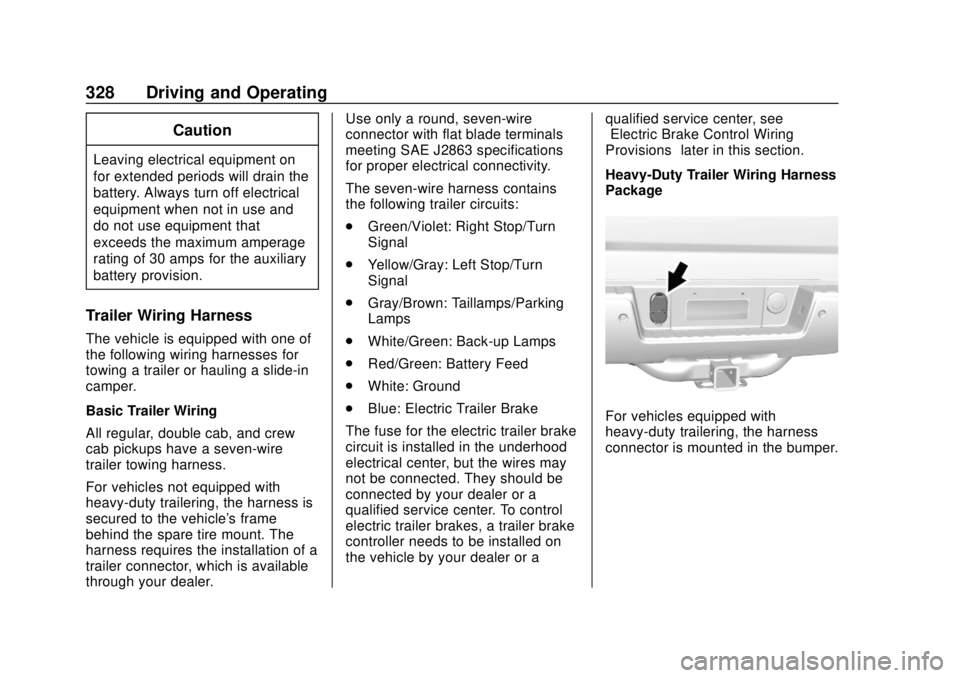
For vehicles equipped with
heavy-duty trailering, the harness
connector is mounted in the bumper.
Page 330 of 505
GMC Sierra/Sierra Denali Owner Manual (GMNA-Localizing-U.S./Canada/
Mexico-11349177) - 2018 - CRC - 10/17/17
Driving and Operating 329
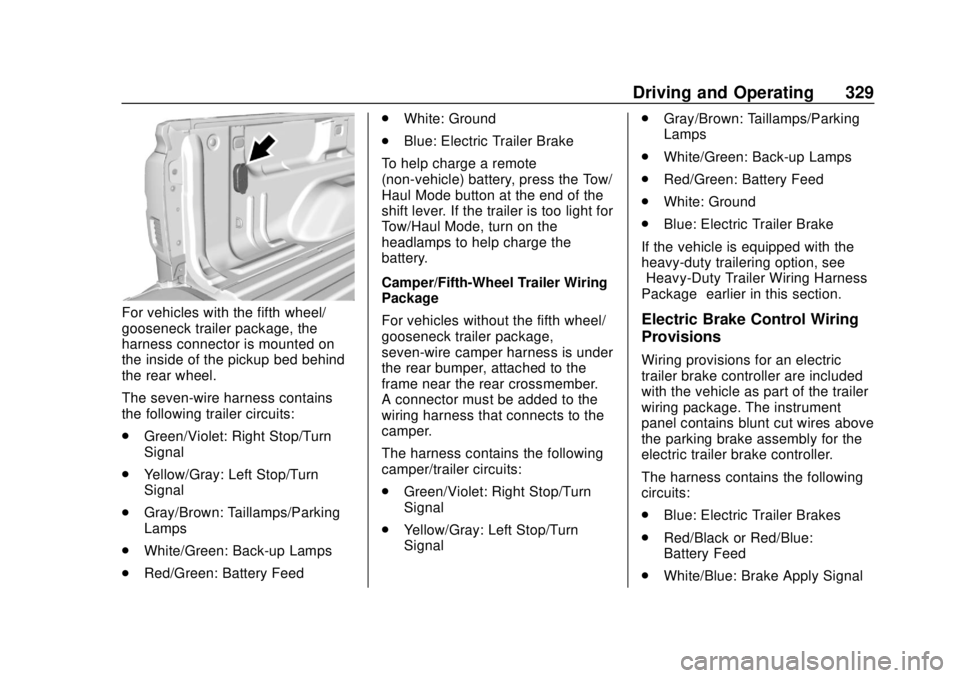
For vehicles with the fifth wheel/
gooseneck trailer package, the
harness connector is mounted on
the inside of the pickup bed behind
the rear wheel.
The seven-wire harness contains
the following trailer circuits:
.Green/Violet: Right Stop/Turn
Signal
. Yellow/Gray: Left Stop/Turn
Signal
. Gray/Brown: Taillamps/Parking
Lamps
. White/Green: Back-up Lamps
. Red/Green: Battery Feed .
White: Ground
. Blue: Electric Trailer Brake
To help charge a remote
(non-vehicle) battery, press the Tow/
Haul Mode button at the end of the
shift lever. If the trailer is too light for
Tow/Haul Mode, turn on the
headlamps to help charge the
battery.
Camper/Fifth-Wheel Trailer Wiring
Package
For vehicles without the fifth wheel/
gooseneck trailer package,
seven-wire camper harness is under
the rear bumper, attached to the
frame near the rear crossmember.
A connector must be added to the
wiring harness that connects to the
camper.
The harness contains the following
camper/trailer circuits:
. Green/Violet: Right Stop/Turn
Signal
. Yellow/Gray: Left Stop/Turn
Signal .
Gray/Brown: Taillamps/Parking
Lamps
. White/Green: Back-up Lamps
. Red/Green: Battery Feed
. White: Ground
. Blue: Electric Trailer Brake
If the vehicle is equipped with the
heavy-duty trailering option, see
“Heavy-Duty Trailer Wiring Harness
Package” earlier in this section.Electric Brake Control Wiring
Provisions
Wiring provisions for an electric
trailer brake controller are included
with the vehicle as part of the trailer
wiring package. The instrument
panel contains blunt cut wires above
the parking brake assembly for the
electric trailer brake controller.
The harness contains the following
circuits:
.
Blue: Electric Trailer Brakes
. Red/Black or Red/Blue:
Battery Feed
. White/Blue: Brake Apply Signal
Page 480 of 505
GMC Sierra/Sierra Denali Owner Manual (GMNA-Localizing-U.S./Canada/
Mexico-11349177) - 2018 - CRC - 10/17/17
OnStar 479
OnStar
OnStar Overview
OnStar Overview . . . . . . . . . . . . . 479
OnStar Services
Emergency . . . . . . . . . . . . . . . . . . . 480
Security . . . . . . . . . . . . . . . . . . . . . . 481
Navigation . . . . . . . . . . . . . . . . . . . . 481
Connections . . . . . . . . . . . . . . . . . . 482
Diagnostics . . . . . . . . . . . . . . . . . . . 484
OnStar Additional Information
OnStar AdditionalInformation . . . . . . . . . . . . . . . . . . 485
OnStar Overview
=Voice Command Button
QBlue OnStar Button
>Red Emergency Button
This vehicle may be equipped with a
comprehensive, in-vehicle system
that can connect to an OnStar
Advisor for Emergency, Security,
Navigation, Connections, and
Diagnostics Services. OnStar
services may require a paid service
plan and data plan. OnStar requires
the vehicle battery and electrical
system, cellular service, and GPS
satellite signals to be available and
operating. OnStar acts as a link to
existing emergency service
providers. OnStar may collect
information about you and your vehicle, including location
information. See OnStar User
Terms, Privacy Statement, and
Software Terms for more details
including system limitations at
www.onstar.com (U.S.) or
www.onstar.ca (Canada).
The OnStar system status light is
next to the OnStar buttons. If the
status light is:
.
Solid Green: System is ready.
. Flashing Green: On a call.
. Red: Indicates a problem.
. Off: System is active. Press
Q
twice to speak with an OnStar
Advisor.
Press
Qor call 1-888-4ONSTAR
(1-888-466-7827) to speak to an
Advisor.
Functionality of the Voice Command
button may vary by vehicle and
region.
Page 493 of 505

GMC Sierra/Sierra Denali Owner Manual (GMNA-Localizing-U.S./Canada/
Mexico-11349177) - 2018 - CRC - 10/17/17
492 Index
Antilock Brake System(ABS) (cont'd)
Warning Light . . . . . . . . . . . . . . . . . 152
Appearance Care
Exterior . . . . . . . . . . . . . . . . . . . . . . . 435
Interior . . . . . . . . . . . . . . . . . . . . . . . . 441
Apple CarPlay and Android Auto . . . . . . . . . . . . . . . . . . 217
Assistance Program,
Roadside . . . . . . . . . . . . . . . . . . . . . . 469
Assistance Systems for Driving . . . . . . . . . . . . . . . . . . . . . . . . 292
Assistance Systems for
Parking and Backing . . . . . . . . . . 289
Audio Bluetooth . . . . . . . . . . . . . . . . . . . . . 204
Theft-Deterrent Feature . . . . . . . 187
Audio Players
CD . . . . . . . . . . . . . . . . . . . . . . . . . . . 195
Automatic Dimming Mirrors . . . . . . . . . . . . . . . . 50
Door Locks . . . . . . . . . . . . . . . . . . . . . 41
Forward Braking . . . . . . . . . . . . . . 294
Headlamp System . . . . . . . . . . . . 179
Transmission . . . . . . . . . . . . . . . . . 265
Transmission Fluid . . . . . . 354, 357
Automatic Transmission
Manual Mode . . . . . . . . . . . . . . . . . 268 Automatic Transmission (cont'd)
Shift Lock Control Function
Check . . . . . . . . . . . . . . . . . . . . . . . 374
Auxiliary
Roof Mounted Lamp . . . . . . . . . . 182
Auxiliary Jack . . . . . . . . . . . . . . . . . . . 203
Avoiding Untrusted Media Devices . . . . . . . . . . . . . . . . . . . . . . . 195
Axle, Front . . . . . . . . . . . . . . . . . . . . . . 370
Axle, Rear . . . . . . . . . . . . . . . . . . . . . . 371
B
Battery Exterior Lighting Battery
Saver . . . . . . . . . . . . . . . . . . . . . . . 185
Load Management . . . . . . . . . . . . 184
Power Protection . . . . . . . . . . . . . 185
Battery - North America . . . . 369, 426
Blade Replacement, Wiper . . . . . 375
Blind Spot Mirrors . . . . . . . . . . . . . . . 50
Bluetooth Overview . . . . . . . . . . . . . . . . 211, 213
Bluetooth Audio . . . . . . . . . . . . . . . . 204
Brake Pedal and AdjustableThrottle . . . . . . . . . . . . . . . . . . . . . . 256
System Warning Light . . . . . . . . 152
Brakes . . . . . . . . . . . . . . . . . . . . . . . . . . 367 Brakes (cont'd)
Antilock . . . . . . . . . . . . . . . . . . . . . . . 280
Assist . . . . . . . . . . . . . . . . . . . . . . . . . 281
Fluid . . . . . . . . . . . . . . . . . . . . . . . . . . 368
Parking . . . . . . . . . . . . . . . . . . . . . . . 281
Braking . . . . . . . . . . . . . . . . . . . . . . . . . 236 Automatic Forward . . . . . . . . . . . 294
Break-In, New Vehicle . . . . . . . . . . 255
Bulb Replacement Center High-MountedStoplamp (CHMSL) and
Cargo Lamp . . . . . . . . . . . . . . . . . 380
Halogen Bulbs . . . . . . . . . . . . . . . . 378
Headlamp Aiming . . . . . . . . . . . . . 377
Headlamps . . . . . . . . . . . . . . . . . . . 378
High Intensity Discharge (HID) Lighting . . . . . . . . . . . . . . . 378
Taillamps, Turn Signal,
Stoplamps, and Back-up
Lamps . . . . . . . . . . . . . . . . . . . . . . 378
Buying New Tires . . . . . . . . . . . . . . . 408
C
Calibration . . . . . . . . . . . . . . . . . . . . . . 131
California Fuel Requirements . . . . . . . . . . . 300
Page 500 of 505

GMC Sierra/Sierra Denali Owner Manual (GMNA-Localizing-U.S./Canada/
Mexico-11349177) - 2018 - CRC - 10/17/17
Index 499
Parking (cont'd)Over Things That Burn . . . . . . . 264
Parking Assist . . . . . . . . . . . . . . . . . . 289
Parking or Backing Assistance Systems . . . . . . . . . . 289
Passenger Airbag Status Indicator . . . . . . . . . . . . . . . . . . . . . . 149
Passenger Compartment Air Filter . . . . . . . . . . . . . . . . . . . . . . . . . . 232
Passenger Sensing System . . . . . 86
Perchlorate Materials Requirements, California . . . . . . 343
Personalization Vehicle . . . . . . . . . . . . . . . . . . . . . . . 165
Phone Apple CarPlay andAndroid Auto . . . . . . . . . . . . . . . . 217
Bluetooth . . . . . . . . . . . . . . . . 211, 213
Pickup Conversion to Chassis Cab . . . . . . . . . . . . . . . . . . 340
Port USB . . . . . . . . . . . . . . . . . . . . . . . . . . 197
Power
Door Locks . . . . . . . . . . . . . . . . . . . . . 41
Mirrors . . . . . . . . . . . . . . . . . . . . . . . . . . 48
Outlets . . . . . . . . . . . . . . . . . . . . . . . 133
Protection, Battery . . . . . . . . . . . . 185
Retained Accessory (RAP) . . . 260 Power (cont'd)
Seat Adjustment . . . . . . . . . . . . . . . . 60
Steering Fluid . . . . . . . . . . . . . . . . . 365
Windows . . . . . . . . . . . . . . . . . . . . . . . 52
Power Assist Steps . . . . . . . . . . . . . . 43
Pregnancy, Using Seat Belts . . . . 74
Privacy Vehicle Data Recording . . . . . . . 477
Program
Courtesy Transportation . . . . . . 471
Proposition 65 Warning,
California . . . . . . . . . . . .343, 369, 426, Back Cover
R
Radio Frequency Statement . . . . 475
Radio Reception . . . . . . . . . . . . . . . . 193
Radios
AM-FM Radio . . . . . . . . . . . . . . . . . 190
Satellite . . . . . . . . . . . . . . . . . . . . . . . 192
Reading Lamps . . . . . . . . . . . . . . . . . 183
Rear Axle . . . . . . . . . . . . . . . . . . . . . . . 371 Locking . . . . . . . . . . . . . . . . . . . . . . . 285
Rear Seats . . . . . . . . . . . . . . . . . . 66, 68
Rear Vision Camera (RVC) . . . . . 289
Rear Windows . . . . . . . . . . . . . . . . . . . 54
Rearview Mirrors . . . . . . . . . . . . . . . . 52 Rearview Mirrors (cont'd)
Automatic Dimming . . . . . . . . . . . . . 52
Reclining Seatbacks . . . . . . . . . . . . . 61
Recognition Voice . . . . . . . . . . . . . . . . . . . . . . . . . 205
Recommended Fluids and Lubricants . . . . . . . . . . . . . . . . . . . . . 456
Records Maintenance . . . . . . . . . . . . . . . . . . 459
Recreational Vehicle Towing . . . . 430
Reimbursement Program, GM Mobility . . . . . . . . . . . . . . . . . . . 469
Remote Keyless Entry (RKE) System . . . . . . . . . . . . . . . . . . . . . . . . . 37
Remote Vehicle Start . . . . . . . . . . . . 39
Replacement Parts Airbags . . . . . . . . . . . . . . . . . . . . . . . . . 92
Maintenance . . . . . . . . . . . . . . . . . . 458
Replacing Airbag System . . . . . . . . 92
Replacing LATCH System Parts after a Crash . . . . . . . . . . . . 111
Replacing Seat Belt System Parts after a Crash . . . . . . . . . . . . . 76
Reporting Safety Defects Canadian Government . . . . . . . . 476
General Motors . . . . . . . . . . . . . . . 477
U.S. Government . . . . . . . . . . . . . 476