display GMC SIERRA 2019 Owners Manual
[x] Cancel search | Manufacturer: GMC, Model Year: 2019, Model line: SIERRA, Model: GMC SIERRA 2019Pages: 477, PDF Size: 8.7 MB
Page 297 of 477
GMC Sierra/Sierra Denali Owner Manual (GMNA-Localizing-U.S./Canada/
Mexico-1500-11698638) - 2019 - CRC - 5/14/19
296 Driving and Operating
ITBC system may not function fully
or at all. Make sure all of these
systems are fully operational to
allow the ITBC system to function
properly.
The ITBC system is powered
through the vehicle's electrical
system. Turning the ignition off will
also turn off the ITBC system. The
ITBC system is fully functional only
when the ignition is in ON/RUN.
{Warning
Connecting a trailer that has an
air brake system may result in
reduced or complete loss of trailer
braking, including increased
stopping distance or trailer
instability which could result in
serious injury, death, or property
damage. Only use the ITBC
system with electric or electric
over hydraulic trailer brake
systems.
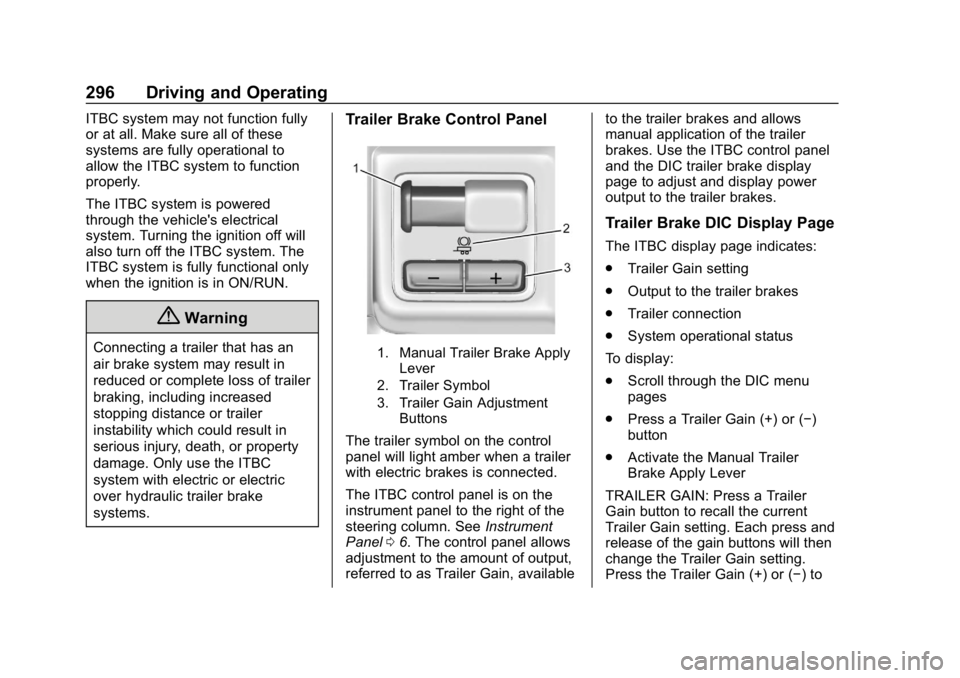
Trailer Brake Control Panel
1. Manual Trailer Brake ApplyLever
2. Trailer Symbol
3. Trailer Gain Adjustment Buttons
The trailer symbol on the control
panel will light amber when a trailer
with electric brakes is connected.
The ITBC control panel is on the
instrument panel to the right of the
steering column. See Instrument
Panel 06. The control panel allows
adjustment to the amount of output,
referred to as Trailer Gain, available to the trailer brakes and allows
manual application of the trailer
brakes. Use the ITBC control panel
and the DIC trailer brake display
page to adjust and display power
output to the trailer brakes.
Trailer Brake DIC Display Page
The ITBC display page indicates:
.
Trailer Gain setting
. Output to the trailer brakes
. Trailer connection
. System operational status
To display:
. Scroll through the DIC menu
pages
. Press a Trailer Gain (+) or (−)
button
. Activate the Manual Trailer
Brake Apply Lever
TRAILER GAIN: Press a Trailer
Gain button to recall the current
Trailer Gain setting. Each press and
release of the gain buttons will then
change the Trailer Gain setting.
Press the Trailer Gain (+) or (−) to
Page 298 of 477
GMC Sierra/Sierra Denali Owner Manual (GMNA-Localizing-U.S./Canada/
Mexico-1500-11698638) - 2019 - CRC - 5/14/19
Driving and Operating 297
adjust. Press and hold to
continuously adjust the Trailer Gain.
To turn the output to the trailer off,
adjust the Trailer Gain setting to 0.0.
This setting can be adjusted from
0.0 to 10.0 with a trailer connected
or disconnected.
TRAILER OUTPUT: This displays
anytime a trailer with electric brakes
is connected. Output to the trailer
brakes is based on the amount of
vehicle braking present and relative
to the Trailer Gain setting. Output is
displayed from 0 to 100% for each
gain setting.
The Trailer Output will indicate“- - -
- - -” on the Trailer Brake Display
Page whenever the following occur:
. No trailer is connected.
. A trailer without electric brakes
is connected, no DIC message
displays.
. A trailer with electric brakes has
become disconnected, a CHECK
TRAILER WIRING message
displays on the DIC. .
There is a fault present in the
wiring to the trailer brakes, a
CHECK TRAILER WIRING
message displays on the DIC.
. The ITBC system is not working
due to a fault, a SERVICE
TRAILER BRAKE SYSTEM
message displays in the DIC.
Manual Trailer Brake Apply
Lever
Slide this lever right to apply the
trailer ’s electric brakes independent
of the vehicle’s brakes. Use this
lever to adjust Trailer Gain to
achieve proper power output to the
trailer brakes. The trailer's and the
vehicle's brake lamps will come on
when either vehicle brakes or
manual trailer brakes are applied
and properly connected.
Trailer Gain Adjustment
Procedure
Trailer Gain should be set for a
specific trailering condition and it
must be readjusted anytime vehicle
loading, trailer loading, or road
surface conditions change.
{Warning
Trailer brakes that are
over-gained or under-gained may
not stop the vehicle and the trailer
as intended and can result in a
crash. Always follow the
instructions to set the Trailer Gain
for the proper trailer stopping
performance.
To adjust Trailer Gain for each
towing condition: 1. Drive the vehicle with the trailer attached on a level road
surface representative of the
towing condition and free of
traffic at about 32 - 40 km/h
(20 - 25 mph) and fully apply
the Manual Trailer Brake Apply
Lever.
Adjusting Trailer Gain at
speeds lower than 32 to
40 km/h (20 to 25 mph) may
result in an incorrect gain
setting.
Page 299 of 477
GMC Sierra/Sierra Denali Owner Manual (GMNA-Localizing-U.S./Canada/
Mexico-1500-11698638) - 2019 - CRC - 5/14/19
298 Driving and Operating
2. Adjust the Trailer Gain, usingthe Trailer Gain (+) or (-)
adjustment buttons, to just
below the point of trailer wheel
lock-up, indicated by trailer
wheel squeal or tire smoke
when a trailer wheel locks.
Trailer wheel lock-up may not
occur if towing a heavily loaded
trailer. Adjust the Trailer Gain
to the highest allowable setting
for the towing condition.
3. Readjust Trailer Gain anytime vehicle loading, trailer loading,
or road surface conditions
change or if trailer wheel
lock-up is noticed at any time
while towing.
Other ITBC-Related DIC
Messages
TRAILER CONNECTED: This
message will briefly display when a
trailer with electric brakes is first
connected to the vehicle. This
message will automatically turn off
in about 10 seconds. This message
can be acknowledged before it
automatically turns off. CHECK TRAILER WIRING: This
message will display if:
.
The ITBC system first
determines connection to a
trailer with electric brakes and
then the trailer harness becomes
disconnected from the vehicle.
If the disconnect occurs while
the vehicle is stationary, this
message will automatically turn
off in about 30 seconds. This
message will also turn off if it is
acknowledged or if the trailer
harness is reconnected.
If the disconnect occurs while
the vehicle is moving, this
message will continue until the
ignition is turned off. This
message will also turn off if it is
acknowledged or if the trailer
harness is reconnected.
. There is an electrical fault in the
wiring to the trailer brakes. This
message will continue as long
as there is an electrical fault in
the trailer wiring. This message
will also turn off if it is
acknowledged. To determine whether the electrical
fault is on the vehicle side or trailer
side of the trailer wiring harness
connection:
1. Disconnect the trailer wiring harness from the vehicle.
2. Turn the ignition off.
3. Wait 10 seconds, then turn the ignition back to RUN.
4. If the CHECK TRAILER WIRING message reappears,
the electrical fault is on the
vehicle side.
If the CHECK TRAILER WIRING
message only reappears when
connecting the trailer wiring harness
to the vehicle, the electrical fault is
on the trailer side.
SERVICE TRAILER BRAKE
SYSTEM: This message will display
when there is a problem with the
ITBC system. If this message
continues over multiple ignition
cycles, have the vehicle serviced.
If either the CHECK TRAILER
WIRING or SERVICE TRAILER
BRAKE SYSTEM message displays
Page 302 of 477
GMC Sierra/Sierra Denali Owner Manual (GMNA-Localizing-U.S./Canada/
Mexico-1500-11698638) - 2019 - CRC - 5/14/19
Driving and Operating 301
Trailer tires deteriorate over time.
The trailer tire sidewall will show the
week and year the tire was
manufactured. Many trailer tire
manufacturers recommend
replacing tires more than six
years old.
Overloading is another leading
cause of trailer tire blow-outs. Never
load your trailer with more weight
than the tires are designed to
support. The load rating is located
on the trailer tire sidewall.
Always know the maximum speed
rating for the trailer tires before
driving. This may be significantly
lower than the vehicle tire speed
rating. The speed rating may be on
the trailer tire sidewall. If the speed
rating is not shown, the default
trailer tire speed rating is 105 km/h
(65 mph).
Trailering App
Trailer Light App
If equipped, the Trailer Lights App is
on the Home Page of the
infotainment display.Touch Start to cycle the trailer lights
on and off to determine if they are
working. The test follows this
sequence:
1. The running lights turn on first and remain on throughout the
sequence.
2. The brake lights turn on for about two seconds.
3. The left turn signal light flashes three times.
4. The right turn signal light flashes three times.
5. The reverse lights turn on for about two seconds.
6. Steps 2–5 repeat for approximately one minute and
45 seconds, or until the test
deactivates.
Touch Stop to stop the test. The test
will automatically end after
one minute and 45 seconds.
The sequence also deactivates
when any of the following occur:
. The ignition is turned off. .
The transmission is shifted out
of P (Park).
. The brake pedal pressed.
. The turn signal is activated.
. The hazard warning lights
activated.
Trailering App
If equipped, the Trailering App is on
the Home Page of the infotainment
display.
This feature allows profiles for
connected trailers to be created to
view status, and to store and track
trailer usage information.
The Trailering App Preview will
appear when the Trailering App is
opened for the first time from the
Home Page. Touch GET STARTED
in the Trailering App to go into
the app.
When a trailer is electrically
connected, there will be an option to
create a profile, use a guest profile,
or cancel. After Cancel is selected a
third time, Don’t Remind Me will
display and touching that will turn off
Page 304 of 477
GMC Sierra/Sierra Denali Owner Manual (GMNA-Localizing-U.S./Canada/
Mexico-1500-11698638) - 2019 - CRC - 5/14/19
Driving and Operating 303
see a tire or trailer dealer for
service. The learning process must
be repeated when the trailer tires
are rotated or replaced. See“Editing
a Trailer Profile” later in this section
for tire pressure sensor relearn
information.
Tool Method: A TTPMS activation
tool can be purchased separately to
learn the sensor locations.
Manual Method: Without the tool,
the air pressure can be increased or
decreased in each tire for
10 seconds. Do not exceed the
maximum inflation pressure found
on the tire sidewalls. Make sure to
re-adjust tire pressure to the
recommended level when the
process is complete.
Sensor Learning Steps
To complete the sensor-to-vehicle
learn process:
1. Touch Start on the Learn Sensors screen. The horn
chirps twice and the Learning
Active screen appears on the
infotainment display. 2. Start with the driver side front
trailer tire.
3. Activate the tool near the valve stem or adjust the air pressure
of this tire until the horn chirps
and all working vehicle and
trailer lights flash.
The process stops without
saving the sensor locations if
this step takes more than
two minutes.
4. Move to the next tire and repeat Step 3 for each sensor.
The horn chirps twice when all
sensors are completed.
5. Return to the vehicle to complete the setup.
Maintenance Reminders
Select Yes to set up the
maintenance reminders for the
Trailer Profile. Follow the on-screen
prompts. The maximum number of
reminders is 10. Select No to skip
this step.
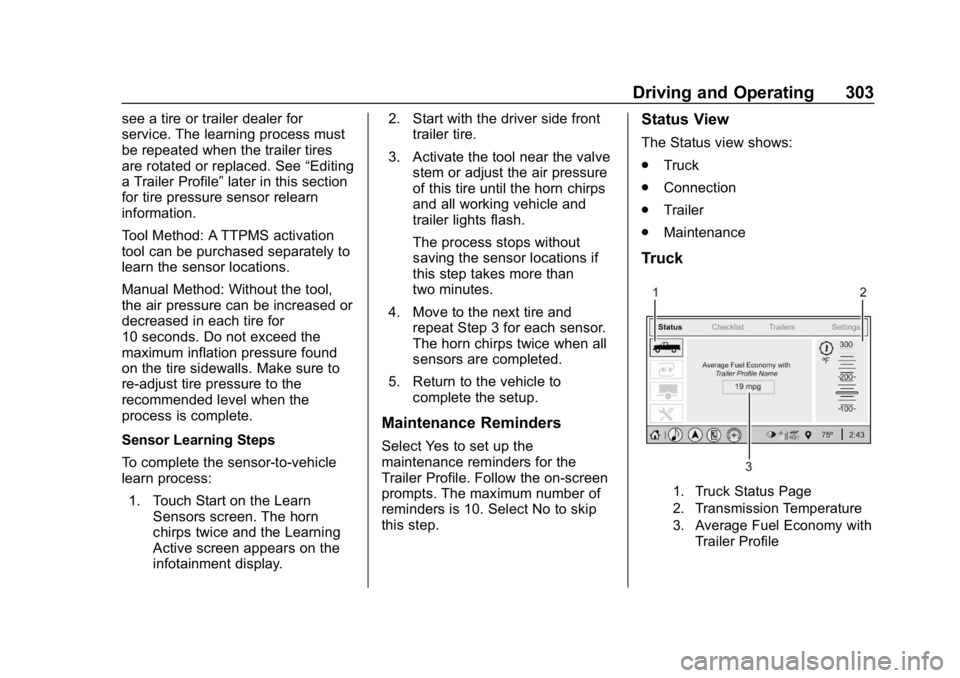
Status View
The Status view shows:
.Truck
. Connection
. Trailer
. Maintenance
Truck
1. Truck Status Page
2. Transmission Temperature
3. Average Fuel Economy with
Trailer Profile
Page 305 of 477
GMC Sierra/Sierra Denali Owner Manual (GMNA-Localizing-U.S./Canada/
Mexico-1500-11698638) - 2019 - CRC - 5/14/19
304 Driving and Operating
Average Fuel Economy
Touch to view the average fuel
economy of the vehicle while the
Trailer Profile is active.
Transmission Temperature
Touch to view the temperature of
the transmission fluid graphic. The
graphic will indicate a dangerous
level if the temperature is at
130 °C–150 °C (270 °F–300 °F).
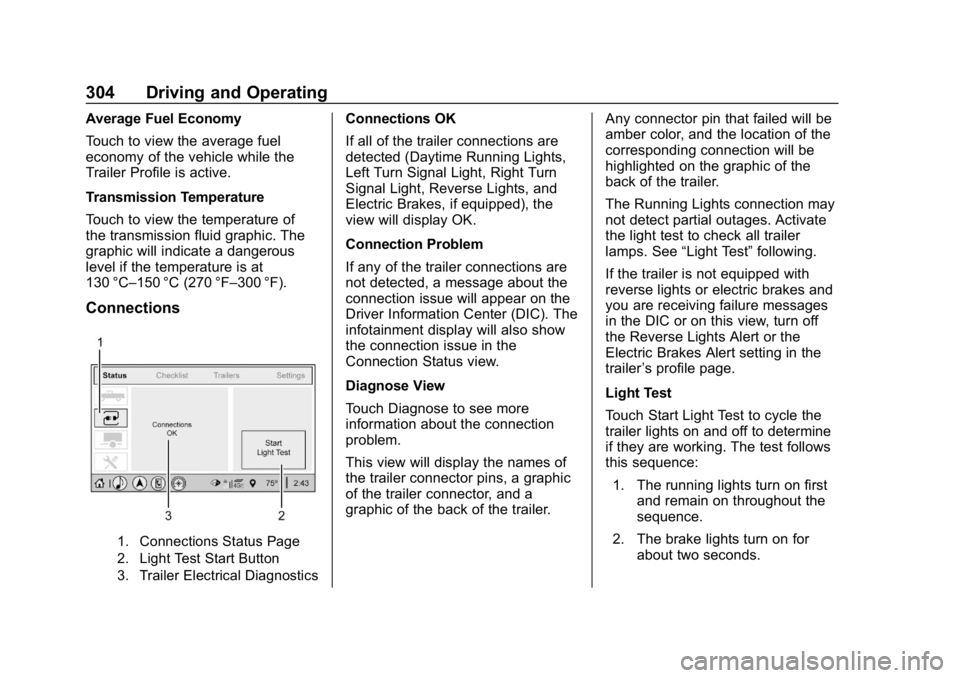
Connections
1. Connections Status Page
2. Light Test Start Button
3. Trailer Electrical Diagnostics
Connections OK
If all of the trailer connections are
detected (Daytime Running Lights,
Left Turn Signal Light, Right Turn
Signal Light, Reverse Lights, and
Electric Brakes, if equipped), the
view will display OK.
Connection Problem
If any of the trailer connections are
not detected, a message about the
connection issue will appear on the
Driver Information Center (DIC). The
infotainment display will also show
the connection issue in the
Connection Status view.
Diagnose View
Touch Diagnose to see more
information about the connection
problem.
This view will display the names of
the trailer connector pins, a graphic
of the trailer connector, and a
graphic of the back of the trailer.Any connector pin that failed will be
amber color, and the location of the
corresponding connection will be
highlighted on the graphic of the
back of the trailer.
The Running Lights connection may
not detect partial outages. Activate
the light test to check all trailer
lamps. See
“Light Test”following.
If the trailer is not equipped with
reverse lights or electric brakes and
you are receiving failure messages
in the DIC or on this view, turn off
the Reverse Lights Alert or the
Electric Brakes Alert setting in the
trailer ’s profile page.
Light Test
Touch Start Light Test to cycle the
trailer lights on and off to determine
if they are working. The test follows
this sequence: 1. The running lights turn on first and remain on throughout the
sequence.
2. The brake lights turn on for about two seconds.
Page 306 of 477
GMC Sierra/Sierra Denali Owner Manual (GMNA-Localizing-U.S./Canada/
Mexico-1500-11698638) - 2019 - CRC - 5/14/19
Driving and Operating 305
3. The left turn signal light flashesthree times.
4. The right turn signal light flashes three times.
5. The reverse lights turn on for about two seconds.
6. Steps 2–5 repeat for approximately one minute and
45 seconds, or until the test
deactivates.
Touch Stop to stop the test. The test
will automatically end after
one minute and 45 seconds.
The sequence also deactivates
when any of the following occur:
. The ignition is turned off.
. The transmission is shifted out
of P (Park).
. The brake pedal is pressed.
. The turn signal is activated.
. The hazard warning lights are
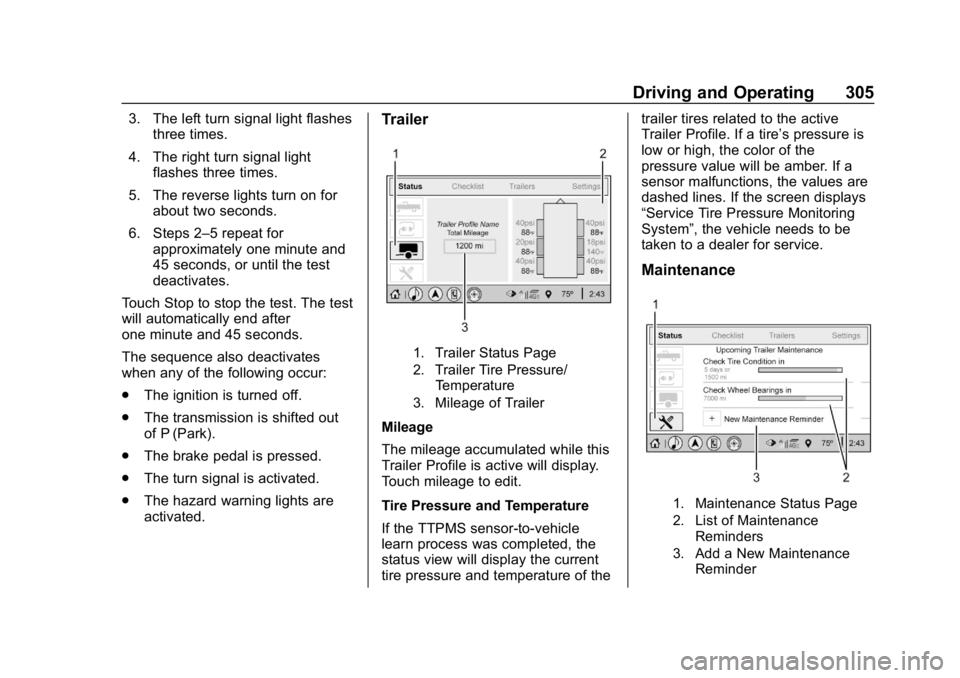
activated.Trailer
1. Trailer Status Page
2. Trailer Tire Pressure/
Temperature
3. Mileage of Trailer
Mileage
The mileage accumulated while this
Trailer Profile is active will display.
Touch mileage to edit.
Tire Pressure and Temperature
If the TTPMS sensor-to-vehicle
learn process was completed, the
status view will display the current
tire pressure and temperature of the trailer tires related to the active
Trailer Profile. If a tire’
s pressure is
low or high, the color of the
pressure value will be amber. If a
sensor malfunctions, the values are
dashed lines. If the screen displays
“Service Tire Pressure Monitoring
System”, the vehicle needs to be
taken to a dealer for service.
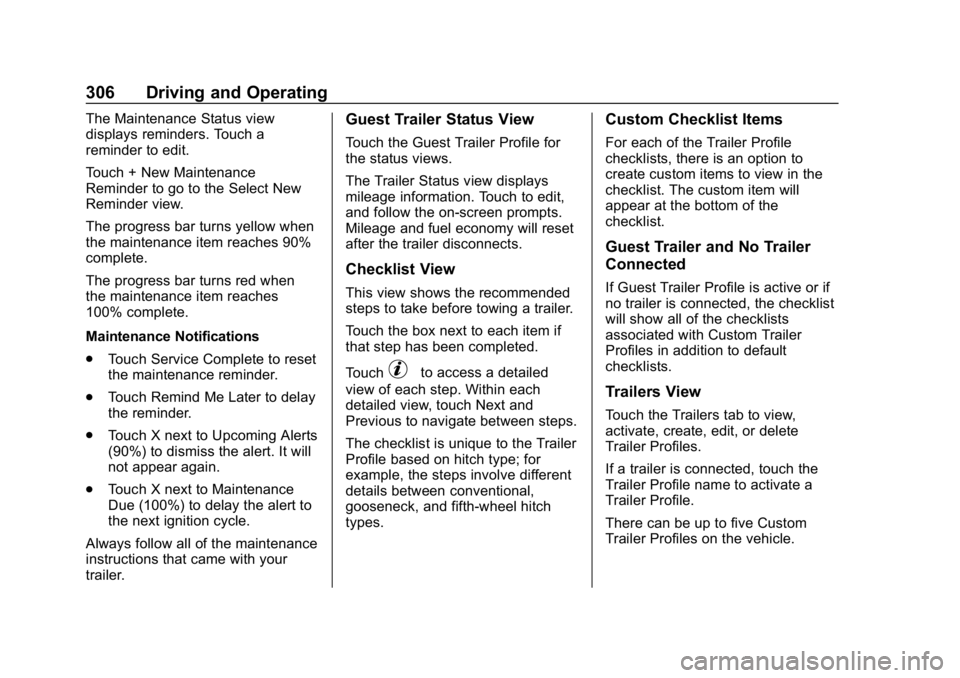
Maintenance
1. Maintenance Status Page
2. List of Maintenance
Reminders
3. Add a New Maintenance Reminder
Page 307 of 477
GMC Sierra/Sierra Denali Owner Manual (GMNA-Localizing-U.S./Canada/
Mexico-1500-11698638) - 2019 - CRC - 5/14/19
306 Driving and Operating
The Maintenance Status view
displays reminders. Touch a
reminder to edit.
Touch + New Maintenance
Reminder to go to the Select New
Reminder view.
The progress bar turns yellow when
the maintenance item reaches 90%
complete.
The progress bar turns red when
the maintenance item reaches
100% complete.
Maintenance Notifications
.Touch Service Complete to reset
the maintenance reminder.
. Touch Remind Me Later to delay
the reminder.
. Touch X next to Upcoming Alerts
(90%) to dismiss the alert. It will
not appear again.
. Touch X next to Maintenance
Due (100%) to delay the alert to
the next ignition cycle.
Always follow all of the maintenance
instructions that came with your
trailer.Guest Trailer Status View
Touch the Guest Trailer Profile for
the status views.
The Trailer Status view displays
mileage information. Touch to edit,
and follow the on-screen prompts.
Mileage and fuel economy will reset
after the trailer disconnects.
Checklist View
This view shows the recommended
steps to take before towing a trailer.
Touch the box next to each item if
that step has been completed.
Touch
pto access a detailed
view of each step. Within each
detailed view, touch Next and
Previous to navigate between steps.
The checklist is unique to the Trailer
Profile based on hitch type; for
example, the steps involve different
details between conventional,
gooseneck, and fifth-wheel hitch
types.
Custom Checklist Items
For each of the Trailer Profile
checklists, there is an option to
create custom items to view in the
checklist. The custom item will
appear at the bottom of the
checklist.
Guest Trailer and No Trailer
Connected
If Guest Trailer Profile is active or if
no trailer is connected, the checklist
will show all of the checklists
associated with Custom Trailer
Profiles in addition to default
checklists.
Trailers View
Touch the Trailers tab to view,
activate, create, edit, or delete
Trailer Profiles.
If a trailer is connected, touch the
Trailer Profile name to activate a
Trailer Profile.
There can be up to five Custom
Trailer Profiles on the vehicle.
Page 309 of 477
GMC Sierra/Sierra Denali Owner Manual (GMNA-Localizing-U.S./Canada/
Mexico-1500-11698638) - 2019 - CRC - 5/14/19
308 Driving and Operating
Touch Save to save the new value
to the Trailer Profile. Touching Back
will still save the previously entered
information.
Trailer Name
Touch to edit the Trailer Profile’s
name. Use at least one character
and no spaces. Touch Save.
Hitch Type
Touch to edit the Trailer Profile’s
hitch type. The previously selected
hitch type will be highlighted.
Touch a different hitch type and then
touch Save to save it to the Trailer
Profile. If a different hitch type is
selected, any custom items added
to the previous checklist will be
carried over to the new selection.
If a different hitch type is saved, a
new trailer type will need to be
selected.
Trailer Type
Touch to edit the Trailer Profile’s
Trailer Type. The previously
selected trailer type will behighlighted. Touch a different trailer
type and then touch Save to save it
to the Trailer Profile.
Tire Pressure Setup
Touch to set up the Trailer Tire
Pressure Monitoring System
(TTPMS) for the Trailer Profile. See
“Trailer Tire Pressure Setup”
under
“Advanced Setup” for details on the
setup. Also, touch Tire Pressure
Setup if the trailer tires were rotated
or if the tire pressure sensors in the
tires were replaced for this Trailer
Profile. The vehicle will need to
relearn the tire sensors and their
locations.
If TTPMS had been set up
previously, the Select Number of
Sensors screen will appear after
touching Tire Pressure Setup. If the
number of sensors has changed,
select the number and touch Next.
If a new number of sensors is
selected, the Relearn Sensors
pop-up will appear. Touch Cancel to
go back or touch Relearn to
overwrite the current sensors and begin the relearning process. See
“Trailer Tire Pressure Setup”
previously in this section.
If number of sensors has not
changed, touch Next and the Learn
sensors screen will appear.
On the Learn Sensors screen, touch
Relearn to overwrite the current
sensors and begin the relearning
process. See
“Trailer Tire Pressure
Setup” previously in this section.
On the Learn Sensors screen, touch
Next to go to the Edit
Recommended Tire Pressure
screen.
On the Edit Recommended Tire
Pressure screen, touch a number on
the keypad to change the
Recommended Tire Pressure for the
trailer ’s tires. This will change the
number at which the vehicle
displays alerts related to trailer tire
pressure. Touch Done to return to
the Trailer Profile view.
Page 311 of 477
GMC Sierra/Sierra Denali Owner Manual (GMNA-Localizing-U.S./Canada/
Mexico-1500-11698638) - 2019 - CRC - 5/14/19
310 Driving and Operating
Settings View
Within the Trailering App, touch the
Settings tab to modify the following
settings:
.Trailer Detection Alert
. Maintenance Alerts
. Security Alert
. Tow/Haul Mode Reminder
Trailer Detection Alert
The Trailer Detection Alert setting
will be on by default. Turn it off to
disable the Trailer Detection pop-up
from displaying when a trailer is
connected. The Guest Trailer Profile
will become the active Trailer
Profile, unless another Trailer Profile
is selected manually through the
Trailering App. If this setting is
disabled while a Custom Trailer
Profile is active, that Trailer Profile
will remain the active profile until the
trailer is disconnected.
Maintenance Alerts
Touch Maintenance Alerts to view
the Maintenance Alerts settings
page. These alerts are based on the
Trailer Profile, so the settings for
each Trailer Profile must be turned
on or off. Touch a profile to view
more information or adjust the
setting for that profile.
The setting will be on by default for
each profile. All Maintenance Alerts
for that active Trailer Profile will be
received.
Turn a setting off to not receive any
of the Maintenance Alerts when that
Trailer Profile is active.
Security Alert
A security alert can be set if a trailer
is connected and the alert is
enabled. When the trailer is
disconnected and the vehicle is off,
an alarm will sound. Touch Security Alert in Settings to
view the Security Alert settings
page. These alerts are based on the
Trailer Profile, so the settings for
each Trailer Profile must be turned
on or off. Touch a profile to view
more information or adjust the
setting for that profile.
This setting will be off by default for
each Trailer Profile, including the
Guest Trailer Profile.
A smartphone will receive a
notification that the trailer related to
the selected Trailer Profile is
disconnected from the vehicle, if the
setting is on for the active Trailer
Profile, the vehicle has an OnStar or
connected service plan and the
smartphone number has been
added to the account for this
notification.
If the setting is turned off for a given
Trailer Profile, the smartphone will
not receive this security notification
even if the Trailer Profile is active.