display GMC SIERRA 2019 Manual PDF
[x] Cancel search | Manufacturer: GMC, Model Year: 2019, Model line: SIERRA, Model: GMC SIERRA 2019Pages: 477, PDF Size: 8.7 MB
Page 252 of 477
GMC Sierra/Sierra Denali Owner Manual (GMNA-Localizing-U.S./Canada/
Mexico-1500-11698638) - 2019 - CRC - 5/14/19
Driving and Operating 251
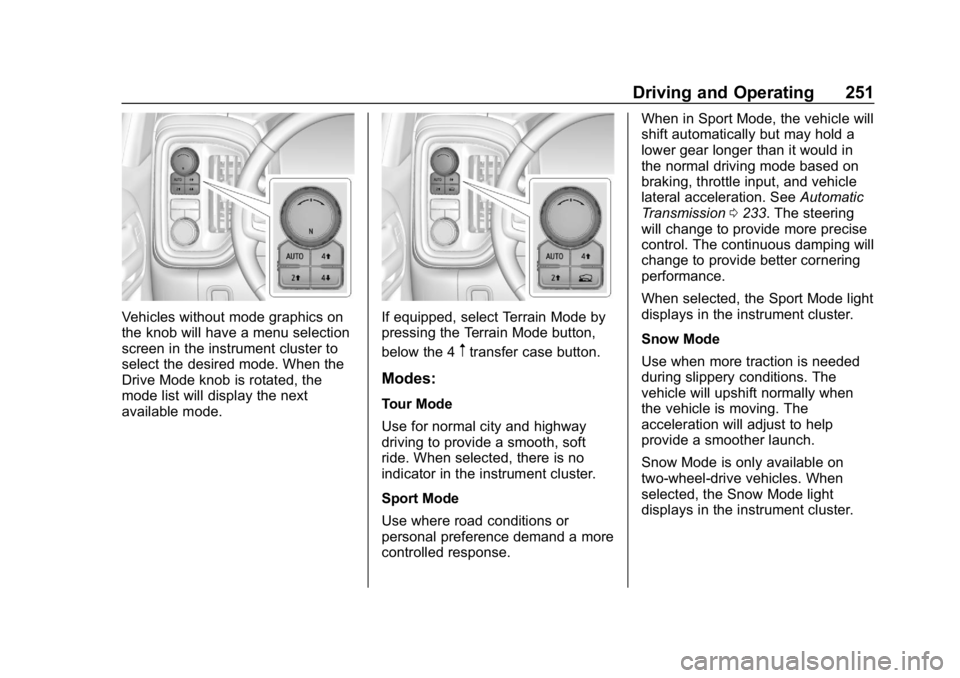
Vehicles without mode graphics on
the knob will have a menu selection
screen in the instrument cluster to
select the desired mode. When the
Drive Mode knob is rotated, the
mode list will display the next
available mode.If equipped, select Terrain Mode by
pressing the Terrain Mode button,
below the 4
mtransfer case button.
Modes:
Tour Mode
Use for normal city and highway
driving to provide a smooth, soft
ride. When selected, there is no
indicator in the instrument cluster.
Sport Mode
Use where road conditions or
personal preference demand a more
controlled response.When in Sport Mode, the vehicle will
shift automatically but may hold a
lower gear longer than it would in
the normal driving mode based on
braking, throttle input, and vehicle
lateral acceleration. See
Automatic
Transmission 0233. The steering
will change to provide more precise
control. The continuous damping will
change to provide better cornering
performance.
When selected, the Sport Mode light
displays in the instrument cluster.
Snow Mode
Use when more traction is needed
during slippery conditions. The
vehicle will upshift normally when
the vehicle is moving. The
acceleration will adjust to help
provide a smoother launch.
Snow Mode is only available on
two-wheel-drive vehicles. When
selected, the Snow Mode light
displays in the instrument cluster.
Page 253 of 477
GMC Sierra/Sierra Denali Owner Manual (GMNA-Localizing-U.S./Canada/
Mexico-1500-11698638) - 2019 - CRC - 5/14/19
252 Driving and Operating
Off-Road Mode
Use to improve driving at moderate
speeds, on grass, gravel, dirt,
unpaved roads, or snow-covered
roads that have not been groomed
or plowed.
The accelerator pedal will be more
sensitive to provide finer control of
the torque at the wheels. Electronic
Stability Control (ESC), the Antilock
Brake System (ABS), and the
Traction Control System (TCS) will
change for optimal off-road
performance. Use this mode for
public off-road recreational driving.
SeeOff-Road Driving 0203.
When selected, the Off-Road Mode
indicator light displays in the
instrument cluster.
Tow/Haul Mode
This feature assists when pulling a
heavy trailer or a large or heavy
load. See Tow/Haul Mode 0238.
Tow/Haul Mode is designed to be
most effective when the vehicle and
trailer combined weight is at least
75% of the vehicle’s Gross Combined Weight Rating (GCWR).
See
“Weight of the Trailer” under
Trailer Towing 0286.
Tow/Haul Mode is most useful when
pulling a heavy trailer or a large or
heavy load under the following
conditions:
. Through rolling terrain
. In stop-and-go traffic
. In busy parking lots where
improved low speed control of
the vehicle is desired
Operating the vehicle in Tow/Haul
Mode when lightly loaded or with no
trailer at all will not cause damage.
However, there is no benefit to
selecting Tow/Haul Mode when the
vehicle is unloaded. Such a
selection when unloaded may result
in unpleasant engine and
transmission driving characteristics
and reduced fuel economy.
When selected, the Tow/Haul Mode
light will display in the instrument
cluster. If the vehicle is turned off with Tow/
Haul Mode active, Tow/Haul Mode
will remain active after the vehicle
has been turned on if the vehicle
was turned off for less than four
hours. Otherwise, the vehicle will
start up in Tour Mode.
Terrain Mode
Use for finer control during low
speed, off-road driving. When using
this mode it will mimic the
characteristics of four-wheel-drive
low without the torque capabilities.
Use when:
.
Traveling on very rough roads at
very low speeds, such as a
two-track or heavily rutted road.
. Traveling slowly in grassy fields.
. Pulling a boat out of the water
on a trailer.
. Using the vehicle for public
off-road recreational driving. See
Off-Road Driving 0203 and
Hill and Mountain Roads 0209.
Page 256 of 477
GMC Sierra/Sierra Denali Owner Manual (GMNA-Localizing-U.S./Canada/
Mexico-1500-11698638) - 2019 - CRC - 5/14/19
Driving and Operating 255
When Terrain Mode is selected:
.Auto Engine Start/Stop will be
disabled.
. The Terrain Mode indicator
displays on the instrument
cluster.
Limited-Slip Differential
If equipped, the limited-slip
differential can give more traction on
snow, mud, ice, sand, or gravel.
It works like a standard axle most of
the time, but when traction is low,
this feature allows the drive wheel
with the most traction to move the
vehicle. For vehicles with the
limited-slip differential, driven under
severe conditions, the rear axle fluid
should be changed. See
Maintenance Schedule 0420.
Locking Rear Axle
Vehicles with a locking rear axle can
give more traction on snow, mud,
ice, sand, or gravel. It works like a
standard axle most of the time, but
when traction is low, this feature will
allow the rear wheel with the most
traction to move the vehicle.
Cruise Control
{Warning
Cruise control can be dangerous
where you cannot drive safely at
a steady speed. Do not use
cruise control on winding roads or
in heavy traffic.
Cruise control can be dangerous
on slippery roads. On such roads,
fast changes in tire traction can
cause excessive wheel slip, and
you could lose control. Do not use
cruise control on slippery roads.
If equipped with cruise control, a
speed of about 40 km/h (25 mph) or
more can be maintained without
keeping your foot on the
accelerator. Cruise control does not
work at speeds below about
40 km/h (25 mph).
If the cruise control is being used
and the Traction Control System
(TCS) or StabiliTrak/Electronic
Stability Control (ESC) begins to
limit wheel spin, the cruise control
Page 258 of 477
GMC Sierra/Sierra Denali Owner Manual (GMNA-Localizing-U.S./Canada/
Mexico-1500-11698638) - 2019 - CRC - 5/14/19
Driving and Operating 257
.To increase vehicle speed in
small increments, press +RES
up briefly. For each press, the
vehicle goes about 1 km/h
(1 mph) faster.
The speedometer reading can be
displayed in either English or metric
units. See Instrument Cluster 0140.
The increment value used depends
on the units displayed.
Reducing Speed While Using
Cruise Control
Do one of the following:
. Press and hold SET– down until
the desired lower speed is
reached, then release it.
. To slow down in small
increments, press SET– down
briefly. For each press, the
vehicle goes about 1 km/h
(1 mph) slower.
The speedometer reading can be
displayed in either English or metric
units. See Instrument Cluster 0140.
The increment value used depends
on the units displayed. Passing Another Vehicle While
Using Cruise Control
Use the accelerator pedal to
increase the vehicle speed. When
you take your foot off the pedal, the
vehicle will slow down to the
previously set cruise speed. While
pressing the accelerator pedal or
shortly following the release to
override cruise control, briefly
pressing SET–
will result in cruise
control set to the current vehicle
speed.
Using Cruise Control on Hills
How well the cruise control works
on hills depends on the vehicle
speed, the load, and the steepness
of the hills. When going up steep
hills, pressing the accelerator pedal
may be necessary to maintain
vehicle speed.
While going downhill, cruise braking
helps maintain driver selected
speed.
Cruise Grade Braking is enabled
when the vehicle is started and
cruise control is active. It is not
enabled in Range Selection Mode. It assists in maintaining driver
selected speed when driving on
downhill grades by using the engine
and transmission to slow the
vehicle.
For other forms of descent control,
see
Hill Descent Control (HDC)
0 249, Automatic Transmission
0 233, and Tow/Haul Mode 0238.
Ending Cruise Control
There are four ways to end cruise
control:
. Step lightly on the brake pedal.
. Press
*.
. Shift the transmission to
N (Neutral).
. To turn off cruise control,
press
5.
Erasing Speed Memory
The cruise control set speed is
erased from memory if
5is pressed
or the ignition is turned off.
Page 260 of 477
GMC Sierra/Sierra Denali Owner Manual (GMNA-Localizing-U.S./Canada/
Mexico-1500-11698638) - 2019 - CRC - 5/14/19
Driving and Operating 259
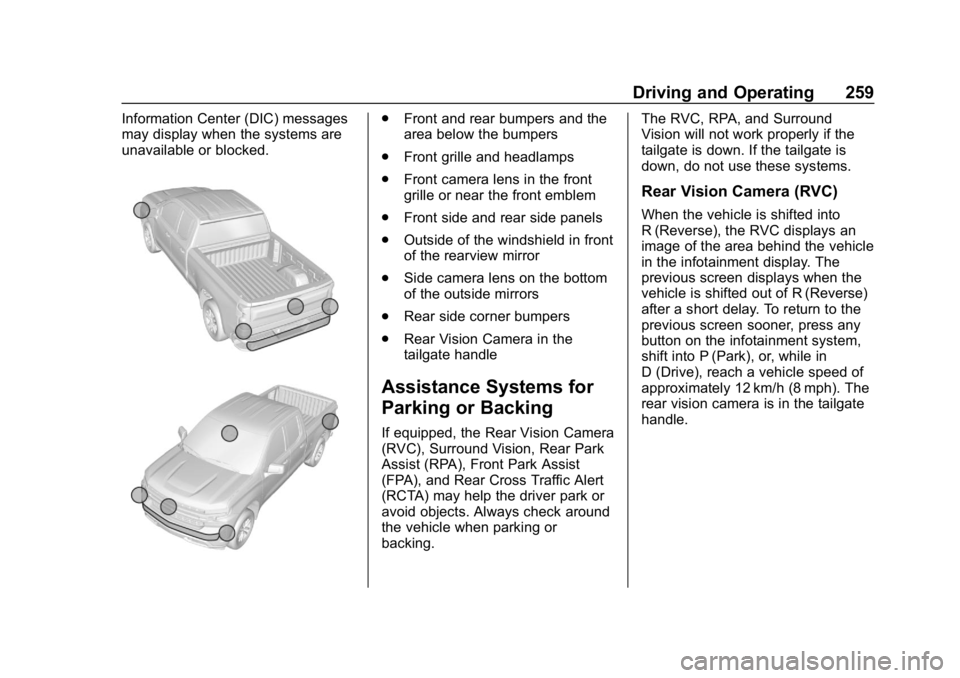
Information Center (DIC) messages
may display when the systems are
unavailable or blocked..Front and rear bumpers and the
area below the bumpers
. Front grille and headlamps
. Front camera lens in the front
grille or near the front emblem
. Front side and rear side panels
. Outside of the windshield in front
of the rearview mirror
. Side camera lens on the bottom
of the outside mirrors
. Rear side corner bumpers
. Rear Vision Camera in the
tailgate handle
Assistance Systems for
Parking or Backing
If equipped, the Rear Vision Camera
(RVC), Surround Vision, Rear Park
Assist (RPA), Front Park Assist
(FPA), and Rear Cross Traffic Alert
(RCTA) may help the driver park or
avoid objects. Always check around
the vehicle when parking or
backing. The RVC, RPA, and Surround
Vision will not work properly if the
tailgate is down. If the tailgate is
down, do not use these systems.
Rear Vision Camera (RVC)
When the vehicle is shifted into
R (Reverse), the RVC displays an
image of the area behind the vehicle
in the infotainment display. The
previous screen displays when the
vehicle is shifted out of R (Reverse)
after a short delay. To return to the
previous screen sooner, press any
button on the infotainment system,
shift into P (Park), or, while in
D (Drive), reach a vehicle speed of
approximately 12 km/h (8 mph). The
rear vision camera is in the tailgate
handle.
Page 261 of 477
GMC Sierra/Sierra Denali Owner Manual (GMNA-Localizing-U.S./Canada/
Mexico-1500-11698638) - 2019 - CRC - 5/14/19
260 Driving and Operating
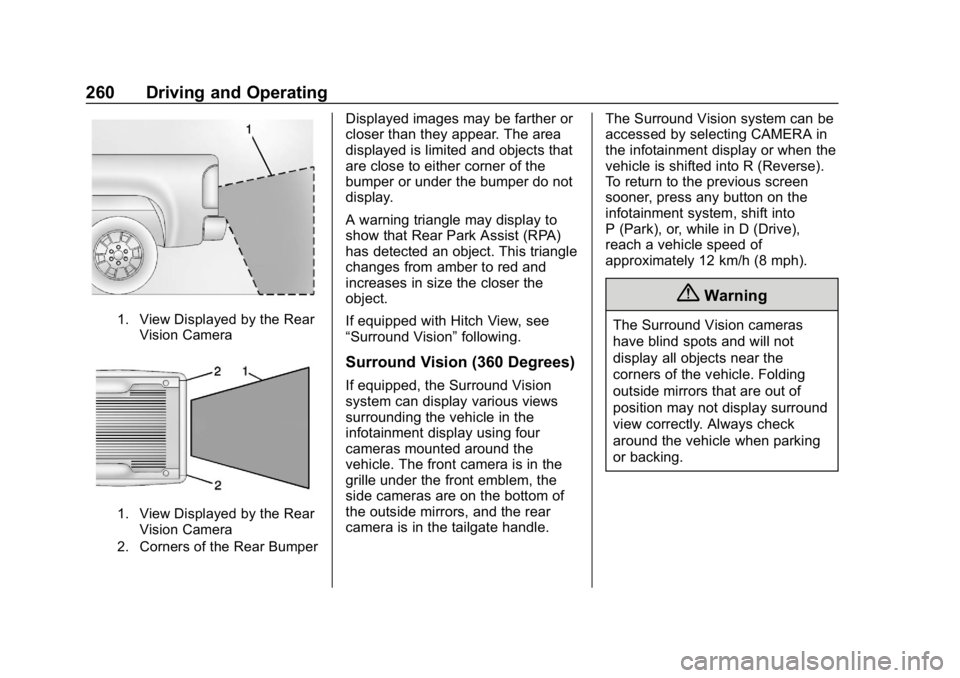
1. View Displayed by the RearVision Camera
1. View Displayed by the RearVision Camera
2. Corners of the Rear Bumper
Displayed images may be farther or
closer than they appear. The area
displayed is limited and objects that
are close to either corner of the
bumper or under the bumper do not
display.
A warning triangle may display to
show that Rear Park Assist (RPA)
has detected an object. This triangle
changes from amber to red and
increases in size the closer the
object.
If equipped with Hitch View, see
“Surround Vision” following.
Surround Vision (360 Degrees)
If equipped, the Surround Vision
system can display various views
surrounding the vehicle in the
infotainment display using four
cameras mounted around the
vehicle. The front camera is in the
grille under the front emblem, the
side cameras are on the bottom of
the outside mirrors, and the rear
camera is in the tailgate handle. The Surround Vision system can be
accessed by selecting CAMERA in
the infotainment display or when the
vehicle is shifted into R (Reverse).
To return to the previous screen
sooner, press any button on the
infotainment system, shift into
P (Park), or, while in D (Drive),
reach a vehicle speed of
approximately 12 km/h (8 mph).
{Warning
The Surround Vision cameras
have blind spots and will not
display all objects near the
corners of the vehicle. Folding
outside mirrors that are out of
position may not display surround
view correctly. Always check
around the vehicle when parking
or backing.
Page 262 of 477
GMC Sierra/Sierra Denali Owner Manual (GMNA-Localizing-U.S./Canada/
Mexico-1500-11698638) - 2019 - CRC - 5/14/19
Driving and Operating 261
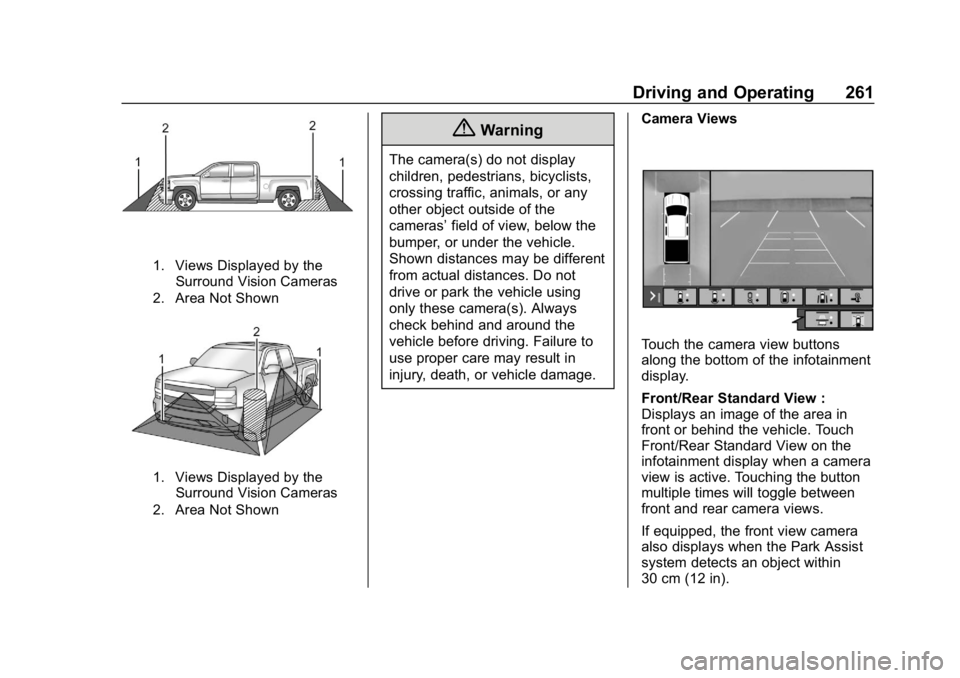
1. Views Displayed by theSurround Vision Cameras
2. Area Not Shown
1. Views Displayed by the Surround Vision Cameras
2. Area Not Shown
{Warning
The camera(s) do not display
children, pedestrians, bicyclists,
crossing traffic, animals, or any
other object outside of the
cameras’ field of view, below the
bumper, or under the vehicle.
Shown distances may be different
from actual distances. Do not
drive or park the vehicle using
only these camera(s). Always
check behind and around the
vehicle before driving. Failure to
use proper care may result in
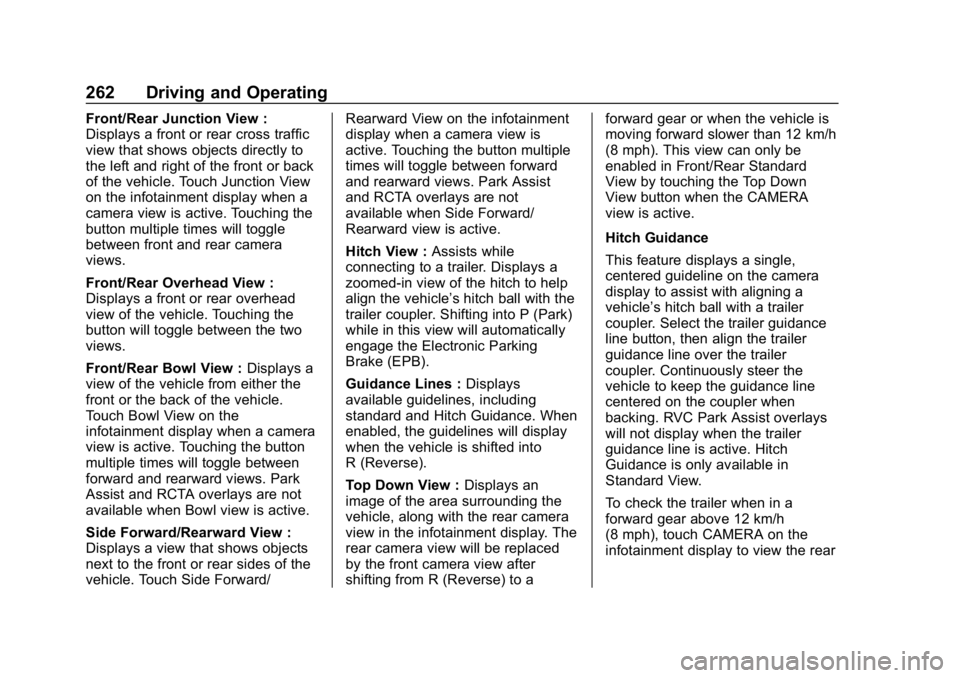
injury, death, or vehicle damage. Camera Views
Touch the camera view buttons
along the bottom of the infotainment
display.
Front/Rear Standard View :
Displays an image of the area in
front or behind the vehicle. Touch
Front/Rear Standard View on the
infotainment display when a camera
view is active. Touching the button
multiple times will toggle between
front and rear camera views.
If equipped, the front view camera
also displays when the Park Assist
system detects an object within
30 cm (12 in).
Page 263 of 477
GMC Sierra/Sierra Denali Owner Manual (GMNA-Localizing-U.S./Canada/
Mexico-1500-11698638) - 2019 - CRC - 5/14/19
262 Driving and Operating
Front/Rear Junction View :
Displays a front or rear cross traffic
view that shows objects directly to
the left and right of the front or back
of the vehicle. Touch Junction View
on the infotainment display when a
camera view is active. Touching the
button multiple times will toggle
between front and rear camera
views.
Front/Rear Overhead View :
Displays a front or rear overhead
view of the vehicle. Touching the
button will toggle between the two
views.
Front/Rear Bowl View :Displays a
view of the vehicle from either the
front or the back of the vehicle.
Touch Bowl View on the
infotainment display when a camera
view is active. Touching the button
multiple times will toggle between
forward and rearward views. Park
Assist and RCTA overlays are not
available when Bowl view is active.
Side Forward/Rearward View :
Displays a view that shows objects
next to the front or rear sides of the
vehicle. Touch Side Forward/ Rearward View on the infotainment
display when a camera view is
active. Touching the button multiple
times will toggle between forward
and rearward views. Park Assist
and RCTA overlays are not
available when Side Forward/
Rearward view is active.
Hitch View :
Assists while
connecting to a trailer. Displays a
zoomed-in view of the hitch to help
align the vehicle’s hitch ball with the
trailer coupler. Shifting into P (Park)
while in this view will automatically
engage the Electronic Parking
Brake (EPB).
Guidance Lines : Displays
available guidelines, including
standard and Hitch Guidance. When
enabled, the guidelines will display
when the vehicle is shifted into
R (Reverse).
Top Down View : Displays an
image of the area surrounding the
vehicle, along with the rear camera
view in the infotainment display. The
rear camera view will be replaced
by the front camera view after
shifting from R (Reverse) to a forward gear or when the vehicle is
moving forward slower than 12 km/h
(8 mph). This view can only be
enabled in Front/Rear Standard
View by touching the Top Down
View button when the CAMERA
view is active.
Hitch Guidance
This feature displays a single,
centered guideline on the camera
display to assist with aligning a
vehicle’s hitch ball with a trailer
coupler. Select the trailer guidance
line button, then align the trailer
guidance line over the trailer
coupler. Continuously steer the
vehicle to keep the guidance line
centered on the coupler when
backing. RVC Park Assist overlays
will not display when the trailer
guidance line is active. Hitch
Guidance is only available in
Standard View.
To check the trailer when in a
forward gear above 12 km/h
(8 mph), touch CAMERA on the
infotainment display to view the rear
Page 264 of 477
GMC Sierra/Sierra Denali Owner Manual (GMNA-Localizing-U.S./Canada/
Mexico-1500-11698638) - 2019 - CRC - 5/14/19
Driving and Operating 263
camera. Touch X to exit the view or
it will be removed automatically after
eight seconds.
{Warning
Use Hitch Guidance only to help
back the vehicle to a trailer hitch
or, when traveling above 12 km/h
(8 mph), to briefly check the
status of your trailer. Do not use
for any other purpose, such as
making lane change decisions.
Before making a lane change,
always check the mirrors and
glance over your shoulder.
Improper use could result in
serious injury to you or others.
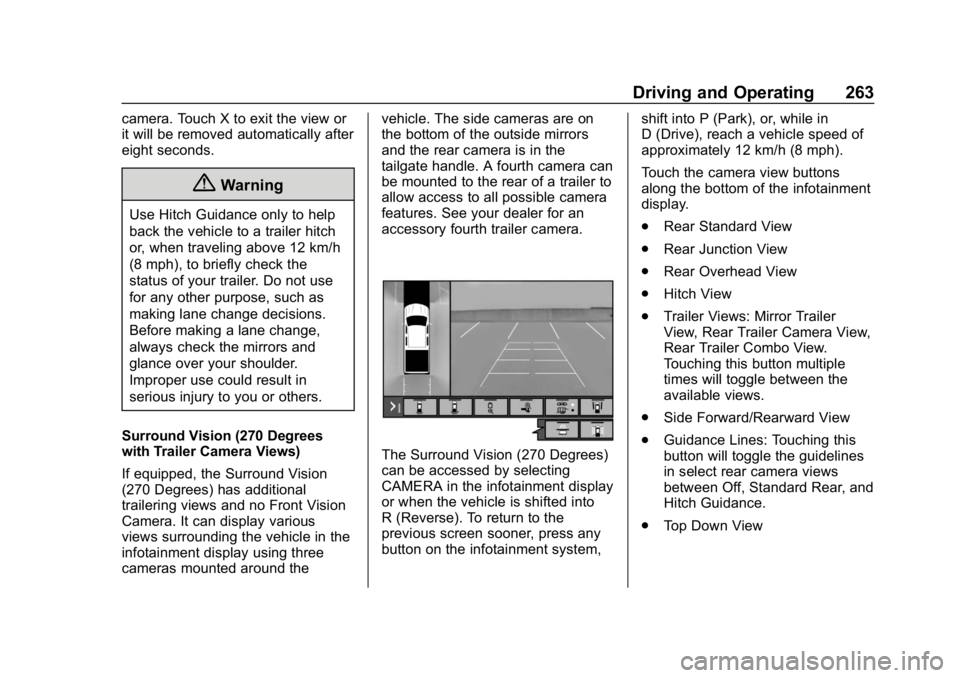
Surround Vision (270 Degrees
with Trailer Camera Views)
If equipped, the Surround Vision
(270 Degrees) has additional
trailering views and no Front Vision
Camera. It can display various
views surrounding the vehicle in the
infotainment display using three
cameras mounted around the vehicle. The side cameras are on
the bottom of the outside mirrors
and the rear camera is in the
tailgate handle. A fourth camera can
be mounted to the rear of a trailer to
allow access to all possible camera
features. See your dealer for an
accessory fourth trailer camera.
The Surround Vision (270 Degrees)
can be accessed by selecting
CAMERA in the infotainment display
or when the vehicle is shifted into
R (Reverse). To return to the
previous screen sooner, press any
button on the infotainment system,
shift into P (Park), or, while in
D (Drive), reach a vehicle speed of
approximately 12 km/h (8 mph).
Touch the camera view buttons
along the bottom of the infotainment
display.
.
Rear Standard View
. Rear Junction View
. Rear Overhead View
. Hitch View
. Trailer Views: Mirror Trailer
View, Rear Trailer Camera View,
Rear Trailer Combo View.
Touching this button multiple
times will toggle between the
available views.
. Side Forward/Rearward View
. Guidance Lines: Touching this
button will toggle the guidelines
in select rear camera views
between Off, Standard Rear, and
Hitch Guidance.
. Top Down View
Page 265 of 477
GMC Sierra/Sierra Denali Owner Manual (GMNA-Localizing-U.S./Canada/
Mexico-1500-11698638) - 2019 - CRC - 5/14/19
264 Driving and Operating
Park Assist
With Front and Rear Park Assist, as
the vehicle moves at speeds of less
than 8 km/h (5 mph) the sensors on
the bumpers may detect objects up
to 1.2 m (4 ft) in front and 2.5 m (8 ft)
behind the vehicle within a zone
25 cm (10 in) high off the ground
and below bumper level. These
detection distances may be shorter
during warmer or humid weather.
Blocked sensors will not detect
objects and can also cause false
detections. Keep the sensors clean
of mud, dirt, snow, ice, and slush;
and clean sensors after a car wash
in freezing temperatures.
{Warning
The Park Assist system does not
detect children, pedestrians,
bicyclists, animals, or objects
located below the bumper or that
are too close or too far from the
vehicle. It is not available at
speeds greater than 8 km/h(Continued)
Warning (Continued)
(5 mph). To prevent injury, death,
or vehicle damage, even with
Park Assist, always check the
area around the vehicle and
check all mirrors before moving
forward or backing.
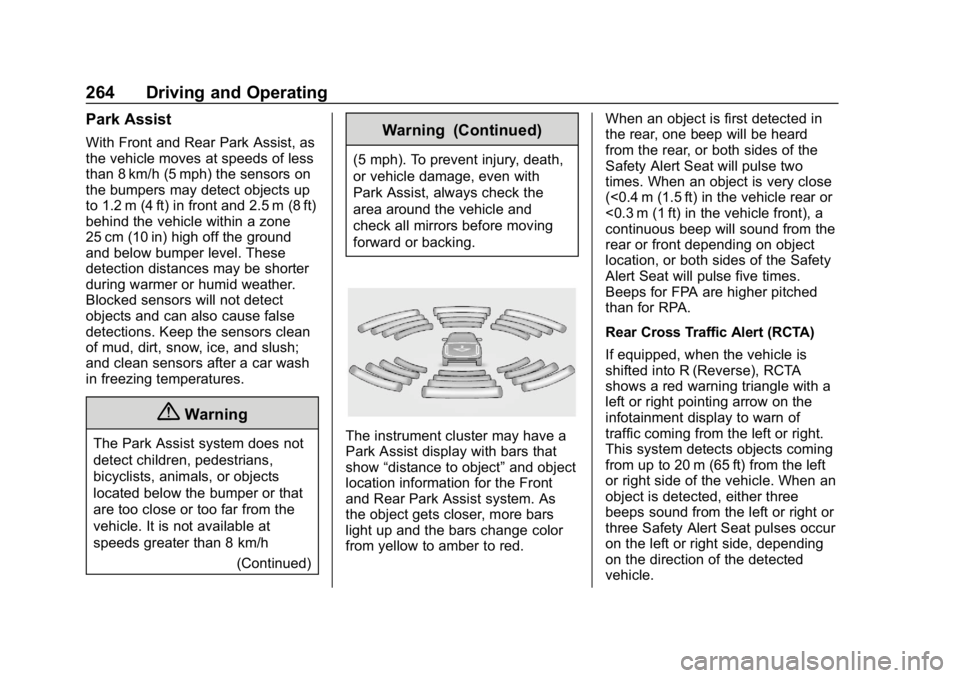
The instrument cluster may have a
Park Assist display with bars that
show“distance to object” and object
location information for the Front
and Rear Park Assist system. As
the object gets closer, more bars
light up and the bars change color
from yellow to amber to red. When an object is first detected in
the rear, one beep will be heard
from the rear, or both sides of the
Safety Alert Seat will pulse two
times. When an object is very close
(<0.4 m (1.5 ft) in the vehicle rear or
<0.3 m (1 ft) in the vehicle front), a
continuous beep will sound from the
rear or front depending on object
location, or both sides of the Safety
Alert Seat will pulse five times.
Beeps for FPA are higher pitched
than for RPA.
Rear Cross Traffic Alert (RCTA)
If equipped, when the vehicle is
shifted into R (Reverse), RCTA
shows a red warning triangle with a
left or right pointing arrow on the
infotainment display to warn of
traffic coming from the left or right.
This system detects objects coming
from up to 20 m (65 ft) from the left
or right side of the vehicle. When an
object is detected, either three
beeps sound from the left or right or
three Safety Alert Seat pulses occur
on the left or right side, depending
on the direction of the detected
vehicle.