instrument cluster GMC SIERRA 2019 User Guide
[x] Cancel search | Manufacturer: GMC, Model Year: 2019, Model line: SIERRA, Model: GMC SIERRA 2019Pages: 477, PDF Size: 8.7 MB
Page 143 of 477
GMC Sierra/Sierra Denali Owner Manual (GMNA-Localizing-U.S./Canada/
Mexico-1500-11698638) - 2019 - CRC - 5/14/19
142 Instruments and Controls
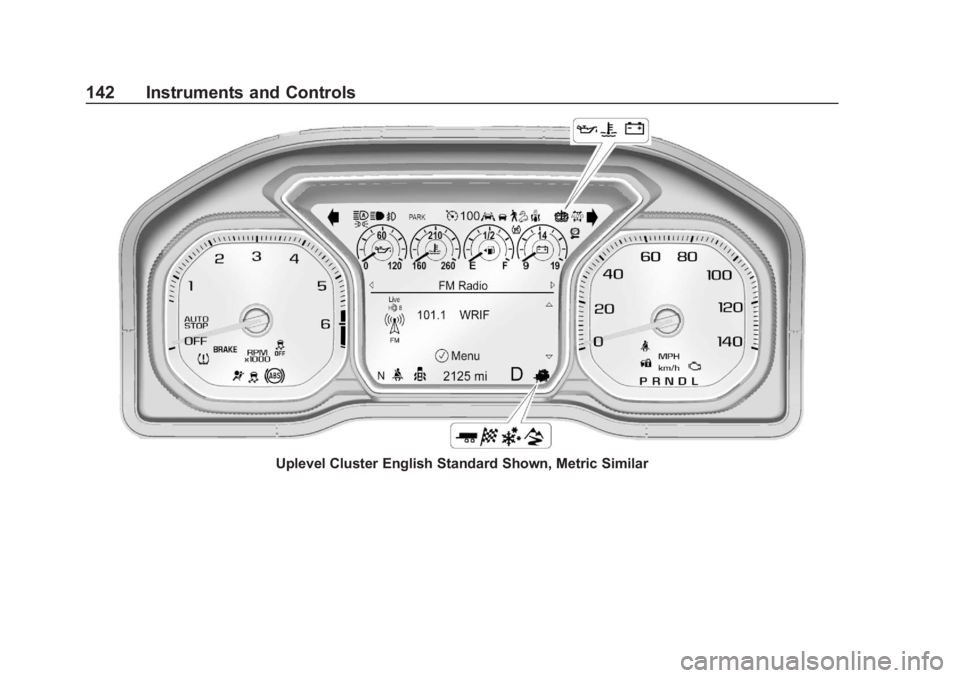
Uplevel Cluster English Standard Shown, Metric Similar
Page 144 of 477
GMC Sierra/Sierra Denali Owner Manual (GMNA-Localizing-U.S./Canada/
Mexico-1500-11698638) - 2019 - CRC - 5/14/19
Instruments and Controls 143
Cluster Menu (Midlevel and
Uplevel)
There is an interactive display area
in the center of the instrument
cluster.
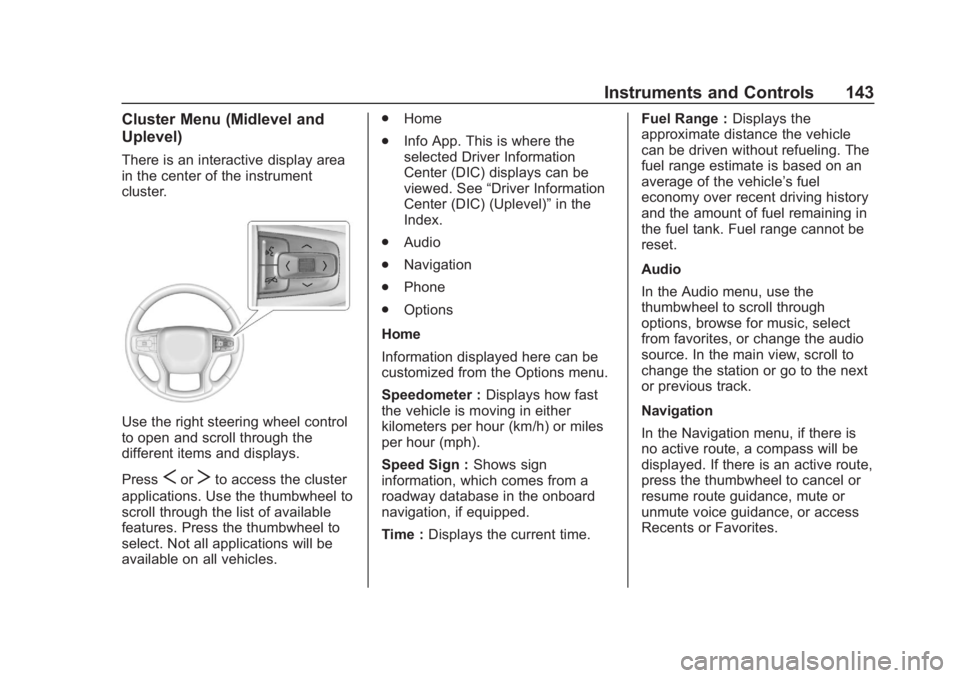
Use the right steering wheel control
to open and scroll through the
different items and displays.
Press
SorTto access the cluster
applications. Use the thumbwheel to
scroll through the list of available
features. Press the thumbwheel to
select. Not all applications will be
available on all vehicles. .
Home
. Info App. This is where the
selected Driver Information
Center (DIC) displays can be
viewed. See “Driver Information
Center (DIC) (Uplevel)” in the
Index.
. Audio
. Navigation
. Phone
. Options
Home
Information displayed here can be
customized from the Options menu.
Speedometer : Displays how fast
the vehicle is moving in either
kilometers per hour (km/h) or miles
per hour (mph).
Speed Sign : Shows sign
information, which comes from a
roadway database in the onboard
navigation, if equipped.
Time : Displays the current time. Fuel Range :
Displays the
approximate distance the vehicle
can be driven without refueling. The
fuel range estimate is based on an
average of the vehicle’s fuel
economy over recent driving history
and the amount of fuel remaining in
the fuel tank. Fuel range cannot be
reset.
Audio
In the Audio menu, use the
thumbwheel to scroll through
options, browse for music, select
from favorites, or change the audio
source. In the main view, scroll to
change the station or go to the next
or previous track.
Navigation
In the Navigation menu, if there is
no active route, a compass will be
displayed. If there is an active route,
press the thumbwheel to cancel or
resume route guidance, mute or
unmute voice guidance, or access
Recents or Favorites.
Page 150 of 477
GMC Sierra/Sierra Denali Owner Manual (GMNA-Localizing-U.S./Canada/
Mexico-1500-11698638) - 2019 - CRC - 5/14/19
Instruments and Controls 149
Seat Belt Reminders
Driver Seat Belt Reminder
Light
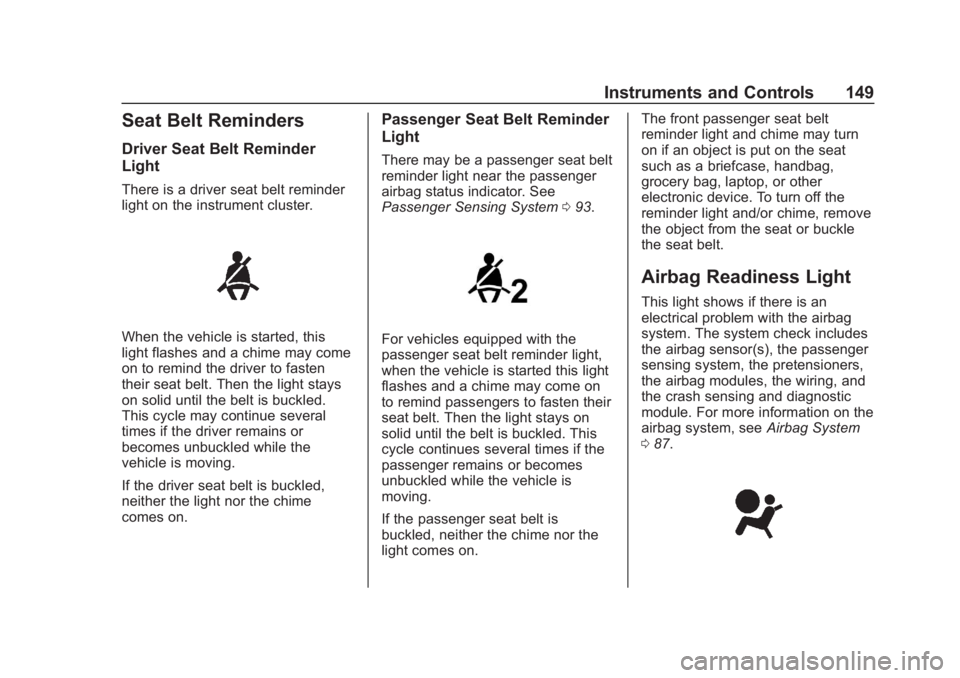
There is a driver seat belt reminder
light on the instrument cluster.
When the vehicle is started, this
light flashes and a chime may come
on to remind the driver to fasten
their seat belt. Then the light stays
on solid until the belt is buckled.
This cycle may continue several
times if the driver remains or
becomes unbuckled while the
vehicle is moving.
If the driver seat belt is buckled,
neither the light nor the chime
comes on.
Passenger Seat Belt Reminder
Light
There may be a passenger seat belt
reminder light near the passenger
airbag status indicator. See
Passenger Sensing System093.
For vehicles equipped with the
passenger seat belt reminder light,
when the vehicle is started this light
flashes and a chime may come on
to remind passengers to fasten their
seat belt. Then the light stays on
solid until the belt is buckled. This
cycle continues several times if the
passenger remains or becomes
unbuckled while the vehicle is
moving.
If the passenger seat belt is
buckled, neither the chime nor the
light comes on. The front passenger seat belt
reminder light and chime may turn
on if an object is put on the seat
such as a briefcase, handbag,
grocery bag, laptop, or other
electronic device. To turn off the
reminder light and/or chime, remove
the object from the seat or buckle
the seat belt.
Airbag Readiness Light
This light shows if there is an
electrical problem with the airbag
system. The system check includes
the airbag sensor(s), the passenger
sensing system, the pretensioners,
the airbag modules, the wiring, and
the crash sensing and diagnostic
module. For more information on the
airbag system, see
Airbag System
0 87.
Page 158 of 477
GMC Sierra/Sierra Denali Owner Manual (GMNA-Localizing-U.S./Canada/
Mexico-1500-11698638) - 2019 - CRC - 5/14/19
Instruments and Controls 157
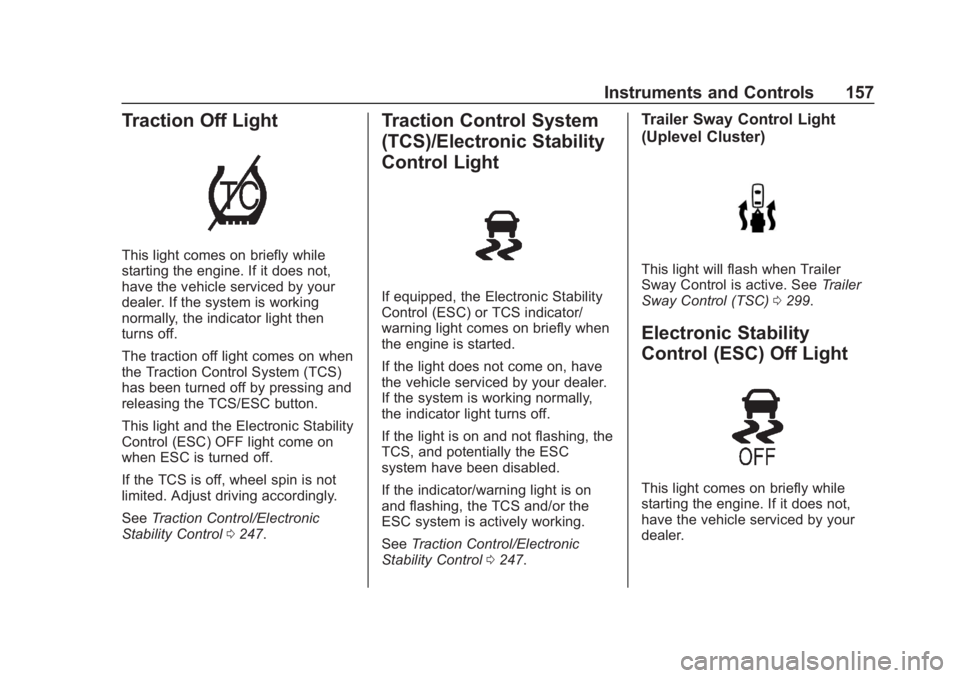
Traction Off Light
This light comes on briefly while
starting the engine. If it does not,
have the vehicle serviced by your
dealer. If the system is working
normally, the indicator light then
turns off.
The traction off light comes on when
the Traction Control System (TCS)
has been turned off by pressing and
releasing the TCS/ESC button.
This light and the Electronic Stability
Control (ESC) OFF light come on
when ESC is turned off.
If the TCS is off, wheel spin is not
limited. Adjust driving accordingly.
SeeTraction Control/Electronic
Stability Control 0247.
Traction Control System
(TCS)/Electronic Stability
Control Light
If equipped, the Electronic Stability
Control (ESC) or TCS indicator/
warning light comes on briefly when
the engine is started.
If the light does not come on, have
the vehicle serviced by your dealer.
If the system is working normally,
the indicator light turns off.
If the light is on and not flashing, the
TCS, and potentially the ESC
system have been disabled.
If the indicator/warning light is on
and flashing, the TCS and/or the
ESC system is actively working.
See Traction Control/Electronic
Stability Control 0247.
Trailer Sway Control Light
(Uplevel Cluster)
This light will flash when Trailer
Sway Control is active. See Trailer
Sway Control (TSC) 0299.
Electronic Stability
Control (ESC) Off Light
This light comes on briefly while
starting the engine. If it does not,
have the vehicle serviced by your
dealer.
Page 160 of 477
GMC Sierra/Sierra Denali Owner Manual (GMNA-Localizing-U.S./Canada/
Mexico-1500-11698638) - 2019 - CRC - 5/14/19
Instruments and Controls 159
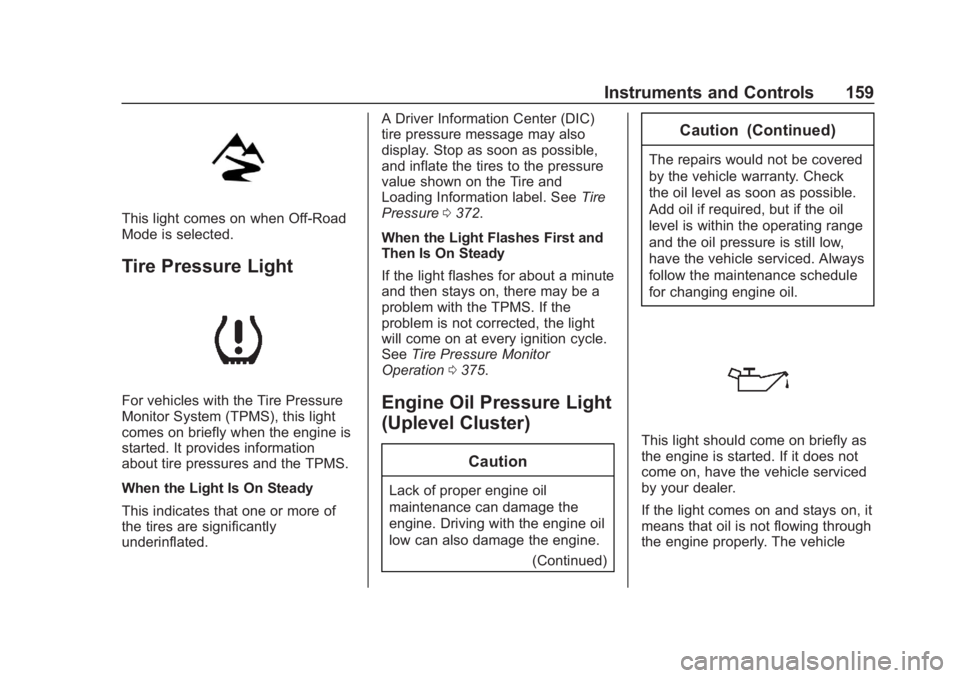
This light comes on when Off-Road
Mode is selected.
Tire Pressure Light
For vehicles with the Tire Pressure
Monitor System (TPMS), this light
comes on briefly when the engine is
started. It provides information
about tire pressures and the TPMS.
When the Light Is On Steady
This indicates that one or more of
the tires are significantly
underinflated.A Driver Information Center (DIC)
tire pressure message may also
display. Stop as soon as possible,
and inflate the tires to the pressure
value shown on the Tire and
Loading Information label. See
Tire
Pressure 0372.
When the Light Flashes First and
Then Is On Steady
If the light flashes for about a minute
and then stays on, there may be a
problem with the TPMS. If the
problem is not corrected, the light
will come on at every ignition cycle.
See Tire Pressure Monitor
Operation 0375.Engine Oil Pressure Light
(Uplevel Cluster)
Caution
Lack of proper engine oil
maintenance can damage the
engine. Driving with the engine oil
low can also damage the engine.
(Continued)
Caution (Continued)
The repairs would not be covered
by the vehicle warranty. Check
the oil level as soon as possible.
Add oil if required, but if the oil
level is within the operating range
and the oil pressure is still low,
have the vehicle serviced. Always
follow the maintenance schedule
for changing engine oil.
This light should come on briefly as
the engine is started. If it does not
come on, have the vehicle serviced
by your dealer.
If the light comes on and stays on, it
means that oil is not flowing through
the engine properly. The vehicle
Page 162 of 477
GMC Sierra/Sierra Denali Owner Manual (GMNA-Localizing-U.S./Canada/
Mexico-1500-11698638) - 2019 - CRC - 5/14/19
Instruments and Controls 161
The light goes out when the fog
lamps are turned off. SeeFog
Lamps 0184.
Lamps On Reminder
This light comes on when the
exterior lamps are in use. See
Exterior Lamp Controls 0179.
Cruise Control Light
For vehicles with cruise control, the
cruise control light is white when the
cruise control is on and ready, and
turns green when the cruise control
is set and active. The light turns off when the cruise
control is turned off. See
Cruise
Control 0255.
Door Ajar Light
This light comes on when a door is
open or not securely latched. Before
driving, check that all doors are
properly closed.
Information Displays
Driver Information Center
(DIC) (Base Level)
The DIC displays are shown in the
center of the instrument cluster. The
displays show the status of many
vehicle systems. The trip odometer
reset stem in the instrument cluster
is used to access the DIC menu
items.
If the vehicle has a diesel engine,
see the Duramax diesel supplement
for more information.
DIC Menu Items
Turn the trip odometer reset stem to
scroll through the following menu
items:
.
Digital Speedometer
. Trip 1/2
. Fuel Range
. Tire Pressure
. Remaining Oil Life
Page 164 of 477
GMC Sierra/Sierra Denali Owner Manual (GMNA-Localizing-U.S./Canada/
Mexico-1500-11698638) - 2019 - CRC - 5/14/19
Instruments and Controls 163
When the REPLACE SOON
message displays, the engine air
filter should be replaced at the
earliest convenience.
The Air Filter Life display must be
reset after the engine air filter
replacement. To reset, seeEngine
Air Filter Life System 0330.
Brake Pad Life
This displays an estimate of the
remaining life of the front and rear
brake pads. Messages will display
based on brake pad wear and the
state of the system. Reset the Brake
Pad Life display after replacing the
brake pads. See Brake Pad Life
System 0340.
Driver Information Center
(DIC) (Midlevel and
Uplevel)
The DIC displays are shown in the
center of the instrument cluster in
the Info app. See Instrument Cluster
0 140. The displays show the status
of many vehicle systems. If the vehicle has a diesel engine,
see the Duramax diesel
supplement.
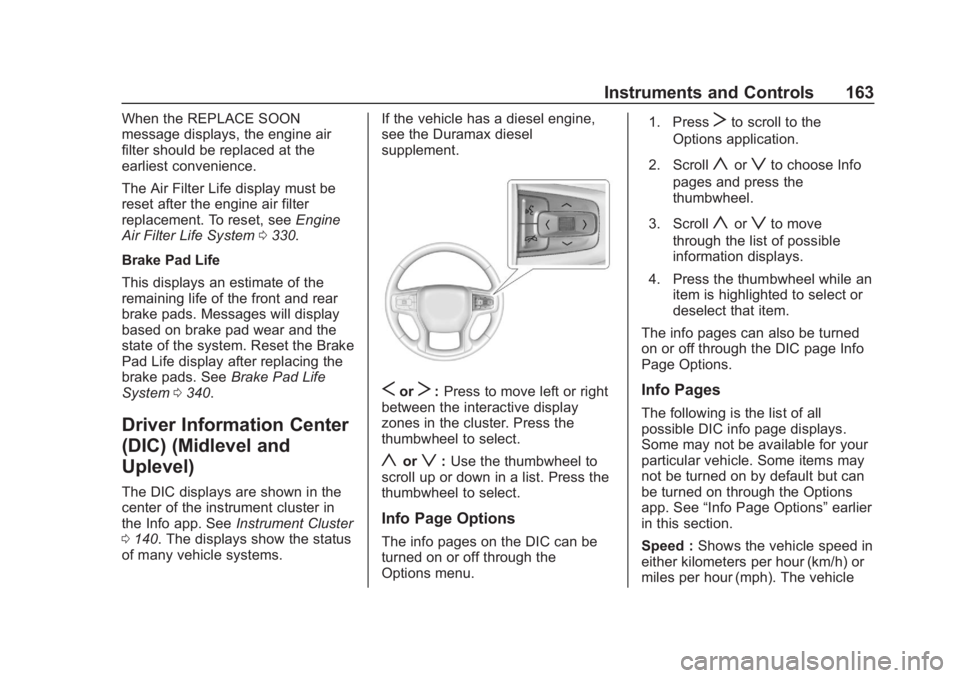
SorT:
Press to move left or right
between the interactive display
zones in the cluster. Press the
thumbwheel to select.
yorz: Use the thumbwheel to
scroll up or down in a list. Press the
thumbwheel to select.
Info Page Options
The info pages on the DIC can be
turned on or off through the
Options menu. 1. Press
Tto scroll to the
Options application.
2. Scroll
yorzto choose Info
pages and press the
thumbwheel.
3. Scroll
yorzto move
through the list of possible
information displays.
4. Press the thumbwheel while an item is highlighted to select or
deselect that item.
The info pages can also be turned
on or off through the DIC page Info
Page Options.
Info Pages
The following is the list of all
possible DIC info page displays.
Some may not be available for your
particular vehicle. Some items may
not be turned on by default but can
be turned on through the Options
app. See “Info Page Options” earlier
in this section.
Speed : Shows the vehicle speed in
either kilometers per hour (km/h) or
miles per hour (mph). The vehicle
Page 167 of 477
GMC Sierra/Sierra Denali Owner Manual (GMNA-Localizing-U.S./Canada/
Mexico-1500-11698638) - 2019 - CRC - 5/14/19
166 Instruments and Controls
Blank Page :Shows no
information.
Head-Up Display (HUD)
{Warning
If the HUD image is too bright or
too high in your field of view, it
may take you more time to see
things you need to see when it is
dark outside. Be sure to keep the
HUD image dim and placed low in
your field of view.
If equipped with HUD, some
information about the operation of
the vehicle is projected onto the
windshield. The image is projected
through the HUD lens on top of the
instrument panel. The information
appears as an image focused out
toward the front of the vehicle.
Caution
If you try to use the HUD image
as a parking aid, you may
misjudge the distance and
damage your vehicle. Do not use
the HUD image as a parking aid.
The HUD information can be
displayed in various languages. The
speedometer reading and other
numerical values can be displayed
in either English or metric units.
The language selection is changed
through the radio, and the units of
measurement is changed through
the instrument cluster. See
“Settings” in the infotainment
manual and “Options”under
Instrument Cluster 0140.
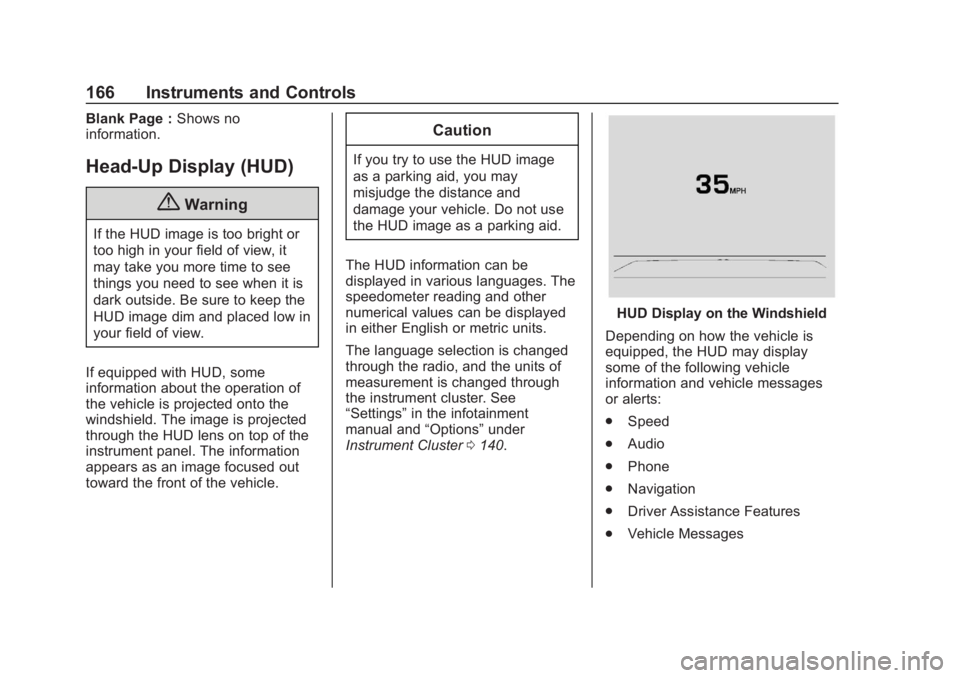
HUD Display on the Windshield
Depending on how the vehicle is
equipped, the HUD may display
some of the following vehicle
information and vehicle messages
or alerts:
. Speed
. Audio
. Phone
. Navigation
. Driver Assistance Features
. Vehicle Messages
Page 168 of 477
GMC Sierra/Sierra Denali Owner Manual (GMNA-Localizing-U.S./Canada/
Mexico-1500-11698638) - 2019 - CRC - 5/14/19
Instruments and Controls 167
Some vehicle messages or alerts
displayed in the HUD may be
cleared by using the steering wheel
controls.
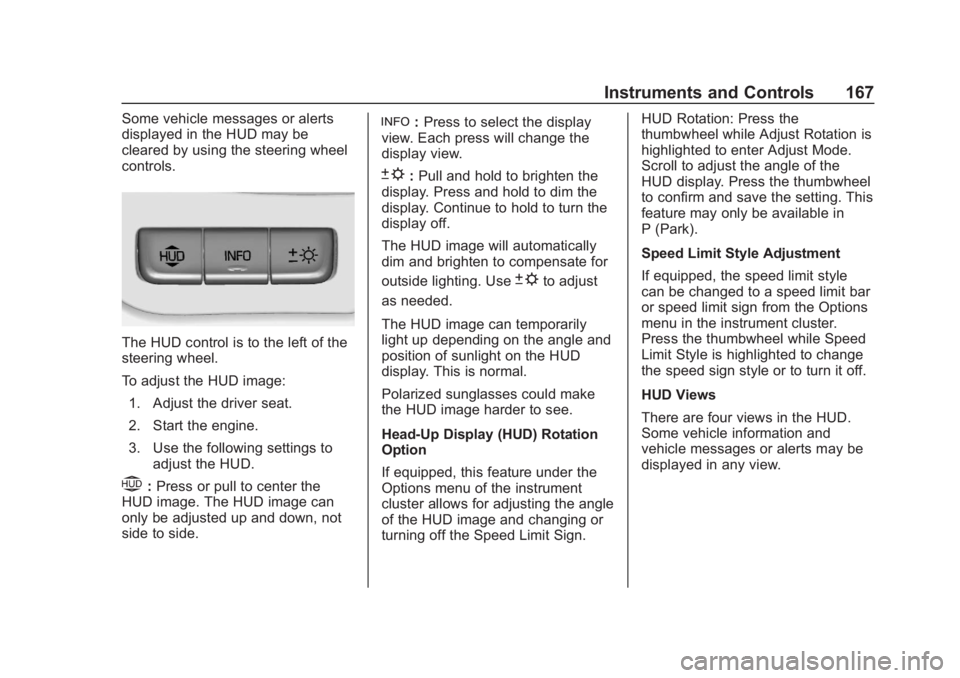
The HUD control is to the left of the
steering wheel.
To adjust the HUD image:1. Adjust the driver seat.
2. Start the engine.
3. Use the following settings to adjust the HUD.
$:Press or pull to center the
HUD image. The HUD image can
only be adjusted up and down, not
side to side.
!: Press to select the display
view. Each press will change the
display view.
D: Pull and hold to brighten the
display. Press and hold to dim the
display. Continue to hold to turn the
display off.
The HUD image will automatically
dim and brighten to compensate for
outside lighting. Use
Dto adjust
as needed.
The HUD image can temporarily
light up depending on the angle and
position of sunlight on the HUD
display. This is normal.
Polarized sunglasses could make
the HUD image harder to see.
Head-Up Display (HUD) Rotation
Option
If equipped, this feature under the
Options menu of the instrument
cluster allows for adjusting the angle
of the HUD image and changing or
turning off the Speed Limit Sign. HUD Rotation: Press the
thumbwheel while Adjust Rotation is
highlighted to enter Adjust Mode.
Scroll to adjust the angle of the
HUD display. Press the thumbwheel
to confirm and save the setting. This
feature may only be available in
P (Park).
Speed Limit Style Adjustment
If equipped, the speed limit style
can be changed to a speed limit bar
or speed limit sign from the Options
menu in the instrument cluster.
Press the thumbwheel while Speed
Limit Style is highlighted to change
the speed sign style or to turn it off.
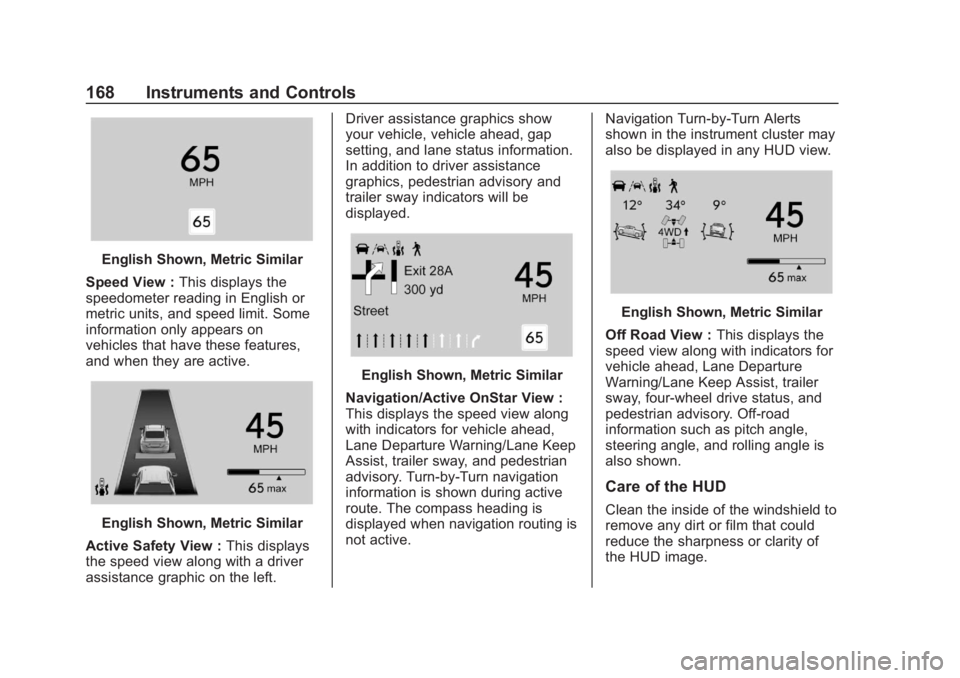
HUD Views
There are four views in the HUD.
Some vehicle information and
vehicle messages or alerts may be
displayed in any view.
Page 169 of 477
GMC Sierra/Sierra Denali Owner Manual (GMNA-Localizing-U.S./Canada/
Mexico-1500-11698638) - 2019 - CRC - 5/14/19
168 Instruments and Controls
English Shown, Metric Similar
Speed View : This displays the
speedometer reading in English or
metric units, and speed limit. Some
information only appears on
vehicles that have these features,
and when they are active.
English Shown, Metric Similar
Active Safety View : This displays
the speed view along with a driver
assistance graphic on the left. Driver assistance graphics show
your vehicle, vehicle ahead, gap
setting, and lane status information.
In addition to driver assistance
graphics, pedestrian advisory and
trailer sway indicators will be
displayed.
English Shown, Metric Similar
Navigation/Active OnStar View :
This displays the speed view along
with indicators for vehicle ahead,
Lane Departure Warning/Lane Keep
Assist, trailer sway, and pedestrian
advisory. Turn-by-Turn navigation
information is shown during active
route. The compass heading is
displayed when navigation routing is
not active. Navigation Turn-by-Turn Alerts
shown in the instrument cluster may
also be displayed in any HUD view.
English Shown, Metric Similar
Off Road View : This displays the
speed view along with indicators for
vehicle ahead, Lane Departure
Warning/Lane Keep Assist, trailer
sway, four-wheel drive status, and
pedestrian advisory. Off-road
information such as pitch angle,
steering angle, and rolling angle is
also shown.
Care of the HUD
Clean the inside of the windshield to
remove any dirt or film that could
reduce the sharpness or clarity of
the HUD image.