wheel GMC SIERRA DENALI 2003 Owner's Manual
[x] Cancel search | Manufacturer: GMC, Model Year: 2003, Model line: SIERRA DENALI, Model: GMC SIERRA DENALI 2003Pages: 428, PDF Size: 20.35 MB
Page 148 of 428
Outlet Adjustment Operation Tips
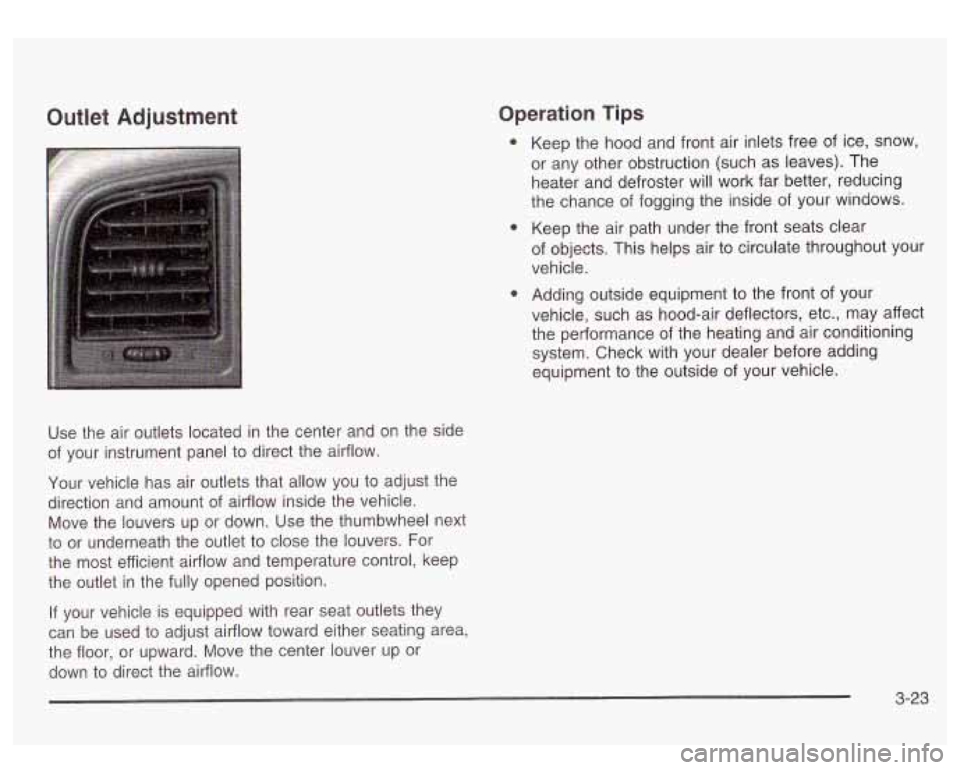
Use the air outlets located in the center and on the side
of your instrument panel to direct the airflow.
Your vehicle has air outlets that allow you to adjust the
direction and amount of airflow inside the vehicle.
Move the louvers up or down. Use the thumbwheel next
to or underneath the outlet to close the louvers. For
the most efficient airflow and temperature control, keep
the outlet in the fully opened position.
If your vehicle is equipped with rear seat outlets they
can be used
to adjust airflow toward either seating area,
the floor, or upward. Move the center louver up or
down
to direct the airflow. Keep
the hood and front air inlets free
of ice, snow,
or any other obstruction (such as leaves). The
heater and defroster will work far better, reducing
the chance of fogging the inside of your windows.
Keep the air path under the front seats clear
of objects. This helps air
to circulate throughout your
vehicle.
Adding outside equipment
to the front of your
vehicle, such as hood-air deflectors, etc., may affect
the performance
of the heating and air conditioning
system. Check with your dealer before adding
equipment
to the outside of your vehicle.
3-23
Page 168 of 428
Driver Information Center (DIC)
The DIC display is located on the instrument panel
cluster above the steering wheel. The DIC can display
information such as the trip odometer, fuel economy and
personalization features.
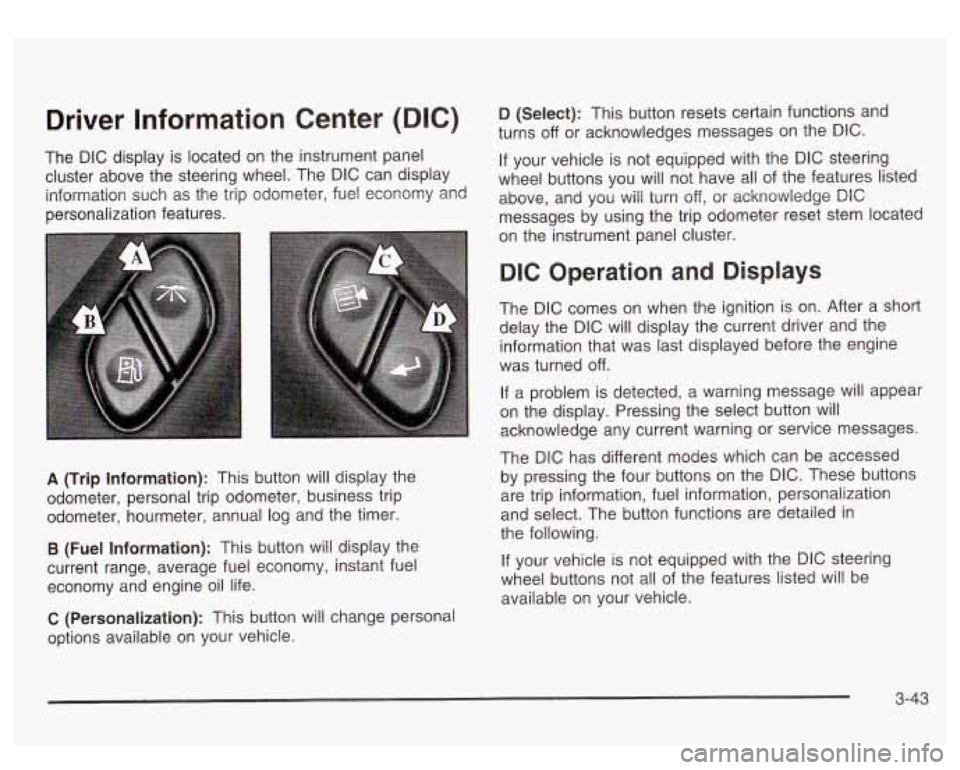
A (Trip Information): This button will display the
odometer, personal trip odometer, business trip
odometer, hourmeter, annual log and the timer.
B (Fuel Information): This button will display the
current range, average fuel economy, instant fuel
economy and engine oil life.
C (Personalization): This button will change personal
options available on your vehicle.
D (Select): This button resets certain functions and
turns
off or acknowledges messages on the DIC.
If your vehicle is not equipped with the DIC steering
wheel buttons you will not have all of the features listed
above, and you will turn off,
or acknowledge DIC
messages by using the trip odometer reset stem located
on the instrument panel cluster.
DIC Operation and Displays
The DIC comes on when the ignition is on. After a short
delay the DIC will display the current driver and the
information that was last displayed before the engine
was turned
off.
If a problem is detected, a warning message will appear
on the display. Pressing the select button will
acknowledge any current warning or service messages.
The DIC has different modes which can be accessed
by pressing the four buttons on the DIC. These buttons
are trip information, fuel information, personalization
and select. The button functions are detailed in
the following.
If your vehicle is not equipped with the DIC steering
wheel buttons not all of the features listed will be
available on your vehicle.
3-43
Page 169 of 428
Trip Information Button
Use the trip information button to scroll through the
SEASON ODOMETER, PERSONAL TRIP ON/OFF,
BUSINESS TRIP ON/OFF, HOURMETER, ANNUAL
LOG and TIMER.
If the personal trip and/or the business
trip are set to ON, you will also be able to scroll
through more messages. See
Personal Trip and
Business Trip next for more information.
If your vehicle is not equipped with the DIC steering
wheel buttons you can select the trip information
by pressing the trip odometer reset stem
on the
instrument panel cluster.
Personal Trip
If the PERSONAL TRIP is on (turn it on or off by
pressing the select button) you will also be able to scroll
through the following:
e
e
e
PERSONAL: XX MI - This shows the current
distance traveled since the last reset for the
personal trip odometer in either miles or kilometers.
PERSONAL: XX.X MPG
- This shows the amount
of fuel used for the personal trip.
PERSONAL: AVG ECONOMY
- This shows how
many miles per gallon of fuel your vehicle is
getting for the personal trip based on current and
past driving conditions.
PERSONAL: AVG MPH - This shows the vehicle’s
average speed for the personal trip.
PERSONAL: % ANNUAL - This shows the ratio of
personal trip miles to annual miles as a percent.
You can reset the personal trip odometer by pressing
and holding the trip odometer reset stem.
Business Trip
If the BUSINESS TRIP is on (turn it on or off by
pressing the select button) you will also be able
to scroll
through the following:
e
e
e
BUSINESS: XX MI - This shows the current
distance traveled since the last reset for the
business trip odometer in either miles or kilometers.
BUSINESS: XX.X MPG
- This shows the amount
of fuel used for the business trip.
BUSINESS: AVG ECONOMY
- This shows how
many miles per gallon
of fuel your vehicle is
getting for the business trip based on current and
past driving conditions.
BUSINESS: AVG MPH
- This shows the vehicle’s
average speed for the business trip.
BUSINESS:
Yo ANNUAL - This shows the ratio of
business trip miles to annual miles as a percent.
3-44
Page 170 of 428
To reset the personal or business trip information, do
the following: press and hold select button for two
seconds while in one of the personal or business trip
modes. This will reset all of the information for the
personal or business trip, or
if your vehicle does not
have the DIC steering wheel control buttons, press the
reset stem on the instrument panel cluster.
You can also reset the PERSONAL:
XX MI, or
BUSINESS:
XX MI, while they are displayed by pressing
the reset stem on the cluster.
If you press and hold
the reset stem or select button for four seconds,
the display
will show the distance traveled since the last
ignition cycle for the personal or business trip.
Season Odometer
Press the trip information button, or the trip odometer
reset step, until SEASON ODOMETER appears on
the display. This shows the total distance the vehicle has
been driven in either miles or kilometers. Pressing the
reset stem located on the instrument cluster with
the vehicle
off will also display the season odometer.
Hourmeter
Press the trip button to scroll to the hourmeter. The
hourmeter shows the total number of hours the engine
has run. Pressing the reset stem on the instrument
cluster will also display the hourmeter after the season
odometer is displayed.
Annual Log
Press the trip button, or the reset stem on the instrument
panel cluster, to scroll to the annual
log. The annual
log shows the mileage accumulated since
it was
last reset.
Po reset the annual log, press and hold the
select button, or the trip odometer reset stem for
approximately two seconds.
Timer
The DIC can be used as a stopwatch. Press the select
button, or the trip odometer reset stem, while TIMER
is displayed to start the timer. The display will show the
amount of time that has passed since the timer was
last reset (not including time the ignition is
off). Time will
continue to be counted as long as the ignition is on,
even
if another display is being shown on the DIC. The
timer will record up to 99 hours, 59 minutes and
59 seconds (99:59:59) after which the display will roll
back to zero.
To stop the counting of time, press the select button
briefly while TIMER is displayed.
To reset the timer to zero, press and hold the select
button, or the trip odometer reset stem, while TIMER is
displayed.
3-45
Page 171 of 428
Fuel Information Button
Use the fuel information button to scroll through the
range, average fuel economy, instant fuel economy and
the GM
Oil Life SystemTM.
If your vehicle is not equipped with the DIC steering
wheel control buttons you will not be able to display the
fuel information.
Fuel Range
Press the fuel information button until RANGE appears
to display the remaining distance you can drive
without refueling. It’s based on fuel economy and the
fuel remaining in the tank. The display will show
LOW if
the fuel level is low.
The fuel economy data used to determine fuel range is
an average of recent driving conditions. As your
driving conditions change, this data is gradually updated.
Fuel range cannot be reset.
Average Fuel Economy
Press the fuel information button until AVG appears in
the display. Average fuel economy is how many
miles per gallon your vehicle is getting based on current
and past driving conditions.
Press and hold the select button while AVG.ECON is
displayed to reset the average fuel economy. Average
fuel economy will then
be calculated starting from
that point.
If the average fuel economy is not reset, it
will be continually updated each time you drive.
Instant Fuel Economy
Press the fuel information button until INST appears in
the display. Instant fuel economy is how many miles
per gallon your vehicle is at the particular moment
in time. The instant fuel economy cannot be reset.
GM Oil Life SystemTM
Press the fuel information button until ENGINE OIL LIFE
appears in the display. The GM
Oil Life SystemTM
shows an estimate of the oil’s remaining useful life. It
will show
100% when the system is reset after an
oil change. It will alert you
to change your oil on a
schedule consistent with your driving conditions.
Always reset the engine oil life after and oil change.
To
reset the Oil Life System press and hold the select
button while ENGINE
OIL LIFE is displayed.
The DIC does not replace the need to maintain your
vehicle as recommended in the Maintenance Schedule
in this manual. Also, the oil change reminder will not
detect dusty conditions or engine malfunctions that may
affect the oil. Also, the oil change reminder does not
measure how much
oil you have in your engine. So, be
sure to check your oil level often. See
Engine Oil on
page 5- 13.
3-46
Page 172 of 428
Personalization Button
You can program certain features to a preferred setting
for up to two people. Press the personalization button
to scroll through the following personalization features.
All of the personalization options may not be available
on your vehicle. only the options available will be
displayed on your DIC.
If your vehicle is not equipped with the DIC steering
wheel buttons you will not have any of these
personalization options except for DISPLAY LANGUAGE. See DISPLAY LANGUAGE later in this
section for more information.
ALARM WARNING TYPE
AUTOMATIC LOCKING
0 AUTOMATIC UNLOCKING
SEAT POSITION RECALL
PERIMETER LIGHTING
REMOTE LOCK FEEDBACK
REMOTE UNLOCK FEEDBACK
HEADLAMPS ON AT EXIT
CURB VIEW ASSIST
EASY EXIT SEAT
DISPLAY UNITS (E/M)
DISPLAY LANGUAGE The driver’s
preferences are recalled by pressing the
unlock button on the remote keyless entry transmitter or
by pressing the appropriate memory button
1 or 2
located on the driver’s door.
Alarm Warning Type
Press the personalization button until ALARM
WARNING TYPE appears in the display. To select your
personalization for alarm warning type, press the
select button while ALARM WARNING TYPE is
displayed on the DIC. Pressing the select button will
scroll through the following choices:
ALARM WARNING: BOTH
(default): The headlamps
will flash and the horn will chirp when the alarm is
active.
ALARM WARNING:
OFF: There will be no alarm
warning on activation.
ALARM WARNING: HORN: The horn will chirp when
the alarm is active.
ALARM WARNING: LAMPS: The headlamps will flash
when the alarm is active.
Choose one of the four options and press the
personalization button while it is displayed on the DIC to
select it and move on to the next feature. For more
information on alarm warning type, see
Content
Theft-Deterrent
on page 2- 13.
3-47
Page 181 of 428
SERVICE 4WD
If a problem occurs with the four wheel drive system,
this message will appear on the DIC.
If this message
appears, stop as soon as possible and turn
off the
vehicle. Restart the vehicle and check for the message
on the DIC display. If the message is still displayed,
or appears again when you begin driving, the four wheel
drive system needs service.
SERVICE AIR SUSPENSION
If a problem occurs with the suspension system, this
message will appear
on the DIC. If this message
appears, stop as soon as possible and turn
off the
vehicle. Restart the vehicle and check for the message
on the DIC display. If the message is still displayed,
or appears again when you begin driving, the air
suspension system needs service.
TURN SIGNAL ON
If a turn signal is left on for 314 of a mile (1.2 km), this
message will appear on the display and you will
hear a chime. Move the turn signaVmultifunction lever to
the
off position. Pressing the select button will
acknowledge this message and clear it from the DIC
display.
CARGO LAMP ON
If the cargo lamp is on, this message will appear on the
DIC and you will hear a chime. Turn
off the vehicle
and check the liftgate. Restart the vehicle and check for
the message on the
DIC display. Pressing the select
button will acknowledge this message and clear it from
the DIC display.
3-56
Page 182 of 428
REDUCED BRAKE POWER
If your vehicle has vacuum assist power brakes, this
message will be displayed and you may notice that the
brake pedal is harder to push and it will take longer
to stop. You may also hear a motor running and feel a
slight vibration in the brake pedal or steering wheel
when you apply or release the brake pedal even
if your
foot is not on the brake pedal. This indicates that the
Supplemental Brake Assist system is working to
maintain braking power.
If you are braking lightly, you
may not notice any difference in the operation
of
your brakes.
This message may also be displayed for brief periods
if
you are driving at higher elevations and are pumping
your brakes or braking hard. The message may
clear after you’ve lifted your foot from the accelerator
pedal an allowed the vehicle to coast
in gear or after you
have driven down to a lower elevation. This is a
normal operation of your brake system and does not
require that the brake system be serviced. However,
if
the message does not clear, your brake system
needs service. While the message is displayed you will
notice that the brake pedal is harder to push and
it
will take longer to stop. See Brake System Warning
Light
on page 3-34.
Your brake system may not be working
properly if the REDUCED BRAKE POWER
message is displayed. If this message comes
on and stays on while driving, pull
off the road
and stop carefully. The brake pedal will be
harder to push and
it will take longer to stop.
If the message is no longer displayed after you
have pulled
off the road and stopped, you can
continue driving.
However, if the message is still displayed, or if
it comes on again when you are driving, there
is a problem with your brake system. If you
continue to drive with this message displayed
it can lead to an accident. You should have the
vehicle towed for service. Also, see Brake
System Warning Light in the Index.
3-57
Page 183 of 428
FUEL LEVEL LOW
If the fuel level is low, this message will appear on the
DIC and you will hear a chime. Refuel as soon as
possible. Pressing the select button will acknowledge
this message and clear it from the DIC display.
CHECK OIL LEVEL
If the oil level in the vehicle is low, this message will
appear on the DIC. Check and oil level and correct it as
necessary. You may need
to let the vehicle cool or
warm up and cycle the ignition to be sure this message
will clear. Once the problem is corrected, pressing
the select button will clear this message from the DIC
display.
CHECK WASHER FLUID
If the washer fluid level is low, this message will appear
on the DIC. Adding washer fluid will clear the message.
Pressing the select button will acknowledge this
message and clear it from the DIC display.
SERVICE 4 WHEEL STEER
If a problem occurs with the 4 wheel steer system, this
message will appear on the DIC. If this message
appears, stop as soon as possible and turn
off the
vehicle. Restart the vehicle and check for the message
on the DIC display.
If the message is still displayed,
or appears again when you begin driving, the four wheel
steer system needs service.
TRACTION ACTIVE
When the traction control system had detected that any
of the vehicle’s wheels are slipping, the traction
control system will activate and this message will appear
on the DIC. For more information see “Traction Assist”
in the Index.
3-58
Page 206 of 428
Theft-Deterrent Feature
THEFTLOCK@ is designed to discourage theft of your
radio. The feature works automatically by learning
a portion of the Vehicle Identification Number (VIN).
If
the radio is moved to a different vehicle, it will not
operate and LOCKED will be displayed.
When the radio and vehicle are turned
off, the blinking
red light indicates that THEFTLOCK@ is armed.
With THEFTLOCK@ activated, your radio will not operate
if stolen.
Audio Steering Wheel Controls
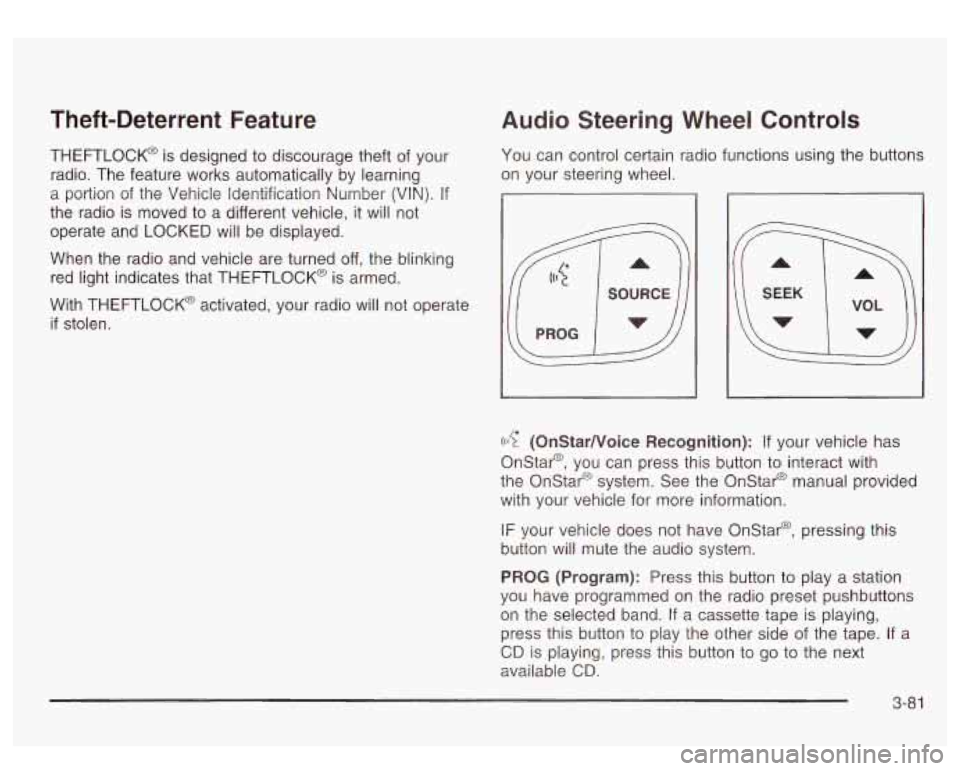
You can control certain radio functions using the buttons
on your steering wheel.
((17 (OnStarNoice Recognition): If your vehicle has
Onstar@, you can press this button to interact with
the Onstar@ system. See the Onstar@ manual provided
with your vehicle for more information.
IF your vehicle does not have Onstar@, pressing this
button will mute the audio system.
PROG (Program): Press this button to play a station
you have programmed on the radio preset pushbuttons
on the selected band.
If a cassette tape is playing,
press this button to play the other side of the tape. If a
CD is playing, press this button to go to the next
available
CD.
3-8 1