light GMC SIERRA DENALI 2005 Workshop Manual
[x] Cancel search | Manufacturer: GMC, Model Year: 2005, Model line: SIERRA DENALI, Model: GMC SIERRA DENALI 2005Pages: 428, PDF Size: 2.5 MB
Page 160 of 428
BATTERY NOT CHARGING
On some vehicles, if the battery is not charging during
operation, this message will appear on the DIC.
Driving with this problem could drain your battery. Have
the electrical system checked by your GM dealer as
soon as possible. Pressing any of the four DIC buttons,
if equipped, will acknowledge the message and clear
it from the DIC display. If your vehicle is not equipped
with the four DIC buttons, pressing the trip odometer
reset stem will acknowledge the message and clear it
from the DIC display. SeeBattery Warning Light
on page 3-31andVoltmeter Gage on page 3-31.
BUCKLE PASSENGER
If your vehicle is equipped with the passenger sensing
system, this message reminds you to buckle the
passenger’s seat belt. SeePassenger Sensing System
on page 1-55.
This message will display and a chime will sound when
the ignition is on, the driver’s seat belt is buckled, the
passenger’s seat belt is unbuckled with the passenger
airbag enabled and the vehicle is in motion. You should
have the passenger buckle their seat belt.
This reminder will be repeated if the ignition is on, the
vehicle is in motion, the driver is buckled and the
passenger is still unbuckled and the passenger airbag is
enabled. If the passenger’s seat belt is already
buckled, this message and chime will not come on.Pressing any of the four DIC buttons, if equipped, will
acknowledge the message and clear it from the
DIC display. If your vehicle is not equipped with the
four DIC buttons, pressing the trip odometer reset stem
will acknowledge the message and clear it from the
DIC display.
BUCKLE SEATBELT
If your vehicle is equipped with the passenger sensing
system, this message reminds you to buckle the
driver’s seat belt. SeePassenger Sensing System on
page 1-55.
This message will display and a chime will sound when
the ignition is on, the driver’s seat belt is unbuckled
and the vehicle is in motion. You should buckle
your seat belt.
If the driver remains unbuckled when the ignition is on
and the vehicle is in motion, the reminder will be
repeated. If the driver’s seat belt is already buckled, this
message and chime will not come on.
This message is an additional reminder to the Safety
Belt Reminder Light in the instrument panel cluster. See
Safety Belt Reminder Light on page 3-28.
Pressing any of the four DIC buttons, if equipped, will
acknowledge the message and clear it from the DIC
display. If your vehicle is not equipped with the four DIC
buttons, pressing the trip odometer reset stem will
acknowledge the message and clear it from the DIC
display.
3-46
Page 161 of 428
CHANGE ENGINE OIL
This message is displayed for 10 seconds at the start of
each ignition cycle when the engine oil needs to be
changed.
When you change the engine oil, be sure to reset the
CHANGE ENGINE OIL message. SeeEngine Oil
Life System on page 5-17,Engine Oil on page 5-14and
Scheduled Maintenance on page 6-4for more
information.
CHARGING SYSTEM FAILURE
On some vehicles, if there is a problem with the
generator and battery charging system, this message
will appear on the DIC, a chime will sound and the
battery warning light on the instrument panel cluster will
come on. Driving with this problem could drain your
battery. Turn off all unnecessary accessories. Stop and
turn off the vehicle as soon as it is safe to do so.
Have the electrical system checked by your GM dealer
immediately. SeeBattery Warning Light on page 3-31
andVoltmeter Gage on page 3-31for more information.
CHECK OIL LEVEL
If the oil level in the vehicle is low, this message will
appear on the DIC. Check the oil level and correct it as
necessary. You may need to let the vehicle cool or
warm up and cycle the ignition to be sure this message
will clear. The message will be displayed for 10 seconds
at the start of each ignition cycle when the oil needs
to checked. Once the problem is corrected, pressing any
of the four DIC buttons, if equipped, will acknowledge
the message and clear it from the DIC display. If
your vehicle is not equipped with the four DIC buttons,
pressing the trip odometer reset stem will acknowledge
the message and clear it from the DIC display.
CHECK WASHER FLUID
If the washer uid level is low, this message will appear
on the DIC. Adding washer uid will clear the message.
SeeWindshield Washer Fluid on page 5-36. The
message will be displayed for 10 seconds at the start of
each ignition cycle when the washer uid is low. Pressing
any of the four DIC buttons, if equipped, will acknowledge
the message and clear it from the DIC display. If your
vehicle is not equipped with the four DIC buttons,
pressing the trip odometer reset stem will acknowledge
the message and clear it from the DIC display.
3-47
Page 164 of 428
PASSENGER DOOR AJAR
If the passenger’s door is not fully closed, this message
will appear on the display and you will hear a chime.
Stop and turn off the vehicle, check the door for
obstacles and close the door again. Check to see if the
message still appears on the DIC. Pressing any of
the four DIC buttons, if equipped, will acknowledge the
message and clear it from the DIC display. If your
vehicle is not equipped with the four DIC buttons,
pressing the trip odometer reset stem will acknowledge
the message and clear it from the DIC display.
REDUCED ENGINE POWER
This message is displayed when the cooling system
temperature gets too hot and the engine further enters
the engine coolant protection mode. SeeEngine
Overheating on page 5-26for more information.
SERVICE 4WD
If a problem occurs with the four-wheel-drive system, this
message will appear on the DIC. If this message
appears, stop as soon as possible and turn off the
vehicle. Restart the vehicle and check for the message
on the DIC display. If the message is still displayed or
appears again when you begin driving, the
four-wheel-drive system needs service. See your
GM dealer. Pressing any of the four DIC buttons, if
equipped, will acknowledge the message and clear it
from the DIC display. If your vehicle is not equipped with
the four DIC buttons, pressing the trip odometer reset
stem will acknowledge the message and clear it from the
DIC display.
SERVICE AIRBAG
If there is a problem with the airbag system, this message
will be displayed on the DIC. Have your GM dealer
inspect the system for problems. SeeAirbag Readiness
Light on page 3-29andAirbag System on page 1-48for
more information. Pressing any of the four DIC buttons, if
equipped, will acknowledge the message and clear it
from the DIC display. If your vehicle is not equipped with
the four DIC buttons, pressing the trip odometer reset
stem will acknowledge the message and clear it from the
DIC display.
3-50
Page 165 of 428
SERVICE BRAKE BOOSTER
If your vehicle has vacuum assist power brakes, this
message will be displayed on the DIC when there is a
problem with the Supplemental Brake Assist system.
If the message is displayed immediately after starting
the vehicle or the message appears while driving,
your Supplemental Brake Assist system needs service.
See your GM dealer. SeeBrake System Warning
Light on page 3-32.
{CAUTION:
Your brake system may not be working
properly if the SERVICE BRAKE BOOSTER
message is displayed.
If the brake system warning light is also on,
you should have the vehicle towed for service.
SeeBrake System Warning Light on page 3-32.
CAUTION: (Continued)
CAUTION: (Continued)
If the brake system warning light is not on, you
still have brakes, but the supplemental brake
assist system may not operate properly. In the
event of a vacuum loss, you may not have
vacuum power assist for braking. The brake
pedal will be harder to push and it will take
longer to stop. If you continue to drive with
this message displayed it can lead to a crash.
Have the brake system serviced as soon as
possible.
3-51
Page 166 of 428
SERVICE BRAKE SYSTEM
If there is a problem with the brake system, this
message will be displayed on the DIC. If this message
appears, stop as soon as possible and turn off the
vehicle. Restart the vehicle and check for the message
on the DIC display. If the message is still displayed
or appears again when you begin driving, the brake
system needs service. See your GM dealer.
SERVICE CHARGING SYSTEM
On some vehicles, if there is a problem with the battery
charging system, this message will appear on the
DIC. Under certain conditions, the battery warning light
may also turn on in the instrument panel cluster.
SeeBattery Warning Light on page 3-31. The battery
will not be charging at an optimal rate and the vehicle
will lose the ability to enter the fuel economy mode. The
vehicle is safe to drive, however you should have the
electrical system checked by your GM dealer. Pressing
any of the four DIC buttons, if equipped, will
acknowledge the message and clear it from the DIC
display. If your vehicle is not equipped with the four DIC
buttons, pressing the trip odometer reset stem will
acknowledge the message and clear it from the DIC
display.
SERVICE RIDE CONTROL
If a problem occurs with the suspension system, this
message will appear on the DIC. If this message
appears, stop and turn off the vehicle. Restart the
vehicle and check for the message on the DIC display.
If the message is still displayed or appears again
when you begin to drive, the air suspension system
needs service. See your GM dealer.
TIGHTEN FUEL CAP
If the vehicle’s fuel cap is not tightened properly, this
message may appear along with the check engine light
on the instrument panel. SeeMalfunction Indicator
Lamp on page 3-36. Reinstall the fuel cap fully. See
Filling Your Tank on page 5-7. The diagnostic system
can determine if the fuel cap has been left off or
improperly installed. A loose or missing fuel cap will
allow fuel to evaporate into the atmosphere. A few
driving trips with the cap properly installed should turn
the light and message off.
3-52
Page 171 of 428
Headlamp Delay
Press the customization button until HEADLAMP
DELAY appears in the display. To select your
preference for how long the headlamps will stay on
when you turn off the vehicle, press the select button
while HEADLAMP DELAY is displayed on the DIC.
Pressing the select button will scroll through the
following choices:
HEADLAMP DELAY: 10 SEC (default)
HEADLAMP DELAY: 20 SEC
HEADLAMP DELAY: 40 SEC
HEADLAMP DELAY: 1 MIN
HEADLAMP DELAY: 2 MIN
HEADLAMP DELAY: 3 MIN
HEADLAMP DELAY: OFF
The amount of time you choose will be the amount of
time that the headlamps stay on after you turn off
the vehicle. If you choose off, the headlamps will turn
off as soon as you turn off the vehicle.
Choose one of the available options and press the
customization button while it is displayed on the DIC to
select it and move on to the next feature.
Perimeter Lights
Press the customization button until PERIMETER
LIGHTS appears in the display. To select your
preference for perimeter lighting, press the select button
while PERIMETER LIGHTS is displayed on the DIC.
Pressing the select button will scroll through the
following choices:
PERIMETER LIGHTS: ON (default):The headlamps
and back-up lamps will come on for 40 seconds, if
it is dark enough outside, when you unlock the vehicle
with the remote keyless entry transmitter.
PERIMETER LIGHTS: OFF:The perimeter lights will
not come on when you unlock the vehicle with the
remote keyless entry transmitter.
Choose one of the available options and press the
customization button while it is displayed on the DIC to
select it and move on to the next feature.
Easy Exit Seat
Press the customization button until EASY EXIT SEAT
appears in the display. To select your preference for
seat position exit, press the select button while
EASY EXIT SEAT is displayed on the DIC. Pressing the
select button will scroll through the following choices:
EASY EXIT SEAT: OFF (default):No seat exit
recall will occur.
3-57
Page 189 of 428
If any error occurs repeatedly or if an error cannot be
corrected, contact your GM dealer. If the radio displays
an error message, write it down and provide it to
your GM dealer when reporting the problem.
Rear Seat Entertainment System
Your vehicle may have a DVD Rear Seat
Entertainment (RSE) system. The RSE system includes
a DVD player, a video display screen, two sets of
wireless headphones, and a remote control.
Parental Control
This button is located behind the video screen. Press
this button while a DVD or CD is playing to freeze
the video and mute the audio. The video screen will
display Parental Control ON and the power indicator
light on the DVD player will ash. It will also disable all
other button operations from the remote control and
the DVD player, with the exception of the eject button.
Press this button again to restore operation of the
DVD player.
This button may also be used to turn the DVD player
power on and automatically resume play if the ignition is
in RUN, ACCESSORY, or if RAP is active.
Before You Drive
The RSE system is for rear seat passengers only. The
driver cannot safely view the video screen while
driving and should not try to do so.
Headphones
The RSE system includes two sets of wireless
headphones.
Each set of headphones has an ON/OFF control. An
indicator light will illuminate on the headphones
when they are on. If the light does not illuminate, the
batteries may need to be replaced. See “Battery
Replacement” following for more information.
Each set of headphones has a volume knob. To adjust
the volume, adjust this knob.
The transmitters are located below the video display
screen. The headphones will shut off automatically
if they lose the signal from the system after about
four minutes to save battery power. The signal may be
lost if the system is turned off or if the headphones
are out of range of the transmitters.
3-75
Page 190 of 428
When using the wired headphones, if the front seat
passengers play a CD in the Radio with Six-Disc CD
(if equipped) or use XM™ Satellite Radio Service
(if equipped), you will hear the audio for these sources,
instead of the DVD or CD that is currently playing
through the RSE.
Notice:Do not store the headphones in heat or
direct sunlight. This could damage the headphones
and repairs would not be covered by your warranty.
Keep the headphones stored in a cool, dry place.
Battery Replacement
To change the batteries, do the following:
1. Loosen the screw on the battery compartment door
located on the left side of the headphone earpiece.
2. Replace the two AAA batteries in the compartment.
Make sure that they are installed correctly, using
the diagram on the inside of the battery
compartment.
3. Tighten the screw to close the compartment door.
If the headphones are to be stored for a long period
of time, remove the batteries and keep them in a cool,
dry place.
Stereo RCA Jacks
The RCA jacks are located behind the video screen.
The RCA jacks allow audio and video signals to
be connected from an auxiliary device such as a
camcorder or a video game unit to the RSE system.
Standard RCA cables, not included, are needed
to connect the auxiliary device to the RCA jacks. The
yellow connector inputs video and the red and white
connectors input right and left audio. Refer to the
manufacturer’s instructions for proper connection of the
auxiliary device.
To use the auxiliary inputs on the RSE system, connect
an external auxiliary device to the color-coded RCA
jacks and turn both the auxiliary device and the
RSE system power on. If the RSE system had been
previously in the DVD player mode, pressing the SRCE
button on the faceplate or the remote control will
switch the RSE system between the auxiliary device
and the DVD player.
3-76
Page 191 of 428
How to Change the Video Format when in
the Auxiliary Mode
The auxiliary input video format is preset to NTSC. In
some countries, the video format may be in the
PAL system. To change the video format, perform the
following:
1. Press the display menu button.
2. Press the down arrow button to highlight the Video
Format option.
3. Press the enter button to select Video Format.
4. Press the right or left arrow button to select
the desired video format.
5. Press the enter button to accept the change.
Audio Output
Audio from the DVD player or auxiliary inputs may be
heard through the following possible sources:
Wireless Headphones
Vehicle Speakers
Vehicle wired headphone jacks on the Rear Seat
Audio system (if equipped)The RSE system will always transmit the audio signal
by infrared to the wireless headphones, if there is audio
available. See “Headphones” previously for more
information.
The RSE system is capable of outputting audio to the
vehicle speakers by using the radio. The RSE
system may be selected as an audio source on the
radio if the RSE system power is on. Once the
RSE system is selected as an audio source on the
radio, adjust the speaker volume on the radio, if
necessary. If the RSE system power is not on, the RSE
system will not be an available source on the radio.
Refer to the radio information for the radio that
your vehicle has for more information.
The RSE system is capable of outputting audio to the
wired headphone jacks on the rear seat audio system
(if equipped). The RSE system may be selected as
an audio source on the rear seat audio system if
the RSE system power is on. Refer toRear Seat
Audio (RSA) on page 3-86for more information.
3-77
Page 193 of 428
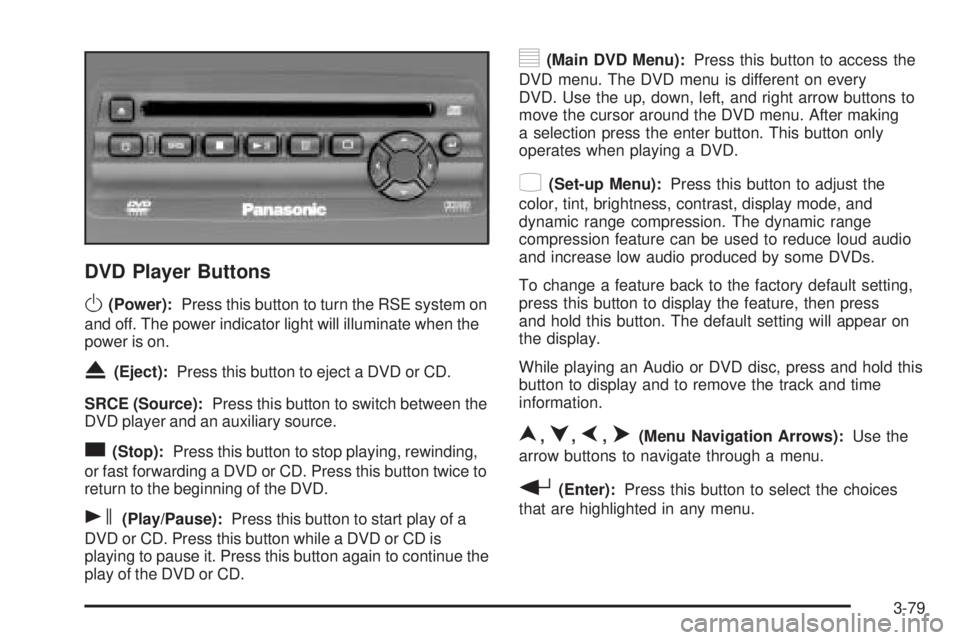
DVD Player Buttons
O(Power):Press this button to turn the RSE system on
and off. The power indicator light will illuminate when the
power is on.
X(Eject):Press this button to eject a DVD or CD.
SRCE (Source):Press this button to switch between the
DVD player and an auxiliary source.
c(Stop):Press this button to stop playing, rewinding,
or fast forwarding a DVD or CD. Press this button twice to
return to the beginning of the DVD.
s(Play/Pause):Press this button to start play of a
DVD or CD. Press this button while a DVD or CD is
playing to pause it. Press this button again to continue the
play of the DVD or CD.
y(Main DVD Menu):Press this button to access the
DVD menu. The DVD menu is different on every
DVD. Use the up, down, left, and right arrow buttons to
move the cursor around the DVD menu. After making
a selection press the enter button. This button only
operates when playing a DVD.
z(Set-up Menu):Press this button to adjust the
color, tint, brightness, contrast, display mode, and
dynamic range compression. The dynamic range
compression feature can be used to reduce loud audio
and increase low audio produced by some DVDs.
To change a feature back to the factory default setting,
press this button to display the feature, then press
and hold this button. The default setting will appear on
the display.
While playing an Audio or DVD disc, press and hold this
button to display and to remove the track and time
information.
n,q,p,o(Menu Navigation Arrows):Use the
arrow buttons to navigate through a menu.
r(Enter):Press this button to select the choices
that are highlighted in any menu.
3-79