manual radio set GMC SIERRA DENALI 2017 User Guide
[x] Cancel search | Manufacturer: GMC, Model Year: 2017, Model line: SIERRA DENALI, Model: GMC SIERRA DENALI 2017Pages: 511, PDF Size: 6.88 MB
Page 197 of 511
GMC Sierra/Sierra Denali Owner Manual (GMNA-Localizing-U.S./Canada/
Mexico-9955992) - 2017 - crc - 4/18/17
196 Infotainment System Return to Factory Settings
Select Return to Factory Settings
and the following may display:
Restore Vehicle Settings : This
option will restore factory vehicle
personalization settings. Select
Restore Vehicle Settings. A screen
displays stating all vehicle
customization settings will be
restored to the factory settings.
Select Cancel or Confirm.
Clear All Private Data (If
Equipped) : This option clears all
private information from the vehicle.
Select Clear All Private Data. Select
Cancel or Confirm.
Restore Radio Settings : This
option will restore factory radio
settings. Select Restore Radio
Settings. A screen displays stating
all personalized radio settings will
be restored back to the factory
settings. Select Cancel or Confirm. English and Metric Unit
Conversion To change the display units between
English and metric units, see Driver
Information Center (DIC) (Base
Level Cluster) 0 152 or Driver
Information Center (DIC) (Uplevel
and Denali Cluster) 0 154 or
Instrument Cluster 0 132 .
Home Page (Base Radio
with Touchscreen) Touchscreen Buttons Touchscreen buttons show on the
screen when available. When a
function is unavailable, the button
may gray out. When a function is
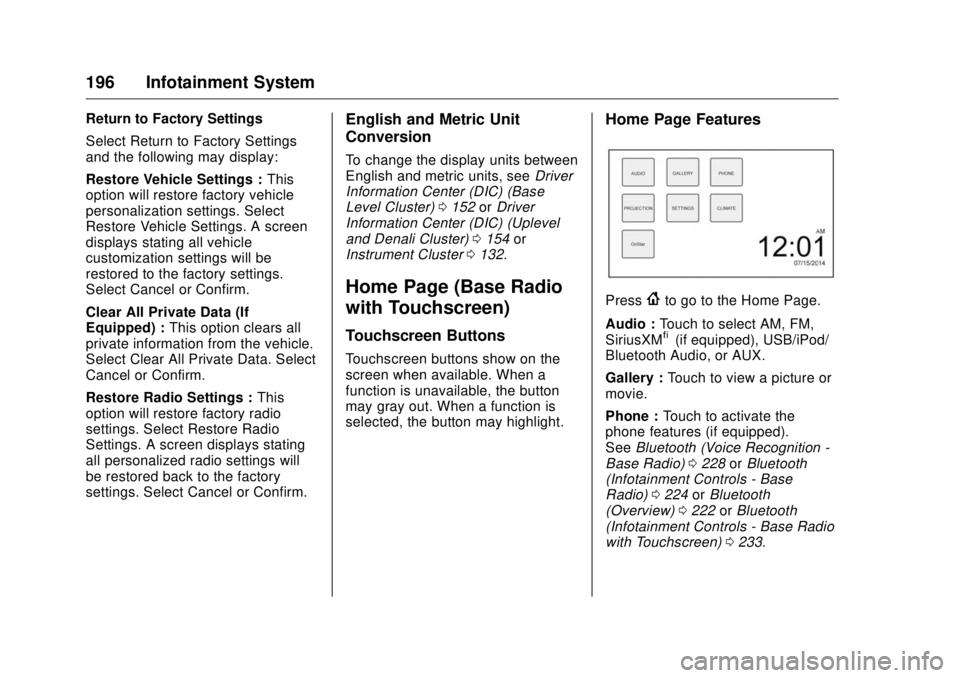
selected, the button may highlight. Home Page Features
Press
{ to go to the Home Page.
Audio : Touch to select AM, FM,
SiriusXM ®
(if equipped), USB/iPod/
Bluetooth Audio, or AUX.
Gallery : Touch to view a picture or
movie.
Phone : Touch to activate the
phone features (if equipped).
See Bluetooth (Voice Recognition -
Base Radio) 0 228 or Bluetooth
(Infotainment Controls - Base
Radio) 0 224 or Bluetooth
(Overview) 0 222 or Bluetooth
(Infotainment Controls - Base Radio
with Touchscreen) 0 233 .
Page 198 of 511
GMC Sierra/Sierra Denali Owner Manual (GMNA-Localizing-U.S./Canada/
Mexico-9955992) - 2017 - crc - 4/18/17
Infotainment System 197Projection : Touch to access
supported devices when connected.
See USB Port (Base Radio) 0 206
or USB Port (Base Radio with
Touchscreen) 0 208 .
Settings : Touch to access the
Personalization menu. See Vehicle
Personalization 0 167 .
Climate : Touch to access the
Climate menu. See Dual Automatic
Climate Control System 0 246 .
OnStar : If equipped, touch to
access the OnStar menu. See
OnStar Overview 0 488 .
Software Updates See the websites for more
information.
Website Information In the U.S., see www.gmc.com
In Canada, see www.gmc.gm.ca
In Mexico, www.gmc.com.mx Radio AM-FM Radio (Base
Radio) Playing the Radio While on the audio main page,
press the RADIO button repeatedly
to cycle through the available
sources AM, FM, and SiriusXM ®
(if
equipped) or press the MEDIA
button repeatedly to cycle through
the available sources Bluetooth ®
Audio (if equipped), USB, and AUX.
The steering wheel controls can
also be used to adjust the volume.
See Steering Wheel Controls 0 125 .
AM, FM, or SiriusXM (If Equipped)
To select AM, FM, or SiriusXM (if
equipped), press the RADIO button
to toggle to the desired broadcast
source. Press the MENU knob and the
following radio settings may display:
Tone Settings:
.
Bass, Midrange, and Treble:
Turn the MENU knob and
highlight. Press the MENU knob
to select. Turn the MENU knob
to adjust.
.
Balance: Turn the MENU knob
to highlight. Press the MENU
knob to select. Turn the MENU
knob left for more sound from
the left speakers or right for
more sound from the right
speakers. The middle position
balances the sound between the
left and right speakers.
.
Fade: Turn the MENU knob to
highlight. Press the MENU knob
to select. Turn the MENU knob
to the left for more sound from
the front speakers and to the
right for more sound from the
rear speakers. The middle
position balances the sound
between the front and rear
speakers.
Page 199 of 511
GMC Sierra/Sierra Denali Owner Manual (GMNA-Localizing-U.S./Canada/
Mexico-9955992) - 2017 - crc - 4/18/17
198 Infotainment System .
DSP : If equipped with a Bose
Surround ®
sound system, it will
have three DSP modes
including:
‐ Normal: Adjusts the audio to
provide the best sound for all
seating positions.
‐ Driver: Adjusts the audio to
provide the best sound for the
driver.
‐ Centerpoint: Creates a
surround sound from nearly
any audio source.
.
EQ (Equalizer) : If equipped with
a Bose sound system, turn the
MENU knob to highlight. Turn
the MENU knob to scroll through
the options. Press the MENU
knob to select. Press the
oBACK button to go to the
previous menu.
Station List : Select to display a list
of AM or FM stations. Press
oBACK to go to the previous menu.
Auto Volume : If equipped, this
feature adjusts the volume based on
the vehicle speed. Select the level between Off, Low, Medium-Low,
Medium, Medium-High, and High.
Press
o BACK to go to the
previous menu.
EQ (Equalizer) Settings : In certain
configurations, the available choices
are Manual and Talk.
Options for SiriusXM Only (If
Equipped)
SXM View : SXM view allows the
channel list to be viewed by channel
name, artist playing on channel,
or song playing on channel. Turn
the MENU knob to highlight and
press the MENU knob to select.
Press
o BACK to go to the
previous menu.
Channel List : Select to display a
list of SiriusXM channels. Turn the
MENU knob to highlight and press
the MENU knob to select. Press
oBACK to go to the previous menu.
Also see the radio settings common
for all sources earlier in this section. Finding a Station Seeking a Station
Press
g or
l to search for the
previous or next strongest station.
Tuning a Station
Turn the MENU knob to manually
find a station.
Storing Radio Station Presets Up to 25 preset stations from all
bands can be stored in the favorite
lists in any order. Up to five stations
can be stored in each favorite page
and the number of favorites can
be set.
AM, FM, or SiriusXM (If
Equipped) : While on the active
source main page, such as AM, FM,
or SiriusXM (if equipped), press and
hold a favorites/soft key button on
the faceplate.
Mixed-Audio Favorites
Media (if equipped) and Broadcast
favorites can be stored.
To display the favorites page, press
q or
r on the radio faceplate.
Page 200 of 511
GMC Sierra/Sierra Denali Owner Manual (GMNA-Localizing-U.S./Canada/
Mexico-9955992) - 2017 - crc - 4/18/17
Infotainment System 199To manage favorites, see “ Manage
Favorites ” under Home Page (Base
Radio) 0 194 or Home Page (Base
Radio with Touchscreen) 0 196 .
AM-FM Radio (Base
Radio with Touchscreen) Playing the Radio Audio Source Menu
{ : Press to go to the Home Page.
O : Press to turn on, mute,
or unmute the system. Press and
hold to turn off the system.
Selecting a Band Press
{ , then touch AUDIO,
Source, then select AM, FM,
or SXM, if equipped. The last station
that was playing starts playing
again.
System Settings
Auto Volume
This feature automatically adjusts
the radio volume to compensate for
road and wind noise. The level of volume compensation
can be selected, or the feature can
be turned off.
1. Touch MENU from a source
screen.
2. Select Auto Volume.
3. Select the desired setting.
4. Touch
3 to go back to the
source screen.
Tone Settings
The tone settings can be set for
each radio band and each audio
player source.
Preset Tone Settings
.
Touch MENU.
.
Touch Tone Settings.
.
Select a preset tone setting.
.
Bass, Midrange, or Treble:
Touch − or +.
.
Fader or Balance: Adjust the
front/rear or left/right speakers
by dragging the dot in the
vehicle image on the screen. Custom Tone Settings
.
Touch MENU.
.
Touch Tone Settings.
.
Touch Custom.
.
Bass, Midrange, or Treble:
Touch − or +.
.
Fader or Balance: Adjust the
front/rear or left/right speakers
by dragging the dot in the
vehicle image on the screen.
Touch
3 to go back to the source
screen.
Selecting an Auxiliary Device Connect the auxiliary device to the
AUX input terminal. Play will begin
when the system has finished
reading the information on the
device.
If the AUX device is already
connected, press
{ , AUDIO,
Source, then select the device.
Page 201 of 511
GMC Sierra/Sierra Denali Owner Manual (GMNA-Localizing-U.S./Canada/
Mexico-9955992) - 2017 - crc - 4/18/17
200 Infotainment System Selecting a Station Seek Tuning
If the radio station is not known:
Press
7 or
6 to automatically
search for available radio stations.
Manual Tuning
Continue touching
t or
u to
manually change the radio station.
Direct Tune
From the AM or FM menu:
.
Touch Tune.
.
Enter the station number.
.
Touch Go or
t or
u to go to
the previous or next station.
Favorite
.
Touch
S or
T to scroll through
the favorites.
.
Touch on the station to select it.
Station List
.
From the AM or FM menu,
touch MENU.
.
Select Station List. .
Touch
Q or
R to scroll through
the list. Touch the station to
select it.
Update Station List
.
From the AM or FM menu, touch
MENU, then touch Update
Station List. The broadcasting
list updating will begin.
.
During the AM or FM
broadcasting list update, touch
Cancel to stop the updates.
Storing a Station as a Favorite Stations from all bands can be
stored in any order in the favorite
pages.
Up to 25 stations can be stored.
Storing Stations
To store the station to a position in
the list, touch the corresponding
button 1 − 5 until a beep is heard.
1. Select the desired station.
2. Touch
S or
T to select the
desired page of saved
favorites. 3. Touch and hold down any of
the preset buttons to save the
current radio station to that
button of the selected
favorites page.
To change a preset button, tune to
the new desired radio station and
touch and hold the preset button.
Satellite Radio (Base
Radio) SiriusXM ®
Satellite Radio
Service (If Equipped) Vehicles with a SiriusXM satellite
radio tuner and a valid SiriusXM
satellite radio subscription can
receive SiriusXM programming.
SiriusXM is a satellite radio service
based in the 48 contiguous United
States and 10 Canadian provinces.
SiriusXM satellite radio has a wide
variety of programming and
commercial-free music, coast to
coast, and in digital-quality sound.
A service fee is required to receive
the SiriusXM service. See
www.siriusxm.com or call
Page 202 of 511
GMC Sierra/Sierra Denali Owner Manual (GMNA-Localizing-U.S./Canada/
Mexico-9955992) - 2017 - crc - 4/18/17
Infotainment System 2011-888-601-6296 (U.S.); or see
www.siriusxm.ca or call
1-877-438-9677 (Canada).
When SiriusXM is active, the
channel name and number,
category name, song title, and artist
display on the screen.
Browsing SiriusXM Channels
(If Equipped) To browse the SiriusXM channels:
1. Press the MENU knob.
2. Turn the MENU knob to
highlight SXM Channel List.
3. Turn the MENU knob to
highlight the desired SXM
Channels.
Satellite Radio (Base
Radio with Touchscreen) Vehicles with an SXM Satellite
Radio tuner and a valid SiriusXM ®
Satellite Radio subscription can
receive SiriusXM programming. SiriusXM Satellite Radio
Service (If Equipped) SiriusXM is a satellite radio service
based in the 48 contiguous United
States and 10 Canadian provinces.
SiriusXM Satellite Radio has a wide
variety of programming and
commercial-free music, coast to
coast, and in digital-quality sound.
A service fee is required to receive
the SiriusXM service. For more
information, contact SiriusXM at
www.siriusxm.com or
1-866-635-2349 (U.S.), and
www.xmradio.ca or 1-877-209-0079
(Canada).
Listening to SiriusXM Radio (If
Equipped) 1. Press
{ .
2. Touch AUDIO.
3. Touch Source.
4. Touch SXM and the most
recent listened to SiriusXM
channel will display.
Touch
0 to return to the
HOME menu. Selecting a Category From Menu, touch Categories, then
touch the desired category or from
Categories, touch
Q or
R to find the
desired channel. Touch the channel
to select it.
Selecting a Channel Touch
u or
t and the previous or
next channel will be selected.
Touch and hold
u or
t to jump
four channels backward or forward,
then release the button at the
desired channel.
Using the Preset Buttons Up to seven favorites pages can be
saved, and each page can store up
to five channels.
To change a preset button, tune to
the new desired channel and hold
the button.
Listening to Preset Channels
1. Continue touching
S or
T to
select the desired
favorites page.
Page 203 of 511
GMC Sierra/Sierra Denali Owner Manual (GMNA-Localizing-U.S./Canada/
Mexico-9955992) - 2017 - crc - 4/18/17
202 Infotainment System 2. Touch the preset button to
listen to the channel saved to
that button.
Using the SiriusXM Menu Operation
1. Touch MENU on the SXM radio
screen.
2. Touch the menu to select the
desired item or to display the
detail menu item.
3. Touch
0 to return to the
previous menu.
Channel List
1. Touch Channel List from the
SXM menu. The channel list is
displayed.
2. Touch
Q or
R to find the
desired channel. Tune to the
channel by selecting it.
Tone Settings
From the tone settings menu, the
sound features can be set up for
SiriusXM audio and each audio
player ’ s functions. 1. Touch Tone Settings. The tone
settings screen is displayed.
See “ Tone Settings ” in AM-FM
Radio (Base Radio with
Touchscreen) 0 199 or AM-FM
Radio (Base Radio) 0 197 .
2. Touch OK.
Auto Volume
1. Touch Auto Volume. See “ Auto
Volume ” in AM-FM Radio
(Base Radio with Touchscreen)
0 199 or AM-FM Radio (Base
Radio) 0 197 .
2. Touch OK.
Categories
1. Touch Categories.
2. Touch
Q or
R to find the
desired category. Touch the
category to select it.
Explicit Content Filter
When on, only a filtered list of
channels will be received. When off,
all regular SXM programming
subscribed to will be received.
1. Touch SXM Explicit Filter. 2. Select On or Off.
Radio Reception Frequency interference and static
can occur during normal radio
reception if items such as phone
chargers, vehicle convenience
accessories, and external electronic
devices are plugged into the
accessory power outlet. If there is
interference or static, unplug the
item from the accessory power
outlet.
FM FM signals only reach about 16 to
65 km (10 to 40 mi). Although the
radio has a built-in electronic circuit
that automatically works to reduce
interference, some static can occur,
especially around tall buildings or
hills, causing the sound to fade in
and out.
AM
The range for most AM stations is
greater than for FM, especially at
night. The longer range can cause
station frequencies to interfere with
each other. Static can also occur
Page 206 of 511
GMC Sierra/Sierra Denali Owner Manual (GMNA-Localizing-U.S./Canada/
Mexico-9955992) - 2017 - crc - 4/18/17
Infotainment System 205Tone Settings : Select to adjust
Bass, Midrange, Treble, Balance,
Fade, and EQ (Equalizer). See
“ Tone Settings ” under AM-FM Radio
(Base Radio with Touchscreen)
0 199 or AM-FM Radio (Base
Radio) 0 197 .
Auto Volume : If equipped, this
feature adjusts the volume based on
the vehicle speed. Select the level
between Off, Low, Medium-Low,
Medium, Medium-High, and High.
Press BACK to go to the
previous menu.
DSP : If equipped, this feature
adjusts the pre-defined settings.
See “ DSP ” in AM-FM Radio (Base
Radio with Touchscreen) 0 199 or
AM-FM Radio (Base Radio) 0 197 .
EQ (Equalizer) : If equipped, this
feature adjusts the equalizer
settings. See “ EQ (Equalizer) ” in
AM-FM Radio (Base Radio with
Touchscreen) 0 199 or AM-FM
Radio (Base Radio) 0 197 . Error Messages If Disc Error displays and/or the disc
comes out, it could be for one of the
following reasons:
.
The disc has an invalid or
unknown format.
.
The disc is very hot. Try the disc
again when the temperature
returns to normal.
.
The road is very rough. Try the
disc again when the road is
smoother.
.
The disc is dirty, scratched, wet,
or upside down.
.
The air is very humid. Try the
disc again later.
.
There was a problem while
burning the disc.
.
The label is caught in the CD
player.
If Disc Player Error displays, it could
be for one of the following reasons:
.
The player temperature is
too high.
.
There are load or eject errors. If the CD is not playing correctly for
any other reason, try a known
good CD.
If any error continues, contact your
dealer.
Playing an MP3 CD To play an MP3 CD, follow the same
instructions as “ Playing an
Audio CD. ”
The following guidelines must be
met when creating an MP3 disc,
otherwise the CD might not play:
.
Sampling rate: 16 kHz,
22.05 kHz, 24 kHz, 32 kHz,
44.1 kHz, and 48 kHz.
.
Bit rates supported: 8, 16, 24,
32, 40, 48, 56, 64, 80, 96, 112,
128, 144, 160, 192, 224, 256,
and 320 kbps.
.
Maximum number of folders:
eight folders with 255 files per
folder.
.
Maximum of 1,000 files on
a disc.
.
Recorded on a CD-R or CD-RW.
Page 207 of 511
GMC Sierra/Sierra Denali Owner Manual (GMNA-Localizing-U.S./Canada/
Mexico-9955992) - 2017 - crc - 4/18/17
206 Infotainment System Root Directory
The root directory is treated as a
folder. All files contained directly
under the root directory are
accessed prior to any root directory
folders.
Empty Folders
If a root directory or folder is empty
or contains only folders, the player
advances to the next folder in the
file structure that contains a
compressed audio file. The empty
folder(s) are not displayed or
numbered.
No Folder
When the CD only contains
compressed audio files without any
folders, all files are under the root
folder.
USB Port (Base Radio) Playing from a USB
A USB mass storage device or
Media Transfer Protocol (MTP)
device can be connected to the
USB port. The vehicle may have USB ports in
the front of the center console,
armrest, or one in the upper glove
box.
See Center Console Storage 0 120
and Glove Box 0 119 .
USB MP3 Player and USB Drives
.
The USB MP3 players and USB
drives connected must comply
with the USB Mass Storage
Class specification (USB MSC).
.
Hard disk drives are not
supported.
.
Supported file system is FAT32.
To play a USB device:
.
Connect the USB.
.
Press MEDIA on the faceplate
until the connected device is
shown.
While the USB source is active,
press the corresponding faceplate
button for the icons on the screen to
operate USB function:
.
t .
u .
j /
r .
Z For information on how to use the
screen icons, see “ Playing an
Audio CD. ”
USB Menu
Press MENU to display the USB
menu and the following may display:
Browse : Select to display the files
and folders on the USB device.
Tone Settings : Select to adjust
Bass, Midrange, Treble, Balance,
Fade, and EQ (Equalizer). See
“ Tone Settings ” in AM-FM Radio
(Base Radio with Touchscreen)
0 199 or AM-FM Radio (Base
Radio) 0 197 .
Auto Volume : If equipped, see
“ Auto Volume ” in AM-FM Radio
(Base Radio with Touchscreen)
0 199 or AM-FM Radio (Base
Radio) 0 197 .
EQ (Equalizer) : If equipped, this
feature adjusts the equalizer
settings. See “ EQ (Equalizer)
Page 208 of 511
GMC Sierra/Sierra Denali Owner Manual (GMNA-Localizing-U.S./Canada/
Mexico-9955992) - 2017 - crc - 4/18/17
Infotainment System 207Settings ” in AM-FM Radio (Base
Radio with Touchscreen) 0 199 or
AM-FM Radio (Base Radio) 0 197 .
Playing from an iPod ®
/iPad ®
/
iPhone ®
This feature supports the following
devices:
.
iPod nano ®
(1st, 2nd, 3rd, and
4th generation)
.
iPod with video (5.0 and 5.5
generation)
.
iPod classic ®
(6th generation)
.
iPod touch ®
(1st and 2nd
generation)
.
iPad
.
iPhone 3G, iPhone 3GS,
iPhone 4
There may be problems with
operation and function in the
following situations:
.
When connecting a device with
a more recent version of the
firmware installed than is
supported by the infotainment
system. .
When connecting a device on
which firmware from other
providers is installed.
To connect and control a device:
1. Connect one end of the
standard USB cable to the
device's dock connector.
2. Connect the other end to a
USB port in the center console.
See Center Console Storage
0 120 .
3. Press MEDIA to select the
source.
The music information displays on
the radio ’ s display and begins
playing through the vehicle ’ s audio
system.
The device battery recharges
automatically while the vehicle is on.
When the vehicle is off while a
device is connected using the USB
cable, the device battery stops
charging and the device will
automatically turn off. If the device is an unsupported
model, it can still be listened to in
the vehicle by connecting to the
auxiliary input jack using a standard
3.5 mm (1/8 in) stereo cable.
Menu
Press MENU to display the device
Menu and the following may display:
Browse : Select to display the files
or songs on the device. See
“ Browse Device Media ” later in this
section.
Tone Settings : Select to adjust
Bass, Midrange, Treble, Balance,
Fade, and EQ (Equalizer). See
“ Tone Settings ” in AM-FM Radio
(Base Radio with Touchscreen)
0 199 or AM-FM Radio (Base
Radio) 0 197 .
Auto Volume : If equipped, see
“ Auto Volume ” in AM-FM Radio
(Base Radio with Touchscreen)
0 199 or AM-FM Radio (Base
Radio) 0 197 .