change time GMC SIERRA DENALI 2017 Owner's Manual
[x] Cancel search | Manufacturer: GMC, Model Year: 2017, Model line: SIERRA DENALI, Model: GMC SIERRA DENALI 2017Pages: 511, PDF Size: 6.88 MB
Page 230 of 511
GMC Sierra/Sierra Denali Owner Manual (GMNA-Localizing-U.S./Canada/
Mexico-9955992) - 2017 - crc - 4/18/17
Infotainment System 229Listing All Paired and Connected
Phones
The system can list all cell phones
paired to it. If a paired cell phone is
also connected to the vehicle, the
system responds with “ is connected ”
after that phone name.
1. Press
g . The system responds
“ Ready, ” followed by a tone.
2. Say “ Bluetooth. ”
3. Say “ List. ”
Deleting a Paired Phone
If the phone name to delete is
unknown, see “ Listing All Paired
and Connected Phones. ”
1. Press
g . The system responds
“ Ready, ” followed by a tone.
2. Say “ Bluetooth. ”
3. Say “ Delete. ” The system asks
for which phone to delete.
4. Say the name of the phone to
delete. Connecting to a Different Phone
To connect to a different cell phone,
the Bluetooth system looks for the
next available cell phone in the
order in which all available cell
phones were paired. This may need
to be repeated depending on how
many cell phones have been
connected.
1. Press
g . The system responds
“ Ready, ” followed by a tone.
2. Say “ Bluetooth. ”
3. Say “ Change phone. ”
.
If another cell phone is
found, the response will be
“
connected. ”
This can be repeated to
connect any of the up to
five paired phones.
.
If another cell phone is not
found, the original phone
remains connected. Storing and Deleting Phone
Numbers The following commands are used
to delete and store phone numbers.
Store : This command will store a
phone number, or a group of
numbers as a name tag.
Digit Store : This command allows
a phone number to be stored as a
name tag by entering the digits one
at a time.
Delete : This command is used to
delete individual name tags.
Delete All Name Tags : This
command deletes all stored name
tags in the Hands-Free Calling
Directory and the Destinations
Directory.
Using the “ Store ” Command
1. Press
g . The system responds
“ Ready, ” followed by a tone.
2. Say “ Store. ”
3. Say the entire phone number
or a group of digits all at once
with no pauses, then follow the
Page 231 of 511
GMC Sierra/Sierra Denali Owner Manual (GMNA-Localizing-U.S./Canada/
Mexico-9955992) - 2017 - crc - 4/18/17
230 Infotainment System directions given by the system
to save a name tag for this
number.
Using the “ Digit Store ” Command
If an unwanted number is
recognized by the system, say
“ Correction ” at any time to clear the
last number.
To hear all of the digits recognized
by the system, say “ Verify ” at
any time.
1. Press
g . The system responds
“ Ready, ” followed by a tone.
2. Say “ Digit Store. ”
3. Say each digit, one at a time.
After each digit is entered, the
system repeats back the digit it
heard followed by a tone. After
the last digit has been entered,
say “ Store, ” and then follow the
directions given by the system
to save a name tag for this
number.
Using the “ Delete ” Command
1. Press
g . The system responds
“ Ready, ” followed by a tone. 2. Say “ Delete. ”
3. Say the name tag you want to
delete.
Using the “ Delete All Name Tags ”
Command
This command deletes all stored
name tags in the Hands-Free
Calling Directory and the
Destinations Directory.
To delete all name tags:
1. Press
g . The system responds
“ Ready, ” followed by a tone.
2. Say “ Delete all name tags. ”
Listing Stored Numbers The list command will list all the
stored numbers and name tags.
Using the “ List ” Command
1. Press
g . The system responds
“ Ready, ” followed by a tone.
2. Say “ Directory. ”
3. Say “ Hands-Free Calling. ”
4. Say “ List. ” Making a Call Calls can be made using the
following commands.
Dial or Call : The dial or call
command can be used
interchangeably to dial a phone
number or a stored name tag.
Digit Dial : This command allows a
phone number to be dialed by
entering the digits one at a time.
Re-dial : This command is used to
dial the last number used on the cell
phone.
Using the “ Dial ” or “ Call ”
Command
1. Press
g . The system responds
“ Ready, ” followed by a tone.
2. Say “ Dial ” or “ Call. ”
3. Say the entire number without
pausing or say the name tag.
Once connected, the person called
will be heard through the audio
speakers.
Page 234 of 511
GMC Sierra/Sierra Denali Owner Manual (GMNA-Localizing-U.S./Canada/
Mexico-9955992) - 2017 - crc - 4/18/17
Infotainment System 233information. For information on how
to delete this information, see
“ Deleting a Paired Phone. ”
Bluetooth (Infotainment
Controls - Base Radio
with Touchscreen) To use infotainment controls to
access the menu system, see
Overview (Base Radio with
Touchscreen) 0 193 or Overview
(Base Radio) 0 189 .
Pairing A Bluetooth-enabled cell phone
must be paired to the Bluetooth
system and then connected to the
vehicle before it can be used. See
your cell phone manufacturer's user
guide for Bluetooth functions before
pairing the cell phone. If a Bluetooth
phone is not connected, calls will be
made using OnStar Hands-Free
Calling, if available. See OnStar
Overview 0 488 . Pairing Information
.
A Bluetooth phone with MP3
capability cannot be paired to
the vehicle as a phone and an
MP3 player at the same time.
.
Up to 10 cell phones can be
paired to the Bluetooth system.
.
The pairing process is disabled
when the vehicle is moving.
.
Pairing only needs to be
completed once, unless the
pairing information on the cell
phone changes or the cell phone
is deleted from the system.
.
Only one paired cell phone can
be connected to the Bluetooth
system at a time.
.
If multiple paired cell phones are
within range of the system, the
system connects to the first
available paired cell phone in the
order that they were first paired
to the system.
When the Bluetooth device and
infotainment system are
successfully paired, the phone book
is downloaded automatically. This is
dependent on the type of the phone paired. If the automatic download
does not occur, proceed with the
phone book download on the
phone.
Pairing a Phone - SSP and No
Paired Device
When there is no paired device on
the infotainment system and Simple
Secure Pairing (SSP) is supported:
1. Press
{ .
2. Touch PHONE, press
# on the
faceplate, or press
g on the
steering wheel without OnStar.
3. Touch Search Device.
4. Touch the desired device to
pair on the searched list
screen.
5. Touch Yes on the pop-up
screen of the Bluetooth device
and infotainment system.
6. When the Bluetooth device and
infotainment system are
successfully paired, the phone
screen is displayed on the
infotainment system.
Page 237 of 511
GMC Sierra/Sierra Denali Owner Manual (GMNA-Localizing-U.S./Canada/
Mexico-9955992) - 2017 - crc - 4/18/17
236 Infotainment System .
e will appear on the screen if
the stereo headset is
successfully connected.
.
The sound played by the
Bluetooth device is delivered
through the infotainment system.
.
Bluetooth music can be played
only when a Bluetooth device
has been connected. To play
Bluetooth music, connect the
Bluetooth phone to the
infotainment system.
.
If the Bluetooth device is
disconnected while playing
phone music, the music is
discontinued. The audio
streaming function may not be
supported in some Bluetooth
phones. Only one function can
be used at a time between the
Bluetooth hands-free or Phone
music function. For example,
if you convert to Bluetooth
hands-free while playing Phone
music, the music is
discontinued. Playing music from
the car is not possible when
there are no music files stored in
the cell phone. Playing Bluetooth Music
1. Press
{ .
2. Touch AUDIO.
3. Touch Source.
4. Touch Bluetooth.
Pause
Touch
j to pause.
Touch
r to resume.
Playing the Next Song
Touch
l .
Playing the Previous Song
Touch
g within two seconds of
playback time to play the
previous song.
Returning to the Beginning of the
Current Song
Touch
g after two seconds of
playback time.
Search
Touch and hold
g or
l to rewind
or fast forward. Playing Music Randomly
Touch
Z during playback. Touch
again to return to normal play.
This function may not be supported
depending on the bluetooth device.
Do not change the track too quickly
when playing Bluetooth music.
Conditions that may occur when
playing Bluetooth music:
.
It takes time to transmit data
from the bluetooth device to the
infotainment system.
.
If the cell phone or Bluetooth
device is not in the waiting
screen mode, it may not
automatically play.
.
The infotainment system
transmits the order to play from
the bluetooth device in the
Bluetooth music play mode.
If this is done in a different
mode, then the device transmits
the order to stop. Depending on
the bluetooth device options, this
order to play/stop may take time
to activate.
Page 238 of 511
GMC Sierra/Sierra Denali Owner Manual (GMNA-Localizing-U.S./Canada/
Mexico-9955992) - 2017 - crc - 4/18/17
Infotainment System 237.
If the Bluetooth music playback
is not functioning, then check to
see if the bluetooth device is in
the waiting screen mode.
.
Sounds may be cut off during
the Bluetooth music playback.
.
The infotainment system outputs
the audio from the cell phone or
Bluetooth device as it is
transmitted.
Apple CarPlay and
Android Auto If equipped, Android Auto ™ and/or
Apple CarPlay ™ capability may be
available through a compatible
smartphone. If available, a
PROJECTION icon will appear on
the Home Page of the infotainment
display.
To use Android Auto and/or Apple
CarPlay:
1. Download the Android Auto
app to your phone from the
Google ™ Play store. There is
no app required for Apple
CarPlay. 2. Connect your Android phone or
Apple iPhone by using the
compatible phone USB cable
and plugging into a USB data
port. For best performance, use
the device ’ s factory-provided
USB cable. Aftermarket or
third-party cables may
not work.
The PROJECTION icon on the
Home Page will change to
ANDROID AUTO or APPLE
CARPLAY depending on the phone.
Android Auto and/or Apple CarPlay
may automatically launch upon USB
connection. If not, press the
ANDROID AUTO and/or APPLE
CARPLAY icon on the Home Page
to launch.
For further information on how to set
up Android Auto and Apple CarPlay
in the vehicle, see my. gmc.com or
see Customer Assistance Offices
0 476 .
Android Auto is provided by Google
and is subject to Google ’ s terms
and privacy policy. CarPlay is
provided by Apple and is subject to
Apple ’ s terms and privacy policy. For Android Auto support see
https://support.google.com/
androidauto or Apple CarPlay
support at https://www.apple.com/
ios/carplay/ for more information.
Apple or Google may change or
suspend availability at any time.
Android Auto is a trademark of
Google Inc.; Apple CarPlay is a
trademark of Apple Inc.
Page 239 of 511
GMC Sierra/Sierra Denali Owner Manual (GMNA-Localizing-U.S./Canada/
Mexico-9955992) - 2017 - crc - 4/18/17
238 Infotainment System
Trademarks and
License Agreements FCC Information
See Radio Frequency Statement
0 484 .
"Made for iPod" and "Made for
iPhone" mean that an electronic
accessory has been designed to
connect specifically to iPod or
iPhone and has been certified by
the developer to meet Apple
performance standards. Apple is not
responsible for the operation of this
device or its compliance with safety
and regulatory standards. Please
note that the use of this accessory
with iPod or iPhone may affect
wireless performance. iPhone, iPod,
iPod classic, iPod nano, iPod shuffle, and iPod touch are
trademarks of Apple Inc., registered
in the U.S. and other countries.
Fees and Taxes: Subscription fee,
taxes, one time activation fee, and
other fees may apply. Subscription
fee is consumer only. All fees and
programming subject to change.
Subscriptions subject to Customer
Agreement available at
www.siriusxm.com. SiriusXM
service only available in the
48 contiguous United States and
Canada.
In Canada: Some deterioration of
service may occur in extreme
northern latitudes. This is beyond
the control of SiriusXM Satellite
Radio. Explicit Language Notice: Channels
with frequent explicit language are
indicated with an “ XL ” preceding the
channel name. Channel blocking is
available for SiriusXM Satellite
Radio receivers by notifying
SiriusXM:
.
USA Customers — See
www.siriusxm.com or call
1-866-635 – 2349.
.
Canadian Customers — See
www.xmradio.ca or call
1-877-209-0079.
It is prohibited to copy, decompile,
disassemble, reverse engineer,
hack, manipulate, or otherwise
make available any technology or
software incorporated in receivers
compatible with the SiriusXM
Satellite Radio System or that
support the SiriusXM website, the
Online Service or any of its content.
Furthermore, the AMBER voice
compression software included in
this product is protected by
intellectual property rights including
patent rights, copyrights, and trade
secrets of Digital Voice
Systems, Inc.
Page 241 of 511
GMC Sierra/Sierra Denali Owner Manual (GMNA-Localizing-U.S./Canada/
Mexico-9955992) - 2017 - crc - 4/18/17
240 Infotainment System all of the benefits and protections
set forth herein that are available to
Gracenote.
You agree that you will use
Gracenote Data, the Gracenote
Software, and Gracenote Servers
for your own personal
non-commercial use only. You agree
not to assign, copy, transfer or
transmit the Gracenote Software or
any Gracenote Data to any third
party. YOU AGREE NOT TO USE
OR EXPLOIT GRACENOTE DATA,
THE GRACENOTE SOFTWARE,
OR GRACENOTE SERVERS,
EXCEPT AS EXPRESSLY
PERMITTED HEREIN.
You agree that your non-exclusive
license to use the Gracenote Data,
the Gracenote Software, and
Gracenote Servers will terminate if
you violate these restrictions. If your
license terminates, you agree to
cease any and all use of the
Gracenote Data, the Gracenote
Software, and Gracenote Servers.
Gracenote reserves all rights in
Gracenote Data, the Gracenote
Software, and the Gracenote
Servers, including all ownership rights. Under no circumstances will
Gracenote become liable for any
payment to you for any information
that you provide. You agree that
Gracenote may enforce its rights
under this Agreement against you
directly in its own name.
The Gracenote service uses a
unique identifier to track queries for
statistical purposes. The purpose of
a randomly assigned numeric
identifier is to allow the Gracenote
service to count queries without
knowing anything about who you
are. For more information, see the
web page for the Gracenote Privacy
Policy for the Gracenote service.
The Gracenote Software and each
item of Gracenote Data are licensed
to you "AS IS." Gracenote makes no
representations or warranties,
express or implied, regarding the
accuracy of any Gracenote Data.
Gracenote reserves the right to
delete data from the Gracenote
Servers or to change data
categories for any cause that
Gracenote deems sufficient. No
warranty is made that the Gracenote
Software or Gracenote Servers are error-free or that functioning of
Gracenote Software or Gracenote
Servers will be uninterrupted.
Gracenote is not obligated to
provide you with new enhanced or
additional data types or categories
that Gracenote may provide in the
future and is free to discontinue its
services at any time.
GRACENOTE DISCLAIMS ALL
WARRANTIES EXPRESS OR
IMPLIED, INCLUDING, BUT NOT
LIMITED TO, IMPLIED
WARRANTIES OF
MERCHANTABILITY, FITNESS
FOR A PARTICULAR PURPOSE,
TITLE, AND NON-INFRINGEMENT.
GRACENOTE DOES NOT
WARRANT THE RESULTS THAT
WILL BE OBTAINED BY YOUR
USE OF THE GRACENOTE
SOFTWARE OR ANY
GRACENOTE SERVER. IN NO
CASE WILL GRACENOTE BE
LIABLE FOR ANY
CONSEQUENTIAL OR
INCIDENTAL DAMAGES OR FOR
ANY LOST PROFITS OR LOST
REVENUES.
Page 274 of 511
GMC Sierra/Sierra Denali Owner Manual (GMNA-Localizing-U.S./Canada/
Mexico-9955992) - 2017 - crc - 4/18/17
Driving and Operating 273
Starting and
Operating New Vehicle Break-In CautionThe vehicle does not need an
elaborate break-in. But it will
perform better in the long run if
you follow these guidelines:
.
Keep the vehicle speed at
88 km/h (55 mph) or less for
the first 805 km (500 mi).
.
Do not drive at any one
constant speed, fast or slow,
for the first 805 km (500 mi).
Do not make full-throttle
starts. Avoid downshifting to
brake or slow the vehicle.
.
Avoid making hard stops for
the first 322 km (200 mi) or
so. During this time the new
brake linings are not yet
broken in. Hard stops with
new linings can mean
(Continued) Caution (Continued) premature wear and earlier
replacement. Follow this
breaking-in guideline every
time you get new brake
linings.
.
Do not tow a trailer during
break-in. See Trailer Towing
0 323 for the trailer towing
capabilities of the vehicle
and more information.
Following break-in, engine speed
and load can be gradually
increased.
Adjustable Throttle and
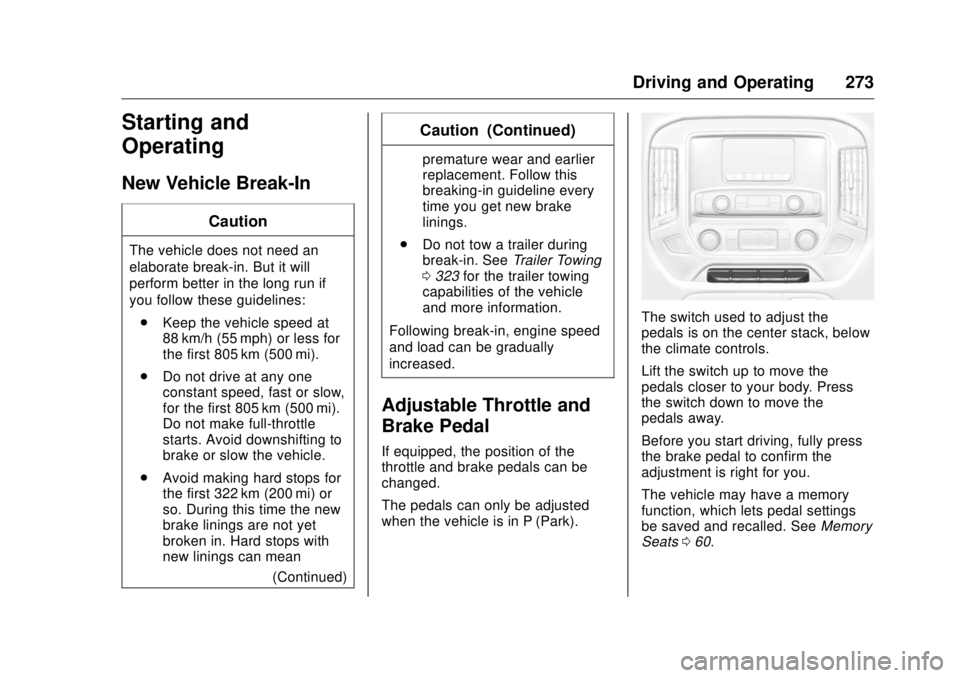
Brake Pedal If equipped, the position of the
throttle and brake pedals can be
changed.
The pedals can only be adjusted
when the vehicle is in P (Park). The switch used to adjust the
pedals is on the center stack, below
the climate controls.
Lift the switch up to move the
pedals closer to your body. Press
the switch down to move the
pedals away.
Before you start driving, fully press
the brake pedal to confirm the
adjustment is right for you.
The vehicle may have a memory
function, which lets pedal settings
be saved and recalled. See Memory
Seats 0 60 .
Page 276 of 511
GMC Sierra/Sierra Denali Owner Manual (GMNA-Localizing-U.S./Canada/
Mexico-9955992) - 2017 - crc - 4/18/17
Driving and Operating 275CautionUsing a tool to force the key to
turn in the ignition could cause
damage to the switch or break the
key. Use the correct key, make
sure it is all the way in, and turn it
only with your hand. If the key
cannot be turned by hand, see
your dealer.
1 (ACC/ACCESSORY) : This
position lets things like the radio
and the windshield wipers operate
while the engine is off. It also
unlocks the steering wheel. Use this
position if the vehicle must be
pushed or towed.
2 (ON/RUN) : This position can be
used to operate the electrical
accessories and to display some
instrument cluster warning and
indicator lights. This position can
also be used for service and
diagnostics, and to verify the proper
operation of the malfunction
indicator lamp as may be required
for emission inspection purposes.
The switch stays in this position when the engine is running. The
transmission is also unlocked in this
position on automatic transmission
vehicles.
If the key is left in the ACC/
ACCESSORY or ON/RUN position
with the engine off, the battery could
be drained. The vehicle may not
start if the battery is allowed to drain
for an extended period of time.
3 (START) : This is the position that
starts the engine. When the engine
starts, release the key. The ignition
switch returns to ON/RUN for
driving.
A warning tone will sound when the
driver door is opened and the
ignition is in ACC/ACCESSORY or
LOCK/OFF, and the key is in the
ignition.
Starting the Engine If the vehicle has a diesel engine,
see the Duramax diesel
supplement.
For an eAssist vehicle, see the
Silverado/Sierra eAssist
supplement. CautionIf you add electrical parts or
accessories, you could change
the way the engine operates. Any
resulting damage would not be
covered by the vehicle warranty.
See Add-On Electrical Equipment
0 350 .
CautionIf the steering wheel is turned
until it reaches the end of its
travel, and is held in that position
while starting the vehicle, damage
may occur to the power steering
system and there may be loss of
power steering assist.
Move the shift lever to P (Park) or
N (Neutral). To restart the engine
when the vehicle is already moving,
use N (Neutral) only.
Page 286 of 511
GMC Sierra/Sierra Denali Owner Manual (GMNA-Localizing-U.S./Canada/
Mexico-9955992) - 2017 - crc - 4/18/17
Driving and Operating 285The transmission uses adaptive
shift controls. The adaptive shift
control process continually
compares key shift parameters to
pre-programmed ideal shifts stored
in the transmission ’ s computer. The
transmission constantly makes
adjustments to improve vehicle
performance according to how the
vehicle is being used, such as with
a heavy load or when the
temperature changes. During this
adaptive shift control process,
shifting might feel different as the
transmission determines the best
settings.
When temperatures are very cold,
the transmission's gear shifting
could be delayed providing more
stable shifts until the engine warms
up. Shifts could be more noticeable
with a cold transmission. This
difference in shifting is normal.
L : This position allows selection of
a range of gears appropriate for
current driving conditions.
If equipped, see “ Range Selection
Mode ” under Manual Mode 0 286 . CautionSpinning the tires or holding the
vehicle in one place on a hill
using only the accelerator pedal
may damage the transmission.
The repair will not be covered by
the vehicle warranty. If the vehicle
is stuck, do not spin the tires.
When stopping on a hill, use the
brakes to hold the vehicle in
place.
Normal Mode Grade Braking If equipped with a gasoline engine
and an automatic transmission,
Normal Mode Grade Braking is
enabled when the vehicle is started,
but is not enabled in Range
Selection Mode. It assists in
maintaining desired vehicle speeds
when driving on downhill grades by
using the engine and transmission
to slow the vehicle. The first time
the system engages for each
ignition key cycle, a DIC message
will be displayed. See Transmission
Messages 0 164 . To disable or enable Normal Mode
Grade Braking within the current
ignition key cycle, press and hold
the Tow/Haul button for
five seconds. When the button is
released, the requested mode
change is made. A DIC message
displays. See Transmission
Messages 0 164 .
For other forms of grade braking,
see Tow/Haul Mode 0 288 and
Cruise Control 0 302 .
Kickdown Mode If equipped, the accelerator pedal
provides an additional downshift
after pressing through the kickdown
feature.
It requires extra pedal pressure near
the end of its travel to engage.