display GMC SIERRA DENALI 2020 User Guide
[x] Cancel search | Manufacturer: GMC, Model Year: 2020, Model line: SIERRA DENALI, Model: GMC SIERRA DENALI 2020Pages: 501, PDF Size: 7.61 MB
Page 59 of 501
GMC Sierra/Sierra Denali Owner Manual (GMNA-Localizing-U.S./Canada/
Mexico-13337776) - 2020 - CRC - 8/27/19
58 Seats and Restraints
Memory Seats
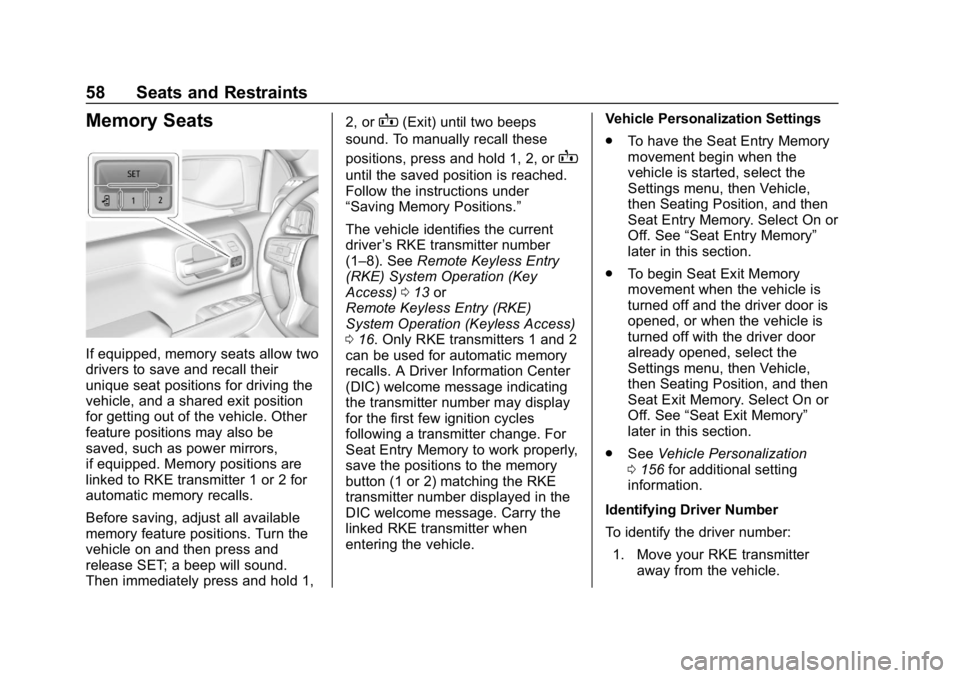
If equipped, memory seats allow two
drivers to save and recall their
unique seat positions for driving the
vehicle, and a shared exit position
for getting out of the vehicle. Other
feature positions may also be
saved, such as power mirrors,
if equipped. Memory positions are
linked to RKE transmitter 1 or 2 for
automatic memory recalls.
Before saving, adjust all available
memory feature positions. Turn the
vehicle on and then press and
release SET; a beep will sound.
Then immediately press and hold 1,2, or
B(Exit) until two beeps
sound. To manually recall these
positions, press and hold 1, 2, or
B
until the saved position is reached.
Follow the instructions under
“Saving Memory Positions.”
The vehicle identifies the current
driver ’s RKE transmitter number
(1–8). See Remote Keyless Entry
(RKE) System Operation (Key
Access) 013 or
Remote Keyless Entry (RKE)
System Operation (Keyless Access)
0 16. Only RKE transmitters 1 and 2
can be used for automatic memory
recalls. A Driver Information Center
(DIC) welcome message indicating
the transmitter number may display
for the first few ignition cycles
following a transmitter change. For
Seat Entry Memory to work properly,
save the positions to the memory
button (1 or 2) matching the RKE
transmitter number displayed in the
DIC welcome message. Carry the
linked RKE transmitter when
entering the vehicle. Vehicle Personalization Settings
.
To have the Seat Entry Memory
movement begin when the
vehicle is started, select the
Settings menu, then Vehicle,
then Seating Position, and then
Seat Entry Memory. Select On or
Off. See “Seat Entry Memory”
later in this section.
. To begin Seat Exit Memory
movement when the vehicle is
turned off and the driver door is
opened, or when the vehicle is
turned off with the driver door
already opened, select the
Settings menu, then Vehicle,
then Seating Position, and then
Seat Exit Memory. Select On or
Off. See “Seat Exit Memory”
later in this section.
. See Vehicle Personalization
0 156 for additional setting
information.
Identifying Driver Number
To identify the driver number: 1. Move your RKE transmitter away from the vehicle.
Page 60 of 501
GMC Sierra/Sierra Denali Owner Manual (GMNA-Localizing-U.S./Canada/
Mexico-13337776) - 2020 - CRC - 8/27/19
Seats and Restraints 59
2. Start the vehicle with anotherkey or RKE transmitter. The
DIC should display the driver
number for the other RKE
transmitter. Turn the vehicle off
and remove the key or RKE
transmitter from the vehicle.
3. Start the vehicle with the initial key or RKE transmitter. The
DIC should display the driver
number of your RKE
transmitter.
Saving Memory Positions
Read these instructions completely
before saving memory positions.
To save preferred driving positions
1 and 2: 1. Turn the vehicle on or to ACC/ ACCESSORY.
A DIC welcome message may
indicate driver number 1 or 2.
2. Adjust all available memory features to the desired driving
position.
3. Press and release SET; a beep will sound. 4. Immediately press and hold the
1 or 2 memory button matching
the above DIC welcome
message until two beeps
sound.
If too much time passes
between releasing SET and
pressing 1, the memory
position will not be saved and
two beeps will not sound.
Repeat Steps 3 and 4.
1 or 2 corresponds to the driver
number. See “Identifying Driver
Number” previously in this
section.
5. Repeat Steps 1–4 for a second driver using 1 or 2. RKE
transmitters 3–8 will not save
memory positions.
To save the position for
Band
Seat Exit Memory features, repeat
Steps 1–4 using
B. This saves the
position for getting out of the
vehicle.
Save preferred memory feature
positions to both 1 and 2 if you are
the only driver. Manually Recalling Memory
Positions
Press and hold 1, 2, or
Bto recall
the previously saved memory
positions if you are driver 1 or 2
identified in the DIC welcome
message.
To stop Manual Memory recall
movement, release 1, 2, or
Bor
press any of the following controls:
. Power seat
. Memory SET
. Power mirror, with the driver or
passenger side mirror selected
Seat Entry Memory
The vehicle identifies the number of
the current driver ’s RKE transmitter
(1–8). See Remote Keyless Entry
(RKE) System Operation (Key
Access) 013 or
Remote Keyless Entry (RKE)
System Operation (Keyless Access)
0 16. If the RKE transmitter is 1 or
2, and Seat Entry Memory is
enabled in vehicle personalization,
the positions saved to the same
Page 63 of 501
GMC Sierra/Sierra Denali Owner Manual (GMNA-Localizing-U.S./Canada/
Mexico-13337776) - 2020 - CRC - 8/27/19
62 Seats and Restraints
The heated and ventilated seats
and heated steering wheel may
cancel when the vehicle is started.
These features can be manually
selected after the ignition is
turned on.
The temperature performance of an
unoccupied seat may be reduced.
This is normal.
The heated or ventilated seats will
not turn on during a remote start
unless they are enabled in vehicle
personalization. SeeRemote
Vehicle Start 025 and
Vehicle Personalization 0156.Rear Seats
Rear Seat Reminder
If equipped, the message REAR
SEAT REMINDER LOOK IN REAR
SEAT displays under certain
conditions indicating there may be
an item or passenger in the rear
seat. Check before exiting the
vehicle.
This feature will activate when a
second row door is opened while
the vehicle is on or up to 10 minutes
before the vehicle is turned on.
There will be an alert when the
vehicle is turned off. The alert does
not directly detect objects in the rear
seat; instead, under certain
conditions, it detects when a rear
door is opened and closed,
indicating that there may be
something in the rear seat.
The feature is active only once each
time the vehicle is turned on and off,
and will require reactivation by
opening and closing the second row
doors. There may be an alert even
when there is nothing in the rear
seat; for example, if a child entered the vehicle through the rear door
and left the vehicle without the
vehicle being shut off.
The feature can be turned on or off.
See
Vehicle Personalization 0156.
Folding the Rear Seat Cushion
Either side of the rear seat cushion
can be folded up for added cargo
space.
Caution
Folding a rear seat with the seat
belts still fastened may cause
damage to the seat or the seat
belts. Always unbuckle the seat
belts and return them to their
normal stowed position before
folding a rear seat.
Make sure that nothing is on the
seat cushion.
Page 64 of 501
GMC Sierra/Sierra Denali Owner Manual (GMNA-Localizing-U.S./Canada/
Mexico-13337776) - 2020 - CRC - 8/27/19
Seats and Restraints 63
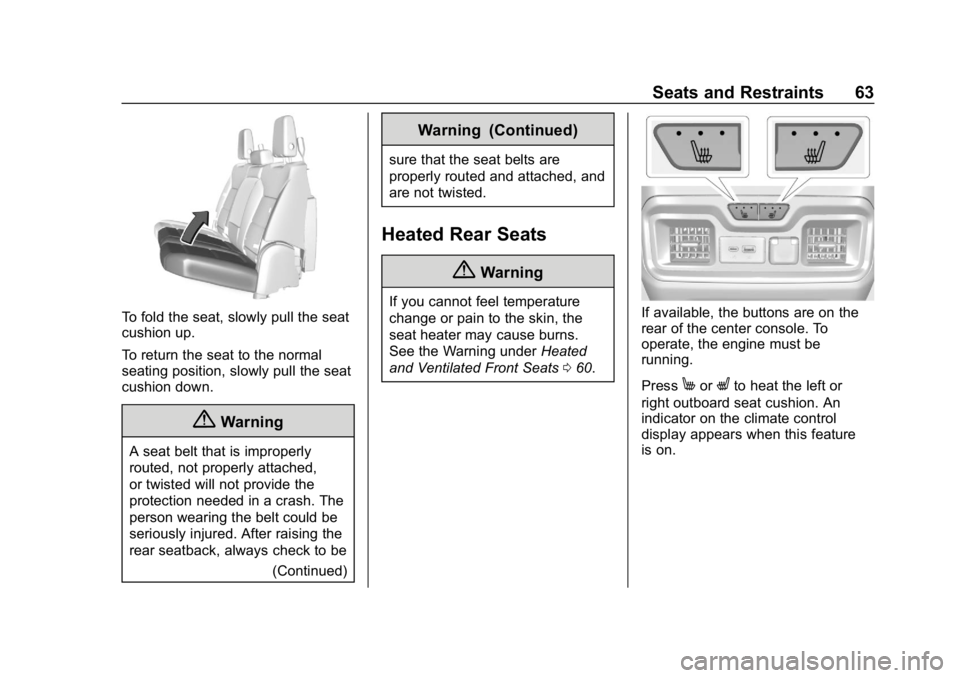
To fold the seat, slowly pull the seat
cushion up.
To return the seat to the normal
seating position, slowly pull the seat
cushion down.
{Warning
A seat belt that is improperly
routed, not properly attached,
or twisted will not provide the
protection needed in a crash. The
person wearing the belt could be
seriously injured. After raising the
rear seatback, always check to be(Continued)
Warning (Continued)
sure that the seat belts are
properly routed and attached, and
are not twisted.
Heated Rear Seats
{Warning
If you cannot feel temperature
change or pain to the skin, the
seat heater may cause burns.
See the Warning under Heated
and Ventilated Front Seats 060.If available, the buttons are on the
rear of the center console. To
operate, the engine must be
running.
Press
MorLto heat the left or
right outboard seat cushion. An
indicator on the climate control
display appears when this feature
is on.
Page 118 of 501
GMC Sierra/Sierra Denali Owner Manual (GMNA-Localizing-U.S./Canada/
Mexico-13337776) - 2020 - CRC - 8/27/19
Instruments and Controls 117
Instruments and
Controls
Controls
Steering Wheel Adjustment . . . 118
Steering Wheel Controls . . . . . . 119
Heated Steering Wheel . . . . . . . 119
Horn . . . . . . . . . . . . . . . . . . . . . . . . . . 119
Windshield Wiper/Washer . . . . 119
Compass . . . . . . . . . . . . . . . . . . . . . 120
Clock . . . . . . . . . . . . . . . . . . . . . . . . . 120
Power Outlets . . . . . . . . . . . . . . . . 121
Wireless Charging . . . . . . . . . . . . 122
Warning Lights, Gauges, and
Indicators
Warning Lights, Gauges, andIndicators . . . . . . . . . . . . . . . . . . . 125
Instrument Cluster . . . . . . . . . . . . 126
Speedometer . . . . . . . . . . . . . . . . . 130
Odometer . . . . . . . . . . . . . . . . . . . . . 131
Trip Odometer . . . . . . . . . . . . . . . . 131
Tachometer . . . . . . . . . . . . . . . . . . . 131
Fuel Gauge . . . . . . . . . . . . . . . . . . . 131
Engine Oil Pressure Gauge . . . . . . . . . . . . . . . . . . . . . . 132
Engine Coolant Temperature Gauge . . . . . . . . . . . . . . . . . . . . . . 133 Voltmeter Gauge . . . . . . . . . . . . . 134
Seat Belt Reminders . . . . . . . . . 135
Airbag Readiness Light . . . . . . . 135
Passenger Airbag Status
Indicator . . . . . . . . . . . . . . . . . . . . 136
Charging System Light . . . . . . . 137
Malfunction Indicator Lamp (Check Engine Light) . . . . . . . . 137
Brake System Warning Light . . . . . . . . . . . . . . . . . . . . . . . . 139
Electric Parking Brake Light . . . . . . . . . . . . . . . . . . . . . . . . 140
Service Electric Parking Brake Light . . . . . . . . . . . . . . . . . . . . . . . . 140
Antilock Brake System (ABS) Warning Light . . . . . . . . . . . . . . . 140
Four-Wheel-Drive Light . . . . . . . 141
Tow/Haul Mode Light . . . . . . . . . 141
Hill Descent Control Light . . . . 141
Lane Departure Warning (LDW) Light (2500/3500
Series) . . . . . . . . . . . . . . . . . . . . . . 141
Lane Keep Assist (LKA) Light (1500 Series) . . . . . . . . . . . . . . . 142
Vehicle Ahead Indicator . . . . . . 142
Pedestrian Ahead Indicator . . . 142
Traction Off Light . . . . . . . . . . . . . 142
Traction Control System (TCS)/ Electronic Stability Control
Light . . . . . . . . . . . . . . . . . . . . . . . . 143 Electronic Stability Control
(ESC) Off Light . . . . . . . . . . . . . . 143
Engine Coolant Temperature Warning Light . . . . . . . . . . . . . . . 144
Driver Mode Control Light . . . . 144
Tire Pressure Light . . . . . . . . . . . 144
Engine Oil Pressure Light
(Uplevel Cluster) . . . . . . . . . . . . 145
Low Fuel Warning Light . . . . . . 145
Security Light . . . . . . . . . . . . . . . . . 146
High-Beam On Light . . . . . . . . . . 146
Front Fog Lamp Light . . . . . . . . . 146
Lamps On Reminder . . . . . . . . . 146
Cruise Control Light . . . . . . . . . . 146
Door Ajar Light . . . . . . . . . . . . . . . 147
Information Displays
Driver Information Center (DIC) (Base Level) . . . . . . . . . . . . . . . . 147
Driver Information Center (DIC) (Midlevel and Uplevel) . . . . . . 148
Head-Up Display (HUD) . . . . . . 152
Vehicle Messages
Vehicle Messages . . . . . . . . . . . . 155
Engine Power Messages . . . . . 155
Vehicle Speed Messages . . . . . 156
Vehicle Personalization
Vehicle Personalization . . . . . . . 156
Page 120 of 501
GMC Sierra/Sierra Denali Owner Manual (GMNA-Localizing-U.S./Canada/
Mexico-13337776) - 2020 - CRC - 8/27/19
Instruments and Controls 119
Steering Wheel Controls
The infotainment system can be
operated by using the steering
wheel controls. See“Steering Wheel
Controls” in the infotainment
manual.
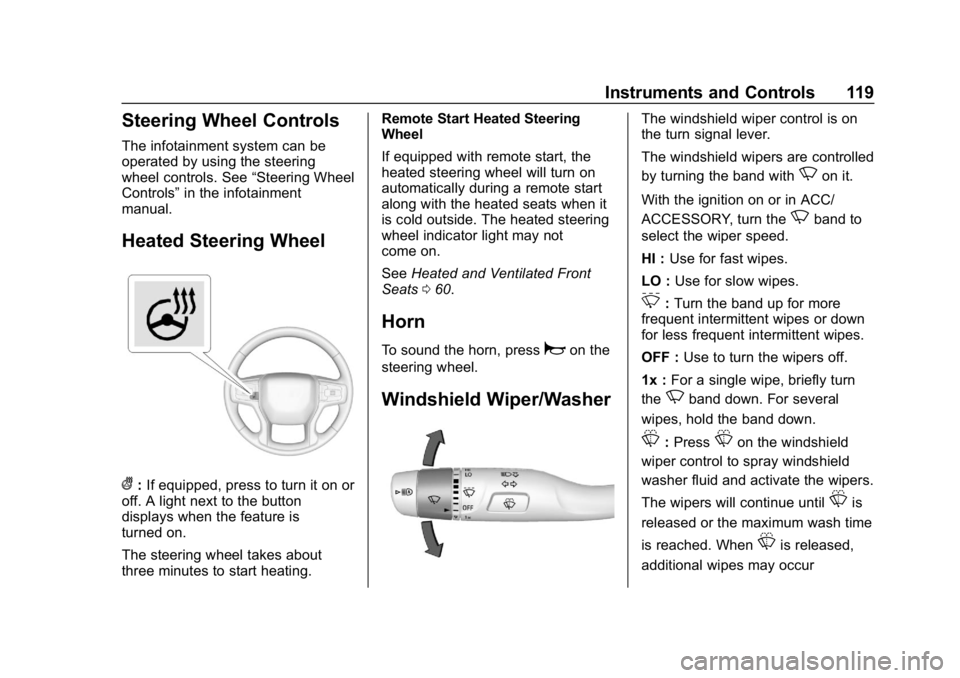
Heated Steering Wheel
(: If equipped, press to turn it on or
off. A light next to the button
displays when the feature is
turned on.
The steering wheel takes about
three minutes to start heating. Remote Start Heated Steering
Wheel
If equipped with remote start, the
heated steering wheel will turn on
automatically during a remote start
along with the heated seats when it
is cold outside. The heated steering
wheel indicator light may not
come on.
See
Heated and Ventilated Front
Seats 060.
Horn
To sound the horn, pressaon the
steering wheel.
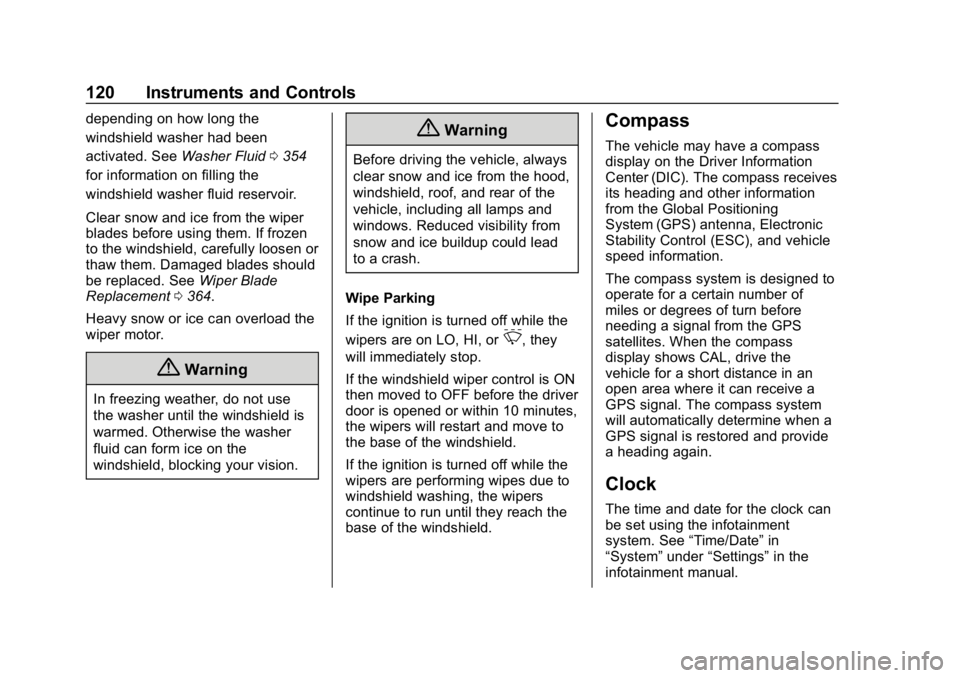
Windshield Wiper/Washer
The windshield wiper control is on
the turn signal lever.
The windshield wipers are controlled
by turning the band with
Non it.
With the ignition on or in ACC/
ACCESSORY, turn the
Nband to
select the wiper speed.
HI : Use for fast wipes.
LO : Use for slow wipes.
3:Turn the band up for more
frequent intermittent wipes or down
for less frequent intermittent wipes.
OFF : Use to turn the wipers off.
1x : For a single wipe, briefly turn
the
Nband down. For several
wipes, hold the band down.
L: PressLon the windshield
wiper control to spray windshield
washer fluid and activate the wipers.
The wipers will continue until
Lis
released or the maximum wash time
is reached. When
Lis released,
additional wipes may occur
Page 121 of 501
GMC Sierra/Sierra Denali Owner Manual (GMNA-Localizing-U.S./Canada/
Mexico-13337776) - 2020 - CRC - 8/27/19
120 Instruments and Controls
depending on how long the
windshield washer had been
activated. SeeWasher Fluid0354
for information on filling the
windshield washer fluid reservoir.
Clear snow and ice from the wiper
blades before using them. If frozen
to the windshield, carefully loosen or
thaw them. Damaged blades should
be replaced. See Wiper Blade
Replacement 0364.
Heavy snow or ice can overload the
wiper motor.
{Warning
In freezing weather, do not use
the washer until the windshield is
warmed. Otherwise the washer
fluid can form ice on the
windshield, blocking your vision.
{Warning
Before driving the vehicle, always
clear snow and ice from the hood,
windshield, roof, and rear of the
vehicle, including all lamps and
windows. Reduced visibility from
snow and ice buildup could lead
to a crash.
Wipe Parking
If the ignition is turned off while the
wipers are on LO, HI, or
3, they
will immediately stop.
If the windshield wiper control is ON
then moved to OFF before the driver
door is opened or within 10 minutes,
the wipers will restart and move to
the base of the windshield.
If the ignition is turned off while the
wipers are performing wipes due to
windshield washing, the wipers
continue to run until they reach the
base of the windshield.
Compass
The vehicle may have a compass
display on the Driver Information
Center (DIC). The compass receives
its heading and other information
from the Global Positioning
System (GPS) antenna, Electronic
Stability Control (ESC), and vehicle
speed information.
The compass system is designed to
operate for a certain number of
miles or degrees of turn before
needing a signal from the GPS
satellites. When the compass
display shows CAL, drive the
vehicle for a short distance in an
open area where it can receive a
GPS signal. The compass system
will automatically determine when a
GPS signal is restored and provide
a heading again.
Clock
The time and date for the clock can
be set using the infotainment
system. See “Time/Date”in
“System” under“Settings” in the
infotainment manual.
Page 125 of 501
GMC Sierra/Sierra Denali Owner Manual (GMNA-Localizing-U.S./Canada/
Mexico-13337776) - 2020 - CRC - 8/27/19
124 Instruments and Controls
the charging performance. See
your dealer for additional
information.
3. A green
}will appear on the
Von the infotainment display.
This indicates that the
smartphone is properly
positioned and charging. If a
smartphone is placed on the
charging pad and
}does not
display, remove the
smartphone from the pad, turn
it 180 degrees, and wait
three seconds before placing/
aligning the smartphone on the
pad again.
4. If
}turns yellow, ensure that
the charging pad is clear of any
objects and that the
smartphone is capable of
wireless charging before
re-positioning it. If
}does not
illuminate, the smartphone may
need to re-positioned. The smartphone may become
warm during charging. This is
normal. In warmer
temperatures, the speed of
charging may be reduced.
Software Acknowledgements
Certain Wireless Charging Module
product from LG Electronics, Inc.
("LGE") contains the open source
software detailed below. Refer to
the indicated open source licenses
(as are included following this
notice) for the terms and conditions
of their use.
OSS Notice Information
To obtain the source code that is
contained in this product, please
visit http://opensource.lge.com. In
addition to the source code, all
referred license terms, warranty
disclaimers and copyright notices
are available for download. LG
Electronics will also provide open
source code to you on CD-ROM for
a charge covering the cost of
performing such distribution (such
as the cost of media, shipping, and
handling) upon email request to [email protected]. This offer is
valid for three (3) years from the
date on which you purchased the
product.
Freescale-WCT library
Copyright (c) 2012-2014 Freescale
Semiconductor, Inc.. All rights
reserved.
1. Redistributions of source code must retain the above copyright
notice, this list of conditions
and the following disclaimer.
2. Redistributions in binary form must reproduce the above
copyright notice, this list of
conditions and the following
disclaimer in the
documentation and/or other
materials provided with the
distribution.
3. Neither the name of the copyright holder nor the names
of its contributors may be used
to endorse or promote products
derived from this software
without specific prior written
permission.
Page 130 of 501
GMC Sierra/Sierra Denali Owner Manual (GMNA-Localizing-U.S./Canada/
Mexico-13337776) - 2020 - CRC - 8/27/19
Instruments and Controls 129
Cluster Menu (Midlevel and
Uplevel)
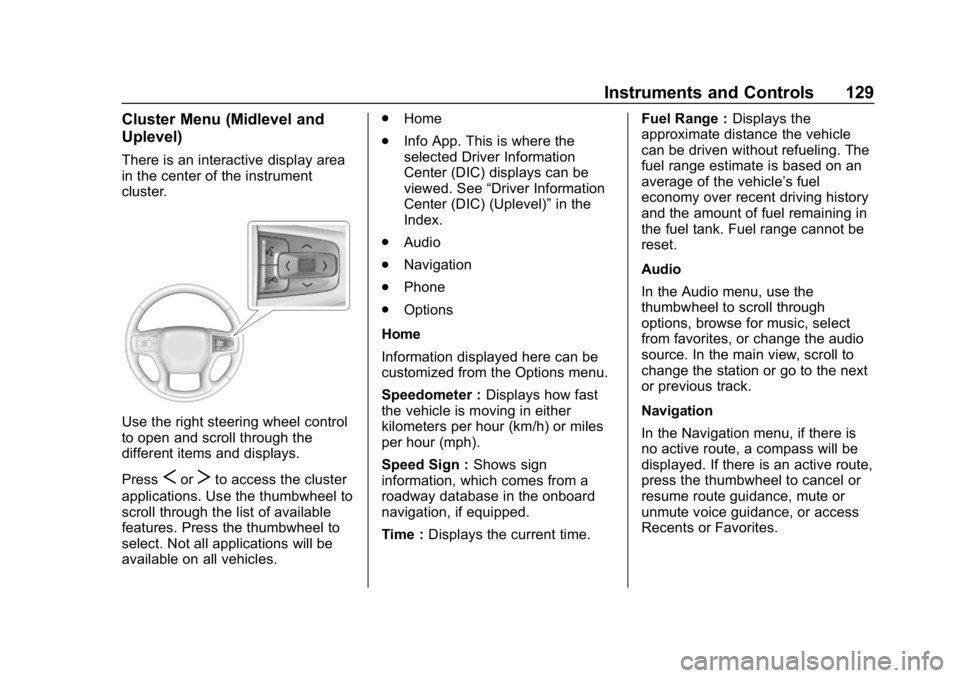
There is an interactive display area
in the center of the instrument
cluster.
Use the right steering wheel control
to open and scroll through the
different items and displays.
Press
SorTto access the cluster
applications. Use the thumbwheel to
scroll through the list of available
features. Press the thumbwheel to
select. Not all applications will be
available on all vehicles. .
Home
. Info App. This is where the
selected Driver Information
Center (DIC) displays can be
viewed. See “Driver Information
Center (DIC) (Uplevel)” in the
Index.
. Audio
. Navigation
. Phone
. Options
Home
Information displayed here can be
customized from the Options menu.
Speedometer : Displays how fast
the vehicle is moving in either
kilometers per hour (km/h) or miles
per hour (mph).
Speed Sign : Shows sign
information, which comes from a
roadway database in the onboard
navigation, if equipped.
Time : Displays the current time. Fuel Range :
Displays the
approximate distance the vehicle
can be driven without refueling. The
fuel range estimate is based on an
average of the vehicle’s fuel
economy over recent driving history
and the amount of fuel remaining in
the fuel tank. Fuel range cannot be
reset.
Audio
In the Audio menu, use the
thumbwheel to scroll through
options, browse for music, select
from favorites, or change the audio
source. In the main view, scroll to
change the station or go to the next
or previous track.
Navigation
In the Navigation menu, if there is
no active route, a compass will be
displayed. If there is an active route,
press the thumbwheel to cancel or
resume route guidance, mute or
unmute voice guidance, or access
Recents or Favorites.
Page 131 of 501
GMC Sierra/Sierra Denali Owner Manual (GMNA-Localizing-U.S./Canada/
Mexico-13337776) - 2020 - CRC - 8/27/19
130 Instruments and Controls
Phone
In the Phone menu, if there is no
active phone call, view recent calls,
scroll through contacts, select from
the favorites, or change the phone
source. If there is an active call,
mute the phone or switch to handset
operation.
Options
Use the thumbwheel to scroll
through items in the Options menu.
Head-up Display (HUD) :
If equipped, this feature allows for
adjusting the angle of the HUD
image and changing or turning off
the Speed Limit Sign.
HUD Rotation: Press the
thumbwheel while Adjust Rotation is
highlighted to enter Adjust Mode.
Scroll to adjust the angle of the
HUD display. Press the thumbwheel
to confirm and save the setting. This
feature may only be available in
P (Park).
Speed Limit: Press the thumbwheel
while Speed Limit is highlighted to
turn it on or off.Speed Limit Style: Press the
thumbwheel while Speed Limit Style
is highlighted to change the speed
sign style.
Units :
Press the thumbwheel while
Units is displayed to enter the Units
menu. Choose US or metric units by
pressing the thumbwheel while the
desired item is highlighted.
A selected mark will be displayed
next to the selected item.
Info Page Options : Press the
thumbwheel while Info Page
Options is displayed to enter and
select the items to be displayed in
the Info app. A selected mark will be
displayed next to the selected item.
Home : Press the thumbwheel to
select the available elements to
display. Not all elements will be
available on all vehicles:
Speedometer, Speed Sign, Time,
and Fuel Range.
Display (Uplevel) : Press the
thumbwheel to enter the Display
menu. Select to turn on or off the
compass or speed sign. Speed Warning :
The Speed
Warning display allows the driver to
set a speed that they do not want to
exceed. To set the Speed Warning,
press the thumbwheel when Speed
Warning is displayed, or press the
thumbwheel on the main view to set
the speed value. Scroll to adjust the
value. Press the thumbwheel to set
the speed. Once the speed is set,
this feature can be turned off by
pressing the thumbwheel while
viewing this page. If the selected
speed limit is exceeded, a pop-up
warning is displayed with a chime.
Software Information : Press the
thumbwheel while Software
Information is highlighted to display
open source software information.
Speedometer
The speedometer shows the
vehicle's speed in either kilometers
per hour (km/h) or miles per
hour (mph).