ECO mode GMC SONOMA 2004 User Guide
[x] Cancel search | Manufacturer: GMC, Model Year: 2004, Model line: SONOMA, Model: GMC SONOMA 2004Pages: 412, PDF Size: 4.16 MB
Page 144 of 412
Playing the Radio
PWR (Power):Press this knob to turn the system on
and off.
VOL (Volume):Turn this knob to increase or to
decrease volume.
AUTO VOL (Automatic Volume):With automatic
volume, your audio system adjusts automatically
to make up for road and wind noise as you drive.
Set the volume at the desired level. Press this button to
select LOW, MEDIUM, or HIGH. AVOL will appear
on the display. Each higher setting will allow for more
volume compensation at faster vehicle speeds. Then, as
you drive, automatic volume automatically increases
the volume, as necessary, to overcome noise at
any speed. The volume level should always sound the
same to you as you drive. If you do ot want to use
automatic volume, select AVOL OFF.
DISP (Display):Press this knob to switch the display
between the radio station frequency and the time.
Time display is available with the ignition turned off.For RDS, press the DISP knob to change what appears
on the display while using RDS. The display options
are station name, RDS station frequency, PTY, and the
name of the program (if available).
For XM™ (48 contiguous US states, if equipped), press
the DISP knob while in XM mode to retrieve four
different categories of information related to the current
song or channel: Artist, Song Title, Category or PTY,
Channel Number/Channel Name.
To change the default on the display, press the DISP
knob until you see the display you want, then hold
the knob for two seconds. The radio will produce one
beep and the selected display will now be the default.
Finding a Station
BAND:Press this button to switch between FM1, FM2,
AM, or XM1 or XM2 (48 contiguous US states, if
equipped). The display will show your selection.
TUNE:Turn this knob to select radio stations.
3-40
Page 159 of 412

1 PREV (Previous):Your tape must have at least three
seconds of silence between each selection for previous
to work. Press this pushbutton to go to the previous
selection on the tape if the current selection has been
playing for less than three seconds. If pressed when the
current selection has been playing from 3 to 13 seconds,
it will go to the beginning of the previous selection or
the beginning of the current selection, depending upon
the position on the tape. If pressed when the current
selection has been playing for more than 13 seconds, it
will go to the beginning of the current selection.
SEEK and a negative number will appear on the display
while the cassette player is in the previous mode.
Pressing this pushbutton multiple times or holding it will
increase the number of selections to be searched
back, up to -9.
2 NEXT:Your tape must have at least three seconds of
silence between each selection for next to work.
Press this pushbutton to go to the next selection on the
tape. If you press this pushbutton more than once,
the player will continue moving forward through the tape.
SEEK and a positive number will appear on the
display.3 REV (Reverse):Press this pushbutton to reverse
quickly within the tape. Press it again to return to playing
speed. The radio will play while the tape reverses.
The station frequency and REV will appear on
the display. You may select stations during reverse
operation using TUNE, SEEK, or PSCAN.
4 FWD (Forward):Press this pushbutton to advance
quickly within the tape. Press it again to return to playing
speed. The radio will play while the tape advances.
The station frequency and FWD will appear on
the display. You may select stations during forward
operation by using TUNE, SEEK, or PSCAN.
5
XSIDE:Press this pushbutton to play the other side
of the tape.
qSEEKr:The right arrow is the same as the
NEXT pushbutton, and the left arrow is the same as the
PREV pushbutton. If the arrows are held or pressed
more than once, the player will continue moving forward
or backward through the tape. SEEK and a positive
or a negative number will appear on the display.
BAND:Press this button to listen to the radio when a
tape or a CD is playing. The inactive tape or CD
will remain safely inside the radio for future listening.
3-55
Page 167 of 412
Finding a Program Type (PTY) Station
(RDS and XM™)
To select and find a desired PTY perform the following:
1. Press the P-TYPE button to activate program
type select mode. P-TYPE and the last selected
PTY will appear on the display.
2. Turn the P-TYPE knob to select a PTY.
3. Once the desired PTY is displayed, press either
SEEK arrow to select the PTY and take you to
the PTY’s first station.
4. If you want to go to another station within that PTY
and the PTY is displayed, press either SEEK arrow
once. If the PTY is not displayed, press either
SEEK arrow twice to display the PTY and then to
go to another station.
5. Press P-TYPE to exit program type select mode.
If PTY times out and is no longer on the display,
go back to Step 1.
If both P-TYPE and TRAF are on, the radio will search
for stations with the selected PTY and traffic
announcements.To use the PTY interrupt feature, press and hold the
P-TYPE button until you hear a beep on the PTY
you want to interrupt with. When selected, an asterisk
will appear beside that PTY on the display. You
may select multiple interrupts if desired. When you are
listening to a CD, the last selected RDS station will
interrupt play if that selected program type format
is broadcast.
SCAN:You can scan the stations within a PTY by
performing the following:
1. Press the P-TYPE button to activate program type
select mode. P-TYPE and the last selected PTY will
appear on the display.
2. Turn the P-TYPE knob to select a PTY.
3. Once the desired PTY is displayed, press and hold
either SCAN arrow, and the radio will begin
scanning the stations in the PTY.
4. Press either SCAN arrow to stop at a station.
If both PTY and TRAF are on, the radio will scan for
stations with the selected PTY and traffic
announcements.
BAND (Alternate Frequency):Alternate frequency
allows the radio to switch to a stronger station with the
same program type. To turn alternate frequency on press
and hold BAND for two seconds AF ON will appear on the
display. The radio may switch to stronger stations.
3-63
Page 168 of 412
To turn alternate frequency off press and hold BAND
again for two seconds. AF OFF will appear on the
display. The radio will not switch to other stations. When
you turn the ignition off and then on again, the alternate
frequency feature will automatically be turned on.
This function does not apply for XM™ Satellite Radio
Service.
Setting Preset PTYs (RDS Only)
The six numbered pushbuttons let you return to your
favorite PTYs. These buttons have factory PTY presets.
You can set up to 12 PTYs (six FM1 and six FM2) by
performing the following steps:
1. Press BAND to select FM1 or FM2.
2. Press the P-TYPE button to activate program type
select mode. P-TYPE and the last selected PTY will
appear on the display.
3. Turn the P-TYPE knob to select a PTY.
4. Press and hold one of the six numbered
pushbuttons until you hear a beep. Whenever you
press that numbered pushbutton, the PTY you
set will return.
5. Repeat the steps for each pushbutton.
RDS Messages
ALERT!:Alert warns of local or national emergencies.
When an alert announcement comes on the current
radio station, ALERT! will appear on the display. You will
hear the announcement, even if the volume is muted
or a CD is playing. If a CD is playing, play will stop
during the announcement. You will not be able to turn
off alert announcements.
ALERT! will not be affected by tests of the emergency
broadcast system. This feature is not supported by
all RDS stations.
INFO (Information):If the current station has a
message, INFO will appear on the display. Press this
button to see the message. The message may display
the artist, song title, call in phone numbers, etc.
If the whole message is not displayed, parts of the
message will appear every three seconds. To scroll
through the message at your own speed, press
the INFO button repeatedly. A new group of words will
appear on the display with each press. Once the
complete message has been displayed, INFO will
disappear from the display until another new message
is received. The old message can be displayed by
pressing the INFO button. You can view an old message
until a new message is received or a different station
is tuned to.
3-64
Page 175 of 412
sSCANt:To scan one CD, press and hold either
SCAN arrow for more than two seconds until SCAN
appears on the display and you hear a beep. Use this
feature to listen to 10 seconds of each track of the
currently selected CD. Press either SCAN arrow again,
to stop scanning.
To scan all loaded CDs, press and hold either SCAN
arrow for more than four seconds until CD SCAN
appears on the display and you hear a beep. Use this
feature to listen to 10 seconds of the first tracks of each
CD loaded. Press either SCAN arrow again, to stop
scanning.
RCL (Recall):Press this knob to see how long the
current track has been playing. To change the default
on the display (track and elapsed time), press the knob
until you see the display you want, then hold the
knob until the display flashes. The selected display will
now be the default.
BAND:Press this button to play the radio when a
CD(s) is playing. The inactive CD will remain safely
inside the radio for future listening.
CD AUX (Auxiliary):Press this button to play a CD
when listening to the radio.Using Song List Mode
The six-CD CD changer has a feature called song list.
This feature is capable of saving 20 track selections.
To save tracks into the song list feature, perform
the following steps:
1. Turn the CD player on and load it with at least one
CD. See “LOAD CD” listed previously in this section
for more information.
2. Check to see that the CD changer is not in song list
mode. S-LIST should not appear in the display. If
S-LIST is present, press the SONG LIST button
to turn it off.
3. Select the desired CD by pressing the numbered
pushbutton and then use the SEEK SCAN right
arrow button to locate the track that you want
to save. The track will begin to play.
4. Press and hold the SONG LIST button to save the
track into memory. When SONG LIST is pressed a
beep will be heard immediately. After two seconds
of continuously pressing SONG LIST, two beeps will
sound to confirm that the track has been saved.
5. Repeat Steps 3 and 4 for saving other selections.
3-71
Page 176 of 412
S-LIST FULL will appear on the display if you try to
save more than 20 selections.
To play the song list, press the SONG LIST button. One
beep will be heard and S-LIST will appear on the
display. The recorded tracks will begin to play in the
order that they were saved.
You may seek through the song list by using the SEEK
SCAN arrows. Seeking past the last saved track will
return you to the first saved track.
To delete tracks from the song list, perform the
following steps:
1. Turn the CD player on.
2. Press the SONG LIST button to turn song list on.
S-LIST will appear on the display.
3. Press the SEEK SCAN arrows to select the desired
track to be deleted.
4. Press and hold the SONG LIST button for two
seconds. When SONG LIST is pressed, a beep
will be heard immediately. After two seconds
of continuously pressing the SONG LIST button,
two beeps will be heard to confirm that the track has
been deleted.After a track has been deleted, the remaining tracks are
moved up the list. When another track is added to the
song list, the track will be added to the end of the list.
To delete the entire song list, perform the
following steps:
1. Turn the CD player on.
2. Press the SONG LIST button to turn song list on.
S-LIST will appear on the display.
3. Press and hold the SONG LIST button for more
than four seconds. A beep will be heard, followed
by two beeps after two seconds and a final beep will
be heard after four seconds. S-LIST EMPTY will
appear on the display indicating that the song
list has been deleted.
If a CD is ejected, and the song list contains saved
tracks from that CD, those tracks are automatically
deleted from the song list. Any tracks saved to the song
list again are added to the bottom of the list.
To end song list mode, press the SONG LIST button.
One beep will be heard and S-LIST will be removed from
the display.
3-72
Page 310 of 412
Maximum Loaded Vehicle Weight:The sum of curb
weight; accessory weight; vehicle capacity weight;
and production options weight.
Normal Occupant Weight:The number of occupants a
vehicle is designed to seat multiplied by 150 pounds
(68 kg). SeeLoading Your Vehicle on page 4-45.
Occupant Distribution:Designated seating positions.
Outward Facing Sidewall:The side of a asymmetrical
tire that has a particular side that faces outward
when mounted on a vehicle. The side of the tire that
contains a whitewall, bears white lettering or bears
manufacturer, brand and or model name molding that is
higher or deeper than the same moldings on the
other sidewall of the tire.
Passenger (P-Metric) Tire:A tire used on passenger
cars and some light duty trucks and multipurpose
vehicles.
Recommended Ination Pressure:Vehicle
manufacturer’s recommended tire inflation pressure and
shown on the tire placard. SeeInation - Tire Pressure
on page 5-67andLoading Your Vehicle on page 4-45.
Radial Ply tire:A pneumatic tire in which the ply cords
that extend to the beads are laid at 90 degrees to the
centerline of the tread.Rim:A metal support for a tire and upon which the tire
beads are seated.
Sidewall:The portion of a tire between the tread and
the bead.
Speed Rating:An alphanumeric code assigned to a
tire indicating the maximum speed at which a tire
can operate.
Traction:The friction between the tire and the road
surface. The amount of grip provided.
Tread:The portion of a tire that comes into contact
with the road.
Treadwear Indicators:Narrow bands, sometimes
called “wear bars,” that show across the tread of a tire
when only 2/32 inch of tread remains. SeeWhen It
Is Time for New Tires on page 5-69.
UTQGS:Uniform Tire Quality Grading Standards, a tire
information system that provides consumers with
ratings for a tire’s traction, temperature and treadwear.
Ratings are determined by tire manufacturers using
government testing procedures. The ratings are molded
into the sidewall of the tire. SeeUniform Tire Quality
Grading on page 5-71.
5-66
Page 391 of 412
For prompt and efficient assistance when calling, please
provide the following to the Roadside Assistance
Representative:
•Your name, home address, and home telephone
number
•Telephone number of your location
•Location of the vehicle
•Model, year, color, and license plate number
•Mileage, Vehicle Identification Number, and delivery
date of the vehicle
•Description of the problem
While we hope you never have the occasion to use our
service, it is added security while traveling for you
and your family. Remember, we are only a phone call
away. GMC Roadside Assistance: 1-800-462-8782, text
telephone (TTY) users, call 1-888-889-2438.
GMC reserves the right to limit services or
reimbursement to an owner or driver when, in GMC’s
judgement, the claims become excessive in frequency or
type of occurrence.
Roadside Assistance is not part of or included in the
coverage provided by the New Vehicle Limited Warranty.
GMC reserves the right to make any changes or
discontinue the Roadside Assistance program at any
time without notification.
Canadian Roadside Assistance
Vehicles purchased in Canada have an extensive
roadside assistance program accessible from anywhere
in Canada or the United States. Please refer to the
Warranty and Owner Assistance Information book.
Courtesy Transportation
GMC has always exemplified quality and value in its
offering of motor vehicles. To enhance your ownership
experience, we and our participating dealers are
proud to offer Courtesy Transportation, a customer
support program for new vehicles.
The Courtesy Transportation program is offered to retail
purchase/lease customers in conjunction with the
Bumper-to-Bumper coverage provided by the New
Vehicle Limited Warranty. Several transportation options
are available when warranty repairs are required.
This will reduce your inconvenience during warranty
repairs.
Plan Ahead When Possible
When your vehicle requires warranty service, you
should contact your dealer and request an appointment.
By scheduling a service appointment and advising
your service consultant of your transportation needs,
your dealer can help minimize your inconvenience.
7-7
Page 393 of 412
Additional Program Information
Courtesy Transportation is available during the
Bumper-to-Bumper warranty coverage period, but itis
notpart of the New Vehicle Limited Warranty. A
separate booklet entitledWarranty and Owner
Assistance Informationfurnished with each new vehicle
provides detailed warranty coverage information.
Courtesy Transportation is available only at participating
dealers and all program options, such as shuttle
service, may not be available at every dealer. Please
contact your dealer for specific information about
availability. All Courtesy Transportation arrangements
will be administered by appropriate dealer personnel.
Canadian Vehicles:For warranty repairs during
the Complete Vehicle Coverage period of the General
Motors of Canada New Vehicle Limited Warranty,
alternative transportation may be available under the
Courtesy Transportation Program. Please consult
your dealer for details.
General Motors reserves the right to unilaterally modify,
change or discontinue Courtesy Transportation at
any time and to resolve all questions of claim eligibility
pursuant to the terms and conditions described
herein at its sole discretion.
Vehicle Data Collection and Event
Data Records
Your vehicle, like other modern motor vehicles, has a
number of sophisticated computer systems that monitor
and control several aspects of the vehicle’s
performance. Your vehicle uses on-board vehicle
computers to monitor emission control components to
optimize fuel economy, to monitor conditions for
airbag deployment and, if so equipped, to provide
anti-lock braking and to help the driver control the
vehicle in difficult driving situations. Some information
may be stored during regular operations to facilitate
repair of detected malfunctions; other information
is stored only in a crash or near crash event by
computer systems commonly called event data
recorders (EDR).
In a crash or near crash event, computer systems, such
as the Airbag Sensing and Diagnostic Module (SDM)
in your vehicle may record information about the
condition of the vehicle and how it was operated, such
as engine speed, brake applications, throttle position,
vehicle speed, seat belt usage, airbag readiness, airbag
performance data, and the severity of a collision. This
information has been used to improve vehicle crash
performance and may be used to improve crash
performance of future vehicles and driving safety.
7-9
Page 406 of 412
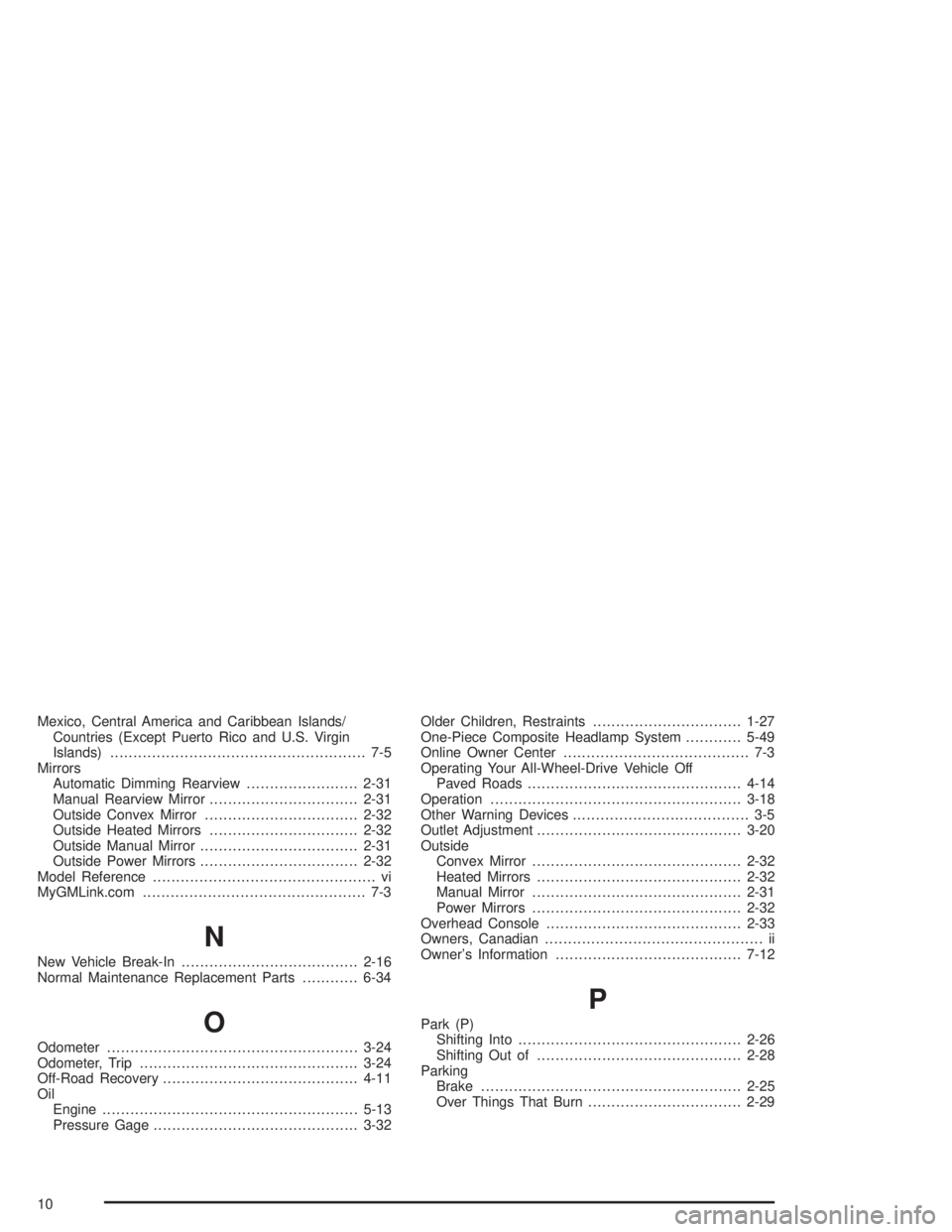
Mexico, Central America and Caribbean Islands/
Countries (Except Puerto Rico and U.S. Virgin
Islands)....................................................... 7-5
Mirrors
Automatic Dimming Rearview........................2-31
Manual Rearview Mirror................................2-31
Outside Convex Mirror.................................2-32
Outside Heated Mirrors................................2-32
Outside Manual Mirror..................................2-31
Outside Power Mirrors..................................2-32
Model Reference................................................ vi
MyGMLink.com................................................ 7-3
N
New Vehicle Break-In......................................2-16
Normal Maintenance Replacement Parts............6-34
O
Odometer......................................................3-24
Odometer, Trip...............................................3-24
Off-Road Recovery..........................................4-11
Oil
Engine.......................................................5-13
Pressure Gage............................................3-32Older Children, Restraints................................1-27
One-Piece Composite Headlamp System............5-49
Online Owner Center........................................ 7-3
Operating Your All-Wheel-Drive Vehicle Off
Paved Roads..............................................4-14
Operation......................................................3-18
Other Warning Devices...................................... 3-5
Outlet Adjustment............................................3-20
Outside
Convex Mirror.............................................2-32
Heated Mirrors............................................2-32
Manual Mirror.............................................2-31
Power Mirrors.............................................2-32
Overhead Console..........................................2-33
Owners, Canadian............................................... ii
Owner’s Information........................................7-12
P
Park (P)
Shifting Into................................................2-26
Shifting Out of............................................2-28
Parking
Brake........................................................2-25
Over Things That Burn.................................2-29
10