AUX GMC SONOMA 2004 Owner's Manual
[x] Cancel search | Manufacturer: GMC, Model Year: 2004, Model line: SONOMA, Model: GMC SONOMA 2004Pages: 412, PDF Size: 4.16 MB
Page 120 of 412
Dome Lamp
The dome lamp will come on when you open either
front door.
You can also turn the dome lamps on by turning the
instrument panel brightness thumbwheel, located next to
the exterior lamps control, all the way up to the second
notch. In this position, the dome lamps will remain
on whether a door is opened or closed.
You can use the DOME OVERRIDE button, located
below the exterior lamps control, to set the dome lamps
to come on automatically when either front door is
opened, or to remain off. To turn the lamps off, press
the button in. With the button in, the dome lamps will
remain off when either front door is opened. To return
the lamps to automatic operation, press the button
again and return it to the out position. With the button in
this position, the dome lamps will come on when you
open either front door. This will override the illuminated
entry feature, unless you use your remote keyless
entry transmitter (if equipped) to unlock the vehicle.
Battery Rundown Protection
This feature shuts off the dome, courtesy, vanity,
reading, glove box, cargo and underhood lamps if they
are left on for more than 20 minutes when the ignition
is off. This will keep your battery from running down.
If the battery rundown protection shuts off the interior
lamps, it may be necessary to do one of the following to
return it to normal operation:
•Shut off all lamps and close all doors, or
•turn the ignition key to RUN.
Accessory Power Outlets
Your vehicle may be equipped with an accessory power
outlet.
With accessory power outlets you can plug in auxiliary
electrical equipment such as a cellular telephone or
CB radio.
There may be an accessory power outlet located
near the center of the vehicle on the lower part of the
instrument panel. A small cap must be pulled down
to access an accessory power outlet. When not using
an outlet be sure to cover it with the protective cap.
3-16
Page 152 of 412
6 RDM (Random):Press this pushbutton to hear the
tracks in random, rather than sequential, order. RDM ON
will appear on the display. RDM T and the track
number will appear on the display when each track
starts to play. Press RDM again to turn off random play.
RDM OFF will appear on the display.
qSEEKr:Press the left arrow to go to the start of
the current or of the previous track. Press the right
arrow to go to the start of the next track. If you
hold either arrow or press it more than once, the player
will continue moving backward or forward through
the CD.
DISP (Display):Press this knob to see how long the
current track has been playing. ET and the elapsed time
of the track will appear on the display. To change the
default on the display (track or elapsed time), press the
DISP knob until you see the display you want, then
hold the knob for two seconds. The radio will produce
one beep and the selected display will now be the
default.
BAND:Press this button to listen to the radio when a
CD is playing. The inactive CD will remain safely
inside the radio for future listening.
CD AUX (Auxiliary):Press this button to play a CD
when listening to the radio.
ZEJT (Eject):Press this button to eject a CD. Eject
may be activated with either the ignition or radio off.
CDs may be loaded with the ignition and radio off if this
button is pressed first.
CD Messages
If CHECK CD appears on the display and the CD
comes out, it could be for one of the following reasons:
•It is very hot. When the temperature returns to
normal, the CD should play.
•You are driving on a very rough road. When the
road becomes smooth, the CD should play.
•The CD is dirty, scratched, wet, or upside down.
•The air is very humid. If so, wait about an hour and
try again.
•There may have been a problem while burning
the CD.
•The label may be caught in the CD player.
If the CD is not playing correctly, for any other reason,
try a known good CD.
If any error occurs repeatedly or if an error cannot be
corrected, contact your dealer. If your radio displays an
error message, write it down and provide it to your
dealer when reporting the problem.
3-48
Page 173 of 412
To insert multiple CDs, do the following:
1. Turn the ignition on.
2. Press and hold the LOAD side of the LOAD CD
button for two seconds.
You will hear a beep and the light, located to the
right of the slot, will begin to flash.
3. Once the light stops flashing and turns green, load
a CD. Insert the CD partway into the slot, label side
up. The player will pull the CD in.
4. Once the CD is loaded, the light will begin flashing
again. Press the LOAD side of the LOAD CD button
again. Once the light turns green, load the next
CD. Repeat this procedure for each CD.
The CD player takes up to six CDs. Do not try to
load more than six.
To load more than one CD but less than six, complete
Steps 1 through 3. When you have finished loading
CDs, the radio will begin to play the last CD loaded.
When a CD is inserted, the CD symbol will be displayed.
If more than one CD has been loaded, a number for
each CD will be displayed. If you select an equalization
setting for your CD, it will be activated each time you
play a CD.
As each new track starts to play, the track number will
appear on the display.Playing a Specic Loaded CD
For every CD loaded, a number will appear on the
display. To play a specific CD, first press the CD AUX
button, then press the numbered pushbutton that
corresponds to the CD you want to play. A small bar will
appear under the CD number that is playing, and the
track number will appear.
If an error appears on the display, see “CD Messages”
later in this section.
LOAD CD
Z(Eject):Press the CD eject side of this
button to eject a CD. You will hear a beep and the
light will flash to let you know when a CD is being
ejected.
REMOVE CD will be displayed. You can now remove
the CD. If the CD is not removed, after 25 seconds, the
CD will be automatically pulled back into the receiver.
If you try to push the CD back into the receiver,
before the 25 second time period is complete, the
receiver will sense an error and will try to eject the CD
several times before stopping.
Do not repeatedly press the CD eject button to eject a
CD after you have tried to push it in manually. The
receivers 25-second eject timer will reset at each press
of eject, which will cause the receiver to not eject
the CD until the 25-second time period has elapsed.
3-69
Page 175 of 412
sSCANt:To scan one CD, press and hold either
SCAN arrow for more than two seconds until SCAN
appears on the display and you hear a beep. Use this
feature to listen to 10 seconds of each track of the
currently selected CD. Press either SCAN arrow again,
to stop scanning.
To scan all loaded CDs, press and hold either SCAN
arrow for more than four seconds until CD SCAN
appears on the display and you hear a beep. Use this
feature to listen to 10 seconds of the first tracks of each
CD loaded. Press either SCAN arrow again, to stop
scanning.
RCL (Recall):Press this knob to see how long the
current track has been playing. To change the default
on the display (track and elapsed time), press the knob
until you see the display you want, then hold the
knob until the display flashes. The selected display will
now be the default.
BAND:Press this button to play the radio when a
CD(s) is playing. The inactive CD will remain safely
inside the radio for future listening.
CD AUX (Auxiliary):Press this button to play a CD
when listening to the radio.Using Song List Mode
The six-CD CD changer has a feature called song list.
This feature is capable of saving 20 track selections.
To save tracks into the song list feature, perform
the following steps:
1. Turn the CD player on and load it with at least one
CD. See “LOAD CD” listed previously in this section
for more information.
2. Check to see that the CD changer is not in song list
mode. S-LIST should not appear in the display. If
S-LIST is present, press the SONG LIST button
to turn it off.
3. Select the desired CD by pressing the numbered
pushbutton and then use the SEEK SCAN right
arrow button to locate the track that you want
to save. The track will begin to play.
4. Press and hold the SONG LIST button to save the
track into memory. When SONG LIST is pressed a
beep will be heard immediately. After two seconds
of continuously pressing SONG LIST, two beeps will
sound to confirm that the track has been saved.
5. Repeat Steps 3 and 4 for saving other selections.
3-71
Page 341 of 412
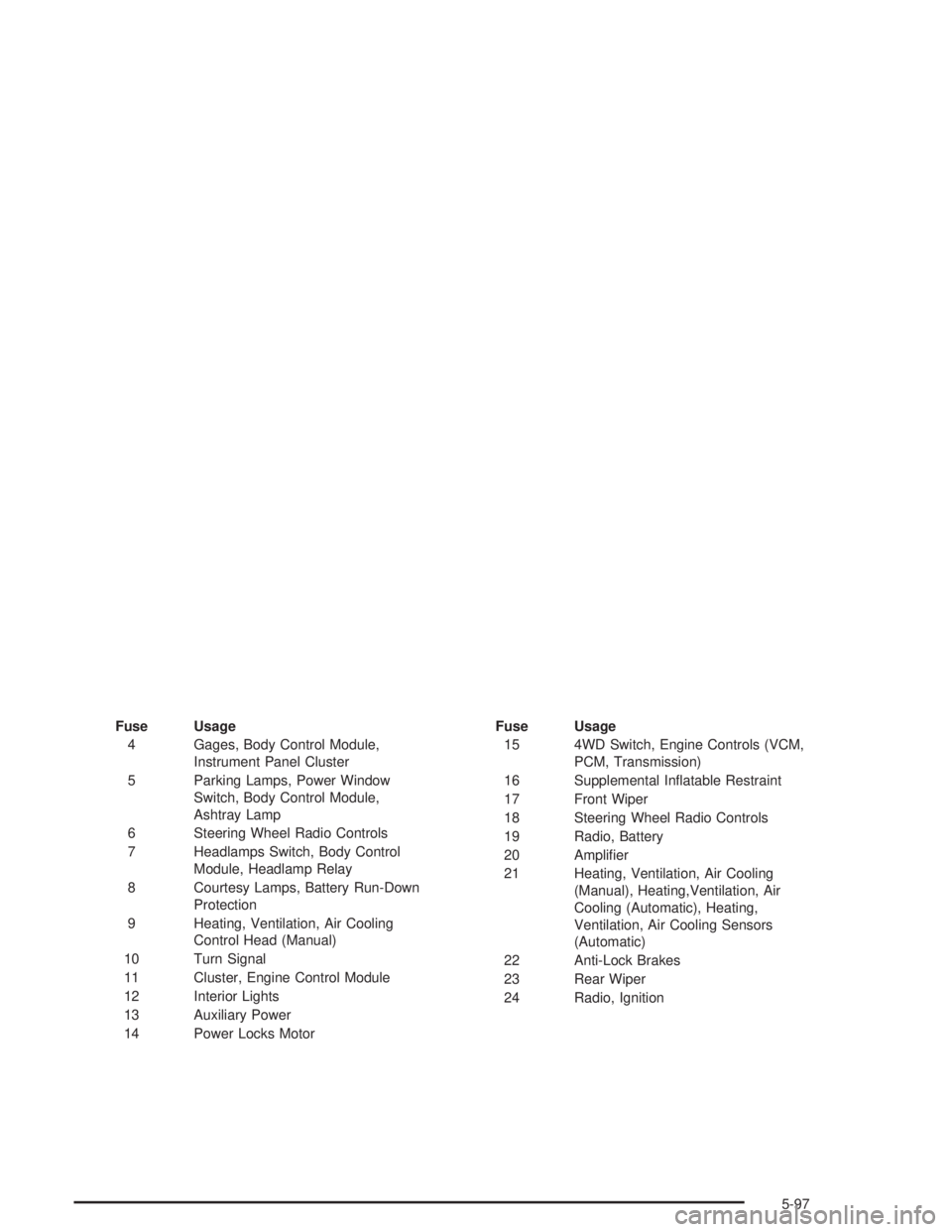
Fuse Usage
4 Gages, Body Control Module,
Instrument Panel Cluster
5 Parking Lamps, Power Window
Switch, Body Control Module,
Ashtray Lamp
6 Steering Wheel Radio Controls
7 Headlamps Switch, Body Control
Module, Headlamp Relay
8 Courtesy Lamps, Battery Run-Down
Protection
9 Heating, Ventilation, Air Cooling
Control Head (Manual)
10 Turn Signal
11 Cluster, Engine Control Module
12 Interior Lights
13 Auxiliary Power
14 Power Locks MotorFuse Usage
15 4WD Switch, Engine Controls (VCM,
PCM, Transmission)
16 Supplemental Inflatable Restraint
17 Front Wiper
18 Steering Wheel Radio Controls
19 Radio, Battery
20 Amplifier
21 Heating, Ventilation, Air Cooling
(Manual), Heating,Ventilation, Air
Cooling (Automatic), Heating,
Ventilation, Air Cooling Sensors
(Automatic)
22 Anti-Lock Brakes
23 Rear Wiper
24 Radio, Ignition
5-97