phone GMC TERRAIN 2010 Owner's Guide
[x] Cancel search | Manufacturer: GMC, Model Year: 2010, Model line: TERRAIN, Model: GMC TERRAIN 2010Pages: 410, PDF Size: 2.55 MB
Page 194 of 410
6-56 Infotainment System
Bluetooth (Navigation)
For information about how to
navigate the menu system using
the infotainment controls, see
“Overview”under Introduction, in
the Navigation supplement.
Bluetooth Pairing
To make calls with a Bluetooth
cell phone through your vehicle, it
must be paired to the vehicle's
Bluetooth system first and then
connected to the vehicle before
it can be used. Refer to the cell
phone manufacturer's user guide
for Bluetooth pairing instructions.
If a Bluetooth phone is off or not
connected, calls will automatically
be made using the OnStar
®
Hands‐Free Calling feature,
if available. Refer to the OnStar
owner's guide for more information
about OnStar Hands-Free Calling.
A Bluetooth phone with MP3
capability cannot be connected to
the vehicle as a phone and an MP3
player at the same time. The pairing process can be started
by using the voice recognition
system or the controls on the
infotainment system.
Pairing Information:
.Up to five cell phones can be
paired to the Bluetooth system.
.The pairing process is disabled
when the vehicle is moving.
.The Bluetooth system links with
the first available paired cell
phone based on the order
shown in the device list.
.Only one paired cell phone can
be connected to the vehicle's
Bluetooth system at a time.
.Pairing should only need to be
completed once, unless changes
to the pairing information have
been made or the phone is
deleted.
To link to a different paired phone,
see “Linking to a Different Phone”
later in this section. Pairing a Phone
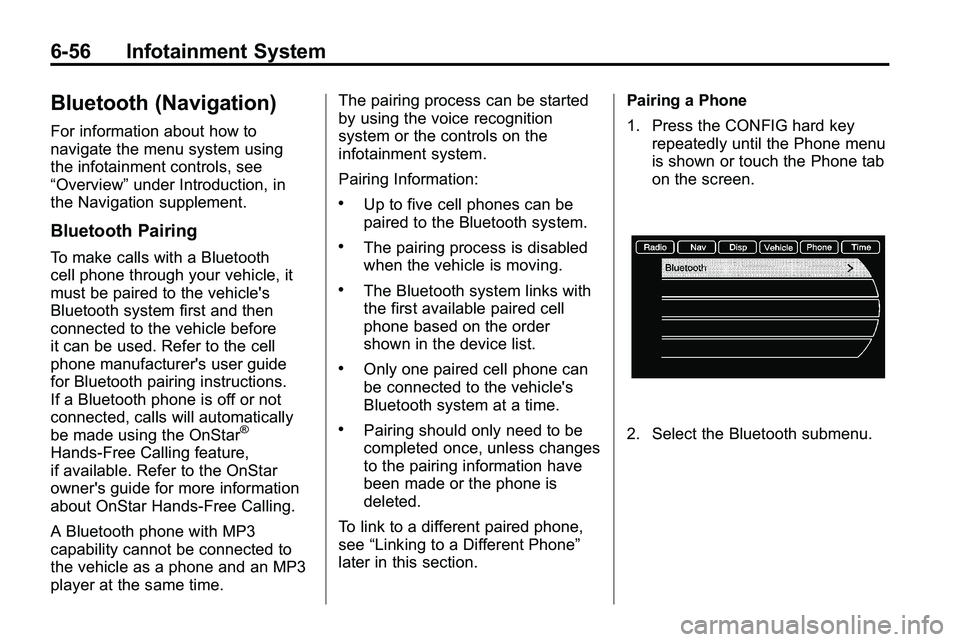
1. Press the CONFIG hard key
repeatedly until the Phone menu
is shown or touch the Phone tab
on the screen.2. Select the Bluetooth submenu.
Page 195 of 410
Infotainment System 6-57
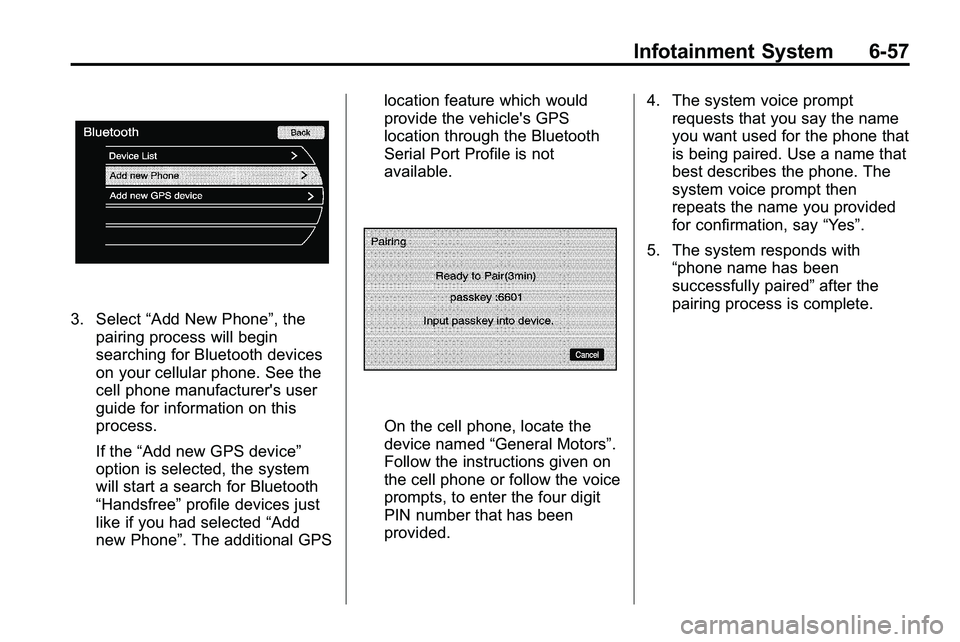
3. Select“Add New Phone”, the
pairing process will begin
searching for Bluetooth devices
on your cellular phone. See the
cell phone manufacturer's user
guide for information on this
process.
If the “Add new GPS device”
option is selected, the system
will start a search for Bluetooth
“Handsfree” profile devices just
like if you had selected “Add
new Phone”. The additional GPS location feature which would
provide the vehicle's GPS
location through the Bluetooth
Serial Port Profile is not
available.
On the cell phone, locate the
device named
“General Motors”.
Follow the instructions given on
the cell phone or follow the voice
prompts, to enter the four digit
PIN number that has been
provided. 4. The system voice prompt
requests that you say the name
you want used for the phone that
is being paired. Use a name that
best describes the phone. The
system voice prompt then
repeats the name you provided
for confirmation, say “Yes”.
5. The system responds with “phone name has been
successfully paired” after the
pairing process is complete.
Page 196 of 410
6-58 Infotainment System
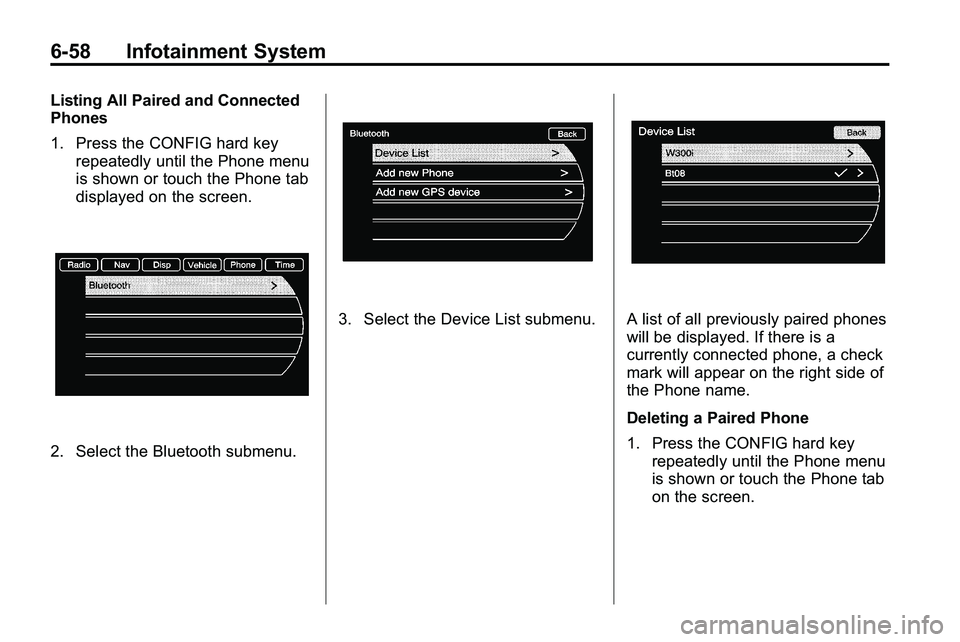
Listing All Paired and Connected
Phones
1. Press the CONFIG hard keyrepeatedly until the Phone menu
is shown or touch the Phone tab
displayed on the screen.
2. Select the Bluetooth submenu.
3. Select the Device List submenu.A list of all previously paired phones
will be displayed. If there is a
currently connected phone, a check
mark will appear on the right side of
the Phone name.
Deleting a Paired Phone
1. Press the CONFIG hard keyrepeatedly until the Phone menu
is shown or touch the Phone tab
on the screen.
Page 197 of 410
Infotainment System 6-59
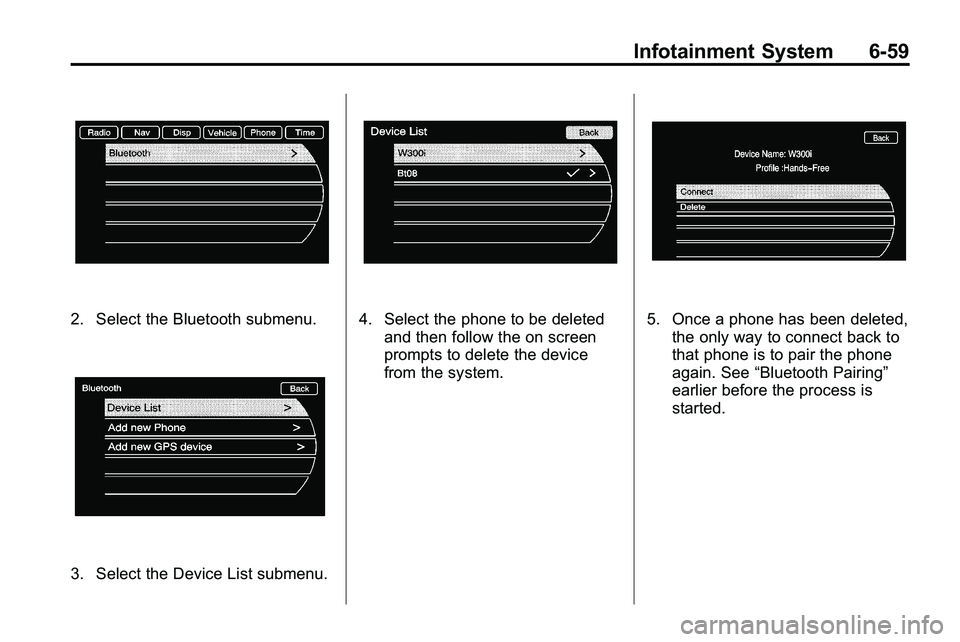
2. Select the Bluetooth submenu.
3. Select the Device List submenu.
4. Select the phone to be deletedand then follow the on screen
prompts to delete the device
from the system.5. Once a phone has been deleted,the only way to connect back to
that phone is to pair the phone
again. See “Bluetooth Pairing”
earlier before the process is
started.
Page 198 of 410
6-60 Infotainment System
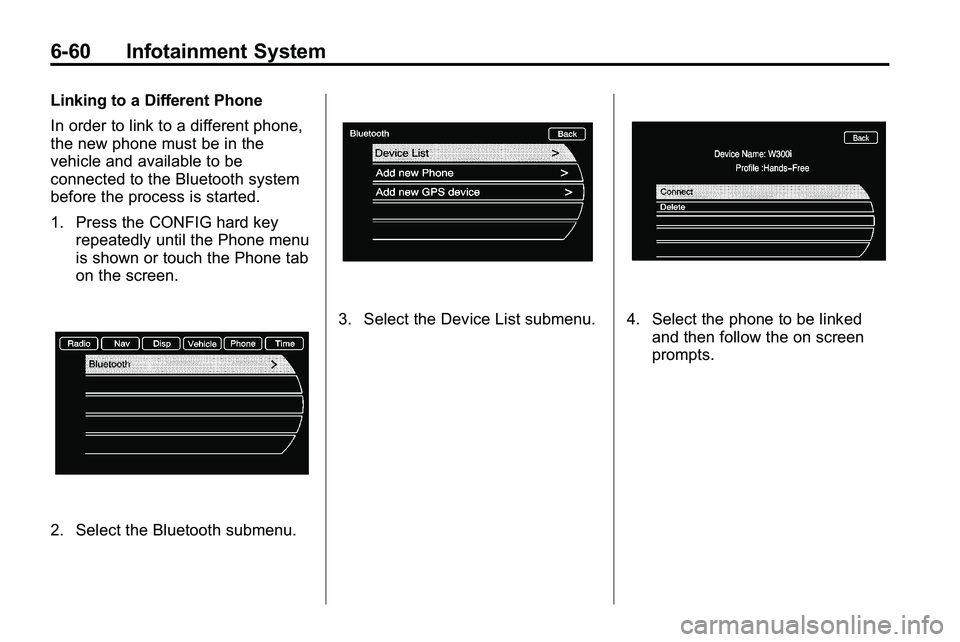
Linking to a Different Phone
In order to link to a different phone,
the new phone must be in the
vehicle and available to be
connected to the Bluetooth system
before the process is started.
1. Press the CONFIG hard keyrepeatedly until the Phone menu
is shown or touch the Phone tab
on the screen.
2. Select the Bluetooth submenu.
3. Select the Device List submenu.4. Select the phone to be linked
and then follow the on screen
prompts.
Page 199 of 410
Infotainment System 6-61
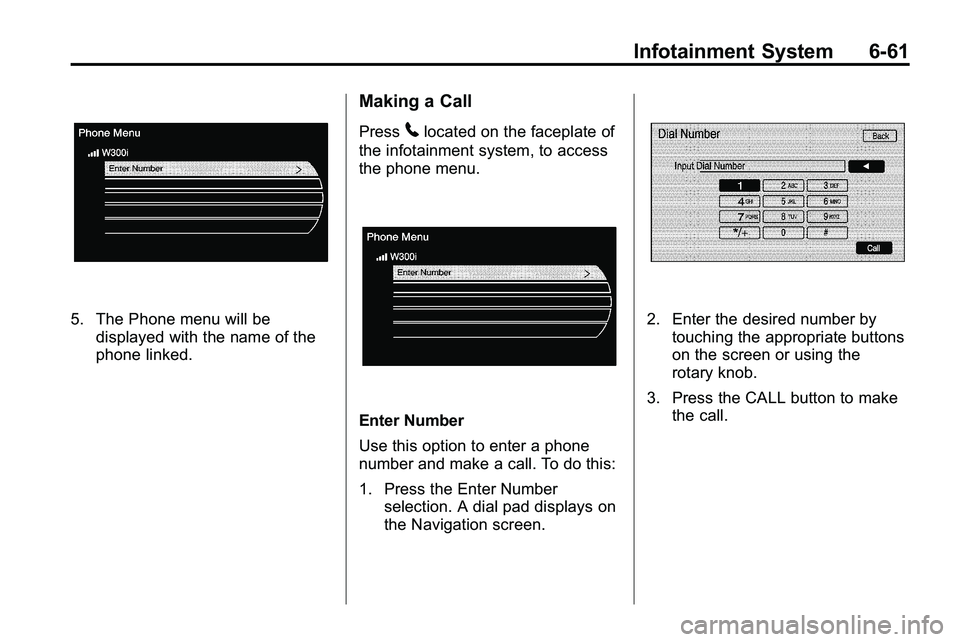
5. The Phone menu will bedisplayed with the name of the
phone linked.
Making a Call
Press5located on the faceplate of
the infotainment system, to access
the phone menu.
Enter Number
Use this option to enter a phone
number and make a call. To do this:
1. Press the Enter Number selection. A dial pad displays on
the Navigation screen.
2. Enter the desired number bytouching the appropriate buttons
on the screen or using the
rotary knob.
3. Press the CALL button to make the call.
Page 200 of 410
6-62 Infotainment System
Accepting or Declining an
Incoming Call
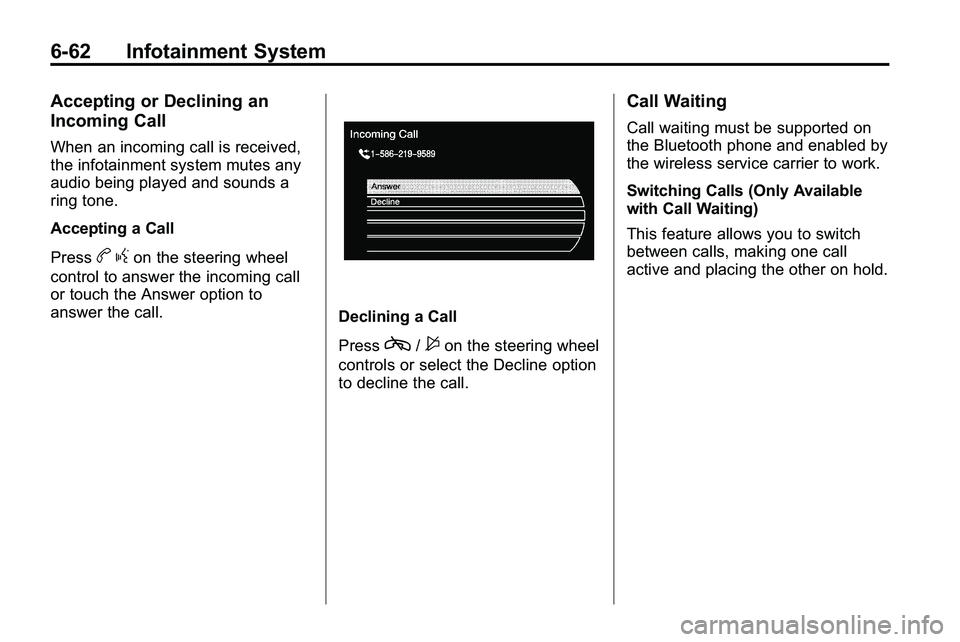
When an incoming call is received,
the infotainment system mutes any
audio being played and sounds a
ring tone.
Accepting a Call
Press
bgon the steering wheel
control to answer the incoming call
or touch the Answer option to
answer the call.
Declining a Call
Press
c/$on the steering wheel
controls or select the Decline option
to decline the call.
Call Waiting
Call waiting must be supported on
the Bluetooth phone and enabled by
the wireless service carrier to work.
Switching Calls (Only Available
with Call Waiting)
This feature allows you to switch
between calls, making one call
active and placing the other on hold.
Page 201 of 410

Infotainment System 6-63
Switch Call:Turn or press the
menu select knob to “Switch Call”
and press Enter or touch the
“Switch Call” option.
Conference Calling
Conference and three-way calling
must be supported on the Bluetooth
phone and enabled by the wireless
service carrier to work. To start a conference while in a
current call:
1. Press the
5hard key on the
faceplate until the Phone main
screen is shown with the current
active call.
2. Select the “Enter Number”
option.
3. Make another call. The first call will be placed on hold while the
second call is dialing and
connected.
4. To make a conference call, select the “Merge Calls” option
which will merge both calls into
one conference call.
5. To add more callers to the conference call, repeat Steps 2
through 4. The amount of callers
that can be added are limited by
your wireless service carrier.
Page 202 of 410

6-64 Infotainment System
Ending a Call
1. Press the5hard key.
2. Select Hang Up.
Mute or UnMute a Call
1. Press the5hard key.
2. Select the Mute call option to mute the call.
3. Select the Mute call option again to unmute the call.
Dual Tone Multi-Frequency
(DTMF) Tones
The in-vehicle Bluetooth system can
send numbers during a call, this is
used when calling a menu driven
phone system.
1. Press the5hard key.
2. Select “Enter Number” option
and enter the number sequence.
The DTMF Tones will be generated
on the network as you enter each
number.
Page 264 of 410
8-56 Driving and Operating
Gasolines containing oxygenates,
such as ethers and ethanol, and
reformulated gasolines might be
available in your area. We
recommend that you use these
gasolines, if they comply with the
specifications described earlier.
However, E85 (85% ethanol) and
other fuels containing more than
10% ethanol must not be used in
vehicles that were not designed for
those fuels.
Notice:This vehicle was not
designed for fuel that contains
methanol. Do not use fuel
containing methanol. It can
corrode metal parts in the fuel
system and also damage plastic
and rubber parts. That damage
would not be covered under the
vehicle warranty.
Some gasolines that are
not reformulated for low
emissions can contain an
octane-enhancing additive called
methylcyclopentadienyl manganese tricarbonyl (MMT); ask the attendant
where you buy gasoline whether the
fuel contains MMT. We recommend
against the use of such gasolines.
Fuels containing MMT can reduce
the life of spark plugs and the
performance of the emission control
system could be affected. The
malfunction indicator lamp might
turn on. If this occurs, return to your
dealer/retailer for service.
Filling the Tank
{WARNING
Fuel vapor burns violently and a
fuel fire can cause bad injuries.
To help avoid injuries to you and
others, read and follow all the
instructions on the fuel pump
island. Turn off the engine when
refueling. Do not smoke near fuel
or when refueling the vehicle. Do
not use cellular phones. Keep
(Continued)
WARNING (Continued)
sparks, flames, and smoking
materials away from fuel. Do not
leave the fuel pump unattended
when refueling the vehicle. This is
against the law in some places.
Do not re-enter the vehicle while
pumping fuel. Keep children away
from the fuel pump; never let
children pump fuel.
The fuel cap is behind the fuel door
on the vehicle's passenger side.
Turn the fuel cap counterclockwise
to remove. Do not release the cap
too soon or it will spring back.
Reinstall the cap by turning it
clockwise until it clicks.
If the cap is not properly installed,
the Malfunction Indicator Lamp
come on. See Malfunction Indicator
Lamp
on page 4‑17for more
information.