Info GMC TERRAIN 2019 Manual Online
[x] Cancel search | Manufacturer: GMC, Model Year: 2019, Model line: TERRAIN, Model: GMC TERRAIN 2019Pages: 434, PDF Size: 6.38 MB
Page 209 of 434
GMC Terrain/Terrain Denali Owner Manual (GMNA-Localizing-U.S./Canada/
Mexico-12146071) - 2019 - crc - 7/27/18
208 Driving and Operating
Diesel Exhaust Fluid
{Warning
Avoid getting Diesel Exhaust
Fluid (DEF) on your skin or in
your eyes as it could cause
irritation. For more safety,
handling, and storage information,
see the Diesel Exhaust Fluid
container label.
Diesel Exhaust Fluid (DEF) is used
with diesel engines to reduce the
amount of regulated emissions
produced. Products such as AdBlue
are types of DEF, and are approved
for use in the vehicle as long as
they have an API certification label
or meet ISO 22241.The fluid level in
the DEF tank must be maintained
for the vehicle to run properly. DEF
is not a fuel additive. DEF should
not be mixed with or added to diesel
fuel. DEF freezes when exposed to
temperatures below −11 °C (12 ° F).It is normal to hear the DEF system
purge fluid back into the tank after
the vehicle is shut off.
Locating Diesel Exhaust Fluid
DEF can be purchased at your
dealer. It can also be purchased at
authorized vehicle and truck
dealerships. Additionally, some
diesel truck fueling stations or
retailers may have DEF for
purchase. For vehicles with an
active OnStar or connected services
plan, OnStar can help to locate a
DEF retailer. See
Customer
Assistance Offices 0397 for phone
numbers to assist in contacting a
GM dealer. See Recommended
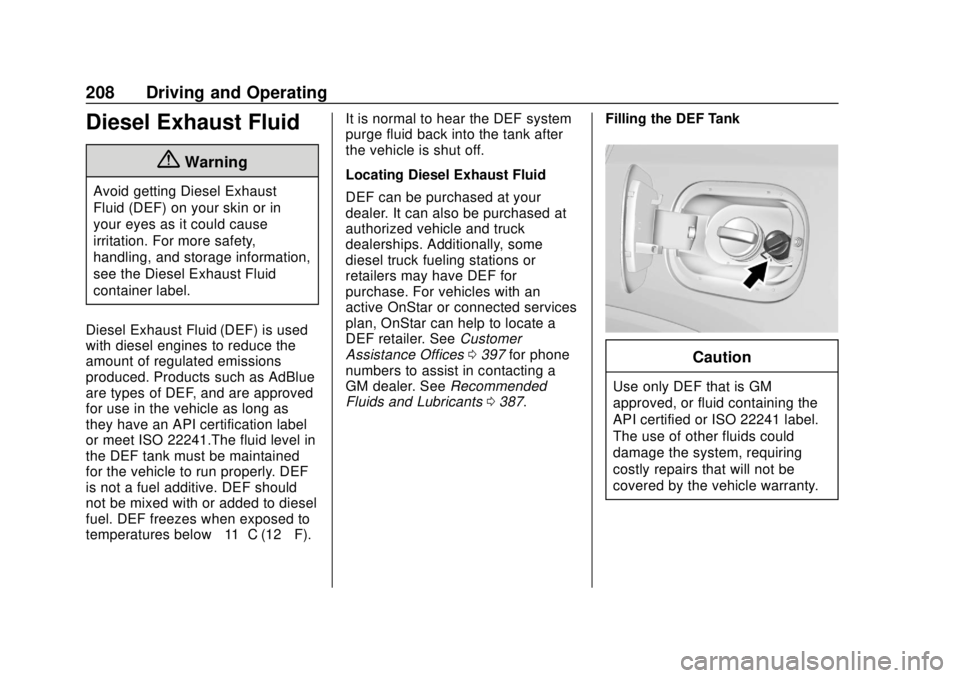
Fluids and Lubricants 0387. Filling the DEF Tank
Caution
Use only DEF that is GM
approved, or fluid containing the
API certified or ISO 22241 label.
The use of other fluids could
damage the system, requiring
costly repairs that will not be
covered by the vehicle warranty.
Page 210 of 434
GMC Terrain/Terrain Denali Owner Manual (GMNA-Localizing-U.S./Canada/
Mexico-12146071) - 2019 - crc - 7/27/18
Driving and Operating 209
Caution
Do not mix fuel with DEF, and do
not put DEF in the fuel tank. This
could lead to costly repairs that
might not be covered by the
vehicle warranty.
It is recommended to fill the DEF
tank on level ground and when the
vehicle is not running. When adding
fluid, it is recommended to fill the
DEF tank.
Caution
Do not overfill the DEF tank and
do not allow DEF to contact the
finished surfaces of the vehicle,
as it could damage the vehicle
finish. If DEF is spilled during
filling, wipe any affected surface
with a damp cloth.
Do not top off the DEF tank. If using
a bottle or jug to refill DEF, follow
the instructions on the container
label and use a dedicated fill aid. In certain cold conditions, it is
possible to find some frozen DEF in
the DEF fill pipe opening. If this
condition prevents the filling of a
DEF tank, place the vehicle in a
warm garage overnight.
For information on how to fill the
DEF tank, see
Filling the Tank
(Gasoline) 0268 orFilling the Tank
(Diesel) 0270.
Exhaust Fluid Low
A full DEF tank will last for several
thousand kilometers (miles),
depending on vehicle usage. As the
exhaust fluid level drops, warnings
will automatically be displayed in the
DIC. Exhaust fluid level status is
available in the DIC. See “Diesel
Exhaust Fluid (DEF) Level (Diesel
Engine Only)” inDriver Information
Center (DIC) (Base and Midlevel)
0 142 orDriver Information Center
(DIC) (Uplevel) 0147.
To avoid vehicle speed limitations,
the DEF tank should be refilled at
the first opportunity after a low
warning indication. If DEF is added
before the EXHAUST FLUID EMPTY REFILL NOW message
appears, it may take several km/mi
for the DIC message to update.
If the vehicle speed has been
limited and DEF has been added, it
may take up to 30 seconds after
engine start with the vehicle
stopped for the EXHAUST FLUID
EMPTY REFILL NOW message to
clear. If the vehicle is driven prior to
the DIC message clearing, the
vehicle speed will still be limited.
If the DIC message clears while
driving, the speed limitation will be
removed gradually.
If DEF is added under freezing
conditions, additional time may be
required to remove speed limitations
and it may require less fluid to fill
the DEF tank.
The DIC message EXHAUST
FLUID RANGE: XXXX km (mi)
displays at approximately 1 600 km
(1,000 mi) of fluid range remaining.
This message appears again at
approximately 500 km (300 mi) of
remaining range before the exhaust
fluid tank becomes empty.
Page 218 of 434
GMC Terrain/Terrain Denali Owner Manual (GMNA-Localizing-U.S./Canada/
Mexico-12146071) - 2019 - crc - 7/27/18
Driving and Operating 217
To shift into D (Drive):1. Bring the vehicle to a complete stop.
2. Pull the D (Drive) switch on the center stack.
To shift out of D (Drive):
1. Bring the vehicle to a complete stop.
2. Shift to the desired gear.
Downshifting the transmission in
slippery road conditions could result
in skidding. See “Skidding”under
Loss of Control 0183.
Caution
Spinning the tires or holding the
vehicle in one place on a hill
using only the accelerator pedal
may damage the transmission.
The repair will not be covered by
the vehicle warranty. If the vehicle
is stuck, do not spin the tires.
When stopping on a hill, use the
brakes to hold the vehicle in
place.
Manual Mode
Electronic Range Select
(ERS) Mode
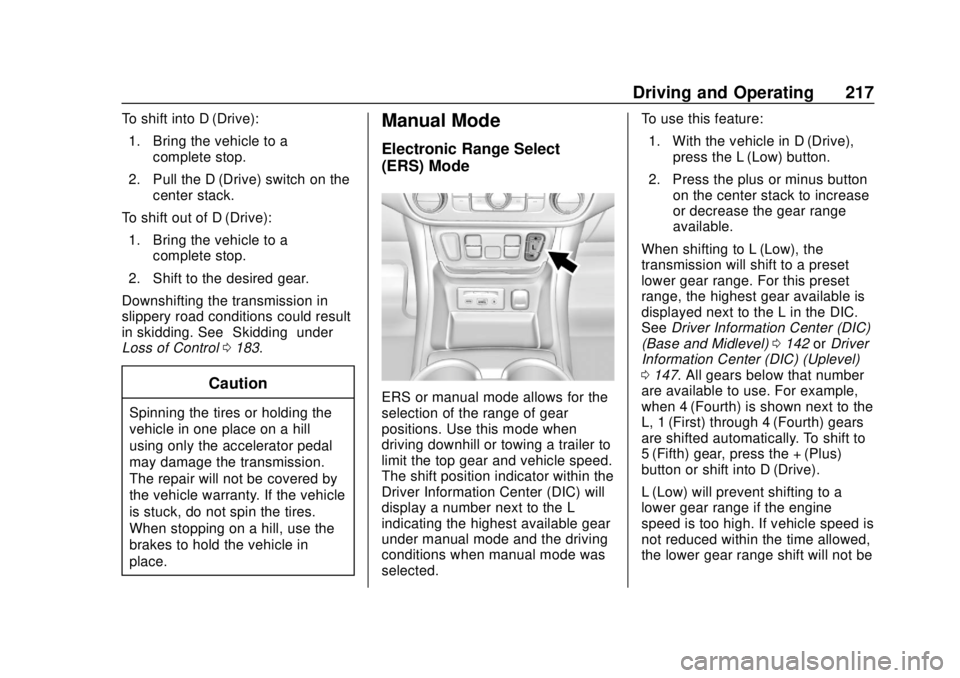
ERS or manual mode allows for the
selection of the range of gear
positions. Use this mode when
driving downhill or towing a trailer to
limit the top gear and vehicle speed.
The shift position indicator within the
Driver Information Center (DIC) will
display a number next to the L
indicating the highest available gear
under manual mode and the driving
conditions when manual mode was
selected. To use this feature:
1. With the vehicle in D (Drive), press the L (Low) button.
2. Press the plus or minus button on the center stack to increase
or decrease the gear range
available.
When shifting to L (Low), the
transmission will shift to a preset
lower gear range. For this preset
range, the highest gear available is
displayed next to the L in the DIC.
See Driver Information Center (DIC)
(Base and Midlevel) 0142 orDriver
Information Center (DIC) (Uplevel)
0 147. All gears below that number
are available to use. For example,
when 4 (Fourth) is shown next to the
L, 1 (First) through 4 (Fourth) gears
are shifted automatically. To shift to
5 (Fifth) gear, press the + (Plus)
button or shift into D (Drive).
L (Low) will prevent shifting to a
lower gear range if the engine
speed is too high. If vehicle speed is
not reduced within the time allowed,
the lower gear range shift will not be
Page 219 of 434
GMC Terrain/Terrain Denali Owner Manual (GMNA-Localizing-U.S./Canada/
Mexico-12146071) - 2019 - crc - 7/27/18
218 Driving and Operating
completed. Slow the vehicle, then
press the−(Minus) button to the
desired lower gear range.
While using ERS, cruise control can
be used.
Tow/Haul Mode
For information on the Tow/Haul
Mode, see Driver Mode Control
0 226.
Automatic Engine Grade
Braking
Automatic Engine Grade Braking
assists when driving downhill.
It maintains vehicle speed by
automatically implementing a shift
pattern that uses the engine and the
transmission to slow the vehicle. The system will automatically
command downshifts to reduce
vehicle speed. The normal shift
pattern will return once the vehicle
is on a low grade or when the
accelerator pedal is pressed.
While in the Electronic Range
Select (ERS) mode, grade braking
is deactivated, allowing the driver to
select a range and limiting the
highest gear available. Grade
braking is available for normal
driving and in Tow/Haul Mode.
See
Automatic Transmission 0213.
Drive Systems
All-Wheel Drive
For information on All-Wheel
Drive (AWD), see Driver Mode
Control 0226.
Page 221 of 434
GMC Terrain/Terrain Denali Owner Manual (GMNA-Localizing-U.S./Canada/
Mexico-12146071) - 2019 - crc - 7/27/18
220 Driving and Operating
The vehicle has an Electric Parking
Brake (EPB). The EPB can always
be activated, even if the ignition is
off. To prevent draining the battery,
avoid repeated cycles of the EPB
system when the engine is not
running.
The system has a
Yor PARK
Electric Parking Brake light, and a
8
Service Parking Brake light or
Service Parking Brake message.
See Electric Parking Brake Light
0 136 andService Electric Parking
Brake Light 0136.
Before leaving the vehicle, check for
the
Yor PARK light to ensure that
the parking brake is applied.
EPB Apply
To apply the EPB:
1. Be sure the vehicle is at a complete stop.
2. Press the EPB switch momentarily. The
Yor PARK light will flash and
then stay on once the EPB is fully
applied. If the
Yor PARK light
flashes continuously, then the EPB
is only partially applied or there is a
problem with the EPB. A Driver
Information Center (DIC) message
will display. Release the EPB and
try to apply it again. If the light does
not come on, or keeps flashing,
have the vehicle serviced. Do not
drive the vehicle if the
Yor PARK
light is flashing. See your dealer.
See Electric Parking Brake Light
0 136.
If the
8light or Service Parking
Brake message is on, press the
EPB switch and hold it. Continue to
hold the switch until the
Yor
PARK light remains on. If the
8light
or Service Parking Brake message
remains on, see your dealer.
If the EPB is applied while the
vehicle is moving, the vehicle will
decelerate as long as the switch is pressed. If the switch is pressed
until the vehicle comes to a stop,
the EPB will remain applied.
The vehicle may automatically apply
the EPB in some situations when
the vehicle is not moving. This is
normal, and is done to periodically
check the correct operation of the
EPB system.
If the EPB fails to apply, block the
rear wheels to prevent vehicle
movement.
EPB Release
To release the EPB:
1. Turn the ignition on or to ACC/ ACCESSORY.
2. Apply and hold the brake pedal.
3. Press the EPB switch momentarily.
The EPB is released when the
Y
or PARK light is off.
Page 223 of 434
GMC Terrain/Terrain Denali Owner Manual (GMNA-Localizing-U.S./Canada/
Mexico-12146071) - 2019 - crc - 7/27/18
222 Driving and Operating
Ride Control Systems
Traction Control/
Electronic Stability
Control
System Operation
The vehicle has a Traction Control
System (TCS) and StabiliTrak/
Electronic Stability Control (ESC),
an electronic stability control
system. These systems help limit
wheel slip and assist the driver in
maintaining control, especially on
slippery road conditions.
TCS activates if it senses that any
of the drive wheels are spinning or
beginning to lose traction. When this
happens, TCS applies the brakes to
the spinning wheels and reduces
engine power to limit wheel spin.
StabiliTrak/ESC activates when the
vehicle senses a difference between
the intended path and the direction
the vehicle is actually traveling.
StabiliTrak/ESC selectively applies
braking pressure to any one of thevehicle wheel brakes to assist the
driver in keeping the vehicle on the
intended path.
If cruise control is being used and
TCS or StabiliTrak/ESC begins to
limit wheel spin, cruise control will
disengage. Cruise control may be
turned back on when road
conditions allow.
Both systems come on
automatically when the vehicle is
started and begins to move. The
systems may be heard or felt while
they are operating or while
performing diagnostic checks. This
is normal and does not mean there
is a problem with the vehicle.
It is recommended to leave both
systems on for normal driving
conditions, but it may be necessary
to turn TCS off if the vehicle gets
stuck in sand, mud, ice, or snow.
See
If the Vehicle Is Stuck 0190
and “Turning the Systems Off and
On” later in this section.
The indicator light for both systems
is in the instrument cluster. This
light will:
.
Flash when TCS is limiting
wheel spin
. Flash when StabiliTrak/ESC is
activated
. Turn on and stay on when either
system is not working
If either system fails to turn on or to
activate, a message displays in the
Driver Information Center (DIC), and
dcomes on and stays on to
indicate that the system is inactive
and is not assisting the driver in
maintaining control. The vehicle is
safe to drive, but driving should be
adjusted accordingly.
Page 235 of 434
GMC Terrain/Terrain Denali Owner Manual (GMNA-Localizing-U.S./Canada/
Mexico-12146071) - 2019 - crc - 7/27/18
234 Driving and Operating
speed by about 1 km/h (1 mph),
press SET–briefly. To decrease
speed to the next 5 km/h (5 mph)
mark on the speedometer,
hold SET–.
*: Press to disengage ACC
without erasing the selected set
speed.
[: Press to select a following gap
setting for ACC of Far, Medium,
or Near.
The speedometer reading can be
displayed in either English or metric
units.
See Instrument Cluster (Base and
Midlevel) 0122 orInstrument
Cluster (Uplevel) 0125. The
increment value used depends on
the units displayed.
Switching Between ACC and
Regular Cruise Control
To switch between ACC and regular
cruise control, press and hold
*.
A Driver Information Display (DIC)
message displays. See Vehicle
Messages 0151.
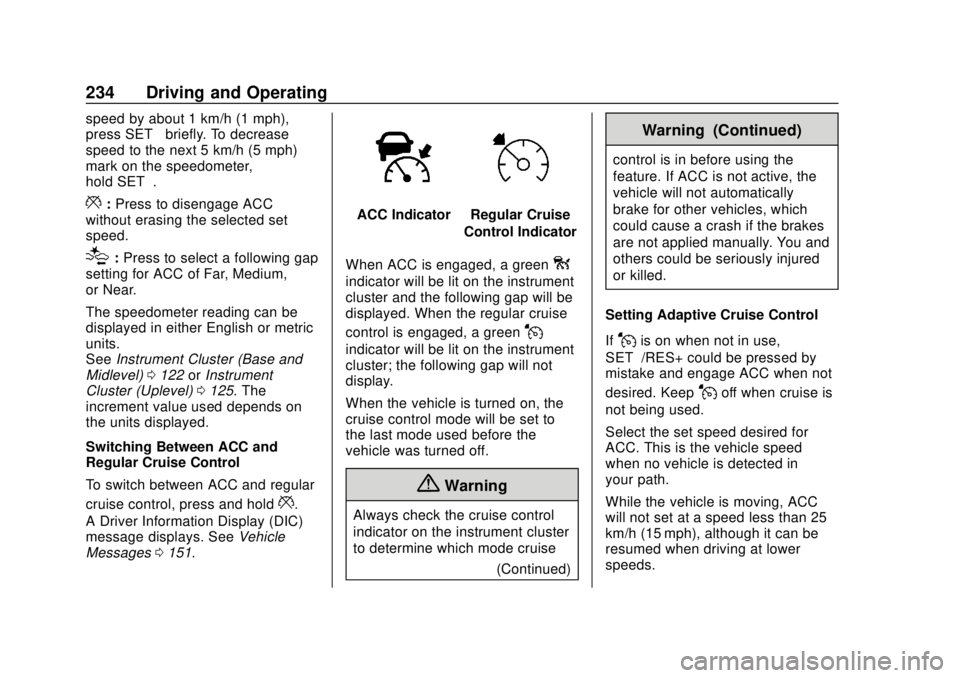
ACC IndicatorRegular Cruise
Control Indicator
When ACC is engaged, a green
o
indicator will be lit on the instrument
cluster and the following gap will be
displayed. When the regular cruise
control is engaged, a green
J
indicator will be lit on the instrument
cluster; the following gap will not
display.
When the vehicle is turned on, the
cruise control mode will be set to
the last mode used before the
vehicle was turned off.
{Warning
Always check the cruise control
indicator on the instrument cluster
to determine which mode cruise (Continued)
Warning (Continued)
control is in before using the
feature. If ACC is not active, the
vehicle will not automatically
brake for other vehicles, which
could cause a crash if the brakes
are not applied manually. You and
others could be seriously injured
or killed.
Setting Adaptive Cruise Control
If
Jis on when not in use,
SET–/RES+ could be pressed by
mistake and engage ACC when not
desired. Keep
Joff when cruise is
not being used.
Select the set speed desired for
ACC. This is the vehicle speed
when no vehicle is detected in
your path.
While the vehicle is moving, ACC
will not set at a speed less than 25
km/h (15 mph), although it can be
resumed when driving at lower
speeds.
Page 244 of 434
GMC Terrain/Terrain Denali Owner Manual (GMNA-Localizing-U.S./Canada/
Mexico-12146071) - 2019 - crc - 7/27/18
Driving and Operating 243
Warning (Continued)
Complete attention is always
required while driving, and you
should be ready to take action
and apply the brakes and/or steer
the vehicle to avoid crashes.
Audible or Safety Alert Seat
Some driver assistance features
alert the driver of obstacles by
beeping. To change the volume of
the warning chime, see “Comfort
and Convenience” underVehicle
Personalization 0152.
If equipped with the Safety Alert
Seat, the driver seat cushion may
provide a vibrating pulse alert
instead of beeping. To change this,
see “Collision/Detection Systems”
under Vehicle Personalization
0 152.
Cleaning
Depending on vehicle options, keep
these areas of the vehicle clean to
ensure the best driver assistance
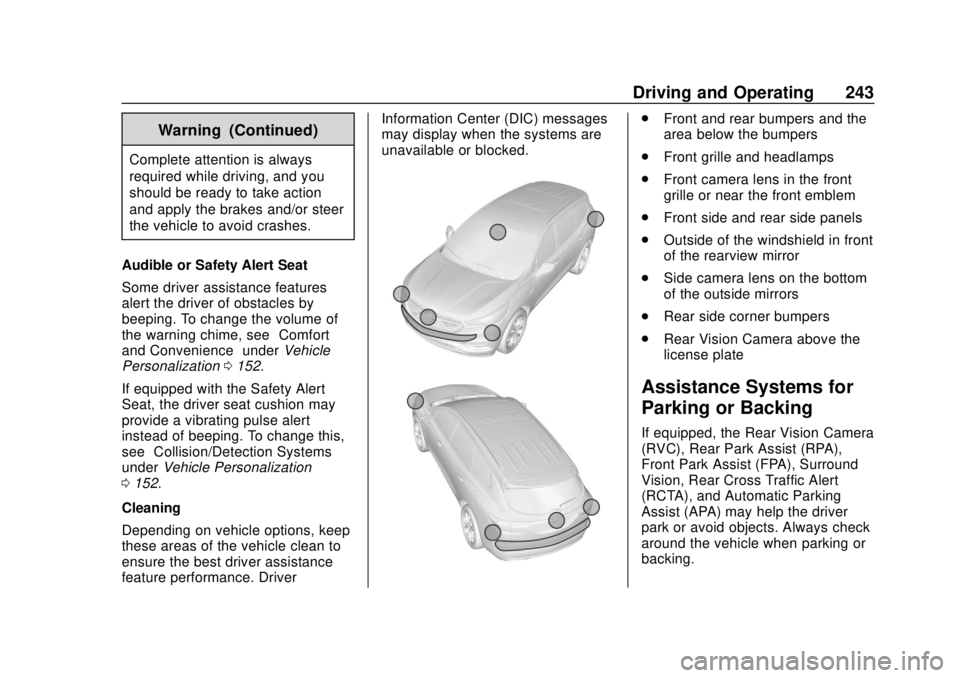
feature performance. Driver Information Center (DIC) messages
may display when the systems are
unavailable or blocked.
.
Front and rear bumpers and the
area below the bumpers
. Front grille and headlamps
. Front camera lens in the front
grille or near the front emblem
. Front side and rear side panels
. Outside of the windshield in front
of the rearview mirror
. Side camera lens on the bottom
of the outside mirrors
. Rear side corner bumpers
. Rear Vision Camera above the
license plate
Assistance Systems for
Parking or Backing
If equipped, the Rear Vision Camera
(RVC), Rear Park Assist (RPA),
Front Park Assist (FPA), Surround
Vision, Rear Cross Traffic Alert
(RCTA), and Automatic Parking
Assist (APA) may help the driver
park or avoid objects. Always check
around the vehicle when parking or
backing.
Page 245 of 434
GMC Terrain/Terrain Denali Owner Manual (GMNA-Localizing-U.S./Canada/
Mexico-12146071) - 2019 - crc - 7/27/18
244 Driving and Operating
Rear Vision Camera (RVC)
When the vehicle is shifted into
R (Reverse), the RVC displays an
image of the area behind the vehicle
in the infotainment display. The
previous screen displays when the
vehicle is shifted out of R (Reverse)
after a short delay. To return to the
previous screen sooner, press any
button on the infotainment system,
shift into P (Park), or reach a vehicle
speed of approximately 12 km/h
(8 mph).
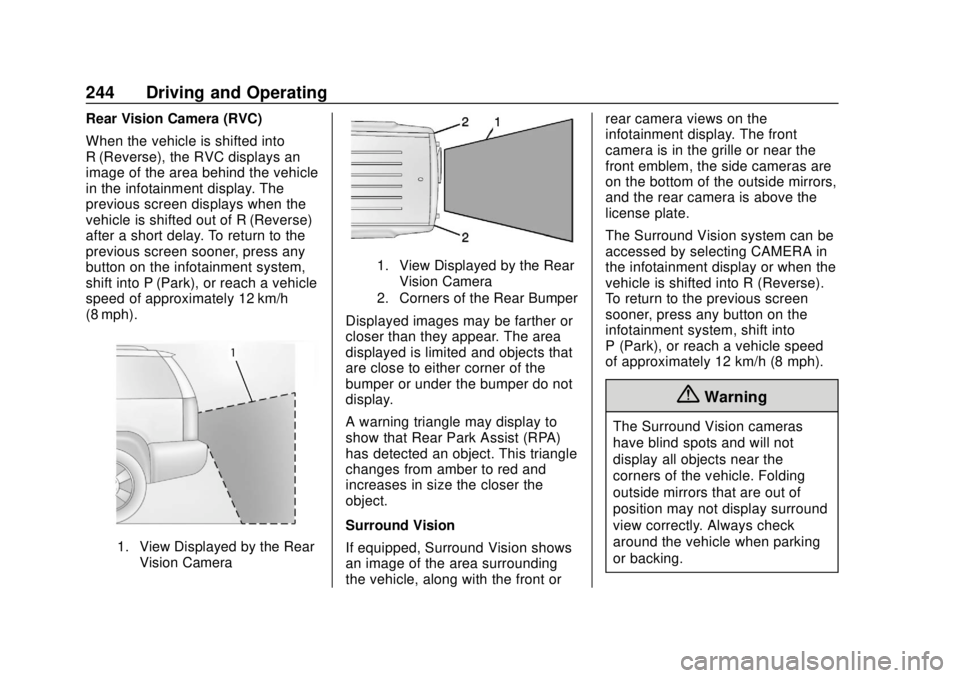
1. View Displayed by the RearVision Camera
1. View Displayed by the RearVision Camera
2. Corners of the Rear Bumper
Displayed images may be farther or
closer than they appear. The area
displayed is limited and objects that
are close to either corner of the
bumper or under the bumper do not
display.
A warning triangle may display to
show that Rear Park Assist (RPA)
has detected an object. This triangle
changes from amber to red and
increases in size the closer the
object.
Surround Vision
If equipped, Surround Vision shows
an image of the area surrounding
the vehicle, along with the front or rear camera views on the
infotainment display. The front
camera is in the grille or near the
front emblem, the side cameras are
on the bottom of the outside mirrors,
and the rear camera is above the
license plate.
The Surround Vision system can be
accessed by selecting CAMERA in
the infotainment display or when the
vehicle is shifted into R (Reverse).
To return to the previous screen
sooner, press any button on the
infotainment system, shift into
P (Park), or reach a vehicle speed
of approximately 12 km/h (8 mph).
{Warning
The Surround Vision cameras
have blind spots and will not
display all objects near the
corners of the vehicle. Folding
outside mirrors that are out of
position may not display surround
view correctly. Always check
around the vehicle when parking
or backing.
Page 246 of 434
GMC Terrain/Terrain Denali Owner Manual (GMNA-Localizing-U.S./Canada/
Mexico-12146071) - 2019 - crc - 7/27/18
Driving and Operating 245
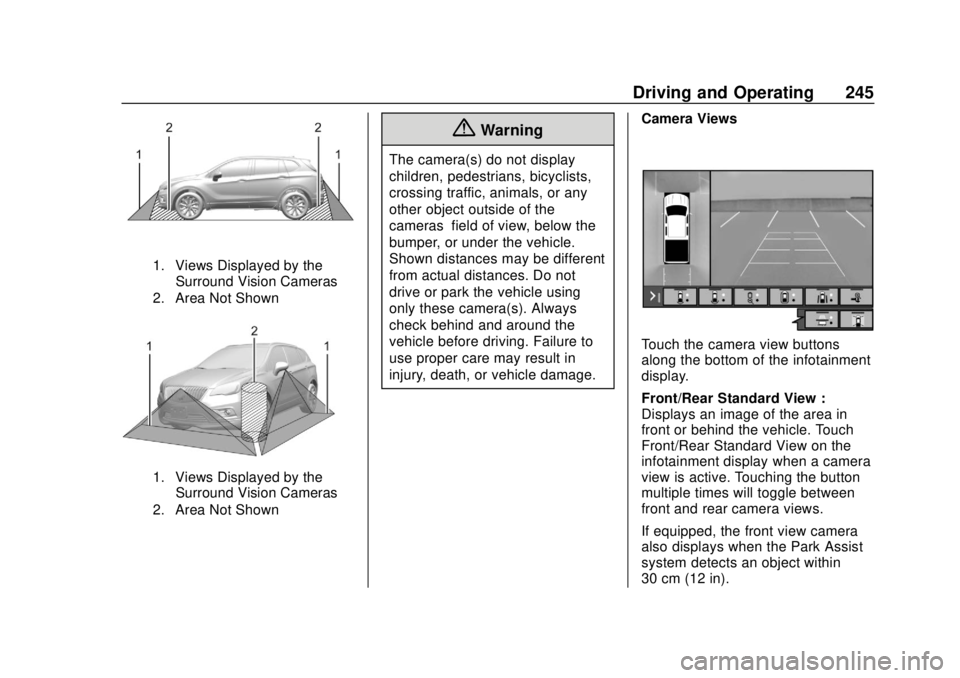
1. Views Displayed by theSurround Vision Cameras
2. Area Not Shown
1. Views Displayed by the Surround Vision Cameras
2. Area Not Shown
{Warning
The camera(s) do not display
children, pedestrians, bicyclists,
crossing traffic, animals, or any
other object outside of the
cameras’ field of view, below the
bumper, or under the vehicle.
Shown distances may be different
from actual distances. Do not
drive or park the vehicle using
only these camera(s). Always
check behind and around the
vehicle before driving. Failure to
use proper care may result in
injury, death, or vehicle damage. Camera Views
Touch the camera view buttons
along the bottom of the infotainment
display.
Front/Rear Standard View :
Displays an image of the area in
front or behind the vehicle. Touch
Front/Rear Standard View on the
infotainment display when a camera
view is active. Touching the button
multiple times will toggle between
front and rear camera views.
If equipped, the front view camera
also displays when the Park Assist
system detects an object within
30 cm (12 in).