Screen GMC TERRAIN 2022 User Guide
[x] Cancel search | Manufacturer: GMC, Model Year: 2022, Model line: TERRAIN, Model: GMC TERRAIN 2022Pages: 371, PDF Size: 17.71 MB
Page 114 of 371

GMC Terrain/Terrain Denali Owner Manual (GMNA-Localizing-U.S./Canada/
Mexico-16540740) - 2023 - CRC - 6/16/22
Instruments and Controls 113
worx:Press to move up or down in
a list.
oorp: Press to move between the
interactive display zones in the cluster.
V: Press to open a menu or select a menu
item. Press and hold to reset values on
certain screens.
Info Page Options
The info pages on the DIC can be turned on
or off through the Options menu.
1. Press
oorpto scroll to the Options
application.
2. Press
worxto scroll to the Info Page
Options and press
V. 3. Press
worxto move through the list
of possible information displays.
4. Press
Vwhile an item is highlighted to
select or deselect that item. When an
item is selected, a checkmark will appear
next to it.
Info Pages
The following is the list of all possible DIC
info page displays. Some may not be
available for your particular vehicle. Some
items may not be turned on by default but
can be turned on through the Options app.
See “Info Page Options” earlier in this
section.
Speed : Shows the vehicle speed in either
kilometers per hour (km/h) or miles per
hour (mph). If equipped, press
Vto open
the menu and select to display speed limit
signs. The sign will show “− −”when there
is no detected speed limit or the system is
unavailable.
Speed Limit : Shows sign information, which
comes from a roadway database in the
onboard navigation, if equipped. The sign
will show “− −”when there is no detected
speed limit or the system is unavailable. Press
Vwhile this display is active to
toggle Speed Limit sign on or off.
Trip 1 or Trip 2 : Shows the current distance
traveled, in either kilometers (km) or
miles (mi), since the trip odometer was last
reset.
If equipped, shows the average fuel
economy since the last reset. This number
reflects only the approximate average fuel
economy that the vehicle has right now,
and will change as driving conditions
change. The average fuel economy can be
displayed as mpg, km/L, or L/100km where
applicable.
If equipped, shows the average speed since
the last reset. This number reflects only the
approximate average speed that the vehicle
has, and will change as driving conditions
change. Average speed can be displayed
as mph or km/h where applicable.
Press
Vwhile this display is active to show
a confirmation window to reset all values to
zero. Use
oorpto select yes or no and
press
V.
Fuel Information or Fuel Range : Shows the
approximate distance the vehicle can be
driven without refueling. LOW will be
Page 116 of 371

GMC Terrain/Terrain Denali Owner Manual (GMNA-Localizing-U.S./Canada/
Mexico-16540740) - 2023 - CRC - 6/16/22
Instruments and Controls 115
Timer :This display can be used as a timer.
To start the timer, press
Vto open the
menu while this display is active. Use
w
andxto select Start Timer or Reset. Press
V. To stop the timer, pressVwhile this
display is active. The display will show the
amount of time that has passed since the
timer was last reset.
Follow Distance/Gap Setting : If equipped,
the current follow time to the vehicle ahead
is displayed as a time value on this page.
When Adaptive Cruise Control (ACC) has
been engaged, the display switches to the
gap setting page. This page shows the
current gap setting along with the vehicle
ahead indicator.
Driver Assistance : If equipped, shows
information for Lane Keep Assist (LKA), Lane
Departure Warning (LDW), and Forward
Collision Alert (FCA).
Battery Voltage : Displays the current
battery voltage, if equipped. Battery voltage
changes are normal while driving. See
Charging System Light 0100. If there is a
problem with the battery charging system, a
DIC will display a message. Coolant Temperature :
Displays the coolant
temperature in degrees Celsius (°C) or
degrees Fahrenheit (°F).
Economy Trend : Shows history of the
Average Fuel Economy from the last 50 km
(30 mi). Each bar represents about 5 km
(3 mi) of driving. During driving the bars will
shift to always reflect the most recent
distance on the right side. Press
Vto open
the menu while this display is active to clear
the graph. Select yes or no and press
V.
Oil Pressure : Oil pressure is displayed in
either kilopascal (kPa) or in pounds per
square inch (psi). Oil pressure can vary with
engine speed, outside temperature, and oil
viscosity. On some models, the oil pump will
vary engine oil pressure according to engine
needs. Oil pressure may change quickly as
the engine speed or load varies. This is
normal. If the oil pressure warning light or
DIC message indicates oil pressure outside
the normal operating range, check the
vehicle's oil as soon as possible.
Blank Page : Shows no information.
Head-Up Display (HUD)
{Warning
If the HUD image is too bright or too
high in your field of view, it may take
you more time to see things you need to
see when it is dark outside. Be sure to
keep the HUD image dim and placed low
in your field of view.
If equipped with HUD, some information
concerning the operation of the vehicle is
projected onto the screen on top of the
instrument panel. The information is
projected onto the HUD screen on the driver
side of the instrument panel and focused
out toward the front of the vehicle.
Caution
If you try to use the HUD image as a
parking aid, you may misjudge the
distance and damage your vehicle. Do not
use the HUD image as a parking aid.
The HUD information can be displayed in
various languages. The speedometer reading
and other numerical values can be displayed
in either English or metric units.
Page 117 of 371

GMC Terrain/Terrain Denali Owner Manual (GMNA-Localizing-U.S./Canada/
Mexico-16540740) - 2023 - CRC - 6/16/22
116 Instruments and Controls
The language selection is changed through
the radio and the units of measurement are
changed through the instrument cluster. See
Settings0165 and "Options" under
Instrument Cluster (Base and Midlevel) 088
or Instrument Cluster (Uplevel) 091 or
Instrument Cluster (Denali Only) 093.
{Warning
.Do not attach any stickers, decals,
or accessories on the Head-Up
Display (HUD).
.Do not attempt to adjust or move the
HUD screen or the mechanical door on
top of the instrument panel by hand.
.Do not place any objects near the
HUD. Objects may obstruct the image
display, and/or interference from the
objects during activation may
influence the operation or could
damage the display.
.Do not put any drinks near the HUD.
If liquid flows into the display, the
unit could be damaged.
(Continued)
Warning (Continued)
.Use caution when opening or closing
the HUD screen to prevent objects
from falling inside the
mechanical door.
.Use only a soft cloth to clean the HUD
screen. Do not use any organic
solvents, detergents, or polishing
materials to prevent damage to the
HUD display.
HUD Display
The HUD may display some of the following
vehicle information and vehicle messages or
alerts:
.Speed
.Tachometer
.Audio
.Phone
.Navigation
.Collision Alert
.Adaptive Cruise Control and set speed
.Lane Departure Warning/Lane Keep Assist
.Low Fuel
Some vehicle messages or alerts displayed in
the HUD may be cleared by using the
steering wheel controls. See Vehicle
Messages 0119.
The HUD control is to the left of the
steering wheel.
To adjust the HUD image:
Page 118 of 371

GMC Terrain/Terrain Denali Owner Manual (GMNA-Localizing-U.S./Canada/
Mexico-16540740) - 2023 - CRC - 6/16/22
Instruments and Controls 117
1. Adjust the driver seat.
2. Start the vehicle.
3. Use the following settings to adjustthe HUD.
$:Press or lift to center the HUD image.
The HUD image can only be adjusted up and
down, not side to side.
O: Press up to open/close the screen.
!: Press to select the display view. Each
press will change the display view.
Press and hold INFO for at least
four seconds to view Open Source Software.
Press and hold INFO again for at least
four seconds to switch off the Open Source
Software View.
D: Lift and hold to brighten the display.
Press and hold to dim the display. Continue
to hold to turn the display off.
The HUD image automatically dims and
brightens to compensate for outside
lighting. The HUD brightness control can
also be adjusted as needed.
The HUD image may temporarily light up
depending on the angle and position of
sunlight on the HUD display. This is normal. Polarized sunglasses could make the HUD
image harder to see.
HUD Views
There are four views in the HUD. Some
vehicle information and vehicle messages or
alerts may be displayed in any view.
Metric
English
Speed View : This displays digital speed in
English or metric units, speed limit, vehicle
ahead indicator, Lane Departure Warning/
Lane Keep Assist, and Adaptive Cruise
Control and set speed. Some information
only appears on vehicles that have these
features, and when they are active.
Metric
English
Audio/Phone View : This displays digital
speed, indicators from speed view, and
audio/phone information. The current radio
station, media type, and incoming calls will
be displayed.
All HUD views may briefly display audio
information when the steering wheel
controls are used to adjust the audio
settings.
Incoming phone calls may display in any
HUD view.
Page 119 of 371

GMC Terrain/Terrain Denali Owner Manual (GMNA-Localizing-U.S./Canada/
Mexico-16540740) - 2023 - CRC - 6/16/22
118 Instruments and Controls
Metric
English
Navigation View : This displays digital
speed, indicators from speed view, and
Turn-by-Turn Navigation information in some
vehicles. The compass heading is displayed
when navigation routing is not active.
Navigation Turn-by-Turn Alerts shown in the
instrument cluster may also be displayed in
any HUD view.
Metric
English
Performance View : This displays digital
speed, indicators from speed view, and rpm
reading, transmission positions, and gear
shift indicator (if equipped).
Care of the HUD
Clean the screen with a soft cloth sprayed
with glass cleaner. Wipe the screen gently,
then dry it.
HUD Troubleshooting
If you cannot see the HUD image when the
vehicle is on, check that:
.Nothing is covering the HUD cover.
.The HUD brightness setting is not too
dim or too bright.
.The HUD is adjusted to the proper height.
.Polarized sunglasses are not worn.
.The screen is clean.
If the HUD image is not correct, contact
your dealer.
Reflected LED Alert Display (RLAD)
When the screen is closed, the HUD with
the integrated RLAD can display red spots
reflected in the windshield for the Forward
Collision Alert and Front Pedestrian Alert.
Page 130 of 371
GMC Terrain/Terrain Denali Owner Manual (GMNA-Localizing-U.S./Canada/
Mexico-16540740) - 2023 - CRC - 6/16/22
Lighting 129
Exit Lighting
Some exterior lamps and interior lamps turn
on when the driver door is opened after the
vehicle is turned off.
The exterior and interior lamps remain on
for a set amount of time, then automatically
turn off.
The interior lights turn on when the vehicle
is turned off.
The exterior lamps turn off immediately by
turning the exterior lamp control off.
This feature can be changed. On the
infotainment home screen, select the
Settings icon
TVehicleTExit Lighting.
Battery Load Management
The vehicle has Electric Power Management
(EPM) that estimates the battery's
temperature and state of charge. It then
adjusts the voltage for best performance
and extended life of the battery.
When the battery's state of charge is low,
the voltage is raised slightly to quickly bring
the charge back up. When the state of
charge is high, the voltage is lowered
slightly to prevent overcharging. If the
vehicle has a voltmeter gauge or a voltagedisplay on the Driver Information Center
(DIC), you may see the voltage move up or
down. This is normal. If there is a problem,
an alert will be displayed.
The battery can be discharged at idle if the
electrical loads are very high. This is true for
all vehicles. This is because the generator
(alternator) may not be spinning fast
enough at idle to produce all of the power
needed for very high electrical loads.
A high electrical load occurs when several of
the following are on, such as: headlamps,
high beams, rear window defogger, climate
control fan at high speed, heated seats,
engine cooling fans, trailer loads, and loads
plugged into accessory power outlets.
EPM works to prevent excessive discharge of
the battery. It does this by balancing the
generator's output and the vehicle's
electrical needs. It can increase engine idle
speed to generate more power whenever
needed. It can temporarily reduce the power
demands of some accessories.
Normally, these actions occur in steps or
levels, without being noticeable. In rare
cases at the highest levels of corrective
action, this action may be noticeable to the
driver. If so, a DIC message might be
displayed and it is recommended that the
driver reduce the electrical loads as much as
possible.
Battery Power Protection
This feature helps prevent the battery from
being drained, if the interior courtesy lamps
or reading lamps are accidentally left on.
If any of these lamps are left on, they
automatically turn off after 10 minutes,
if the ignition is off. The lamps will not
come back on again until one of the
following occurs:
.The ignition is turned on.
.The doors are closed and then re-opened.
Exterior Lighting Battery Saver
The exterior lamps turn off about 10 minutes
after the ignition is turned off, if the parking
lamps or headlamps have been manually
left on. This protects against draining the
battery. To restart the 10-minute timer, turn
the exterior lamp control to the
Oposition
and then back to the
;or2position.
To keep the lamps on for more than
10 minutes, the ignition must be on or in
accessory mode.
Page 132 of 371

GMC Terrain/Terrain Denali Owner Manual (GMNA-Localizing-U.S./Canada/
Mexico-16540740) - 2023 - CRC - 6/16/22
Infotainment System 131
.Set up the audio by presetting favorite
stations, setting the tone, and adjusting
the speakers.
.Set up phone numbers in advance so they
can be called easily by pressing a single
control or by using a single voice
command.
See Distracted Driving 0187.
Active Noise Cancellation (ANC)
If equipped, ANC reduces engine noise in the
vehicle’s interior. ANC requires the
factory-installed audio system, radio,
speakers, amplifier (if equipped), induction
system, and exhaust system to work
properly. Deactivation is required by your
dealer if related aftermarket equipment is
installed.
Overview
Infotainment System
The infotainment system is controlled by
using the infotainment display, controls on
the center stack, steering wheel controls,
and voice recognition (if equipped).
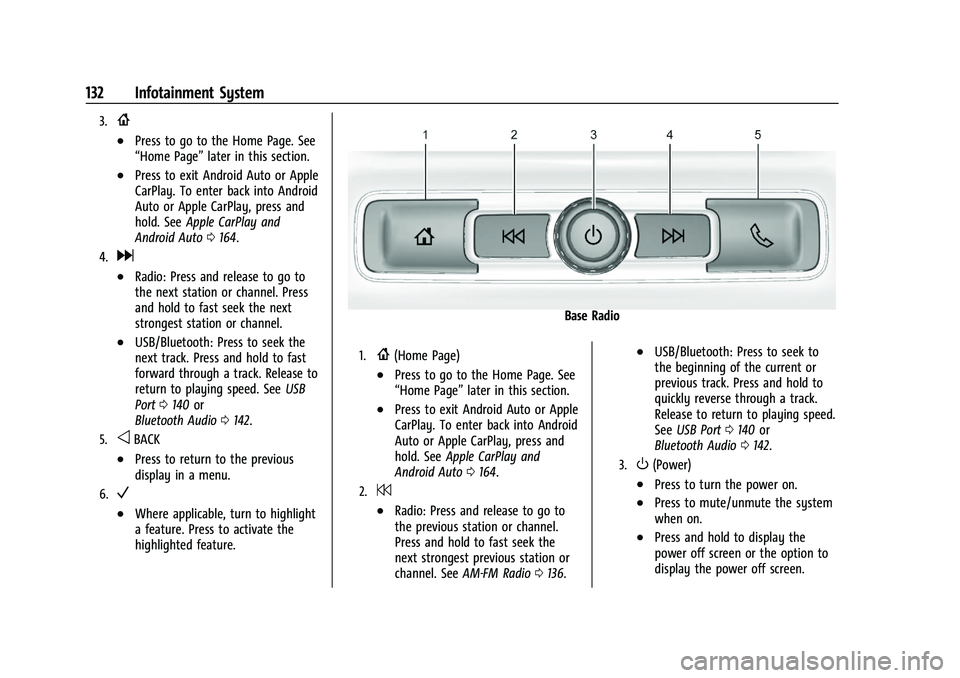
Uplevel Radio.
1.O(Power)
.Press to turn the power on.
.Press to mute/unmute the system
when on.
.Press and hold to display the
power off screen or the option to
display the power off screen.
.Turn to decrease or increase the
volume.
2.g
.Radio: Press and release to go to
the previous station or channel.
Press and hold to fast seek the
next strongest previous station or
channel. See AM-FM Radio 0136.
.USB/Bluetooth: Press to seek to
the beginning of the current or
previous track. Press and hold to
quickly reverse through a track.
Release to return to playing speed.
See USB Port 0140 or
Bluetooth Audio 0142.
Page 133 of 371
GMC Terrain/Terrain Denali Owner Manual (GMNA-Localizing-U.S./Canada/
Mexico-16540740) - 2023 - CRC - 6/16/22
132 Infotainment System
3.{
.Press to go to the Home Page. See
“Home Page”later in this section.
.Press to exit Android Auto or Apple
CarPlay. To enter back into Android
Auto or Apple CarPlay, press and
hold. SeeApple CarPlay and
Android Auto 0164.
4.d
.Radio: Press and release to go to
the next station or channel. Press
and hold to fast seek the next
strongest station or channel.
.USB/Bluetooth: Press to seek the
next track. Press and hold to fast
forward through a track. Release to
return to playing speed. See USB
Port 0140 or
Bluetooth Audio 0142.
5.oBACK
.Press to return to the previous
display in a menu.
6.V
.Where applicable, turn to highlight
a feature. Press to activate the
highlighted feature.
Base Radio
1.{(Home Page)
.Press to go to the Home Page. See
“Home Page” later in this section.
.Press to exit Android Auto or Apple
CarPlay. To enter back into Android
Auto or Apple CarPlay, press and
hold. SeeApple CarPlay and
Android Auto 0164.
2.7
.Radio: Press and release to go to
the previous station or channel.
Press and hold to fast seek the
next strongest previous station or
channel. See AM-FM Radio 0136.
.USB/Bluetooth: Press to seek to
the beginning of the current or
previous track. Press and hold to
quickly reverse through a track.
Release to return to playing speed.
See USB Port 0140 or
Bluetooth Audio 0142.
3.O(Power)
.Press to turn the power on.
.Press to mute/unmute the system
when on.
.Press and hold to display the
power off screen or the option to
display the power off screen.
Page 135 of 371
GMC Terrain/Terrain Denali Owner Manual (GMNA-Localizing-U.S./Canada/
Mexico-16540740) - 2023 - CRC - 6/16/22
134 Infotainment System
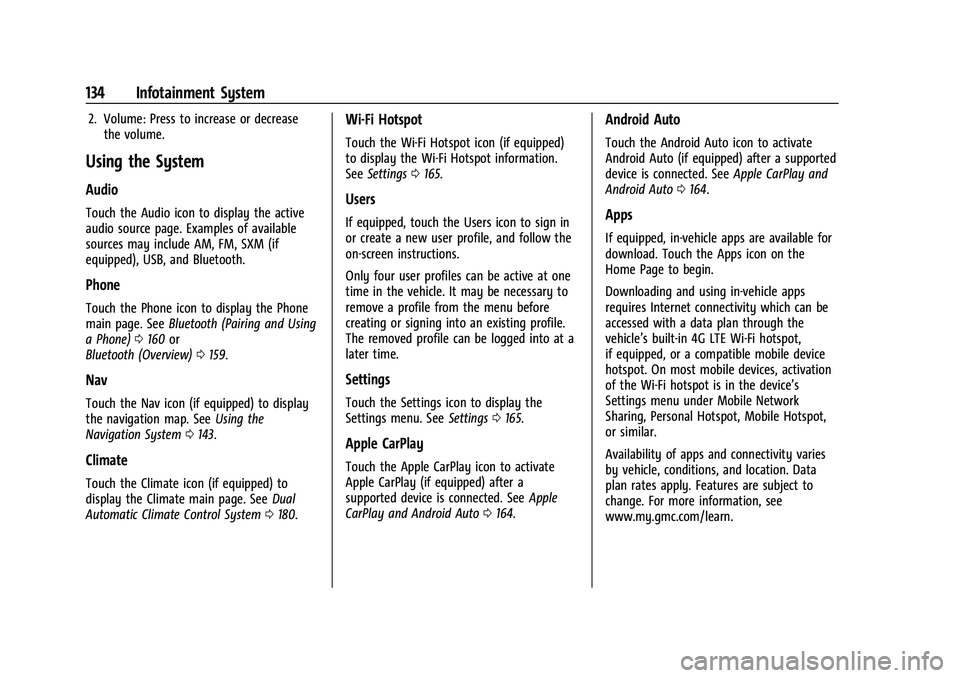
2. Volume: Press to increase or decreasethe volume.
Using the System
Audio
Touch the Audio icon to display the active
audio source page. Examples of available
sources may include AM, FM, SXM (if
equipped), USB, and Bluetooth.
Phone
Touch the Phone icon to display the Phone
main page. See Bluetooth (Pairing and Using
a Phone) 0160 or
Bluetooth (Overview) 0159.
Nav
Touch the Nav icon (if equipped) to display
the navigation map. See Using the
Navigation System 0143.
Climate
Touch the Climate icon (if equipped) to
display the Climate main page. See Dual
Automatic Climate Control System 0180.
Wi-Fi Hotspot
Touch the Wi-Fi Hotspot icon (if equipped)
to display the Wi-Fi Hotspot information.
See Settings 0165.
Users
If equipped, touch the Users icon to sign in
or create a new user profile, and follow the
on-screen instructions.
Only four user profiles can be active at one
time in the vehicle. It may be necessary to
remove a profile from the menu before
creating or signing into an existing profile.
The removed profile can be logged into at a
later time.
Settings
Touch the Settings icon to display the
Settings menu. See Settings0165.
Apple CarPlay
Touch the Apple CarPlay icon to activate
Apple CarPlay (if equipped) after a
supported device is connected. See Apple
CarPlay and Android Auto 0164.
Android Auto
Touch the Android Auto icon to activate
Android Auto (if equipped) after a supported
device is connected. See Apple CarPlay and
Android Auto 0164.
Apps
If equipped, in-vehicle apps are available for
download. Touch the Apps icon on the
Home Page to begin.
Downloading and using in-vehicle apps
requires Internet connectivity which can be
accessed with a data plan through the
vehicle’s built-in 4G LTE Wi-Fi hotspot,
if equipped, or a compatible mobile device
hotspot. On most mobile devices, activation
of the Wi-Fi hotspot is in the device’s
Settings menu under Mobile Network
Sharing, Personal Hotspot, Mobile Hotspot,
or similar.
Availability of apps and connectivity varies
by vehicle, conditions, and location. Data
plan rates apply. Features are subject to
change. For more information, see
www.my.gmc.com/learn.
Page 157 of 371

GMC Terrain/Terrain Denali Owner Manual (GMNA-Localizing-U.S./Canada/
Mexico-16540740) - 2023 - CRC - 6/16/22
156 Infotainment System
.Pression the steering wheel controls
to terminate the voice recognition session
and show the display where voice
recognition was initiated.
Natural Language Commands
Most languages do not support natural
language commands in sentence form. For
those languages, use direct commands like
the examples shown on the display.
Helpful Hints for Speaking Commands
Voice recognition can understand commands
that are naturally stated in sentence form or
direct commands that state the application
and the task.
For best results:
.Listen for the prompt before saying a
command or reply.
.Speak the command naturally, not too
fast, not too slow.
.Use direct commands without a lot of
extra words. For example, “Call
at work,” “Play” followed by the artist or
song name, or “Tune”followed by the
radio station number.
.Navigation destinations can be made in a
single command using keywords. A few
examples are: “I want directions to an
address,” “I need to find a place of
interest or (POI),” or“Find contact.”
The system responds by requesting more
details. For other POIs, say the name of a
category like “Restaurants,” “Shopping
Malls,” or“Hospitals.”
.Navigating to a destination outside of the
current country takes more than one
command. The first command is to tell
the system where the navigation will take
place, such as an Address, Intersection,
POI, or Contact. If Address or Intersection
is selected, the second command is to
say, “Change Country.” Once the system
responds, say the country before saying
the rest of the address and/or
intersection.
If POI is asked for, say “Change Location,”
then “Change Country.”
Direct commands might be more clearly
understood by the system. An example of a
direct command would be “Call
Examples of these direct commands are
displayed on most of the screens while a
voice session is active. If “Phone”or“Phone
Commands,” is spoken, the system understands that a phone call is requested
and will respond with questions until
enough details are gathered to make a call.
If a cell phone number has been saved with
a name and a place, the direct command
should include both, for example
“Call
Using Voice Recognition for List Options
When a list is displayed, a voice prompt will
ask to confirm or select an option from
that list.
When a display contains a list, there may be
options that are available but not displayed.
The list on a voice recognition screen
functions the same as a list on other
displays. Scrolling or flinging can be used to
help display other entries from the list.
Manually scrolling or paging the list on a
display during a voice recognition session
suspends the current voice recognition event
and plays the prompt “Please select
manually or touch the Back icon on the
infotainment display to try again.”