fuel GMC TERRAIN 2022 Owner's Manual
[x] Cancel search | Manufacturer: GMC, Model Year: 2022, Model line: TERRAIN, Model: GMC TERRAIN 2022Pages: 371, PDF Size: 17.71 MB
Page 114 of 371

GMC Terrain/Terrain Denali Owner Manual (GMNA-Localizing-U.S./Canada/
Mexico-16540740) - 2023 - CRC - 6/16/22
Instruments and Controls 113
worx:Press to move up or down in
a list.
oorp: Press to move between the
interactive display zones in the cluster.
V: Press to open a menu or select a menu
item. Press and hold to reset values on
certain screens.
Info Page Options
The info pages on the DIC can be turned on
or off through the Options menu.
1. Press
oorpto scroll to the Options
application.
2. Press
worxto scroll to the Info Page
Options and press
V. 3. Press
worxto move through the list
of possible information displays.
4. Press
Vwhile an item is highlighted to
select or deselect that item. When an
item is selected, a checkmark will appear
next to it.
Info Pages
The following is the list of all possible DIC
info page displays. Some may not be
available for your particular vehicle. Some
items may not be turned on by default but
can be turned on through the Options app.
See “Info Page Options” earlier in this
section.
Speed : Shows the vehicle speed in either
kilometers per hour (km/h) or miles per
hour (mph). If equipped, press
Vto open
the menu and select to display speed limit
signs. The sign will show “− −”when there
is no detected speed limit or the system is
unavailable.
Speed Limit : Shows sign information, which
comes from a roadway database in the
onboard navigation, if equipped. The sign
will show “− −”when there is no detected
speed limit or the system is unavailable. Press
Vwhile this display is active to
toggle Speed Limit sign on or off.
Trip 1 or Trip 2 : Shows the current distance
traveled, in either kilometers (km) or
miles (mi), since the trip odometer was last
reset.
If equipped, shows the average fuel
economy since the last reset. This number
reflects only the approximate average fuel
economy that the vehicle has right now,
and will change as driving conditions
change. The average fuel economy can be
displayed as mpg, km/L, or L/100km where
applicable.
If equipped, shows the average speed since
the last reset. This number reflects only the
approximate average speed that the vehicle
has, and will change as driving conditions
change. Average speed can be displayed
as mph or km/h where applicable.
Press
Vwhile this display is active to show
a confirmation window to reset all values to
zero. Use
oorpto select yes or no and
press
V.
Fuel Information or Fuel Range : Shows the
approximate distance the vehicle can be
driven without refueling. LOW will be
Page 115 of 371
GMC Terrain/Terrain Denali Owner Manual (GMNA-Localizing-U.S./Canada/
Mexico-16540740) - 2023 - CRC - 6/16/22
114 Instruments and Controls
displayed when the vehicle is low on fuel.
The fuel range estimate is based on an
average of the vehicle's fuel economy over
recent driving history and the amount of
fuel remaining in the fuel tank. If equipped,
may also show the instantaneous fuel
economy.
Oil Life :Shows an estimate of the oil's
remaining useful life. If REMAINING OIL LIFE
99% is displayed, that means 99% of the
current oil life remains.
When the remaining oil life is low, the
CHANGE ENGINE OIL SOON message will
appear on the display. The oil should be
changed as soon as possible. See Engine Oil
0 265. In addition to the engine oil life
system monitoring the oil life, additional
maintenance is recommended in the
Maintenance Schedule. See Maintenance
Schedule 0328.
The Oil Life display must be reset after each
oil change. It will not reset itself. Do not
reset the Oil Life display at any time other
than when the oil has just been changed.
It cannot be reset accurately until the next
oil change. To reset, see Engine Oil Life
System 0267. Tire Pressure :
Shows the approximate
pressures of all four tires. Tire pressure is
displayed in either kilopascal (kPa) or in
pounds per square inch (psi). If the pressure
is low, the value for that tire is shown in
amber. See Tire Pressure Monitor System
0 296 and
Tire Pressure Monitor Operation 0297.
Air Filter Life : Shows an estimate of the
engine air filter’s remaining useful life and
the state of the system. Engine Air Filter Life
95% means 95% of the current air filter life
remains. Messages will display based on the
engine air filter life and the state of the
system. When the REPLACE AT NEXT OIL
CHANGE message displays, the engine air
filter should be replaced at the time of the
next oil change. When the REPLACE SOON
message displays, the engine air filter
should be replaced at the earliest
convenience.
The Air Filter Life display must be reset after
the engine air filter replacement. To reset,
see Engine Air Filter Life System 0268.
Fuel Economy : The center displays the
approximate instantaneous fuel economy as
a number and bar graph. Displayed above
the bar graph is a running average of fuel
economy for the most recently traveled selected distance. Displayed below the bar
graph is the best average fuel economy that
has been achieved for the selected distance.
The selected distance is displayed at the top
of the page as
“last xxx mi/km.”
Press
Vto select the distance or reset best
value. Use
wandxto choose the
distance and press
V. Presswandxto
select “Reset Best Score.” Press
Vto reset
the best average fuel economy. After reset,
the best value displays “-,-”until the
selected distance has been traveled.
The display provides information on how
current driving behavior affects the running
average and how well recent driving
compares to the best that has been
achieved for the selected distance.
Average Speed : Displays the average
vehicle speed of the vehicle in kilometers
per hour (km/h) or miles per hour (mph).
This average is based on the various vehicle
speeds recorded since the last reset. Reset
the average speed by pressing
Vwhile this
display is active to show a confirmation
window to select yes or no and press
V.
Page 116 of 371

GMC Terrain/Terrain Denali Owner Manual (GMNA-Localizing-U.S./Canada/
Mexico-16540740) - 2023 - CRC - 6/16/22
Instruments and Controls 115
Timer :This display can be used as a timer.
To start the timer, press
Vto open the
menu while this display is active. Use
w
andxto select Start Timer or Reset. Press
V. To stop the timer, pressVwhile this
display is active. The display will show the
amount of time that has passed since the
timer was last reset.
Follow Distance/Gap Setting : If equipped,
the current follow time to the vehicle ahead
is displayed as a time value on this page.
When Adaptive Cruise Control (ACC) has
been engaged, the display switches to the
gap setting page. This page shows the
current gap setting along with the vehicle
ahead indicator.
Driver Assistance : If equipped, shows
information for Lane Keep Assist (LKA), Lane
Departure Warning (LDW), and Forward
Collision Alert (FCA).
Battery Voltage : Displays the current
battery voltage, if equipped. Battery voltage
changes are normal while driving. See
Charging System Light 0100. If there is a
problem with the battery charging system, a
DIC will display a message. Coolant Temperature :
Displays the coolant
temperature in degrees Celsius (°C) or
degrees Fahrenheit (°F).
Economy Trend : Shows history of the
Average Fuel Economy from the last 50 km
(30 mi). Each bar represents about 5 km
(3 mi) of driving. During driving the bars will
shift to always reflect the most recent
distance on the right side. Press
Vto open
the menu while this display is active to clear
the graph. Select yes or no and press
V.
Oil Pressure : Oil pressure is displayed in
either kilopascal (kPa) or in pounds per
square inch (psi). Oil pressure can vary with
engine speed, outside temperature, and oil
viscosity. On some models, the oil pump will
vary engine oil pressure according to engine
needs. Oil pressure may change quickly as
the engine speed or load varies. This is
normal. If the oil pressure warning light or
DIC message indicates oil pressure outside
the normal operating range, check the
vehicle's oil as soon as possible.
Blank Page : Shows no information.
Head-Up Display (HUD)
{Warning
If the HUD image is too bright or too
high in your field of view, it may take
you more time to see things you need to
see when it is dark outside. Be sure to
keep the HUD image dim and placed low
in your field of view.
If equipped with HUD, some information
concerning the operation of the vehicle is
projected onto the screen on top of the
instrument panel. The information is
projected onto the HUD screen on the driver
side of the instrument panel and focused
out toward the front of the vehicle.
Caution
If you try to use the HUD image as a
parking aid, you may misjudge the
distance and damage your vehicle. Do not
use the HUD image as a parking aid.
The HUD information can be displayed in
various languages. The speedometer reading
and other numerical values can be displayed
in either English or metric units.
Page 117 of 371

GMC Terrain/Terrain Denali Owner Manual (GMNA-Localizing-U.S./Canada/
Mexico-16540740) - 2023 - CRC - 6/16/22
116 Instruments and Controls
The language selection is changed through
the radio and the units of measurement are
changed through the instrument cluster. See
Settings0165 and "Options" under
Instrument Cluster (Base and Midlevel) 088
or Instrument Cluster (Uplevel) 091 or
Instrument Cluster (Denali Only) 093.
{Warning
.Do not attach any stickers, decals,
or accessories on the Head-Up
Display (HUD).
.Do not attempt to adjust or move the
HUD screen or the mechanical door on
top of the instrument panel by hand.
.Do not place any objects near the
HUD. Objects may obstruct the image
display, and/or interference from the
objects during activation may
influence the operation or could
damage the display.
.Do not put any drinks near the HUD.
If liquid flows into the display, the
unit could be damaged.
(Continued)
Warning (Continued)
.Use caution when opening or closing
the HUD screen to prevent objects
from falling inside the
mechanical door.
.Use only a soft cloth to clean the HUD
screen. Do not use any organic
solvents, detergents, or polishing
materials to prevent damage to the
HUD display.
HUD Display
The HUD may display some of the following
vehicle information and vehicle messages or
alerts:
.Speed
.Tachometer
.Audio
.Phone
.Navigation
.Collision Alert
.Adaptive Cruise Control and set speed
.Lane Departure Warning/Lane Keep Assist
.Low Fuel
Some vehicle messages or alerts displayed in
the HUD may be cleared by using the
steering wheel controls. See Vehicle
Messages 0119.
The HUD control is to the left of the
steering wheel.
To adjust the HUD image:
Page 145 of 371

GMC Terrain/Terrain Denali Owner Manual (GMNA-Localizing-U.S./Canada/
Mexico-16540740) - 2023 - CRC - 6/16/22
144 Infotainment System
.Local map content updating.
Predictive Navigation can also be enabled or
disabled at a later time by touching
A
(Options). While in Options, touch Settings,
then Map and Navigation Settings, and then
Predictive Navigation.
Navigation Map View
After opening the Nav application for the
first time, the application will always open
in full map view displaying the vehicle’s
current location. When the vehicle is
stopped, the search bar will appear along
the top of the navigation map view.
Manually close the search bar by touching
z. When the vehicle is moving, the}(Search) icon will replace the search bar to
maximize the full map view. Destination Card Preferences
From the Nav application, set up Home and
Work addresses to enable one-touch
navigation. To set up Home and Work
addresses, touch
Aand select Settings,
then Map and Navigation Settings, and then
Destination Card Preferences. Show
Destination Card on Map should be on by
default. Select and enter Home and/or Work
address and save.
If the vehicle’s system is not signed into a
customized profile, the current location icon
uses a generic symbol. Once signed into a
customized profile, the current location
symbol will show a customized icon. See
Navigation Symbols 0146.
Map and Navigation Settings
Touch
Awhile in the map view to display
options. The following may display:
.3D Heading Up, 2D Heading Up, 2D
North Up
.Show on Map
.Traffic Events (available with Connected
Navigation)
.Settings
.Edit Destination (if a route has been set)
.Avoid on Route (if a route has been set)
Touch Settings to view Map and Navigation
Settings. The following may display:
.Destination Card Preferences
.Map Preferences
.Route Preferences
.Navigation Voice Control
.Traffic Preferences
.Alert Preferences
.Fuel Grade Preferences
.Manage History
.Predictive Navigation: See “Predictive
Navigation (If Equipped)” previously in
this section.
.About
To exit a list, touch
zin the top right
corner to return to the main map view.
Page 146 of 371

GMC Terrain/Terrain Denali Owner Manual (GMNA-Localizing-U.S./Canada/
Mexico-16540740) - 2023 - CRC - 6/16/22
Infotainment System 145
Make sure to set up preferences before
setting a destination and starting active
guidance.
Map Preferences
Touch to choose between basic map feature
configurations:
Map Colors
.Auto–Touch to automatically change
modes based on lighting conditions.
.Day (Light)
.Night (Dark)
3D Landmarks (Default is On) : Touch On or
Off. When turned on, the system will
display all 3D Landmarks on the map
depending on the zoom level.
3D Buildings (Default is Off) : Touch On or
Off. When turned on, the system will
display all of the possible 3D building shapes
on the map depending on the zoom level.
Show Terrain in 3D (Default is Off) :
If equipped, touch On or Off. When turned
on, the system will display terrain
information on the map in 3D view.
Auto-Zoom (Default is On) : Touch On or
Off. When turned on, the system will
automatically adjust the zoom level when
the vehicle is approaching a turn. After the turn is completed, the system automatically
brings the zoom back to the originally set
level. If the vehicle is approaching a turn
with the next turn occurring shortly after,
the Auto-Zoom will remain on until both
turns are completed.
Route Preferences
Touch to access the Route Preferences. The
choices are:
.Preferred Route
–Choose from two
different route options: Fastest or
Eco-Friendly.
‐ Fastest would be the route with the
shortest drive time.
‐ Eco-Friendly would be the most
fuel-efficient route.
.Avoid on Route –Choose any of the road
features to avoid while on route:
‐ Highways
‐ Unpaved Roads
‐ Ferries
‐ Carpool Lanes
‐ Toll Roads
‐ Tunnels
‐ Country Borders Navigation Voice Control
Touch to access the voice control setting
display.
.Navigation Volume
–To adjust the
volume level, touch the up and down
arrows. If the voice guidance prompt is
being heard, volume can also be adjusted
using the knob on the center stack or the
volume switch on the steering wheel.
.Navigation Voice Prompt Level During a
Call. Options available are:
‐ Full Prompt (Selected by default)
‐ Tone Only
‐ None
Traffic Events (If Equipped)
This feature provides a list of events that
are on the route or nearby. Touch
Aand
then select Traffic Events. A connected
Navigation service plan is required.
Traffic Preferences (If Equipped)
While in Map View, touch
A, then Settings
and then Map and Navigation Settings to
access Traffic Preferences. When Show
Traffic on Map is turned on, the feature
Page 153 of 371

GMC Terrain/Terrain Denali Owner Manual (GMNA-Localizing-U.S./Canada/
Mexico-16540740) - 2023 - CRC - 6/16/22
152 Infotainment System
Show POI Icons
To see the POI categories, touch Options,
then touch Show on Map. Up to eight
categories of icons can be selected.
Smart POI Icons on Map (If Equipped)
The smart POI icons such as fuel stations
and parking may appear based on time,
location, driver search behavior, driving
conditions, and vehicle conditions.
Touch a smart POI icon to open the
corresponding details:
.Left side: Name and address of the POI.
.Right side:E+ ETE (Estimated Time
Enroute.)
Smart Fuel Station Icons
Fuel station prices are shown if available for
nearby stations when the vehicle is low
on fuel. Smart Parking Icons
When reaching a densely populated
destination and the system determines that
parking may be limited, the system will
attempt to display nearby parking
destinations with pricing information,
if available.
Report an Issue Using POI Details (If
Equipped)
In the POI details page, a POI issue can be
reported if the data is not accurate or the
address is incorrect. Touch Report an Issue
near the bottom of the display to access the
issue selection page. Touch one of the
predefined issues on the selection page,
then touch Send. The system will send the
information for analysis.
Search
Touch Search on the infotainment display to
open the search display. It has a search field
entry box, quick category icon shortcuts,
recents icon, favorites icon, and keyboard.
Auto Complete
Enter a partial location in the field entry box
on the search display. Auto complete will
attempt to complete the destination based
on what is being entered. Touch the
suggested item to search.
Search While in Motion with No Front Seat
Passenger Present
The search display will not allow changes or
text input with the keyboard when the
vehicle is in motion. As a result, a display
showing three rows of the most commonly
used categories appears. Touching the search
box will activate speech recognition.
Search While in Motion with Front Seat
Passenger Present
If the system detects that the front seat
passenger is present with both driver and
passenger seat belts buckled, touching the
search icon will display an alert message
that allows the passenger to search for a
destination as if the vehicle were stopped.
Connected Navigation
Connected Navigation is a subscription
service that enables certain capabilities
within the navigation system, such as
Traffic, Smart Search/Routing, and Predictive
Page 171 of 371

GMC Terrain/Terrain Denali Owner Manual (GMNA-Localizing-U.S./Canada/
Mexico-16540740) - 2023 - CRC - 6/16/22
170 Infotainment System
systems, touch Set Audio Volume Limit to
choose the maximum allowable audio
volume level.
Set Audio Volume Limit :Use the arrows to
choose the maximum allowable level for the
audio volume.
Teen Driver Speed Limiter : Limits the
maximum speed of the vehicle. When the
speed limiter is turned on and the vehicle is
started with a Teen Driver key, the DIC
displays a message that the top speed is
limited.
On certain vehicles, when the Speed Limiter
is turned ON, the vehicle’s maximum
acceleration will be limited. The DIC will
display a message that the acceleration is
limited.
Teen Driver Speed Warning : Displays a
warning in the DIC when exceeding a
selectable speed. Turn the speed warning on
or off and choose the desired speed warning
level. The speed warning does not limit the
speed of the vehicle. On some infotainment
systems, touch Set Teen Driver Speed
Warning to set the warning speed. Set Teen Driver Speed Warning :
Choose the
desired speed warning level. The speed
warning does not limit the speed of the
vehicle.
SiriusXM Explicit Content Filter : Allows the
SiriusXM Explicit Content Filter to be turned
ON or OFF. When ON, the teen driver will
not be able to listen to SiriusXM stations
that contain explicit content, and the Explicit
Content Filter selection in the Audio Settings
will be unavailable for change.
When Teen Driver is Active:
.If equipped, the radio will mute when the
driver seat belt, and in some vehicles the
front passenger seat belt, is not buckled.
The audio from any device paired to the
vehicle will also be muted.
.An object placed on the front passenger
seat, such as a briefcase, handbag,
grocery bag, laptop, or other electronic
device, could cause the passenger sensing
system to falsely sense an unbuckled
front passenger and mute the radio.
If this happens, remove the object from
the seat. See Passenger Sensing System
0 54.
.Some safety systems, such as Automatic
Emergency Braking, if equipped, cannot
be turned off.
.The gap setting for Adaptive Cruise
Control and alert timing for Forward
Collision Alert, if equipped, cannot be
changed.
.When trying to change a safety feature
that is not configurable in Teen Driver,
the feature may be grayed out or
removed from the infotainment menu,
or the DIC will display a message
indicating that Teen Driver is active and
the action is not available.
.Super Cruise, if equipped, is not available.
.Enhanced Low Fuel Warning (if equipped)
–When the vehicle is low on fuel, the
low fuel light on the instrument cluster
flashes and the DIC low fuel warning
cannot be dismissed.
.Do not tow a trailer if equipped with
Automatic Emergency Braking.
Report Card
The vehicle owner must secure the driver’s
consent to record certain vehicle data when
the vehicle is driven with a registered Teen
Driver key. There is one Report Card per
vehicle. Data is only recorded when a
registered Teen Driver key is used to
operate the vehicle.
Page 181 of 371
GMC Terrain/Terrain Denali Owner Manual (GMNA-Localizing-U.S./Canada/
Mexico-16540740) - 2023 - CRC - 6/16/22
180 Climate Controls
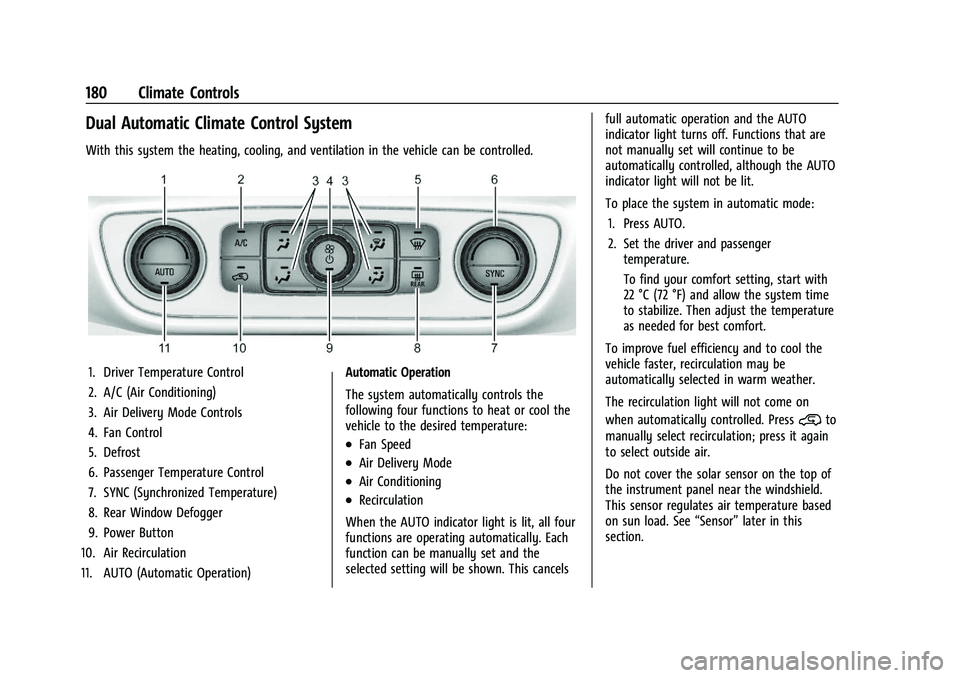
Dual Automatic Climate Control System
With this system the heating, cooling, and ventilation in the vehicle can be controlled.
1. Driver Temperature Control
2. A/C (Air Conditioning)
3. Air Delivery Mode Controls
4. Fan Control
5. Defrost
6. Passenger Temperature Control
7. SYNC (Synchronized Temperature)
8. Rear Window Defogger
9. Power Button
10. Air Recirculation
11. AUTO (Automatic Operation) Automatic Operation
The system automatically controls the
following four functions to heat or cool the
vehicle to the desired temperature:
.Fan Speed
.Air Delivery Mode
.Air Conditioning
.Recirculation
When the AUTO indicator light is lit, all four
functions are operating automatically. Each
function can be manually set and the
selected setting will be shown. This cancels full automatic operation and the AUTO
indicator light turns off. Functions that are
not manually set will continue to be
automatically controlled, although the AUTO
indicator light will not be lit.
To place the system in automatic mode:
1. Press AUTO.
2. Set the driver and passenger temperature.
To find your comfort setting, start with
22 °C (72 °F) and allow the system time
to stabilize. Then adjust the temperature
as needed for best comfort.
To improve fuel efficiency and to cool the
vehicle faster, recirculation may be
automatically selected in warm weather.
The recirculation light will not come on
when automatically controlled. Press
@to
manually select recirculation; press it again
to select outside air.
Do not cover the solar sensor on the top of
the instrument panel near the windshield.
This sensor regulates air temperature based
on sun load. See “Sensor”later in this
section.
Page 186 of 371

GMC Terrain/Terrain Denali Owner Manual (GMNA-Localizing-U.S./Canada/
Mexico-16540740) - 2023 - CRC - 6/16/22
Driving and Operating 185
Driving and Operating
Driving Information
Driver Behavior . . . . . . . . . . . . . . . . . . . . . . . . 186
Driving Environment . . . . . . . . . . . . . . . . . . . 186
Vehicle Design . . . . . . . . . . . . . . . . . . . . . . . . . 186
Driving for Better Fuel Economy . . . . . . . 187
Distracted Driving . . . . . . . . . . . . . . . . . . . . . 187
Defensive Driving . . . . . . . . . . . . . . . . . . . . . . 187
Impaired Driving . . . . . . . . . . . . . . . . . . . . . . 188
Control of a Vehicle . . . . . . . . . . . . . . . . . . . 188
Braking . . . . . . . . . . . . . . . . . . . . . . . . . . . . . . . . 188
Steering . . . . . . . . . . . . . . . . . . . . . . . . . . . . . . . 188
Off-Road Recovery . . . . . . . . . . . . . . . . . . . . . 189
Loss of Control . . . . . . . . . . . . . . . . . . . . . . . . 189
Off-Road Driving . . . . . . . . . . . . . . . . . . . . . . . 190
Driving on Wet Roads . . . . . . . . . . . . . . . . . 193
Hill and Mountain Roads . . . . . . . . . . . . . . 193
Winter Driving . . . . . . . . . . . . . . . . . . . . . . . . 194
If the Vehicle Is Stuck . . . . . . . . . . . . . . . . . 195
Vehicle Load Limits . . . . . . . . . . . . . . . . . . . . 196
Starting and Operating
New Vehicle Break-In . . . . . . . . . . . . . . . . . . 199
Ignition Positions . . . . . . . . . . . . . . . . . . . . . . 199
Starting the Engine . . . . . . . . . . . . . . . . . . . . 201
Stop/Start System . . . . . . . . . . . . . . . . . . . . . 202
Winter Cover . . . . . . . . . . . . . . . . . . . . . . . . . . 202
Engine Heater . . . . . . . . . . . . . . . . . . . . . . . . . 204
Retained Accessory Power (RAP) . . . . . . . 205Shifting Into Park . . . . . . . . . . . . . . . . . . . . . 205
Shifting out of Park . . . . . . . . . . . . . . . . . . . 206
Parking over Things That Burn . . . . . . . . 206
Extended Parking . . . . . . . . . . . . . . . . . . . . . . 207
Engine Exhaust
Engine Exhaust . . . . . . . . . . . . . . . . . . . . . . . . 207
Running the Vehicle While Parked . . . . . 207
Automatic Transmission
Automatic Transmission . . . . . . . . . . . . . . . 208
Manual Mode . . . . . . . . . . . . . . . . . . . . . . . . . . 211
Drive Systems
All-Wheel Drive . . . . . . . . . . . . . . . . . . . . . . . . 211
Brakes
Electric Brake Boost . . . . . . . . . . . . . . . . . . . . 211
Antilock Brake System (ABS) . . . . . . . . . . . 211
Electric Parking Brake . . . . . . . . . . . . . . . . . . 212
Brake Assist . . . . . . . . . . . . . . . . . . . . . . . . . . . . 213
Hill Start Assist (HSA) . . . . . . . . . . . . . . . . . . 213
Ride Control Systems
Traction Control/Electronic Stability
Control . . . . . . . . . . . . . . . . . . . . . . . . . . . . . . 214
Hill Descent Control (HDC) . . . . . . . . . . . . . 217
Driver Mode Control . . . . . . . . . . . . . . . . . . . 218
Cruise Control
Cruise Control . . . . . . . . . . . . . . . . . . . . . . . . . 220
Adaptive Cruise Control (Camera) . . . . . . 222
Driver Assistance Systems
Driver Assistance Systems . . . . . . . . . . . . . 232
Assistance Systems for Parking or Backing . . . . . . . . . . . . . . . . . . . . . . . . . . . . . . 233
Rear Vision Camera (RVC) . . . . . . . . . . . . . . 233
Surround Vision System . . . . . . . . . . . . . . . 234
Park Assist . . . . . . . . . . . . . . . . . . . . . . . . . . . . 236
Automatic Parking Assist (APA) . . . . . . . . 237
Rear Cross Traffic Alert (RCTA) System . . . . . . . . . . . . . . . . . . . . . . . . . . . . . . 239
Assistance Systems for Driving . . . . . . . . 239
Forward Collision Alert (FCA) System . . . . . . . . . . . . . . . . . . . . . . . . . . . . . . 239
Automatic Emergency Braking (AEB) . . . . . . . . . . . . . . . . . . . . . . . . 242
Front Pedestrian Braking (FPB) System . . . . . . . . . . . . . . . . . . . . . . . . . . . . . . 243
Side Blind Zone Alert (SBZA) . . . . . . . . . . . 245
Lane Change Alert (LCA) . . . . . . . . . . . . . . . 245
Lane Keep Assist (LKA) . . . . . . . . . . . . . . . . 247
Fuel
Top Tier Fuel . . . . . . . . . . . . . . . . . . . . . . . . . . 249
Recommended Fuel . . . . . . . . . . . . . . . . . . . 249
Prohibited Fuels . . . . . . . . . . . . . . . . . . . . . . . 249
Fuels in Foreign Countries . . . . . . . . . . . . . 249
Fuel Additives . . . . . . . . . . . . . . . . . . . . . . . . . 250
Filling the Tank . . . . . . . . . . . . . . . . . . . . . . . 250
Filling a Portable Fuel Container . . . . . . . 251